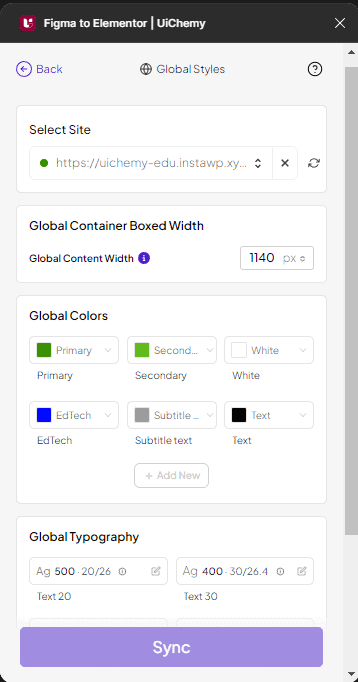
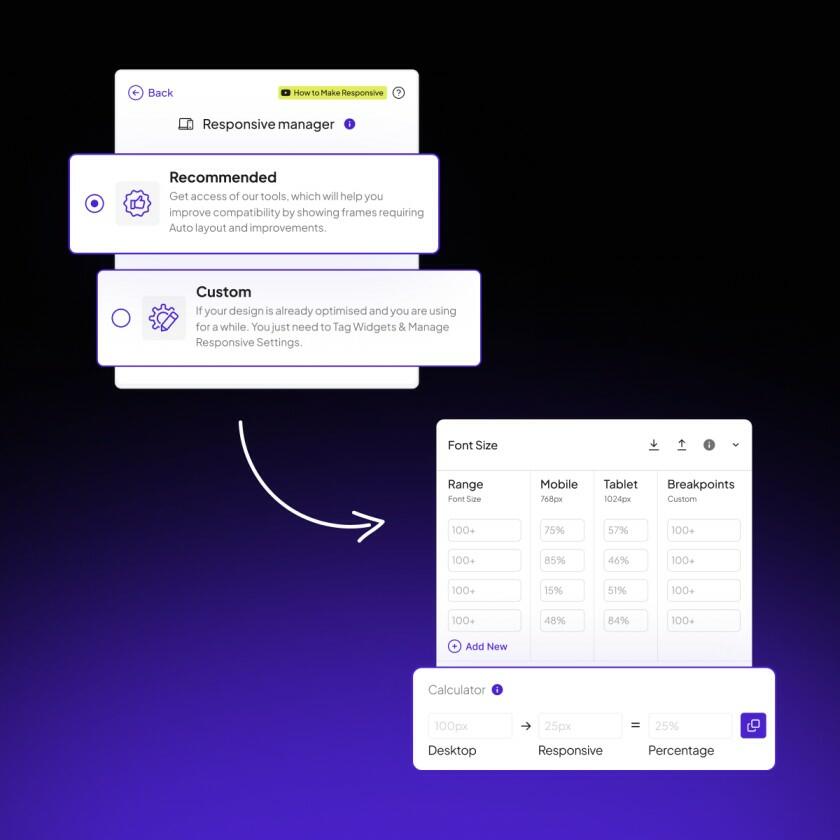
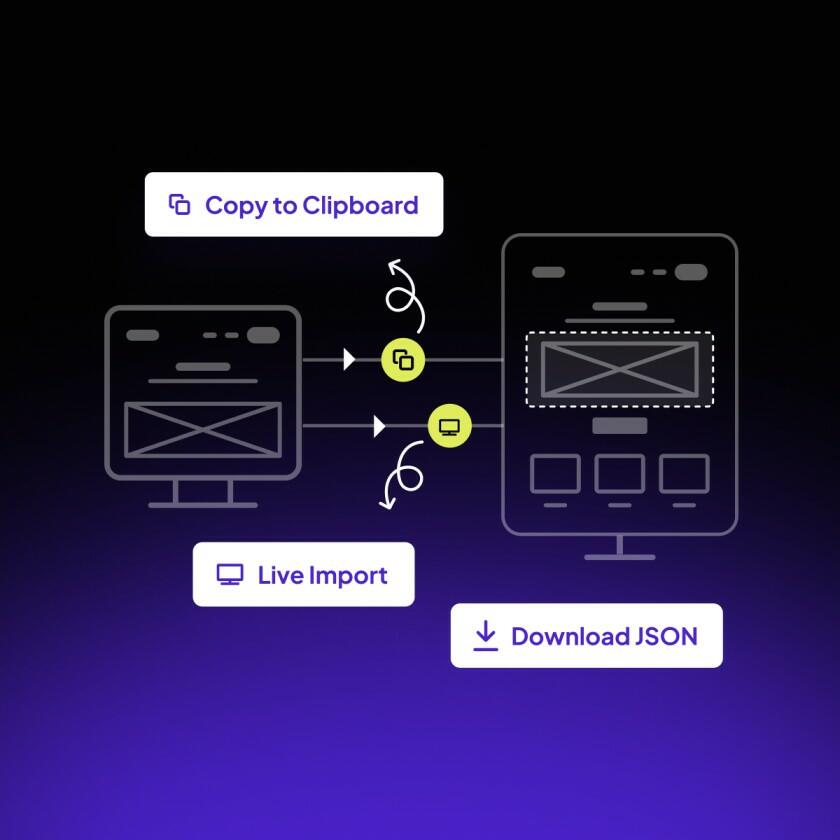
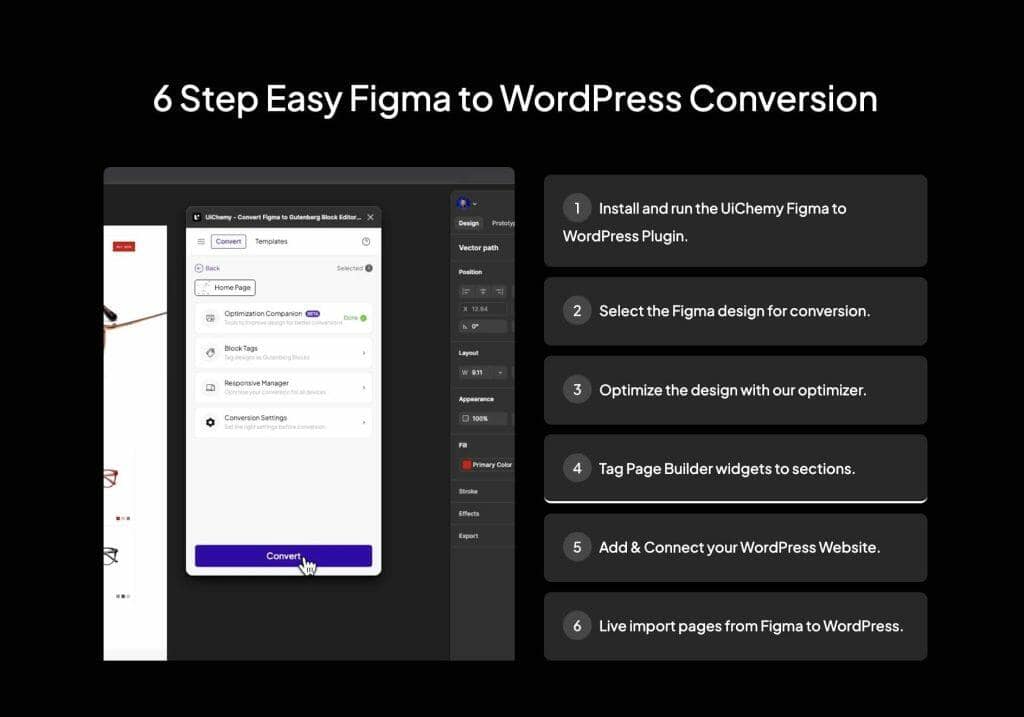
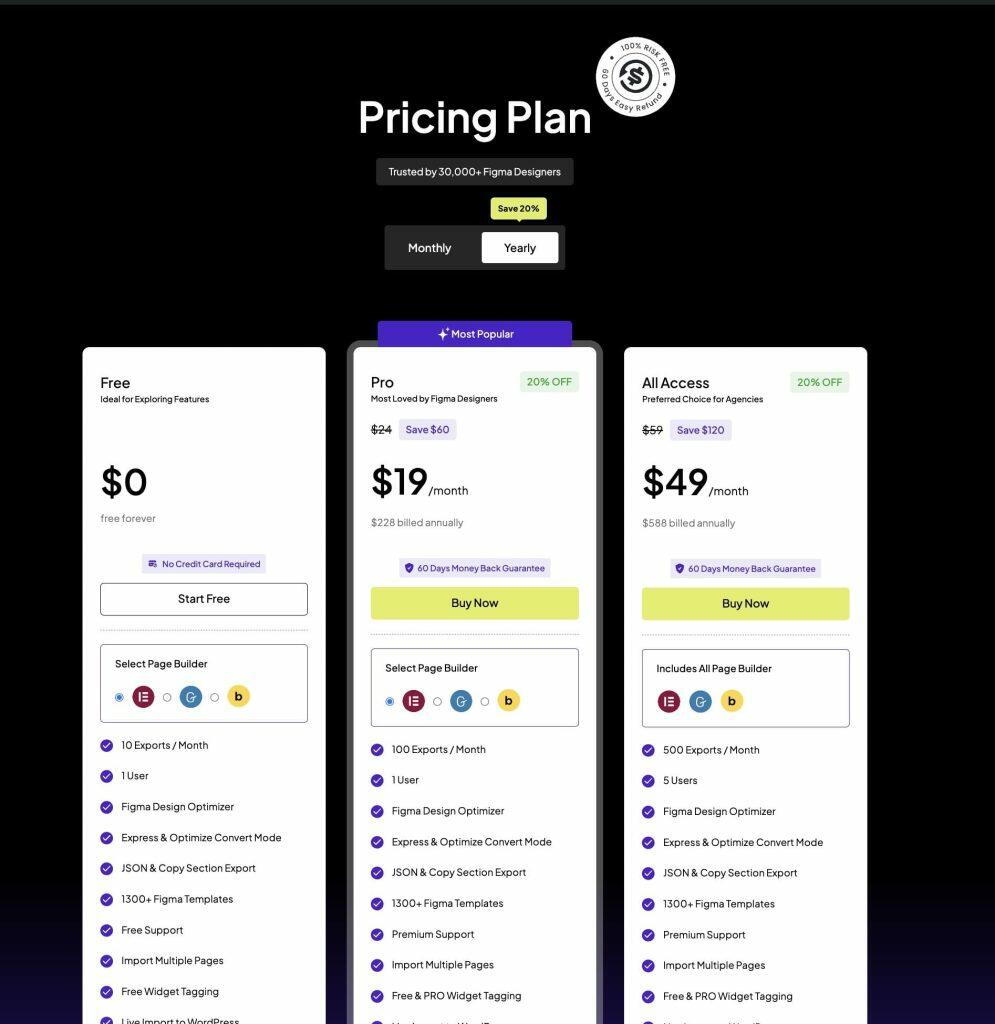
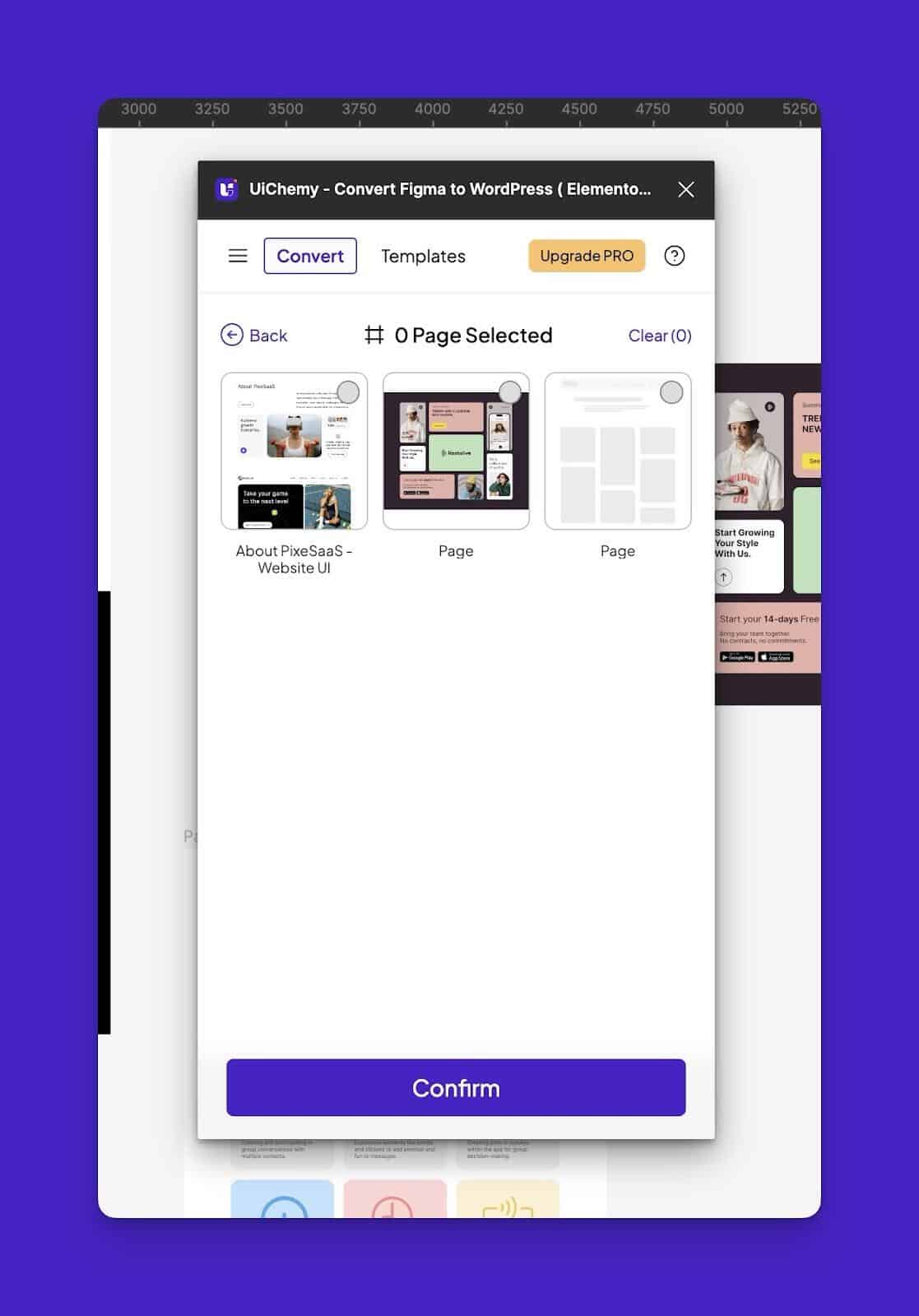
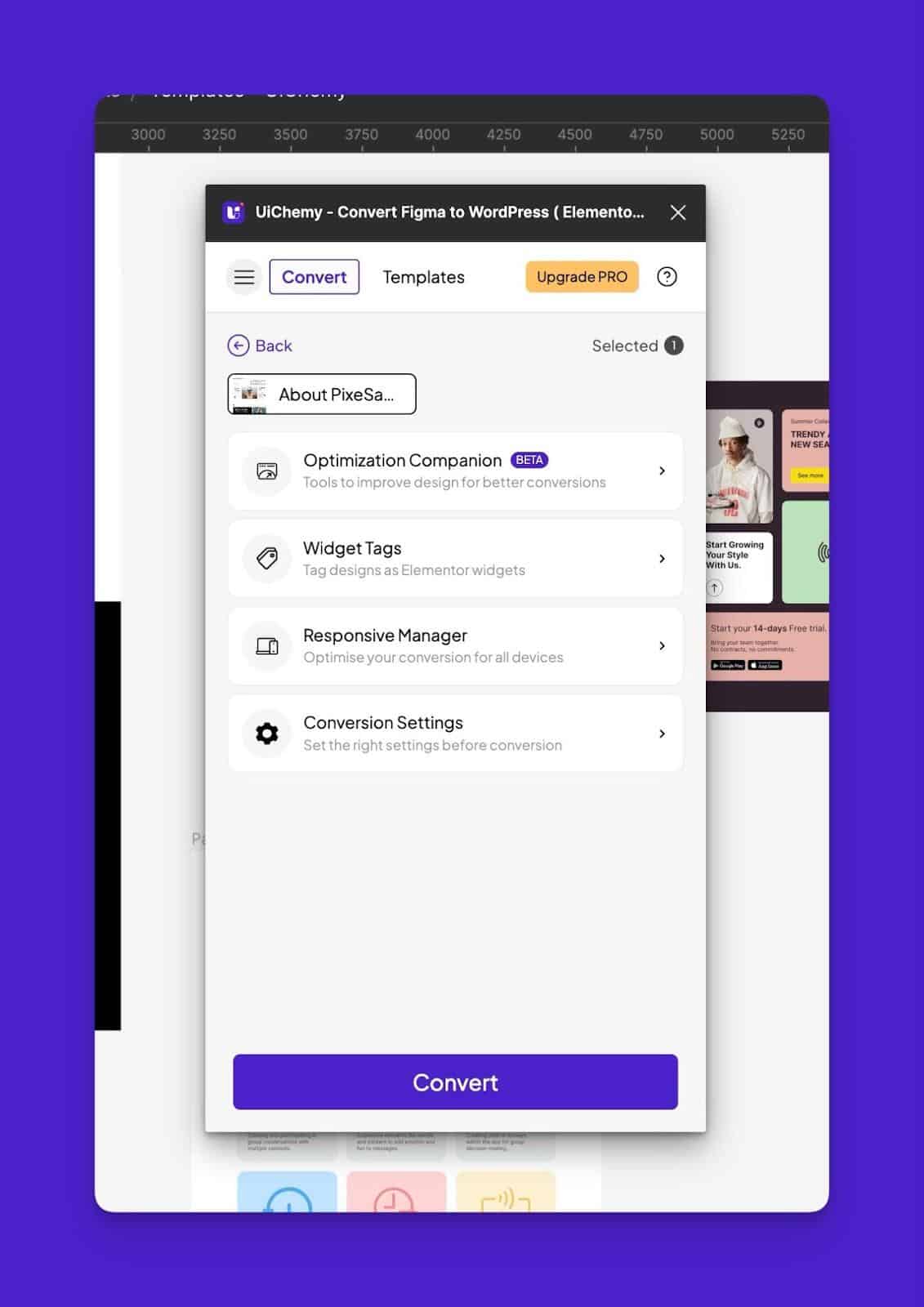
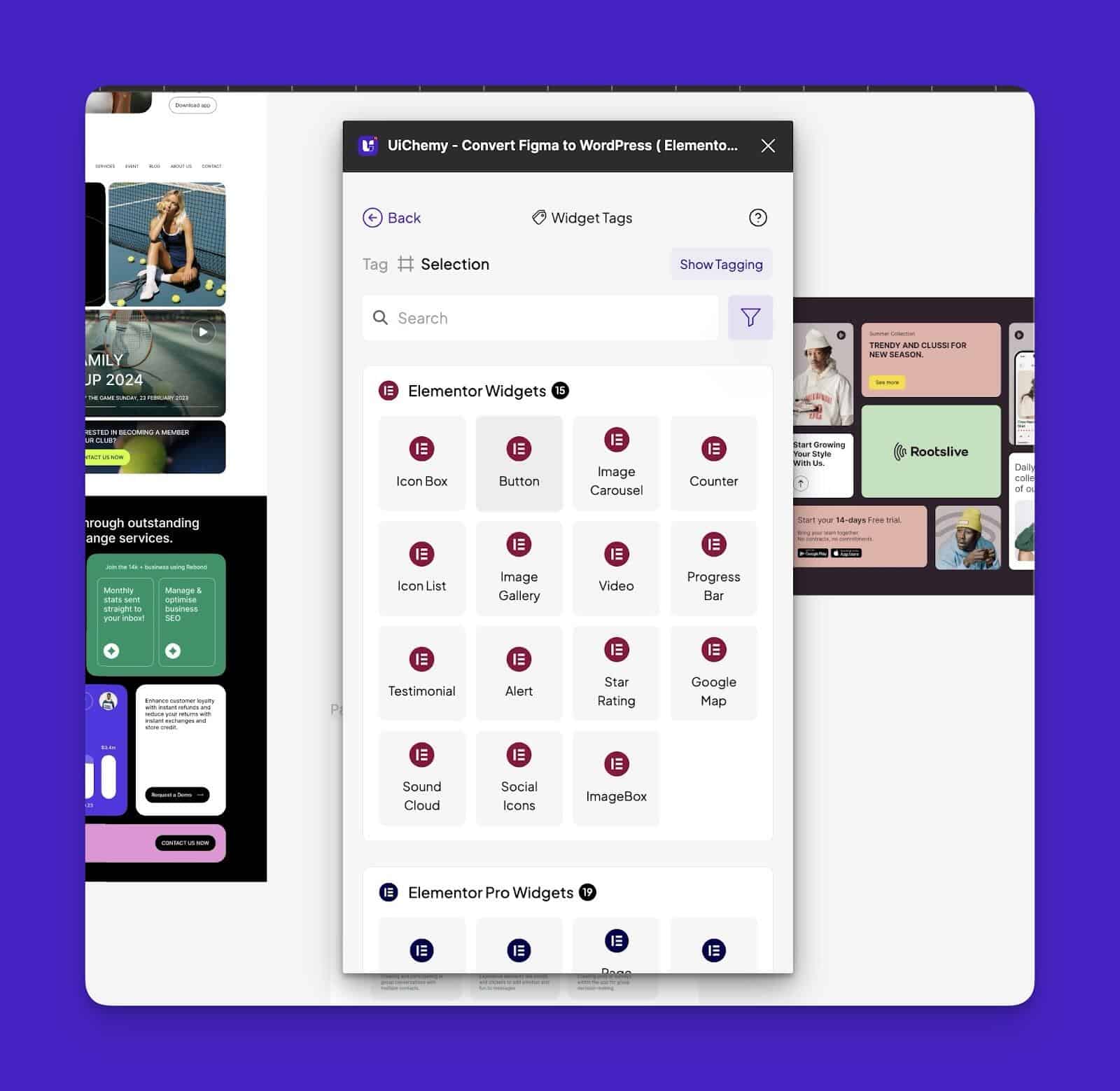
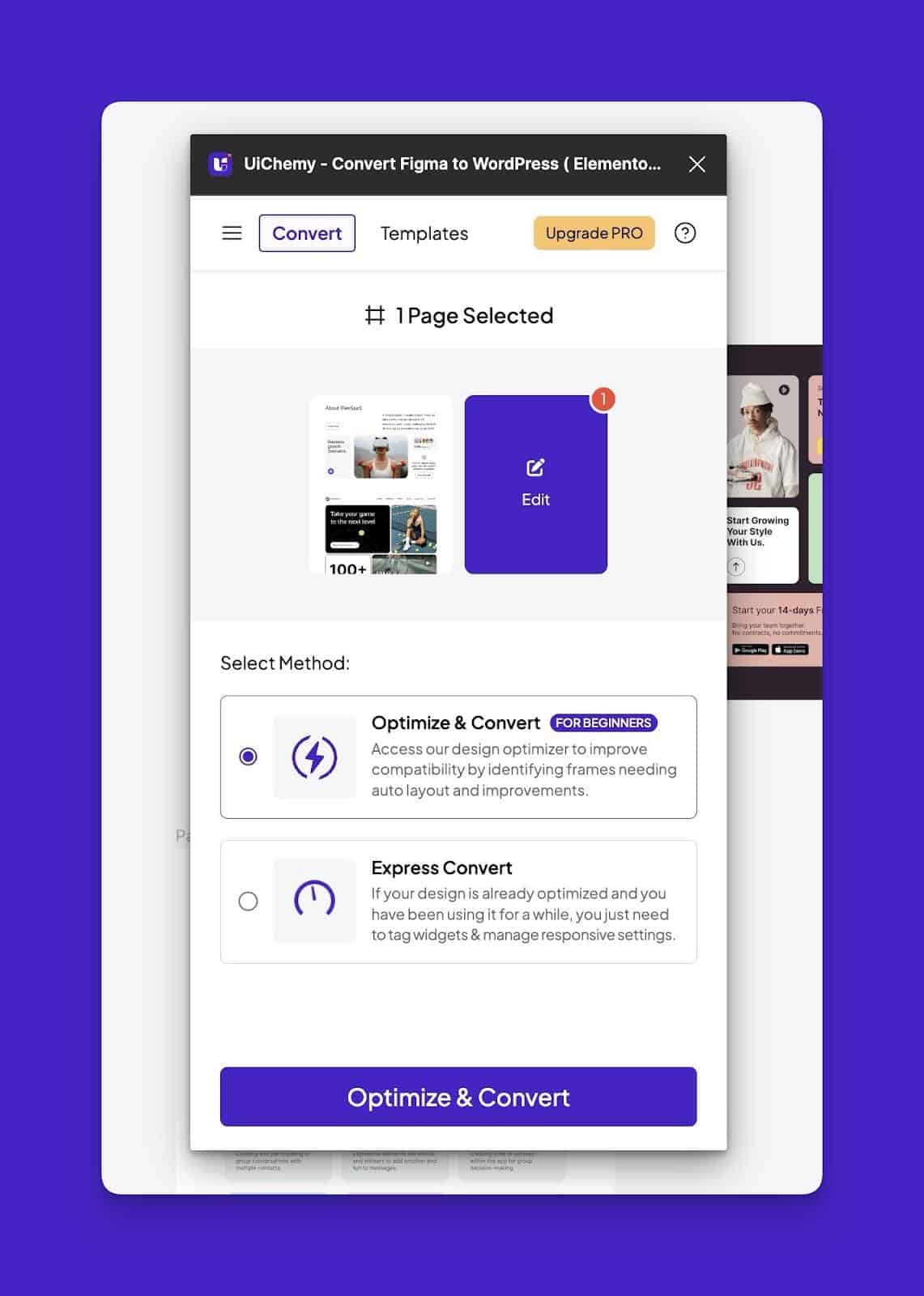
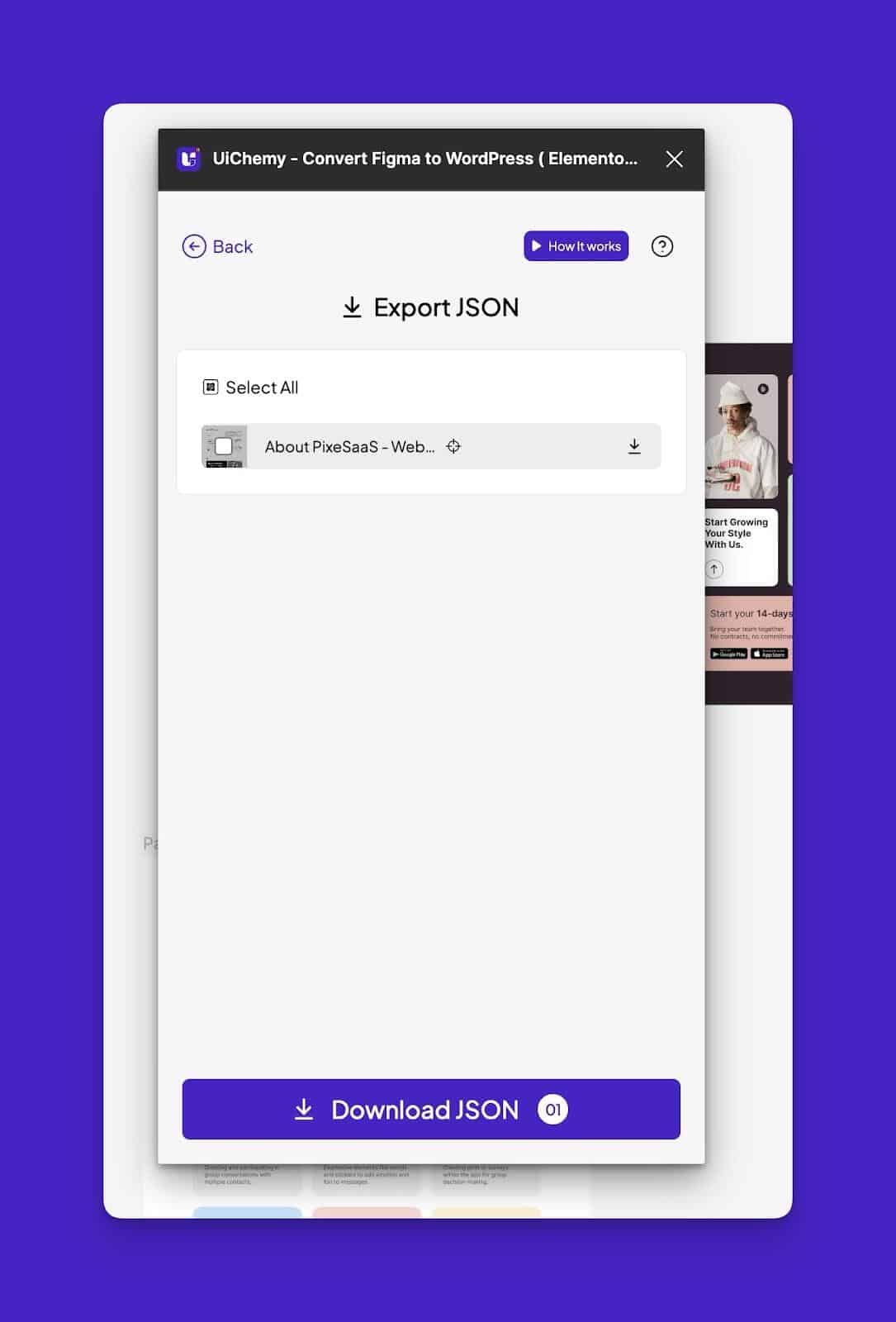
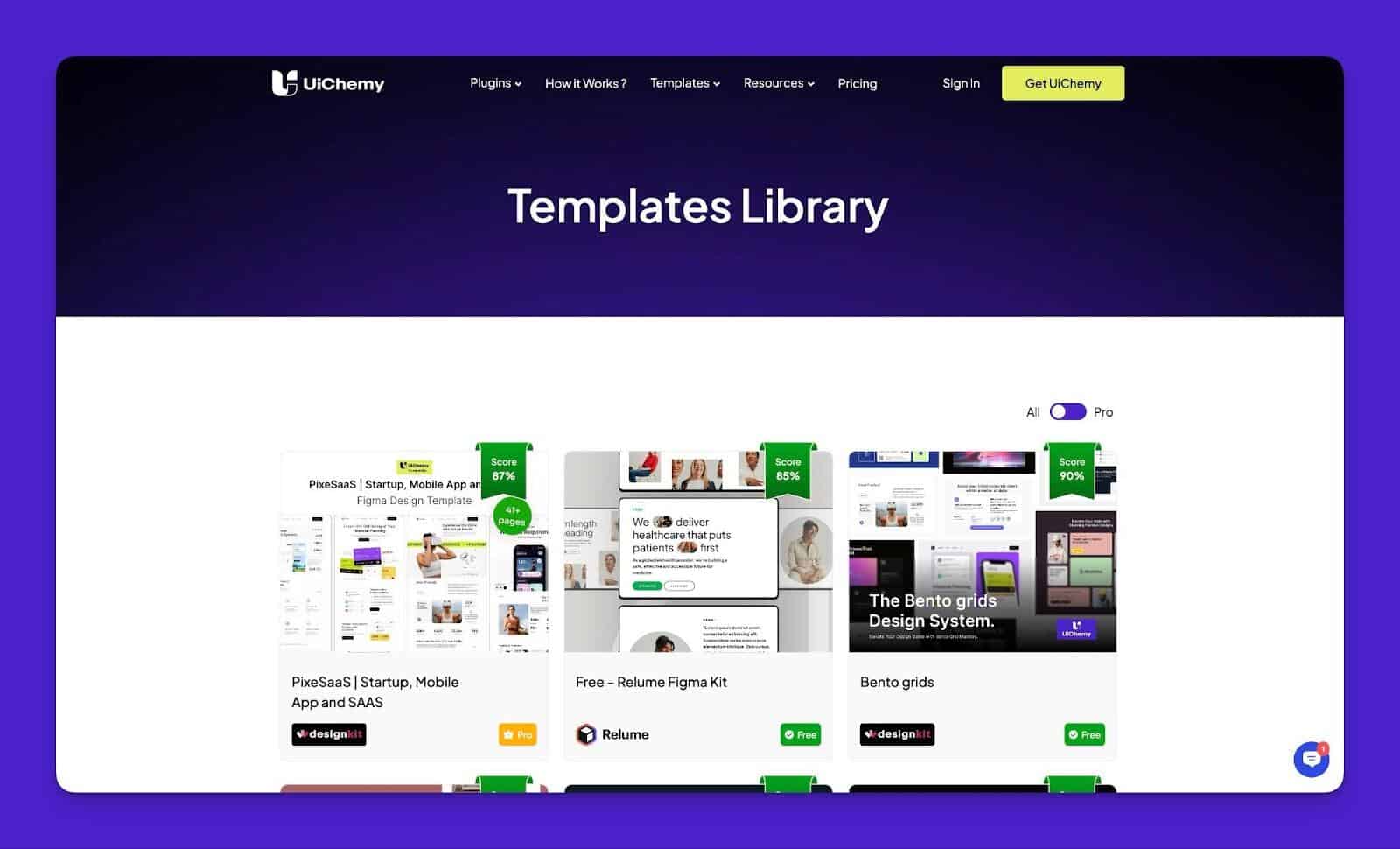
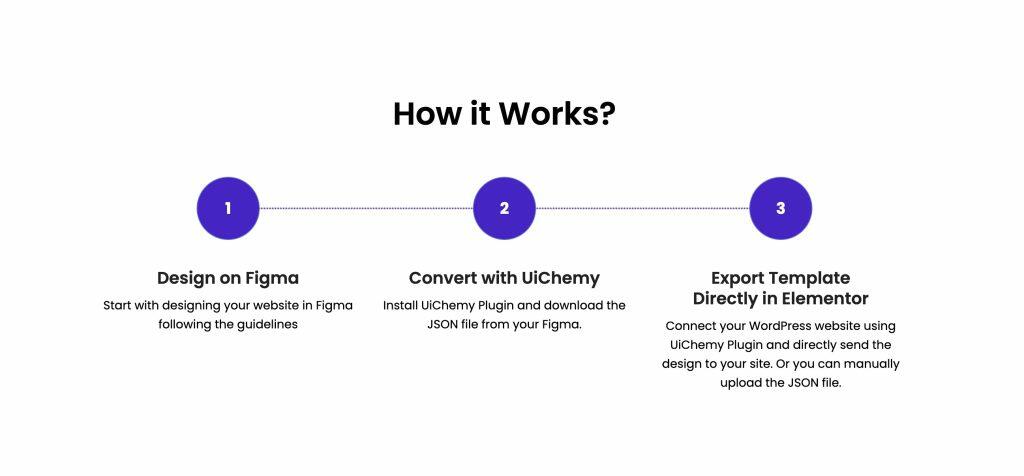
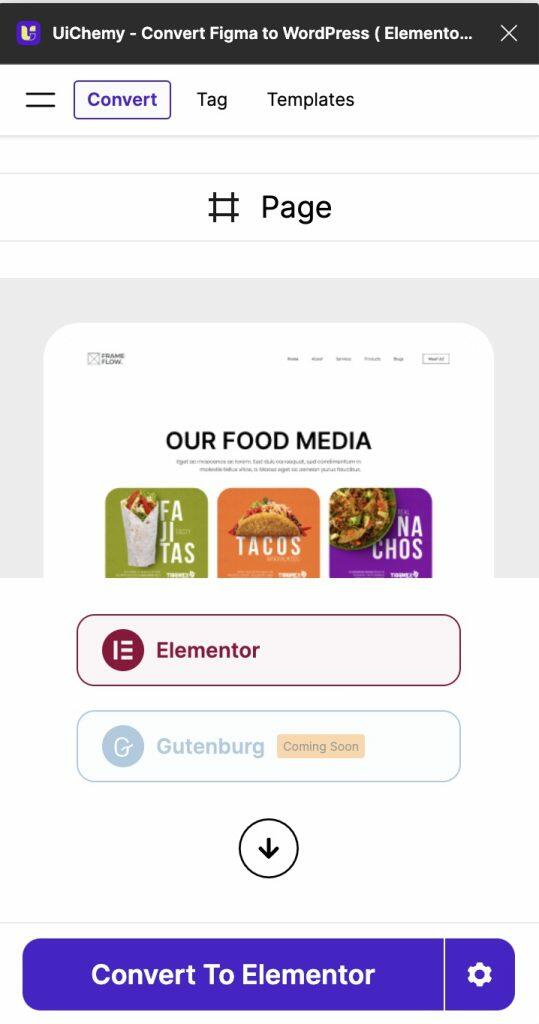
# UiChemy > UiChemy: Convert Figma designs to 100% editable WordPress websites using Elementor, Gutenberg, or Bricks Builder. UiChemy is a Figma-to-WordPress converter by POSIMYTH Innovations that lets designers export Figma designs directly as fully editable WordPress pages. No manual coding required. ## What It Does - Converts Figma designs to Elementor, Gutenberg, or Bricks Builder pages - Achieves 95% responsive accuracy across desktop, tablet, and mobile - Syncs global colors, typography, and spacing from Figma to WordPress - Saves up to 70% of web design time ## How It Works UiChemy has two parts: a Figma plugin (to export the design) and a WordPress plugin (to import it). Designers install both, connect their site, and convert pages in minutes. ## Key Features - 50+ widget tagging system for precise output control - 1,300+ pre-designed Figma templates on Figma Community - Smart image compression (PNG, JPEG, AVIF, WEBP) - Batch import of multiple pages - Global design system sync ## Plans - **Starter** — $9/mo or $79/yr - **Pro** — $24/mo or $160/yr - **All Access** — $54/mo or $317/yr (all 3 builders, agencies) - Lifetime plans also available - 60-day money-back guarantee ## Stats - 60,000+ active users - 9,000+ WordPress.org installs - 5.0/5.0 rating on WordPress.org ## Website https://uichemy.com --- # How to Add Auto Layout to Your Design With UiChemy? Source: https://uichemy.com/docs/add-auto-layout-to-your-design-with-uichemy/ **A well-structured design improves the tagging experience and reduces confusion during the tagging process.** UiChemy’s **Convert to Auto Layout** feature allows you to specify whether your design is already using Auto Layout or if you want UiChemy to automatically convert it in preparation for widget tagging. This step prepares your design for the next phase of tagging. ### What if Your Design is Not in Auto Layout? - If your design is not using Auto Layout, **widget tagging may become confusing or inaccurate**. - Don’t worry! UiChemy offers a **Convert to Auto Layout** option that automatically applies Auto Layout to your selection. - A **duplicate** of your design will be created, so your original stays untouched. - This saves time and helps make your design clean and easier to tag. #### Auto Layout Detection in UiChemy UiChemy automatically checks if your selected design elements are using Auto Layout: **If your design is already in Auto Layout**, the plugin will display the message: *"Your design is already in Auto Layout."* In this case, you can proceed directly to widget tagging. If you wish to refine the structure or reapply Auto Layout, you can use the **Convert to Auto Layout** option again. When you do this, a duplicate of your selection will be created to preserve the original design. ![](https://uichemy.com/wp-content/uploads/2025/08/UiChemy-Design-Auto-Layout.gif) **If your design is not using Auto Layout**, the plugin will display the message: *"Your design is already in Auto Layout."* In this case, you can proceed directly to widget tagging. If you wish to refine the structure or reapply Auto Layout, you can use the **Convert to Auto Layout** option again. When you do this, a duplicate of your selection will be created to preserve the original design. ![](https://uichemy.com/wp-content/uploads/2025/08/UiChemy-Design-Non-Auto-Layout.gif) Under the **Manage Auto Layout** tab, you can convert your design from non-auto to auto by clicking the **Convert to Auto Layout** button. Once done, you will see a **Converted successfully** message. Below, you can see how it works. ![](https://uichemy.com/wp-content/uploads/2025/08/UiChemy-Design-Non-Auto-Layout-To-Auto-layout.gif) > ***Note: ****Even if your design is not using Auto Layout, maintaining a good and organized structure in your layers and groups is important. This will help UiChemy to give you the best result. For more details, see the Examples [ Link of figma doc ]* --- # How to Split a Large Figma Layout for an Optimal Conversion in UiChemy? Source: https://uichemy.com/docs/split-a-large-figma-layout-for-an-optimal-conversion-in-uichemy/ If your Figma design exceeds 12,000 pixels in height, UiChemy won't be able to export it as a single file. ![](https://uichemy.com/wp-content/uploads/2025/04/large-design-handling-warning.png) To ensure a smooth and accurate conversion, you'll need to split your design into smaller sections. This approach not only makes it compatible with UiChemy but also helps maintain the quality and performance of your exported files.  To do this, follow the steps -  - Click on the section/layout you want to split from the design. - Then press the Alt key, and when you see the double arrow (black and white), drag the section out to duplicate it. - Open the UiChemy plugin. - Then select the **Optimize **option and click the **Optimize **button. - On the next screen, go to the **Optimization Companion** tab.  - Then lock the necessary layers from the **Lock Multi Layer Media** section by clicking the **Fix** button individually or clicking the **Fix All** button to lock all at once. - After that, in the **Convert Non-Auto Layout design to Auto Layout** section, set the toggle to **Manual**. > *Note: If you keep the toggle to Auto it will not optimize your design for auto layout. It is ideal if your design is already in auto layout.* - Then click on the **Duplicate & Optimize Design** button. Now it will duplicate your design and convert it into an auto layout without affecting your original design. > *Note: Conversion result will depend on the design’s structure and standard grouping.* - After that, tag your design elements of the duplicate design from the **Widget Tags** tab. > *Note: Just in case you didn’t convert the design to auto layout from the ****Optimization Companion**** tab, you’ll find an option in the ****Widget Tags**** tab. Click on the ****No**** button in the, ****Is your design optimized?**** section. Then click on the ****Optimize**** button,* and it will duplicate your design and convert it into an *auto layout. * - After that, tag your design elements of the duplicate design from the **Widget Tags** tab. > *Note: The plugin will automatically recommend an export method based on how you select the design. As a result, you may see either Copy Mode, Live Import, or both options.* Similarly, you can split the rest of your design and export to Elementor. --- # How to Export Non-Auto Layout or Auto Layout design from Figma to Elementor using UiChemy? Source: https://uichemy.com/docs/export-non-auto-layout-or-auto-layout-design-from-figma-to-elementor-using-uichemy/ With UiChemy, you can easily export both auto layout and non-auto layout designs from Figma to Elementor. To get the best results when converting your Figma design to Elementor, we recommend you to use **Auto Layout**. But don’t worry—this doesn’t mean you have to create your entire design using Auto Layout from the start. With UiChemy’s Auto Layout conversion feature, you can quickly turn any regular (non-Auto Layout) design into Auto Layout with just one click. It’s fast, easy, and helps make your Elementor conversion much more accurate.  > *Note: While this feature does convert non auto layout design to auto layout it is always recommended to *[*follow the design guideline*](https://uichemy.com/optimize-your-designs-for-excellent-export-result/)* for the best result.*  But if you don’t want to convert your design to auto layout, you can export the non-auto layout to Elementor as well. ## Convert Non-Auto layout Design to Auto Layout using UiChemy Plugin To use the auto layout conversion feature, follow the steps -  - In Figma, go to **Resources** > **Plugins** and search for **UiChemy** and click on it. It will open the UiChemy plugin interface and log in to your account. - Then select the frame you want to export. - Then select the **Optimize **option and click the **Optimize **button. - On the next screen, go to the **Optimization Companion** tab.  - Then, lock the necessary layers from the **Lock Multi Layer Media** section. - After that, in the **Convert Non-Auto Layout design to Auto Layout** section, set the toggle to **Manual**. > *Note: If you keep the toggle to Auto it will not optimize your design for auto layout. It is ideal if your design is already in auto layout.* - Then click on the **Duplicate & Optimize Design** button. Now it will duplicate your design and convert it into an auto layout without affecting your original design. > *Note: Conversion result will depend on the design’s structure and standard grouping.* After that, make sure to use the duplicate design for tagging. Just in case you didn’t convert the design to auto layout from here, you’ll find an option in the **Widget Tags** tab. Click on the **No** button in the, **Is your design optimized?** section. Then click on the **Optimize** button, and it will duplicate your design and convert it into an auto layout. Now, if you convert your design to Elementor, it will give a more accurate conversion. > *Note: Non-Auto Layout to Auto layout conversion is only available with Figma to Elementor conversion.*  ## Export Non-Auto Layout Design Directly to Elementor Now, if you simply want to convert your non-auto layout design to Elementor without converting to auto layout, you can do that too with UiChemy. To do so, follow the steps -  - In Figma, go to **Resources** > **Plugins** and search for **UiChemy** and click on it. It will open the UiChemy plugin interface and log in to your account. - Then select the frame you want to export. - Then select either the **Optimize **or **Express **option and click the **Optimize **or **Convert** button as per your selection. Let’s select **Express**. Whether your design is in Auto Layout or not, we strongly recommend locking it using the Optimization Companion before starting the export process. This ensures the design is properly optimized. If your design is already optimized, locked, and widget-tagged, you can directly use the Express method for a faster export process. > *Note: *[*Use the Optimize option*](https://uichemy.com/docs/export-figma-design-to-elementor-using-uichemy/)* if you want to use more advanced options like Optimization companion to optimize design, Widget Tags to tag widgets, Responsive manager feature to manage the responsiveness of your design, Global Styles for syncing colors and fonts,* etc. We recommend that you *optimize your design before exporting for a more accurate result.* - After that, you can export the design using the **Copy to Clipboard** or [**Live Import** method](https://uichemy.com/docs/what-is-direct-import/). Let’s select the **Copy to Clipboard **option. > *Note: The plugin will automatically recommend an export method based on how you select the design. As a result, you may see either Copy Mode, Live Import, or both options.* - Then, it will copy the entire design after that, click on the **Copy to Clipboard** button. - After that, open the page or template where you want to add the design in Elementor editor and right-click on the page, then select the **Paste from other site** option and press **Ctrl + V,** and the design will be pasted on your page. Now your non-auto layout design will be added to Elementor. --- # How to Tag The Menu (Elementor Experimental) Widget for Figma to Elementor? Source: https://uichemy.com/docs/tag-the-menu-elementor-experimental-widget-for-figma-to-elementor/ If you are showing a menu in your site design in Figma, whether it's horizontal or a dropdown, then you can tag those elements as the Menu (Elementor Experimental) widget from Elementor Pro using the UiChemy plugin. So when you export the design as an Elementor template, that particular section will use the Menu (Elementor Experimental) widget. ## What Can be Tagged? A frame containing an icon, a title text, a description text, and an icon for the close button can be tagged as a Menu (Elementor Experimental) widget. ## How to Tag? To do this, you can choose between two options: **Step by Step Method** or **Express Conversion**. Here, we’ll go with the **Step by Step Method**. - First, select the **Step by Step Method **and click on the** Start **button. - Select the top-level page or frame of your layout, then click on the **Next **button. - Under the **Widget Tagging Mode** tab, select the **Manual Widget Tagging** Option. - Next, under the **Manage Auto Layout** tab, you’ll see two options:** *It’s already in Auto Layout*** and ***Convert to Auto Layout***. We’ll go with the **first option**. - After that, under the **Tag Widgets** tab, choose the frame or container that contains your element (Widget). Then, search for the** Menu (Elementor Experimental)** widget from **Elementor Pro** in the UiChemy panel and select it. Here, you’ll see [all the supported Elementor widgets](https://uichemy.com/docs/widgets-compatible-with-figma-to-elementor-conversion-in-uichemy/). On the next screen, you’ll get the information of which element you are tagging as what widget. Then you’ll see widget-specific tagging options. - In the **Navigation Menu** dropdown, you have to select the menu. - In the **Menu Title** dropdown, you have to select the menu title. - Then, in the **Link **field, you can add the title URL. - Then, you can click the** + Add New** button to add more menus. - In the **Menu Direction** dropdown, you have to select the menu direction. - Once done, click the **Save **button to complete the tagging, and you’ll see a Tagged successfully message. ![](https://uichemy.com/wp-content/uploads/2025/04/uichmey-to-tag-meu-elementor-experimental-2.gif) Now, if you export the design, that element will use the Menu (Elementor Experimental) widget from Elementor Pro with your selected texts and style. > **Note:** When you export a WordPress Menu from Figma to Elementor, the menu style and content will be as per the settings of your website. ![](https://uichemy.com/wp-content/uploads/2025/04/uichmey-to-tag-meu-elementor-experimental-demo.gif) > *Note: Make sure **Elementor Pro **plugin is installed and activated* and the widget is activated as well. You might have to make some minor adjustments in the widget settings to match the design, especially those elements that are not tagged. --- # How to Tag The WordPress Menu Widget for Figma to Elementor? Source: https://uichemy.com/docs/tag-the-wordpress-menu-widget-for-figma-to-elementor/ If you are showing a menu in your site design in Figma, whether it's horizontal, vertical, or a dropdown, then you can tag those elements as the WordPress Menu widget from Elementor Pro using the UiChemy plugin. So, when you export the design as an Elementor template, that particular section will use the WordPress Menu widget. ## What Can be Tagged? A frame containing an icon, a title text, a description text, and an icon for the close button can be tagged as a WordPress Menu widget. ## How to Tag? To do this, you can choose between two options: **Step by Step Method** or **Express Conversion**. Here, we’ll go with the **Step by Step Method**. - First, select the **Step by Step Method **and click on the** Start **button. - Select the top-level page or frame of your layout, then click on the **Next **button. - Under the **Widget Tagging Mode** tab, select the **Manual Widget Tagging** Option. - Next, under the **Manage Auto Layout** tab, you’ll see two options:** *It’s already in Auto Layout*** and ***Convert to Auto Layout***. We’ll go with the **first option**. - After that, under the **Tag Widgets** tab, choose the frame or container that contains your element (Widget). Then, search for the** WordPress Menu** widget from **Elementor Pro** in the UiChemy panel and select it. Here, you’ll see [all the supported Elementor widgets](https://uichemy.com/docs/widgets-compatible-with-figma-to-elementor-conversion-in-uichemy/). - On the next screen, you’ll get the information on which element you are tagging as what widget. Then you’ll see widget-specific tagging options. - In the **Menu Direction** dropdown, you have to select the menu direction. - Once done, click the **Save **button to complete the tagging, and you’ll see a Tagged successfully message. ![](https://uichemy.com/wp-content/uploads/2025/04/uichmey-to-tag-wordpress-menu-widget-2.gif) Now, if you export the design, that element will use the WordPress Menu widget from Elementor Pro with your selected texts and style. > **Note:** When you export a WordPress Menu from Figma to Elementor, the menu style and content will be as per the settings of your website. ![](https://uichemy.com/wp-content/uploads/2025/04/uichmey-to-tag-wordpress-menu-widget-demo.gif) > *Note: Make sure **Elementor Pro **plugin is installed and activated* and the widget is activated as well. You might have to make some minor adjustments in the widget settings to match the design, especially those elements that are not tagged. --- # How to Export Figma Design to Elementor with Global Style using UiChemy? Source: https://uichemy.com/docs/export-figma-design-to-elementor-with-global-style-using-uichemy/ ## What Are Global Styles? In modern web design, maintaining visual consistency across a website is essential. That’s why designers create Global Styles in design tools like Figma before building in WordPress or Elementor. These global styles typically include: - Color Variables, Styles: Centralized color palettes used across designs - Text Styles: Predefined typography rules for headings, body text, buttons, etc. Creating global styles in Figma helps teams keep every page and component visually aligned. ### The Problem: Transferring Global Styles to Elementor While setting up global styles in Figma is simple, manually recreating them in Elementor is where many users face difficulty: - You have to copy each color code manually into Elementor - Typography settings like font, size, weight, and spacing must be entered one by one - Responsive layout settings for different devices require separate configuration This process is time-consuming, error-prone, and frustrating - especially for larger or more complex websites. ### The Solution: UiChemy’s Global Style Sync **UiChemy** helps you connect your Figma design system directly to **Elementor**, no more manual copying of global styles. With just a few clicks, you can sync your global settings and get consistent results in your Elementor site. UiChemy lets you sync: ### 1. Sync Global Container Box Width This feature allows you to sync the **box width** value from your Figma design to Elementor containers. Here’s how it works: - Once your site is connected in the **Global Style** screen of UiChemy, the plugin will show the current container box width used in Elementor. - You can then enter the box width from your Figma design (based on how your sections are designed) and hit the **Sync** button. - UiChemy will apply that value to your Elementor box width settings. - When exporting your design to Elementor, UiChemy will automatically apply that value to all eligible sections, so the content width matches exactly. Additionally, you can set **custom breakpoints** like: - Widescreen - Laptop - Tab Extra - Tablet - Mobile Extra - Mobile You can enter the box width value in either **pixels** or **percentages**, depending on what fits your design needs. #### How Container Box Width Works? (Figma → Elementor) The **Container Box Width** in Elementor is determined solely by the **horizontal padding (left and right)** applied to your **Box Container** in Figma. #### Example: If your Figma layout has: - **Total Container Width**: 1440px - **Left Padding**: 150px - **Right Padding**: 150px Then the **Box Width** is calculated as: `Box Width = 1440px (Total Width) - 150px (Left Padding) - 150px (Right Padding)= 1140px` This 1140px is what you should input as your **Box Width** in UiChemy. #### How UiChemy Applies This: - Once you've calculated the correct **Box Width** based on container padding, input it into **UiChemy > Global Styles > Container Box Width**. - UiChemy will: Apply this width to Elementor’s **Container Width** setting (Site Settings > Layout > Container Box Width). - Remove the default left/right padding in Elementor, since it's already accounted for in your Box Width. You can also define different Box Widths for each breakpoint (Desktop, Laptop, Tablet, Mobile, etc.) based on the padding in your Figma layout for each screen size. ### 2. Sync Global Colors & Typography When your live site is connected, UiChemy lists out all the **Global Fonts** and **Global Colors** from your Elementor site. You can: - **Update, modify, or add** new global colors and typography using the **+ Add New** button. - See all the **color variables and styles** from Figma, including even the **random colors** used throughout your file, shown in the **Document tab**. - View **how often** each color and typography style is used in your entire Figma file. When it comes to typography: - You’ll see key details like **Font Size, Font Family, Line Height, Letter Spacing, Font Weight, and Typography Name**, so you know exactly which one you’ve used in your design. - UiChemy supports both **Style-based** and **Document-based** typography. There are also several helpful features: - A **Rescan** button: If you’ve made changes or added new styles/colors in Figma, click this to update the list. - A **Hide Duplicate** button: This hides any repeated or unused colors and typography, so your list stays clean. - A **Pick All** button: Select all styles and colors in one click instead of picking them one by one. You can also: - **Rename** your colors and typography after selecting them. These names will appear in Elementor once synced. - **Edit or delete** colors and typography from the plugin anytime. After syncing, you can view the updates directly in Elementor: - **Global Colors / Typography**: Go to Site Settings > Global Colors / Global Typography - **Container Box Width**: Go to Site Settings > Layout > Box Width #### Two-Way Sync If you make changes in** Elementor**, like updating container box width, adding new global colors, or modifying typography, UiChemy can read those updates too. Just open the **Global Style** screen in the plugin and hit the **Rescan** button to refresh the list with the latest data from your Elementor site. #### Global Colors This video demonstrates how to sync global colors from your Figma design to your Elementor site. You'll learn how to rescan styles, hide duplicates, pick all colors at once, and rename them before syncing. #### Global Typography Here's a quick video walkthrough on how you can sync and manage global typography from Figma to Elementor using UiChemy. It covers how to view, rename, edit, and sync typography styles with all key details like Font Family, Size, Weight, and more. #### How the "Hide Duplicate" Feature Works in UiChemy? Learn how the ***Hide Duplicate*** feature helps keep your color and typography lists clean by filtering out repeated or unused styles from your Figma file before syncing with Elementor. #### Export Multiple Designs with Synced Global Styles in UiChemy In this demo, see how UiChemy makes it effortless to export multiple Figma designs at once with Global Colors and Typography styles fully synced. Watch as we preview the synced designs directly in Elementor, maintaining visual consistency across every layout. Perfect for teams working on multi-page websites or design systems. --- # What Happens if I Don’t Renew My Subscriptions? Source: https://uichemy.com/docs/what-happens-if-i-dont-renew-my-subscriptions/ We understand that you may have some concerns about renewing your subscription, and we're here to provide you with the information you need to make an informed decision. If you choose not to renew your subscription for UiChemy Pro, your website will remain as it is, but you will not receive updates. Updates are crucial to ensure that you receive new features, bug fixes, and security updates. If you have an active website, we strongly recommend keeping the latest version of the plugin to ensure that your website remains up to date and secure. However, if you prefer not to make yearly payments, you can upgrade to one of our lifetime plans. If you have any concerns about UiChemy Pro, please don't hesitate to reach out to our help desk. Our team is more than happy to assist you with any questions or concerns you may have. Thank you for choosing UiChemy Pro. We're committed to providing you with the best possible experience and look forward to helping you create stunning websites! --- # How to Renew UiChemy PRO License? Source: https://uichemy.com/docs/renew-uichemy-pro-license/ As a user of the UiChemy PRO plugin, you may need to renew your Pro License to continue receiving updates and support. Fortunately, renewing your license is a straightforward process. If you have auto-renewal enabled on your subscription, then you don't need to do anything, as it will automatically renew.  However, if you have manual renewal selected, follow the steps below: 1. Log in to your [Posimyth Store](https://store.posimyth.com/) account. 2. From your Dashboard, navigate to **Manage Subscriptions**. 3. On the next page, locate your **expired **subscription plan and click the **Renew **button. ![](https://uichemy.com/wp-content/uploads/2025/04/uichemy-renew-plugin.png) 4. You will be redirected to the checkout page. Following these simple steps, you can renew your UiChemy Pro License and continue receiving updates and support. --- # How to Generate Invoice on Renewal Purchase? Source: https://uichemy.com/docs/generate-invoice-on-renewal-purchase/ Thank you for choosing **UiChemy Pro**. We understand that you may need an invoice for your renewal purchase, and we're here to guide you through the process. To generate an invoice for your renewal purchase, please follow the steps below: - Visit the [Posimyth Store](https://store.posimyth.com/) and log in to your account using the same login details that you used during checkout. - Once logged in, navigate to the **Purchase History** section from your dashboard. - Locate the specific renewal transaction you wish to generate an invoice for. - Click on the **Download Invoice** button next to the renewal order. Your invoice will be downloaded as a PDF. Your renewal invoice will then be downloaded, and you’ll be able to store it for your records. ![](https://uichemy.com/wp-content/uploads/2025/04/uichemy-purchase-history-generate-invoice-renewal-charge.png) If you have any issues with generating your invoice or any other concerns, please don't hesitate to reach out to our support team. We're always here to assist you with any questions or issues you may have. Thank you again for choosing **UiChemy Pro**. We appreciate your business and look forward to providing you with the best possible experience! --- # How to Generate Invoice after Purchase of UiChemy? Source: https://uichemy.com/docs/generate-invoice-after-purchase-of-uichemy/ Thank you for choosing UiChemy Pro. We understand that you may need an invoice for your purchase, and we're here to guide you through the process. To generate an invoice for your purchase, please follow the steps below: - Visit the [Posimyth Store](https://store.posimyth.com/) and log in to your account using the same login details that you used during checkout. - On the Dashboard page, you'll see a **Generate Invoice** link. Click on it. - On the next page, fill in your billing details and click on **Save Billing Details & Generate Invoice**. Your purchase invoice will then be generated, and you'll be able to download it for your records. ![](https://uichemy.com/wp-content/uploads/2025/04/uichemy-generate-invoice-1.gif) If you have any issues with generating your invoice or any other concerns, please don't hesitate to reach out to our support team. We're always here to assist you with any questions or issues you may have. Thank you again for choosing UiChemy Pro. We appreciate your business and look forward to providing you with the best possible experience! --- # How to Get a Refund for UiChemy Pro Source: https://uichemy.com/docs/get-a-refund-for-uichemy-pro/ We are confident that our plugin will meet your expectations and enhance your website-building experience with its versatile features and easy-to-use interface. However, if for any reason, you need a refund, we understand and will provide you with a refund as we are backed by our 60-day money-back guarantee as per our [refund policy](https://store.posimyth.com/refund-policy). To request a refund, please raise a ticket on our [helpdesk](https://store.posimyth.com/helpdesk/) using the same account that you used to make the purchase. Our team will assist you with the refund process and ensure that it is processed in a timely manner. ![](https://uichemy.com/wp-content/uploads/2025/04/uichemy-get-refund-1.png) Please note that it may take a few business days for the refunded amount to reflect back on your account, depending on your payment method and financial institution. We value your feedback and encourage you to provide us with the reason for requesting a refund. This will help us to make our plugin even better in the future. Our team is committed to delivering the best possible user experience for all of our customers, and your feedback will help us achieve that. Thank you for considering UiChemy. We hope that you find it useful and that it meets all of your website-building needs. If you have any questions or concerns, please do not hesitate to reach out to our support team. --- # How to Export Figma Design to Elementor Using UiChemy? Source: https://uichemy.com/docs/export-figma-design-to-elementor-using-uichemy/ Are you looking to convert your Figma design into an editable Elementor page or template? The process can be time-consuming, but UiChemy simplifies it, saving you valuable time and boosting your efficiency and workflow. ## Export Design from Figma To export your Figma design using UiChemy, follow the steps –  - In Figma, go to **Resources** > **Plugins** and search for **UiChemy** and click on it. It will open the UiChemy plugin interface and log in to your account. - Then select the frame you want to export. - Then select either the **Optimize **or **Express **option and click the **Optimize **or **Convert** button as per your selection. Let’s select Optimize. > *Note: If your design is optimized, then use the Express mode, but if it is not, then use the Optimize mode it will automatically adjust your layout for best conversion.* - On the next screen, click on the **Optimization Companion** tab. - If your design requires locking certain layers, they will appear in the list. For better conversion, we recommend locking these layers. You can click the Fix button to lock the recommended frame. However, if you need to tag specific elements, avoid locking them. Instead, review the list manually and lock only the necessary layers. > *Note: If you click on the Ignore All button, it will not lock the layers but you might see some design issues in the converted layout.* From the upcoming update, we are even removing the manual optimization step. - Then, from the **Convert Non-Autolayout design to Autolayout** tab, you can optimize the design using **Manual** or **Auto** mode. The Manual mode will allow you to duplicate the design and use manual tagging and the Auto mode will automatically optimize the design. - Then click on the **Save & Go Back** button. - After that, from the **Widget Tag** tab, [you can tag elements to specific widgets](https://uichemy.com/docs/how-manual-tagging-works-in-uichemy/). > *Note: If your design is not optimized, you can optimize it from here as well by clicking the ****No**** button from the ****Is your design optimized?**** section.*  - From the **Responsive Manager** tab, you can manage the responsive layout. - Then, from the **Conversion Settings** tab, you can adjust some conversion settings, like exporting without images and more. - After that, from the Global Styles tab, you can set the global style of Elementor as per your design. From here, you can set global colors, typography & boxed-width for containers for a consistent look across your site. The width of the sections will be set according to the global boxed width wherever applicable. Sections that match the global boxed width will automatically have their width set to boxed, while sections that don't match will have their width set to full-width. > *Note: To use the Global Style options, [your site must be added to UiChemy](https://uichemy.com/docs/live-import-add-sites-import-settings/).* - After that, click on the **Convert** button. - This is an auto-recommended process; if you’ve selected the top-level frame of your Figma design, then you’ll see two options -  - **Copy to Clipboard** - To simply copy and paste the design in Elementor. - **Live Import** - To [export the design using the live import feature](https://uichemy.com/docs/what-is-direct-import/). Otherwise, it will automatically go to the Copy to Clipboard option. Let’s select the **Copy to Clipboard **option. - Then, it will copy the entire design after that, click on the **Copy to Clipboard** button. - After that, open the page or template where you want to add the design in Elementor editor and right-click on the page, then select **Paste from other site** option and press **Ctrl + V,** and the design will be pasted on your page. Now your design will be added to Elementor. ### Important Considerations for Export If you have a complete page layout, we recommend using the Live Import method. If you are trying to export smaller sections or one of the sections from the entire design, then you can export it using Copy Mode. If you are trying to export multiple pages, then you will only have the Live Import option. --- # How to Use Copy Mode in UiChemy? Source: https://uichemy.com/docs/how-to-use-copy-mode-in-uichemy/ UiChemy’s **Copy** mode allows you to export specific sections from your Figma design and paste them directly into your WordPress site. Copy mode gives you more control and flexibility by letting you choose exactly what part of the design you want to export. ### Why Should You Use Copy Mode in UiChemy? To quickly transfer your Figma design into WordPress, without using any extra plugins. **1. Want a faster way to bring your Figma design into WordPress?** Use Copy Mode to instantly copy any section of your design and paste it directly into your preferred WordPress editor. **2. Working on just a part of your design? **Copy Mode is perfect for importing individual sections, such as headers, hero areas, or feature blocks, with clean and accurate output. **3. Trying to copy the full frame?** While it's possible, copying an entire Main Frame may lead to alignment or width issues, so it's recommended only if you're comfortable adjusting layout settings in WordPress. **4. Prefer a plugin-free workflow?** Copy Mode doesn’t require any third-party plugin or installation. Just copy from Figma and paste, simple and fast. **5. Need quick previews before a full import?** Test out sections in real-time before doing a full export. Copy Mode gives you the flexibility to experiment. We recommend using Copy mode when you want to export a particular section or inner layout of your design. Avoid copying the entire design using this method to prevent layout and alignment issues. > *Note: **Copy Mode is best suited for importing individual design sections. While it’s possible to import the entire Main Frame, this approach may result in width or alignment issues that require manual adjustments on the WordPress side.* To get the best result with the Copy Mode feature, make sure your [Figma design is optimized for UiChemy](https://uichemy.com/docs/figma-design-checklist-to-make-it-uichemy-friendly/). ### How to Use UiChemy Copy Mode? To do this, we have two options here, #### Option 1: Step by Step Method Now, to use the UiChemy **Copy Mode** with this method, follow the steps below – - Open the UiChemy plugin in Figma.  - If you don’t have an account, then [create an account in UiChemy](https://uichemy.com/docs/create-a-free-uichemy-account-and-activate/) and log in to your account. - Then select the section you want to copy. - Then, select the **Step by Step Method **and click on the** Start **button. - Then, click on the **Next **button until the **Conversion Setting** tab. - Under the **Conversion Setting** tab, click on the **Convert **button. - Then, you'll see the **Copy to Clipboard **radio button. Select that, and click on the** Copy **button. - After that, you'll see the process of converting your design on the screen. - Once the process is finished, then, click on the **Copy to Clipboard** button, and your design will be copied to your clipboard. #### Option 2: Express Conversion In the **Express Conversion** method, you can use the UiChemy **Copy Mode** by following these steps –  - Open the UiChemy plugin in Figma.  - If you don’t have an account, then [create an account in UiChemy](https://uichemy.com/docs/create-a-free-uichemy-account-and-activate/) and log in to your account. - Then select the section you want to copy. - Then, select the **Express Conversion **and click on the** Start **button. - Then, click on the **Next **button until you reach the **Express Conversion **tab. - Under the **Express Conversion **tab, click on the **Convert **button. - Then, you'll see the **Copy to Clipboard **radio button. Select that, and click on the** Copy **button. - After that, you'll see the process of converting your design on the screen. - Once the process is finished, then, click on the **Copy to Clipboard** button, and your design will be copied to your clipboard. > - *If you select a child section or inner content, the **Direct Import** option will be disabled, and you can only use **Copy to Clipboard**.* > > > > - If you select the main outer frame, both radio options (**Direct Import & Copy to Clipboard**) will be visible, and you can choose either one. > > > > > **Recommended:** > > > > > > > - For exporting an individual section or layout, use **Copy to Clipboard**. > > > > - For exporting the entire page, use **Direct Import**. > *Note: With the Optimize option, you can optimize your design, while the Express option is suitable if your design is already optimized for UiChemy conversion.* ### Paste Design in Elementor Now, to paste the design into the Elementor editor, follow the steps -  - Open the page or template where you want to paste the design in the Elementor editor. - Then right-click on the dotted border section and select the **Paste from other site** option, and then press the **Ctrl + V** button to paste the design. Now the design will be added to your editor. *i.e. **About Us*** ### Additional Tips - If you encounter alignment or layout issues post-conversion, refer to the UiChemy support resources or check if the Figma structure follows the [recommended guidelines](https://uichemy.com/docs/figma-design-checklist-to-make-it-uichemy-friendly/). By following these steps, you can quickly and effectively use UiChemy's Copy Mode to bring Figma designs into WordPress without additional plugins. --- # How to Upgrade Your UiChemy Plan to Pro Source: https://uichemy.com/docs/how-to-upgrade-uichemy-plan-to-pro/ Upgrading to a premium account in the UiChemy Figma plugin can unlock many advanced features, making your design workflow smoother and more efficient. If you're considering upgrading to Pro, you have two straightforward options.  In this guide, we’ll walk you through both methods step-by-step and address any common issues you may encounter, ensuring a hassle-free upgrade process. Let’s dive in! You can upgrade your UiChemy plan to Pro in two ways: - **Upgrade the existing license from the Plugin.**** ** - **Purchase a new Pro license from the**[** pricing page**](https://uichemy.com/pricing/)**.** ## Method 1: Upgrade the Existing License from the Plugin 1. Open the UiChemy Plugin in Figma. 2. Click on the Hamburger Menu. 3. Then click on the **Pricing (Upgrade Now)** option. ![](https://uichemy.com/wp-content/uploads/2024/09/uichemy-pricing-upgrade-new-ui.gif) 4. It will take you to the UiChemy pricing page, select the suitable pro plan and follow the steps to complete the checkout.  5. Then go back to Figma and open your UiChemy Figma plugin  6. Click on the Hamburger Menu. 7. Then click on the **Renew Activation** button, it will upgrade your existing license. ![](https://uichemy.com/wp-content/uploads/2024/09/uichemy-renew-activation-new-ui.png) ## Method 2: Purchase a New Pro License from the Pricing Page If you’ve purchased a new Pro license, then follow these steps to activate your account: 1.** **Go to[ store.posimyth.com](https://store.posimyth.com) and sign in to your account. 2.** **In your dashboard, locate your Pro plan and copy the license key. ![](https://uichemy.com/wp-content/uploads/2024/09/uichemy-key-new-ui.png) 3. Open the UiChemy Plugin in Figma. 4. Log out from your existing account/license key. 5. Then paste the new Pro license key in the plugin and activate it. ![](https://uichemy.com/wp-content/uploads/2023/08/uichemy-activate-account-new-ui.png) > *Note: Both the processes will be the same for all the UiChemy plugins like Figma to Elementor, Figma to Bricks, and Figma to Gutenberg.* ## Fix the User Limit Reached issue. While activating your license key, at times you might encounter the error message: User Limit Reached!  It is because your current plan allows 1 user, and it's already in use.  To fix the issue you have to reset the user limit or upgrade your plan to continue. Follow these steps to reset the user limit and fix the issue. 1. Go to[ store.posimyth.com](https://store.posimyth.com) and sign in to your account. 2. In your Dashboard, navigate to the "**Manage Sites**" section under UiChemy. 3. On the next page, you can reset the user limit or deactivate an existing user to free up a slot. ![](https://uichemy.com/wp-content/uploads/2024/09/uichemy-license-manage-sites-new-ui.gif) 4. Once done, then try activating the Pro license key again from the UiChemy plugin in Figma. Following these steps should help you successfully activate your UiChemy Pro account after upgrading your plan. If you encounter any further issues, feel free to reach out to support for additional assistance. --- # List of Elements Which Are Compatible With Figma to Bricks Conversion in UiChemy Source: https://uichemy.com/docs/elements-compatible-with-figma-to-bricks-conversion-in-uichemy/ To convert your Figma design into a Bricks template using UiChemy, you can use various Bricks elements it supports. Simply tag your elements with these Bricks elements. When you export your design to Bricks, the tagged elements will use the specific Bricks elements you selected. To check the list of supported widgets in UiChemy - - Go to **Resources** > **Plugins** and search for **UiChemy** and click on UiChemy - Convert Figma to Bricks Page Builder plugin. It will open the UiChemy - Convert Figma to Bricks Page Builder plugin interface and log in to your account. - Then select the top level frame of your layout then select the **Optimize & Convert** option and click the **Optimize & Convert** button. - After that, click on the **Element Tags** tab in the UiChemy panel. Here you’ll find all the supported elements. ![uichemy supported bricks elements](https://uichemy.com/wp-content/uploads/2024/09/uichemy-supported-bricks-elements.gif) > *Note: We'll continue to add more elements to the list.* ## List of supported Bricks Elements in UiChemy - Heading - Button - Icon List - Icon Box - Video - Image Gallery - Carousel - Counter - Alert - Countdown - Rich Text - Basic Text - Table Of Contents - Excerpt - Post Title - Instagram Feed - Logo - Audio - Meta Data - Code - Related Posts - Reading Time - Map - Text Link - Posts - Testimonials - Team Members - Form --- # List of Blocks Which Are Compatible With Figma to Gutenberg Conversion in UiChemy Source: https://uichemy.com/docs/blocks-compatible-with-figma-to-gutenberg-conversion-in-uichemy/ To turn your Figma design into a Gutenberg template with UiChemy, you can use different Gutenberg blocks it supports. You can manually tag your elements with these blocks. When you export your design to WordPress, those elements will use the specific Gutenberg blocks you tagged. To check the list of supported blocks in UiChemy - - Go to **Resources** > **Plugins** and search for **UiChemy** and click on UiChemy - Convert Figma to Gutenberg Block Editor plugin. It will open the UiChemy - Convert Figma to Gutenberg Block Editor plugin interface and log in to your account. - Then select the top level frame of your layout and select a Gutenberg plugin from the **Select Plugin** section. - After that, select the **Optimize & Convert** option and click the **Optimize & Convert** button. - Then, click on the **Block Tags** tab in the UiChemy panel. Here you’ll find all the supported blocks of the selected Gutenberg plugin. ![uichemy supported blocks the plus blocks](https://uichemy.com/wp-content/uploads/2024/09/uichemy-supported-blocks-the-plus-blocks.gif) > *Note: We'll continue to add more blocks to the list.* ## List of supported blocks of The Plus Blocks in UiChemy - Heading - Button - Video - Blockquote - Advanced Image - Infobox - Paragraph - Stylish List - Testimonials - Social Icon - Heading Title - Number Counter --- # How to Cancel Subscription of UiChemy Pro? Source: https://uichemy.com/docs/cancel-subscription-of-uichemy-pro/ Thank you for choosing UiChemy Pro subscription. We understand that circumstances can change, and if you need to cancel your subscription, we respect your decision. While we're sorry to see you leave, we've ensured that the cancellation process is straightforward for your convenience. To cancel your subscription, please follow these simple steps: - First, visit the [Posimyth Store](https://store.posimyth.com/) and log in to your account using the same login details that you used during checkout. - Once you are logged in, click on the "**Dashboard**" link at the top of the page. - From the Dashboard, navigate to the "**Manage Subscriptions**" section. Here, you will be able to view your current subscription plan. - To cancel your subscription, simply click on the "**Cancel**" button next to your subscription plan. You will then be prompted to confirm your cancellation request. - After confirming your cancellation request, your subscription will be cancelled and you will no longer be billed for future payments. ![posimyth store cancel uichemy subscription](https://uichemy.com/wp-content/uploads/2024/08/posimyth-store-cancel-uichemy-subscription.png) If you have any questions or concerns regarding the cancellation process, please do not hesitate to contact our support team. We are always happy to assist you and help you with any issues you may be facing. Thank you for choosing UiChemy Pro, and we hope to have the opportunity to serve you again in the future. --- # Direct Import: Add Sites & Import Settings Source: https://uichemy.com/docs/live-import-add-sites-import-settings/ You can easily [preview your template using the Direct Import](https://uichemy.com/docs/what-is-direct-import/) feature of UiChemy. To use the Direct Import feature, you have to connect your WordPress site with UiChemy using a token key, and you can import your design in different formats. To use the Direct Import feature, you have to [install the UiChemy plugin on your WordPress website](https://uichemy.com/docs/what-is-direct-import/#Install-UiChemy-Plugin) and [generate a security token](https://uichemy.com/docs/what-is-direct-import/#Generate-Security-Token). ## Select Site From here, you can add your site where you want to import the templates. You can add multiple sites, and you can also edit and delete your sites. ### Add Site To do this, we have two options here: **1. Step by Step Method and 2. Express Conversion.** Here, we'll go with the Step by Step Method. To add a new site in UiChemy follow the steps -  - Open the UiChemy plugin and select the top level frame of your layout.   - Select the **Step by Step Method**, click the **Start **button, and connect your site. - Once successfully connected, click the **Convert** button, then select **Direct Import** and click **Import** to begin converting your design. - You’ll see a live progress screen as the design is being converted. - In the **Select Site** dropdown, click on the **+ Add Site** button under the **Import** tab. - Then you’ll see a Live Import popup here, you have to add the Site URL and Security Token from the WordPress UiChemy plugin. - Once you’ve added the URL and Token, click on the **Connect** button. If everything is correct, you’ll see a success message otherwise, you’ll see an error message if anything is wrong. - Then you’ll see your website URL is selected in the **Select Site** dropdown. > *Note: Similarly, you can add multiple sites and while importing you have to select the appropriate site from the Select Site dropdown.* ### Edit Site If you want to change your site details to update the security token or for whatever reason you can do that easily. - Repeat steps 1 to 4 from the above-mentioned process to get to the Live Import screen. - Then, in the **Select Site** dropdown, click on the **Edit** button beside your desired website URL. - Then the Live Import popup will open, where you can easily change the Site URL and security Token. - After that, click on the Connect button. If everything is correct, you’ll see a success message otherwise, you’ll see an error message if anything is wrong. - Once done, you’ll see the dot beside the website URL turn green.  ### Delete Site If you want to delete a site from UiChemy, you can do that very easily. - Repeat steps 1 to 4 from the above-mentioned process (Add Site) to get to the Live Import screen. - Then, in the **Select Site** dropdown, click on the **Delete** button beside your desired website URL, and your site will be deleted. ## Import Settings From here, you can set the import settings on how you want to import the design to your site.  ### New With this option, you can import your design as a new template or page in Wordpress. #### Page To import your design as a new page follow the steps -  - From the Live Import screen, select the appropriate site from the **Select Site** dropdown. - After that, click on the dropdown under the **Import Settings** and select **New** from the **Select Method** section. - Then, from the **Export To** dropdown, select **Page**.  Now you'll see a green tick mark beside your design in the dropdown, i.e., you are all set to import the design. When you import the design, it will import the design as a new page in WordPress.  #### Elementor Template To import your design as a new Elementor template, follow the steps -  - From the Live Import screen, select the appropriate site from the **Select Site** dropdown. - After that, click on the dropdown under the **Import Settings** and select **New** from the **Select Method** section. - From the **Export To** dropdown, select **Elementor Template**. - Then you’ll see another dropdown from here; you have to select the template type. > *Note: Except Standard Template, all other templates will be available only if you have Elementor Pro installed on your website.*  Now you'll see a green tick mark beside your design in the dropdown, i.e., you are all set to import the design. When you import the design, it will import the design as a new Elementor template.  #### Nexter Template To import your design as a new Nexter template, you need to have the [Nexter Extension](https://wordpress.org/plugins/nexter-extension/) plugin installed and then follow the steps -  - From the Live Import screen, select the appropriate site from the **Select Site** dropdown. - After that click on the dropdown under the **Import Settings** and select **New** from the **Select Method** section. - From the **Export To** dropdown, select **Nexter Template**. - Then you’ll see another dropdown, from here, you have to select the template type. Now you'll see a green tick mark beside your design in the dropdown i.e, You are all set to import the design. When you import the design, this will import the design as a new Nexter template. ### Existing With this option, you can replace or update an existing template or page with your design. #### Replace To replace an existing page or template with your design, follow the steps -  - From the Live Import screen, select the appropriate site from the **Select Site** dropdown. - After that, click on the dropdown under the **Import Settings** and select **Existing** from the **Select Method** section. - Then, from the **Export To** dropdown, select the appropriate option (Page, Elementor Template or Nexter Template).  - After that, select **Replace** from the **Select Method** section. - Finally, from the **Replace** dropdown, you have to select the appropriate page or template you want to replace. > *Note: Based on your selection (Page, Elementor Template or Nexter Template) in the Replace dropdown, you’ll only see the existing pages or templates on your website.* Now you'll see a green tick mark beside your design in the dropdown, i.e., you are all set to import the design. When you import the design, based on your selection, this will replace the existing page or template on your website. #### Add-On To add your design to an existing page or template, follow the steps -  - From the Live Import screen, select the appropriate site from the **Select Site** dropdown. - After that, click on the dropdown under the **Import Settings** and select **Existing** from the **Select Method** section. - Then, from the **Export To** dropdown, select the appropriate option (Page, Elementor Template, or Nexter Template).  - After that, select **Add-On** from the **Select Method** section. - Finally, from the **Add-On To** dropdown, you have to select the appropriate page or template you want to update. > *Note: Based on your selection (Page, Elementor Template or Nexter Template) in the Replace dropdown, you’ll only see the existing pages or templates on your website.* Now you'll see a green tick mark beside your design in the dropdown, i.e., you are all set to import the design. When you import the design, based on your selection, this will add to the existing page or template on your website. --- # How to Import Multiple Designs at Once With UiChemy? Source: https://uichemy.com/docs/import-multiple-designs-at-once-with-uichemy/ In Figma, you can easily create multiple layouts in a single file, like creating layouts for different pages of a website. In these types of situations, importing individual files can take a lot of time, so to streamline the process, you can easily import multiple layouts in WordPress at once using UiChemy. To import multiple layouts follow the steps -  - Select the **Optimize** or **Express** option. - After that, click on the **Select Pages** button. - Then select the pages you want to import at once and click on the **Confirm** button. - Click on the **Convert** button on the next screen. - Now you can import the layouts directly using the **Import** option or you can download the JSON files. > *Note: If you have lots of layouts in your Figma file, it will take some time to load images of the designs in the Page Selected interface.* ### Import To use the Import feature, you have to [install the UiChemy plugin on your WordPress website](https://uichemy.com/docs/what-is-direct-import/#Install-UiChemy-Plugin) and [generate a security token](https://uichemy.com/docs/what-is-direct-import/#Generate-Security-Token). To import multiple templates directly to your WordPress site follow the steps -  - Click on the **Import** button. - Then from the **Select Site** dropdown, add a site or if you’ve added a site already, select the appropriate site. - In the **Import Settings** section, you’ll find individual tabs for each selected layout. - Open the first dropdown and from the **Select Method** you can import that particular layout as a new page or template or you can replace or update an existing page or template. Let’s select **New** here. - Then, from the **Export To** dropdown, you have to select an appropriate option. Let’s select **Page** here. - If you want to apply the same settings to all the remaining layouts, click on the **Apply to below Fields** button and the same settings will be applied to all the layouts. But if you want different settings, you can open individual layout tabs and do the appropriate settings as per your requirements. - Then click on the **Next** button. - On the next screen, you can import individual layouts or can import all layouts at once by clicking the **Import All** button. - Once the layouts are uploaded, you can preview the layouts by clicking the button beside each layout. ### Download JSON You can also download JSON files of individual layouts, to do that, follow the steps -  - Click on the **Download JSON** button. - On the next screen, you can download individual layout JSON or you can download all layouts JSON in a zip compressed folder at once by clicking the **Download JSON** button. - To preview the layout you have to upload the JSON file to WordPress. --- # How to Update Your Payment Method? Source: https://uichemy.com/docs/update-your-payment-method/ It is important to have your payment method updated in your POSIMYTH Store account to ensure continuous and secure transactions. An up-to-date payment method ensures the products are renewed properly and you get continuous updates and support. If your credit card has expired, or you want to add a different card, you can easily update the payment method. You may have used PayPal or Credit Card (Stripe) while checkout. ## Did You Purchase Using PayPal? If you have made a payment through PayPal, you can only change your payment method from the PayPal dashboard. Refer to the following PayPal document guides: - [Can I change the payment method for Pay Monthly payments?](https://www.paypal.com/us/cshelp/article/can-i-change-the-payment-method-for-pay-monthly-payments-help857) (If you have used PayPal Wallet) - [How do I update my debit or credit card on PayPal?](https://www.paypal.com/in/cshelp/article/how-do-i-update-my-debit-or-credit-card-on-paypal-help157) - [What is an automatic payment and how do I update or cancel one?](https://www.paypal.com/us/cshelp/article/what-is-an-automatic-payment-and-how-do-i-update-or-cancel-one-help240) You may also reach out to the [PayPal Support](https://www.paypal.com/us/smarthelp/contact-us) for the further assistance. If you require any assistance from us, please contact us at our [Helpdesk](https://store.posimyth.com/helpdesk/). ## Did You Purchase Using a Credit Card (Stripe)? If you have used a credit or debit card, you can change the payment method in your Posimyth store account. 1. Log in to your[ POSIMYTH Store](https://store.posimyth.com/) account. 2. From your Dashboard, navigate to **Manage Subscriptions**. 3. On the next page, locate your subscription plan and click on the **Update Payment Method** button. ![Update Payment Method](https://uichemy.com/wp-content/uploads/2024/05/posimyth-update-payment-method.png) 4. On the next screen select the **Add New Card** option and add your card details. 5. Once done click on the **Update Payment Method** button and your payment method will be updated. ![](https://uichemy.com/wp-content/uploads/2024/05/posimyth-update-card-details.png) If you have any issues with updating your payment method or any other concerns, please don’t hesitate to reach out to our [support team](https://store.posimyth.com/helpdesk/). We’re always here to assist you with any questions or issues you may have. Thank you again for choosing UiChemy. We appreciate your business and look forward to providing you with the best possible experience! --- # How to Tag The WP Form Widget for Figma to Elementor? Source: https://uichemy.com/docs/how-to-tag-the-wp-form-widget-for-figma-to-elementor/ If you are using a form in your Figma design, then you can tag those elements as a WP Form widget from The Plus Addons for Elementor using the UiChemy plugin. So when you export the design as an Elementor template, that section will use the WP Form widget. ## What Can be Tagged? A frame can be tagged as a WP Form widget. > *Note: This is a tagging only widget, it will help you create an unformatted widget after conversion so that you can style/design it as per your needs after conversion & benefit from the interactivity/features the widget provides.* ## How to Tag? To do this, you can choose between two options: **Step by Step Method** or **Express Conversion**. Here, we’ll go with the **Step by Step Method**. - First, select the **Step by Step Method **and click on the** Start **button. - Select the top-level page or frame of your layout, then click on the **Next **button. - Under the **Widget Tagging Mode** tab, select the **Manual Widget Tagging** Option. - Next, under the **Manage Auto Layout** tab, you’ll see two options:** *It’s already in Auto Layout*** and ***Convert to Auto Layout***. We’ll go with the **first option**. - After that, under the **Tag Widgets** tab, choose the frame or container that contains your element (Widget). Then, search for the **WP Form**** **widget from **The Plus Widgets** in the UiChemy panel and select it. Here, you’ll see [all the supported Elementor widgets](https://uichemy.com/docs/widgets-compatible-with-figma-to-elementor-conversion-in-uichemy/). On the next screen, you’ll get the information of which element you are tagging as what widget. For this widget, you won’t see any tagging options. - Once done, click the **Save **button to complete the tagging, and you’ll see a Tagged successfully message. Now, if you export the design, that element will use the WP Forms widget from The Plus Addons for Elementor. ![](https://uichemy.com/wp-content/uploads/2024/04/exported-template-with-tp-wp-form.gif) > *Note: Make sure the WP Forms and The Plus Addons for Elementor plugin are installed and activated and the widget is activated as well to make the form work. You might have to make some minor adjustments in the widget settings to match the design, especially those elements that are not tagged.* --- # How to Tag The Post Title Widget for Figma to Elementor? Source: https://uichemy.com/docs/how-to-tag-the-post-title-widget-for-figma-to-elementor/ You can tag your post title as an Elementor Post Title widget directly from your Figma design using the UiChemy plugin. So when you export the design as an Elementor template, that particular section will use the Post Title widget. ## What Can be Tagged? A frame or a frame containing a title text can be tagged as a Post Title widget. > *Note: Since this is a dynamic widget only the style will be exported not the content.* ## How to Tag? To do this, you can choose between two options: **Step by Step Method** or **Express Conversion**. Here, we’ll go with the **Step by Step Method**. - First, select the **Step by Step Method **and click on the** Start **button. - Select the top-level page or frame of your layout, then click on the **Next **button. - Under the **Widget Tagging Mode** tab, select the **Manual Widget Tagging** Option. - Next, under the **Manage Auto Layout** tab, you’ll see two options:** *It’s already in Auto Layout*** and ***Convert to Auto Layout***. We’ll go with the **first option**. - After that, under the **Tag Widgets** tab, choose the frame or container that contains your element (Widget). Then, search for the **Post Title** widget from Elementor Pro in the UiChemy panel and select it. Here, you’ll see [all the supported Elementor widgets](https://uichemy.com/docs/widgets-compatible-with-figma-to-elementor-conversion-in-uichemy/). > *Note: You need to have a UiChemy Pro license to tag Elementor Pro widgets.* On the next screen, you’ll get the information of which element you are tagging as what widget. Then you’ll see widget specific tagging options. - In the **Title **dropdown, the title text will be auto selected. - Once done, click the **Save **button to complete the tagging, and you’ll see a Tagged successfully message. Now if you export the design, that element will use the Elementor Post Title widget with your text style. ![](https://uichemy.com/wp-content/uploads/2024/04/exported-template-with-post-title.gif) > *Note: Since this is a pro widget make sure the Elementor pro plugin is installed and activated. You might have to make some minor adjustments in the widget settings to match the design, especially those elements that are not tagged.* --- # How to Tag The Ninja Form Widget for Figma to Elementor? Source: https://uichemy.com/docs/how-to-tag-the-ninja-form-widget-for-figma-to-elementor/ If you are using a form in your Figma design then you can tag those elements as a Ninja Form widget from The Plus Addons for Elementor using the UiChemy plugin. So when you export the design as an Elementor template, that section will use the Ninja Form widget. ## What Can be Tagged? A frame can be tagged as a Ninja Form widget. > *Note: This is a tagging only widget, it will help you create an unformatted widget after conversion so that you can style/design it as per your needs after conversion & benefit from the interactivity/features the widget provides.* ## How to Tag? To do this, you can choose between two options: **Step by Step Method** or **Express Conversion**. Here, we’ll go with the **Step by Step Method**. - First, select the **Step by Step Method **and click on the** Start **button. - Select the top-level page or frame of your layout, then click on the **Next **button. - Under the **Widget Tagging Mode** tab, select the **Manual Widget Tagging** Option. - Next, under the **Manage Auto Layout** tab, you’ll see two options:** *It’s already in Auto Layout*** and ***Convert to Auto Layout***. We’ll go with the **first option**. - After that, under the **Tag Widgets** tab, choose the frame or container that contains your element (Widget). Then, search for the **Ninja Form** widget from **The Plus Widgets** in the UiChemy panel and select it. Here, you’ll see [all the supported Elementor widgets](https://uichemy.com/docs/widgets-compatible-with-figma-to-elementor-conversion-in-uichemy/). On the next screen, you’ll get the information of which element you are tagging as what widget. For this widget, you won’t see any tagging options. - Once done, click the **Save **button to complete the tagging, and you’ll see a Tagged successfully message. Now if you export the design, that element will use the Ninja Form widget from The Plus Addons for Elementor. ![](https://uichemy.com/wp-content/uploads/2024/04/exported-template-with-tp-ninja-form.gif) > *Note: Make sure the Ninja Form and The Plus Addons for Elementor plugin are installed and activated and the widget is activated as well to make the form work. You might have to make some minor adjustments in the widget settings to match the design, especially those elements that are not tagged. * --- # How to Tag The Contact Form 7 Widget for Figma to Elementor? Source: https://uichemy.com/docs/how-to-tag-the-contact-form-7-widget-for-figma-to-elementor/ If you are using a form in your Figma design then you can tag those elements as a Contact Form 7 widget from The Plus Addons for Elementor using the UiChemy plugin. So when you export the design as an Elementor template, that section will use the Contact Form 7 widget. ## What Can be Tagged? A frame can be tagged as a Contact Form 7 widget. > *Note: This is a tagging only widget, it will help you create an unformatted widget after conversion so that you can style/design it as per your needs after conversion & benefit from the interactivity/features the widget provides.* ## How to Tag? To do this, you can choose between two options: **Step by Step Method** or **Express Conversion**. Here, we’ll go with the **Step by Step Method**. - First, select the **Step by Step Method **and click on the** Start **button. - Select the top-level page or frame of your layout, then click on the **Next **button. - Under the **Widget Tagging Mode** tab, select the **Manual Widget Tagging** Option. - Next, under the **Manage Auto Layout** tab, you’ll see two options:** *It’s already in Auto Layout*** and ***Convert to Auto Layout***. We’ll go with the **first option**. - After that, under the **Tag Widgets** tab, choose the frame or container that contains your element (Widget). Then, search for the** Contact Form 7** widget from **The Plus Widgets** in the UiChemy panel and select it. Here, you’ll see [all the supported Elementor widgets](https://uichemy.com/docs/widgets-compatible-with-figma-to-elementor-conversion-in-uichemy/). On the next screen, you’ll get the information of which element you are tagging as what widget. For this widget, you won’t see any tagging options. - Once done, click the **Save **button to complete the tagging, and you’ll see a Tagged successfully message. Now if you export the design, that element will use the Contact Form 7 widget from The Plus Addons for Elementor. ![](https://uichemy.com/wp-content/uploads/2024/04/exported-template-with-tp-contact-form-7.gif) > *Note: Make sure the Contact Form 7 and The Plus Addons for Elementor plugin are installed and activated and the widget is activated as well to make the form work. You might have to make some minor adjustments in the widget settings to match the design, especially those elements that are not tagged. * --- # How to Tag The Woo Product Listing Widget for Figma to Elementor? Source: https://uichemy.com/docs/how-to-tag-the-woo-product-listing-widget-for-figma-to-elementor/ You are showing a product list in your Figma design, then you can tag those elements as a Product Listing widget from The Plus Addons for Elementor using the UiChemy plugin. So when you export the design as an Elementor template, that section will use the Product Listing widget. ## What Can be Tagged? A frame can be tagged as a Woo Product Listing widget. > *Note: This is a tagging only widget, it will help you create an unformatted widget after conversion so that you can style/design it as per your needs after conversion & benefit from the interactivity/features the widget provides.* ## How to Tag? To do this, you can choose between two options: **Step by Step Method** or **Express Conversion**. Here, we’ll go with the **Step by Step Method**. - First, select the **Step by Step Method **and click on the** Start **button. - Select the top-level page or frame of your layout, then click on the **Next **button. - Under the **Widget Tagging Mode** tab, select the **Manual Widget Tagging** Option. - Next, under the **Manage Auto Layout** tab, you’ll see two options:** *It’s already in Auto Layout*** and ***Convert to Auto Layout***. We’ll go with the **first option**. - After that, under the **Tag Widgets** tab, choose the frame or container that contains your element (Widget). Then, search for the** Woo Product Listing** widget from **The Plus Widgets** in the UiChemy panel and select it. Here, you’ll see [all the supported Elementor widgets](https://uichemy.com/docs/widgets-compatible-with-figma-to-elementor-conversion-in-uichemy/). On the next screen, you’ll get the information of which element you are tagging as what widget. For this widget, you won’t see any tagging options. - Once done, click the **Save **button to complete the tagging, and you’ll see a Tagged successfully message. Now, if you export the design, that element will use the Product Listing widget from The Plus Addons for Elementor. ![](https://uichemy.com/wp-content/uploads/2024/04/exported-template-with-woo-product-listing.gif) > *Note: Make sure the WooCommerce and The Plus Addons for Elementor (free and pro) plugins are installed and activated and the widget is activated as well. You might have to make some minor adjustments in the widget settings to match the design, especially those elements that are not tagged. * --- # How to Tag The Everset Form Widget for Figma to Elementor? Source: https://uichemy.com/docs/how-to-tag-the-everset-form-widget-for-figma-to-elementor/ If you are using a form in your Figma design then you can tag those elements as an Everest Form widget from The Plus Addons for Elementor using the UiChemy plugin. So when you export the design as an Elementor template, that section will use the Everest Form widget. ## What Can be Tagged? A frame can be tagged as a Everest Form widget. > *Note: This is a tagging only widget, it will help you create an unformatted widget after conversion so that you can style/design it as per your needs after conversion & benefit from the interactivity/features the widget provides.* ## How to Tag? Select the top level frame of your layout then select the **Optimize & Convert** option and click the **Optimize & Convert** button. Now select the text in your design and click on the **Widget Tags** tab in the UiChemy panel. Then search for everest form and click on the Everest Form widget from The Plus Addons for Elementor. On the next screen, you’ll get the information of which element you are tagging as what widget. For this widget, you won’t see any tagging options. - Just click on the **Save** button to complete the tagging. Now if you export the design, that element will use the Everest Form widget from The Plus Addons for Elementor. ![](https://uichemy.com/wp-content/uploads/2024/04/exported-template-with-tp-everest-form.gif) > *Note: Make sure the Everest Forms and The Plus Addons for Elementor plugin are installed and activated and the widget is activated as well to make the form work. You might have to make some minor adjustments in the widget settings to match the design, especially those elements that are not tagged. * --- # How to Tag The Post Excerpt Widget for Figma to Elementor? Source: https://uichemy.com/docs/how-to-tag-the-post-excerpt-widget-for-figma-to-elementor/ If you are showing post excerpts on the post template in your Figma design, then you can tag those elements as an Elementor Post Excerpt widget using the UiChemy plugin. So when you export the design as an Elementor template, that particular section will use the Elementor Post Excerpt widget. ## What Can be Tagged? A frame containing a text can be tagged as an Elementor Post Excerpt widget. > *Note: Since this is a dynamic widget only the style will be exported not the content.* ## How to Tag? To do this, you can choose between two options: **Step by Step Method** or **Express Conversion**. Here, we’ll go with the **Step by Step Method**. - First, select the **Step by Step Method **and click on the** Start **button. - Select the top-level page or frame of your layout, then click on the **Next **button. - Under the **Widget Tagging Mode** tab, select the **Manual Widget Tagging** Option. - Next, under the **Manage Auto Layout** tab, you’ll see two options:** *It’s already in Auto Layout*** and ***Convert to Auto Layout***. We’ll go with the **first option**. - After that, under the **Tag Widgets** tab, choose the frame or container that contains your element (Widget). Then, search for the **Post Excerpt** widget from Elementor Pro in the UiChemy panel and select it. Here, you’ll see [all the supported Elementor widgets](https://uichemy.com/docs/widgets-compatible-with-figma-to-elementor-conversion-in-uichemy/). > *Note: You need to have a UiChemy Pro license to tag Elementor Pro widgets.* On the next screen, you’ll get the information of which element you are tagging as what widget. Then you’ll see widget specific tagging options. - In the **Text** field, the text will be auto-selected. - Once done, click the **Save **button to complete the tagging, and you’ll see a Tagged successfully message. Now if you export the design, that element will use the Elementor Post Excerpt widget with your style. ![](https://uichemy.com/wp-content/uploads/2024/04/exported-template-with-post-excerpt.gif) > *Note: Since this is a pro widget make sure the Elementor pro plugin is installed and activated. You might have to make some minor adjustments in the widget settings to match the design, especially those elements that are not tagged.* --- # How to Tag The Share Buttons Widget for Figma to Elementor? Source: https://uichemy.com/docs/how-to-tag-the-share-buttons-widget-for-figma-to-elementor/ If you are showing social sharing buttons in your Figma design, then you can tag those elements as an Elementor Share Buttons widget using the UiChemy plugin. So when you export the design as an Elementor template, that particular section will use the Elementor Share Buttons widget. ## What Can be Tagged? A frame or an inner frame containing an icon and text can be tagged as an Elementor Share Buttons widget. ## How to Tag? To do this, you can choose between two options: **Step by Step Method** or **Express Conversion**. Here, we’ll go with the **Step by Step Method**. - First, select the **Step by Step Method **and click on the** Start **button. - Select the top-level page or frame of your layout, then click on the **Next **button. - Under the **Widget Tagging Mode** tab, select the **Manual Widget Tagging** Option. - Next, under the **Manage Auto Layout** tab, you’ll see two options:** *It’s already in Auto Layout*** and ***Convert to Auto Layout***. We’ll go with the **first option**. - After that, under the **Tag Widgets** tab, choose the frame or container that contains your element (Widget). Then, search for the **Share Button** widget from Elementor Pro in the UiChemy panel and select it. Here, you’ll see [all the supported Elementor widgets](https://uichemy.com/docs/widgets-compatible-with-figma-to-elementor-conversion-in-uichemy/). > *Note: You need to have a UiChemy Pro license to tag Elementor Pro widgets.* On the next screen, you’ll get the information of which element you are tagging as what widget. Then you’ll see widget specific tagging options. - From the **Skin** dropdown, you have to select a skin for the share buttons. - Then, from the **Social Button 1** dropdown, you have to select the inner frame containing the icon. - The **Icon** field will be auto-selected. - From the **Network** dropdown, you have to select the network of the share button. For instance, if you have a Facebook icon, then you should select Facebook as a network. - In the **Label** field, you can select the share button text. - Then click on the **+ Add New** button and repeat steps 2 to 5 to tag the next share button. - Once done, click the **Save **button to complete the tagging, and you’ll see a Tagged successfully message. Now, if you export the design, that element will use the Elementor Share Buttons widget with your icons and texts. ![](https://uichemy.com/wp-content/uploads/2024/04/exported-template-with-share-buttons.gif) > *Note: Since this is a pro widget make sure the Elementor pro plugin is installed and activated. You might have to make some minor adjustments in the widget settings to match the design, especially those elements that are not tagged.* --- # How to Tag The Post Comment Widget for Figma to Elementor? Source: https://uichemy.com/docs/how-to-tag-the-post-comment-widget-for-figma-to-elementor/ If you are showing a post comment form on your single post page in your Figma design, then you can tag those elements as an Elementor Post Comments widget using the UiChemy plugin. So when you export the design as an Elementor template, that particular section will use the Elementor Post Comment widget. ## What Can be Tagged? A frame can be tagged as an Elementor Post Comment widget. > *Note: This is a tagging only widget, it will help you create an unformatted widget after conversion so that you can style/design it as per your needs after conversion & benefit from the interactivity/features the widget provides.* ## How to Tag? To do this, you can choose between two options: **Step by Step Method** or **Express Conversion**. Here, we’ll go with the **Step by Step Method**. - First, select the **Step by Step Method **and click on the** Start **button. - Select the top-level page or frame of your layout, then click on the **Next **button. - Under the **Widget Tagging Mode** tab, select the **Manual Widget Tagging** Option. - Next, under the **Manage Auto Layout** tab, you’ll see two options:** *It’s already in Auto Layout*** and ***Convert to Auto Layout***. We’ll go with the **first option**. - After that, under the **Tag Widgets** tab, choose the frame or container that contains your element (Widget). Then, search for the **Post Comment** widget from Elementor Pro in the UiChemy panel and select it. Here, you’ll see [all the supported Elementor widgets](https://uichemy.com/docs/widgets-compatible-with-figma-to-elementor-conversion-in-uichemy/). > *Note: You need to have a UiChemy Pro license to tag Elementor Pro widgets.* On the next screen, you’ll get the information of which element you are tagging as what widget. Then you’ll see widget specific tagging options. - Once done, click the **Save **button to complete the tagging, and you’ll see a Tagged successfully message. Now, if you export the design, that element will use the Elementor Post Comments widget. ![](https://uichemy.com/wp-content/uploads/2024/04/exported-template-with-post-comments.gif) > *Note: Since this is a pro widget make sure the Elementor pro plugin is installed and activated. You might have to make some minor adjustments in the widget settings to match the design, especially those elements that are not tagged.* --- # How to Tag The TP Advanced Text Block Widget for Figma to Elementor? Source: https://uichemy.com/docs/how-to-tag-the-tp-advanced-text-block-widget-for-figma-to-elementor/ You can convert any block of text used in your Figma design to a TP Advanced Text Block widget from The Plus Addons for Elementor using the UiChemy plugin. So when you export the design as an Elementor template, that block of text will use the TP Advanced Text Block widget. ## What Can be Tagged? A text can be tagged as a TP Advanced Text Block widget. > *Note: This is a tagging only widget, it will help you create an unformatted widget after conversion so that you can style/design it as per your needs after conversion & benefit from the interactivity/features the widget provides.* ## How to Tag? Select the top level frame of your layout then select the **Optimize & Convert** option and click the **Optimize & Convert** button. Now select the text in your design and click on the **Widget Tags** tab in the UiChemy panel. Then search for advanced text and click on the Advanced Text Block widget from The Plus Addons for Elementor. On the next screen, you’ll get the information of which element you are tagging as what widget. For this widget, you won’t see any tagging options. - Just click on the **Save** button to complete the tagging. Now if you export the design, that element will use the TP Text Block widget from The Plus Addons for Elementor with your text style. ![](https://uichemy.com/wp-content/uploads/2024/04/exported-template-with-tp-text-block.gif) > *Note: Make sure The Plus Addons for Elementor plugin is installed and activated and the widget is activated as well. You might have to make some minor adjustments in the widget settings to match the design, especially those elements that are not tagged. * --- # How to Tag The TP Table Of Content Widget for Figma to Elementor? Source: https://uichemy.com/docs/how-to-tag-the-tp-table-of-content-widget-for-figma-to-elementor/ Are you showing a table of contents in your Figma design, then you can tag those elements as a Table Of Content widget from The Plus Addons for Elementor using the UiChemy plugin. So when you export the design as an Elementor template, that particular section will use the Table Of Content widget. ## What Can be Tagged? A frame can be tagged as a Table Of Content widget. > *Note: This is a tagging only widget, it will help you create an unformatted widget after conversion so that you can style/design it as per your needs after conversion & benefit from the interactivity/features the widget provides.* ## How to Tag? Select the top level frame of your layout then select the **Optimize & Convert** option and click the **Optimize & Convert** button. Now select the frame or container containing the posts in your design and click on the **Widget Tags** tab in the UiChemy panel. Then search for table of content and click on the Table Of Content widget from The Plus Addons for Elementor. On the next screen, you’ll get the information of which element you are tagging as what widget. For this widget, you won’t see any tagging options. - Just click on the **Save** button to complete the tagging. Now if you export the design, that element will use the Table Of Content widget from The Plus Addons for Elementor. ![](https://uichemy.com/wp-content/uploads/2024/04/exported-template-with-table-of-content.gif) > *Note: Since this is a pro widget make sure The Plus Addons for Elementor free and pro plugins are installed and activated and the widget is activated as well. You might have to make some minor adjustments in the widget settings to match the design, especially those elements that are not tagged.* --- # How to Tag The Meeting Scheduler Widget for Figma to Elementor? Source: https://uichemy.com/docs/how-to-tag-the-meeting-scheduler-widget-for-figma-to-elementor/ If you are showing any meeting calendar in your Figma design, then you can tag those elements as a Meeting Scheduler widget from The Plus Addons for Elementor using the UiChemy plugin. So when you export the design as an Elementor template, that particular section will use the Meeting Scheduler widget. ## What Can be Tagged? A frame can be tagged as a Meeting Scheduler widget. > *Note: This is a tagging only widget, it will help you create an unformatted widget after conversion so that you can style/design it as per your needs after conversion & benefit from the interactivity/features the widget provides.* ## How to Tag? To do this, you can choose between two options: **Step by Step Method** or **Express Conversion**. Here, we’ll go with the **Step by Step Method**. - First, select the **Step by Step Method **and click on the** Start **button. - Select the top-level page or frame of your layout, then click on the **Next **button. - Under the **Widget Tagging Mode** tab, select the **Manual Widget Tagging** Option. - Next, under the **Manage Auto Layout** tab, you’ll see two options:** *It’s already in Auto Layout*** and ***Convert to Auto Layout***. We’ll go with the **first option**. - After that, under the **Tag Widgets** tab, choose the frame or container that contains your element (Widget). Then, search for the **Meeting Scheduler** widget from **The Plus Widgets** in the UiChemy panel and select it. Here, you’ll see [all the supported Elementor widgets](https://uichemy.com/docs/widgets-compatible-with-figma-to-elementor-conversion-in-uichemy/). On the next screen, you’ll get the information of which element you are tagging as what widget. For this widget, you won’t see any tagging options. - You can add a username for Calendly, or you can just click on the **Save** button to complete the tagging. - Once done, click the **Save **button to complete the tagging, and you’ll see a Tagged successfully message. Now, if you export the design, that element will use the Meeting Scheduler widget from The Plus Addons for Elementor. ![](https://uichemy.com/wp-content/uploads/2024/04/exported-template-with-meeting-scheduler.gif) > *Note: Make sure The Plus Addons for Elementor plugin is installed and activated and the widget is activated as well. You have to adjust the widget settings to make it work. * --- # How to Tag The Dynamic Listing Widget for Figma to Elementor? Source: https://uichemy.com/docs/how-to-tag-the-dynamic-listing-widget-for-figma-to-elementor/ If you are showing some posts like blog posts, custom posts etc. in your Figma design, then you can tag those elements as a Dynamic Listing widget from The Plus Addons for Elementor using the UiChemy plugin. So when you export the design as an Elementor template, that particular section will use the Dynamic Listing widget. ## What Can be Tagged? A frame can be tagged as a Dynamic Listing widget. > *Note: This is a tagging only widget, it will help you create an unformatted widget after conversion so that you can style/design it as per your needs after conversion & benefit from the interactivity/features the widget provides.* ## How to Tag? To do this, you can choose between two options: **Step by Step Method** or **Express Conversion**. Here, we’ll go with the **Step by Step Method**. - First, select the **Step by Step Method **and click on the** Start **button. - Select the top-level page or frame of your layout, then click on the **Next **button. - Under the **Widget Tagging Mode** tab, select the **Manual Widget Tagging** Option. - Next, under the **Manage Auto Layout** tab, you’ll see two options:** *It’s already in Auto Layout*** and ***Convert to Auto Layout***. We’ll go with the **first option**. - After that, under the **Tag Widgets** tab, choose the frame or container that contains your element (Widget). Then, search for the **Dynamic Listing** widget from **The Plus Widgets** in the UiChemy panel and select it. Here, you’ll see [all the supported Elementor widgets](https://uichemy.com/docs/widgets-compatible-with-figma-to-elementor-conversion-in-uichemy/). On the next screen, you’ll get the information of which element you are tagging as what widget. For this widget, you won’t see any tagging options. - Once done, click the **Save **button to complete the tagging, and you’ll see a Tagged successfully message. Now if you export the design, that element will use the Dynamic Listing widget from The Plus Addons for Elementor. ![](https://uichemy.com/wp-content/uploads/2024/04/exported-template-with-dynamic-listing.gif) > *Note: Since this is a pro widget make sure The Plus Addons for Elementor free and pro plugins are installed and activated and the widget is activated as well. You have to adjust the widget settings to make it work.* --- # How to Tag The Social Feed Widget for Figma to Elementor? Source: https://uichemy.com/docs/how-to-tag-the-social-feed-widget-for-figma-to-elementor/ Are you showing posts from social media in your Figma design, then you can tag those elements as a Social Feed widget from The Plus Addons for Elementor using the UiChemy plugin. So when you export the design as an Elementor template, that particular section will use the Social Feed widget. ## What Can be Tagged? A frame can be tagged as a Social Feed widget. > *Note: This is a tagging only widget, it will help you create an unformatted widget after conversion so that you can style/design it as per your needs after conversion & benefit from the interactivity/features the widget provides.* ## How to Tag? To do this, you can choose between two options: **Step by Step Method** or **Express Conversion**. Here, we’ll go with the **Step by Step Method**. - First, select the **Step by Step Method **and click on the** Start **button. - Select the top-level page or frame of your layout, then click on the **Next **button. - Under the **Widget Tagging Mode** tab, select the **Manual Widget Tagging** Option. - Next, under the **Manage Auto Layout** tab, you’ll see two options:** *It’s already in Auto Layout*** and ***Convert to Auto Layout***. We’ll go with the **first option**. - After that, under the **Tag Widgets** tab, choose the frame or container that contains your element (Widget). Then, search for the **Social Feed** widget from **The Plus Widgets** in the UiChemy panel and select it. Here, you’ll see [all the supported Elementor widgets](https://uichemy.com/docs/widgets-compatible-with-figma-to-elementor-conversion-in-uichemy/). On the next screen, you’ll get the information of which element you are tagging as what widget. For this widget, you won’t see any tagging options. - Once done, click the **Save **button to complete the tagging, and you’ll see a Tagged successfully message. Now if you export the design, that element will use the Social Feed widget from The Plus Addons for Elementor. ![](https://uichemy.com/wp-content/uploads/2024/04/exported-template-with-social-feed.gif) > *Note: Since this is a pro widget make sure The Plus Addons for Elementor free and pro plugins are installed and activated and the widget is activated as well. You have to adjust the widget settings to make it work. * --- # How to Tag The Chart Widget for Figma to Elementor? Source: https://uichemy.com/docs/how-to-tag-the-chart-widget-for-figma-to-elementor/ If you are using any charts (bar chart, pie chart etc.) in your Figma design to show some statistics, then you can tag those elements as a Chart widget from The Plus Addons for Elementor using the UiChemy plugin. So when you export the design as an Elementor template, that particular section will use the Chart widget. ## What Can be Tagged? A frame can be tagged as a Chart widget. ## How to Tag? To do this, you can choose between two options: **Step by Step Method** or **Express Conversion**. Here, we’ll go with the **Step by Step Method**. - First, select the **Step by Step Method **and click on the** Start **button. - Select the top-level page or frame of your layout, then click on the **Next **button. - Under the **Widget Tagging Mode** tab, select the **Manual Widget Tagging** Option. - Next, under the **Manage Auto Layout** tab, you’ll see two options:** *It’s already in Auto Layout*** and ***Convert to Auto Layout***. We’ll go with the **first option**. - After that, under the **Tag Widgets** tab, choose the frame or container that contains your element (Widget). Then, search for the** Chart**** **widget from **The Plus Widgets** in the UiChemy panel and select it. Here, you’ll see [all the supported Elementor widgets](https://uichemy.com/docs/widgets-compatible-with-figma-to-elementor-conversion-in-uichemy/). On the next screen, you’ll get the information of which element you are tagging as what widget. Then you’ll see widget specific tagging options. - From the **Chart Type** dropdown, you have to select the chart type. - Once done, click the **Save **button to complete the tagging, and you’ll see a Tagged successfully message. Now if you export the design, that element will use the Chart widget from The Plus Addons for Elementor. ![](https://uichemy.com/wp-content/uploads/2024/04/exported-template-with-chart.gif) > *Note: Since this is a pro widget make sure The Plus Addons for Elementor free and pro plugins are installed and activated and the widget is activated as well. You might have to make some minor adjustments in the widget settings to match the design, especially those elements that are not tagged. * --- # How to Tag The TP Button Widget for Figma to Elementor? Source: https://uichemy.com/docs/how-to-tag-the-tp-button-widget-for-figma-to-elementor/ If you are using buttons in your Figma design, then you can tag that element as a TP Button widget from The Plus Addons for Elementor using the UiChemy plugin. So when you export the design as an Elementor template, that particular section will use the TP Button widget. ## What Can be Tagged? A frame containing an icon and text can be tagged as a TP Button widget. ## How to Tag? To do this, you can choose between two options: **Step by Step Method** or **Express Conversion**. Here, we’ll go with the **Step by Step Method**. - First, select the **Step by Step Method **and click on the** Start **button. - Select the top-level page or frame of your layout, then click on the **Next **button. - Under the **Widget Tagging Mode** tab, select the **Manual Widget Tagging** Option. - Next, under the **Manage Auto Layout** tab, you’ll see two options:** *It’s already in Auto Layout*** and ***Convert to Auto Layout***. We’ll go with the **first option**. - After that, under the **Tag Widgets** tab, choose the frame or container that contains your element (Widget). Then, search for the **Button **widget from **The Plus Widgets** in the UiChemy panel and select it. Here, you’ll see [all the supported Elementor widgets](https://uichemy.com/docs/widgets-compatible-with-figma-to-elementor-conversion-in-uichemy/). On the next screen, you’ll get the information of which element you are tagging as what widget. Then you’ll see widget specific tagging options. - From the **Style** dropdown, you have to select a style for the button. - Then, in the **Text** field, you have to select the button text. - The **Icon** field will be auto selected.  - In the **Link** field, you can add a link for the button. - From the **Icon Position** dropdown, you can select the icon position. - Once done, click the **Save **button to complete the tagging, and you’ll see a Tagged successfully message. Now if you export the design, that element will use the Button widget from The Plus Addons for Elementor with your icons and texts.. ![](https://uichemy.com/wp-content/uploads/2024/04/exported-template-with-tp-button.gif) > *Note: Make sure The Plus Addons for Elementor plugin is installed and activated and the widget is activated as well. You might have to make some minor adjustments in the widget settings to match the design, especially those elements that are not tagged. * --- # How to Tag The TP Social Icon Widget for Figma to Elementor? Source: https://uichemy.com/docs/how-to-tag-the-tp-social-icon-widget-for-figma-to-elementor/ If you are using social icons in your Figma design, then you can tag that element as a TP Social Icon widget from The Plus Addons for Elementor using the UiChemy plugin. So when you export the design as an Elementor template, that particular section will use the TP Social Icon widget. ## What Can be Tagged? A frame or an inner frame containing an icon and text can be tagged as a TP Social Icon widget. > *Note: This is a Font Awesome only supported widget, so you have to use the Font Awesome fonts to create the icons in your Figme design.* ## How to Tag? To do this, you can choose between two options: **Step by Step Method** or **Express Conversion**. Here, we’ll go with the **Step by Step Method**. - First, select the **Step by Step Method **and click on the** Start **button. - Select the top-level page or frame of your layout, then click on the **Next **button. - Under the **Widget Tagging Mode** tab, select the **Manual Widget Tagging** Option. - Next, under the **Manage Auto Layout** tab, you’ll see two options:** *It’s already in Auto Layout*** and ***Convert to Auto Layout***. We’ll go with the **first option**. - After that, under the **Tag Widgets** tab, choose the frame or container that contains your element (Widget). Then, search for the **Social Icon**** **widget from **The Plus Widgets** in the UiChemy panel and select it. Here, you’ll see [all the supported Elementor widgets](https://uichemy.com/docs/widgets-compatible-with-figma-to-elementor-conversion-in-uichemy/). On the next screen, you’ll get the information of which element you are tagging as what widget. Then you’ll see widget specific tagging options. - From the **Style** dropdown, you have to select a style for the social icon. - Then, from the **Social Icon 1** dropdown, you have to select the inner frame containing the social icon and text. - The **Icon** field will be auto selected.  - In the **Title** field, you can select the text. - In the **Link** field, you can add a link for the icon. - Then click on the **+ Add New** button and repeat steps 2 to 5 to tag the next social icon. - Once done, click the **Save **button to complete the tagging, and you’ll see a Tagged successfully message. Now, if you export the design, that element will use the Social Icon widget from The Plus Addons for Elementor with your icons and texts. ![](https://uichemy.com/wp-content/uploads/2024/04/exported-template-with-tp-social-icon.gif) > *Note: Make sure The Plus Addons for Elementor plugin is installed and activated and the widget is activated as well. You might have to make some minor adjustments in the widget settings to match the design, especially those elements that are not tagged. * --- # How to Tag The TP WP Login & Register Widget for Figma to Elementor? Source: https://uichemy.com/docs/how-to-tag-the-tp-wp-login-register-widget-for-figma-to-elementor/ If you have a login or registration form in your Figma design, then you can tag that element as a TP WP Login & Register widget from The Plus Addons for Elementor using the UiChemy plugin. So when you export the design as an Elementor template, that particular section will use the TP WP Login & Register widget. ## What Can be Tagged? A frame can be tagged as a TP WP Login & Register widget. > *Note: This is a tagging only widget, it will help you create an unformatted widget after conversion so that you can style/design it as per your needs after conversion & benefit from the interactivity/features the widget provides.* ## How to Tag? To do this, you can choose between two options: **Step by Step Method** or **Express Conversion**. Here, we’ll go with the **Step by Step Method**. - First, select the **Step by Step Method **and click on the** Start **button. - Select the top-level page or frame of your layout, then click on the **Next **button. - Under the **Widget Tagging Mode** tab, select the **Manual Widget Tagging** Option. - Next, under the **Manage Auto Layout** tab, you’ll see two options:** *It’s already in Auto Layout*** and ***Convert to Auto Layout***. We’ll go with the **first option**. - After that, under the **Tag Widgets** tab, choose the frame or container that contains your element (Widget). Then, search for the **WP Login & Register** widget from **The Plus Widgets** in the UiChemy panel and select it. Here, you’ll see [all the supported Elementor widgets](https://uichemy.com/docs/widgets-compatible-with-figma-to-elementor-conversion-in-uichemy/). On the next screen, you’ll get the information of which element you are tagging as what widget. For this widget, you won’t see any tagging options. - Once done, click the **Save **button to complete the tagging, and you’ll see a Tagged successfully message. Now if you export the design, that element will use the WP Login & Register widget from The Plus Addons for Elementor. ![](https://uichemy.com/wp-content/uploads/2024/04/exported-template-with-tp-wp-login-register.gif) > *Note: Since this is a pro widget make sure The Plus Addons for Elementor free and pro plugins are installed and activated and the widget is activated as well. * --- # How to Tag The TP Creative Image Widget for Figma to Elementor? Source: https://uichemy.com/docs/how-to-tag-the-tp-creative-image-widget-for-figma-to-elementor/ If you plan to add different effects to an image used in your Figma design when exported in Elementor, then you can tag those elements as the Creative Image widget from The Plus Addons for Elementor using the UiChemy plugin. So when you export the design as an Elementor template, that particular section will use the Creative Image widget. ## What Can be Tagged? A frame containing an image can be tagged as a Creative Image widget. ## How to Tag? To do this, you can choose between two options: **Step by Step Method** or **Express Conversion**. Here, we’ll go with the **Step by Step Method**. - First, select the **Step by Step Method **and click on the** Start **button. - Select the top-level page or frame of your layout, then click on the **Next **button. - Under the **Widget Tagging Mode** tab, select the **Manual Widget Tagging** Option. - Next, under the **Manage Auto Layout** tab, you’ll see two options:** *It’s already in Auto Layout*** and ***Convert to Auto Layout***. We’ll go with the **first option**. - After that, under the **Tag Widgets** tab, choose the frame or container that contains your element (Widget). Then, search for the** Creative Image** widget from **The Plus Widgets** in the UiChemy panel and select it. Here, you’ll see [all the supported Elementor widgets](https://uichemy.com/docs/widgets-compatible-with-figma-to-elementor-conversion-in-uichemy/). On the next screen, you’ll get the information of which element you are tagging as what widget. Then you’ll see widget specific tagging options. - In the **Image **dropdown, the image will be auto selected. - Once done, click the **Save **button to complete the tagging, and you’ll see a Tagged successfully message. Now, if you export the design, that element will use the Message Box widget from The Plus Addons for Elementor with your selected texts and style. ![](https://uichemy.com/wp-content/uploads/2024/04/exported-template-with-tp-creative-image.gif) > *Note: Since this is a pro widget make sure The Plus Addons for Elementor free and pro plugins are installed and activated and the widget is activated as well. You might have to make some minor adjustments in the widget settings to match the design, especially those elements that are not tagged.* --- # How to Tag The Featured Image Widget for Figma to Elementor? Source: https://uichemy.com/docs/how-to-tag-the-featured-image-widget-for-figma-to-elementor/ If you are showing the featured image in your post or post listing design in Figma, then you can tag that element as an Elementor Featured Image widget directly from your Figma design using the UiChemy plugin. So when you export the design as an Elementor template, that particular section will use the Featured Image widget. ## What Can be Tagged? A frame containing an image can be tagged as a Featured Image widget. > *Note: Since this is a dynamic widget only the style will be exported not the content.* ## How to Tag? Here, we’ll go with the **Step by Step Method**. - First, select the **Step by Step Method **and click on the** Start **button. - Select the top-level page or frame of your layout, then click on the **Next **button. - Under the **Widget Tagging Mode** tab, select the **Manual Widget Tagging** Option. - Next, under the **Manage Auto Layout** tab, you’ll see two options:** *It’s already in Auto Layout*** and ***Convert to Auto Layout***. We’ll go with the **first option**. - After that, under the **Tag Widgets** tab, choose the frame or container that contains your element (Widget). Then, search for the **Featured Image** widget from Elementor Pro in the UiChemy panel and select it. Here, you’ll see [all the supported Elementor widgets](https://uichemy.com/docs/widgets-compatible-with-figma-to-elementor-conversion-in-uichemy/). > *Note: You need to have a UiChemy Pro license to tag Elementor Pro widgets.* On the next screen, you’ll get the information of which element you are tagging as what widget. Then you’ll see widget specific tagging options. - In the **Image **dropdown, the image will be auto-selected. - Once done, click the **Save **button to complete the tagging, and you’ll see a Tagged successfully message. Now, if you export the design, that element will use the Elementor Featured Image widget with your set style.  ![](https://uichemy.com/wp-content/uploads/2024/04/exported-template-with-featured-image.gif) > *Note: Since this is a pro widget make sure the Elementor pro plugin is installed and activated. You might have to make some minor adjustments in the widget settings to match the design, especially those elements that are not tagged.* --- # How to Tag The Post Info Widget for Figma to Elementor? Source: https://uichemy.com/docs/how-to-tag-the-post-info-widget-for-figma-to-elementor/ If you are showing post metadata in your post or post listing design in Figma, then you can tag those elements as an Elementor Post Info widget directly from your Figma design using the UiChemy plugin. So when you export the design as an Elementor template, that particular section will use the Post Info widget. ## What Can be Tagged? A frame or a frame containing a text and an icon can be tagged as a Post Info widget. > *Note: Since this is a dynamic widget only the style will be exported not the content.* ## How to Tag? Here, we’ll go with the **Step by Step Method**. - First, select the **Step by Step Method **and click on the** Start **button. - Select the top-level page or frame of your layout, then click on the **Next **button. - Under the **Widget Tagging Mode** tab, select the **Manual Widget Tagging** Option. - Next, under the **Manage Auto Layout** tab, you’ll see two options:** *It’s already in Auto Layout*** and ***Convert to Auto Layout***. We’ll go with the **first option**. - After that, under the **Tag Widgets** tab, choose the frame or container that contains your element (Widget). Then, search for the **Post Info** widget from Elementor Pro in the UiChemy panel and select it. Here, you’ll see [all the supported Elementor widgets](https://uichemy.com/docs/widgets-compatible-with-figma-to-elementor-conversion-in-uichemy/). > *Note: You need to have a UiChemy Pro license to tag Elementor Pro widgets.* On the next screen, you’ll get the information of which element you are tagging as what widget. Then you’ll see widget specific tagging options. - From the **Text **dropdown, you have to select the meta text. - In the **Icon **dropdown, the icon will be auto selected. - Once done, click the **Save **button to complete the tagging, and you’ll see a Tagged successfully message. Now if you export the design, that element will use the Elementor Post Info widget with your set style.  ![](https://uichemy.com/wp-content/uploads/2024/04/exported-template-with-post-info.gif) > *Note: Since this is a pro widget make sure the Elementor pro plugin is installed and activated. You might have to make some minor adjustments in the widget settings to match the design, especially those elements that are not tagged.* --- # How to Tag The Site Logo Widget for Figma to Elementor? Source: https://uichemy.com/docs/how-to-tag-the-site-logo-widget-for-figma-to-elementor/ Are you showing the website logo in your Figma design, then you can tag the logo as an Elementor Site Logo widget directly from your Figma design using the UiChemy plugin. So when you export the design as an Elementor template, that particular section will use the Elementor Site Logo widget. ## What Can be Tagged? A frame containing an image can be tagged as a Site Logo widget. > *Note: Since this is a dynamic widget only the style will be exported not the content.* ## How to Tag? To do this, you can choose between two options: **Step by Step Method** or **Express Conversion**. Here, we’ll go with the **Step by Step Method**. - First, select the **Step by Step Method **and click on the** Start **button. - Select the top-level page or frame of your layout, then click on the **Next **button. - Under the **Widget Tagging Mode** tab, select the **Manual Widget Tagging** Option. - Next, under the **Manage Auto Layout** tab, you’ll see two options:** *It’s already in Auto Layout*** and ***Convert to Auto Layout***. We’ll go with the **first option**. - After that, under the **Tag Widgets** tab, choose the frame or container that contains your element (Widget). Then, search for the **Site Logo** widget from Elementor Pro in the UiChemy panel and select it. Here, you’ll see [all the supported Elementor widgets](https://uichemy.com/docs/widgets-compatible-with-figma-to-elementor-conversion-in-uichemy/). > *Note: You need to have a UiChemy Pro license to tag Elementor Pro widgets.* On the next screen, you’ll get the information of which element you are tagging as what widget. Then you’ll see widget specific tagging options and most of the options will be auto-filled based on your design. - The image will be auto selected in the **Image** dropdown. - Once done, click the **Save **button to complete the tagging, and you’ll see a Tagged successfully message. Now if you export the design, that element will use the Elementor Site Logo widget with your set style.  ![](https://uichemy.com/wp-content/uploads/2024/04/exported-template-with-site-logo.gif) > *Note: Since this is a pro widget make sure the Elementor pro plugin is installed and activated. You might have to make some minor adjustments in the widget settings to match the design, especially those elements that are not tagged.* --- # How to Tag The Site Title Widget for Figma to Elementor? Source: https://uichemy.com/docs/how-to-tag-the-site-title-widget-for-figma-to-elementor/ If you are showing the site title in your Figma design, then you can tag the title as an Elementor Site Title widget directly from your Figma design using the UiChemy plugin. So when you export the design as an Elementor template, that particular section will use the Elementor Site Title widget. ## What Can be Tagged? A frame containing a text can be tagged as a Site Title widget. > *Note: Since this is a dynamic widget only the style will be exported not the content.* ## How to Tag? To do this, you can choose between two options: **Step by Step Method** or **Express Conversion**. Here, we’ll go with the **Step by Step Method**. - First, select the **Step by Step Method **and click on the** Start **button. - Select the top-level page or frame of your layout, then click on the **Next **button. - Under the **Widget Tagging Mode** tab, select the **Manual Widget Tagging** Option. - Next, under the **Manage Auto Layout** tab, you’ll see two options:** *It’s already in Auto Layout*** and ***Convert to Auto Layout***. We’ll go with the **first option**. - After that, under the **Tag Widgets** tab, choose the frame or container that contains your element (Widget). Then, search for the **Site Title** widget from Elementor Pro in the UiChemy panel and select it. Here, you’ll see [all the supported Elementor widgets](https://uichemy.com/docs/widgets-compatible-with-figma-to-elementor-conversion-in-uichemy/). > *Note: You need to have a UiChemy Pro license to tag Elementor Pro widgets.* On the next screen, you’ll get the information of which element you are tagging as what widget. Then you’ll see widget specific tagging options and most of the options will be auto-filled based on your design. - The title will be auto selected in the **Title** dropdown. - Once done, click the **Save **button to complete the tagging, and you’ll see a Tagged successfully message. Now if you export the design, that element will use the Elementor Site Title widget with your set style. ![](https://uichemy.com/wp-content/uploads/2024/04/exported-template-with-site-title.gif) > *Note: Since this is a pro widget make sure the Elementor pro plugin is installed and activated. You might have to make some minor adjustments in the widget settings to match the design, especially those elements that are not tagged.* --- # How to Tag The Page Title Widget for Figma to Elementor? Source: https://uichemy.com/docs/how-to-tag-the-page-title-widget-for-figma-to-elementor/ If you are designing a dynamic template for WordPress in Figma, then you can tag the template page title as an Elementor Page Title widget directly from your Figma design using the UiChemy plugin. So when you export the design as an Elementor template, that particular section will use the Elementor Page Title widget. ## What Can be Tagged? A frame containing a text can be tagged as a Page Title widget. > *Note: Since this is a dynamic widget only the style will be exported not the content.* ## How to Tag? To do this, you can choose between two options: **Step by Step Method** or **Express Conversion**. Here, we’ll go with the **Step by Step Method**. - First, select the **Step by Step Method **and click on the** Start **button. - Select the top-level page or frame of your layout, then click on the **Next **button. - Under the **Widget Tagging Mode** tab, select the **Manual Widget Tagging** Option. - Next, under the **Manage Auto Layout** tab, you’ll see two options:** *It’s already in Auto Layout*** and ***Convert to Auto Layout***. We’ll go with the **first option**. - After that, under the **Tag Widgets** tab, choose the frame or container that contains your element (Widget). Then, search for the **Page Title** widget from Elementor Pro in the UiChemy panel and select it. Here, you’ll see [all the supported Elementor widgets](https://uichemy.com/docs/widgets-compatible-with-figma-to-elementor-conversion-in-uichemy/). > *Note: You need to have a UiChemy Pro license to tag Elementor Pro widgets.* On the next screen, you’ll get the information of which element you are tagging as what widget. Then you’ll see widget specific tagging options, and most of the options will be auto-filled based on your design. - The title will be auto selected in the **Title** dropdown. - Once done, click the **Save **button to complete the tagging, and you’ll see a Tagged successfully message. Now if you export the design, that element will use the Elementor Page Title widget with your set style. ![](https://uichemy.com/wp-content/uploads/2024/04/exported-template-with-page-title.gif) > *Note: Since this is a pro widget make sure the Elementor pro plugin is installed and activated. You might have to make some minor adjustments in the widget settings to match the design, especially those elements that are not tagged.* --- # How to Tag The Gallery Widget for Figma to Elementor? Source: https://uichemy.com/docs/how-to-tag-the-gallery-widget-for-figma-to-elementor/ Are you using an image grid in your Figma design to showcase a portfolio or something similar, then you can tag those elements as an Elementor Gallery widget directly from your Figma design using the UiChemy plugin. So when you export the design as an Elementor template, that particular section will use the Elementor Gallery widget. ## What Can be Tagged? A frame containing multiple images can be tagged as a Gallery widget. ## How to Tag? To do this, you can choose between two options: **Step by Step Method** or **Express Conversion**. Here, we’ll go with the **Step by Step Method**. - First, select the **Step by Step Method **and click on the** Start **button. - Select the top-level page or frame of your layout, then click on the **Next **button. - Under the **Widget Tagging Mode** tab, select the **Manual Widget Tagging** Option. - Next, under the **Manage Auto Layout** tab, you’ll see two options:** *It’s already in Auto Layout*** and ***Convert to Auto Layout***. We’ll go with the **first option**. - After that, under the **Tag Widgets** tab, choose the frame or container that contains your element (Widget). Then, search for the **Image Gallery**** **widget from Elementor Pro in the UiChemy panel and select it. Here, you’ll see [all the supported Elementor widgets](https://uichemy.com/docs/widgets-compatible-with-figma-to-elementor-conversion-in-uichemy/). > *Note: You need to have a UiChemy Pro license to tag Elementor Pro widgets.* On the next screen, you’ll get the information of which element you are tagging as what widget. Then you’ll see widget specific tagging options. - In the **Image 1** dropdown, you have to select the first image of the gallery. - Then click on the **+ Add New** button and repeat step 1 to tag the next images. - From the **Image Size** dropdown, you have to select the image size. - From the **Columns** dropdown, you have to select the number of columns in your image gallery. - Once done, click the **Save **button to complete the tagging, and you’ll see a Tagged successfully message. > *Note: You can only add image fields up to the same number of images added in your design. If you add any extra image fields, it will be removed automatically once you save the changes, but if you add less number of fields, only those will be exported, not all the images of the layout.* Now if you export the design, that element will use the Elementor Gallery widget with your selected images. ![](https://uichemy.com/wp-content/uploads/2024/04/exported-template-with-gallery.gif) > *Note: Since this is a pro widget make sure the Elementor pro plugin is installed and activated. You might have to make some minor adjustments in the widget settings to match the design, especially those elements that are not tagged.* --- # How to Tag The Price List Widget for Figma to Elementor? Source: https://uichemy.com/docs/how-to-tag-the-price-list-widget-for-figma-to-elementor/ If you’ve added a pricing list section in your Figma design to show some product prices, then you can tag those elements as an Elementor Price List widget directly from your Figma design using the UiChemy plugin.  So when you export the design as an Elementor template, that particular section will use the Elementor Price List widget. ## What Can be Tagged? A frame containing a nested frame with an image, price text, title, and description text can be tagged as a Pricing List widget. You can tag multiple nested frames together. ## How to Tag? To do this, you can choose between two options: **Step by Step Method** or **Express Conversion**. Here, we’ll go with the **Step by Step Method**. - First, select the **Step by Step Method **and click on the** Start **button. - Select the top-level page or frame of your layout, then click on the **Next **button. - Under the **Widget Tagging Mode** tab, select the **Manual Widget Tagging** Option. - Next, under the **Manage Auto Layout** tab, you’ll see two options:** *It’s already in Auto Layout*** and ***Convert to Auto Layout***. We’ll go with the **first option**. - After that, under the **Tag Widgets** tab, choose the frame or container that contains your element (Widget). Then, search for the **Price List** widget from Elementor Pro in the UiChemy panel and select it. Here, you’ll see [all the supported Elementor widgets](https://uichemy.com/docs/widgets-compatible-with-figma-to-elementor-conversion-in-uichemy/). > *Note: You need to have a UiChemy Pro license to tag Elementor Pro widgets.* On the next screen, you’ll get the information of which element you are tagging as what widget. Then you’ll see widget specific tagging options. - In the **Pricing List 1** dropdown, you have to select the first nested frame of the price list item. - From the **Price** dropdown, you have to select the price text. - Then, from the **Title** dropdown, you have to select the title text. - Select the description text from the **Description** dropdown. - In the **Image** field, the image will be auto selected. - Then click on the **+ Add New** button and repeat steps 1 to 5 to tag the next items. - Once done, click the **Save **button to complete the tagging, and you’ll see a Tagged successfully message. Now if you export the design, that element will use the Elementor Price List widget with your selected image and text. ![](https://uichemy.com/wp-content/uploads/2024/04/exported-template-with-price-list.gif) > *Note: Since this is a pro widget make sure the Elementor pro plugin is installed and activated. You might have to make some minor adjustments in the widget settings to match the design, especially those elements that are not tagged.* --- # How to Tag The Blockquote Widget for Figma to Elementor? Source: https://uichemy.com/docs/how-to-tag-the-blockquote-widget-for-figma-to-elementor/ If you are showing quotes or something similar in your Figma design, then you can tag those elements as an Elementor Blockquote widget directly from your Figma design using the UiChemy plugin.   So when you export the design as an Elementor template, that particular section will use the Elementor Blockquote widget. ## What Can be Tagged? A frame containing a blockquote text and an author text can be tagged as a Blockquote widget. ## How to Tag? To do this, you can choose between two options: **Step by Step Method** or **Express Conversion**. Here, we’ll go with the **Step by Step Method**. - First, select the **Step by Step Method **and click on the** Start **button. - Select the top-level page or frame of your layout, then click on the **Next **button. - Under the **Widget Tagging Mode** tab, select the **Manual Widget Tagging** Option. - Next, under the **Manage Auto Layout** tab, you’ll see two options:** *It’s already in Auto Layout*** and ***Convert to Auto Layout***. We’ll go with the **first option**. - After that, under the **Tag Widgets** tab, choose the frame or container that contains your element (Widget). Then, search for the **Blockquote** widget from Elementor Pro in the UiChemy panel and select it. Here, you’ll see [all the supported Elementor widgets](https://uichemy.com/docs/widgets-compatible-with-figma-to-elementor-conversion-in-uichemy/). > *Note: You need to have a UiChemy Pro license to tag Elementor Pro widgets.* On the next screen, you’ll get the information of which element you are tagging as what widget. Then you’ll see widget specific tagging options. - From the **Content** dropdown, you have to select the blockquote text. - Then, in the **Author Name** dropdown, you can select the author text. - Finally, from the **Tweet Show** dropdown, you can select to show or hide the tweet button on the blockquote. - Once done, click the **Save **button to complete the tagging, and you’ll see a Tagged successfully message. Now if you export the design, that element will use the Elementor Blockquote widget with your selected text and style. ![](https://uichemy.com/wp-content/uploads/2024/04/exported-template-with-blockquote.gif) > *Note: Since this is a pro widget make sure the Elementor pro plugin is installed and activated. You might have to make some minor adjustments in the widget settings to match the design, especially those elements that are not tagged.* --- # How to Tag The Slides Widget for Figma to Elementor? Source: https://uichemy.com/docs/how-to-tag-the-slides-widget-for-figma-to-elementor/ **Are you using sliders in your Figma design to showcase some images?** Then you can tag those elements as an Elementor Slides widget directly from your Figma design using the UiChemy plugin. So when you export the design as an Elementor template, that particular section will use the Elementor Slides widget. ## What Can be Tagged? A frame containing a nested frame with a background image or color, with a nested frame inside with a title text and a description text, and a button text inside a frame, can be tagged as a Slides widget. You tag multiple nested frames together. ## How to Tag? Select the top level frame of your layout, then select the **Optimize & Convert** option and click the **Optimize & Convert** button. Now select the frame or container containing the slider in your design and click on the **Widget Tags** tab in the UiChemy panel. Then search for slide and click on the Slides widget from Elementor Pro. To do this, you can choose between two options: **Step by Step Method** or **Express Conversion**. Here, we’ll go with the **Step by Step Method**. - First, select the **Step by Step Method **and click on the** Start **button. - Select the top-level page or frame of your layout, then click on the **Next **button. - Under the **Widget Tagging Mode** tab, select the **Manual Widget Tagging** Option. - Next, under the **Manage Auto Layout** tab, you’ll see two options:** *It’s already in Auto Layout*** and ***Convert to Auto Layout***. We’ll go with the **first option**. - After that, under the **Tag Widgets** tab, choose the frame or container that contains your element (Widget). Then, search for the **Slides **widget from Elementor Pro in the UiChemy panel and select it. Here, you’ll see [all the supported Elementor widgets](https://uichemy.com/docs/widgets-compatible-with-figma-to-elementor-conversion-in-uichemy/). > *Note: You need to have a UiChemy Pro license to tag Elementor Pro widgets.* On the next screen, you’ll get the information of which element you are tagging as what widget. Then you’ll see widget specific tagging options. - In the **Slide 1** dropdown, you have to select the first nested frame of the slide item. - Then, in the **Heading** dropdown, you have to select the slider heading text. - Select the description text from the **Description** dropdown. - Then, from the **Button** dropdown, you have to select the frame with the button. - In the **Button Text** field, the button text will be auto-selected. - Then click on the **+ Add New** button and repeat steps 1 to 5 to tag the next slide items. - Once done, click the **Save **button to complete the tagging, and you’ll see a Tagged successfully message. Now, if you export the design, that element will use the Elementor Slides widget with your selected image and text. ![](https://uichemy.com/wp-content/uploads/2024/04/exported-template-with-slides.gif) > *Note: Since this is a pro widget make sure the Elementor pro plugin is installed and activated. You might have to make some minor adjustments in the widget settings to match the design, especially those elements that are not tagged.* --- # How to Tag The Animated Headline Widget for Figma to Elementor? Source: https://uichemy.com/docs/how-to-tag-the-animated-headline-widget-for-figma-to-elementor/ If you want to make your Figma design's title animate in your Elementor template, just tag it as the Elementor Animated Headline widget using the UiChemy plugin. So when you export the design as an Elementor template, that particular section will use the Elementor Animated Headline widget. ## What Can be Tagged? A frame containing three texts can be tagged as an Animated Headline widget. ## How to Tag? To do this, you can choose between two options: **Step by Step Method** or **Express Conversion**. Here, we’ll go with the **Step by Step Method**. - First, select the **Step by Step Method **and click on the** Start **button. - Select the top-level page or frame of your layout, then click on the **Next **button. - Under the **Widget Tagging Mode** tab, select the **Manual Widget Tagging** Option. - Next, under the **Manage Auto Layout** tab, you’ll see two options:***It’s already in Auto Layout*** and ***Convert to Auto Layout***. We’ll go with the **first option**. - After that, under the **Tag Widgets** tab, choose the frame or container that contains your element (Widget). Then, search for the **Animated Headline** widget from Elementor Pro in the UiChemy panel and select it. Here, you’ll see [all the supported Elementor widgets](https://uichemy.com/docs/widgets-compatible-with-figma-to-elementor-conversion-in-uichemy/). > *Note: You need to have a UiChemy Pro license to tag Elementor Pro widgets.* On the next screen, you’ll get the information of which element you are tagging as what widget. Then you’ll see widget specific tagging options. - From the **Before Text** dropdown, you have to select the before text. - Then, from the **Highlighted Text** dropdown, you have to select the text you want to animate. - Finally, in the **After Text** dropdown, you have to select the after text. - Once done, click the **Save **button to complete the tagging, and you’ll see a Tagged successfully message. Now, if you export the design, that element will use the Elementor Animated Headline widget with your selected texts and animation. ![](https://uichemy.com/wp-content/uploads/2024/04/exported-template-with-animated-headline.gif) > *Note: Since this is a pro widget make sure the Elementor pro plugin is installed and activated. You might have to make some minor adjustments in the widget settings to match the design, especially those elements that are not tagged.* --- # How to Tag The Post Navigation Widget for Figma to Elementor? Source: https://uichemy.com/docs/how-to-tag-the-post-navigation-widget-for-figma-to-elementor/ If you’ve added a post navigation section in your Figma design, especially on a single post page, then you can tag those elements as an Elementor Post Navigation widget using the UiChemy plugin.  So when you export the design as an Elementor template, that particular section will use the Post Navigation widget. ## What Can be Tagged? A frame containing a label text and a title text can be tagged as a Post Navigation widget. ## How to Tag? To do this, you can choose between two options: **Step by Step Method** or **Express Conversion**. Here, we’ll go with the **Step by Step Method**. - First, select the **Step by Step Method **and click on the** Start **button. - Select the top-level page or frame of your layout, then click on the **Next **button. - Under the **Widget Tagging Mode** tab, select the **Manual Widget Tagging** Option. - Next, under the **Manage Auto Layout** tab, you’ll see two options:** *It’s already in Auto Layout*** and ***Convert to Auto Layout***. We’ll go with the **first option**. - After that, under the **Tag Widgets** tab, choose the frame or container that contains your element (Widget). Then, search for the **Post Navigation** widget from Elementor Pro in the UiChemy panel and select it. Here, you’ll see [all the supported Elementor widgets](https://uichemy.com/docs/widgets-compatible-with-figma-to-elementor-conversion-in-uichemy/). > *Note: You need to have a UiChemy Pro license to tag Elementor Pro widgets.* On the next screen, you’ll get the information of which element you are tagging as what widget. Then you’ll see widget specific tagging options. - In the **Label **dropdown, you have to select the label text. - Then, in the **Title** dropdown, you can select the title text. - Once done, click the **Save **button to complete the tagging, and you’ll see a Tagged successfully message. Now, if you export the design, that element will use the Elementor Post Navigation widget with your selected label text. ![](https://uichemy.com/wp-content/uploads/2024/04/exported-template-with-post-navigation.gif) > *Note: Since this is a pro widget make sure the Elementor pro plugin is installed and activated. You might have to make some minor adjustments in the widget settings to match the design, especially those elements that are not tagged.* --- # How to Tag The Search Form Widget for Figma to Elementor? Source: https://uichemy.com/docs/how-to-tag-the-search-form-widget-for-figma-to-elementor/ Are you showing a search field in your Figma design? Then you can tag those elements as an Elementor Search Form widget using the UiChemy plugin. So when you export the design as an Elementor template, that particular section will use the Search Form widget. ## What Can be Tagged? A frame or a frame containing a placeholder text can be tagged as a Search Form widget. ## How to Tag? Here, we’ll go with the **Step by Step Method**. - First, select the **Step by Step Method **and click on the** Start **button. - Select the top-level page or frame of your layout, then click on the **Next **button. - Under the **Widget Tagging Mode** tab, select the **Manual Widget Tagging** Option. - Next, under the **Manage Auto Layout** tab, you’ll see two options:** *It’s already in Auto Layout*** and ***Convert to Auto Layout***. We’ll go with the **first option**. - After that, under the **Tag Widgets** tab, choose the frame or container that contains your element (Widget). Then, search for the **Search Form** widget from Elementor Pro in the UiChemy panel and select it. Here, you’ll see [all the supported Elementor widgets](https://uichemy.com/docs/widgets-compatible-with-figma-to-elementor-conversion-in-uichemy/). > *Note: You need to have a UiChemy Pro license to tag Elementor Pro widgets.* On the next screen, you’ll get the information of which element you are tagging as what widget. Then you’ll see widget specific tagging options. - In the **Placeholder **dropdown, you can select the placeholder text. - Once done, click the **Save **button to complete the tagging, and you’ll see a Tagged successfully message. Now if you export the design, that element will use the Elementor Search Form widget with your selected placeholder text and search field design. ![](https://uichemy.com/wp-content/uploads/2024/04/exported-template-with-search-form.gif) > *Note: Since this is a pro widget make sure the Elementor pro plugin is installed and activated. You might have to make some minor adjustments in the widget settings to match the design, especially those elements that are not tagged.* --- # How to Tag The Flip Box Widget for Figma to Elementor? Source: https://uichemy.com/docs/how-to-tag-the-flip-box-widget-for-figma-to-elementor/ If you are highlighting some features in an image or icon box like sections in your Figma design, then you can tag those elements as an Elementor Flip Box widget using the UiChemy plugin. So when you export the design as an Elementor template, that particular section will use the Flip Box widget. ## What Can be Tagged? A frame containing an image or icon, a heading text, and a description text can be tagged as a Flip Box widget. ## How to Tag? To do this, you can choose between two options: **Step by Step Method** or **Express Conversion**. Here, we’ll go with the **Step by Step Method**. - First, select the **Step by Step Method **and click on the** Start **button. - Select the top-level page or frame of your layout, then click on the **Next **button. - Under the **Widget Tagging Mode** tab, select the **Manual Widget Tagging** Option. - Next, under the **Manage Auto Layout** tab, you’ll see two options:** *It’s already in Auto Layout*** and ***Convert to Auto Layout***. We’ll go with the **first option**. - After that, under the **Tag Widgets** tab, choose the frame or container that contains your element (Widget). Then, search for the **Flip Box** widget from Elementor Pro in the UiChemy panel and select it. Here, you’ll see [all the supported Elementor widgets](https://uichemy.com/docs/widgets-compatible-with-figma-to-elementor-conversion-in-uichemy/). > *Note: You need to have a UiChemy Pro license to tag Elementor Pro widgets.* On the next screen, you’ll get the information of which element you are tagging as what widget. Then you’ll see widget specific tagging options. - In the **Icon** tab, the icon will be auto-selected in the **Icon** dropdown, but if you have an image, then you have to go to the **Image** tab and select the image from the **Image** dropdown. - Then, from the **Title **dropdown, you have to select the title text. - After that, from the **Description** dropdown, you have to select the description text. - Once done, click the **Save **button to complete the tagging, and you’ll see a Tagged successfully message. Now if you export the design, that element will use the Elementor Flip Box widget with your selected text and image or icon. You have to edit the back side heading and content as it will add the same content as the front side.  ![](https://uichemy.com/wp-content/uploads/2024/04/exported-template-with-flip-box.gif) > *Note: Since this is a pro widget make sure the Elementor pro plugin is installed and activated. You might have to make some minor adjustments in the widget settings to match the design, especially those elements that are not tagged.* --- # How to Tag The TP MailChimp Widget for Figma to Elementor? Source: https://uichemy.com/docs/how-to-tag-the-tp-mailchimp-widget-for-figma-to-elementor/ If you have a newsletter signup section in your Figma design, then you can tag those elements as the MailChimp widget from The Plus Addons for Elementor using the UiChemy plugin. So when you export the design as an Elementor template, that particular section will use the MailChimp widget. ## What Can be Tagged? A frame containing a placeholder text for the input field and a nested frame for the button with the button text can be tagged as a MailChimp widget. ## How to Tag? Select the top level frame of your layout then select the **Optimize & Convert** option and click the **Optimize & Convert** button. Now select the frame or container containing the newsletter signup form in your design and click on the **Widget Tags** tab in the UiChemy panel. Then search for mailchimp and click on the MailChimp widget from The Plus Addons for Elementor. On the next screen, you’ll get the information of which element you are tagging as what widget. Then you’ll see widget specific tagging options. - From the **Style** dropdown, you have to select a form style. - Then from the **Icon **dropdown, you can select an icon. - After that from the **Placeholder** dropdown, you have to select the placeholder text. - Then in the **Button** dropdown, you have to select the frame containing the button. - The **Button Text** field will be auto selected. - If you have an icon for the button then you can select the icon from the **Button Icon** dropdown. - Once done, click on the **Save** button to complete the tagging. Now if you export the design, that element will use the MailChimp widget from The Plus Addons for Elementor with your selected text and button. ![](https://uichemy.com/wp-content/uploads/2024/04/exported-template-with-tp-malchimp.gif) > *Note: Since this is a pro widget make sure The Plus Addons for Elementor free and pro plugins are installed and activated and the widget is activated as well. You might have to make some minor adjustments in the widget settings to match the design, especially those elements that are not tagged.* --- # How to Tag The TP Message Box Widget for Figma to Elementor? Source: https://uichemy.com/docs/how-to-tag-the-tp-message-box-widget-for-figma-to-elementor/ If you are using an alert or message box to highlight some content in your Figma design, then you can tag those elements as the Message Box widget from The Plus Addons for Elementor using the UiChemy plugin. So when you export the design as an Elementor template, that particular section will use the Message Box widget. ## What Can be Tagged? A frame containing an icon, a title text, a description text, and an icon for the close button can be tagged as a Message Box widget. ## How to Tag? Select the top level frame of your layout, then select the **Optimize & Convert** option and click the **Optimize & Convert** button. Now select the frame or container containing the message box in your design and click on the **Widget Tags** tab in the UiChemy panel. Then search for the message and click on the Message Box widget from The Plus Addons for Elementor. On the next screen, you’ll get the information on which element you are tagging as what widget. Then you’ll see widget specific tagging options. - In the **Title** dropdown, you have to select the message box title. - Then, in the **Description** dropdown, you have to select the message box description text. - After that, from the **Main Icon** dropdown, you have to select the message box icon. - Then, from the **Close Icon** dropdown, you can select a close icon. - Once done, click on the **Save** button to complete the tagging. Now, if you export the design, that element will use the Message Box widget from The Plus Addons for Elementor with your selected texts and style. ![](https://uichemy.com/wp-content/uploads/2024/04/exported-template-with-tp-message-box.gif) > *Note: Make sure The Plus Addons for Elementor plugin is installed and activated and the widget is activated as well. You might have to make some minor adjustments in the widget settings to match the design, especially those elements that are not tagged.* --- # How to Tag The TP Blockquote Widget for Figma to Elementor? Source: https://uichemy.com/docs/how-to-tag-the-tp-blockquote-widget-for-figma-to-elementor/ Are you using blockquotes in your Figma design? Then you can tag that as the Blockquote widget from The Plus Addons for Elementor using the UiChemy plugin. So when you export the design as an Elementor template, that particular section will use the Blockquote widget. ## What Can be Tagged? A frame containing the blockquote text, author text and author description text can be tagged as a Blockquote widget. ## How to Tag? Select the top level frame of your layout then select the **Optimize & Convert** option and click the **Optimize & Convert** button. Now select the frame or container containing the blockquote in your design and click on the **Widget Tags** tab in the UiChemy panel. Then search for block quote and click on the Block Quote widget from The Plus Addons for Elementor. On the next screen, you’ll get the information of which element you are tagging as what widget. Then you’ll see widget specific tagging options. - From the **Style** dropdown, you have to select a style. - Then in the **Description** dropdown, you have to select the blockquote text. - After that from the **Author** dropdown, you have to select the author text. - Then in the **Author Description** dropdown, you have to select the author description text. - Once done, click on the **Save** button to complete the tagging. Now if you export the design, that element will use the Blockquote widget from The Plus Addons for Elementor with your selected texts and style. ![](https://uichemy.com/wp-content/uploads/2024/04/exported-template-with-tp-blockquote.gif) > *Note: Make sure The Plus Addons for Elementor plugin is installed and activated and the widget is activated as well. You might have to make some minor adjustments in the widget settings to match the design, especially those elements that are not tagged.* --- # How to Tag The TP Heading Animation Widget for Figma to Elementor? Source: https://uichemy.com/docs/how-to-tag-the-tp-heading-animation-widget-for-figma-to-elementor/ If you want to use a title of your Figma design as an animated title in the Elementor template, then you can tag that title as the Heading Animation widget from The Plus Addons for Elementor using the UiChemy plugin. So when you export the design as an Elementor template, that particular section will use the Heading Animation widget. ## What Can be Tagged? A frame containing three texts can be tagged as a Heading Animation widget. ## How to Tag? To do this, you can choose between two options: **Step by Step Method** or **Express Conversion**. Here, we’ll go with the **Step by Step Method**. - First, select the **Step by Step Method **and click on the** Start **button. - Select the top-level page or frame of your layout, then click on the **Next **button. - Under the **Widget Tagging Mode** tab, select the **Manual Widget Tagging** Option. - Next, under the **Manage Auto Layout** tab, you’ll see two options:** *It’s already in Auto Layout*** and ***Convert to Auto Layout***. We’ll go with the **first option**. - After that, under the **Tag Widgets** tab, choose the frame or container that contains your element (Widget). Then, search for the **Heading Animation** widget from **The Plus Widgets** in the UiChemy panel and select it. Here, you’ll see [all the supported Elementor widgets](https://uichemy.com/docs/widgets-compatible-with-figma-to-elementor-conversion-in-uichemy/). On the next screen, you’ll get the information of which element you are tagging as what widget. Then you’ll see widget specific tagging options. - From the **Style** dropdown, you have to select an animation style. - From the **Prefix Text** dropdown, you have to select the prefix text. - Then, from the **Animation Text** dropdown, you have to select the text you want to animate. - Finally, in the **Postfix Text** dropdown, you have to select the postfix text. - Once done, click the **Save **button to complete the tagging, and you’ll see a Tagged successfully message. Now, if you export the design, that element will use the Heading Animation widget from The Plus Addons for Elementor with your selected texts and animation. ![exported template with tp heading animation](https://uichemy.com/wp-content/uploads/2024/04/exported-template-with-tp-heading-animation.gif) > *Note: Make sure The Plus Addons for Elementor plugin is installed and activated and the widget is activated as well. You might have to make some minor adjustments in the widget settings to match the design, especially those elements that are not tagged.* --- # How to Tag The Image Box Widget for Figma to Elementor? Source: https://uichemy.com/docs/how-to-tag-the-image-box-widget-for-figma-to-elementor/ Are you using Imagebox to show any key features, benefits, or services on your Figma design? Then you can tag those elements to the Elementor Image Box widget using the UiChemy plugin. So when you export the design as an Elementor template, that particular section will use the Image Box widget. ## What Can be Tagged? A frame containing an image, a title text, and a description text can be tagged as an Image Box widget. ## How to Tag? To do this, you can choose between two options: **Step by Step Method** or **Express Conversion**. Here, we’ll go with the **Step by Step Method**. - First, select the **Step by Step Method **and click on the** Start **button. - Select the top-level page or frame of your layout, then click on the **Next **button. - Under the **Widget Tagging Mode** tab, select the **Manual Widget Tagging** Option. - Next, under the **Manage Auto Layout** tab, you’ll see two options:** *It’s already in Auto Layout*** and ***Convert to Auto Layout***. We’ll go with the **first option**. - After that, under the **Tag Widgets** tab, choose the frame or container that contains your element (Widget). Then, search for the **Image box** widget in the UiChemy panel and select it. Here, you’ll see [all the supported Elementor widgets](https://uichemy.com/docs/widgets-compatible-with-figma-to-elementor-conversion-in-uichemy/). Then you’ll see widget-specific tagging options, and some of the options will be auto-filled based on your design. - The image will be auto-selected in the **Image** dropdown. - In the **Title** dropdown, you have to select the title text. - Then, from the **Description** dropdown, you have to select the description text. - From the **Title HTML Tag** section, you can set the HTML tag for the title. - Once done, click the **Save **button to complete the tagging, and you’ll see a Tagged successfully message. Now, if you export the design, that element will use the Image Box widget with all your specified information. > *Note: You might have to make some minor adjustments in the widget settings to match the design, especially those elements that are not tagged.* --- # How to Tag The Social Review Widget for Figma to Elementor? Source: https://uichemy.com/docs/how-to-tag-the-social-reviews-widget-for-figma-to-elementor/ You are showing social reviews like Facebook or Google reviews in your Figma design, then you can tag that element as the Social Review widget from The Plus Addons for Elementor using the UiChemy plugin. So when you export the design as an Elementor template, that particular section will use the Social Review widget. ## What Can be Tagged? A frame can be tagged as a Social Reviews widget. > *Note: This is a tagging only widget, it will help you create an unformatted widget after conversion so that you can style/design it as per your needs after conversion & benefit from the interactivity/features the widget provides.* ## How to Tag? To do this, you can choose between two options: **Step by Step Method** or **Express Conversion**. Here, we’ll go with the **Step by Step Method**. - First, select the **Step by Step Method **and click on the** Start **button. - Select the top-level page or frame of your layout, then click on the **Next **button. - Under the **Widget Tagging Mode** tab, select the **Manual Widget Tagging** Option. - Next, under the **Manage Auto Layout** tab, you’ll see two options:** *It’s already in Auto Layout*** and ***Convert to Auto Layout***. We’ll go with the **first option**. - After that, under the **Tag Widgets** tab, choose the frame or container that contains your element (Widget). Then, search for the **Social Review** widget from **The Plus Widgets** in the UiChemy panel and select it. Here, you’ll see [all the supported Elementor widgets](https://uichemy.com/docs/widgets-compatible-with-figma-to-elementor-conversion-in-uichemy/). On the next screen, you’ll get the information of which element you are tagging as what widget. For this widget, you won’t see any tagging options. - Once done, click the **Save **button to complete the tagging, and you’ll see a Tagged successfully message. Now, if you export the design, that element will use the Social Review widget from The Plus Addons for Elementor. [Configure the Social Reviews widget settings](https://theplusaddons.com/docs/social-reviews-widget-settings-overview/) properly to display the reviews. ![](https://uichemy.com/wp-content/uploads/2024/04/exported-template-with-social-review.gif) > *Note: Since this is a pro widget make sure The Plus Addons for Elementor free and pro plugins are installed and activated and the widget is activated as well. * --- # How to Tag The Dark Mode Widget for Figma to Elementor? Source: https://uichemy.com/docs/how-to-tag-the-dark-mode-widget-for-figma-to-elementor/ If you are showing a dark mode toggle in your Figma design then you can tag that element as the Dark Mode widget from The Plus Addons for Elementor using the UiChemy plugin. So when you export the design as an Elementor template, that particular section will use the Dark Mode widget. ## What Can be Tagged? A frame can be tagged as a Dark Mode widget. > *Note: This is a tagging only widget, it will help you create an unformatted widget after conversion so that you can style/design it as per your needs after conversion & benefit from the interactivity/features the widget provides.* ## How to Tag? To do this, you can choose between two options: **Step by Step Method** or **Express Conversion**. Here, we’ll go with the **Step by Step Method**. - First, select the **Step by Step Method **and click on the** Start **button. - Select the top-level page or frame of your layout, then click on the **Next **button. - Under the **Widget Tagging Mode** tab, select the **Manual Widget Tagging** Option. - Next, under the **Manage Auto Layout** tab, you’ll see two options:** *It’s already in Auto Layout*** and ***Convert to Auto Layout***. We’ll go with the **first option**. - After that, under the **Tag Widgets** tab, choose the frame or container that contains your element (Widget). Then, search for the** Dark Mode** widget from **The Plus Widgets** in the UiChemy panel and select it. Here, you’ll see [all the supported Elementor widgets](https://uichemy.com/docs/widgets-compatible-with-figma-to-elementor-conversion-in-uichemy/). On the next screen, you’ll get the information of which element you are tagging as what widget. For this widget, you won’t see any tagging options. - Once done, click the **Save **button to complete the tagging, and you’ll see a Tagged successfully message. Now if you export the design, that element will use the Dark Mode widget from The Plus Addons for Elementor. ![](https://uichemy.com/wp-content/uploads/2024/04/exported-template-with-dark-mode.gif) > *Note: Make sure The Plus Addons for Elementor plugin is installed and activated and the widget is activated as well. * --- # How to Tag The Dynamic Smart Showcase Widget for Figma to Elementor? Source: https://uichemy.com/docs/how-to-tag-the-dynamic-smart-showcase-widget-for-figma-to-elementor/ If you’ve created a section based on the Dynamic Smart Showcase widget from The Plus Addons for Elementor in your Figma design then you can tag those elements as the Dynamic Smart Showcase widget using the UiChemy plugin.  So when you export the design as an Elementor template, that particular section will use the Dynamic Smart Showcase widget. ## What Can be Tagged? A frame can be tagged as a Dynamic Smart Showcase widget. > *Note: This is a tagging only widget, it will help you create an unformatted widget after conversion so that you can style/design it as per your needs after conversion & benefit from the interactivity/features the widget provides.* ## How to Tag? To do this, you can choose between two options: **Step by Step Method** or **Express Conversion**. Here, we’ll go with the **Step by Step Method**. - First, select the **Step by Step Method **and click on the** Start **button. - Select the top-level page or frame of your layout, then click on the **Next **button. - Under the **Widget Tagging Mode** tab, select the **Manual Widget Tagging** Option. - Next, under the **Manage Auto Layout** tab, you’ll see two options:** *It’s already in Auto Layout*** and ***Convert to Auto Layout***. We’ll go with the **first option**. - After that, under the **Tag Widgets** tab, choose the frame or container that contains your element (Widget). Then, search for the **Dynamic Smart Showcase** widget from **The Plus Widgets** in the UiChemy panel and select it. Here, you’ll see [all the supported Elementor widgets](https://uichemy.com/docs/widgets-compatible-with-figma-to-elementor-conversion-in-uichemy/). On the next screen, you’ll get the information of which element you are tagging as what widget. For this widget, you won’t see any tagging options. - Once done, click the **Save **button to complete the tagging, and you’ll see a Tagged successfully message. Now if you export the design, that element will use the Dynamic Smart Showcase widget from The Plus Addons for Elementor. ![](https://uichemy.com/wp-content/uploads/2024/04/exported-template-with-tp-dynamic-smart-showcase.gif) > *Note: Since this is a pro widget make sure The Plus Addons for Elementor free and pro plugins are installed and activated and the widget is activated as well. You might have to make some minor adjustments in the widget settings to match the design, especially those elements that are not tagged.* --- # How to Tag The Blog Post Listing Widget for Figma to Elementor? Source: https://uichemy.com/docs/how-to-tag-the-blog-post-listing-widget-for-figma-to-elementor/ If you are showing blog post listings in your Figma design then you can tag those elements as the Blog/Post Listing widget from The Plus Addons for Elementor using the UiChemy plugin.  So when you export the design as an Elementor template, that particular section will use the Blog/Post Listing widget. ## What Can be Tagged? A frame can be tagged as a Blog/Post Listing widget. ## How to Tag? To do this, you can choose between two options: **Step by Step Method** or **Express Conversion**. Here, we’ll go with the **Step by Step Method**. - First, select the **Step by Step Method **and click on the** Start **button. - Select the top-level page or frame of your layout, then click on the **Next **button. - Under the **Widget Tagging Mode** tab, select the **Manual Widget Tagging** Option. - Next, under the **Manage Auto Layout** tab, you’ll see two options:** *It’s already in Auto Layout*** and ***Convert to Auto Layout***. We’ll go with the **first option**. - After that, under the **Tag Widgets** tab, choose the frame or container that contains your element (Widget). Then, search for the **Blog/Post Listing**** **widget from **The Plus Widgets** in the UiChemy panel and select it. Here, you’ll see [all the supported Elementor widgets](https://uichemy.com/docs/widgets-compatible-with-figma-to-elementor-conversion-in-uichemy/). On the next screen, you’ll get the information of which element you are tagging as what widget. Then you’ll see the widget widget-specific tagging option. - From the **Style** dropdown, you have to select a style based on your design. - You can select a **Heading **and **Description**, since it is a dynamic widget, it is not mandatory. - Then, from the **Desktop Column** dropdown, you can select the number of columns as per your design. - Once done, click the **Save **button to complete the tagging, and you’ll see a Tagged successfully message. Now if you export the design, that element will use the Blog/Post Listing widget from The Plus Addons for Elementor with your selected style. ![](https://uichemy.com/wp-content/uploads/2024/04/exported-template-with-blog-post-listing.gif) > *Note: Since this is a fremium widget make sure The Plus Addons for Elementor free and pro plugins are installed and activated and the widget is activated as well.* --- # How to Tag The TP Count Down Widget for Figma to Elementor? Source: https://uichemy.com/docs/how-to-tag-the-tp-count-down-widget-for-figma-to-elementor/ Are you using a countdown in your Figma design? Then you can tag those elements as the Count Down widget from The Plus Addons for Elementor using the UiChemy plugin.  So when you export the design as an Elementor template, that particular section will use the Countdown widget. ## What Can be Tagged? A frame can be tagged as a Countdown widget. ## How to Tag? To do this, you can choose between two options: **Step by Step Method** or **Express Conversion**. Here, we’ll go with the **Step by Step Method**. - First, select the **Step by Step Method **and click on the** Start **button. - Select the top-level page or frame of your layout, then click on the **Next **button. - Under the **Widget Tagging Mode** tab, select the **Manual Widget Tagging** Option. - Next, under the **Manage Auto Layout** tab, you’ll see two options:** *It’s already in Auto Layout*** and ***Convert to Auto Layout***. We’ll go with the **first option**. - After that, under the **Tag Widgets** tab, choose the frame or container that contains your element (Widget). Then, search for the **Countdown**** **widget from **The Plus Widgets** in the UiChemy panel and select it. Here, you’ll see [all the supported Elementor widgets](https://uichemy.com/docs/widgets-compatible-with-figma-to-elementor-conversion-in-uichemy/). On the next screen, you’ll get the information of which element you are tagging as what widget. Then you’ll see widget-specific tagging option. - From the **Style** dropdown, you have to select a style. - Once done, click the **Save **button to complete the tagging, and you’ll see a Tagged successfully message. Now, if you export the design, that element will use the Count Down widget from The Plus Addons for Elementor with your selected style. ![](https://uichemy.com/wp-content/uploads/2024/04/exported-template-with-tp-countdown.gif) > *Note: Since this is a fremium widget make sure The Plus Addons for Elementor free and pro plugins are installed and activated and the widget is activated as well. You might have to make some minor adjustments in the widget settings to match the design, especially those elements that are not tagged.* --- # How to Tag The TP Number Counter Widget for Figma to Elementor? Source: https://uichemy.com/docs/how-to-tag-the-tp-number-counter-widget-for-figma-to-elementor/ If you are showing some number stats in your Figma design, then you can tag those elements as the Number Counter widget from The Plus Addons for Elementor using the UiChemy plugin.  So when you export the design as an Elementor template, that particular section will use the Number Counter widget. ## What Can be Tagged? A frame containing an image or icon, text number and text can be tagged as a Number Counter widget. ## How to Tag? To do this, you can choose between two options: **Step by Step Method** or **Express Conversion**. Here, we’ll go with the **Step by Step Method**. - First, select the **Step by Step Method **and click on the** Start **button. - Select the top-level page or frame of your layout, then click on the **Next **button. - Under the **Widget Tagging Mode** tab, select the **Manual Widget Tagging** Option. - Next, under the **Manage Auto Layout** tab, you’ll see two options:** *It’s already in Auto Layout*** and ***Convert to Auto Layout***. We’ll go with the **first option**. - After that, under the **Tag Widgets** tab, choose the frame or container that contains your element (Widget). Then, search for the **Number Counter** widget from **The Plus Widgets** in the UiChemy panel and select it. Here, you’ll see [all the supported Elementor widgets](https://uichemy.com/docs/widgets-compatible-with-figma-to-elementor-conversion-in-uichemy/). On the next screen, you’ll get the information of which element you are tagging as what widget. Then you’ll see widget specific tagging options, and some of the options will be auto-filled based on your design. - From the **Style** dropdown, you have to select a style. - Then, from the **Title** dropdown, you have to select the text. - In the **Starting Number** field, you can enter the starting number of the counter. - Then, in the **Ending Number** dropdown, you have to select the number text. - After that, the icon or image will be automatically selected in the respective **Icon/Image** tab based on the element used in your design. If your design includes a symbol, you can select it and its position from the **Symbol **and **Symbol Position** dropdowns, respectively. - Once done, click the **Save **button to complete the tagging, and you’ll see a Tagged successfully message. Now, if you export the design, that element will use the Number Counter widget from The Plus Addons for Elementor with your selected texts and icon or image. ![](https://uichemy.com/wp-content/uploads/2024/04/exported-template-with-tp-number-counter.gif) > *Note: Make sure The Plus Addons for Elementor plugin is installed and activated and the widget is activated as well. You might have to make some minor adjustments in the widget settings to match the design, especially those elements that are not tagged.* --- # How to Tag The TP Navigation Menu Widget for Figma to Elementor? Source: https://uichemy.com/docs/how-to-tag-the-tp-navigation-menu-widget-for-figma-to-elementor/ Are you using a navigation menu in your Figma design? Then you can tag those elements as the Navigation Menu widget from The Plus Addons for Elementor using the UiChemy plugin.  So when you export the design as an Elementor template, that particular section will use the Navigation Menu widget. ## What Can be Tagged? A frame containing multiple texts can be tagged as a Navigation Menu widget. ## How to Tag? To do this, you can choose between two options: **Step by Step Method** or **Express Conversion**. Here, we’ll go with the **Step by Step Method**. - First, select the **Step by Step Method **and click on the** Start **button. - Select the top-level page or frame of your layout, then click on the **Next **button. - Under the **Widget Tagging Mode** tab, select the **Manual Widget Tagging** Option. - Next, under the **Manage Auto Layout** tab, you’ll see two options:** *It’s already in Auto Layout*** and ***Convert to Auto Layout***. We’ll go with the **first option**. - After that, under the **Tag Widgets** tab, choose the frame or container that contains your element (Widget). Then, search for the** Navigation Menu** widget from **The Plus Widgets** in the UiChemy panel and select it. Here, you’ll see [all the supported Elementor widgets](https://uichemy.com/docs/widgets-compatible-with-figma-to-elementor-conversion-in-uichemy/). On the next screen, you’ll get the information of which element you are tagging as what widget. Then you’ll see widget-specific tagging options. - From the **Menu Direction** dropdown, you have to select the menu direction. - Then, from the **Navigation Menu1,** you have to select the first menu item text. - After that, in the **Menu Title,** you have to select the same menu item text again. - Then, in the **Link** field, you can add the menu item URL. - Click on the **+ Add New** button and repeat steps 2 - 4 to add the next menu items. - Once done, click the **Save **button to complete the tagging, and you’ll see a Tagged successfully message. Now, if you export the design, that element will use the Navigation Menu widget from The Plus Addons for Elementor with your selected menu type and items. ![](https://uichemy.com/wp-content/uploads/2024/04/exported-template-with-tp-navigation-menu.gif) > *Note: Since this is a pro widget make sure The Plus Addons for Elementor free and pro plugins are installed and activated and the widget is activated as well. You might have to make some minor adjustments in the widget settings to match the design, especially those elements that are not tagged.* --- # How to Tag The TP Before After Widget for Figma to Elementor? Source: https://uichemy.com/docs/how-to-tag-the-tp-before-after-widget-for-figma-to-elementor/ If you are using comparison images to show before after states in your Figma design, then you can tag those elements as the Before After widget from The Plus Addons for Elementor using the UiChemy plugin.  So when you export the design as an Elementor template, that particular section will use the Before After widget. ## What Can be Tagged? A frame containing two images can be tagged as a Before After widget. ## How to Tag? Select the top level frame of your layout then select the **Optimize & Convert** option and click the **Optimize & Convert** button. Now select the frame or container containing the before after images in your design and click on the **Widget Tags** tab in the UiChemy panel. Then search for before after and click on the Before After widget from The Plus Addons for Elementor. On the next screen, you’ll get the information of which element you are tagging as what widget. Then you’ll see widget specific tagging options. - From the **Style** dropdown, you have to select the before after style. - Then in the **Before Image** you have to select the before image. - Then in the **After Image** you have to select the after image. - From the **Before After Text Show** dropdown, you can select to show or hide the before and after text. - Once done, click on the **Save** button to complete the tagging. Now if you export the design, that element will use the Before After widget from The Plus Addons for Elementor with your selected images. ![](https://uichemy.com/wp-content/uploads/2024/04/exported-template-with-tp-before-after.gif) > *Note: Since this is a pro widget make sure The Plus Addons for Elementor free and pro plugins are installed and activated and the widget is activated as well. You might have to make some minor adjustments in the widget settings to match the design, especially those elements that are not tagged.* --- # How to Tag Coupon Code Widget for Figma to Elementor? Source: https://uichemy.com/docs/how-to-tag-coupon-code-widget-for-figma-to-elementor/ If you are using coupon codes in your Figma design to show offers, then you can tag those elements as the Coupon Code widget from The Plus Addons for Elementor using the UiChemy plugin.  So when you export the design as an Elementor template, that particular section will use the Coupon Code widget. ## What Can be Tagged? A frame containing a text can be tagged as a Coupon Code widget. ## How to Tag? Select the top level frame of your layout then select the **Optimize & Convert** option and click the **Optimize & Convert** button. Now select the frame or container containing the coupon code in your design and click on the **Widget Tags** tab in the UiChemy panel. Then search for the coupon and click on the Coupon Code widget from The Plus Addons for Elementor. On the next screen, you’ll get the information of which element you are tagging as what widget. Then you’ll see widget specific tagging options and some of the options will be auto-filled based on your design. - From the **Type** dropdown, you have to select the coupon style. - The **Title** will be automatically selected. - Once done, click on the **Save** button to complete the tagging. Now if you export the design, that element will use the Coupon Code widget from The Plus Addons for Elementor with your selected type and text. ![](https://uichemy.com/wp-content/uploads/2024/04/exported-template-with-coupon-code.gif) > *Note: Since this is a pro widget make sure The Plus Addons for Elementor free and pro plugins are installed and activated and the widget is activated as well. You might have to make some minor adjustments in the widget settings to match the design, especially those elements that are not tagged.* --- # How to Tag The TP Heading Title Widget for Figma to Elementor? Source: https://uichemy.com/docs/how-to-tag-the-tp-heading-title-widget-for-figma-to-elementor/ Are you using unique titles in your Figma design to highlight sections? Then you can tag those elements as the Heading Title widget from The Plus Addons for Elementor using the UiChemy plugin.  So when you export the design as an Elementor template, that particular section will use the Heading Title widget. ## What Can be Tagged? When you want to tag an element as the Heading Title widget from The Plus Addons for Elementor, it can be tagged with different preset styles. Some presets require different design layouts. **Modern** - A frame containing the main title text, an extra text, and a text as a description can be tagged as a Heading Title widget with the Modern style. **Animated Split** - A frame containing the main title text can be tagged as a Heading Title widget with the Animated Split style. **Other Styles** - For the rest of the preset styles, a frame containing the main title text and a description text can be tagged as a Heading Title widget. ## How to Tag? To do this, you can choose between two options: **Step by Step Method** or **Express Conversion**. Here, we’ll go with the **Step by Step Method**. - First, select the **Step by Step Method **and click on the** Start **button. - Select the top-level page or frame of your layout, then click on the **Next **button. - Under the **Widget Tagging Mode** tab, select the **Manual Widget Tagging** Option. - Next, under the **Manage Auto Layout** tab, you’ll see two options:** *It’s already in Auto Layout*** and ***Convert to Auto Layout***. We’ll go with the **first option**. - After that, under the **Tag Widgets** tab, choose the frame or container that contains your element (Widget). Then, search for the **Heading Title** widget from **The Plus Widgets** in the UiChemy panel and select it. Here, you’ll see [all the supported Elementor widgets](https://uichemy.com/docs/widgets-compatible-with-figma-to-elementor-conversion-in-uichemy/). On the next screen, you’ll get the information of which element you are tagging as what widget. Then you’ll see widget specific tagging options. ### Tag as Modern Style - From the **Style** field, you have to select **Modern**. - In the **Heading Title** field, you have to select the title text from the dropdown. - In the **Sub** **Title** field, you have to select the description text from the dropdown. - In the **Extra Title** field, you have to select the extra title text from the dropdown. - Once done, click the **Save **button to complete the tagging, and you’ll see a Tagged successfully message. Now, if you export the design, that element will use the Heading Title widget from The Plus Addons for Elementor with Modern style with all your specified information. ![](https://uichemy.com/wp-content/uploads/2024/04/exported-template-with-tp-heading-modern.gif) > *Note: Make sure The Plus Addons for Elementor plugin is installed and activated and the widget is activated as well. You might have to make some minor adjustments in the widget settings to match the design, especially those elements that are not tagged.* ### Tag as Other Style - From the **Style** field, you can select any style except Modern and Animated Split. - In the **Heading Title** field, you have to select the title text from the dropdown. - In the **Sub** **Title** field, you have to select the description text from the dropdown. - In the **Extra Title** field, don’t select anything as these don’t support extra titles. - Once done, click the **Save **button to complete the tagging, and you’ll see a Tagged successfully message. ![](https://uichemy.com/wp-content/uploads/2024/04/uichemy-tag-tp-heading.gif) Now, if you export the design, that element will use the Heading Title widget from The Plus Addons for Elementor with your selected style, with all your specified information. ![](https://uichemy.com/wp-content/uploads/2024/04/exported-template-with-tp-heading.gif) > *Note: Make sure The Plus Addons for Elementor plugin is installed and activated and the widget is activated as well. You might have to make some minor adjustments in the widget settings to match the design.* --- # How to Tag The TP Progress Bar Widget for Figma to Elementor? Source: https://uichemy.com/docs/how-to-tag-the-tp-progress-bar-widget-for-figma-to-elementor/ Are you using progress bars or pie charts in your Figma design to show some information? Then you can tag those elements as the Progress Bar widget from The Plus Addons for Elementor using the UiChemy plugin.  So when you export the design as an Elementor template, that particular section will use the Progress Bar widget. ## What Can be Tagged? A frame containing an icon, a title text, a subtitle text, a numeric text, and a symbol text (like “%”) can be tagged as the Progress Bar widget. ## How to Tag? To do this, you can choose between two options: **Step by Step Method** or **Express Conversion**. Here, we’ll go with the **Step by Step Method**. - First, select the **Step by Step Method **and click on the** Start **button. - Select the top-level page or frame of your layout, then click on the **Next **button. - Under the **Widget Tagging Mode** tab, select the **Manual Widget Tagging** Option. - Next, under the **Manage Auto Layout** tab, you’ll see two options:** *It’s already in Auto Layout*** and ***Convert to Auto Layout***. We’ll go with the **first option**. - After that, under the **Tag Widgets** tab, choose the frame or container that contains your element (Widget). Then, search for the **Progress Bar** widget from **The Plus Widgets** in the UiChemy panel and select it. Here, you’ll see [all the supported Elementor widgets](https://uichemy.com/docs/widgets-compatible-with-figma-to-elementor-conversion-in-uichemy/). On the next screen, you’ll get the information of which element you are tagging as what widget. Then you’ll see widget specific tagging options, and some of the options will be auto-filled based on your design. ### Tag as Progress Bar - From the **Style** dropdown, you have to select **Progress Bar**. - The **Icon** field will be automatically filled, but you can click the dropdown to change the icon. It will automatically list all the available options within your selected element. You can also select any frame or element to be used as an icon by clicking on the eyedropper tool, and the option will be available in the dropdown as well. - In the **Title** field, you have to select the title text from the dropdown. - In the **Sub** **Title** field, you have to select the subtitle text from the dropdown. - In the **Number** field, you have to select the number text from the dropdown. - In the **Symbol** field, you have to select the symbol text from the dropdown. - Once done, click the **Save **button to complete the tagging, and you’ll see a Tagged successfully message. Now if you export the design, that element will use the Progress Bar widget from The Plus Addons for Elementor with Progress Bar style with all your specified information. ![](https://uichemy.com/wp-content/uploads/2024/04/exported-template-with-tp-progress-bar.gif) > *Note: Make sure The Plus Addons for Elementor plugin is installed and activated and the widget is activated as well. You might have to make some minor adjustments in the widget settings to match the design, especially those elements that are not tagged.* ### Tag as Pie Chart - From the **Style** dropdown, you have to select **Pie Chart**. - In the **Title** field, you have to select the title text from the dropdown. - In the **Sub** **Title** field, you have to select the subtitle text from the dropdown. - In the **Number** field, you have to select the number text from the dropdown. - In the **Symbol** field, you have to select the symbol text from the dropdown. - Once done, click the **Save **button to complete the tagging, and you’ll see a Tagged successfully message. Now, if you export the design, that element will use the Progress Bar widget from The Plus Addons for Elementor with Pie Chart style with all your specified information. ![](https://uichemy.com/wp-content/uploads/2024/04/exported-template-with-tp-progress-bar-pie-chart.gif) > *Note: Make sure The Plus Addons for Elementor plugin is installed and activated and the widget is activated as well. You might have to make some minor adjustments in the widget settings to match the design, especially those elements that are not tagged. * --- # List of Supported Elementor Widgets in UiChemy Conversion Source: https://uichemy.com/docs/supported-elementor-widgets-uichemy/ > *Note: *UiChemy supports widgets from "**Elementor (Free)**" and "**The Plus Addons for Elementor (Free)**" ## 1. List of Live Widgets: ####  Elementor Free: - Alert - Button - Counter - Google Map - Icon Box - Icon List - ImageBox - Image Carousel - Image Gallery - Progress Bar - Social Icons - Sound Cloud - Star Rating - Testimonial - Video #### The Plus Addons for Elementor Free : - Advanced Text Block - Before After - Block Quote - Button - Contact Form 7 - Countdown - Dark Mode - Everest Form - Flip Box - Heading Animation - Heading Title - Meeting Scheduler - Message Box - Ninja Form - Progress Bar - WP Form ####  The Plus Addons for Elementor Pro: - Advanced Chart - Blog/Post Listing - Coupon Code - Creative Image - Dynamic Listing - Dynamic Smart Showcase - Mailchimp - Navigation Menu - Number Counter - Social Feed - Social Icon - Social Review - Table Of Content - WP Login & Register - Woo Product Listing ####  Elementor Pro : - Animated Headline - Author Box - Blockquote - Featured Image - Flip Box - Form - Gallery - Page Title - Post Comment - Post Excerpt - Post Info - Post Navigation - Post Title - Price List - Search Form - Site Logo - Site Title - Slides > Note: The Pro version of UiChemy exclusively supports widgets from "**Elementor (Pro)**" and "**The Plus Addons for Elementor (Pro)**". ## 2. List of Coming Soon Widgets: #### The Plus Addons for Elementor Free: - Caldera Form - Client - Gallery Listing - Gravity Form - Tabs Tours - Testimonial - Team Member - Video #### The Plus Addons for Elementor Pro: - Advanced Button - Animated Service Boxes - Audio Player - Cascading Image - Draw SVG - Dynamic Device - Hotspot - Infobox (Carousel) - Lottie Animation - Process Step - Pricing List - Social Sharing - Style List - Switcher - Syntax Highlighter - Timeline - Unfold #### Elementor Free: - Accordion - Tabs #### Elementor Pro: - Countdown --- # While Live Import process URL Unreachable, Token Mismatch, Connection Error : Resolved Source: https://uichemy.com/docs/while-live-import-process-url-unreachable-token-mismatch-connection-error-resolved/ ## Resolving Errors During Live Import Process: URL Unreachable, Token Mismatch, Connection Error When establishing a connection between the UiChemy Figma Plugin and WordPress Plugin, or during the exporting process using the "Live Import" feature, users may encounter various errors. This document aims to outline these errors, their possible causes, and the corresponding solutions. > ***Note: We highly recommend making sure you have the newest version of the UiChemy WordPress Plugin. If there's an update, it's a good idea to install it.*** Error Messages and Solutions: ## 1. Error Message: URL Unreachable ![](https://uichemy.com/wp-content/uploads/2024/03/url-unreachable-1024x558.png) ### Possible Causes: - **Spelling mistake or Copy/Paste issue in the URL.** Ensure that the URL entered matches the site's actual URL without any spelling mistakes. - **HTTP protocol used instead of HTTPS.** Unless using ‘localhost’, using HTTP instead of HTTPS in the URL can result in an unreachable connection. Ensure that the URL protocol is correctly specified. - **Timeout issue while trying to reach the URL.** The connection between the plugin and the server may have timed out due to network latency or server overload. Retrying the export process after ensuring a stable internet connection can often resolve this issue. - **Permalink has been changed of WordPress site.** If the permalink structure of the WordPress site has been modified, it can affect the URL used for live import. Set permalink type to **“Post name”** to enable Live import using UiChemy. ![](https://uichemy.com/wp-content/uploads/2024/03/permalink-updated-image.png) - **Disabled REST API:** Make sure your REST Api is not disabled from some Access Control Plugin. You can check that by adding ‘wp-json’ to your Site-URL, for an example, if your site is hosted at, https://example.com, then you can check by going to https://example.com/wp-json & not receiving a 4XX Error. If it is disabled you need to enable it & try again. For example, if you're using the [Nexter](https://wordpress.org/themes/nexter/) theme and your REST API is disabled, follow these steps to enable it: Navigate to *Nexter Setting > Security > Advanced Security > REST API*, Select "*Enabled* " and Save your change. ![](https://uichemy.com/wp-content/uploads/2024/03/Nexter-RESTAPI.jpg) - **Cache REST API On:** If you are using the LiteSpeed Cache plugin (common in Hostinger and some other popular hostings) and if the Cache REST API is on, then this can cause the URL Unreachable error, especially when you try to connect for the second time. So make sure to turn off the Cache REST API in the LiteSpeed Cache plugin. ![litespeed cache rest api off](https://uichemy.com/wp-content/uploads/2024/03/litespeed-cache-rest-api-off-1024x385.png) - **Site Storage Full:** In case of too many images & vectors being uploaded to the site, eventually if it gets full, the site will stop accepting new uploads. To solve this you must free up some space on your site to allow further upload of images/SVGs. ![InstaWP: Storage Full](https://uichemy.com/wp-content/uploads/2024/03/site-full.jpg) When site storage becomes congested with media (images) due to heavy exporting or multiple designs, you can clear it by following these steps: - Navigate to Templates/Pages. - Select Templates/Pages that are no longer in use and move them to the Trash. - Go to the "Trash" and empty it. - Head to the Media section and remove any unused images by selecting them and clicking "Permanent Delete," effectively clearing the site of unnecessary files. If your media library is particularly crowded, you may opt to utilize WordPress [Plugin](https://wordpress.org/plugins/media-cleaner/) (at your own risk) to swiftly clear out unused or excess images from the site. ## 2. Error Message: Token Mismatch ![](https://uichemy.com/wp-content/uploads/2024/03/token-mismatch-1024x558.png) ### Possible Causes: - **Security Token Regeneration Required.** The token used for authentication may have become invalid. Regenerating the token through the WordPress plugin and updating it in the connection settings can resolve the mismatch issue. - **Incorrect copying or pasting of the token.** Ensure that the token is accurately copied from the WordPress plugin and pasted into the designated field without any extra spaces or characters. Even minor discrepancies can lead to a token mismatch error. Double-check the token entry to ensure it matches exactly with the one generated by the WordPress plugin. ## 3. Error Message: Connection Error ![](https://uichemy.com/wp-content/uploads/2024/03/connection-error-1024x558.png) ### Possible Causes: - **Timeout occurred during connection.** **i)** **Max Execution Time**:- With low max_execution_time, import process can timeout and fail. [By increasing the value of max_execution_time](https://uichemy.com/docs/how-to-fix-php-time-limit-issue/) or PHP time limit to 300 or higher. Adjusting these settings allows more time for the export process to complete successfully without encountering connection errors. **ii) **[**Image Locking**](https://uichemy.com/docs/combine-multiple-elements-in-figma-and-export-as-an-image/):- Timeout occurred during connection due to exporting design with a huge amount of heavy-sized images or vectors that are [not locked in Figma.](https://uichemy.com/docs/combine-multiple-elements-in-figma-and-export-as-an-image/) Consequently, users encounter a connection error due to the timeout of the uploading process. This issue can be resolved by locking the groups of images/vectors in Figma before exporting. **iii) Internet Issue**:- The connection between the plugin and the server may have timed out due to network latency or server overload. Retrying the export process after ensuring a stable internet connection can often resolve this issue. - **Breaking** **API changes from Elementor/Bricks/Gutenberg.** Updates or modifications to the APIs (Application Programming Interfaces) used by Elementor, Bricks, or Gutenberg may affect the connection between the plugin and the WordPress site. Checking for any recent updates or announcements from these platforms and ensuring compatibility with the plugin can help mitigate this issue. - **Other unspecified connection issues.** If none of the above causes seem to apply or if there are other connection-related issues not mentioned, users are encouraged to reach out for assistance by raising a support ticket via the plugin's [Helpdesk](https://store.posimyth.com/helpdesk/?_gl=1*umauck*_gcl_au*MTE5NjIyOTc3MS4xNzAzODI4NTcy). Our support team will be able to investigate the issue further and provide appropriate solutions. ## 4. Error Message: Elementor Not Installed ![elementor not installed](https://uichemy.com/wp-content/uploads/2024/03/elementor-not-installed-new-1024x558.png) ### Possible Causes: - **Elementor Plugin is Not Installed** If you don't have the Elementor plugin installed on your website and you are trying to convert your Figma layout for Elementor page builder then you'll see this error. Make sure to install the [Elementor plugin](https://wordpress.org/plugins/elementor/) before converting your Figma layout for the Elementor page builder. ## 5. Error Message: The Plus Addons for Gutenberg Not Installed ![the plus blocks not installed](https://uichemy.com/wp-content/uploads/2024/03/the-plus-blocks-not-installed-new-1024x558.png) ### Possible Causes: - **The Plus Addons for Gutenberg Plugin is Not Installed** If you don't have The Plus Addons for Gutenberg plugin installed on your website and you are trying to convert your Figma layout for WordPress block builder then you'll see this error. Make sure to install [The Plus Addons for Gutenberg plugin](https://wordpress.org/plugins/the-plus-addons-for-elementor-page-builder/) before converting your Figma layout for WordPress block builder. ## 6. Error Message: Bricks Not Installed ![bricks not installed](https://uichemy.com/wp-content/uploads/2024/03/bricks-not-installed-new-1024x558.png) ### Possible Causes: - **Bricks Plugin is Not Installed** If you don't have the Bricksbuilder plugin installed on your website and you are trying to convert your Figma layout for Bricks builder then you'll see this error. Make sure to install the [Bricks builder plugin](https://bricksbuilder.io/) before converting your Figma layout for Bricksbuilder. --- # Onboarding Guide – UiChemy Source: https://uichemy.com/docs/onboarding-guide-uichemy/ With the UiChemy, designers can now take their Figma designs and export them as an Elementor template to directly use in the Elementor website builder, unlocking whole new design possibilities.  Here is the step-by-step onboarding process for the UiChmey. ## 1. Install the UiChemy plugin in Figma and get the license key from the Posimyth Store. **Doc guide -** [To Install the UiChemy Figma extension on the Figma app. ](https://uichemy.com/docs/install-uichemy-figma-extension-on-your-figma-app/) **Step by Step Guideline(PDF)**  - [https://uichemy.com/wp-content/uploads/2023/05/UiChemy-How-to-Guide.pdf](https://uichemy.com/wp-content/uploads/2023/05/UiChemy-How-to-Guide.pdf) If there is any issue in the license key activation process, follow this doc guide - [Troubleshoot UiChemy License/Serial Key issue](https://uichemy.com/docs/troubleshoot-uichemy-license-serial-key-issue/) ## 2. Install the UiChemy WordPress plugin This plugin will help you to import the template directly to your WordPress website with a single click and you can preview the template. **Doc guide** - [What is Live Import? ](https://uichemy.com/docs/what-is-direct-import/) ## 3. Verify the following settings in the WordPress site. ### 3.1 Enable Elementor Flexbox container:  Navigate to Dashboard > Elementor > Settings > Features, then select ‘Active’ from the Flexbox Container dropdown and save the changes.  ![Elementor flexbox container active](https://uichemy.com/wp-content/uploads/2024/02/elementor-flexbox-container-activate-1024x462.png) ### 3.2 Enable the SVG file upload option:  Navigate to Dashboard > Elementor > Settings > Advanced > Enable the ‘Enable Unfiltered File Uploads’.  **Doc guide:** [https://uichemy.com/docs/why-are-svgs-missing-in-the-template/](https://uichemy.com/docs/why-are-svgs-missing-in-the-template/) ### 3.3 Permalink structure should be as Post name Navigate to Dashboard > Settings > Permalinks > Permalink structure > Select ‘Post name’ > Save changes.  Refer to this image: ![Permalinks settings](https://uichemy.com/wp-content/uploads/2024/03/Permalink-structure-settings-1024x564.png) ## 4. Figma design guidelines Go through these doc guides to make your designs UiChemy-friendly for accurate conversion.  a. [Ideal Way to Design in Figma With Auto Layout](https://uichemy.com/docs/ideal-way-to-design-in-figma-with-auto-layout-for-pixel-perfect-conversion/) b. [Things to Avoid in Figma Design for Optimum Conversion ](https://uichemy.com/docs/steps-to-avoid-in-figma-design-for-optimum-conversion/)c. [UiChemy Educational | Community File](https://www.figma.com/community/file/1329383275066935195) d. [Combining Multiple Elements in Figma (Locking)](https://uichemy.com/docs/combine-multiple-elements-in-figma-and-export-as-an-image/?_gl=1*wwz0mp*_gcl_au*NjczMTI5MjA1LjE3MDI1NTQ0Mzg.)  ## 5. Understand the tagging process for more accurate conversion:  Follow these doc guides: [https://uichemy.com/help/figma-to-elementor-docs/](https://uichemy.com/help/figma-to-elementor-docs/) ## 6. Use Responsive Manager:  If you want to directly export your Figma design in a responsive layout-ready Elementor template, you can do that with the Responsive Manager feature of UiChemy. Doc guide: [https://uichemy.com/docs/how-to-export-figma-design-in-responsive-layout-using-responsive-manager-in-uichemy/](https://uichemy.com/docs/how-to-export-figma-design-in-responsive-layout-using-responsive-manager-in-uichemy/) ## 7. Final Conversion:  There are two ways for the conversion. 1. Live Preview & 2. Manual Download Follow this doc guide to understand both processes - [https://uichemy.com/docs/figma-design-to-elementor-using-uichemy/](https://uichemy.com/docs/figma-design-to-elementor-using-uichemy/) ## 8.  PHP time limit issue while Importing/converting :  When you are importing a large or complex figma design with some large-size images in Elementor using UiChemy, this issue could be encountered.  Doc guide: [How to Fix PHP Time Limit Issue?](https://uichemy.com/docs/how-to-fix-php-time-limit-issue/) ## 9. Figma Design Checklist to Make it UiChemy-Friendly There are a few essential things to check when creating a Figma design for accurate conversion to a WordPress site with UiChemy.  **Doc guide: **[Design Checklist](https://uichemy.com/docs/figma-design-checklist-to-make-it-uichemy-friendly/) Please note that UiChemy is designed to assist you in converting your Figma designs into functional websites. While it cannot guarantee 100% conversion accuracy, with proper design practices, you can expect conversions to be between 85% to 99% accurate. If you need further assistance or encounter any issues, you can reach out to the support team at Helpdesk - [https://store.posimyth.com/helpdesk/](https://store.posimyth.com/helpdesk/) The support team will help you in every possible way. --- # Figma Design Checklist to Make it UiChemy-Friendly Source: https://uichemy.com/docs/figma-design-checklist-to-make-it-uichemy-friendly/ Here are a few essential things to check when creating a Figma design for accurate conversion to a WordPress site with UiChemy. Please review the following document and design guides to avoid common issues during the conversion process ## 1. Auto-Layout Auto Layout excels in creating responsive designs that adapt to different screen sizes and content variations. Auto-Layout should be used for every Frame to benefit from the responsive properties of using CSS FlexBox. Main Frame width - FIXED Inner Section width - FILL Doc Guides - 1.1 [Design guide in Figma. ](https://www.figma.com/file/KaKIakOIfbwGangSQknMGn/UIChemy-Educational-%7C-Community-File-(Community)?type=design&node-id=0%3A1&mode=design&t=e67AjMQW3zTXLUNi-1)1.2 [Ideal Way to Design in Figma With Auto Layout for Pixel Perfect Conversion](https://uichemy.com/docs/ideal-way-to-design-in-figma-with-auto-layout-for-pixel-perfect-conversion/) ## 2. No Elements Outside the MainFrame > Container Any elements should not be outside any container/ section within the Top-Level Frame (Main Frame), as they will be ignored. Check the [example in Figma](https://www.figma.com/file/KaKIakOIfbwGangSQknMGn/UIChemy-Educational-%7C-Community-File-(Community)?type=design&node-id=127-5351&mode=design&t=vtnDs3o5B3bRzz4U-11).  ## 3. No Negative Gapping There shouldn’t be any negative gapping in Auto Layout, as HTML doesn’t support Negative flex-gap. Check the [example in Figma](https://www.figma.com/file/KaKIakOIfbwGangSQknMGn/UIChemy-Educational-%7C-Community-File-(Community)?type=design&node-id=130-7074&mode=design&t=vtnDs3o5B3bRzz4U-11). ## 4. Locking  You can lock a group/frame of multiple elements and export it as a single image while importing it into Elementor. This will help you reduce the number of Images/Vectors on the page. If you are using multiple elements to create a single object in your Figma layout, you need to combine those elements and export them as a single image. Check this [Example in the Figma](https://www.figma.com/file/KaKIakOIfbwGangSQknMGn/UIChemy-Educational-%7C-Community-File-(Community)?type=design&node-id=145-19239&mode=design&t=vtnDs3o5B3bRzz4U-11) Doc guide - [Combine Multiple Elements in Figma and Export as an Image](https://uichemy.com/docs/combine-multiple-elements-in-figma-and-export-as-an-image/) ## 5. Masking If you are using Masking for creative Images, you can Lock the Masking Group/Frame & import them as a Single Image. Check the [example in Figma](https://www.figma.com/file/KaKIakOIfbwGangSQknMGn/UIChemy-Educational-%7C-Community-File-(Community)?type=design&node-id=125-5240&mode=design&t=vtnDs3o5B3bRzz4U-11). ## 6. Icons Misalignment If your Icons are importing misaligned Off-Centered, follow the doc to fix that. Doc guide - [Why are Icons Misaligned or Off-Centered?](https://uichemy.com/docs/why-are-icons-misaligned-off-centered/) ## 7. Rotation Problem - Flatten If rotating some Vector causes some Issues, you can fix that by FLATTENING in Figma or after import in Elementor. Check the [example in Figma](https://www.figma.com/file/KaKIakOIfbwGangSQknMGn/UIChemy-Educational-%7C-Community-File-(Community)?type=design&node-id=675-9948&mode=design&t=vtnDs3o5B3bRzz4U-11). ## 8. Overflowing Frames - Clip Content On/Off Use the Clip Content to hide/show the overflowing content. Check the [example in Figma](https://www.figma.com/file/KaKIakOIfbwGangSQknMGn/UIChemy-Educational-%7C-Community-File-(Community)?type=design&node-id=675-9956&mode=design&t=vtnDs3o5B3bRzz4U-11). ## 9. Font Make sure that the FONT used in the design is installed in the system. Check the [example in Figma](https://www.figma.com/file/KaKIakOIfbwGangSQknMGn/UIChemy-Educational-%7C-Community-File-(Community)?type=design&node-id=639-17704&mode=design&t=vtnDs3o5B3bRzz4U-11). ##  10. After the Conversion:  ### 10.1.  If Icons are not aligned with the text: Navigate to Theme Customize >Typography > General > Body > Line Height - Set to 1px / 0px Check this:  ![](https://lh7-us.googleusercontent.com/A6fJXeJNIelns9qFucCJ2FN0141gSUjbVbn1jz5-8eLfExs9_JXgujCqRk0Shxowc2wmtL5a1x_ZZCruiFTdHg8OE2RPwu313_5NHAZZuYAF7U0QW9MiD0bGZm1fCcCHA6I_L9UqM33RSAH-alj1Vw4) ### 10.1.  If Icons are not aligned with the text: Navigate to Edit with Elementor > Left side Hamburger Menu > Site Settings > Layouts > Padding & Gap  (Default Gap 20px From Elementor) ![](https://lh7-us.googleusercontent.com/xNYuSZpqVh1J63On3jMFNIOSxclecg8z9PBIhhlfJ9tQFlf-NTmMkRTioezRiYXD4ng_QbTz3i-NX8NfmcSToTN9BWi4fBxxZM-b4hkh0kz_uLS8dZPTI4_FbPOz-ofWfaoJsVlczejXfAgnK4d6tvk) This checklist should avoid all major issues. However, please note that UiChemy is designed to assist you in converting your Figma designs into functional websites. While it cannot guarantee 100% conversion accuracy, with proper design practices, you can expect conversions to be between 85% to 99% accurate. If you need further assistance or encounter any issues, you can reach out to the support team at Helpdesk - [https://store.posimyth.com/helpdesk/](https://store.posimyth.com/helpdesk/). The support team will help you in every possible way. --- # How to Use Calculator in Responsive Manager? Source: https://uichemy.com/docs/how-to-use-calculator-in-responsive-manager/ When you export your design using UiChemy’s Optimize mode, it will be about 90% responsive on most devices by default. But you can customize the responsive values using the Custom option of Responsive Manager. While exporting as a [regular responsive layout](https://uichemy.com/docs/how-to-export-figma-design-in-responsive-layout-using-responsive-manager-in-uichemy/) you have to enter responsive values for different devices individually as a percentage of the desktop value. To simplify the calculation process, you can use the Calculator feature of the UiChemy Responsive Manager. ## Calculate the Percentage Once the Responsive Manager is open, select the Custom option, you'll find the Calculator at the bottom of the popup for Font Size, Line Height, Padding, and Flex Gap. Here you'll find three fields - Desktop, Responsive, and Percentage. In the **Desktop** field, you have to add the desktop value, and in the **Responsive** field, you have to add the value you want in the responsive screen. Then in the **Percentage** field, it will auto calculate the percentage that you need to enter in the respective device field of the responsive manager. For instance, you have set a 100px font size for the desktop, and you want to set a 45px font size for the tablet. To calculate the percentage, enter 100 in the **Desktop** field and 45 in the **Responsive** field, and it will show the percentage in the **Percentage** field. Now you have to copy the number by clicking the copy button and then paste it in the appropriate Tablet field. ![](https://uichemy.com/wp-content/uploads/2024/02/uichemy-responsive-manager-calculator-new-ui.gif) ## Calculate the Pixel Value Similarly, you can calculate the mobile and tablet screen values for font size, line height, padding, and flex gap individually. You can also find the responsive screen value in pixels by entering the Desktop value and Percentage value, then in the Responsive field, it will show the value in pixels. For instance, you have set 80px font size for the desktop and have set 35 percent for the mobile. Now, to find the font size in pixels for the mobile, add 80 in the Desktop field and 35 in the Percentage field, then in the Responsive field, it will show the value in pixels. ![](https://uichemy.com/wp-content/uploads/2024/02/uichemy-responsive-manager-calculator-pixel-new-ui.gif) By using the calculator feature, you can add more accurate values for responsive devices. --- # Is Google Login not working at the POSIMYTH Store? [Steps to Resolve] Source: https://uichemy.com/docs/is-google-login-not-working-at-the-posimyth-store-steps-to-resolve/ The Google login issue may be attributed to browser caching, security/antivirus settings, or other external factors affecting Google APIs. As we do not have control over the entire Google login process, here are the steps to troubleshoot and resolve the problem. Follow these steps: 1. **Ensure Correct Gmail Account:** Confirm that you are attempting to log in using the correct Gmail account associated with your Posimyth store account or the email id used while checkout. 2. **Use Incognito Mode:** Try logging in using the incognito mode in your browser to eliminate any potential caching issues. 3. **Clear Browser Cache:** Clear your browser cache and try logging in again to ensure that outdated information is not causing the issue. **CTA:** Refresh the browser cache by adding /?a=b at the end of the URL and do a hard reload by pressing CTRL/CMD + SHIFT + R. Example: Normal URL: [https://store.posimyth.com/](https://store.posimyth.com/) For Cache Clearance: [https://store.posimyth.com/?a=b](https://store.posimyth.com/?a=b) If the issue persists,  4. **Try to **[**Reset the Password**](https://store.posimyth.com/admin-login/?action=lostpassword&edd_forgot_password=confirm)** : ** - Reset the password using the email address associated with your Google login or the one used during checkout. - If you do not receive the password reset link in your inbox, check your spam folder as well. - Try to log in with the new password.  This method should help you regain access to your account. If you encounter any difficulties or need additional assistance, feel free to reach out to the Posimyth Support team via the live chat on our website ([https://uichemy.com/](https://uichemy.com/)) The Posimyth Support team will help you in every way. --- # Troubleshoot UiChemy License/Serial Key issue Source: https://uichemy.com/docs/troubleshoot-uichemy-license-serial-key-issue/ Follow this guide to install UiChemy and activate the license key - [UiChemy Installation Guide](https://uichemy.com/docs/install-uichemy-figma-extension-on-your-figma-app/) If your UiChemy license key isn't working, and you're facing activation issues, consider the following steps: ## A. Incorrect License Key: If the license key isn't working, ensure the correct key is used. Follow these steps: - Visit[ the Posimyth Store Dashboard](https://store.posimyth.com/dashboard) and log in. - Check the license key on the Dashboard, ensuring it's entered correctly (no spaces or extra letters). - If needed, copy and paste the license key again. ![](https://lh7-us.googleusercontent.com/0CZOBQ73Tkh7fGiQS2_5wOkZdMNH1lJIhvimhSWa0DzkouxcLTjj57MvqbOND0OCH1Ha0N92ANtUy4znTenkfo2SeQV3UJhGqe1FqYT5WIVL8wp8n3NilflJgnCSJJVZVQWRpLkHhi0Yb_f0b6sXNHM) ## B. License Key and Figma Profiles: Ensure that your key is activated on the allowed number of Figma profiles based on your plan. Each key is valid per user as per your plan limits. To verify, do the following  - Visit[ the Posimyth Store Dashboard](https://store.posimyth.com/dashboard) and log into your account.  - Navigate to Dashboard and click "Manage Sites" for UiChemy. ![](https://lh7-us.googleusercontent.com/e2G9HyEWTEkcHEw6GpfJ6XMfNCRAYWvxA5FmvlzTDng6mnkiY73OjDo5uw2jfMdq6ZBYVG6IQthmY3tbX7-7tXic-r7Nz6mXquhgaP8OeczzgiGhsJSX9NCNGIj04pCMf0PN7zRLu3LIPquQPXYelrQ) - Click "Deactivate Site" to remove unnecessary user. ![](https://lh7-us.googleusercontent.com/qyJUnPOERN3gqHaF2LSKHKBWSc0BZR3uiB-R3iwslI2QC5JtSED7wsuah0ynRbAHd-EbhhMxWAuLa5kp_wzFZka20IYoHNmFFK1W1ygzf5hx70rxkSvF3w8Z3r5UOeiut1Dl2zBypudoLrm-zfiEvgw) - Attempt to activate the license key again. > *Note: A Pro license key can be activated in up to 10 Figma profiles.* If issues persist, feel free to reach out to our support team at the [Helpdesk](https://store.posimyth.com/helpdesk/) for prompt resolution. --- # How to Export Figma Design in Fluid Responsive Layout using Responsive Manager in UiChemy? Source: https://uichemy.com/docs/how-to-export-figma-design-in-fluid-responsive-layout-using-responsive-manager-in-uichemy/ When you export your design using UiChemy’s Optimize mode, it will be about 90% responsive on most devices by default. But if you want to manually customize the responsive values, there are two ways you can export your Figma design in a responsive layout with the Responsive Manager feature of UiChemy. - [Regular responsive layout](https://uichemy.com/docs/how-to-export-figma-design-in-responsive-layout-using-responsive-manager-in-uichemy/). - Fluid responsive layout using CSS Clamp for font size. ### How CSS Clamp Works To use the CSS clamp, you must set a minimum and maximum viewport width and a minimum and maximum font size. Now, the font size will automatically adjust for the in between viewport width. For instance, if you set a font size of h1 to 32px and 50px for a minimum viewport width of 500px and a maximum viewport width of 1600px, respectively. Now, for in between viewport widths, the font size will be automatically adjusted. So you just need to set font sizes for minimum and maximum viewport widths. ![](https://uichemy.com/wp-content/uploads/2023/10/the-result-1024x576.png) *Source [utopia.fyi](https://utopia.fyi/blog/designing-with-fluid-type-scales/).* You can play with this [online tool](https://clamp.font-size.app/) to better understand how the clamp works.   ## Export as Fluid Responsive Layout - To do this in Figma, open the UiChemy plugin and make sure you are logged in to your account.  - Select the top level frame of your layout, and then select either the **Optimize **option and click the** Optimize **button. - Then click the **Responsive Manager** tab. - Now, the Responsive Manager will open. - Select the **Custom** option.  - In the **Font Size** tab, select **Clamp**. From here, you can make the font size fluid, so it automatically fits on different screen sizes.  ![](https://uichemy.com/wp-content/uploads/2023/10/uichemy-responsive-manager-font-size-clamp-new-ui.gif) **Range** - Here, you can set the font size range. The values will be set in pixels.  You have to set two values to create the range, like 20-30. This range will be calculated as per the font size set in Figma. **Min **- Here, you can set the font size for the minimum viewport width. The value will be set in pixels. **Max **- Here, you can set the font size for the maximum viewport width. The value will be set in pixels. You can click on the **+ Add New** to add new rows to add new responsive values. You can also delete a row by clicking the cross button in the Range column. In the **Viewport** section, you can set the minimum and maximum viewport size in pixels; based on this value, the font size will automatically adjust. If you leave the Viewport values blank by default, the minimum and maximum viewport widths will be set at 500px and 1600px, respectively. You can adjust line height and padding as done in the [regular responsive layout](https://uichemy.com/docs/how-to-export-figma-design-in-responsive-layout-using-responsive-manager-in-uichemy/). Once the settings are done, close the Responsive Manager popup by clicking the cross button. Now, if you export the design, the exported template will automatically adjust the font size as per the viewport size. --- # How to Export Figma Design in Responsive Layout using Responsive Manager in UiChemy? Source: https://uichemy.com/docs/how-to-export-figma-design-in-responsive-layout-using-responsive-manager-in-uichemy/ When you export your design using the Optimize mode of UiChemy, it will be about 90% responsive by default on responsive devices. But if you want to manually customize the responsive values, you can do that with the Responsive Manager feature of UiChemy. The values set in Figma design will be treated as the desktop value in Responsive Manager for calculating the responsive values for other devices. ## Export as Regular Responsive Layout - To do this in Figma, open the UiChemy plugin and make sure you are logged in to your account.  - Select the top level frame of your layout, and then select either the **Optimize **option and click the** Optimize **button. - Then click the **Responsive Manager** tab. - By default, the Recommended option will be selected, which will give about 90% responsiveness. To set custom values, select the **Custom** option. - From here, you can adjust the font size, line height, padding, and flex gap for different screen sizes.  ![](https://uichemy.com/wp-content/uploads/2023/10/uichemy-responsive-manager-new-ui.gif) ### Font Size From the **Font Size** tab, you can adjust the font size for different screen sizes. You can make the font size responsive in two ways -  - **Normal** - This way fixed pixel value will be used to adjust the font size for different screen sizes. - **Clamp** - This way [CSS Clamp value will be used to make fluid font size for different screen sizes](https://uichemy.com/docs/how-to-export-figma-design-in-fluid-responsive-layout-using-responsive-manager-in-uichemy/).  **Range** - From here, you can set the font size range. The values will be set in pixels.  You have to set two values to create the range, like 20-30. This range will be calculated as per the font size set in Figma. If you set broken ranges like 20-30 and 40-50, the font size will use the nearest range value. For example, a font size of 31px will use the range 20-30, and a font size of 39px will use the range 40-50. **Tablet** - Here, you can set the font size for the tablet screen size. The value will be set in percentage. **Mobile **- Here, you can set the font size for the mobile screen size. The value will be set in percentage. **Breakpoints** - From here, you can add new responsive breakpoints. These breakpoints are calculated as per the [Elementor breakpoints](https://elementor.com/help/additional-breakpoints/). > For instance, if a row has the following value **Range**:  20-30. **Tablet**: 50 and **Mobile**: 40 and in Figma, a heading font size is set at 30px. > > > > > > Now the heading font size in tablet will be 15px i.e. 50% of 30px and in mobile 12px i.e. 40% of 30px in the exported Elementor template. You can click on the **+ Add New** to add new rows to add new responsive values. From the **Export Settings** button, you can export the individual tab settings. Then, from the **Import Settings** button, you can import existing settings as well. #### Rules Order Keep in mind, the responsive value will be calculated from top to bottom. So, the value set in the first row will apply first, and so on, even if there is an overlap in the responsive values. For example, if a value is set for a range of 20-30 at the top, and then you add another range of 10-25 later in the table. Now, for a font size of 20px, the responsive value set in the range of 20-30 will be taken.  You can also delete a row by clicking the cross button in the Range column. You can drag and drop to arrange the rows as well. You can set a minimum font size in the **Minimum Font Size **field, so the font size doesn’t go below that size, irrespective of the values set in the responsive table. If you keep the field blank, no minimum font size will be set. You can also use the **Calculator** to [calculate the responsive values](https://uichemy.com/docs/how-to-use-calculator-in-responsive-manager/). ![](https://uichemy.com/wp-content/uploads/2023/10/uichemy-responsive-manager-font-size-new-ui.gif) ### Line Height From the **Line Height** tab, you can adjust the line height for different screen sizes. **Range** - Here, you can set the line height range. The values will be set in percentages.  You have to set two values to create the range, like 100-120. This range will be calculated as per the line height set in Figma. If the line height in Figma is set in pixels, it will be [converted into a percentage](https://nekocalc.com/px-to-percentage-converter) first, then it will be calculated for responsive value. Keep in mind, in the exported file, the line height values will be in *em*. Similar to the Font Size tab, you can set responsive values in percentages for mobile and tablet. You can also add additional breakpoints from the Breakpoints column. > For instance, if a row has the following value **Range**:  100-120. **Tablet**: 90 and **Mobile**: 80 and in Figma, a paragraph line height is set at 100%. > > > > > > Now the paragraph line height on tablet will be 90% and on mobile 80% in the exported Elementor template. The responsive feature will not work if a mixed font size or line height is applied to a single text or paragraph in Figma. Like the Font Size tab, you can add or delete rows. From the **Minimum line height is** field, you can set a minimum line height value, so the line height doesn’t go below that value, irrespective of the values set in the responsive table.  ![](https://uichemy.com/wp-content/uploads/2023/10/uichemy-responsive-manager-line-height-new-ui.gif) ### Padding From the **Padding** tab, you can adjust the padding for different screen sizes. **Range** - From here, you can set the padding range. The values will be set in pixels. You have to set two values to create the range, like 10-20. This range will be calculated as per the padding set in Figma. Similar to the Font Size tab, you can set responsive values in percentages for mobile and tablet. You can also add additional breakpoints from the Breakpoints column. > For instance, if a row has the following value **Range**:  10-20. **Tablet**: 60 and **Mobile**: 50 and in Figma a section padding is set at 20px. > > > > > > Now the section padding in tablet will be 12px i.e. 60% of 20px and in mobile 10px i.e. 50% of 20px in the exported Elementor template. Like the Font Size tab, you can add or delete rows. ![](https://uichemy.com/wp-content/uploads/2023/10/uichemy-responsive-manager-padding-new-ui.gif) ### Flex Gap From the **Flex Gap** tab, you can set the flex gap for different devices. **Range** - From here, you can set the flex gap range. The values will be set in pixels.  You have to set two values to create the range, like 10-20. This range will be calculated as per the gap set in Figma. Similar to the Font Size tab, you can set responsive values in percentages for mobile and tablet. You can also add additional breakpoints from the Breakpoints column. > **For instance**, if a row has the following value **Range**:  10-20. **Tablet**: 60 and **Mobile**: 50 and in Figma a section gap is set at 20px. > > > > > > Now the section gap in tablet will be 12px i.e. 60% of 20px and in mobile 10px i.e. 50% of 20px in the exported Elementor template. ![](https://uichemy.com/wp-content/uploads/2023/10/uichemy-responsive-manager-flex-gap-new-ui.gif) Once the settings are done, close the Responsive Manager popup by clicking the Back button at the top. Now, if you export the design, the exported template will use your values as the responsive value. --- # Why are SVGs missing in the Template? Source: https://uichemy.com/docs/why-are-svgs-missing-in-the-template/ ## Reason When you import a template in Elementor, exported with UiChemy, sometimes the SVG images might not show. By default, WordPress or Elementor don't allow uploading SVG files because of security reasons. You have to enable the SVG file upload option in Elementor settings. If not done, the SVG files will not be uploaded from your template and will be missing from your design. ## Solution So to fix this problem, you have to enable the SVG file upload option from Elementor settings. To do so from the Dashboard, go to **Elementor** > **Settings** >**Advanced**. On that page, select **Enable** from the **Enable Unfiltered File Uploads** dropdown and click on the **Save Changes** button. ![elementor enable svg](https://uichemy.com/wp-content/uploads/2023/09/elementor-enable-svg.png) Now, if you upload a template containing SVG images you will see them in the template. --- # How to Tag The Elementor Form Widget for Figma to Elementor? Source: https://uichemy.com/docs/tag-the-elementor-form-widget-for-figma-to-elementor/ If you are using a contact form or other type of form in your Figma design then you can easily tag those elements as an Elementor Form widget using the UiChemy plugin. So when you export the design as an Elementor template, that particular section will use the Elementor Form widget.  ## What Can be Tagged? A frame containing multiple nested frames with a title, an input field with a placeholder text can be tagged as an Elementor Form widget. ## How to Tag? To do this, you can choose between two options: **Step by Step Method** or **Express Conversion**. Here, we’ll go with the **Step by Step Method**. - First, select the **Step by Step Method **and click on the** Start **button. - Select the top-level page or frame of your layout, then click on the **Next **button. - Under the **Widget Tagging Mode** tab, select the **Manual Widget Tagging** Option. - Next, under the **Manage Auto Layout** tab, you’ll see two options:** *It’s already in Auto Layout*** and ***Convert to Auto Layout***. We’ll go with the **first option**. - After that, under the **Tag Widgets** tab, choose the frame or container that contains your element (Widget). Then, search for the **Form**** **widget from Elementor Pro in the UiChemy panel and select it. Here, you’ll see [all the supported Elementor widgets](https://uichemy.com/docs/widgets-compatible-with-figma-to-elementor-conversion-in-uichemy/). > *Note: You need to have a UiChemy Pro license to tag Elementor Pro widgets.* On the next screen, you’ll get the information of which element you are tagging as what widget. Then you’ll see widget specific tagging options, and most of the options will be auto-filled based on your design. - As per your design, you’ll see an equal number of **Form Field** fields are created.  - In each **Form Field**, the **Label** field will be auto-filled if you have a label in your design. - Then, from the **Input Type** field, you have to select the input type. - The **Input Field** will be auto-filled, and if you have any placeholder text, it will be auto-filled in the **Placeholder** field. > *Note: For the Checkbox, Radio button and Select field, their options will be added in the Placeholder field.*  - You can click the dropdown to change each option. You can click on the magic wand icon beside each option in the dropdown to understand which element the option is for. - You can click on the **+ Add New** button to add more fields. > *Note: You can only add fields up to the same number of fields added in your design. If you add any extra fields, it will be removed automatically once you save the changes, but if you add less number of fields, only those will be exported, not all the fields of the layout.* - Then, in the Button section, the **Button** field will be auto-filled. In the Button field, the **Button Text** will be auto-filled as per your design, and if you have any icon for the button, it will be auto-filled in the **Button Icon** field. - Once done, click the **Save **button to complete the tagging, and you’ll see a Tagged successfully message. Now, if you export the design, that element will use the Elementor Form widget with all your specified information. > *Note: Make sure to have the Elementor Pro plugin installed and activated to use the Form widget.* ## Resource - [Figma Example](https://www.figma.com/file/LAxPNuU1Gls4IhwiQqlVMF/UiChemy-Tagging-Examples?type=design&node-id=19-507&mode=design&t=MFVm5nAlvw1FZoFx-11) --- # How to Tag The Social Icons Widget for Figma to Elementor? Source: https://uichemy.com/docs/tag-the-social-icons-widget-for-figma-to-elementor/ If you are using social icons in your Figma design, you can easily tag those elements as an Elementor Social Icon widget using the UiChemy plugin. So when you export the design as an Elementor template, that particular section will use the Social Icons widget. ## What Can be Tagged? A frame containing multiple nested frames with an icon (Font Awesome 5 or SVG icon) can be tagged as a Social Icons widget. ## How to Tag? To do this, you can choose between two options: **Step by Step Method** or **Express Conversion**. Here, we’ll go with the **Step by Step Method**. - First, select the **Step by Step Method **and click on the** Start **button. - Select the top-level page or frame of your layout, then click on the **Next **button. - Under the **Widget Tagging Mode** tab, select the **Manual Widget Tagging** Option. - Next, under the **Manage Auto Layout** tab, you’ll see two options:** *It’s already in Auto Layout*** and ***Convert to Auto Layout***. We’ll go with the **first option**. - After that, under the **Tag Widgets** tab, choose the frame or container that contains your element (Widget). Then, search for the **Social Icons **widget in the UiChemy panel and select it. Here, you’ll see [all the supported Elementor widgets](https://uichemy.com/docs/widgets-compatible-with-figma-to-elementor-conversion-in-uichemy/). Then you’ll see widget specific tagging options, and most of the options will be auto-filled based on your design. - As per your design, you’ll see an equal number of **Icon Frame** fields created with a selected icon in each field. However, you can click the dropdown to change each option. You can also select any frame or element to be used as an icon by clicking on the eyedropper tool, and the option will be available in the dropdown as well. You can click on the **+ Add New **button to add more icons. > *Note: You can only add icon frame fields up to the same number of social icons added in your design. If you add any extra fields, it will be removed automatically once you save the changes, but if you add less number of fields, only those will be exported, not all the social icons of the layout.* - Once done, click the **Save **button to complete the tagging, and you’ll see a Tagged successfully message. Now, if you export the design, that element will use the Social Icons widget with all your specified information. ![exported template with social icons](https://uichemy.com/wp-content/uploads/2023/09/exported-template-with-social-icons-new.gif) ## Resource - [Figma Example](https://www.figma.com/design/fqYegwSczwfSUbN7RMPYk5/Tagging-Examples-Staging-v16?node-id=903-1227&t=4zLA5i3NGEw152SG-1) --- # How to Tag The SoundCloud Widget for Figma to Elementor? Source: https://uichemy.com/docs/tag-the-soundcloud-widget-for-figma-to-elementor/ If you have used SoundCloud design in your Figma layout to show a music player, then you can tag that element as an Elementor SoundCloud widget using the UiChemy plugin. So when you export the design as an Elementor template, that particular section will use the actual SoundCloud widget out of the box. ## What Can be Tagged? A frame or an image can be tagged as a SoundCloud widget. ## How to Tag? To do this, you can choose between two options: **Step by Step Method** or **Express Conversion**. Here, we’ll go with the **Step by Step Method**. - First, select the **Step by Step Method **and click on the** Start **button. - Select the top-level page or frame of your layout, then click on the **Next **button. - Under the **Widget Tagging Mode** tab, select the **Manual Widget Tagging** Option. - Next, under the **Manage Auto Layout** tab, you’ll see two options:** *It’s already in Auto Layout*** and ***Convert to Auto Layout***. We’ll go with the **first option**. - After that, under the **Tag Widgets** tab, choose the frame or container that contains your element (Widget). Then, search for the **Sound Cloud** widget in the UiChemy panel and select it. Here, you’ll see [all the supported Elementor widgets](https://uichemy.com/docs/widgets-compatible-with-figma-to-elementor-conversion-in-uichemy/). On the next screen, you’ll get the information of which element you are tagging as what widget. Then you’ll see widget specific tagging options. - In the **Link **field, you have to add the media URL. - From the **Art Work **field, you have to select if the player will have artwork or not. - Once done, click the **Save **button to complete the tagging, and you’ll see a Tagged successfully message. Now, if you export the design, that element will use the SoundCloud widget with all your specified information. ![exported template with sound cloud](https://uichemy.com/wp-content/uploads/2023/09/exported-template-with-sound-cloud-new.gif) ## Resource - [Figma Example](https://www.figma.com/design/fqYegwSczwfSUbN7RMPYk5/Tagging-Examples-Staging-v16?node-id=899-407&t=4zLA5i3NGEw152SG-1) --- # How to Tag The Google Map Widget for Figma to Elementor? Source: https://uichemy.com/docs/tag-the-google-map-widget-for-figma-to-elementor/ Are you using Google Maps in your Figma design to show addresses? Then you can tag that element as an Elementor Google Maps widget using the UiChemy plugin. So when you export the design as an Elementor template, that particular section will use the Google Map widget.  ## What Can be Tagged? A frame or an image can be tagged as a Google Maps widget. ## How to Tag? To do this, you can choose between two options: **Step by Step Method** or **Express Conversion**. Here, we’ll go with the **Step by Step Method**. - First, select the **Step by Step Method **and click on the** Start **button. - Select the top-level page or frame of your layout, then click on the **Next **button. - Under the **Widget Tagging Mode** tab, select the **Manual Widget Tagging** Option. - Next, under the **Manage Auto Layout** tab, you’ll see two options:** *It’s already in Auto Layout*** and ***Convert to Auto Layout***. We’ll go with the **first option**. - After that, under the **Tag Widgets** tab, choose the frame or container that contains your element (Widget). Then, search for the **Google Map** widget in the UiChemy panel and select it. Here, you’ll see [all the supported Elementor widgets](https://uichemy.com/docs/widgets-compatible-with-figma-to-elementor-conversion-in-uichemy/). Then you’ll see widget-specific tagging options, and most of the options will be auto-filled based on your design. - In the **Location** field, you have to add the address, or you can leave it blank for Google Maps to use the default location. - From the **Zoom **field, you have to select the Zoom level. - Once done, click the **Save **button to complete the tagging, and you’ll see a Tagged successfully message. Now, if you export the design, that element will use the Google Map widget with all your specified information. > *Note: Make sure you have *[*added an active Google Maps API key in Elementor*](https://elementor.com/help/google-maps-integration/)* for the Google Maps widget to work.* ## Resource - [Figma Example](https://www.figma.com/design/fqYegwSczwfSUbN7RMPYk5/Tagging-Examples-Staging-v16?node-id=894-287&t=4zLA5i3NGEw152SG-1) --- # How to Tag The Rating Widget for Figma to Elementor? Source: https://uichemy.com/docs/tag-the-star-rating-widget-for-figma-to-elementor/ If you are showing some user ratings on your Figma layout, like on products, reviews, etc., you can tag those elements as an Elementor Star Rating widget using the UiChemy plugin. So when you export the design as an Elementor template, that particular section will use the Rating widget.  ## What Can be Tagged? A frame containing multiple Font Awesome icons and a title can be tagged as a Rating widget. ## How to Tag? To do this, you can choose between two options: **Step by Step Method** or **Express Conversion**. Here, we’ll go with the **Step by Step Method**. - First, select the **Step by Step Method **and click on the** Start **button. - Select the top-level page or frame of your layout, then click on the **Next **button. - Under the **Widget Tagging Mode** tab, select the **Manual Widget Tagging** Option. - Next, under the **Manage Auto Layout** tab, you’ll see two options:** *It’s already in Auto Layout*** and ***Convert to Auto Layout***. We’ll go with the **first option**. - After that, under the **Tag Widgets** tab, choose the frame or container that contains your element (Widget). Then, search for the **Rating **widget in the UiChemy panel and select it. Here, you’ll see [all the supported Elementor widgets](https://uichemy.com/docs/widgets-compatible-with-figma-to-elementor-conversion-in-uichemy/). Then you’ll see widget-specific tagging options, and most of the options will be auto-filled based on your design. - In the **Rating Scale** field, you have to select the rating scale. - From the **Rating **field, you have to select the rating number. - The **Icon** field will be automatically filled as per your design. - Once done, click the **Save **button to complete the tagging, and you’ll see a Tagged successfully message. Now, if you export the design, that element will use the Rating widget with all your specified information. ![exported template with star rating](https://uichemy.com/wp-content/uploads/2023/09/exported-template-with-star-rating-new.gif) ## Resource - [Figma Example](https://www.figma.com/design/fqYegwSczwfSUbN7RMPYk5/Tagging-Examples-Staging-v16?node-id=925-2&t=4zLA5i3NGEw152SG-1) --- # How to Tag The Testimonial Widget for Figma to Elementor? Source: https://uichemy.com/docs/tag-the-testimonial-widget-for-figma-to-elementor/ Testimonials are a great way to build trust so if you are showing some testimonials in your Figma layout, you can tag that element as an Elementor Testimonial widget using the UiChemy plugin. So when you export the design as an Elementor template, that particular section will use the Testimonial widget.  ## What Can be Tagged? A frame containing a paragraph, an image, a name, and a title can be tagged as a Testimonial widget. ## How to Tag? To do this, you can choose between two options: **Step by Step Method** or **Express Conversion**. Here, we’ll go with the **Step by Step Method**. - First, select the **Step by Step Method **and click on the** Start **button. - Select the top-level page or frame of your layout, then click on the **Next **button. - Under the **Widget Tagging Mode** tab, select the **Manual Widget Tagging** Option. - Next, under the **Manage Auto Layout** tab, you’ll see two options:** *It’s already in Auto Layout*** and ***Convert to Auto Layout***. We’ll go with the **first option**. - After that, under the **Tag Widgets** tab, choose the frame or container that contains your element (Widget). Then, search for the **Testimonial **widget in the UiChemy panel and select it. Here, you’ll see [all the supported Elementor widgets](https://uichemy.com/docs/widgets-compatible-with-figma-to-elementor-conversion-in-uichemy/). Then you’ll see widget-specific tagging options, and most of the options will be auto-filled based on your design. - The **Content** field will be automatically filled, but you can click the dropdown to change it. This will be the main testimonial content. You can click on the magic wand icon beside each option in the dropdown to understand which element the option is for. - The **Image** field will be automatically filled if you have an image. - The **Name** field will be automatically filled, but you can click the dropdown to change it. - The **Title** field will be automatically filled as per your design. - From the **Image Position** field, you can select the image position.  - Once done, click the **Save **button to complete the tagging, and you’ll see a Tagged successfully message. Now if you export the design, that element will use the Testimonial widget with all your specified information. ![exported template with testimonial](https://uichemy.com/wp-content/uploads/2023/09/exported-template-with-testimonial-new.gif) ## Resource - [Figma Example](https://www.figma.com/design/fqYegwSczwfSUbN7RMPYk5/Tagging-Examples-Staging-v16?node-id=926-54&t=4zLA5i3NGEw152SG-1) --- # How to Tag The Alert Widget for Figma to Elementor? Source: https://uichemy.com/docs/tag-the-alert-widget-for-figma-to-elementor/ If there is any alert message in your Figma design, you can tag that element as an Elementor Alert widget using the UiChemy plugin.  ## What Can be Tagged? A frame containing a title and description text can be tagged as an Alert widget. ## How to Tag? To do this, you can choose between two options: **Step by Step Method** or **Express Conversion**. Here, we’ll go with the **Step by Step Method**. - First, select the **Step by Step Method **and click on the** Start **button. - Select the top-level page or frame of your layout, then click on the **Next **button. - Under the **Widget Tagging Mode** tab, select the **Manual Widget Tagging** Option. - Next, under the **Manage Auto Layout** tab, you’ll see two options:** *It’s already in Auto Layout*** and ***Convert to Auto Layout***. We’ll go with the **first option**. - After that, under the **Tag Widgets** tab, choose the frame or container that contains your element (Widget). Then, search for the **Alert **widget in the UiChemy panel and select it. Here, you’ll see [all the supported Elementor widgets](https://uichemy.com/docs/widgets-compatible-with-figma-to-elementor-conversion-in-uichemy/). Then you’ll see widget-specific tagging options, and most of the options will be auto-filled based on your design. - The **Title** field will be automatically filled, but you can click the dropdown to change it.  - The **Description** field will be automatically filled as well, but you can click the dropdown to change it. - From the **Show Icon** field, you can show or hide the icon. - Once done, click the **Save **button to complete the tagging, and you’ll see a Tagged successfully message. Now, if you export the design, that element will use the Alert widget with all your specified information. ## Resource - [Figma Example](https://www.figma.com/design/fqYegwSczwfSUbN7RMPYk5/Tagging-Examples-Staging-v16?node-id=927-338&t=4zLA5i3NGEw152SG-1) --- # How to Tag The Video Widget for Figma to Elementor? Source: https://uichemy.com/docs/tag-the-video-widget-for-figma-to-elementor/ If there is a video in your Figma design, you can tag that element as an Elementor Video widget using the UiChemy plugin, so when you export the design as an Elementor template, it will use the Video widget out of the box.  ## What Can be Tagged? A frame or an image can be tagged as a Video widget. ## How to Tag? To do this, you can choose between two options: **Step by Step Method** or **Express Conversion**. Here, we’ll go with the **Step by Step Method**. - First, select the **Step by Step Method **and click on the** Start **button. - Select the top-level page or frame of your layout, then click on the **Next **button. - Under the **Widget Tagging Mode** tab, select the **Manual Widget Tagging** Option. - Next, under the **Manage Auto Layout** tab, you’ll see two options:** *It’s already in Auto Layout*** and ***Convert to Auto Layout***. We’ll go with the **first option**. - After that, under the **Tag Widgets** tab, choose the frame or container that contains your element (Widget). Then, search for the **Video** widget in the UiChemy panel and select it. Here, you’ll see [all the supported Elementor widgets](https://uichemy.com/docs/widgets-compatible-with-figma-to-elementor-conversion-in-uichemy/). > *Note: Don’t tag the direct child frame of the top level frame, create a nested frame inside the child frame and add the elements to it. Then tag the nested frame.* On the next screen, you’ll get the information on which element you are tagging as what widget. Then you’ll see widget-specific tagging options. - In the **Source** field, you have to select the video source.  - Then, in the **Link** field, you have to add the video URL. - Once done, click the **Save **button to complete the tagging, and you’ll see a Tagged successfully message. Now, if you export the design, that element will use the Video widget with all your specified information. ![exported template with video](https://uichemy.com/wp-content/uploads/2023/09/exported-template-with-video-new.gif) ## Resource - [Figma Example](https://www.figma.com/design/fqYegwSczwfSUbN7RMPYk5/Tagging-Examples-Staging-v16?node-id=862-2&t=4zLA5i3NGEw152SG-1) --- # How to Tag The Icon List Widget for Figma to Elementor? Source: https://uichemy.com/docs/tag-the-icon-list-widget-for-figma-to-elementor/ If you are using some icon lists in your Figma design to show some information in list format, then you can tag those elements as an Elementor Icon List widget using the UiChemy plugin. So when you export the design as an Elementor template, that particular section will use the Icon List widget to show the list. ## What Can be Tagged? A frame containing multiple nested frames with an icon and text can be tagged as an Icon List widget. ## How to Tag? To do this, you can choose between two options: **Step by Step Method** or **Express Conversion**. Here, we’ll go with the **Step by Step Method**. - First, select the **Step by Step Method **and click on the** Start **button. - Select the top-level page or frame of your layout, then click on the **Next **button. - Under the **Widget Tagging Mode** tab, select the **Manual Widget Tagging** Option. - Next, under the **Manage Auto Layout** tab, you’ll see two options:** *It’s already in Auto Layout*** and ***Convert to Auto Layout***. We’ll go with the **first option**. - After that, under the **Tag Widgets** tab, choose the frame or container that contains your element (Widget). Then, search for the **Icon List** widget in the UiChemy panel and select it. Here, you’ll see [all the supported Elementor widgets](https://uichemy.com/docs/widgets-compatible-with-figma-to-elementor-conversion-in-uichemy/). Then you’ll see widget-specific tagging options, and most of the options will be auto-filled based on your design. - From the **Layout **dropdown, you need to select the appropriate layout for your design, i.e., **Horizontal **or **Vertical**. - As per your design, you’ll see an equal number of **Icon List** fields created with a selected **Icon** and **Text **in each field. However, you can click the dropdown to change each option. You can also select any frame or element to be used as an icon by clicking on the eyedropper tool, and the option will be available in the dropdown as well. You can click on the **+ Add New** button to add more icon lists. > *Note: You can only add icon list fields up to the same number of icon lists added in your design. If you add any extra fields, it will be removed automatically once you save the changes, but if you add less number of fields, only those will be exported, not all the icon lists of the layout.* - Once done, click the **Save **button to complete the tagging, and you’ll see a Tagged successfully message. Now, if you export the design, that element will use the Icon List widget with all your specified information. ![](https://uichemy.com/wp-content/uploads/2023/09/exported-template-with-icon-list-new.gif) ## Resource - [Figma Example](https://www.figma.com/design/fqYegwSczwfSUbN7RMPYk5/Tagging-Examples-Staging-v16?node-id=920-8&t=4zLA5i3NGEw152SG-1) --- # How to Tag The Counter Widget for Figma to Elementor? Source: https://uichemy.com/docs/tag-the-counter-widget-for-figma-to-elementor/ If you are using a counter in your Figma design to show some number data, then you can tag that element to an Elementor Counter widget using the UiChemy plugin to make it dynamic when you export it as an Elementor template. ## What Can be Tagged? A frame containing a number, title, prefix, and suffix value can be tagged as a Counter widget. ## How to Tag? To do this, you can choose between two options: **Step by Step Method** or **Express Conversion**. Here, we’ll go with the **Step by Step Method**. - First, select the **Step by Step Method **and click on the** Start **button. - Select the top-level page or frame of your layout, then click on the **Next **button. - Under the **Widget Tagging Mode** tab, select the **Manual Widget Tagging** Option. - Next, under the **Manage Auto Layout** tab, you’ll see two options:** *It’s already in Auto Layout*** and ***Convert to Auto Layout***. We’ll go with the **first option**. - After that, under the **Tag Widgets** tab, choose the frame or container that contains your element (Widget). Then, search for the **Counter **widget in the UiChemy panel and select it. Here, you’ll see [all the supported Elementor widgets](https://uichemy.com/docs/widgets-compatible-with-figma-to-elementor-conversion-in-uichemy/). Then you’ll see widget-specific tagging options, and most of the options will be auto-filled based on your design. - The **Ending Number** field will be automatically filled, but you can click the dropdown to change it. This number will be the ending number of the counter widget. - The **Title** field will be automatically filled, but you can click the dropdown to change it.  - In the **Starting Number** field, you can add the counter starting number. - From the **Separator** dropdown, you can select the separator type. - The **Number Prefix** field will be automatically filled if you have added the text in the design. - The **Number Suffix** field will be automatically filled if you have added the text in the design. - Once done, click on the **Save** button to complete the tagging. > *Note: If your design doesn't have any prefix text then while tagging you have to manually remove the prefix field data.* Now, if you export the design, that element will use the Counter widget with all your specified information. ![exported template with counter](https://uichemy.com/wp-content/uploads/2023/09/exported-template-with-counter-new-1024x484.gif) ## Resource - [Figma Example](https://www.figma.com/design/fqYegwSczwfSUbN7RMPYk5/Tagging-Examples-Staging-v16?node-id=909-1300&t=QUT1SUb4LFDWKKnJ-1) --- # How to Quickly Create Figma Layouts using Templates in UiChemy? Source: https://uichemy.com/docs/how-to-quickly-create-figma-layouts-using-templates-in-uichemy/ If you want to quickly create a Figma layout that you want to use as an Elementor template, you can use the templates from UiChemy. UiChemy has many pre-built templates that you can use to quickly set up a ready to use layout in Figma for Elementor export. To access templates in UiChemy in Figma, open the UiChemy plugin and go to the **Templates** tab, where you’ll find all the available templates.  You'll find three tabs - **General** - From here, you can add some starter templates. **Sprout UI** - From here, you can add high quality templates created by professional designers. **3rd Party Kits** - From here, you can add different 3rd party kits. In the General and Sprout UI tabs, you can use the search bar and filters to search templates. To use a template, just click on it, and it will be added to the canvas. ## Quickly Create a Website Using Templates  The best thing about using a template is that the components inside the template will be pre-tagged as per their relevant Elementor widget. So you don’t need to tag them manually. You can continue to add section templates, which will be automatically added one after another. This way, you can create the entire layout in minutes. > *Note: Make sure to select the top level frame while adding the section templates.* --- # How to Export Your Figma Design With Scaled Images? Source: https://uichemy.com/docs/how-to-export-your-figma-design-with-scaled-images/ ## What Is Image Scaling? **Image scaling** refers to adjusting the size of an image without changing its actual content or design. In tools like Figma, this is usually done at the time of export by selecting a scale factor—such as 1x (original size), 2x (double size), or 0.5x (half size). This lets you generate image assets that are optimized for different screen types and performance needs. > ***Now, you can export your Figma design into WordPress with scaled images using UiChemy - no external tools required.*** ![Figma to WordPress converter, UI Chemy, July 2023, latest updates for website design tools.](https://uichemy.com/wp-content/uploads/2023/09/Uichemy-Export-Figma-Design-With-Scaled-Images-Express-Conversion-Conversion-Settings-Size-1.png) ## Why is Scaling Needed Before Exporting? When images aren't properly scaled before exporting, it can lead to several issues: - **Blurry visuals** on Retina or high-DPI screens - **Large file sizes** that slow down website or app performance - **Longer export times** due to uncompressed or oversized assets Scaling images appropriately helps you deliver cleaner visuals while keeping your projects lightweight and fast. ###   How Scaling Works? Just like Figma, **UiChemy **provides flexible export options that let you control image resolution using scale values. For example, if you have an image that is 100px × 50px in your design, you can export it at different scales: | **Scale** | **Description** | **Example ( Width × Height )** | | --------- | --------------- | ------------------------------- | | 1x | Original size | 100px × 50px | | 2x | Double size for high resolution | 200px × 100px | | 0.5x | Half size for smaller files | 50px × 25px | You can also set a **custom scale** (e.g., 1.5x) directly in the export settings. ### When and Where to Use Scaling Scaling is useful in many real-world scenarios. Here are a few common ones: - **High-Density Screens**: Export at 2x or 3x to ensure crisp, sharp visuals on Retina or high-resolution displays. - **Performance Optimization**: Scale down (e.g., 0.5x) to reduce file sizes and improve page loading times. - **Faster Exports**: Smaller images reduce processing time during the export process in Figma. - **Avoiding Blurry Uploads**: Proper scaling ensures images appear clear and professional when uploaded online or embedded into a product. Choosing the right scale depends on how your design will be used - whether for sharp visuals, fast performance, or a balance of both. #### Scaled Image Export in UiChemy UiChemy lets you export your Figma design with scaled images, giving you control over image quality and performance without using external tools. You can toggle Figma’s export settings, choose the export scale within the plugin, and export the best image size for your needs - all in one workflow. To do this, we have two options here, ### Option 1: Step by Step Method If you're using the step-by-step method… - To do this in Figma, open the UiChemy plugin. - Then, select the **Step by Step Method **and click on the** Start **button. - Select the top-level page or frame of your layout, and then click on the **Next **button until the **Conversion Setting** tab. - Under the **Conversion Settings** tab. Turn on the **Use Figma’s Exported Images** toggle. - Then, in the **Export scale of Images** dropdown, you can select the scale value. This scale will use [Figma’s Export feature to scale the images](https://uichemy.com/docs/what-is-the-difference-between-original-images-and-figmas-exported-images-in-uichemy-export-process/). - Then click the **Convert **button at the bottom to start converting your design. Once done, you will be redirected to the site page. ![Figma to WordPress converter, UI Chemy, July 2023, latest updates for website design tools.](https://uichemy.com/wp-content/uploads/2023/09/Uichemy-Export-Figma-Design-With-Scaled-Images-Step-to-Step-Method-1.gif) ### Option 2: Express Conversion If you're using the Express Conversion… - To do this in Figma, open the **UiChemy **plugin. - Then, select the **Express Conversion **and click on the** Start **button. - As above, select the top-level page or frame of your layout, and then click on the **Next **button until you reach the **Express Conversion** tab. - Under the **Express Conversion **tab. Click on the **Conversion Settings **option. - Then, you'll see the **Conversion Settings **tab. Turn on the **Use Figma’s Exported Images** toggle. - Then, in the **Export scale of Images** dropdown, you can select the scale value. This scale will use [Figma’s Export feature to scale the images](https://uichemy.com/docs/what-is-the-difference-between-original-images-and-figmas-exported-images-in-uichemy-export-process/). ![Figma to WordPress converter, UI Chemy, July 2023, latest updates for website design tools.](https://uichemy.com/wp-content/uploads/2023/09/Uichemy-Export-Figma-Design-With-Scaled-Images-Express-Conversion.gif) Now, if you export your design, the layout will be exported with resized images based on your specified scale value. As a result, the template will open quickly because of the smaller-sized images. --- # What is Direct Import? Source: https://uichemy.com/docs/what-is-direct-import/ **UiChemy **allows you to seamlessly export your Figma designs directly into your WordPress site, eliminating the need for manual downloads or uploads. With the **Direct Import** feature, your selected design is automatically converted and imported into WordPress, ready to use. ## How to Use Direct Import? To do this, we have two options here, #### Option 1: Step by Step Method Now, to use the UiChemy **Direct Import** with this method, follow the steps below – - Open the UiChemy plugin and select the top-level frame of your layout.   - Select the **Step by Step Method**, click the **Start **button, and connect your site. - Once successfully connected, click the **Convert** button, then select **Direct Import** and click **Import** to begin converting your design. - You’ll see a live progress screen as the design is being converted. - Once redirected to the **Export Method** tab, click the dropdown beside your site (green dot). Under **Import Settings**, choose **New** or **Existing**, and select a template type (Page, Elementor Templates, or Nexter Templates). - Click **Next**, then **Import** your layout(s). Once uploaded, click **Open** to preview the design directly on your website. #### Option 2: Express Conversion In the **Express Conversion** method, you can use the UiChemy **Direct Import** by following these steps –  - Open the UiChemy plugin and select the top-level frame of your layout.   - Select the **Express Conversion**, click the **Start **button, and connect your site. - Once successfully connected, click the **Convert** button, then select **Direct Import** and click **Import** to begin converting your design. - You’ll see a live progress screen as the design is being converted. - Once redirected to the **Export Method** tab, click the dropdown beside your site (green dot). Under **Import Settings**, choose **New** or **Existing**, and select a template type (Page, Elementor, or Nexter). - Click **Next**, then **Import** your layout(s). Once uploaded, click **Open** to preview the design directly on your website. > *Note: For Elementor Template and Nexter Template, you have to select the template type as well.* **Direct Import** is designed to export the **entire design layout** at once. However, the maximum supported height for a single design export is **12,000 pixels**. If your design exceeds this height, you’ll need to **split it into two or more parts** before importing. If you want to export only specific inner sections from the design instead of the full layout, you can use the** Copy to Clipboard** option. This offers more flexibility when working with individual parts of your design. This simplified workflow speeds up the design to development process, reduces manual effort, and helps you build pages faster - directly from Figma to WordPress in just one click. > *Note: *To obtain accurate output in Direct Import mode and avoid losing any frames or colors, maintain the following structure in your Figma design: > > > > > > **Page Frame → Section Frame → Content** You have to make the connection between UiChemy and your WordPress website just once, then you can click on the **Preview** button to see the live preview of any Figma design. --- # What is the difference between Original Images and Figma’s Exported Images in UiChemy Export Process? Source: https://uichemy.com/docs/what-is-the-difference-between-original-images-and-figmas-exported-images-in-uichemy-export-process/ When you export your Figma design using the **UiChemy **plugin, it gives you an option to export the template with scaled images, where you can specify the scale value. For scaling images, UiChemy uses Figma’s export feature. When you export images from Figma, they can be of two types: **Original Images** and **Exported Images**. Now, to understand how this works, it’s important to know the difference between **Original Images** and **Figma’s Exported Images**. ## Original Images in Figma - When you add an image in Figma, it stays in its original size and quality (both dimensions and file size). - These images are not modified until you explicitly export them. - Using original images in UiChemy means the template will include the exact file you uploaded to Figma. ## Exported Images in Figma - Figma provides an [Export](https://help.figma.com/hc/en-us/articles/360040028114-Export-from-Figma) feature that lets you export images at various scales, ranging from 0.5x to 4x. - Exported images are resized versions of the original, so their dimensions and file size change according to the scaling you set. - In UiChemy, when you select **“Use Figma’s Exported Images”**, the plugin uses this export process. You can choose or set a custom export scale (e.g., 1.8x). ![](https://uichemy.com/wp-content/uploads/2023/08/UiChemy-Difference-Using-Exported-Images-Figma-Settings.gif) ## Using Exported Image with UiChemy Now, when you use the **Use Figma’s Exported Images** option in UiChemy, it uses this export feature to scale the images. ![](https://uichemy.com/wp-content/uploads/2023/08/UiChemy-Difference-Using-Exported-Images-2.png) From the **Export Scale of images** dropdown, you can select any of the provided values or add a custom scale **(e.g., 1.8x)**. This allows images to be exported in smaller or larger sizes. Exporting smaller sizes helps reduce both template upload time and page load time in the browser, while larger sizes may be useful for high-resolution displays or print-quality outputs. > *Note: If you make the image dimension smaller than the specified width and height of the image in the template, the image will be pixelated*. --- # What Data Do We Store For Smooth Conversion in UiChemy? Source: https://uichemy.com/docs/what-data-do-we-store-for-smooth-conversion-in-uichemy/ To provide a smooth conversion from your Figma design to an Elementor or WordPress template with UiChemy, we have to store some data from your Figma design. ## What Data We Store? - We store all the images used in a Figma design which a user selects to convert in our server, so when the template is imported, all the images will be downloaded from our server.  - We also store all the SVG images used within the selected frame of a Figma design in our server, so when the template is imported, all the SVG images will be downloaded from our server. ## How Long Do We Store the Data? - We currently store each file for about 10 days. After that, it gets automatically deleted (depending on when the file was uploaded). ## How To Manually Delete the Data? As mentioned above, each file will be deleted automatically after 10 days. However, if you want to delete your data before that, you can easily do that as well. - To do so, click on the **Hamburger** icon in the UiChemy window in Figma.  - On the next screen, click on the **Clean Uploads** button.  ![](https://uichemy.com/wp-content/uploads/2023/08/uichemy-clean-uploads-new-ui.gif) This will delete all your files which are uploaded to our server. --- # How to Install UiChemy Figma Extension on Your Figma App? Source: https://uichemy.com/docs/install-uichemy-figma-extension-on-your-figma-app/ To use the power of UiChemy and easily convert your Figma layout to an Elementor or WordPress template, you have to integrate the UiChemy Figma Extension into your Figma app. Here we’ll show you step by step process to install the UiChemy plugin into your Figma app. https://www.youtube.com/watch?v=eqLDo2xB_SI ## Install UiChemy  - In Figma, go to **Resources** > **Plugins** and search for **UiChemy** and click on **Run**. - It will install the plugin and open the UiChemy interface. > **Note:** Without purchasing the UiChemy Pro plan, you will not be able to access its features. - Now, you have to enter your UiChemy license key and click on the **Activate **button. To get a license key, click on the **Get UiChemy Key** button. - It will take you to the [UiChemy pricing](https://uichemy.com/pricing/) page, scroll down to the plan section, select the desired page builder, and then click on the **Buy Now** button. - Once you’ve [created your account](https://uichemy.com/docs/create-a-free-uichemy-account-and-activate/), you’ll find your license key, or you can find the same from the Dashboard of your [Posimyth Store](https://store.posimyth.com/) account. ![](https://uichemy.com/wp-content/uploads/2023/08/UiChmey-Store.png) - Copy the license key and go back to Figma, then in the UiChemy interface, paste your license key in the **Key** field and click on the **Activate** button to activate your account. ![](https://uichemy.com/wp-content/uploads/2023/08/UiChmey-Put-Key-and-Activated-1.png) Now you can use UiChemy. --- # How to Create a UiChemy Account and Activate it? Source: https://uichemy.com/docs/create-a-uichemy-account-and-activate/ To easily convert your Figma layout into an Elementor or WordPress template using UiChemy, you have to create an account and download the UiChemy plugin. Let’s see how you can create a UiChemy account and activate the plugin. https://www.youtube.com/watch?v=eqLDo2xB_SI ## Create an Account  To create an account, follow the steps -  - In Figma, go to **Resources** > **Plugins** and search for **UiChemy** and click on **Run**. - It will install the plugin and open the UiChemy interface. > **Note:** Without purchasing the UiChemy Pro plan, you will not be able to access its features. - Now, you have to enter your UiChemy license key and click on the **Activate **button. To get a license key, click on the **Get UiChemy Key** button. - It will take you to the [UiChemy pricing](https://uichemy.com/pricing/) page, select the plan, and click on the **Buy Now** button. - It will take you to the Posimyth store checkout page. Log in to your account, but if you don’t have an account, you can continue with your Google or Facebook account, or you can create an account manually. Then click on the **Get Your Key** button to complete your setup. ![](https://uichemy.com/wp-content/uploads/2023/08/UiChmey-Plugin-Purchase.png) - On the next page, you’ll see your order details with the UiChemy license key. Copy the key. ![](https://uichemy.com/wp-content/uploads/2023/08/UiChemy-Licence-Key.png) - Now go back to Figma, and in the UiChemy interface, paste your license key in the **Key** field, and click on the **Activate** button to activate your account.  ![](https://uichemy.com/wp-content/uploads/2023/08/UiChmey-Put-Key-and-Activated-2.png) Now you can enjoy the power of UiChemy. --- # How to Export Your Figma Design Without Images? Source: https://uichemy.com/docs/how-to-export-your-figma-design-without-images/ 1. **Facing Issues While Exporting Figma Layouts with Heavy Images?** When you export a Figma layout with lots of images or heavy images using UiChemy, it can take a long time or might [show some errors as well while importing in Elementor](https://uichemy.com/help/troubleshooting/). UiChemy provides a workaround to this problem, where you can export your Figma layout without images as well. ## Export Figma Design Without Images - To do this in Figma, open the **UiChemy** plugin and make sure you are logged in to your account.  - Then, you can select either the **Step by Step Method** or **Express Conversion**. - Select the top-level page or frame of your layout, and follow all the steps accordingly until the **Conversion Setting** tab. - Under the **Conversion Settings** tab. Turn on the **Export without Images** toggle. Now, if you export your design, the layout will be exported without any images. ![Figma to WordPress converter settings interface illustration for UiChemy.](https://uichemy.com/wp-content/uploads/2023/08/Uichemy-Export-Figma-Without-Images-8.png) Your images will be replaced with the Elementor placeholder images when you import the template in Elementor. As a result, the exported file will be imported quickly. --- # Why are Icons Misaligned or Off Centered? Source: https://uichemy.com/docs/why-are-icons-misaligned-off-centered/ ## Icons Misaligned ### Reason When you import a template in Elementor, some icons might have alignment issues. This happens because of the line height set at the body level of the theme. ![Modern wooden furniture display with minimalist design, perfect for stylish home decor.](https://uichemy.com/wp-content/uploads/2023/08/elementor-icon-alignment-issue-1024x575.png) ### Solution So to fix this, you have to set the line height to 1 on the body in your theme. To do this in the [Nexter theme](https://nexterwp.com/), from the Dashboard, go to **Appearance** > **Customize**. Then go to **Typography** > **General** > **Body** and set the **Line Height** to 1. ![set body line height](https://uichemy.com/wp-content/uploads/2023/08/set-body-line-height.gif) This should solve most of the icon alignment issues. ## SVG Image Off Center ### Reason When you export a Figma layout containing SVG images or icons using the UiChemy plugin, sometimes, when you import the template in Elementor, you might see the SVG image is a bit off-center. This can happen if you’ve rotated the SVG image in your Figma design. When you rotate an SVG image in Figma, its bounding box tends to move a little off-center in the exported template. ### Solution To fix this issue, you can flatten the SVG image after rotating in Figma, this will reset its bounding box. To do this select the SVG image, then right-click on it and select **Flatten** or press **Ctrl + E**. ![figma flatten svg](https://uichemy.com/wp-content/uploads/2023/07/figma-flatten-svg.gif) Now if you export the template, the SVG image will remain in its position. --- # Why My Imported Template is Blank? Source: https://uichemy.com/docs/why-my-imported-template-is-blank/ Sometimes when you import an Elementor template (large size) exported through UiChemy, it shows blank even though the JSON file has the data. This happens due to a couple of reasons -  ## Elementor Flexbox Container Not Enabled One of the main reasons for a blank page template is that Elementor Flexbox Container is not enabled. When you export your Figma layout using UiChemy it uses Flexbox containers so if you haven't enabled the Elementor Flexbox Container option from Elementor settings your template might show blank. ### Enable Elementor Flexbox Container To do so from the Dashboard, go to **Elementor** > **Settings** > **Features**, then select **Active** from the **Flexbox Container** dropdown and save the changes. ![elementor flexbox container activate](https://uichemy.com/wp-content/uploads/2023/07/elementor-flexbox-container-activate.png) ## Low MYSQL max_allowed_packet Size In MySQL, when you send data to or receive data from the database, there's a limit set by max_allowed_packet. If the data you're trying to send or receive is larger than this limit, it won't work properly and might cause errors. We recommend setting max_allowed_packet > 5MB, so if your server has set a lower limit for max_allowed_packet in MYSQL, then you might face this issue, especially while importing a large template. ### How to Increase the max_allowed_packet Size? In most cases, you’ll face this problem in your local host setup. #### Increase max_allowed_packet in Wamp To increase the max_allowed_packet size in Wamp, follow the steps -  - Start the Wamp Server. - Once the server starts, click the Wamp icon in the taskbar. - Then go to **MySQL** > **MySQL settings** > **max_allowed_packet** and then select the desired value. ![wamp max allowed packet](https://uichemy.com/wp-content/uploads/2023/08/wamp-max-allowed-packet.png) - Once you have made the changes, restart MYSQL for the changes to take effect. #### Increase max_allowed_packet in Xampp To increase the max_allowed_packet size in Xampp, follow the steps - - Open the Xampp Control Panel. - Then in the MySQL row click on the Config > my.ini and it will open the my.ini file. ![xampp mysql config](https://uichemy.com/wp-content/uploads/2023/08/xampp-mysql-config.gif) - In the my.ini search for max_allowed_packet, you’ll find it in a couple of places and change the value as per your requirement. Make sure to set the same value for both instances, then save the file. ![xampp my ini](https://uichemy.com/wp-content/uploads/2023/08/xampp-my-ini.gif) - Once done, restart MySQL for the changes to take effect. #### Increase max_allowed_packet in LocalWP To increase the max_allowed_packet size in LocalWP, follow the steps - - Start the LocalWP app. - Then select the site from the left panel and click on the **Go to site folder**. ![localwp go to site folder](https://uichemy.com/wp-content/uploads/2023/08/localwp-go-to-site-folder.png) - Then open **conf** > **mysql** folder and open the **my.cnf** file. - Search for max_allowed_packet and change the value as per your requirement and save the file. ![localwp my cnf](https://uichemy.com/wp-content/uploads/2023/08/localwp-my-cnf.png) - Then again, go back to the **conf** folder > **php** folder and open the **php.ini** file. - Add or update the max_allowed_packet value as per your requirement and save the file. ![localwp php ini](https://uichemy.com/wp-content/uploads/2023/08/localwp-php-ini.png) - Once done, click on **Stop site** and then **Start site** in the **LocalWP** app for the changes to take effect. #### Increase max_allowed_packet in Live Server Most good web hosting will have sufficient value for max_allowed_packet to import decent-size templates.  If you are still facing this issue in a live server the best option would be to contact your hosting provider and ask them to increase the max_allowed_packet size. But if you want to do it yourself, you can check the following guides - [https://wp-staging.com/docs/increase-max_allowed_packet-size-in-mysql/](https://wp-staging.com/docs/increase-max_allowed_packet-size-in-mysql/) [https://stackoverflow.com/questions/8062496/how-to-change-max-allowed-packet-size](https://stackoverflow.com/questions/8062496/how-to-change-max-allowed-packet-size) [https://dba.stackexchange.com/questions/45087/max-allowed-packet-in-mysql](https://dba.stackexchange.com/questions/45087/max-allowed-packet-in-mysql) --- # How to Fix PHP Time Limit Issue? Source: https://uichemy.com/docs/how-to-fix-php-time-limit-issue/ One of the common issues you might face when you are importing a large or complex figma design with some large size images in Elementor using UiChemy is the max_execution_time or PHP time limit issue. Due to this issue, when you import the template, it takes a while and then eventually shows an Internal Server Issue error. ![uichemy import template internal server issue](https://uichemy.com/wp-content/uploads/2023/07/uichemy-import-template-internal-server-issue-new.gif) ## Why Does PHP Time Limit Problem Occur? When you click on Export to Elementor in UiChemy, the images used in the Figma layout are uploaded to our cloud server. Now when you import the template, the import time will vary on many factors like image size, your network speed, your server location etc. By default, WordPress has a PHP time limit or max_execution_time of 30 seconds, so if your import takes more than 30s, then it will time out, and you’ll see the error. ## How to Check the PHP Time Limit? To check your existing PHP time limit from the Dashboard, go to **Tools** > **Site Health**. Then go to the **Info** > **Server**. There you’ll see your current PHP Time Limit. ![site health server info](https://uichemy.com/wp-content/uploads/2023/07/site-health-server-info.png) > *Note: We recommend having a PHP time limit of 300.*  ## How to Increase the PHP Time Limit (max_execution_time)? Increasing the PHP time limit is a bit technical thing, and it can vary from host to host, so the best option is to contact your host and ask them to increase the limit. But if you can’t do it through your host, then you can follow any one of the following processes. ### Using PHP.ini You can edit the PHP.ini file to increase the PHP time limit, but the problem is most small hosting providers won’t give you access to PHP.ini. But If you have access to it, just add the following line to it. `max_execution_time = 300;` ### Using wp-config.php  If you don’t have access to PHP.ini alternatively, you can do it through the wp-config.php file. To do so simply go to your WordPress installation directory and look for wp-config.php then edit the file and add the following line. `set_time_limit(300);` ![wp config edit](https://uichemy.com/wp-content/uploads/2023/07/wp-config-edit.png) ### Using .htaccess file You can do the same by editing your .htaccess file.  > *Note: Be very careful while making changes to the .htaccess file as because changes made without knowledge can make your site inaccessible as well.* Open the .htaccess file and add the following line `max_execution 300` ![htaccess edit](https://uichemy.com/wp-content/uploads/2023/07/htaccess-edit.png) Once you’ve made the changes make sure to check the server info from Site Health to confirm the changes. ![site health server info updated](https://uichemy.com/wp-content/uploads/2023/07/site-health-server-info-updated.png) If you are using InstaWp, you can follow [their guide to increase the PHP time limit](https://docs.instawp.com/en/article/increase-memory-limit-7qe6q2/).  Now if you import the template, you should be able to import it easily. To counter this issue better, you can even [export your Figma template without images in UiChemy](https://uichemy.com/docs/how-to-export-your-figma-design-without-images/). You can also [export your Figma layout with scaled images](https://uichemy.com/docs/how-to-export-your-figma-design-with-scaled-images/) to reduce the execution time. --- # How to Combine Multiple Elements in Figma and Export as an Image? Source: https://uichemy.com/docs/combine-multiple-elements-in-figma-and-export-as-an-image/ ## Locking **1. Want to Simplify Your Figma Layout for Export?** If you are using multiple elements to create a single object in your Figma layout, you can combine those elements and export them as a single image using UiChemy. By default, when you export your Figma layout using UiChemy, every design element will be exported as an individual element in the template. But if you want a group of design elements to be exported as a single image, you can do that with UiChemy. By doing this, you will reduce the exported file size because it will export fewer elements, making it easier to maintain. ## Using Locking **For example**, we have this design where multiple elements are used to create the section. Now, to export the entire section as an image, just lock the frame. ![figma lock frame](https://uichemy.com/wp-content/uploads/2023/07/figma-lock-frame.gif) Now, if you export the layout, UiChemy will treat that frame and its elements as a single element, and in Elementor, it will show as a single image. ![elementor exported combine elements as image](https://uichemy.com/wp-content/uploads/2023/07/elementor-exported-combine-elements-as-image.gif) Another common use case of this locking feature can be in SVG images or icons. In Figma, SVG icons are divided into separate sections, which can cause problems when you import the template into Elementor. For example, we have this SVG icon, as you can see, all its elements are separated into different sections, now if we lock the main section, it will be exported as a single image. ![figma lock frame svg](https://uichemy.com/wp-content/uploads/2023/07/figma-lock-frame-svg.gif) ![elementor exported combine elements as image svg](https://uichemy.com/wp-content/uploads/2023/07/elementor-exported-combine-elements-as-image-svg.gif) --- # How to Tag The ProgressBar Widget for Figma to Elementor? Source: https://uichemy.com/docs/tag-the-progressbar-widget-for-figma-to-elementor/ If you’ve included any progress bar in your Figma design to show some kind of progress, then you can tag that element to an Elementor ProgressBar widget using the UiChemy plugin, to make it dynamic when you export it as an Elementor template. For creating the progressbar design in Figma, make sure to add the progressbar name and percentage inside a nested frame. Then you can use that nested frame as the progressbar and add a background color to it. ## What Can be Tagged? A frame containing a title and a nested frame with a background color containing a title and percentage text can be tagged as a Progress Bar widget. ## How to Tag? To do this, you can choose between two options: **Step by Step Method** or **Express Conversion**. Here, we’ll go with the **Step by Step Method**. - First, select the **Step by Step Method **and click on the** Start **button. - Select the top-level page or frame of your layout, then click on the **Next **button. - Under the **Widget Tagging Mode** tab, select the **Manual Widget Tagging** Option. - Next, under the **Manage Auto Layout** tab, you’ll see two options:** *It’s already in Auto Layout*** and ***Convert to Auto Layout***. We’ll go with the **first option**. - After that, under the **Tag Widgets** tab, choose the frame or container that contains your element (Widget). Then, search for the **Progress Bar**** **widget in the UiChemy panel and select it. Here, you’ll see [all the supported Elementor widgets](https://uichemy.com/docs/widgets-compatible-with-figma-to-elementor-conversion-in-uichemy/). Then you’ll see widget-specific tagging options, and most of the options will be auto-filled based on your design. - The **Title** field is the main title of the progressbar. It will be automatically filled, but you can click the dropdown to change it. It will automatically list all the available options within your selected element. You can click on the magic wand icon beside each option in the dropdown to understand which element the option is for. - From the **Display Percentage** field, you can show or hide the percentage from the progress bar. - The **Progress Bar** field will be automatically filled, but you can click the dropdown to change it. - Once done, click the **Save **button to complete the tagging, and you’ll see a Tagged successfully message. Now, if you export the design, that element will use the Progress Bard widget with all your specified information. ![exported template with progressbar](https://uichemy.com/wp-content/uploads/2023/07/exported-template-with-progressbar-new.gif) ## Resource - [Figma Example](https://www.figma.com/design/fqYegwSczwfSUbN7RMPYk5/Tagging-Examples-Staging-v16?node-id=1100-3&t=QUT1SUb4LFDWKKnJ-1) --- # My Images Are Not Migrated After Transfer? Source: https://uichemy.com/docs/my-images-are-not-migrated-after-transfer/ When you export a Figma design using UiChemy and then import it in Elementor, one of the common issues you might face is missing images. This can especially happen when you use lots of images or large size images (5MB +) in your Figma layout. ## Reason The reason is when you export your layout from Figma using UiChemy, the images used in the Figma layout are uploaded to our cloud server, and when you import the template in Elementor, it will download the image from our cloud server to your server. 5 seconds is the default HTTP timeout, if your images take more than 5 seconds to download, then it will timeout, and the default Elementor image placeholder will be placed instead of your image.  The download time will also depend on your server location and network speed. ## Solution To reduce the problem, make sure you have the following server settings. - PHP Time Limit: 300s - PHP Memory Limit: 256M - PHP Upload Limit: >100M You can check the following guides to make the changes yourself, or you can contact your hosting provider for the same.  [Increase PHP time limit](https://www.wpbeginner.com/wp-tutorials/how-to-fix-fatal-error-maximum-execution-time-exceeded-in-wordpress/). [Increase PHP memory limit and upload limit.](https://wpmudev.com/blog/increase-memory-limit/) You can also [export your Figma layout with scaled images](https://uichemy.com/docs/how-to-export-your-figma-design-with-scaled-images/) so smaller images are uploaded to reduce the load time. UiChemy also provides an option to [combine multiple images or elements into one image](https://uichemy.com/docs/combine-multiple-elements-in-figma-and-export-as-an-image/) to reduce the number of elements exported. --- # How to Tag The Image Carousel Widget for Figma to Elementor? Source: https://uichemy.com/docs/tag-the-image-carousel-widget-for-figma-to-elementor/ If you want to show an image carousel in your Figma design, you can tag that as an Elementor Image Carousel widget using the UiChemy plugin. You can use the Image Carousel to display your favorite photos, products, or anything else you want to show in an interactive way. ## What Can be Tagged? A frame containing multiple images can be tagged as an Image Carousel widget. ## How to Tag? To do this, you can choose between two options: **Step by Step Method** or **Express Conversion**. Here, we’ll go with the **Step by Step Method**. - First, select the **Step by Step Method **and click on the** Start **button. - Select the top-level page or frame of your layout, then click on the **Next **button. - Under the **Widget Tagging Mode** tab, select the **Manual Widget Tagging** Option. - Next, under the **Manage Auto Layout** tab, you’ll see two options:** *It’s already in Auto Layout*** and ***Convert to Auto Layout***. We’ll go with the **first option**. - After that, under the **Tag Widgets** tab, choose the frame or container that contains your element (Widget). Then, search for the **Image Carousel** widget in the UiChemy panel and select it. Here, you’ll see [all the supported Elementor widgets](https://uichemy.com/docs/widgets-compatible-with-figma-to-elementor-conversion-in-uichemy/). Then you’ll see widget-specific tagging options, and most of the options will be auto-filled based on your design. - As per your design, you'll see an equal number of **Image** fields are created with a selected image in each field. However, you can click the dropdown to change any image. It will automatically list all the available images within your selected element. You can click on the magic wand icon beside each option in the dropdown to understand which element the option is for. You can click on the **+ Add New** button to add more images to the carousel. > *Note: You can only add image fields up to the same number of images added in your design. If you add any extra image fields, it will be removed automatically once you save the changes, but if you add less number of fields, only those will be exported, not all the images of the layout. * - Then, in the **Slides** field, you have to select the number of images each slide will have in the image carousel. - From the **Navigation** field, you can choose the navigation type of the image carousel. - From the **Arrows & Dots Color** field, you can select the carousel navigation color. - Once done, click the **Save **button to complete the tagging, and you’ll see a Tagged successfully message. Now, if you export the design, that element will use the Image Carousel widget with all your specified information. ![exported template with image carousel](https://uichemy.com/wp-content/uploads/2023/07/exported-template-with-image-carousel-new.gif) ## Resource - [Figma Example](https://www.figma.com/design/fqYegwSczwfSUbN7RMPYk5/Tagging-Examples-Staging-v16?node-id=871-542&t=4zLA5i3NGEw152SG-1) --- # How to Tag The Icon Box Widget for Figma to Elementor? Source: https://uichemy.com/docs/tag-the-iconbox-widget-for-figma-to-elementor/ Are you showing any key features, benefits, or services on your Figma design? Then you can tag those elements to the Elementor IconBox widget using the UiChemy plugin. Using the IconBox widget, you can take advantage of its features directly when you export the template. ## What Can be Tagged? A frame containing an icon, title, and description can be tagged as an Icon Box widget. ## How to Tag? To do this, you can choose between two options: **Step by Step Method** or **Express Conversion**. Here, we’ll go with the **Step by Step Method**. - First, select the **Step by Step Method **and click on the** Start **button. - Select the top-level page or frame of your layout, then click on the **Next **button. - Under the **Widget Tagging Mode** tab, select the **Manual Widget Tagging** Option. - Next, under the **Manage Auto Layout** tab, you’ll see two options:** *It’s already in Auto Layout*** and ***Convert to Auto Layout***. We’ll go with the **first option**. - After that, under the **Tag Widgets** tab, choose the frame or container that contains your element (Widget). Then, search for the **Icon Box **widget in the UiChemy panel and select it. Here, you’ll see [all the supported Elementor widgets](https://uichemy.com/docs/widgets-compatible-with-figma-to-elementor-conversion-in-uichemy/). Then you’ll see widget specific tagging options, and most of the options will be auto-filled based on your design. - The **Icon** field will be automatically filled, but you can click the dropdown to change the icon. It will automatically list all the available options within your selected element. You can also select any frame or element to be used as an icon by clicking on the eyedropper tool, and the option will be available in the dropdown as well. - The **Title** field will be automatically filled, but you can click the dropdown to change it. - In the **Description** field, it will be automatically filled, but you can click the dropdown to change it. - From the **Title** **Html Tag** field, you can assign an HTML tag to the Icon Box title. - Once done, click the **Save **button to complete the tagging, and you’ll see a Tagged successfully message. Now if you export the design, that element will use the Icon Box widget with all your specified information. ![exported template with iconbox](https://uichemy.com/wp-content/uploads/2023/07/exported-template-with-iconbox-new.gif) ## Resource - [Figma Example](https://www.figma.com/design/fqYegwSczwfSUbN7RMPYk5/Tagging-Examples-Staging-v16?node-id=868-138&t=4zLA5i3NGEw152SG-1) --- # How to Tag The Image Gallery Widget for Figma to Elementor? Source: https://uichemy.com/docs/tag-the-image-gallery-widget-for-figma-to-elementor/ If you are using an image gallery section in your Figma design to showcase a portfolio, you can easily tag that section to the Elementor Image Gallery widget using the UiChemy plugin. So when you export the design as an Elementor template, that particular section will use the Image Gallery widget out of the box. ## What Can be Tagged? A frame containing multiple images can be tagged as an Image Gallery widget. ## How to Tag? To do this, you can choose between two options: **Step by Step Method** or **Express Conversion**. Here, we’ll go with the **Step by Step Method**. - First, select the **Step by Step Method **and click on the** Start **button. - Select the top-level page or frame of your layout, then click on the **Next **button. - Under the **Widget Tagging Mode** tab, select the **Manual Widget Tagging** Option. - Next, under the **Manage Auto Layout** tab, you’ll see two options:** *It’s already in Auto Layout*** and ***Convert to Auto Layout***. We’ll go with the **first option**. - After that, under the **Tag Widgets** tab, choose the frame or container that contains your element (Widget). Then, search for the **Image Gallery** widget in the UiChemy panel and select it. Here, you’ll see [all the supported Elementor widgets](https://uichemy.com/docs/widgets-compatible-with-figma-to-elementor-conversion-in-uichemy/). Then you’ll see widget-specific tagging options, and most of the options will be auto-filled based on your design. - As per your design, you'll see an equal number of **Image **fields created with a selected image in each field. However, you can click the dropdown to change any image. It will automatically list all the available images within your selected element. You can click on the magic wand icon beside each option in the dropdown to understand which element the option is for. You can click on the **+ Add New** button to add more images to the gallery. > *Note: You can only add image fields up to the same number of images added in your design. If you add any extra image fields, it will be removed automatically once you save the changes, but if you add less number of fields, only those will be exported, not all the images of the layout. * - From the **Image Size** field, you can choose the image size. - Then, in the **Columns **field, you have to select the number of columns of your image gallery. - Once done, click the **Save **button to complete the tagging, and you’ll see a Tagged successfully message. Now, if you export the design, that element will use the Image Gallery widget with all your specified information. ![exported template with image gallery](https://uichemy.com/wp-content/uploads/2023/07/exported-template-with-image-gallery-1.gif) ## Resource - [Figma Example](https://www.figma.com/file/LAxPNuU1Gls4IhwiQqlVMF/UiChemy-Tagging-Examples?type=design&node-id=9-320&mode=design&t=MFVm5nAlvw1FZoFx-11) --- # List of Widgets Which Are Compatible With Figma to Elementor Conversion in UiChemy Source: https://uichemy.com/docs/widgets-compatible-with-figma-to-elementor-conversion-in-uichemy/ For proper conversion of your Figma design to Elementor template using UiChemy, it provides support for various Elementor widgets. You can use these widgets to manually tag your element, so when you export your design in Elementor that element will use that specific Elementor widget. To check the list of supported widgets in UiChemy - - Go to **Resources** > **Plugins** and search for **UiChemy** and click on UiChemy - Convert Figma to Elementor plugin. It will open the UiChemy - Convert Figma to Elementor plugin interface and log in to your account. - Then select the top level frame of your layout then select the **Optimize **option, and click the **Optimize **button. - After that, click on the **Widget Tags** tab in the UiChemy panel. Here you’ll find all the supported widgets. You can use the filter to filter the widgets as well. ![](https://uichemy.com/wp-content/uploads/2023/07/list-of-widgets-figma-to-elementor-conversion-1.gif) > *Note: We'll continue to add more widgets to the list.* ## List of supported Elementor widgets in UiChemy - [Video](https://uichemy.com/docs/tag-the-video-widget-for-figma-to-elementor/) - [Alert](https://uichemy.com/docs/tag-the-alert-widget-for-figma-to-elementor/) - [Testimonial](https://uichemy.com/docs/tag-the-testimonial-widget-for-figma-to-elementor/) - [Star Rating](https://uichemy.com/docs/tag-the-star-rating-widget-for-figma-to-elementor/) - [Google Map](https://uichemy.com/docs/tag-the-google-map-widget-for-figma-to-elementor/) - [Image Gallery](https://uichemy.com/docs/tag-the-image-gallery-widget-for-figma-to-elementor/) - [SoundCloud](https://uichemy.com/docs/tag-the-soundcloud-widget-for-figma-to-elementor/) - [IconBox](https://uichemy.com/docs/tag-the-iconbox-widget-for-figma-to-elementor/) - [Social Icons](https://uichemy.com/docs/tag-the-social-icons-widget-for-figma-to-elementor/) - [Image Carousel](https://uichemy.com/docs/tag-the-image-carousel-widget-for-figma-to-elementor/) - [Image Box](https://uichemy.com/docs/how-to-tag-the-image-box-widget-for-figma-to-elementor/) - [Progress Bar](https://uichemy.com/docs/tag-the-progressbar-widget-for-figma-to-elementor/) - [Counter](https://uichemy.com/docs/tag-the-counter-widget-for-figma-to-elementor/) - [Icon List](https://uichemy.com/docs/tag-the-icon-list-widget-for-figma-to-elementor/) - [PostTitle](https://uichemy.com/docs/how-to-tag-the-post-title-widget-for-figma-to-elementor/) - [Blockquote](https://uichemy.com/docs/how-to-tag-the-blockquote-widget-for-figma-to-elementor/) - [PriceList](https://uichemy.com/docs/how-to-tag-the-price-list-widget-for-figma-to-elementor/) - [Gallery](https://uichemy.com/docs/how-to-tag-the-gallery-widget-for-figma-to-elementor/) - [PageTitle](https://uichemy.com/docs/how-to-tag-the-page-title-widget-for-figma-to-elementor/) - [SiteTitle](https://uichemy.com/docs/how-to-tag-the-site-title-widget-for-figma-to-elementor/) - [Elementor Form](https://uichemy.com/docs/tag-the-elementor-form-widget-for-figma-to-elementor/) - [Site Logo](https://uichemy.com/docs/how-to-tag-the-site-logo-widget-for-figma-to-elementor/) - [Flip Box](https://uichemy.com/docs/how-to-tag-the-flip-box-widget-for-figma-to-elementor/) - [Post Info](https://uichemy.com/docs/how-to-tag-the-post-info-widget-for-figma-to-elementor/) - [Search Form](https://uichemy.com/docs/how-to-tag-the-search-form-widget-for-figma-to-elementor/) - [Featured Image](https://uichemy.com/docs/how-to-tag-the-featured-image-widget-for-figma-to-elementor/) - [Post Navigation](https://uichemy.com/docs/how-to-tag-the-post-navigation-widget-for-figma-to-elementor/) - [Post Comment](https://uichemy.com/docs/how-to-tag-the-post-comment-widget-for-figma-to-elementor/) - [Animated Headline](https://uichemy.com/docs/how-to-tag-the-animated-headline-widget-for-figma-to-elementor/) - [Share Buttons](https://uichemy.com/docs/how-to-tag-the-share-buttons-widget-for-figma-to-elementor/) - [Slides](https://uichemy.com/docs/how-to-tag-the-slides-widget-for-figma-to-elementor/) - [Post Excerpt](https://uichemy.com/docs/how-to-tag-the-post-excerpt-widget-for-figma-to-elementor/) - [Price List](https://uichemy.com/docs/how-to-tag-the-price-list-widget-for-figma-to-elementor/) - [Gallery](https://uichemy.com/docs/how-to-tag-the-gallery-widget-for-figma-to-elementor/) - [Social Reviews](https://uichemy.com/docs/how-to-tag-the-social-reviews-widget-for-figma-to-elementor/) - [Dynamic Listing](https://uichemy.com/docs/how-to-tag-the-dynamic-listing-widget-for-figma-to-elementor/) - [TP Progress Bar](https://uichemy.com/docs/how-to-tag-the-tp-progress-bar-widget-for-figma-to-elementor/) - [TP Heading Animation](https://uichemy.com/docs/how-to-tag-the-tp-heading-animation-widget-for-figma-to-elementor/) - [Meeting Scheduler](https://uichemy.com/docs/how-to-tag-the-meeting-scheduler-widget-for-figma-to-elementor/) - [TP Heading Title](https://uichemy.com/docs/how-to-tag-the-tp-heading-title-widget-for-figma-to-elementor/) - [Contact Form 7](https://uichemy.com/docs/how-to-tag-the-contact-form-7-widget-for-figma-to-elementor/) - [TP Number Counter](https://uichemy.com/docs/how-to-tag-the-tp-number-counter-widget-for-figma-to-elementor/) - [TP WP Login & Register](https://uichemy.com/docs/how-to-tag-the-tp-wp-login-register-widget-for-figma-to-elementor/) - [Ninja Form](https://uichemy.com/docs/how-to-tag-the-ninja-form-widget-for-figma-to-elementor/) - [TP Count Down](https://uichemy.com/docs/how-to-tag-the-tp-count-down-widget-for-figma-to-elementor/) - [TP Social Icon](https://uichemy.com/docs/how-to-tag-the-tp-social-icon-widget-for-figma-to-elementor/) - [WP Fo](https://uichemy.com/docs/how-to-tag-the-wp-form-widget-for-figma-to-elementor/)[r](https://uichemy.com/docs/how-to-tag-the-wp-form-widget-for-figma-to-elementor/)[m](https://uichemy.com/docs/how-to-tag-the-wp-form-widget-for-figma-to-elementor/) - [Blog Post Listing](https://uichemy.com/docs/how-to-tag-the-blog-post-listing-widget-for-figma-to-elementor/) - [TP Button](https://uichemy.com/docs/how-to-tag-the-tp-button-widget-for-figma-to-elementor/) - [Dynamic Smart Showcase](https://uichemy.com/docs/how-to-tag-the-dynamic-smart-showcase-widget-for-figma-to-elementor/) - [Chart](https://uichemy.com/docs/how-to-tag-the-chart-widget-for-figma-to-elementor/) - [Dark Mode](https://uichemy.com/docs/how-to-tag-the-dark-mode-widget-for-figma-to-elementor/) - [Social Feed](https://uichemy.com/docs/how-to-tag-the-social-feed-widget-for-figma-to-elementor/) - [TP Blockquote](https://uichemy.com/docs/how-to-tag-the-tp-blockquote-widget-for-figma-to-elementor/) - [TP Advanced Text Block](https://uichemy.com/docs/how-to-tag-the-tp-advanced-text-block-widget-for-figma-to-elementor/) - [Coupon Code](https://uichemy.com/docs/how-to-tag-coupon-code-widget-for-figma-to-elementor/) - [TP Message Box](https://uichemy.com/docs/how-to-tag-the-tp-message-box-widget-for-figma-to-elementor/) - [Everset Form](https://uichemy.com/docs/how-to-tag-the-everset-form-widget-for-figma-to-elementor/) - [TP Before After](https://uichemy.com/docs/how-to-tag-the-tp-before-after-widget-for-figma-to-elementor/) - [Mailchimp](https://uichemy.com/docs/how-to-tag-the-tp-mailchimp-widget-for-figma-to-elementor/) - [WordPress Menu](https://uichemy.com/docs/tag-the-wordpress-menu-widget-for-figma-to-elementor/) - [Menu (Elementor Experimental)](https://uichemy.com/docs/tag-the-menu-elementor-experimental-widget-for-figma-to-elementor/) --- # Which Properties of Figma Are Not Connected for Elementor? Source: https://uichemy.com/docs/which-properties-of-figma-are-not-connected-for-elementor/ If you create your Figma layout following the design guidelines, you can easily convert the design into an Elementor template using the UiChemy plugin. While most of the Figma options are supported for exporting in the Elementor template using the UiChemy plugin, there are some options that are not exported with UiChemy.  Here is the list of options that you should avoid using in your design because most of the following options are not supported by Elementor. ## Tools  Region Tools > Section Region Tools > Slice ![figma region tools](https://uichemy.com/wp-content/uploads/2023/07/figma-region-tools.png) ## Element Options ### Frame **Fill** tab - Video. ![figma fill video](https://uichemy.com/wp-content/uploads/2023/07/figma-fill-video-1.png) **Effects** tab - Layer Blur and Background Blur. ![figma frame effects](https://uichemy.com/wp-content/uploads/2023/07/figma-frame-effects-1.png) Mask ![figma frame mask](https://uichemy.com/wp-content/uploads/2023/07/figma-frame-mask.png) > *Note: Mask is not supported for any elements.* But you can [use the lock option of Figma to export any masked element as an image](https://uichemy.com/docs/combine-multiple-elements-in-figma-and-export-as-an-image/) with UiChemy. ### Absolute Objects (except Frame) When auto layout is not enabled for a frame you’ll find the Constraints option for any element placed inside the frame. **Constraints** tab -  Horizontal > Left & Right Horizontal > Scale ![figma constraints horizontal](https://uichemy.com/wp-content/uploads/2023/07/figma-constraints-horizontal.gif) Vertical > Left & Right Vertical > Scale ![figma constraints vertical](https://uichemy.com/wp-content/uploads/2023/07/figma-constraints-vertical.gif) ### Text **Text** tab - Align Top, Align Middle and Align Bottom. ![figma text align](https://uichemy.com/wp-content/uploads/2023/07/figma-text-align-1.png) Under Type Settings Basics > Resizing > Fixed size Basics > Case > small caps Basics > Vertical trim (all) Basics > List style (all) Basics > Truncate text (all) ![figma type settings basics](https://uichemy.com/wp-content/uploads/2023/07/figma-type-settings-basics-1.png) Details > Indentation (All) Details > Case > small caps Details > Letter case > Case-sensitive forms Details > Letter case > Capital spacing ![figma type settings details](https://uichemy.com/wp-content/uploads/2023/07/figma-type-settings-details-1.png) **Fill** tab - Gradient, Image, Video and Blend mode. ![figma text fill](https://uichemy.com/wp-content/uploads/2023/07/figma-text-fill-1.png) **Stroke** tab - Center and Inside. ![figma text stroke](https://uichemy.com/wp-content/uploads/2023/07/figma-text-stroke-1.png) Under Advanced stroke settings End points, Join and Miter angle. ![figma text stroke advanced settings](https://uichemy.com/wp-content/uploads/2023/07/figma-text-stroke-advanced-settings-1.png) **Effects** tab - Inner shadow, Layer Blur and Background Blur. ![figma text effects](https://uichemy.com/wp-content/uploads/2023/07/figma-text-effects-1.png) ### Image **Fill** tab - When you use the image as an element fill type **Tile** will not support but if you use it as a background all the fill types will work. Blend mode is not supported. Filter type Exposure, Temperature, Tint, Highlights and Shadows will not support. ![figma image fill](https://uichemy.com/wp-content/uploads/2023/07/figma-image-fill-1.png) **Stroke** tab - Center and Inside. Under Advanced stroke settings End points, Join and Miter angle. **Effects** tab - Inner shadow, Layer Blur and Background Blur. > *Note: The options for the Stroke and Effect tab are the same as for the Text element.* ### Icon For export with UiChemy you can use icons in two ways - - SVG icon. - Font Awesome 5 Free font. For Font Awesome 5 Free font, the following options are not supported. **Text** tab - Line-height, Letter spacing, Paragraph spacing, Width (except Auto Width), Align Top, Align Middle, Align Bottom and Type settings (all options). > *Note: For Font Awesome 5 Free Auto Width is recommended.* All options of the Stroke and Effect tab. ![figma font awesome unsupported options](https://uichemy.com/wp-content/uploads/2023/07/figma-font-awesome-unsupported-options-1.png) ### Group **Stroke** tab - Center and Inside. Under Advanced stroke settings End points, Join and Miter angle. All options of the **Effects** tab. > *Note: The options for the Stroke and Effect tab are the same as for the Text element.* --- # Step by Step Introduction of Figma to Elementor Using UiChemy Source: https://uichemy.com/docs/figma-design-to-elementor-using-uichemy/ Figma has become a go-to design tool for many designers, offering a collaborative and versatile platform. With UiChemy, designers can now take their Figma designs and export them as an Elementor template to directly use in the Elementor website builder, unlocking whole new design possibilities. ## Recommended Server Requirement Make sure you have the following server settings to smoothly import the template in Elementor. - PHP Time Limit (max_execution_time): 300s - PHP Memory Limit: 256M - PHP Upload Limit: >100M - max_allowed_packet for MySQL: >5 MB You can check the following guides to make the changes yourself, or you can contact your hosting provider for the same. [Increase PHP time limit (max_execution_time)](https://www.wpbeginner.com/wp-tutorials/fix-wordpress-memory-exhausted-error-increase-php-memory/). [Increase PHP memory limit and upload limit.](https://wpmudev.com/blog/increase-memory-limit/) ## Required Elementor Settings Make sure you have the free Elementor plugin (3.11.5 or above) installed and activated. Before importing the template, make sure the Elementor Flexbox container is enabled. To do so from the Dashboard, go to **Elementor** > **Settings** > **Features**, then select **Active** from the **Flexbox Container** dropdown and save the changes. ![elementor flexbox container activate](https://uichemy.com/wp-content/uploads/2023/07/elementor-flexbox-container-activate-1024x462.png) Also, make sure the SVG file upload option is enabled from the Elementor settings. To do so from the Dashboard, go to **Elementor** > **Settings** >**Advanced**. On that page, select **Enable** from the **Enable Unfiltered File Uploads** dropdown and click on the **Save Changes** button. ![elementor enable svg](https://uichemy.com/wp-content/uploads/2023/09/elementor-enable-svg-1024x485.png) ## Export Design from Figma To export your Figma design using UiChemy, follow the steps -  - Go to **Resources** > **Plugins** and search for **UiChemy** and click on it. It will open the UiChemy plugin interface and log in to your account. - Now select the section of the layout that you want to export. You can select the top frame to export the entire layout, or you can select a section to export that section only. - Then select either the **Optimize **or **Express **option and click the **Optimize **or **Convert** button as per your selection. - Click on the **Convert** button on the next screen. - Now, based on your selected frame, UiChemy will automatically decide the export method. If you've selected the top frame of your layout, you'll see two options - **Copy to Clipboard** - In this process, you can directly copy and paste the design to Elementor. - **Live Import** - In this process, you directly export the design to your WordPress site, or you can download and upload the template manually. - But if you've selected a particular section, then you'll see the Copy to Clipboard option only. ### How to Use Copy to Clipboard - Click on the **Copy to Clipboard** button. Once the design is copied, you'll see a green tick. - Open the page or template where you want to paste the design in the Elementor editor. - Then right click on the dotted border section and select the **Paste from other site** option and then press the **Ctrl + V** button to paste the design. Now the design will be added to your editor. ### How to Use Live Import To make the Live Import work, make sure you've [installed and activated the UiChemy plugin](https://uichemy.com/docs/what-is-direct-import/#Install-UiChemy-Plugin) on your WordPress website. - Click on the** Live Import** button. - In the **Select Site** dropdown, click on the **+ Add Site** button under the Import tab. - Then you’ll see a Live Import popup here, you have to add the Site URL and Security Token. - Once you’ve added the URL and Token, click on the **Connect** button. If everything is correct, you’ll see a success message otherwise, you’ll see an error message if anything is wrong. - Then you'll see your website URL is selected in the **Select Site** dropdown. - Once the dot beside the website URL turns green, click on the dropdown under the **Import Settings**. - Then select **New** from the **Select Method** section. You can also update an existing template or page. - After that, from the **Export To** dropdown, you have to select the template type. You can import as a Page, Elementor Template or Nexter Template. - Then click on the **Next** button. - On the next screen, you can import individual layouts or import all layouts at once by clicking the **Import All** button. It will import the layout directly to your website. - Once the layout is uploaded, you can preview the layout by clicking the button beside the layout. > *Note: For Elementor Template and Nexter Template, you have to select the template type as well.* ### How to Use Manual Download (For Elementor and Bricks) https://www.youtube.com/watch?v=8PFjhKI6M7A - Click on the** Live Import** button. - Then go to the **Download JSON** tab. - On the next screen, you can select the pages you want to download and then click on the **Download JSON** button. You can also download individual pages by clicking the download icon beside each page. - Then save the template as a JSON file. > *We recommend using the Live Import option to reduce the manual work.* ### Copy Code Method (For Gutenberg) When you are using the Figma to Gutenberg plugin, you'll see the Copy Code option to import the template on your WordPress website. For this to work, make sure you've [installed and activated the UiChemy](https://uichemy.com/docs/what-is-direct-import/#Install-UiChemy-Plugin) and [The Plus Addons for Block Editor](https://wordpress.org/plugins/the-plus-addons-for-block-editor/) plugins on your WordPress website, then follow the steps - - Click on the **Copy Code** button. - On the next screen, click on the copy icon beside the page. - Now go to your WordPress dashboard and add a new page. - Click on the **Plus Paste** button (purple color) at the top. - Now a popup will open, press **Ctrl+V** and the template will be imported on your page. #### Import Template in Elementor To import your exported template in Elementor, follow the steps - - From the WordPress Dashboard and go to **Templates** and click on the **Import Templates** button. - Click on the **Browse** button and select your exported template, then click on the **Import Now** button and your template will be imported. **Depending on the complexity of your design and file size it may take some time to import the template.** ![import elementor template](https://uichemy.com/wp-content/uploads/2023/07/import-elementor-template.png) - You can click on **View** to check the template. - Open the template in Elementor by clicking on **Edit with Elementor**. ![elementor templates edit with elementor](https://uichemy.com/wp-content/uploads/2023/07/elementor-templates-edit-with-elementor.png) - To make sure the layout shows perfectly, from the Elementor editor panel go to **Settings** and set the **Page Layout** to **Elementor Full Width** or **Elementor Canvas** (only if you want to create a single page website with header, footer etc.) ![elementor template page settimgs](https://uichemy.com/wp-content/uploads/2023/07/elementor-template-page-settimgs.gif) > *Note: If your layout contains a common sidebar, then you can keep the page layout to default and add the sidebar in a separate template.* > *Note: If your layout contains common sections like header, footer etc. you should create separate templates like header, footer etc. and add them in their respective templates from your current template. For creating these templates, you can use the free [Nexter theme](https://nexterwp.com/docs/nexter-theme-builder-explained/?_gl=1*bclqcp*_ga*MTMyMDI3OTM4LjE2NzUxNjU4NzM.*_ga_WXCC3REEFQ*MTY5MjAxMTg2MS4zMDkuMS4xNjkyMDEyMTk4LjAuMC4w).* ## Use the Template To use the template, follow the steps -  - Add a new page, after saving the page, click on **Edit with Elementor**. - On the next screen, click on the **Folder** icon (Add Template). - In the popup, go to the **My Template** tab, go to your template, and click on **Insert** to add the template on the page. - When prompted to apply the settings from the template to the page, click on **Apply**, this way, the page will have the same page settings as the template. ![elementor import template](https://uichemy.com/wp-content/uploads/2023/07/elementor-import-template.gif) For any issue, do check our [troubleshooting documentation](https://uichemy.com/help/troubleshooting/). --- # How Manual Tagging Works in UiChemy? Source: https://uichemy.com/docs/how-manual-tagging-works-in-uichemy/ ## What is Tagging? **Tagging** is the process of connecting elements in your Figma design - such as buttons, headings, images, or icons - to their corresponding **Elementor widgets**. This is done using **UiChemy**, a powerful plugin that converts your **static Figma design** into a **fully functional, dynamic WordPress website** using Elementor. Tagging defines how each element in your design should behave and appear when implemented on your live site. Check the full [list of supported Elementor widgets in UiChemy](https://uichemy.com/docs/widgets-compatible-with-figma-to-elementor-conversion-in-uichemy/). ## Why is Tagging Important? - **Accurate Conversion**: Each design component maps directly to the right Elementor widget. - **Greater Control**: Offers flexibility to use either core or advanced widgets depending on your design. - **Efficient Workflow**: Reduces the need for manual adjustments in Elementor after export. - **Editable Output**: The exported site is built using Elementor widgets, making it easy to maintain and update. - **Dynamic Results**: Converts static designs into responsive, interactive WordPress websites. - **Better Performance with Auto Layout**: Using **Figma Auto Layout** improves the tagging experience. It helps UiChemy understand layout hierarchy and structure, leading to more accurate widget tagging and cleaner exports. ## How Tagging Works? UiChemy offers two tagging modes depending on your workflow needs: #### 1. Auto Widget Selection (Quick Start) Automatically assigns Elementor’s **core widgets** to your Figma layers: - Container - Heading - Text - Image Best suited for basic layouts and faster design-to-site conversions. #### 2. Manual Widget Tagging (Advanced Control) Manually tag elements using specific widgets such as** Elementor Widgets, Elementor Pro Widgets, **and** The Plus Widgets.** In the GIF below, you can see the complete list of available widgets. **1. Elementor Widgets** ![Elegant sorte lædersko til mænd, perfekte til hverdag og formelle anledninger. Komfortabel pasform og stilfuldt design.](https://uichemy.com/wp-content/uploads/2023/07/UiChemy-Design-Auto-Layout-Elementor-Widgets.gif) **2. Elementor Pro Widgets** ![Elegant sorte lædersko til mænd, perfekte til hverdag og formelle anledninger. Komfortabel pasform og stilfuldt design.](https://uichemy.com/wp-content/uploads/2023/07/UiChemy-Design-Auto-Layout-Elementor-Pro-Widgets.gif) **3. The Plus Widgets** ![Elegant sorte lædersko til mænd, perfekte til hverdag og formelle anledninger. Komfortabel pasform og stilfuldt design.](https://uichemy.com/wp-content/uploads/2023/07/UiChemy-Design-Auto-Layout-Elementor-The-Plus-Widgets.gif) If your design uses **Auto Layout** in Figma, it greatly improves the tagging experience and results. It helps UiChemy better interpret the structure of your layout, leading to more accurate widget tagging and cleaner output in Elementor. ### How to Tag Button Widget? To do this, you can choose between two options: **Step by Step Method** or **Express Conversion**. Here, we’ll go with the **Step by Step Method**. - First, select the **Step by Step Method **and click on the** Start **button. - Select the top-level page or frame of your layout, then click on the **Next **button. - Under the **Widget Tagging Mode** tab, you’ll see two options: *[Auto Widget Selection](https://uichemy.com/docs/how-manual-tagging-works-in-uichemy/#auto-widget-selection) and [Manual Widget Tagging](https://uichemy.com/docs/how-manual-tagging-works-in-uichemy/#manual-widget-tagging)*. We’ll go with the **Manual Widget Tagging** Option. - Next, under the **Manage Auto Layout** tab, you’ll see two options:** *It’s already in Auto Layout*** and ***Convert to Auto Layout***. We’ll go with the **first option**. - After that, under the **Tag Widgets** tab, choose the frame or container that contains your element (Widget). Then, search for the **Button **widget in the UiChemy panel and select it. Here, you’ll see [all the supported Elementor widgets](https://uichemy.com/docs/widgets-compatible-with-figma-to-elementor-conversion-in-uichemy/). - The **Text** field will be automatically filled, but you can click the dropdown to change it. You can click on the magic wand icon beside each option in the dropdown to understand which element the option is for. - The **Icon** field, if you are using any icon in your button, will be automatically selected, but you can change it from the dropdown if you want. For icons, you can use Font Awesome 5 Free icons or SVG icons. You can also select any frame or element to be used as an icon by clicking on the eyedropper tool, and the option will be available in the dropdown as well. - In the **Link** field, you can even specify the URL of the button. - In the **Icon Position** field, you can select the position of the icon before or after. - Once done, click the **Save **button to complete the tagging, and you’ll see a Tagged successfully message. > *Note: The options will vary from widget to widget.*  Now, if you **Export **the design, that element will use the **Button **widget with all your specified information. For icons, you can even use the Elementor icon library. > *Note: There is a bug within the Elementor editor where the icon position doesn’t work properly but it works properly in the browser.* ### Resource - [Figma Example](https://www.figma.com/file/LAxPNuU1Gls4IhwiQqlVMF/UiChemy-Tagging-Examples?type=design&node-id=23-2&mode=design&t=FCssVGiHvMsVwwld-11) --- # Things to Avoid in Figma Design for Optimum Conversion Source: https://uichemy.com/docs/steps-to-avoid-in-figma-design-for-optimum-conversion/ **1. What Steps Should You Avoid to Ensure a Smooth Figma to WordPress Conversion with UiChemy?** Designing in Figma offers immense flexibility and creativity, allowing designers to bring their visions to life. With the powerful UiChemy plugin, users can seamlessly export their Figma layouts to popular website builders like Elementor or Gutenberg. However, to ensure a smooth and efficient conversion process, it's important to be aware of certain steps that should be avoided. Avoid the following - ## Don’t Add Elements Outside The Top Level Frame or Any Container Don’t add any elements like text, image, etc., outside the top-level frame or any container; you have to follow the design guideline for your layout, otherwise those elements will be ignored in the exported template. ![figma outside container](https://uichemy.com/wp-content/uploads/2023/07/figma-outside-container.gif) ## Don’t Add Negative Gapping In Auto Layout While using the Auto Layout property in a container, don’t use a negative value for item gap in the **Vertical gap between items** field. ![figma autolayout negative gap](https://uichemy.com/wp-content/uploads/2023/07/figma-autolayout-negative-gap-1.png) Because in CSS Flexbox property negative gapping is not allowed, the negative value will be treated as 0. So while you design the layout, the negative gapping will work in Figma, but when you export the layout, the value will become 0. ## Avoid Using Absolute Objects Avoid using absolute objects in Figma; instead, use the auto layout. When you use auto layout, it will be automatically converted into an [Elementor container](https://elementor.com/help/container-element/) when you export your design. ## Avoid Adding Unnecessary Frames Try to avoid adding unnecessary frames in your Figma design. Because the more frames you add to your design equal the number of containers it will create in Elementor, making it difficult to edit. So, make sure to add frames only where it is necessary. ## Avoid Using Unoptimized Images Avoid using unoptimized images in your Figma design. As we directly import the images from Figma to Elementor, if you use unoptimized or heavy images, it will take more time to import your template and will make your page slow. So always use web-optimized images to reduce the import and page load time. Check out our other design optimization tips and tricks [How to Combine Multiple Elements in Figma and Export as an Image](https://uichemy.com/docs/combine-multiple-elements-in-figma-and-export-as-an-image/) [Ideal Way to Design in Figma With Auto Layout for Pixel Perfect Conversion](https://uichemy.com/docs/ideal-way-to-design-in-figma-with-auto-layout-for-pixel-perfect-conversion/) --- # Ideal Way to Design in Figma With Auto Layout for Pixel Perfect Conversion Source: https://uichemy.com/docs/ideal-way-to-design-in-figma-with-auto-layout-for-pixel-perfect-conversion/ 1. **Want Your Figma Design to Convert Accurately in WordPress?** UiChemy eliminates the hassle of manually recreating your Figma design in WordPress. By directly exporting your Figma layout into an Elementor or Gutenberg template, you save valuable time and effort, allowing you to focus on fine-tuning the visual details and enhancing the user experience. However, you have to follow certain design guidelines while designing your layout in Figma for a pixel-perfect conversion with UiChemy. One of them is using Auto Layout in Figma. ## What is Auto Layout in Figma? Imagine you're drawing a picture, and you want to make sure it looks good no matter how big or small the frame is. That's what Auto Layout in Figma does for designers: it helps them create designs that automatically adjust and look great on different screen sizes. Auto Layout is like a magic tool that helps designers arrange things in their designs so they can resize and rearrange them without the designer having to do it manually. It's a bit like having objects that know how to behave and move around on their own! ## Best Way to Use Auto Layout in Figma for UiChemy While designing a layout in Figma, you have to keep all the elements inside a main **Frame,** i.e., top level frame. Then you have to add frames to create sections inside the main frame or top level frame, following the fundamental web layout structure where sections are placed vertically one after another inside the main container. You can add elements inside the sections only then. ![figma basic layout structure](https://uichemy.com/wp-content/uploads/2023/07/figma-basic-layout-structure.gif) Don’t add any elements directly or outside the container, as those will be ignored while exporting the layout. For the top level frame, you have to enable **Auto layout**, then set layout to **Vertical layout** and alignment to **Align top center**. Make sure to set **Horizontal padding**, **Vertical padding,** and **Vertical gap between items** to 0, so there are no unnecessary spaces around. Then you must set a fixed width of the top level frame; you can set your preferred value. For height, you can keep it in **Hug contents** or **Fixed height,** whichever you are comfortable with. ![figma main frame autolayout width](https://uichemy.com/wp-content/uploads/2023/07/figma-main-frame-autolayout-width.gif) > *Note: You can also [use a Page template of UiChemy](https://uichemy.com/docs/how-to-quickly-create-figma-layouts-using-templates-in-uichemy/#Page) to create the top level frame quickly with all the recommended settings*. Then, for the sections inside the top level frame, you can enable **Auto layout** for a better responsive layout, and then you can set the layout and alignment according to your needs. You can use the default Absolute objects as well, but it can cause issues in the responsive layout. You can set the width to either **Fill container** or **Fixed width**. We recommend using the Fill container for a better responsive layout. For height, you can choose any height option. Ideally, you should keep it to **Hug contents** to keep the design flexible. ![figma section autolayout width](https://uichemy.com/wp-content/uploads/2023/07/figma-section-autolayout-width.gif) Follow the same structure for all the sections inside the top level frame. Enabling auto layout provides the advantage of using the [CSS Flexbox property](https://css-tricks.com/snippets/css/a-guide-to-flexbox/) on the page and for sections in the exported template. While creating the layout in Figma, try to use less number of nested frames or containers to have a better editing experience in Elementor. > *Note: You can use *[*components and instances*](https://help.figma.com/hc/en-us/articles/360039150173-Create-and-insert-component-instances)* for creating sections and elements in your Figma layout.* --- # Do We Need The Plus Addons for Elementor’s Free Version or Pro Version? Source: https://uichemy.com/docs/do-we-need-the-plus-addons-for-elementors-free-or-pro-version/ In general, you only need the [free Elementor plugin](https://wordpress.org/plugins/elementor/) installed and activated on your site in order to use the Elementor template exported from UiChemy. But if you have tagged any element of your Figma design to any The Plus Addons for Elementor widgets (Free) through the UiChemy plugin, then you need to have [The Plus Addons for Elementor](https://wordpress.org/plugins/the-plus-addons-for-elementor-page-builder/) plugin installed and activated. Similarly, if you have tagged any pro widget of The Plus Addons for Elementor, then you need to have both The Plus Addons for Elementor plugin free and pro version installed and activated on your website. ## What is The Plus Addons for Elementor Plugin? The Plus Addons for Elementor is a plugin that enhances the functionality of the Elementor page builder. It provides additional elements, widgets, and features that you can use to create more advanced and unique designs for your website. Think of The Plus Addons as an expansion pack for Elementor. It gives you access to a wide range of new elements that you can add to your web pages. ## What is The Plus Addons for Elementor Pro Plugin? [The Plus Addons for Elementor Pro](https://theplusaddons.com/pricing/) is the extended version of The Plus Addons for Elementor free version. Where you’ll get additional widgets and features over the free version to build more dynamic Elementor website. --- # Do We Need to Install Elementor Pro to Make It Work? Source: https://uichemy.com/docs/do-we-need-to-install-elementor-pro-to-make-it-work/ ## Is Elementor Necessary? If you are using UiChemy for exporting layouts from Figma to use it in your Elementor website, you need to have the [free Elementor plugin](https://wordpress.org/plugins/elementor/) installed on your WordPress website. ## Is Elementor Pro Necessary? If you want to use Elementor Pro widgets for tagging then you need to have both [Elementor Pro](https://elementor.com/pro/) and Elementor free plugin installed on your WordPress website. --- # Can Any Online Resources Be Transformed Directly? Source: https://uichemy.com/docs/can-any-online-resources-be-transformed-directly/ With UiChemy, you can easily export your design from Figma as an Elementor or Gutenberg template. Now you can create your layout from scratch following the UiChemy design guidelines or you can also use some online Figma templates. There are many online resources to find free Figma templates, to speed up your workflow, you can easily use them, just make sure the template you're using follows the UiChemy design guideline to have the best result in exported template. ## Resource - [Resource 1](https://www.figma.com/community/file/1020079203222518115) - [Resource 2](https://www.figma.com/design/KfeQfecGUOiYwSoA0267N0/%E2%9D%96-Untitled-UI-%E2%80%93-FREE-Figma-UI-kit-and-design-system-(Community)-(Copy)?node-id=2210-441096&t=gEJZFfa0HsW6Zd1C-0) --- # Figma to Elementor v4 Atomic Elements Source: https://uichemy.com/figma-to-elementor-v4-atomic-elements/ # Convert Figma Design into Atomic Class-Based Elementor Layouts ![](https://uichemy.com/wp-content/uploads/2025/03/trusteduser.svg) ![](https://uichemy.com/wp-content/uploads/2025/03/fivestar.svg) ### Trusted by 80k+ users Build structured websites using Elementor Atomic Elements with class-based styling powered by your Figma design system. Atomic Elements Support Class-Based Styling Automatically structured layouts Responsive-ready layouts Reusable Classes across elements Fully Editable inside Elementor [Convert Design Now](https://uichemy.com/pricing/?elementor) [View Figma Plugin](https://www.figma.com/community/plugin/1265873702834050352) No manual setup required. Works with your existing design system. [![thumbnail](https://uichemy.com/wp-content/uploads/2026/04/UiChemy-Elementor-v4-Update-1.png)![video-thumb](https://uichemy.com/wp-content/uploads/2024/02/play-icon-new.svg)](https://www.youtube.com/embed/d7j0XLfD5W0&t=1s) ##### As Seen On ##### 0K+ ###### Figma Designers are using UiChemy to Convert Figma to WordPress ##### 0+ ###### We Support Elementor, Gutenberg & Bricks Page Builder for WordPress. ##### 0K+ ###### Figma Pages Have Been Converted Around the World. ##### 0+ ###### Pre-Designed Figma Templates & Sections to Save Time on Design Creation ## From Figma Design to Atomic Elementor Output ![before-image](https://uichemy.com/wp-content/uploads/2026/04/Frame-1272634841-1.png)![after-image](https://uichemy.com/wp-content/uploads/2026/04/Frame-1272634842-1.png)![sep-icon](https://uichemy.com/wp-content/uploads/2024/09/after-before-icon.svg) ### Atomic Workflow with UiChemy ###### Built for Atomic Workflow UiChemy enables a structured workflow where your Figma design is converted into Atomic elements inside Elementor. Your layout is no longer just visual, it follows a system: ![icon Image](https://uichemy.com/wp-content/uploads/2026/04/icon.svg)Flexbox-based layout structure ![icon Image](https://uichemy.com/wp-content/uploads/2026/04/icon.svg)Atomic Heading, Paragraph, Image, Button, SVG ![icon Image](https://uichemy.com/wp-content/uploads/2026/04/icon.svg)Clean and structured output ![](https://uichemy.com/wp-content/uploads/2026/04/atomic-workflow.png) ### Class-Based Global Styling ###### Convert Figma styles into reusable classes When you export your design: ![icon Image](https://uichemy.com/wp-content/uploads/2026/04/colors.svg)Colors ![icon Image](https://uichemy.com/wp-content/uploads/2026/04/text-font.svg)Typography ![icon Image](https://uichemy.com/wp-content/uploads/2026/04/Frame.svg)Padding ![icon Image](https://uichemy.com/wp-content/uploads/2026/04/border-all-01.svg)Border ![icon Image](https://uichemy.com/wp-content/uploads/2026/04/border-vertical.svg)Border Radius ![icon Image](https://uichemy.com/wp-content/uploads/2026/04/Frame-1272639505.svg)Gap ![icon Image](https://uichemy.com/wp-content/uploads/2026/04/Frame-1272639506.svg)Box Shadow ![icon Image](https://uichemy.com/wp-content/uploads/2026/04/Frame-1272639505-1.svg)Container Width All styles are converted into reusable classes and applied during export, keeping your design consistent across the entire site. ![](https://uichemy.com/wp-content/uploads/2026/04/class-basedglobalstyle.png) ### Automatic Class Application ###### Classes Applied Automatically During Export UiChemy enables a structured workflow where your Figma design is converted into Atomic elements inside Elementor. When you export your design: ![icon Image](https://uichemy.com/wp-content/uploads/2026/04/icon.svg)Converts layout into Atomic elements ![icon Image](https://uichemy.com/wp-content/uploads/2026/04/icon.svg)Figma styles and variables are transformed into reusable classes ![icon Image](https://uichemy.com/wp-content/uploads/2026/04/icon.svg)Applies classes automatically to each element ![icon Image](https://uichemy.com/wp-content/uploads/2026/04/icon.svg)Preserves consistency across the layout Your design system becomes your working system inside Elementor. ![](https://uichemy.com/wp-content/uploads/2026/04/automaticclassapp.png) ### No Manual Tagging Required ###### Automatically detect elements from your design layout UiChemy identifies elements in your layout and converts them into Atomic elements: ![icon Image](https://uichemy.com/wp-content/uploads/2026/04/colors.svg)Heading ![icon Image](https://uichemy.com/wp-content/uploads/2026/04/text-font.svg)Paragraph ![icon Image](https://uichemy.com/wp-content/uploads/2026/04/Frame.svg)Image ![icon Image](https://uichemy.com/wp-content/uploads/2026/04/border-all-01.svg)Button ![icon Image](https://uichemy.com/wp-content/uploads/2026/04/border-vertical.svg)SVG ![icon Image](https://uichemy.com/wp-content/uploads/2026/04/Frame-1272639505.svg)Flexbox No manual tagging required. Your layout structure is detected automatically. ![](https://uichemy.com/wp-content/uploads/2026/04/nomanualtagging.png) ![icon Image](https://uichemy.com/wp-content/uploads/2026/04/elementor.svg)Elementor v4 ## Turn Your Design System into Atomic Classes ### Turn your design and style guide into structured Atomic elements and reusable classes. Keep everything consistent, organized, and fully editable inside Elementor. ![creative](https://uichemy.com/wp-content/uploads/2026/04/elementorv4-1.png) ## Everything Under One Figma Plugin to Streamline Your Design Process Like Never Before ### Choose Elementor Editor Version UiChemy supports the new Elementor Editor V4, built with a CSS-first system. Simply select Editor V4 to generate structured, fully compatible layouts using Atomic elements and classes. ![](https://uichemy.com/wp-content/uploads/2026/04/Frame-1272638576.png) ### Global Boxed Width Container Sync Set your global container width and keep layouts consistent across all breakpoints. Easily control your site’s structure with centralized width settings. ![](https://uichemy.com/wp-content/uploads/2026/04/Frame-1272638577.png) ### Global Typography Sync your Figma text styles directly with Elementor. Maintain consistent fonts, sizes, and hierarchy across your entire website. ![](https://uichemy.com/wp-content/uploads/2026/04/Frame-1272638577-1.png) ### Global Padding Apply consistent padding values across all containers and sections.
Keep spacing uniform and aligned with your design system. ![](https://uichemy.com/wp-content/uploads/2026/04/Frame-1272638577-2.png) ### Global Border Define border styles globally and maintain consistency across components. Easily manage border width, style, and color from one place. ![](https://uichemy.com/wp-content/uploads/2026/04/Frame-1272638583.png) ### Global Gap Control spacing between elements using global gap settings.
Perfect for flexbox-based layouts in Atomic Elements. ![](https://uichemy.com/wp-content/uploads/2026/04/Frame-1272638577-3.png) ### Global Box Shadow Apply consistent shadow effects across all elements. Enhance depth and visual hierarchy with reusable shadow styles. ![](https://uichemy.com/wp-content/uploads/2026/04/Frame-1272638583-1.png) ### Global Border Radius Maintain consistent corner radius across your design. Ensure uniform styling for buttons, cards, and containers. ![](https://uichemy.com/wp-content/uploads/2026/04/Frame-1272638583-2.png) ### 95% Responsive Conversion Ensure your WordPress site looks great on any device with our 95% responsive conversion process. ![](https://uichemy.com/wp-content/uploads/2026/04/Frame-1272638583-3.png) ## No Tagging Needed. Just Convert. UiChemy analyzes your layout and assigns the right Atomic elements automatically.
 Save time and generate clean, structured Elementor layouts instantly. ## Design System Detection & Sync in Elementor v4 UiChemy detects your Figma variables and styles, and syncs only supported properties into Elementor as variables and reusable classes. ![](https://uichemy.com/wp-content/uploads/2026/04/designsystems.png) ## Frequently Asked Questions For any further help, reach us at [support@posimyth.com](mailto:support@posimyth.com) or connect via live chat. Ask on Live Chat ### What is Elementor v4 (Atomic workflow)? ****Elementor v4 introduces a structured, class-based workflow using Atomic elements. Instead of styling each element individually, styles are managed through reusable classes, making layouts more consistent and scalable. ### Do I need to manually tag elements in Figma? ****No. UiChemy automatically detects common elements like headings, paragraphs, images, buttons, SVGs, and layout containers based on your design structure. ### How are Figma styles converted in Elementor? ****Figma styles and variables are mapped into Elementor’s system when synced from UiChemy Plugin. Colors are converted into variables, while other styles like typography, spacing, and borders are converted into reusable classes. ### What happens if I don’t use Figma styles or variables? ****If styles or variables are not created in Figma, UiChemy will still detect the applied styling from your design. However, these will be listed under the Document tab in the plugin instead of being treated as part of your design system. ### Will my layout remain editable after export? ****Yes. The exported layout is fully editable inside Elementor. You can update content, modify classes, and adjust structure as needed. ### What happens if my design uses classic Elementor widgets? ****If your design includes layouts tagged with Elementor classic widgets (like Navigation Menu, Icon Box, etc.), those sections will be converted into classic widgets.
 Layouts without tagging will be automatically converted into Atomic elements, allowing you to work with a hybrid layout. ### I have tagged some layouts with classic widgets so how are global styles applied? ****First, select Elementor Default in the UiChemy plugin and sync your global colors and typography.
 Then switch to Atomic Editor v4, go to Sync Global Classes & Variables, and sync your colors, typography, border, padding, gap, shadow, and radius.
 When exporting: • Classic widgets will use global colors and typography. • Atomic elements will use variables and reusable classes. ### Do I need to purchase Elementor v4 separately? ****No. You don’t need to purchase anything separately. The Atomic (v4) experience is available directly within the UiChemy plugin when you select the design screen and choose the Editor v4 option. ### Do I need to manually tag elements in Figma? ****No. UiChemy automatically detects common elements like headings, paragraphs, images, buttons, SVGs, and layout containers based on your design structure. ### What happens if I don’t use Figma styles or variables? ****If styles or variables are not created in Figma, UiChemy will still detect the applied styling from your design. However, these will be listed under the Document tab in the plugin instead of being treated as part of your design system. ### How are container widths handled during conversion? ****UiChemy maps Figma layout widths into Elementor flexbox settings.
 Container width is applied as flexbox width, while maximum width is applied as flexbox max width. ### Will I always get accurate results from my design? ****Yes, if your design follows best practices. Proper structure, organized styles, and clean assets help UiChemy generate consistent and predictable output. ### Why didn’t my button layout convert into an Atomic button element? ****UiChemy detects button elements based on frame naming in Figma.
 Make sure your frame name includes keywords like “button” or “btn” so it can be identified and converted into a button element. ### I named my frame “button”, but it converted into a classic button widget. Why? ****If your button layout includes both text and an icon, UiChemy converts it into the Elementor classic button widget. This is because the Atomic button element currently does not support icons. ## Convert Your Non-AutoLayout Design Into AutoLayout in Just 3 Steps [**Get Started **](https://uichemy.com/pricing/) ![creative](https://uichemy.com/wp-content/uploads/2025/07/v4-footer-img.png) --- # Tutor Certificate Source: https://uichemy.com/tutor-certificate-2/ --- # Tutor Certificate Source: https://uichemy.com/tutor-certificate/ --- # UiChemy Academy – Learn. Build. Launch. Source: https://uichemy.com/learn-uichemy/ ![icon Image](https://uichemy.com/wp-content/uploads/2026/01/smalllogo.svg)UiChemy Academy Resources # UiChemy Education Stay informed with our latest UiChemy tutorials & upates  Subscribe to Our Email Updates Today! [![](https://uichemy.com/wp-content/uploads/2025/12/UiChemy-Hero-cyber.jpg)](https://uichemy.com/academy/course-1-foundations-of-uichemy-figma-structure/) ### Course 1: Foundations of UiChemy & Figma Structure Convert your Figma designs to WordPress effortlessly! With full support for popular builders like Elementor, Gutenberg, and Bricks, you can turn your designs into live, responsive websites in minutes. [Start Learning](https://uichemy.com/academy/course-1-foundations-of-uichemy-figma-structure/) [![](https://uichemy.com/wp-content/uploads/2025/12/UiChemy-Hero-cyber.jpg)](https://uichemy.com/academy/course-2-design-optimization-troubleshooting/) ### Course 2: Design Optimization & Troubleshooting Convert your Figma designs to WordPress effortlessly! With full support for popular builders like Elementor, Gutenberg, and Bricks, you can turn your designs into live, responsive websites in minutes. [Start Learning](https://uichemy.com/academy/course-2-design-optimization-troubleshooting/) [![](https://uichemy.com/wp-content/uploads/2025/12/UiChemy-Hero-cyber.jpg)](https://uichemy.com/academy/course-3-uichemy-plugin-mastery-conversion-control/) ### Course 3: UiChemy Plugin Mastery & Conversion Control Convert your Figma designs to WordPress effortlessly! With full support for popular builders like Elementor, Gutenberg, and Bricks, you can turn your designs into live, responsive websites in minutes. [Start Learning](https://uichemy.com/academy/course-3-uichemy-plugin-mastery-conversion-control/) ## Frequently Asked Questions For any further help, reach us at [support@posimyth.com](mailto:support@posimyth.com) or connect via live chat. Ask on Live Chat ### What’s new in UiChemy 4.0 compared to 3.0? ****UiChemy 4.0 introduces a brand new plugin interface with a guided 8-step process to help users convert Figma designs to WordPress with clarity. The entire experience is now focused on better navigation and visual support. You’ll also find updates to tagging, image export, global styles, and renamed options like “Direct Import” (previously Live Import) for clarity. ### Is UiChemy 4.0 beginner-friendly? **** Absolutely. UiChemy 4.0 is designed to walk users through each step from selecting a frame to exporting to WordPress. Even if you're new to Figma or WordPress builders like Elementor, you’ll be able to follow the flow easily with visual guidance at every stage. ### What is the 8-step flow in UiChemy 4.0? ****UiChemy 4.0 guides you through a smooth step-by-step process to get your Figma design ready for WordPress. Here's how the flow is structured: Select Page or Frame – Choose the frame you want to export. • Select Page or Frame – Choose the frame you want to export. • Optimize Multi-Layer Media – Lock key assets like images, icons, or masked groups. • Widget Tagging Mode – Pick Auto (Container, Image, Heading, Text) or advanced tagging to define how elements convert. • Manage Auto Layout – If your design isn’t already structured, UiChemy will optimize it. • Tag Widgets – Tag additional widgets like Buttons, Carousels, or Galleries. • Responsive Manager – Control responsiveness through font-size, line-height, padding, flex-gap, etc. • Sync Global Styles – Map your Figma colors and typography to your WordPress site. • Conversion Settings – Finalize export preferences like image options and layout behaviors. Each of these phases is designed to give you control, confidence, and clarity during export. ### Has tagging improved in UiChemy 4.0? **** Yes, tagging has been visually enhanced. Now you can clearly see which section is tagged and with what widget (e.g., H1–H6 for Headings). When you tag a design, the plugin overlays details right inside your layout for a better experience and editing control. ### What export options are available in UiChemy 4.0? **** You can choose between Direct Import (recommended for connected Elementor sites) or Copy to Clipboard (to paste into your site manually). We’ve also added an Express Mode for users who prefer skipping the guided flow. ### Can I export non-auto layout designs in UiChemy 4.0? **** Yes. Non-auto layout designs can be optimized using the "Convert to Auto Layout" feature within the flow. You can then proceed with tagging and exporting just like any other layout. ### Is UiChemy 4.0 still compatible with all WordPress builders? **** Yes, it's optimized for Elementor, with ongoing improvements for Gutenberg and Bricks. You can still export and use designs across all three. ### What happened to the “Live Import” mode? **** To make it clearer, we've renamed it to Direct Import. It functions the same way: instantly transferring your design to a connected WordPress site. ### Do I need to update the plugin to use UiChemy 4.0? ****No, Figma will automatically run the latest version for you. ## Convert Your Non-AutoLayout Design Into AutoLayout in Just 3 Steps [**Get Started**](https://uichemy.com/pricing/) ![creative](https://uichemy.com/wp-content/uploads/2025/07/v4-footer-img.png) --- # Checkout Source: https://uichemy.com/checkout/ --- # Cart Source: https://uichemy.com/cart/ --- # Instructor Registration Source: https://uichemy.com/instructor-registration/ --- # Student Registration Source: https://uichemy.com/student-registration/ --- # Dashboard Source: https://uichemy.com/dashboard/ --- # UiChemy v4.0 – A Faster, Simpler Figma to WordPress Workflow! Source: https://uichemy.com/v4/ [Watch Magic![](https://uichemy.com/wp-content/uploads/2025/03/Icons-1.svg)](https://uichemy.com/v3/#Uich-3.0) [Get Started](https://uichemy.com/pricing/) [Get StartedGet Started](https://uichemy.com/pricing/) ![](https://uichemy.com/wp-content/uploads/2025/03/trusteduser.svg) ![](https://uichemy.com/wp-content/uploads/2025/03/fivestar.svg) ### Trusted by 80k+ users Convert your Figma designs into responsive WordPress pages faster, smarter, and without the guesswork. With a fully guided flow and optional express mode, UiChemy 4.0 keeps you focused on design, not the technical stuff. Improved UX for Designers Smarter Widget Tagging Reply All-New Visual Redesign [![thumbnail](https://uichemy.com/wp-content/uploads/2025/10/Add-Countdown-2-2.jpg)![video-thumb](https://uichemy.com/wp-content/uploads/2024/02/play-icon-new.svg)](https://www.youtube.com/embed/UpYvy-7AXqI) [![thumbnail](https://uichemy.com/wp-content/uploads/2025/08/uichemyv4-1.png)![video-thumb](https://uichemy.com/wp-content/uploads/2024/02/play-icon-new.svg)](https://www.youtube.com/embed/YzPirLnkQTM) ## Experience the Next Evolution of UiChemy We’ve supercharged our plugin with powerful new tools—so you can focus on creativity and let UiChemy handle the rest. ![icon](https://uichemy.com/wp-content/uploads/2025/03/Frame-1272639323.svg) ### All New Step by Step Guided Flow Follow a clear 8 step flow from frame selection to export, built for clarity and control at every level. ![icon](https://uichemy.com/wp-content/uploads/2025/03/Frame-1272639323-1.svg) ### Enhanced Global Style Sync Experience the enhanced way to sync Figma styles with Elementor. From colors and typography to container widths, UiChemy 4.0 ensures every design detail is carried over with precision and consistency. ![icon](https://uichemy.com/wp-content/uploads/2025/03/Frame-1272639323-2.svg) ### Lock Multi-Layer Vectors for Better Performance Unnecessary vector layers can slow you down. We’ve made it easier to lock and optimize them so your designs stay fast, light, and conversion-ready. ![icon](https://uichemy.com/wp-content/uploads/2025/03/Frame-1272639323-3.svg) ### Choose Your Preferred Import Method You decide how to bring your design into WordPress. Select between Direct Import or Copy to Clipboard to paste into your editor manually. ![icon](https://uichemy.com/wp-content/uploads/2025/03/Frame-1272639323-4.svg) ### Improved Widget Tagging Experience The new widget tagging experience makes it easier than ever to tag, manage, and organize your elements helping you work faster and with more accuracy. ![icon](https://uichemy.com/wp-content/uploads/2025/03/Frame-1272639323-5.svg) ### Convert Non AutoLayout to AutoLayout Prefer tagging in AutoLayout first? Our one-click convert option transforms non-auto layout designs so you can refine and tag before the final export. [View Change Log![](https://uichemy.com/wp-content/uploads/2025/03/Icons.svg)](https://www.figma.com/community/plugin/1265873702834050352/figma-to-elementor-uichemy) ## Step-by-Step Flow in UiChemy 4.0 UiChemy 4.0 walks you through each essential step with no guesswork and no missed layers. From selecting your frame to fine tuning export settings, it is built for clarity and control. ![icon](https://uichemy.com/wp-content/uploads/2024/09/one.svg)Pick the Figma frame or page you want to export. ![](https://uichemy.com/wp-content/uploads/2025/07/Step-1-Select-Pages.png) ![icon](https://uichemy.com/wp-content/uploads/2024/09/second.svg)Lock image and media layers for better performance. ![](https://uichemy.com/wp-content/uploads/2025/07/Step-2-Lock-multi-layer-media.png) ![icon](https://uichemy.com/wp-content/uploads/2024/09/third.svg)Choose between auto or manual widget tagging. ![](https://uichemy.com/wp-content/uploads/2025/07/Step-3-Widget-Tagging-Mode.png) ![icon](https://uichemy.com/wp-content/uploads/2024/09/fourth.svg)Apply Auto Layout if the design is not structured ![](https://uichemy.com/wp-content/uploads/2025/07/Step-4-Convert.png) ![icon](https://uichemy.com/wp-content/uploads/2024/09/five.svg)Tag advanced widgets manually ![](https://uichemy.com/wp-content/uploads/2025/07/Step-5-Tagging.png) ![icon](https://uichemy.com/wp-content/uploads/2024/09/sixeth.svg)Choose auto or custom responsiveness ![](https://uichemy.com/wp-content/uploads/2025/07/Step-6-Responsive.png) ![icon](https://uichemy.com/wp-content/uploads/2025/07/step7.svg)Sync global colors and typography ![](https://uichemy.com/wp-content/uploads/2025/07/Step-7-Global-Styles-1.png) ![icon](https://uichemy.com/wp-content/uploads/2025/07/step8.svg)Customize export settings ![](https://uichemy.com/wp-content/uploads/2025/07/Conversion-Settings.png) ![icon](https://uichemy.com/wp-content/uploads/2025/07/step9.svg)Choose export method based on your workflow. ![](https://uichemy.com/wp-content/uploads/2025/07/Frame-1272631887.png) ![icon](https://uichemy.com/wp-content/uploads/2024/09/one.svg)Pick the Figma frame or page you want to export.![icon](https://uichemy.com/wp-content/uploads/2024/09/second.svg)Lock image and media layers for better performance.![icon](https://uichemy.com/wp-content/uploads/2024/09/third.svg)Choose between auto or manual widget tagging.![icon](https://uichemy.com/wp-content/uploads/2024/09/fourth.svg)Apply Auto Layout if the design is not structured![icon](https://uichemy.com/wp-content/uploads/2024/09/five.svg)Tag advanced widgets manually![icon](https://uichemy.com/wp-content/uploads/2024/09/sixeth.svg)Choose auto or custom responsiveness![icon](https://uichemy.com/wp-content/uploads/2025/07/step7.svg)Sync global colors and typography![icon](https://uichemy.com/wp-content/uploads/2025/07/step8.svg)Customize export settings![icon](https://uichemy.com/wp-content/uploads/2025/07/step9.svg)Choose export method based on your workflow. ## From Figma to WordPress – Step by Step Easily follow each step to convert your Figma design into a fully functional layout inside Elementor. From frame selection to widget tagging, global styles, and final export, UiChemy gives you full control at every stage. Step 1 Pick the Figma frame or page you want to export. Start by selecting the design you want to export. This could be a full page or any individual frame, whether it's in Auto Layout or not. UiChemy supports multiple frame selections and even multi-page exports. You can also select nested sections or inner frames; everything you pick will be included in the conversion process. ![](https://uichemy.com/wp-content/uploads/2025/07/uistep1.png) Step 2 Optimize Design by Locking Media for Better Performance. Boost performance by locking complex media layers like grouped images, background shapes, vector groups, or masked elements. You can flatten them manually or let UiChemy take care of it with a single “Lock” click. This helps reduce load during conversion and ensures faster rendering in WordPress. ![](https://uichemy.com/wp-content/uploads/2025/07/uistep2.png) Step 3 Choose Between Auto or Manual Widget Tagging. Decide how detailed you want your export to be. UiChemy can automatically detect and tag core widgets like Containers, Headings, Text, and Images. Or, if you prefer more control, switch to manual mode and tag advanced widgets like Buttons, Gallery, Carousels, Social Icons, and more to align precisely with your design intent. ![](https://uichemy.com/wp-content/uploads/2025/07/uistep3.png) Step 4 Apply Auto Layout if the Design is Not Structured. Tell UiChemy if your frame is already using Auto Layout. If it’s not, we’ll create a duplicate and apply Auto Layout to it, so the layout stays clean and structured for accurate widget tagging. ![](https://uichemy.com/wp-content/uploads/2025/07/uistep4.png) Step 5 Reduce Post-Conversion Edits with Widget Tagging. Take your Elementor editing experience to the next level by tagging widgets that match your design elements. While basic widgets like Containers, Images, Headings, and Text are automatically handled, you can tag other advanced elements such as Buttons, Icon Lists, Carousels, Gallery, and more for a smooth and editable layout after export. ![](https://uichemy.com/wp-content/uploads/2025/11/REDUCE-POST.png) Step 6 Choose How Your Design Adapts to All Devices. Choose between smart automatic responsiveness and full manual control. UiChemy can intelligently adjust typography, spacing, and layout for different screen sizes, or you can define your own breakpoints and rules for pixel-perfect responsiveness across all devices. ![](https://uichemy.com/wp-content/uploads/2025/07/uistep6.png) Step 7 Bring Your Global Styles Into WordPress. Keep your design system intact by syncing Figma’s global colors, typography, and section widths with Elementor’s Global Style settings. This helps maintain a consistent look and feel across your site, whether you're building a single page or working with a full design system. ![](https://uichemy.com/wp-content/uploads/2025/11/GLOBALSTYLE7.png) Step 8 Adjust Conversion Settings to Match Your Needs. Finalize your export setup with advanced options like skipping images, using Figma-exported assets, scaling visuals, defining width units, or setting text tagging preferences. These conversion settings help tailor the output exactly to your needs before sending it to WordPress. ![](https://uichemy.com/wp-content/uploads/2025/11/v48.png) Export to Elementor Export Methods Based on Your Frame Selection. Once everything’s set, choose your export method. Go with “Direct Import” to instantly import your layout to a connected Elementor site, or use “Copy to Clipboard” and paste it right inside the Elementor editor. Both options produce clean, structured output; just pick the one that fits your workflow. ![](https://uichemy.com/wp-content/uploads/2025/07/uistep9.png) ![info](https://uichemy.com/wp-content/uploads/2025/07/rino.png) ### Rino De Boer Living for Pixels ### A special thanks to Rino De Boer of Living for Pixels for helping shape the redesigned experience in UiChemy 4.0. His deep dive into our Figma files — live on YouTube — and his years of expertise with Figma and Elementor helped us rethink the journey from a designer’s point of view. [![](https://uichemy.com/wp-content/uploads/2025/07/youtube-2.svg)YouTube Channel](https://www.youtube.com/livingwithpixels) ![](https://uichemy.com/wp-content/uploads/2025/03/Seahawk-Logo-n-1.svg) ![](https://uichemy.com/wp-content/uploads/2025/03/E2M-Solutions-Logo-1.svg) ![](https://uichemy.com/wp-content/uploads/2025/03/Dallas-Web-Agency-Logo-Black-1.svg) ![](https://uichemy.com/wp-content/uploads/2025/03/image-3051.svg) ![](https://uichemy.com/wp-content/uploads/2025/03/image-2995.svg) ## Built by feedback from 200+ top WordPress Agencies & Experts We are working closely with 200+ agencies, freelancers, industry experts and not only that our users to understand their problems and improve product further based on it. [Get StartedGet Started](https://uichemy.com/pricing/) ##### 0K+ ###### Figma Designers are using UiChemy to Convert Figma to WordPress ##### 0 ###### We Support Elementor, Gutenberg & Bricks Page Builder for WordPress. ##### 0K+ ###### Figma Pages Have Been Converted Around the World. ##### 0+ ###### Pre-Designed Figma Templates & Sections to Save Time on Design Creation ## Frequently Asked Questions For any further help, reach us at [support@posimyth.com](mailto:support@posimyth.com) or connect via live chat. Ask on Live Chat ### What’s new in UiChemy 4.0 compared to 3.0? ****UiChemy 4.0 introduces a brand new plugin interface with a guided 8-step process to help users convert Figma designs to WordPress with clarity. The entire experience is now focused on better navigation and visual support. You’ll also find updates to tagging, image export, global styles, and renamed options like “Direct Import” (previously Live Import) for clarity. ### Is UiChemy 4.0 beginner-friendly? **** Absolutely. UiChemy 4.0 is designed to walk users through each step from selecting a frame to exporting to WordPress. Even if you're new to Figma or WordPress builders like Elementor, you’ll be able to follow the flow easily with visual guidance at every stage. ### What is the 8-step flow in UiChemy 4.0? ****UiChemy 4.0 guides you through a smooth step-by-step process to get your Figma design ready for WordPress. Here's how the flow is structured: Select Page or Frame – Choose the frame you want to export. • Select Page or Frame – Choose the frame you want to export. • Optimize Multi-Layer Media – Lock key assets like images, icons, or masked groups. • Widget Tagging Mode – Pick Auto (Container, Image, Heading, Text) or advanced tagging to define how elements convert. • Manage Auto Layout – If your design isn’t already structured, UiChemy will optimize it. • Tag Widgets – Tag additional widgets like Buttons, Carousels, or Galleries. • Responsive Manager – Control responsiveness through font-size, line-height, padding, flex-gap, etc. • Sync Global Styles – Map your Figma colors and typography to your WordPress site. • Conversion Settings – Finalize export preferences like image options and layout behaviors. Each of these phases is designed to give you control, confidence, and clarity during export. ### Has tagging improved in UiChemy 4.0? **** Yes, tagging has been visually enhanced. Now you can clearly see which section is tagged and with what widget (e.g., H1–H6 for Headings). When you tag a design, the plugin overlays details right inside your layout for a better experience and editing control. ### What export options are available in UiChemy 4.0? **** You can choose between Direct Import (recommended for connected Elementor sites) or Copy to Clipboard (to paste into your site manually). We’ve also added an Express Mode for users who prefer skipping the guided flow. ### Can I export non-auto layout designs in UiChemy 4.0? **** Yes. Non-auto layout designs can be optimized using the "Convert to Auto Layout" feature within the flow. You can then proceed with tagging and exporting just like any other layout. ### Is UiChemy 4.0 still compatible with all WordPress builders? **** Yes, it's optimized for Elementor, with ongoing improvements for Gutenberg and Bricks. You can still export and use designs across all three. ### What happened to the “Live Import” mode? **** To make it clearer, we've renamed it to Direct Import. It functions the same way: instantly transferring your design to a connected WordPress site. ### Do I need to update the plugin to use UiChemy 4.0? ****No, Figma will automatically run the latest version for you. ## New design. Same powerful engine. Explore what’s inside. UiChemy 3.0 introduced the smart core features, now enhanced by a fresh UX in v4. [**Explore UiChemy 3.0 Features**](https://uichemy.com/v3/) ![thumbnail](https://uichemy.com/wp-content/uploads/2025/07/introuich.png) ##### --- # Optimize your design for excellent result using UiChemy Source: https://uichemy.com/optimize-your-designs-for-excellent-export-result/ ###### IMPORTANT NOTICE # Optimize your design for excellent result using UiChemy [![click here](https://uichemy.com/wp-content/uploads/2025/04/scroll.svg)SCROLL DOWN](https://uichemy.com/optimize-your-designs-for-excellent-export-result/#design) ![](https://uichemy.com/wp-content/uploads/2025/04/optimizehero.png) ![info](https://uichemy.com/wp-content/uploads/2025/04/one.svg) ### How Design Structure Impacts Export Results with the UiChemy Plugin A well-organized and structured design can dramatically streamline your workflow when using the UiChemy Plugin. By adhering to best design practices, you can save up to 80-90% of the time typically spent on exporting and adjusting your results. On the flip side, a poorly structured design can lead to inefficiencies and frustration, significantly slowing down the process. Proper design structure is key to maximizing productivity and ensuring a smoother, more effective export experience. ### 👎 Poorly Structured Design ![](https://uichemy.com/wp-content/uploads/2025/04/figmalogo.svg) [![creative](https://uichemy.com/wp-content/uploads/2025/04/figmastructure.png)](https://uichemy.com/wp-content/uploads/2025/04/figmastructure.png) ![icon Image](https://uichemy.com/wp-content/uploads/2025/04/Vector.svg)No Layer Grouping ![icon Image](https://uichemy.com/wp-content/uploads/2025/04/Vector.svg)No Micro Auto-layout ![icon Image](https://uichemy.com/wp-content/uploads/2025/04/Vector.svg)Media Not Optimized ![icon Image](https://uichemy.com/wp-content/uploads/2025/04/Vector.svg)Unnecessary Elements in One Frame ![icon Image](https://uichemy.com/wp-content/uploads/2025/04/Vector.svg)No Locking of Masked Frames ![](https://uichemy.com/wp-content/uploads/2025/04/elementor.svg) [![creative](https://uichemy.com/wp-content/uploads/2025/04/elementorstructure.png)](https://uichemy.com/wp-content/uploads/2025/04/elementorstructure.png) ![icon Image](https://uichemy.com/wp-content/uploads/2025/04/Vector.svg)This results in a cluttered and misaligned design. Without following the recommended steps to optimize the design before conversion, the final result fails to accurately reflect the original Figma structure. ### 👍 Well Structured Design ![](https://uichemy.com/wp-content/uploads/2025/04/figmalogo.svg) [![creative](https://uichemy.com/wp-content/uploads/2025/04/structureone.png)](https://uichemy.com/wp-content/uploads/2025/04/structureone.png) ![icon Image](https://uichemy.com/wp-content/uploads/2025/04/right.svg)Proper Layer Grouping ![icon Image](https://uichemy.com/wp-content/uploads/2025/04/right.svg)Applied Micro Auto Layout ![icon Image](https://uichemy.com/wp-content/uploads/2025/04/right.svg)Media Fully Optimized ![icon Image](https://uichemy.com/wp-content/uploads/2025/04/right.svg)Only Essential Elements in Each Frame ![icon Image](https://uichemy.com/wp-content/uploads/2025/04/right.svg)Locking of Masked Frames ![](https://uichemy.com/wp-content/uploads/2025/04/elementor.svg) [![creative](https://uichemy.com/wp-content/uploads/2025/04/structuretwo.png)](https://uichemy.com/wp-content/uploads/2025/04/structuretwo.png) ![icon Image](https://uichemy.com/wp-content/uploads/2025/04/right.svg)By addressing key design issues, the Figma to Elementor export was excellent. The design remained well-structured and aligned, requiring minimal modifications for responsiveness. Thanks to careful optimization before conversion, the final result accurately reflected the original Figma structure, ensuring a smooth process with excellent results and very few adjustments needed. --- ![info](https://uichemy.com/wp-content/uploads/2025/04/two.svg) ### Fix Slow Figma Exports: Lock Layers to Improve Upload Speeds and Site Efficiency Unlock a smoother design export process by locking multi-layer groups, frames, and masked elements in Figma. With the UiChemy Plugin, any locked layers, groups, or frames—whether they're masked, made of images, or small vector elements—will be automatically converted into an image upon export. This feature is perfect for groups of images, vector-based compositions, or complex frames, ensuring a clean, efficient export without unnecessary layers.

When locking is not applied, designs can take too long to upload, and sometimes fail to upload altogether—leading to missing images, slower site performance, and unnecessary strain on storage. This inefficiency can even contribute to lower site rankings and a frustrating user experience. By locking and exporting your layers as images, you’ll reduce loading times, keep your site optimized, and prevent storage issues, all while improving the overall performance and user experience. ### 👎 Ignoring Lock on Masked Groups and Vectors ![](https://uichemy.com/wp-content/uploads/2025/04/figmalogo.svg) [![creative](https://uichemy.com/wp-content/uploads/2025/04/maskgroupone.png)](https://uichemy.com/wp-content/uploads/2025/04/maskgroupone.png) ![icon Image](https://uichemy.com/wp-content/uploads/2025/04/Vector.svg)Not applying the locking to masked groups, where the layout is structured with nested groups, frames, and masked elements. The highlighted Mask Group contains multiple layers, including small vector elements and images, all arranged to form a unified visual composition. ![](https://uichemy.com/wp-content/uploads/2025/04/elementor.svg) [![creative](https://uichemy.com/wp-content/uploads/2025/04/maskgrouptwo.png)](https://uichemy.com/wp-content/uploads/2025/04/maskgrouptwo.png) ![icon Image](https://uichemy.com/wp-content/uploads/2025/04/Vector.svg)The result of exporting the design without locking the layers in Figma shows that the nested groups and frames are converted into multiple individual containers and image elements. This leads to a cluttered and mismatched appearance, deviating from the original Figma design. The export process took considerably longer, and the design is not responsive. Furthermore, managing these elements in Elementor became more challenging and time-consuming due to the disorganized layout. ### 👍 Apply Lock on Masked Groups and Vectors ![](https://uichemy.com/wp-content/uploads/2025/04/figmalogo.svg) [![creative](https://uichemy.com/wp-content/uploads/2025/04/applymaskone.png)](https://uichemy.com/wp-content/uploads/2025/04/applymaskone.png) ![icon Image](https://uichemy.com/wp-content/uploads/2025/04/right.svg)Applying the locking to masked groups, where the layout is structured with nested groups, frames, and masked elements. ![](https://uichemy.com/wp-content/uploads/2025/04/elementor.svg) [![creative](https://uichemy.com/wp-content/uploads/2025/04/applymasktwo.png)](https://uichemy.com/wp-content/uploads/2025/04/applymasktwo.png) ![icon Image](https://uichemy.com/wp-content/uploads/2025/04/right.svg)Locking the layers in Figma before exporting combines the nested groups and frames into a single image element. This results in a clean and accurate reproduction of the original design, keeping its intended structure intact. The export process is faster, and the design remains responsive. --- ![info](https://uichemy.com/wp-content/uploads/2025/04/three.svg) ### Avoid using Fixed Height to Text Elements Fixed height is often used in Figma for text elements to create bottom spacing, but this approach doesn't work well with Elementor, especially since Elementor doesn’t support text height in the Heading widget. If the text height changes, it can overlap neighboring elements, which may lead to absolute positioning being used as a workaround. This is not an ideal practice, as it makes the layout more rigid and harder to adjust or resize. ### 👎 Don’t Use Fixed Height for Text Elements ![](https://uichemy.com/wp-content/uploads/2025/04/figmalogo.svg) [![creative](https://uichemy.com/wp-content/uploads/2025/04/fixedhightimg.png)](https://uichemy.com/wp-content/uploads/2025/04/fixedhightimg.png) ![icon Image](https://uichemy.com/wp-content/uploads/2025/04/Vector.svg)Fixed Height Applied to Text ![icon Image](https://uichemy.com/wp-content/uploads/2025/04/Vector.svg)Managing the Bottom Spacing with Text Height ![icon Image](https://uichemy.com/wp-content/uploads/2025/04/Vector.svg)Overlapping with Neighboring Elements ![](https://uichemy.com/wp-content/uploads/2025/04/elementor.svg) [![creative](https://uichemy.com/wp-content/uploads/2025/04/fixedheightelementor.png)](https://uichemy.com/wp-content/uploads/2025/04/fixedheightelementor.png) ![icon Image](https://uichemy.com/wp-content/uploads/2025/04/Vector.svg)Ignoring these issues causes text elements with fixed height to be set to absolute position in Elementor, as they overlap with neighboring elements. This disrupts the layout, requiring manual adjustments to set the positioning back to relative for proper alignment. ### 👍 Do Use Auto Height for Text Elements ![](https://uichemy.com/wp-content/uploads/2025/04/figmalogo.svg) [![creative](https://uichemy.com/wp-content/uploads/2025/04/Frame-11.png)](https://uichemy.com/wp-content/uploads/2025/04/Frame-11.png) ![icon Image](https://uichemy.com/wp-content/uploads/2025/04/right.svg)Auto Height Applied to Text Element ![icon Image](https://uichemy.com/wp-content/uploads/2025/04/right.svg)Managing Bottom Spacing with Gapping ![icon Image](https://uichemy.com/wp-content/uploads/2025/04/right.svg)Preventing Overlap with Neighbour Elements ![](https://uichemy.com/wp-content/uploads/2025/04/elementor.svg) [![creative](https://uichemy.com/wp-content/uploads/2025/04/Frame-9.png)](https://uichemy.com/wp-content/uploads/2025/04/Frame-9.png) ![icon Image](https://uichemy.com/wp-content/uploads/2025/04/right.svg)By setting the text height to auto height, the layout becomes more flexible and adaptive. This ensures that the text elements adjust automatically based on the content, preventing overlap with neighboring elements. As a result, the design remains responsive, and no manual adjustments are needed to fix positioning, allowing for proper alignment and a cleaner, more efficient layout in Elementor. --- ![info](https://uichemy.com/wp-content/uploads/2025/04/four.svg) ### Dealing with Slow Conversion Imports: Causes and Solutions When your design includes numerous elements, vectors, shapes, and images, importing to Elementor using the UiChemy plugin can take a long time. Oversized images are one of the main reasons for slow imports or failed imports. Additionally, a slow internet connection can contribute to delays. Another common cause of slow imports is improper layering and the failure to lock layers in images, vectors, and masking groups, which can hinder the import process.

To speed up the import, consider optimizing your design by grouping layers properly, locking masking layers, and compressing image sizes. Ensure your site has sufficient storage space and a stable internet connection. These steps will help make the import process faster when using the Live Import export method.

For larger designs, try breaking them down into smaller sections and export these sections using the Copy Mode export method. This approach is simple, convenient, and can significantly improve the speed of your imports. ### 👎 Importing unoptimized, lengthy designs with high-res images ![](https://uichemy.com/wp-content/uploads/2025/04/figmalogo.svg) [![creative](https://uichemy.com/wp-content/uploads/2025/04/Frame-11-1.png)](https://uichemy.com/wp-content/uploads/2025/04/Frame-11-1.png) ![icon Image](https://uichemy.com/wp-content/uploads/2025/04/Vector.svg)Larger designs with many elements, vectors, shapes, and images ![icon Image](https://uichemy.com/wp-content/uploads/2025/04/Vector.svg)Oversized images ![icon Image](https://uichemy.com/wp-content/uploads/2025/04/Vector.svg)Slow internet connection ![icon Image](https://uichemy.com/wp-content/uploads/2025/04/Vector.svg)Ignoring locking layers in images, vectors, and masking groups ![](https://uichemy.com/wp-content/uploads/2025/07/figma-plugin-tooltip.svg) [![creative](https://uichemy.com/wp-content/uploads/2025/07/figma-plugin.png)](https://uichemy.com/wp-content/uploads/2025/07/figma-plugin.png) ![icon Image](https://uichemy.com/wp-content/uploads/2025/04/Vector.svg)Importing the design without addressing the points above results in connection timeout errors, missing or failed image uploads, and in some cases, the import process takes too long and becomes time-consuming. ### 👍 Efficiently Handling Compact Designs with Compressed Images ![](https://uichemy.com/wp-content/uploads/2025/04/figmalogo.svg) [![creative](https://uichemy.com/wp-content/uploads/2025/07/figma-compress.png)](https://uichemy.com/wp-content/uploads/2025/07/figma-compress.png) ![icon Image](https://uichemy.com/wp-content/uploads/2025/04/right.svg)Splitting larger designs into smaller sections ![icon Image](https://uichemy.com/wp-content/uploads/2025/04/right.svg)Importing smaller sections with the Copy Mode export method ![icon Image](https://uichemy.com/wp-content/uploads/2025/04/right.svg)Compressed Images ![icon Image](https://uichemy.com/wp-content/uploads/2025/04/right.svg)Stable internet connection ![icon Image](https://uichemy.com/wp-content/uploads/2025/04/right.svg)Proper layering ![icon Image](https://uichemy.com/wp-content/uploads/2025/04/right.svg)Applied locking layers in images, vectors, and masking groups ![](https://uichemy.com/wp-content/uploads/2025/04/elementor.svg) [![creative](https://uichemy.com/wp-content/uploads/2025/04/Frame.png)](https://uichemy.com/wp-content/uploads/2025/04/Frame.png) ![icon Image](https://uichemy.com/wp-content/uploads/2025/04/right.svg)By addressing all the mentioned issues, such as optimizing the design, compressing images, and properly organizing layers, the import process became much smoother. The larger design was split into smaller sections, and the Copy Mode export method was used to import these sections into Elementor using the 'Paste from other site' option. This approach was quick, easy, and significantly improved the import speed. When using Website to Figma design converters, users may encounter issues like extra frames, improper layers, excessive padding, or elements set to absolute positions. These issues often result in cluttered designs or missing sections when attempting to export to platforms like Elementor. To avoid this, users should: **1. Lock Groups of Vectors/Images: **This helps ensure that complex elements are treated as a single image during conversion, making the process smoother. **2. Fix Layout Issues: **Before using UiChemy, make sure to remove unnecessary padding and absolute positions, and reorganize layers properly. **UiChemy's tool doesn’t cause these issues; it’s important to optimize your design first to ensure a clean and accurate export.** --- # UiChemy v3.0 – A Faster, Simpler Figma to WordPress Workflow! Source: https://uichemy.com/v3/ ![](https://uichemy.com/wp-content/uploads/2025/03/trusteduser.svg) ![](https://uichemy.com/wp-content/uploads/2025/03/fivestar.svg) ### Trusted by 80k+ users Convert your Figma designs into responsive WordPress pages faster than ever. Our newest release eliminates manual steps so you can launch in record time—letting you focus on what truly matters: creativity. Sync With Global Styles Auto Recommended Export Methods Fine Tuned Responsive Output ![](https://uichemy.com/wp-content/uploads/2025/03/Group-1272638783.png) [![thumbnail](https://uichemy.com/wp-content/uploads/2025/03/UiChemy-2.0.png)![video-thumb](https://uichemy.com/wp-content/uploads/2024/12/play-cm-icon.svg)](https://www.youtube.com/embed/CzYClxUyP_M) ## Experience the Next Evolution of UiChemy We’ve supercharged our plugin with powerful new tools—so you can focus on creativity and let UiChemy handle the rest. ![icon](https://uichemy.com/wp-content/uploads/2025/03/Frame-1272639323.svg) ### Import Non-AutoLayout Design to Elementor in Single Click Quickly turn your Figma designs into responsive, layout-ready WordPress pages—no AutoLayout needed. ![](https://uichemy.com/wp-content/uploads/2025/09/importlayoutv3.png) ![icon](https://uichemy.com/wp-content/uploads/2025/03/Frame-1272639323-1.svg) ### Global Boxed Width Container Sync Keep layouts consistent across all devices with our new global container setting, giving you full control over your site’s width. ![](https://uichemy.com/wp-content/uploads/2025/09/globalwidthcont.png) ![icon](https://uichemy.com/wp-content/uploads/2025/03/Frame-1272639323-2.svg) ### 85% Reduction in Optimization Steps We’ve cut optimization steps from 14 to just 1, letting you focus on creativity while UiChemy 3.0 does the heavy lifting behind the scenes. ![](https://uichemy.com/wp-content/uploads/2025/09/85reduction.png) ![icon](https://uichemy.com/wp-content/uploads/2025/03/Frame-1272639323-3.svg) ### Auto Recommended Import Methods We suggest the best route—Live Import or Copy Mode—based on your workflow, minimizing guesswork and streamlining your setup. ![](https://uichemy.com/wp-content/uploads/2025/09/autorecommended.png) ![icon](https://uichemy.com/wp-content/uploads/2025/03/Frame-1272639323-4.svg) ### Global Style Sync Even Better Thanks to feedback from agencies, freelancers, and industry experts, our global style syncing is now smoother and more robust than ever. ![](https://uichemy.com/wp-content/uploads/2025/09/globalsynce.png) ![icon](https://uichemy.com/wp-content/uploads/2025/03/Frame-1272639323-5.svg) ### Convert Non AutoLayout to AutoLayout Prefer tagging in AutoLayout first? Our one-click convert option transforms non-auto layout designs so you can refine and tag before the final export. ![](https://uichemy.com/wp-content/uploads/2025/07/autolayout-2.png) [View Change Log![](https://uichemy.com/wp-content/uploads/2025/03/Icons.svg)](https://www.figma.com/community/plugin/1265873702834050352/figma-to-elementor-uichemy) [View Doc Guide](https://uichemy.com/docs/export-figma-design-to-elementor-using-uichemy/) ## 200% More Time Saved with UiChemy 3.0 Compare it to UiChemy 2.0 and see how we’ve slashed hours off your workflow—so you can launch websites faster than ever. ![icon Image](https://uichemy.com/wp-content/uploads/2024/09/hours.svg)16-22 hours ### With UiChemy 2.0 ![](https://uichemy.com/wp-content/uploads/2025/03/Uichwithtwo.png) ![icon Image](https://uichemy.com/wp-content/uploads/2024/09/hours.svg)8-12 hours ### With UiChemy 3.0 ![](https://uichemy.com/wp-content/uploads/2025/04/withuichthree.png) ![](https://uichemy.com/wp-content/uploads/2025/04/weeklytimesaver.png) Reduce the need for multiple team members. Save time and increase productivity. Handle more projects simultaneously. Faster project completion. ![](https://uichemy.com/wp-content/uploads/2025/03/Seahawk-Logo-n-1.svg) ![](https://uichemy.com/wp-content/uploads/2025/03/E2M-Solutions-Logo-1.svg) ![](https://uichemy.com/wp-content/uploads/2025/03/Dallas-Web-Agency-Logo-Black-1.svg) ![](https://uichemy.com/wp-content/uploads/2025/03/image-3051.svg) ![](https://uichemy.com/wp-content/uploads/2025/03/image-2995.svg) ## Built by feedback from 200+ top WordPress Agencies & Experts We are working closely with 200+ agencies, freelancers, industry experts and not only that our users to understand their problems and improve product further based on it. [Get Started](https://uichemy.com/pricing/) ##### 0K+ ###### Figma Designers are using UiChemy to Convert Figma to WordPress ##### 0 ###### We Support Elementor, Gutenberg & Bricks Page Builder for WordPress. ##### 0K+ ###### Figma Pages Have Been Converted Around the World. ##### 0+ ###### Pre-Designed Figma Templates & Sections to Save Time on Design Creation ## Frequently Asked Questions For any further help, reach us at [support@posimyth.com](mailto:support@posimyth.com) or connect via live chat. Ask on Live Chat ### What’s new in UiChemy 3.0? ****UiChemy 2.0 received positive feedback, but we wanted to go further in improving the Figma-to-WordPress workflow. In UiChemy 3.0, we focused on optimizing non-auto layout designs to achieve the same quality output as auto layout. We reduced our previous 14+ manual steps to just 1, and the rest is handled by our conversion algorithm. We’ve also greatly improved global style syncing, added a global box width option, introduced auto-suggested export settings, enhanced global color synchronization, and refined the user experience for more stability. Overall, you can expect up to 200% better workflow efficiency compared to UiChemy 2.0. ### Is UiChemy 3.0 easy to use for beginners? **** Absolutely! The user interface is more intuitive, and the conversion process is step-by-step—perfect for users of any skill level. However, you’ll need a basic understanding of Figma and/or a WordPress builder (Elementor, Gutenberg, or Bricks) to make the most of it. ### How can UiChemy 3.0 help me with my non-auto layout design? ****There are two main approaches: 1. Automatic Conversion: Let UiChemy 3.0 convert your non-auto layout directly into a responsive format, with minimal manual input. 2.Convert to Auto Layout First: Use the “Convert to Auto Layout” option to duplicate your design into an auto layout–friendly format. You can then optimize, tag widgets, or make other adjustments before the final conversion. ### Does UiChemy 3.0 work with all WordPress builders like Elementor, Gutenberg, and Bricks? ****UiChemy 3.0 is primarily optimized for Elementor. We plan to release updates for Gutenberg and Bricks in the coming months to bring them up to the same level of functionality. ### When should I choose “Live Import” and “Copy Mode”? ****Live Import: Ideal if you’re familiar with our system, your Figma designs are already optimized, and you want to arrange them directly in your theme builder (header, footer, etc.) on your WordPress site. Copy Mode: Best if you’re new to UiChemy or if you prefer transferring your design section by section for more control and incremental testing. ### What things should I take care of while designing in Figma to ensure accurate conversion from non-auto layout to auto layout using UiChemy 3.0? ****Keep elements well-organized, avoid deeply nested layers, use clear naming, and maintain consistent spacing. These best practices ensure UiChemy can accurately convert your design. ### How can I use Tagging in non-Auto Layout design? ****First, convert your non-auto layout file to an auto layout version using the Optimization Companion. Then apply any tags in the new auto layout file before the final conversion. Tagging non-auto layout files directly isn’t recommended, as those tags will be removed during the conversion process. ### Do I need to update my plugin to use UiChemy 3.0? ****Yes. You’ll need to update to the latest version of the UiChemy Figma plugin to access all the new features and improvements in UiChemy 3.0. ## New design. Same powerful engine. Explore what’s inside. UiChemy 4.0 introduced the smart core features, now enhanced by a fresh UX in v4. [**Explore UiChemy 4.0 Features**](https://uichemy.com/v4/) ![](https://uichemy.com/wp-content/uploads/2025/07/ui4.png) --- # Partner Program Source: https://uichemy.com/partner-program/ # Join UiChemy Partner Program Be part of an elite group of expert Figma designers who are power users of UiChemy! ## Partner with us! Fill out the form and get featured on our Partner Page. [Apply Now](https://forms.gle/BELKr7ftcZtDnKzt7) --- # Partner-Policy Source: https://uichemy.com/partner-policy/ ## Partner Policy Below is a simplified example of what a Partner Policy might look like. It’s always advisable to have legal counsel review your final policy to ensure compliance with regional laws and regulations. ## 1. Introduction This Partner Policy (“Policy”) outlines the responsibilities, requirements, and mutual understanding between [Your Company Name] (“Company,” “we,” “us”) and its partners (“Partner,” “you”) in relation to the Figma-to-WordPress conversion product. ## 2. Definitions “Product” refers to our Figma-to-WordPress conversion solution. “Provisional Partner” means a partner that has been listed but not verified. “Verified Partner” means a partner that has met the criteria outlined in Section 4 and has been granted verified status by [Your Company Name]. ## 3. Provisional Partner Listing Initial Submission: Partner must submit a completed application form with accurate details about their agency/freelance practice, including portfolio examples and business information. Provisional Approval: Partner must submit a completed application form with accurate details about their agency/freelance practice, including portfolio examples and business information. ## 4. Verified Partner Criteria Usage of the Product: Partner must demonstrate active usage of our Figma-to-WordPress conversion solution by providing at least one completed client project or demo site within 3 months of provisional listing. Quality Standard: Partner must maintain a consistent record of client satisfaction and adhere to best practices for project delivery. Compliance: Partner must adhere to this Policy, including the NDA and brand usage guidelines. ## 5. Confidentiality & NDA Confidential Information: Any non-public, proprietary information shared by the Company (including technical documentation, software access, marketing strategies, etc.) shall be considered confidential. Obligations: Partner agrees to protect and not disclose or distribute the confidential information to any third party without written consent. Exclusions: Partner agrees to protect and not disclose or distribute the confidential information to any third party without written consent. ## 6. Use of Brand Assets Trademark & Logo Usage: Partner may use the Company’s logos and trademarks solely to indicate their status as a Provisional or Verified Partner, in accordance with the guidelines provided by the Company. Restrictions: Partner shall not modify or misuse the Company’s brand assets in any way that could damage the Company’s reputation. ## 7. Term & Termination Term: This Policy is effective upon Partner’s acceptance and remains in effect unless terminated by either party. Termination by Company: The Company reserves the right to revoke Partner status (Provisional or Verified) at any time for breach of this Policy or for reasons such as low-quality work, negative client experiences, or misuse of brand assets. Effect of Termination: Upon termination, the Partner must remove any reference to being a Partner of the Company and cease using any of the Company’s brand assets. ## 8. Limitation of Liability Under no circumstances shall the Company be liable for any indirect, incidental, special, or consequential damages arising from Partner’s participation in the Partner Program, including but not limited to lost profits, revenue, or data. ## 9. Governing Law & Dispute Resolution Any disputes arising out of or in connection with this Policy shall be governed by the laws of [Your Jurisdiction], and any legal actions or proceedings shall be brought in the courts of [Your Jurisdiction]. ## 10. Miscellaneous No Exclusive Partnership: This Policy does not create an exclusive partnership. The Company may enter into similar agreements with other partners. No Joint Venture: Nothing in this Policy shall be construed as creating a joint venture, franchise, employment, or agency relationship between the Company and the Partner. Amendments: The Company reserves the right to update or modify this Policy at any time, with notice given to Partners. By submitting the Partner Application Form and/or continuing in the Partner Program, you acknowledge that you have read, understood, and agree to be bound by this Policy. --- # Pricing Plan for Wpbeginner Users Source: https://uichemy.com/wpbeginner/ ![](https://uichemy.com/wp-content/uploads/2024/09/wpbegginers.svg) # Convert Figma Design to 100% Editable WordPress Website Save upto 90% time of your web designing by adding UiChemy in your web creation flow. UiChemy Converts Figma Designs to 100% editable WordPress websites. 100% Editable in Page Builders No HTML Code Exports Mobile & Tablet Responsive Supported Page Builders : [ ![icon](https://uichemy.com/wp-content/uploads/2024/03/elementortool.svg) ](https://www.figma.com/community/plugin/1265873702834050352/uichemy-convert-figma-to-wordpress-elementor-and-gutenberg) [ ![icon](https://uichemy.com/wp-content/uploads/2024/03/Gutenbergtool.svg) ](https://www.figma.com/community/plugin/1379733208974981538/uichemy-convert-figma-to-gutenberg-block-editor-wordpress) [ ![icon](https://uichemy.com/wp-content/uploads/2024/03/Brickstool.svg) ](https://www.figma.com/community/plugin/1344313361212431142/uichemy-convert-figma-to-wordpress-bricks-page-builder) [**Get Started **](https://uichemy.com/pricing/) [Book Demo](https://uichemy.com/book-demo/) [![](https://uichemy.com/wp-content/uploads/2024/09/Component-wordpress.svg)Download WordPress Plugin](https://wordpress.org/plugins/uichemy/) [![thumbnail](https://uichemy.com/wp-content/uploads/2025/10/Add-Countdown-2-2.jpg)![video-thumb](https://uichemy.com/wp-content/uploads/2024/02/play-icon-new.svg)](https://www.youtube.com/embed/HEiMQ3r7WIY) ##### 0K+ ###### Figma Designers are using UiChemy to Convert Figma to WordPress ##### 0 ###### We Support Elementor, Gutenberg & Bricks Page Builder for WordPress. ##### 0K+ ###### Figma Pages Have Been Converted Around the World. ##### 0+ ###### Pre-Designed Figma Templates & Sections to Save Time on Design Creation # Pricing Plan ![](https://uichemy.com/wp-content/uploads/2024/03/refund-new-icon.svg) Trusted by 80,000+ Figma Designers Monthly Yearly Save 20% All Access Preferred Choice for Agencies $ 59 /month billed every month ![](https://uichemy.com/wp-content/uploads/2024/03/shield-icon.svg) 60 Days Money Back Guarantee Buy Now Includes All Page Builder ![](https://uichemy.com/wp-content/uploads/2024/03/elementortool.svg) Elementor ![](https://uichemy.com/wp-content/uploads/2024/03/Gutenbergtool.svg) Gutenberg ![](https://uichemy.com/wp-content/uploads/2024/03/Brickstool.svg) Bricks ![](https://uichemy.com/wp-content/uploads/2024/09/blue-right.svg) ![](https://uichemy.com/wp-content/uploads/2024/09/blue-right.svg) ![](https://uichemy.com/wp-content/uploads/2024/03/tooltip-info-icon.svg) View All Features i ![](https://uichemy.com/wp-content/uploads/2023/05/star-1.svg) Most Popular Pro Most Loved by Figma Designers $ 24 /month billed every month ![](https://uichemy.com/wp-content/uploads/2024/03/shield-icon.svg) 60 Days Money Back Guarantee Buy Now Select Page Builder ![](https://uichemy.com/wp-content/uploads/2024/03/elementortool.svg) Elementor ![](https://uichemy.com/wp-content/uploads/2024/03/Gutenbergtool.svg) Gutenberg ![](https://uichemy.com/wp-content/uploads/2024/03/Brickstool.svg) Bricks ![](https://uichemy.com/wp-content/uploads/2024/09/blue-right.svg) ![](https://uichemy.com/wp-content/uploads/2024/09/blue-right.svg) ![](https://uichemy.com/wp-content/uploads/2024/03/tooltip-info-icon.svg) View All Features i Free Ideal for Exploring Features $ 0 /month free forever ![](https://uichemy.com/wp-content/uploads/2024/11/credit-card-sm-icon.svg) No Credit Card Required Start Free Select Page Builder ![](https://uichemy.com/wp-content/uploads/2024/03/elementortool.svg) Elementor ![](https://uichemy.com/wp-content/uploads/2024/03/Gutenbergtool.svg) Gutenberg ![](https://uichemy.com/wp-content/uploads/2024/03/Brickstool.svg) Bricks ![](https://uichemy.com/wp-content/uploads/2024/09/blue-right.svg) ![](https://uichemy.com/wp-content/uploads/2024/09/blue-right.svg) ![](https://uichemy.com/wp-content/uploads/2024/11/tooltip-info-white-icon.svg) View All Features i POPULAR All Access Preferred Choice for Agencies 20% OFF $59 Save $120 $ 49 /month $588 billed annually ![](https://uichemy.com/wp-content/uploads/2024/03/shield-icon.svg) 60 Days Money Back Guarantee Buy Now Includes All Page Builder ![](https://uichemy.com/wp-content/uploads/2024/03/elementortool.svg) Elementor ![](https://uichemy.com/wp-content/uploads/2024/03/Gutenbergtool.svg) Gutenberg ![](https://uichemy.com/wp-content/uploads/2024/03/Brickstool.svg) Bricks ![](https://uichemy.com/wp-content/uploads/2024/09/blue-right.svg) ![](https://uichemy.com/wp-content/uploads/2024/09/blue-right.svg) ![](https://uichemy.com/wp-content/uploads/2024/03/tooltip-info-icon.svg) View All Features i ![](https://uichemy.com/wp-content/uploads/2023/05/star-1.svg) Most Popular Pro Most Loved by Figma Designers 20% OFF $24 Save $60 $ 19 /month $228 billed annually ![](https://uichemy.com/wp-content/uploads/2024/03/shield-icon.svg) 60 Days Money Back Guarantee Buy Now Select Page Builder ![](https://uichemy.com/wp-content/uploads/2024/03/elementortool.svg) Elementor ![](https://uichemy.com/wp-content/uploads/2024/03/Gutenbergtool.svg) Gutenberg ![](https://uichemy.com/wp-content/uploads/2024/03/Brickstool.svg) Bricks ![](https://uichemy.com/wp-content/uploads/2024/09/blue-right.svg) ![](https://uichemy.com/wp-content/uploads/2024/09/blue-right.svg) ![](https://uichemy.com/wp-content/uploads/2024/03/tooltip-info-icon.svg) View All Features i Free Ideal for Exploring Features $ 0 /month free forever ![](https://uichemy.com/wp-content/uploads/2024/11/credit-card-sm-icon.svg) No Credit Card Required Start Free Select Page Builder ![](https://uichemy.com/wp-content/uploads/2024/03/elementortool.svg) Elementor ![](https://uichemy.com/wp-content/uploads/2024/03/Gutenbergtool.svg) Gutenberg ![](https://uichemy.com/wp-content/uploads/2024/03/Brickstool.svg) Bricks ![](https://uichemy.com/wp-content/uploads/2024/09/blue-right.svg) ![](https://uichemy.com/wp-content/uploads/2024/09/blue-right.svg) ![](https://uichemy.com/wp-content/uploads/2024/11/tooltip-info-white-icon.svg) View All Features i ✕ ### Select Page Builder ![](https://uichemy.com/wp-content/uploads/2024/03/elementortool.svg) Elementor ![](https://uichemy.com/wp-content/uploads/2024/03/Gutenbergtool.svg) Gutenberg ![](https://uichemy.com/wp-content/uploads/2024/03/Brickstool.svg) Bricks ![](https://uichemy.com/wp-content/uploads/2024/05/image-2816.png) ![info](https://uichemy.com/wp-content/uploads/2024/09/money-back.svg) #### 60-Days Money Back Guarantee You're backed with the highest 60 Days Full Refund guarantee if you're not satisfied with our plugin. Read Refund Policy. ![info](https://uichemy.com/wp-content/uploads/2024/09/plant-purchase.svg) #### We plant 1 Tree for Every Purchase We promise to make Earth Greener as we grow with you. Our mission is to make the world a better place for the future generations. #OneEarth ![info](https://uichemy.com/wp-content/uploads/2024/09/regular-monthly.svg) #### Regular Monthly Updates Our plugin receives regular monthly updates to make sure you dont run into any issue with Elementor & WordPress updates. ![info](https://uichemy.com/wp-content/uploads/2024/09/upgrade-cancel-anytime.svg) #### Upgrade or Cancel Anytime You can upgrade anytime to higher plan by paying the difference of the amounts. Or stop the subscription. ![info](https://uichemy.com/wp-content/uploads/2024/09/sequre-payments.svg) #### 50% OFF for NGOs & Non-Profits As a small token of gratitude, we provide flat 50% off on all plans to NGOs & Non-Profits. Please provide the details on our live chat. ![info](https://uichemy.com/wp-content/uploads/2024/09/ngo.svg) #### Safe & Secure Payments Long-term relationship deserves gifts. Thats why we provide extra 20% OFF on continuous renewal of our yearly plans. ## Convert Your Non-AutoLayout Design Into AutoLayout in Just 3 Steps [**Get Started **](https://uichemy.com/pricing/) ![creative](https://uichemy.com/wp-content/uploads/2025/07/v4-footer-img.png) --- # Pricing Plan for Daps Users Source: https://uichemy.com/daps/ ![](https://uichemy.com/wp-content/uploads/2024/09/daps-1.svg) # Convert Figma Design to 100% Editable WordPress Website Save upto 90% time of your web designing by adding UiChemy in your web creation flow. UiChemy Converts Figma Designs to 100% editable WordPress websites. 100% Editable in Page Builders No HTML Code Exports Mobile & Tablet Responsive Supported Page Builders : [ ![icon](https://uichemy.com/wp-content/uploads/2024/03/elementortool.svg) ](https://www.figma.com/community/plugin/1265873702834050352/uichemy-convert-figma-to-wordpress-elementor-and-gutenberg) [ ![icon](https://uichemy.com/wp-content/uploads/2024/03/Gutenbergtool.svg) ](https://www.figma.com/community/plugin/1379733208974981538/uichemy-convert-figma-to-gutenberg-block-editor-wordpress) [ ![icon](https://uichemy.com/wp-content/uploads/2024/03/Brickstool.svg) ](https://www.figma.com/community/plugin/1344313361212431142/uichemy-convert-figma-to-wordpress-bricks-page-builder) [**Get Started **](https://uichemy.com/pricing/) [Book Demo](https://uichemy.com/book-demo/) [![](https://uichemy.com/wp-content/uploads/2024/09/Component-wordpress.svg)Download WordPress Plugin](https://wordpress.org/plugins/uichemy/) [![thumbnail](https://uichemy.com/wp-content/uploads/2025/10/Add-Countdown-2-2.jpg)![video-thumb](https://uichemy.com/wp-content/uploads/2024/02/play-icon-new.svg)](https://www.youtube.com/embed/HEiMQ3r7WIY) ##### 0K+ ###### Figma Designers are using UiChemy to Convert Figma to WordPress ##### 0 ###### We Support Elementor, Gutenberg & Bricks Page Builder for WordPress. ##### 0K+ ###### Figma Pages Have Been Converted Around the World. ##### 0+ ###### Pre-Designed Figma Templates & Sections to Save Time on Design Creation # Pricing Plan ![](https://uichemy.com/wp-content/uploads/2024/03/refund-new-icon.svg) Trusted by 80,000+ Figma Designers Monthly Yearly Save 20% All Access Preferred Choice for Agencies $ 59 /month billed every month ![](https://uichemy.com/wp-content/uploads/2024/03/shield-icon.svg) 60 Days Money Back Guarantee Buy Now Includes All Page Builder ![](https://uichemy.com/wp-content/uploads/2024/03/elementortool.svg) Elementor ![](https://uichemy.com/wp-content/uploads/2024/03/Gutenbergtool.svg) Gutenberg ![](https://uichemy.com/wp-content/uploads/2024/03/Brickstool.svg) Bricks ![](https://uichemy.com/wp-content/uploads/2024/09/blue-right.svg) ![](https://uichemy.com/wp-content/uploads/2024/09/blue-right.svg) ![](https://uichemy.com/wp-content/uploads/2024/03/tooltip-info-icon.svg) View All Features i ![](https://uichemy.com/wp-content/uploads/2023/05/star-1.svg) Most Popular Pro Most Loved by Figma Designers $ 24 /month billed every month ![](https://uichemy.com/wp-content/uploads/2024/03/shield-icon.svg) 60 Days Money Back Guarantee Buy Now Select Page Builder ![](https://uichemy.com/wp-content/uploads/2024/03/elementortool.svg) Elementor ![](https://uichemy.com/wp-content/uploads/2024/03/Gutenbergtool.svg) Gutenberg ![](https://uichemy.com/wp-content/uploads/2024/03/Brickstool.svg) Bricks ![](https://uichemy.com/wp-content/uploads/2024/09/blue-right.svg) ![](https://uichemy.com/wp-content/uploads/2024/09/blue-right.svg) ![](https://uichemy.com/wp-content/uploads/2024/03/tooltip-info-icon.svg) View All Features i Free Ideal for Exploring Features $ 0 /month free forever ![](https://uichemy.com/wp-content/uploads/2024/11/credit-card-sm-icon.svg) No Credit Card Required Start Free Select Page Builder ![](https://uichemy.com/wp-content/uploads/2024/03/elementortool.svg) Elementor ![](https://uichemy.com/wp-content/uploads/2024/03/Gutenbergtool.svg) Gutenberg ![](https://uichemy.com/wp-content/uploads/2024/03/Brickstool.svg) Bricks ![](https://uichemy.com/wp-content/uploads/2024/09/blue-right.svg) ![](https://uichemy.com/wp-content/uploads/2024/09/blue-right.svg) ![](https://uichemy.com/wp-content/uploads/2024/11/tooltip-info-white-icon.svg) View All Features i POPULAR All Access Preferred Choice for Agencies 20% OFF $59 Save $120 $ 49 /month $588 billed annually ![](https://uichemy.com/wp-content/uploads/2024/03/shield-icon.svg) 60 Days Money Back Guarantee Buy Now Includes All Page Builder ![](https://uichemy.com/wp-content/uploads/2024/03/elementortool.svg) Elementor ![](https://uichemy.com/wp-content/uploads/2024/03/Gutenbergtool.svg) Gutenberg ![](https://uichemy.com/wp-content/uploads/2024/03/Brickstool.svg) Bricks ![](https://uichemy.com/wp-content/uploads/2024/09/blue-right.svg) ![](https://uichemy.com/wp-content/uploads/2024/09/blue-right.svg) ![](https://uichemy.com/wp-content/uploads/2024/03/tooltip-info-icon.svg) View All Features i ![](https://uichemy.com/wp-content/uploads/2023/05/star-1.svg) Most Popular Pro Most Loved by Figma Designers 20% OFF $24 Save $60 $ 19 /month $228 billed annually ![](https://uichemy.com/wp-content/uploads/2024/03/shield-icon.svg) 60 Days Money Back Guarantee Buy Now Select Page Builder ![](https://uichemy.com/wp-content/uploads/2024/03/elementortool.svg) Elementor ![](https://uichemy.com/wp-content/uploads/2024/03/Gutenbergtool.svg) Gutenberg ![](https://uichemy.com/wp-content/uploads/2024/03/Brickstool.svg) Bricks ![](https://uichemy.com/wp-content/uploads/2024/09/blue-right.svg) ![](https://uichemy.com/wp-content/uploads/2024/09/blue-right.svg) ![](https://uichemy.com/wp-content/uploads/2024/03/tooltip-info-icon.svg) View All Features i Free Ideal for Exploring Features $ 0 /month free forever ![](https://uichemy.com/wp-content/uploads/2024/11/credit-card-sm-icon.svg) No Credit Card Required Start Free Select Page Builder ![](https://uichemy.com/wp-content/uploads/2024/03/elementortool.svg) Elementor ![](https://uichemy.com/wp-content/uploads/2024/03/Gutenbergtool.svg) Gutenberg ![](https://uichemy.com/wp-content/uploads/2024/03/Brickstool.svg) Bricks ![](https://uichemy.com/wp-content/uploads/2024/09/blue-right.svg) ![](https://uichemy.com/wp-content/uploads/2024/09/blue-right.svg) ![](https://uichemy.com/wp-content/uploads/2024/11/tooltip-info-white-icon.svg) View All Features i ✕ ### Select Page Builder ![](https://uichemy.com/wp-content/uploads/2024/03/elementortool.svg) Elementor ![](https://uichemy.com/wp-content/uploads/2024/03/Gutenbergtool.svg) Gutenberg ![](https://uichemy.com/wp-content/uploads/2024/03/Brickstool.svg) Bricks ![](https://uichemy.com/wp-content/uploads/2024/05/image-2816.png) ![info](https://uichemy.com/wp-content/uploads/2024/09/money-back.svg) #### 60-Days Money Back Guarantee You're backed with the highest 60 Days Full Refund guarantee if you're not satisfied with our plugin. Read Refund Policy. ![info](https://uichemy.com/wp-content/uploads/2024/09/plant-purchase.svg) #### We plant 1 Tree for Every Purchase We promise to make Earth Greener as we grow with you. Our mission is to make the world a better place for the future generations. #OneEarth ![info](https://uichemy.com/wp-content/uploads/2024/09/regular-monthly.svg) #### Regular Monthly Updates Our plugin receives regular monthly updates to make sure you dont run into any issue with Elementor & WordPress updates. ![info](https://uichemy.com/wp-content/uploads/2024/09/upgrade-cancel-anytime.svg) #### Upgrade or Cancel Anytime You can upgrade anytime to higher plan by paying the difference of the amounts. Or stop the subscription. ![info](https://uichemy.com/wp-content/uploads/2024/09/sequre-payments.svg) #### 50% OFF for NGOs & Non-Profits As a small token of gratitude, we provide flat 50% off on all plans to NGOs & Non-Profits. Please provide the details on our live chat. ![info](https://uichemy.com/wp-content/uploads/2024/09/ngo.svg) #### Safe & Secure Payments Long-term relationship deserves gifts. Thats why we provide extra 20% OFF on continuous renewal of our yearly plans. ## Explore UiChemy Tutorials: Watch and Learn from Expert Videos Created by Daps [![](https://uichemy.com/wp-content/uploads/2024/09/video-icon-ui.svg)Subscribe for More Video Tutorials](https://www.youtube.com/@JustDaps?sub_confirmation=1) ## Convert Your Non-AutoLayout Design Into AutoLayout in Just 3 Steps [**Get Started **](https://uichemy.com/pricing/) ![creative](https://uichemy.com/wp-content/uploads/2025/07/v4-footer-img.png) --- # Pricing Plan for GoDaddy Users Source: https://uichemy.com/godaddy/ ![](https://uichemy.com/wp-content/uploads/2024/09/godaddy-svg.svg) # Convert Figma Design to 100% Editable WordPress Website Save upto 90% time of your web designing by adding UiChemy in your web creation flow. UiChemy Converts Figma Designs to 100% editable WordPress websites. 100% Editable in Page Builders No HTML Code Exports Mobile & Tablet Responsive Supported Page Builders : [ ![icon](https://uichemy.com/wp-content/uploads/2024/03/elementortool.svg) ](https://www.figma.com/community/plugin/1265873702834050352/uichemy-convert-figma-to-wordpress-elementor-and-gutenberg) [ ![icon](https://uichemy.com/wp-content/uploads/2024/03/Gutenbergtool.svg) ](https://www.figma.com/community/plugin/1379733208974981538/uichemy-convert-figma-to-gutenberg-block-editor-wordpress) [ ![icon](https://uichemy.com/wp-content/uploads/2024/03/Brickstool.svg) ](https://www.figma.com/community/plugin/1344313361212431142/uichemy-convert-figma-to-wordpress-bricks-page-builder) [**Get Started **](https://uichemy.com/pricing/) [Book Demo](https://uichemy.com/book-demo/) [![](https://uichemy.com/wp-content/uploads/2024/09/Component-wordpress.svg)Download WordPress Plugin](https://wordpress.org/plugins/uichemy/) [![thumbnail](https://uichemy.com/wp-content/uploads/2024/02/Figma-to-WordPress-video-cover.png)![video-thumb](https://uichemy.com/wp-content/uploads/2024/02/play-icon-new.svg)](https://www.youtube.com/embed/fbLXlDUmLtU) ##### 0K+ ###### Figma Designers are using UiChemy to Convert Figma to WordPress ##### 0 ###### We Support Elementor, Gutenberg & Bricks Page Builder for WordPress. ##### 0K+ ###### Figma Pages Have Been Converted Around the World. ##### 0+ ###### Pre-Designed Figma Templates & Sections to Save Time on Design Creation # Pricing Plan ![](https://uichemy.com/wp-content/uploads/2024/03/refund-new-icon.svg) Trusted by 30,000+ Figma Designers Monthly Yearly Save 20% All Access Preferred Choice for Agencies $ 59 /month billed every month ![](https://uichemy.com/wp-content/uploads/2024/03/shield-icon.svg) 60 Days Money Back Guarantee Buy Now Includes All Page Builder ![](https://uichemy.com/wp-content/uploads/2024/03/elementortool.svg) Elementor ![](https://uichemy.com/wp-content/uploads/2024/03/Gutenbergtool.svg) Gutenberg ![](https://uichemy.com/wp-content/uploads/2024/03/Brickstool.svg) Bricks ![](https://uichemy.com/wp-content/uploads/2024/09/blue-right.svg) ![](https://uichemy.com/wp-content/uploads/2024/09/blue-right.svg) ![](https://uichemy.com/wp-content/uploads/2024/03/tooltip-info-icon.svg) View All Features i ![](https://uichemy.com/wp-content/uploads/2023/05/star-1.svg) Most Popular Pro Most Loved by Figma Designers $ 24 /month billed every month ![](https://uichemy.com/wp-content/uploads/2024/03/shield-icon.svg) 60 Days Money Back Guarantee Buy Now Select Page Builder ![](https://uichemy.com/wp-content/uploads/2024/03/elementortool.svg) Elementor ![](https://uichemy.com/wp-content/uploads/2024/03/Gutenbergtool.svg) Gutenberg ![](https://uichemy.com/wp-content/uploads/2024/03/Brickstool.svg) Bricks ![](https://uichemy.com/wp-content/uploads/2024/09/blue-right.svg) ![](https://uichemy.com/wp-content/uploads/2024/09/blue-right.svg) ![](https://uichemy.com/wp-content/uploads/2024/03/tooltip-info-icon.svg) View All Features i Free Ideal for Exploring Features $ 0 /month free forever ![](https://uichemy.com/wp-content/uploads/2024/11/credit-card-sm-icon.svg) No Credit Card Required Start Free Select Page Builder ![](https://uichemy.com/wp-content/uploads/2024/03/elementortool.svg) Elementor ![](https://uichemy.com/wp-content/uploads/2024/03/Gutenbergtool.svg) Gutenberg ![](https://uichemy.com/wp-content/uploads/2024/03/Brickstool.svg) Bricks ![](https://uichemy.com/wp-content/uploads/2024/09/blue-right.svg) ![](https://uichemy.com/wp-content/uploads/2024/09/blue-right.svg) ![](https://uichemy.com/wp-content/uploads/2024/11/tooltip-info-white-icon.svg) View All Features i POPULAR All Access Preferred Choice for Agencies 20% OFF $59 Save $120 $ 49 /month $588 billed annually ![](https://uichemy.com/wp-content/uploads/2024/03/shield-icon.svg) 60 Days Money Back Guarantee Buy Now Includes All Page Builder ![](https://uichemy.com/wp-content/uploads/2024/03/elementortool.svg) Elementor ![](https://uichemy.com/wp-content/uploads/2024/03/Gutenbergtool.svg) Gutenberg ![](https://uichemy.com/wp-content/uploads/2024/03/Brickstool.svg) Bricks ![](https://uichemy.com/wp-content/uploads/2024/09/blue-right.svg) ![](https://uichemy.com/wp-content/uploads/2024/09/blue-right.svg) ![](https://uichemy.com/wp-content/uploads/2024/03/tooltip-info-icon.svg) View All Features i ![](https://uichemy.com/wp-content/uploads/2023/05/star-1.svg) Most Popular Pro Most Loved by Figma Designers 20% OFF $24 Save $60 $ 19 /month $228 billed annually ![](https://uichemy.com/wp-content/uploads/2024/03/shield-icon.svg) 60 Days Money Back Guarantee Buy Now Select Page Builder ![](https://uichemy.com/wp-content/uploads/2024/03/elementortool.svg) Elementor ![](https://uichemy.com/wp-content/uploads/2024/03/Gutenbergtool.svg) Gutenberg ![](https://uichemy.com/wp-content/uploads/2024/03/Brickstool.svg) Bricks ![](https://uichemy.com/wp-content/uploads/2024/09/blue-right.svg) ![](https://uichemy.com/wp-content/uploads/2024/09/blue-right.svg) ![](https://uichemy.com/wp-content/uploads/2024/03/tooltip-info-icon.svg) View All Features i Free Ideal for Exploring Features $ 0 /month free forever ![](https://uichemy.com/wp-content/uploads/2024/11/credit-card-sm-icon.svg) No Credit Card Required Start Free Select Page Builder ![](https://uichemy.com/wp-content/uploads/2024/03/elementortool.svg) Elementor ![](https://uichemy.com/wp-content/uploads/2024/03/Gutenbergtool.svg) Gutenberg ![](https://uichemy.com/wp-content/uploads/2024/03/Brickstool.svg) Bricks ![](https://uichemy.com/wp-content/uploads/2024/09/blue-right.svg) ![](https://uichemy.com/wp-content/uploads/2024/09/blue-right.svg) ![](https://uichemy.com/wp-content/uploads/2024/11/tooltip-info-white-icon.svg) View All Features i ✕ ### Select Page Builder ![](https://uichemy.com/wp-content/uploads/2024/03/elementortool.svg) Elementor ![](https://uichemy.com/wp-content/uploads/2024/03/Gutenbergtool.svg) Gutenberg ![](https://uichemy.com/wp-content/uploads/2024/03/Brickstool.svg) Bricks ![](https://uichemy.com/wp-content/uploads/2024/05/image-2816.png) ![info](https://uichemy.com/wp-content/uploads/2024/09/money-back.svg) #### 60-Days Money Back Guarantee You're backed with the highest 60 Days Full Refund guarantee if you're not satisfied with our plugin. Read Refund Policy. ![info](https://uichemy.com/wp-content/uploads/2024/09/plant-purchase.svg) #### We plant 1 Tree for Every Purchase We promise to make Earth Greener as we grow with you. Our mission is to make the world a better place for the future generations. #OneEarth ![info](https://uichemy.com/wp-content/uploads/2024/09/regular-monthly.svg) #### Regular Monthly Updates Our plugin receives regular monthly updates to make sure you dont run into any issue with Elementor & WordPress updates. ![info](https://uichemy.com/wp-content/uploads/2024/09/upgrade-cancel-anytime.svg) #### Upgrade or Cancel Anytime You can upgrade anytime to higher plan by paying the difference of the amounts. Or stop the subscription. ![info](https://uichemy.com/wp-content/uploads/2024/09/sequre-payments.svg) #### 50% OFF for NGOs & Non-Profits As a small token of gratitude, we provide flat 50% off on all plans to NGOs & Non-Profits. Please provide the details on our live chat. ![info](https://uichemy.com/wp-content/uploads/2024/09/ngo.svg) #### Safe & Secure Payments Long-term relationship deserves gifts. Thats why we provide extra 20% OFF on continuous renewal of our yearly plans. ## 6 Step Easy Figma to WordPress Conversion ![icon](https://uichemy.com/wp-content/uploads/2024/09/one.svg)Install and run the UiChemy Figma to WordPress Plugin. ![icon](https://uichemy.com/wp-content/uploads/2024/09/second.svg)Select the Figma design for conversion. ![icon](https://uichemy.com/wp-content/uploads/2024/09/third.svg)Optimize the design with our optimizer. ![icon](https://uichemy.com/wp-content/uploads/2024/09/fourth.svg)Tag Page Builder widgets to sections. ![icon](https://uichemy.com/wp-content/uploads/2024/09/five.svg)Add & Connect your WordPress Website. ![icon](https://uichemy.com/wp-content/uploads/2024/09/sixeth.svg)Live import pages from Figma to WordPress. ![icon](https://uichemy.com/wp-content/uploads/2024/09/one.svg)Install and run the UiChemy Figma to WordPress Plugin.![icon](https://uichemy.com/wp-content/uploads/2024/09/second.svg)Select the Figma design for conversion.![icon](https://uichemy.com/wp-content/uploads/2024/09/third.svg)Optimize the design with our optimizer.![icon](https://uichemy.com/wp-content/uploads/2024/09/fourth.svg)Tag Page Builder widgets to sections.![icon](https://uichemy.com/wp-content/uploads/2024/09/five.svg)Add & Connect your WordPress Website.![icon](https://uichemy.com/wp-content/uploads/2024/09/sixeth.svg)Live import pages from Figma to WordPress. ## See in Action in our Playground ## Your Figma Design To WordPress in Seconds! [**Get Started **](https://uichemy.com/pricing/?elementor) ![creative](https://uichemy.com/wp-content/uploads/2024/05/Group-1272631068.png) --- # Schedule a FREE UiChemy Demo Call Source: https://uichemy.com/book-demo/ # Schedule a FREE Demo Call ## Learn How to Use UiChemy Guided by our Team Live Are you looking to streamline your design process with UiChemy ? Discover how UiChemy can help in our upcoming demo webinar. Our team will walk you through the powerful features of UiChemy, showing you how it effortlessly converts Figma designs to WordPress and supports multiple page builders like Elementor, Bricks, and Gutenberg. Don't miss this opportunity to see UiChemy in action and ask your questions directly to our experts. Register now! Ask any Questions Share your Suggestions & Feedback Directly with our Team Live Figma to WordPress Template Conversion 60 min 28th May 2025 7:00 PM IST (UTC +5:30) — ***[Check in your Local Time](https://dateful.com/convert/india?t=7pm)*** ![](https://uichemy.com/wp-content/uploads/2025/06/comingsoon-uichemy.png) ## Watch & Learn UiChemy: Explore Our Detailed Walkthrough Videos & Webinars [![](https://uichemy.com/wp-content/uploads/2024/09/video-icon-ui.svg)Subscribe for More Video Tutorials](https://www.youtube.com/@posimyth?sub_confirmation=1) [Book Demo](https://uichemy.com/book-demo/) ## Your Figma Design To WordPress in Seconds! [**Get Started**](https://uichemy.com/pricing/) ![creative](https://uichemy.com/wp-content/uploads/2025/07/v4-footer-img.png) --- # Figma to Bricks Convertor Source: https://uichemy.com/figma-to-bricks-convertor/ # Convert Figma Design to 100% Editable Bricks Website ![](https://uichemy.com/wp-content/uploads/2025/10/reviewuich-1.png) ![](https://uichemy.com/wp-content/uploads/2025/03/fivestar.svg) ### Trusted by 80k+ users Say Hello to a New way of creating websites with UiChemy. This Figma plugin converts your Figma Designs to fully customizable Bricks websites. Advanced One-Click Site Import No HTML Code Exports Mobile & Tablet Responsive [Convert Design Now](https://uichemy.com/pricing/?bricks) [View Figma Plugin](https://www.figma.com/community/plugin/1344313361212431142/uichemy-convert-figma-to-bricks-page-builder-wordpress) [![](https://uichemy.com/wp-content/uploads/2024/09/Component-wordpress.svg)Download WordPress Plugin](https://wordpress.org/plugins/uichemy/) [![thumbnail](https://uichemy.com/wp-content/uploads/2025/11/figmatobricks-1.png)![video-thumb](https://uichemy.com/wp-content/uploads/2024/02/play-icon-new.svg)](https://www.youtube.com/embed/fbLXlDUmLtU) ##### As Seen On ##### 0K+ ###### Figma Designers are using UiChemy to Convert Figma to WordPress ##### 0+ ###### Bricks Elements Supported for Design Tagging ##### 0K+ ###### Figma Pages Have Been Converted Around the World. ##### 0+ ###### Pre-Designed Figma Templates & Sections to Save Time on Design Creation ## Bring Your Figma Design to Reality in Just a Few Clicks with UiChemy ![before-image](https://uichemy.com/wp-content/uploads/2025/11/bricksbefore.png)![after-image](https://uichemy.com/wp-content/uploads/2025/11/bricksafter-1.png)![sep-icon](https://uichemy.com/wp-content/uploads/2024/09/after-before-icon.svg) ## Everything Under One Figma Plugin to Streamline Your Design Process Like Never Before ### Choose Your Preferred Import Method We suggest the best route—Live Import or Copy Mode—based on your workflow, minimizing guesswork and streamlining your setup. ### All New Step by Step Guided Flow Follow a clear 8 steps flow from frame selection to export, built for clarity and control at every level. ### Lock Multi-Layer Vectors for Better Performance Unnecessary vector layers can slow you down. We’ve made it easier to lock and optimize them so your designs stay fast, light, and conversion-ready. ### Figma AutoLayout 4.0 Compatibility Enjoy seamless integration with Figma's AutoLayout 4.0, ensuring your responsive designs are preserved during conversion. ### Smart Image Compression Export images in modern formats like PNG, JPEG, AVIF, and WEBP with adjustable quality settings. UiChemy compresses images during export, giving you lighter files, faster load times, and smooth uploads to WordPress. ### Optimize Relume Designs Enjoy seamless integration with Figma's AutoLayout 4.0, ensuring your responsive designs are preserved during conversion. ### Express & Optimize Convert Mode Speed up the export process with Express Mode or optimize your designs step by step with our guided optimizer ### Import Multiple Pages at Batch Save time by exporting multiple pages from Figma to WordPress in one go, streamlining your workflow. ### Direct Import from Figma to WordPress website Export your designs directly to your WordPress site with ease, skipping the need for manual uploads. ### Global Color Sync with Page Builders Easily maintain consistent color schemes by syncing your Figma colors directly to Bricks. No more manual updates or mismatched shades—just seamless integration for a unified design. ### Global Typography Sync with Page Builders Keep your typography consistent across your website by syncing text styles from Figma to Bricks. It removes the need to reapply fonts and sizes, giving your site a clean and professional look. ### Auto Fetch Design Values from Figma Avoid manual entry with UiChemy’s smart auto-fetch feature. It automatically detects all Font Sizes, Padding, Line Height, and Flex Gap values from your Figma file, including styles and variables. Making responsive setup faster and more accurate. ### Global Padding Sync with Page Builders Keep your spacing consistent across all sections by syncing padding values from Figma directly to Bricks. This feature saves time by applying uniform spacing rules throughout your design. ### Tag Widgets on Figma for Best Conversion Tag design elements with page builder widgets to assign them correctly. By default, UiChemy maps images and text in all sections to ensure accurate conversion into fully editable page builder components. ### Multi-Domain Site Connectivity Manage multiple domain sites effortlessly by connecting them directly through the plugin. ### Section Replacement & Addition Easily replace or add sections to your current page without affecting the rest of your content. ### Manual Design Import with JSON Use JSON files for manual import of your designs, offering flexibility and precision. ### SEO-Friendly Export Generation Benefit from clean, SEO-friendly code that helps your site rank better in search engines. ### Multiple Page Builder Support Convert your Figma designs for use with popular page builders like Elementor, Bricks, and Gutenberg. ### Flexible Page Publishing Options Choose flexible page publishing options to publish designs as different types of pages or templates. ### Header & Footer Template Export Export your Figma templates directly as header and footer elements, simplifying site-wide updates. ### Flexible Figma to WordPress Conversion Settings Easily customize how your Figma designs are converted to WordPress. Control image exports, adjust scale, find SVGs, and set responsive widths—all to ensure your design translates perfectly to your site. ### Global Boxed Width Container Sync Keep layouts consistent across all devices with our new global container setting, giving you full control over your site’s width. ### Directly Copy and Paste Sections from Figma to Elementor Page Builder This allows you to quickly copy and paste sections directly from Figma to Elementor, saving time and streamlining your workflow. No more recreating designs—just a smooth transition from design to live page. ### Directly Copy and Paste Sections from Figma to Gutenberg Page Builder This allows you to quickly copy and paste sections directly from Figma to Gutenberg, saving time and streamlining your workflow. No more recreating designs—just a smooth transition from design to live page. ### Directly Copy and Paste Sections from Figma to Bricks Page Builder This allows you to quickly copy and paste sections directly from Figma to Bricks, saving time and streamlining your workflow. No more recreating designs—just a smooth transition from design to live page. ### 95% Responsive Conversion Ensure your WordPress site looks great on any device with our 95% responsive conversion process. ### 1300+ Library of Pre-Designed Figma Templates Access over 1300 pre-designed Figma templates to kickstart your projects and save time. ## From Figma to WordPress – Step by Step Easily follow each step to convert your Figma design into a fully functional layout inside Bricks. From frame selection to elements tagging, global styles, and final export, UiChemy gives you full control at every stage. Step 1 Pick The Figma Frame or Page You Want to Export. Start by selecting the design you want to export. This could be a full page or any individual frame, whether it's in Auto Layout or not. UiChemy supports multiple frame selections and even multi-page exports. You can also select nested sections or inner frames; everything you pick will be included in the conversion process. ![](https://uichemy.com/wp-content/uploads/2025/07/uistep1.png) Step 2 Optimize Design by Locking Media for Better Performance. Boost performance by locking complex media layers like grouped images, background shapes, vector groups, or masked elements. You can flatten them manually or let UiChemy take care of it with a single “Lock” click. This helps reduce load during conversion and ensures faster rendering in WordPress. ![](https://uichemy.com/wp-content/uploads/2025/07/uistep2.png) Step 3 Choose Between Auto or Manual Element Tagging. Decide how detailed you want your export to be. UiChemy can automatically detect and tag core elements like Containers, Headings, Text, and Images. Or, if you prefer more control, switch to manual mode and tag advanced elements like Buttons, Gallery, Carousels, Social Icons, and more to align precisely with your design intent. ![](https://uichemy.com/wp-content/uploads/2025/11/bricksthree.png) Step 4 Apply Auto Layout if the Design is Not Structured. Tell UiChemy if your frame is already using Auto Layout. If it’s not, we’ll create a duplicate and apply Auto Layout to it, so the layout stays clean and structured for accurate element tagging. ![](https://uichemy.com/wp-content/uploads/2025/07/uistep4.png) Step 5 Reduce Post-Conversion Edits with Element Tagging. Take your Bricks editing experience to the next level by tagging elements that match your design components. While basic elements like Containers, Images, Headings, and Text are automatically handled, you can tag other advanced elements such as Buttons, Icon Lists, Navigation Menu, Icon Boxs, and more for a smooth and editable layout after export. ![](https://uichemy.com/wp-content/uploads/2025/11/bricksfive.png) Step 6 Choose How Your Design Adapts to All Devices. Choose between smart automatic responsiveness and full manual control. UiChemy can intelligently adjust typography, spacing, and layout for different screen sizes, or you can define your own breakpoints and rules for pixel-perfect responsiveness across all devices. ![](https://uichemy.com/wp-content/uploads/2025/07/uistep6.png) Step 7 Bring Your Global Styles Into WordPress. Keep your design system intact by syncing Figma’s global colors, typography, Padding and section widths with Bricks’ Global Style settings. This helps maintain a consistent look and feel across your site, whether you're building a single page or working with a full design system. ![](https://uichemy.com/wp-content/uploads/2025/11/bricksseven.png) Step 8 Adjust Conversion Settings to Match Your Needs. Finalize your export setup with advanced options like skipping images, using Figma-exported assets, scaling visuals, defining width units, or setting text tagging preferences. These conversion settings help tailor the output exactly to your needs before sending it to WordPress. ![](https://uichemy.com/wp-content/uploads/2025/11/brickseight.png) Export to Bricks Export Methods Based on Your Frame Selection. Once everything’s set, choose your export method. Go with Direct Import to instantly import your layout to a connected Bricks site, or use Copy to Clipboard and paste it right inside the Bricks editor. Both options produce clean, structured output, just pick the one that fits your workflow. ![](https://uichemy.com/wp-content/uploads/2025/11/exportbricks.png) ## Tag Bricks ElementsDirectly in Your Figma Sections Easily tag sections in Figma to convert them directly into Bricks elements. This allows for a seamless import of your design into Bricks Builder, delivering a pixel-perfect layout without the need for manual recreation. [View all Supported Bricks Elements](https://uichemy.com/docs/elements-compatible-with-figma-to-bricks-conversion-in-uichemy/) --- # Figma to Gutenberg Convertor Source: https://uichemy.com/figma-to-gutenberg-convertor/ # Convert Figma Design to 100% Editable Gutenberg Website ![](https://uichemy.com/wp-content/uploads/2025/10/reviewuich-1.png) ![](https://uichemy.com/wp-content/uploads/2025/03/fivestar.svg) ### Trusted by 80k+ users Say Hello to a New way of creating websites with UiChemy. This Figma plugin converts your Figma Designs to fully customizable Gutenberg websites. Advanced One-Click Site Import No HTML Code Exports Mobile & Tablet Responsive [Convert Design Now](https://uichemy.com/pricing/?gutenberg) [View Figma Plugin](https://www.figma.com/community/plugin/1379733208974981538/uichemy-convert-figma-to-gutenberg-block-editor-wordpress) [![](https://uichemy.com/wp-content/uploads/2024/09/Component-wordpress.svg)Download WordPress Plugin](https://wordpress.org/plugins/uichemy/) [![thumbnail](https://uichemy.com/wp-content/uploads/2024/03/figmatogutenberg-1.png)![video-thumb](https://uichemy.com/wp-content/uploads/2024/06/play-dark-btn.svg)](https://www.youtube.com/embed/fbLXlDUmLtU) ##### As Seen On ##### 0K+ ###### Figma Designers are using UiChemy to Convert Figma to WordPress ##### 0+ ###### Gutenberg Blocks Support for Design Tagging ##### 0K+ ###### Figma Pages Have Been Converted Around the World. ##### 0+ ###### Pre-Designed Figma Templates & Sections to Save Time on Design Creation ## Bring Your Figma Design to Reality in Just a Few Clicks with UiChemy ![before-image](https://uichemy.com/wp-content/uploads/2025/11/gutenbefore-1.png)![after-image](https://uichemy.com/wp-content/uploads/2025/11/gutenafter-1.png)![sep-icon](https://uichemy.com/wp-content/uploads/2024/09/after-before-icon.svg) ## Everything Under One Figma Plugin to Streamline Your Design Process Like Never Before ### Express & Optimize Convert Mode Speed up the export process with Express Mode or optimize your designs step by step with our guided optimizer ### All New Step by Step Guided Flow Follow a clear 7 steps flow from frame selection to export, built for clarity and control at every level. ### Smart Image Compression Export images in modern formats like PNG, JPEG, AVIF, and WEBP with adjustable quality settings. UiChemy compresses images during export, giving you lighter files, faster load times, and smooth uploads to WordPress. ### Optimize Relume Designs Enjoy seamless integration with Figma's AutoLayout 4.0, ensuring your responsive designs are preserved during conversion. ### Choose Your Gutenberg Builder We now support multiple Gutenberg-compatible builders, allowing you to export your design using your preferred builder. ### Header & Footer Template Export Export your Figma templates directly as header and footer elements, simplifying site-wide updates. ### Flexible Page Publishing Options Choose flexible page publishing options to publish designs as different types of pages or templates. ### Lock Multi-Layer Vectors for Better Performance Unnecessary vector layers can slow you down. We’ve made it easier to lock and optimize them so your designs stay fast, light, and conversion-ready. ### Figma AutoLayout 4.0 Compatibility Enjoy seamless integration with Figma's AutoLayout 4.0, ensuring your responsive designs are preserved during conversion. ### Tag Blocks on Figma for Best Conversion Tag design elements with page builder widgets to assign widgets to particle design, by default UiChemy assigns images, text to all sections to ensure accurate conversion to 100% page builder editable components. ### Multi-Domain Site Connectivity Manage multiple domain sites effortlessly by connecting them directly through the plugin. ### Section Replacement & Addition Easily replace or add sections to your current page without affecting the rest of your content. ### Import Multiple Pages at Batch Save time by exporting multiple pages from Figma to WordPress in one go, streamlining your workflow. ### Direct Import from Figma to WordPress website Export your designs directly to your WordPress site with ease, skipping the need for manual uploads. ### Export Pages with Import Mode Export your designs directly to your WordPress site with ease, skipping the need for manual uploads. ### Flexible Figma to WordPress Conversion Settings Easily customize how your Figma designs are converted to WordPress. Control image exports, adjust scale, find SVGs, and set responsive widths—all to ensure your design translates perfectly to your site. ### SEO-Friendly Export Generation Benefit from clean, SEO-friendly code that helps your site rank better in search engines. ### Choose Your Preferred Import Method We recommend the best method using Direct Import or Copy to Clipboard to reduce guesswork and simplify your setup. ### Auto Fetch Design Values from Figma Avoid manual entry with UiChemy’s smart auto-fetch feature. It automatically detects all Font Sizes, Padding, Line Height, and Flex Gap values from your Figma file, including styles and variables. Making responsive setup faster and more accurate. ### Design Responsiveness (Coming Soon) Supports responsive values for Font Size, Line Height, Padding, and Gap in Gutenberg. Full layout responsiveness including multi-column direction adjustments is under development and will be available soon. ### 1300+ Library of Pre-Designed Figma Templates Access over 1300 pre-designed Figma templates to kickstart your projects and save time. ## From Figma to WordPress – Step by Step Easily follow each step to convert your Figma design into a fully functional layout inside Elementor. From frame selection to widget tagging, global styles, and final export, UiChemy gives you full control at every stage. Select Gutenberg Builder Select Your Preferred Gutenberg Builder. Start by choosing the Gutenberg builder you want to work with. UiChemy supports Gutenberg Core Blocks, Nexter Blocks, Spectra, Kadence, and GenerateBlocks. Selecting your builder helps UiChemy map your Figma layers to the correct block structure. This step gives you flexibility to export your design into your preferred Gutenberg environment. ![](https://uichemy.com/wp-content/uploads/2025/11/gstep5-6.png) Step 1 Pick The Figma Frame or Page You Want to Export. After selecting your Gutenberg builder, choose the design you want to export from Figma. This could be a full page or any individual frame, whether it's in Auto Layout or not. UiChemy supports multiple frame selections and even multi-page exports. You can also select nested sections or inner frames; everything you pick will be included in the conversion process. ![](https://uichemy.com/wp-content/uploads/2025/11/gstep5-77.png) Step 2 Optimize Design by Locking Media for Better Performance. Boost performance by locking complex media layers like grouped images, background shapes, vector groups, or masked elements. You can flatten them manually or let UiChemy take care of it with a single “Lock” click. This helps reduce load during conversion and ensures faster rendering in WordPress. ![](https://uichemy.com/wp-content/uploads/2025/11/gstep5-78.png) Step 3 Choose Between Auto or Manual Block Tagging. Decide how detailed you want your export to be. UiChemy can automatically detect and tag core blocks like Container, Heading, Paragraph, and Image. Or, if you prefer more control, switch to manual mode and tag advanced blocks like Buttons, Gallery, Info Box, Social Icons, and more to align precisely with your design intent. ![](https://uichemy.com/wp-content/uploads/2025/11/gstep5-1.png) Step 4 Apply Auto Layout if the Design is Not Structured. Tell UiChemy if your frame is already using Auto Layout. If it’s not, we’ll create a duplicate and apply Auto Layout to it, so the layout stays clean and structured for accurate widget tagging. ![](https://uichemy.com/wp-content/uploads/2025/11/gstep5-2.png) Step 5 Reduce Post-Conversion Edits with Block Tagging. Take your Gutenberg editing experience to the next level by tagging widgets that match your design elements. While basic widgets like Containers, Images and Headings are automatically handled, you can tag other advanced elements such as Buttons, Stylish Lists, Info Box, Advanced Gallery, and more for a smooth and editable layout after export. ![](https://uichemy.com/wp-content/uploads/2025/11/gstep5-3.png) Step 6 Choose How Your Design Adapts to All Devices. Choose between smart automatic responsiveness and full manual control. UiChemy can intelligently adjust typography, spacing, and layout for different screen sizes, or you can define your own breakpoints and rules for pixel-perfect responsiveness across all devices. ![](https://uichemy.com/wp-content/uploads/2025/11/gstep5-4.png) Step 7 Adjust Conversion Settings to Match Your Needs. Finalize your export setup with advanced options like skipping images, using Figma-exported assets, scaling visuals, defining width units, or setting text tagging preferences. These conversion settings help tailor the output exactly to your needs before sending it to WordPress. ![](https://uichemy.com/wp-content/uploads/2025/11/gstep5-79.png) Export to Gutenberg Export Methods Based on Your Frame Selection. Once everything’s set, choose your export method. Go with “Direct Import” to instantly import your layout to a connected Gutenberg site, or use “Copy to Clipboard” and paste it right inside the Gutenberg editor. Both options produce clean, structured output, just pick the one that fits your workflow. ![](https://uichemy.com/wp-content/uploads/2025/11/gstep5-5.png) ## Tag Gutenberg Blocks Directly in Your Figma Sections Assign how each section should convert into Gutenberg blocks, streamlining your workflow. This ensures your Figma design is imported flawlessly into WordPress with precise block placement, saving you time on manual adjustments. [View all Supported Gutenberg Blocks](https://uichemy.com/docs/blocks-compatible-with-figma-to-gutenberg-conversion-in-uichemy/) --- # Figma to Elementor Convertor Source: https://uichemy.com/figma-to-elementor-convertor/ # Convert Figma Design to 100% Editable Elementor Website ![](https://uichemy.com/wp-content/uploads/2025/03/trusteduser.svg) ![](https://uichemy.com/wp-content/uploads/2025/03/fivestar.svg) ### Trusted by 80k+ users Say Hello to a New way of creating websites with UiChemy. This Figma plugin converts your Figma Designs to fully customizable Elementor websites. No Auto Layout required No HTML Code Exports Mobile & Tablet Responsive [Convert Design Now](https://uichemy.com/pricing/?elementor) [View Figma Plugin](https://www.figma.com/community/plugin/1265873702834050352) [![](https://uichemy.com/wp-content/uploads/2024/09/Component-wordpress.svg)Download WordPress Plugin](https://wordpress.org/plugins/uichemy/) [![thumbnail](https://uichemy.com/wp-content/uploads/2024/03/figmatoelementor-1.png)![video-thumb](https://uichemy.com/wp-content/uploads/2024/02/play-icon-new.svg)](https://www.youtube.com/embed/YzPirLnkQTM) ##### As Seen On ##### 0K+ ###### Figma Designers are using UiChemy to Convert Figma to WordPress ##### 0+ ###### Elementor Widgets Supported for Design Tagging ##### 0K+ ###### Figma Pages Have Been Converted Around the World. ##### 0+ ###### Pre-Designed Figma Templates & Sections to Save Time on Design Creation ## Bring Your Figma Design to Reality in Just a Few Clicks with UiChemy ![before-image](https://uichemy.com/wp-content/uploads/2025/11/elementorbefore.png)![after-image](https://uichemy.com/wp-content/uploads/2025/11/elementorafter.png)![sep-icon](https://uichemy.com/wp-content/uploads/2024/09/after-before-icon.svg) ## Everything Under One Figma Plugin to Streamline Your Design Process Like Never Before ### Choose Your Preferred Import Method You decide how to bring your design into WordPress. Select between Direct Import or Copy to Clipboard to paste into your editor manually. ### All New Step by Step Guided Flow Experience the enhanced way to sync Figma styles with Elementor. From colors and typography to container widths, UiChemy 4.0 ensures every design detail is carried over with precision and consistency. ### Lock Multi-Layer Vectors for Better Performance Unnecessary vector layers can slow you down. We’ve made it easier to lock and optimize them so your designs stay fast, light, and conversion-ready. ### Figma AutoLayout 4.0 Compatibility Enjoy seamless integration with Figma's AutoLayout 4.0, ensuring your responsive designs are preserved during conversion. ### Smart Image Compression Export images in modern formats like PNG, JPEG, AVIF, and WEBP with adjustable quality settings. UiChemy compresses images during export, giving you lighter files, faster load times, and smooth uploads to WordPress. ### Optimize Relume Designs Enjoy seamless integration with Figma's AutoLayout 4.0, ensuring your responsive designs are preserved during conversion. ### Express & Optimize Convert Mode Speed up the export process with Express Mode or optimize your designs step by step with our guided optimizer ### Import Multiple Pages at Batch Save time by exporting multiple pages from Figma to WordPress in one go, streamlining your workflow. ### Direct Import from Figma to WordPress website Export your designs directly to your WordPress site with ease, skipping the need for manual uploads. ### Global Color Sync with Page Builders Easily maintain consistent color schemes by syncing your Figma colors directly to Elementor. No more manual updates or mismatched shades—just seamless integration for a unified design. Coming soon to Gutenberg & Bricks ### Global Typography Sync with Page Builders Ensure your typography is consistent across your entire website by syncing text styles from Figma directly to Elementor. This feature eliminates the hassle of reapplying fonts and text sizes, giving your site a polished and professional look. ### Auto Fetch Design Values from Figma Avoid manual entry with UiChemy’s smart auto-fetch feature. It automatically detects all Font Sizes, Padding, Line Height, and Flex Gap values from your Figma file, including styles and variables. Making responsive setup faster and more accurate. ### Choose Elementor Editor Version (Coming soon) UiChemy supports both the Classic Elementor Editor V3 and the New Editor V4 built with a CSS-first system. Simply select which version your site uses. This helps UiChemy generate fully compatible layouts for your chosen Elementor environment. ### Tag Widgets on Figma for Best Conversion Tag design elements with page builder widgets to assign widgets to particle design, by default UiChemy assigns images, text to all sections to ensure accurate conversion to 100% page builder editable components. ### Multi-Domain Site Connectivity Manage multiple domain sites effortlessly by connecting them directly through the plugin. ### Section Replacement & Addition Easily replace or add sections to your current page without affecting the rest of your content. ### Manual Design Import with JSON Use JSON files for manual import of your designs, offering flexibility and precision. ### SEO-Friendly Export Generation Benefit from clean, SEO-friendly code that helps your site rank better in search engines. ### Multiple Page Builder Support Convert your Figma designs for use with popular page builders like Elementor, Bricks, and Gutenberg. ### Flexible Page Publishing Options Choose flexible page publishing options to publish designs as different types of pages or templates. ### Header & Footer Template Export Export your Figma templates directly as header and footer elements, simplifying site-wide updates. ### Flexible Figma to WordPress Conversion Settings Easily customize how your Figma designs are converted to WordPress. Control image exports, adjust scale, find SVGs, and set responsive widths—all to ensure your design translates perfectly to your site. ### Global Boxed Width Container Sync Keep layouts consistent across all devices with our new global container setting, giving you full control over your site’s width. ### Directly Copy and Paste Sections from Figma to Elementor Page Builder Convert your Figma designs for use with popular page builders like Elementor, Bricks, and Gutenberg. ### Directly Copy and Paste Sections from Figma to Gutenberg Page Builder Choose to update the current page or publish a new one, giving you control over site updates. ### Directly Copy and Paste Sections from Figma to Bricks Page Builder Export your Figma templates directly as header and footer elements, simplifying site-wide updates. ### 95% Responsive Conversion Ensure your WordPress site looks great on any device with our 95% responsive conversion process. ### 1300+ Library of Pre-Designed Figma Templates Access over 1300 pre-designed Figma templates to kickstart your projects and save time. ## From Figma to WordPress – Step by Step Easily follow each step to convert your Figma design into a fully functional layout inside Elementor. From frame selection to widget tagging, global styles, and final export, UiChemy gives you full control at every stage. Step 1 Pick the Figma frame or page you want to export. Start by selecting the design you want to export. This could be a full page or any individual frame, whether it's in Auto Layout or not. UiChemy supports multiple frame selections and even multi-page exports. You can also select nested sections or inner frames; everything you pick will be included in the conversion process. ![](https://uichemy.com/wp-content/uploads/2025/07/uistep1.png) Step 2 Optimize Design by Locking Media for Better Performance. Boost performance by locking complex media layers like grouped images, background shapes, vector groups, or masked elements. You can flatten them manually or let UiChemy take care of it with a single “Lock” click. This helps reduce load during conversion and ensures faster rendering in WordPress. ![](https://uichemy.com/wp-content/uploads/2025/07/uistep2.png) Step 3 Choose Between Auto or Manual Widget Tagging. Decide how detailed you want your export to be. UiChemy can automatically detect and tag core widgets like Containers, Headings, Text, and Images. Or, if you prefer more control, switch to manual mode and tag advanced widgets like Buttons, Gallery, Carousels, Social Icons, and more to align precisely with your design intent. ![](https://uichemy.com/wp-content/uploads/2025/07/uistep3.png) Step 4 Apply Auto Layout if the Design is Not Structured. Tell UiChemy if your frame is already using Auto Layout. If it’s not, we’ll create a duplicate and apply Auto Layout to it, so the layout stays clean and structured for accurate widget tagging. ![](https://uichemy.com/wp-content/uploads/2025/07/uistep4.png) Step 5 Reduce Post-Conversion Edits with Widget Tagging. Take your Elementor editing experience to the next level by tagging widgets that match your design elements. While basic widgets like Containers, Images, Headings, and Text are automatically handled, you can tag other advanced elements such as Buttons, Icon Lists, Carousels, Gallery, and more for a smooth and editable layout after export. ![](https://uichemy.com/wp-content/uploads/2025/11/REDUCE-POST.png) Step 6 Choose How Your Design Adapts to All Devices. Choose between smart automatic responsiveness and full manual control. UiChemy can intelligently adjust typography, spacing, and layout for different screen sizes, or you can define your own breakpoints and rules for pixel-perfect responsiveness across all devices. ![](https://uichemy.com/wp-content/uploads/2025/07/uistep6.png) Step 7 Bring Your Global Styles Into WordPress. Keep your design system intact by syncing Figma’s global colors, typography, and section widths with Elementor’s Global Style settings. This helps maintain a consistent look and feel across your site, whether you're building a single page or working with a full design system. ![](https://uichemy.com/wp-content/uploads/2025/11/GLOBALSTYLE7.png) Step 8 Adjust Conversion Settings to Match Your Needs. Finalize your export setup with advanced options like skipping images, using Figma-exported assets, scaling visuals, defining width units, or setting text tagging preferences. These conversion settings help tailor the output exactly to your needs before sending it to WordPress. ![](https://uichemy.com/wp-content/uploads/2025/07/uistep8.png) Export to Elementor Export Methods Based on Your Frame Selection. Once everything’s set, choose your export method. Go with “Direct Import” to instantly import your layout to a connected Elementor site, or use “Copy to Clipboard” and paste it right inside the Elementor editor. Both options produce clean, structured output; just pick the one that fits your workflow. ![](https://uichemy.com/wp-content/uploads/2025/07/uistep9.png) ## Tag Elementor Widgets Directly in Your Figma Sections By tagging, you can specify exactly how each section should convert into Elementor, saving you from manually building it later. This ensures a pixel-perfect import of your Figma design directly into the Elementor Page Builder. [View all Supported Elementor Widgets](https://uichemy.com/docs/widgets-compatible-with-figma-to-elementor-conversion-in-uichemy/) ## Frequently Asked Questions For any further help, reach us at [support@posimyth.com](mailto:support@posimyth.com) or connect via live chat. Ask on Live Chat ### What’s new in UiChemy 4.0 compared to 3.0? ****UiChemy 4.0 introduces a brand new plugin interface with a guided 8-step process to help users convert Figma designs to WordPress with clarity. The entire experience is now focused on better navigation and visual support. You’ll also find updates to tagging, image export, global styles, and renamed options like “Direct Import” (previously Live Import) for clarity. ### Is UiChemy 4.0 beginner-friendly? **** Absolutely. UiChemy 4.0 is designed to walk users through each step from selecting a frame to exporting to WordPress. Even if you're new to Figma or WordPress builders like Elementor, you’ll be able to follow the flow easily with visual guidance at every stage. ### What is the 8-step flow in UiChemy 4.0? ****UiChemy 4.0 guides you through a smooth step-by-step process to get your Figma design ready for WordPress. Here's how the flow is structured: Select Page or Frame – Choose the frame you want to export. • Select Page or Frame – Choose the frame you want to export. • Optimize Multi-Layer Media – Lock key assets like images, icons, or masked groups. • Widget Tagging Mode – Pick Auto (Container, Image, Heading, Text) or advanced tagging to define how elements convert. • Manage Auto Layout – If your design isn’t already structured, UiChemy will optimize it. • Tag Widgets – Tag additional widgets like Buttons, Carousels, or Galleries. • Responsive Manager – Control responsiveness through font-size, line-height, padding, flex-gap, etc. • Sync Global Styles – Map your Figma colors and typography to your WordPress site. • Conversion Settings – Finalize export preferences like image options and layout behaviors. Each of these phases is designed to give you control, confidence, and clarity during export. ### Has tagging improved in UiChemy 4.0? **** Yes, tagging has been visually enhanced. Now you can clearly see which section is tagged and with what widget (e.g., H1–H6 for Headings). When you tag a design, the plugin overlays details right inside your layout for a better experience and editing control. ### What export options are available in UiChemy 4.0? **** You can choose between Direct Import (recommended for connected Elementor sites) or Copy to Clipboard (to paste into your site manually). We’ve also added an Express Mode for users who prefer skipping the guided flow. ### Can I export non-auto layout designs in UiChemy 4.0? **** Yes. Non-auto layout designs can be optimized using the "Convert to Auto Layout" feature within the flow. You can then proceed with tagging and exporting just like any other layout. ### Is UiChemy 4.0 still compatible with all WordPress builders? **** Yes, it's optimized for Elementor, with ongoing improvements for Gutenberg and Bricks. You can still export and use designs across all three. ### What happened to the “Live Import” mode? **** To make it clearer, we've renamed it to Direct Import. It functions the same way: instantly transferring your design to a connected WordPress site. ### Do I need to update the plugin to use UiChemy 4.0? ****No, Figma will automatically run the latest version for you. ## Convert Your Non-AutoLayout Design Into AutoLayout in Just 3 Steps [**Get Started **](https://uichemy.com/pricing/) ![creative](https://uichemy.com/wp-content/uploads/2025/07/v4-footer-img.png) --- # Pricing Plans – UiChemy Figma to WordPress Convertor Source: https://uichemy.com/pricing/ # Pricing Plan ![](https://uichemy.com/wp-content/uploads/2025/12/pricingrefund.png) Trusted by 80,000+ Figma Designers ![](https://uichemy.com/wp-content/uploads/2026/03/discountflash.webp) ![](https://uichemy.com/wp-content/uploads/2026/03/dealflash.webp) Monthly Yearly Lifetime Limited Time Starter Most Loved by Figma Designers $ 9 /month ![](https://uichemy.com/wp-content/uploads/2024/03/shield-icon.svg) 60 Days Money Back Guarantee Buy Now Select Page Builder ![](https://uichemy.com/wp-content/uploads/2024/03/elementortool.svg) Elementor ![](https://uichemy.com/wp-content/uploads/2024/03/Gutenbergtool.svg) Gutenberg ![](https://uichemy.com/wp-content/uploads/2024/03/Brickstool.svg) Bricks ![](https://uichemy.com/wp-content/uploads/2024/09/blue-right.svg) ![](https://uichemy.com/wp-content/uploads/2024/09/blue-right.svg) ![](https://uichemy.com/wp-content/uploads/2024/03/tooltip-info-icon.svg) View All Features i ![](https://uichemy.com/wp-content/uploads/2026/03/starblack.svg) MOST POPULAR Pro Most Loved by Figma Designers $ 24 /month ![](https://uichemy.com/wp-content/uploads/2024/03/shield-icon.svg) 60 Days Money Back Guarantee Buy Now Select Page Builder ![](https://uichemy.com/wp-content/uploads/2024/03/elementortool.svg) Elementor ![](https://uichemy.com/wp-content/uploads/2024/03/Gutenbergtool.svg) Gutenberg ![](https://uichemy.com/wp-content/uploads/2024/03/Brickstool.svg) Bricks ![](https://uichemy.com/wp-content/uploads/2024/09/blue-right.svg) ![](https://uichemy.com/wp-content/uploads/2024/09/blue-right.svg) ![](https://uichemy.com/wp-content/uploads/2024/03/tooltip-info-icon.svg) View All Features i All Access Preferred Choice for Agencies $ 54 /month ![](https://uichemy.com/wp-content/uploads/2024/03/shield-icon.svg) 60 Days Money Back Guarantee Buy Now Includes All Page Builder ![](https://uichemy.com/wp-content/uploads/2024/03/elementortool.svg) Elementor ![](https://uichemy.com/wp-content/uploads/2024/03/Gutenbergtool.svg) Gutenberg ![](https://uichemy.com/wp-content/uploads/2024/03/Brickstool.svg) Bricks ![](https://uichemy.com/wp-content/uploads/2024/09/blue-right.svg) ![](https://uichemy.com/wp-content/uploads/2024/09/blue-right.svg) ![](https://uichemy.com/wp-content/uploads/2024/03/tooltip-info-icon.svg) View All Features i Starter Most Loved by Figma Designers 20% OFF $8 Save $20 $ 6.58 /month $79 Billed Annually ![](https://uichemy.com/wp-content/uploads/2024/03/shield-icon.svg) 60 Days Money Back Guarantee Buy Now Select Page Builder ![](https://uichemy.com/wp-content/uploads/2024/03/elementortool.svg) Elementor ![](https://uichemy.com/wp-content/uploads/2024/03/Gutenbergtool.svg) Gutenberg ![](https://uichemy.com/wp-content/uploads/2024/03/Brickstool.svg) Bricks ![](https://uichemy.com/wp-content/uploads/2024/09/blue-right.svg) ![](https://uichemy.com/wp-content/uploads/2024/09/blue-right.svg) ![](https://uichemy.com/wp-content/uploads/2024/03/tooltip-info-icon.svg) View All Features i ![](https://uichemy.com/wp-content/uploads/2026/03/starblack.svg) SAVE MAXIMUM Pro Most Loved by Figma Designers 30% OFF $19 Save $68 $ 13.33 /month $160 Billed Annually ![](https://uichemy.com/wp-content/uploads/2024/03/shield-icon.svg) 60 Days Money Back Guarantee Buy Now Select Page Builder ![](https://uichemy.com/wp-content/uploads/2024/03/elementortool.svg) Elementor ![](https://uichemy.com/wp-content/uploads/2024/03/Gutenbergtool.svg) Gutenberg ![](https://uichemy.com/wp-content/uploads/2024/03/Brickstool.svg) Bricks ![](https://uichemy.com/wp-content/uploads/2024/09/blue-right.svg) ![](https://uichemy.com/wp-content/uploads/2024/09/blue-right.svg) ![](https://uichemy.com/wp-content/uploads/2024/03/tooltip-info-icon.svg) View All Features i All Access Preferred Choice for Agencies 40% OFF $44 Save $211 $ 26.42 /month $317 Billed Annually ![](https://uichemy.com/wp-content/uploads/2024/03/shield-icon.svg) 60 Days Money Back Guarantee Buy Now Includes All Page Builder ![](https://uichemy.com/wp-content/uploads/2024/03/elementortool.svg) Elementor ![](https://uichemy.com/wp-content/uploads/2024/03/Gutenbergtool.svg) Gutenberg ![](https://uichemy.com/wp-content/uploads/2024/03/Brickstool.svg) Bricks ![](https://uichemy.com/wp-content/uploads/2024/09/blue-right.svg) ![](https://uichemy.com/wp-content/uploads/2024/09/blue-right.svg) ![](https://uichemy.com/wp-content/uploads/2024/03/tooltip-info-icon.svg) View All Features i Starter Most Loved by Figma Designers 20% OFF $359 Save $72 $ 287 /Once Billed One Time ![](https://uichemy.com/wp-content/uploads/2024/03/shield-icon.svg) 60 Days Money Back Guarantee Buy Now Select Page Builder ![](https://uichemy.com/wp-content/uploads/2024/03/elementortool.svg) Elementor ![](https://uichemy.com/wp-content/uploads/2024/03/Gutenbergtool.svg) Gutenberg ![](https://uichemy.com/wp-content/uploads/2024/03/Brickstool.svg) Bricks ![](https://uichemy.com/wp-content/uploads/2024/09/blue-right.svg) ![](https://uichemy.com/wp-content/uploads/2024/09/blue-right.svg) ![](https://uichemy.com/wp-content/uploads/2024/03/tooltip-info-icon.svg) View All Features i ![](https://uichemy.com/wp-content/uploads/2026/03/starblack.svg) SAVE MAXIMUM Pro Most Loved by Figma Designers 30% OFF $749 Save $225 $ 524 /Once Billed One Time ![](https://uichemy.com/wp-content/uploads/2024/03/shield-icon.svg) 60 Days Money Back Guarantee Buy Now Select Page Builder ![](https://uichemy.com/wp-content/uploads/2024/03/elementortool.svg) Elementor ![](https://uichemy.com/wp-content/uploads/2024/03/Gutenbergtool.svg) Gutenberg ![](https://uichemy.com/wp-content/uploads/2024/03/Brickstool.svg) Bricks ![](https://uichemy.com/wp-content/uploads/2024/09/blue-right.svg) ![](https://uichemy.com/wp-content/uploads/2024/09/blue-right.svg) ![](https://uichemy.com/wp-content/uploads/2024/03/tooltip-info-icon.svg) View All Features i All Access Preferred Choice for Agencies 40% OFF $1599 Save $640 $ 959 /Once Billed One Time ![](https://uichemy.com/wp-content/uploads/2024/03/shield-icon.svg) 60 Days Money Back Guarantee Buy Now Includes All Page Builder ![](https://uichemy.com/wp-content/uploads/2024/03/elementortool.svg) Elementor ![](https://uichemy.com/wp-content/uploads/2024/03/Gutenbergtool.svg) Gutenberg ![](https://uichemy.com/wp-content/uploads/2024/03/Brickstool.svg) Bricks ![](https://uichemy.com/wp-content/uploads/2024/09/blue-right.svg) ![](https://uichemy.com/wp-content/uploads/2024/09/blue-right.svg) ![](https://uichemy.com/wp-content/uploads/2024/03/tooltip-info-icon.svg) View All Features i ✕ ### Select Page Builder ![](https://uichemy.com/wp-content/uploads/2024/03/elementortool.svg) Elementor ![](https://uichemy.com/wp-content/uploads/2024/03/Gutenbergtool.svg) Gutenberg ![](https://uichemy.com/wp-content/uploads/2024/03/Brickstool.svg) Bricks ![](https://uichemy.com/wp-content/uploads/2024/05/image-2816.png) ### 60-Days Money Back Guarantee We’re confident you’ll love using UiChemy. But if you’re not 100% satisfied, we’ll give you a full refund within 60 days of purchase—no questions asked. Your satisfaction is our priority, and we believe UiChemy will help you save 70-80% of your web design time. Try it out, risk-free today! [Get UiChemy](https://uichemy.com/pricing/#Pricing-Plan) ![info](https://uichemy.com/wp-content/uploads/2024/09/money-back.svg) #### 60-Days Money Back Guarantee You're backed with the highest 60 Days Full Refund guarantee if you're not satisfied with our plugin. Read Refund Policy. ![info](https://uichemy.com/wp-content/uploads/2024/09/plant-purchase.svg) #### We plant 1 Tree for Every Purchase We promise to make Earth Greener as we grow with you. Our mission is to make the world a better place for the future generations. #OneEarth ![info](https://uichemy.com/wp-content/uploads/2024/09/regular-monthly.svg) #### Regular Monthly Updates Our plugin receives regular monthly updates to make sure you dont run into any issue with Elementor & WordPress updates. ![info](https://uichemy.com/wp-content/uploads/2024/09/upgrade-cancel-anytime.svg) #### Upgrade or Cancel Anytime You can upgrade anytime to higher plan by paying the difference of the amounts. Or stop the subscription. ![info](https://uichemy.com/wp-content/uploads/2024/09/ngo.svg) #### 50% OFF for NGOs & Non-Profits As a small token of gratitude, we provide flat 50% off on all plans to NGOs & Non-Profits. Please provide the details on our live chat. ![info](https://uichemy.com/wp-content/uploads/2024/09/sequre-payments.svg) #### Safe & Secure Payments Long-term relationship deserves gifts. Thats why we provide extra 20% OFF on continuous renewal of our yearly plans. ![](https://uichemy.com/wp-content/uploads/2025/12/sagar-patel-profile.webp) ### Sagar Patel Founder POSIMYTH Innovations **Hello Creative Visionary, 👋🏻** I’m Sagar Patel, CEO of UiChemy During my years of working with designers, I saw how much time and effort went into converting designs into functional websites. Watching talented designers spend countless hours on repetitive tasks inspired me to create a solution that would free them from this cycle and let their creativity flourish. That's why we developed UiChemy, the ultimate tool for converting Figma designs into fully functional WordPress websites in a fraction of the time. UiChemy doesn’t just save 80-90% of your time; it transforms the way you work, giving you the freedom to focus on what you do best—creating stunning designs. With UiChemy, your designs are 100% editable with Elementor, Gutenberg, and Bricks Builder, offering you the flexibility and control you need without the hassle. Our mission is simple: to give designers the tools they need to work smarter, not harder. At POSIMYTH Innovation, we believe in the power of creativity and efficiency working hand in hand. That's why we're offering a 60-Day Money-Back Guarantee. Enjoy a Hassle-Free, Zero-Risk experience as you unlock new possibilities with UiChemy. There’s no substitute for UiChemy—it’s a game-changer for designers everywhere. Cheers, ![creative](https://uichemy.com/wp-content/uploads/2024/09/sagar-patel-sign.svg) ## Frequently Asked Questions For any further help, reach us at [support@posimyth.com](mailto:support@posimyth.com) or connect via live chat. Ask on Live Chat ### What’s new in UiChemy 4.0 compared to 3.0? ****UiChemy 4.0 introduces a brand new plugin interface with a guided 8-step process to help users convert Figma designs to WordPress with clarity. The entire experience is now focused on better navigation and visual support. You’ll also find updates to tagging, image export, global styles, and renamed options like “Direct Import” (previously Live Import) for clarity. ### Is UiChemy 4.0 beginner-friendly? **** Absolutely. UiChemy 4.0 is designed to walk users through each step from selecting a frame to exporting to WordPress. Even if you're new to Figma or WordPress builders like Elementor, you’ll be able to follow the flow easily with visual guidance at every stage. ### What is the 8-step flow in UiChemy 4.0? ****UiChemy 4.0 guides you through a smooth step-by-step process to get your Figma design ready for WordPress. Here's how the flow is structured: Select Page or Frame – Choose the frame you want to export. • Select Page or Frame – Choose the frame you want to export. • Optimize Multi-Layer Media – Lock key assets like images, icons, or masked groups. • Widget Tagging Mode – Pick Auto (Container, Image, Heading, Text) or advanced tagging to define how elements convert. • Manage Auto Layout – If your design isn’t already structured, UiChemy will optimize it. • Tag Widgets – Tag additional widgets like Buttons, Carousels, or Galleries. • Responsive Manager – Control responsiveness through font-size, line-height, padding, flex-gap, etc. • Sync Global Styles – Map your Figma colors and typography to your WordPress site. • Conversion Settings – Finalize export preferences like image options and layout behaviors. Each of these phases is designed to give you control, confidence, and clarity during export. ### Has tagging improved in UiChemy 4.0? **** Yes, tagging has been visually enhanced. Now you can clearly see which section is tagged and with what widget (e.g., H1–H6 for Headings). When you tag a design, the plugin overlays details right inside your layout for a better experience and editing control. ### What export options are available in UiChemy 4.0? **** You can choose between Direct Import (recommended for connected Elementor sites) or Copy to Clipboard (to paste into your site manually). We’ve also added an Express Mode for users who prefer skipping the guided flow. ### Can I export non-auto layout designs in UiChemy 4.0? **** Yes. Non-auto layout designs can be optimized using the "Convert to Auto Layout" feature within the flow. You can then proceed with tagging and exporting just like any other layout. ### Is UiChemy 4.0 still compatible with all WordPress builders? **** Yes, it's optimized for Elementor, with ongoing improvements for Gutenberg and Bricks. You can still export and use designs across all three. ### What happened to the “Live Import” mode? **** To make it clearer, we've renamed it to Direct Import. It functions the same way: instantly transferring your design to a connected WordPress site. ### Do I need to update the plugin to use UiChemy 4.0? ****No, Figma will automatically run the latest version for you. ## Convert Your Non-AutoLayout Design Into AutoLayout in Just 3 Steps [**Get Started **](https://uichemy.com/pricing/) ![creative](https://uichemy.com/wp-content/uploads/2025/07/v4-footer-img.png) --- # UiChemy Figma to WordPress Convertor (Elementor, Bricks & Gutenberg) Source: https://uichemy.com/ # Convert Figma Design to 100% Editable Wordpress Website ![](https://uichemy.com/wp-content/uploads/2025/10/reviewuich-1.png) ![](https://uichemy.com/wp-content/uploads/2025/10/reviewstar.png) ### Trusted by 80k+ users # Convert Figma Design to 100% Editable Wordpress Website Save up to 70% of your web design time by adding UiChemy to your workflow. UiChemy instantly transforms your Figma designs into responsive, fully customizable WordPress pages. No Auto Layout Required Sync With Global Styles Responsive Output Manager Advance One Click Site Import 50+Widget Support [**Get Started **](https://uichemy.com/pricing/) [Book Demo](https://uichemy.com/book-demo/) [![](https://uichemy.com/wp-content/uploads/2024/09/Component-wordpress.svg)Download WordPress Plugin](https://wordpress.org/plugins/uichemy/) [![thumbnail](https://uichemy.com/wp-content/uploads/2025/10/Add-Countdown-2-2.jpg)![video-thumb](https://uichemy.com/wp-content/uploads/2024/02/play-icon-new.svg)](https://www.youtube.com/embed/HEiMQ3r7WIY) ##### As seen on ##### 0K+ ###### Figma Designers are using UiChemy to Convert Figma to WordPress ##### 0 ###### We Support Elementor, Gutenberg & Bricks Page Builder for WordPress. ##### 0K+ ###### Figma Pages Have Been Converted Around the World. ##### 0+ ###### Pre-Designed Figma Templates & Sections to Save Time on Design Creation ## Everything Under One Figma Plugin to Streamline Your Design Process Like Never Before ### Choose Your Preferred Import Method You decide how to bring your design into WordPress. Select between Direct Import or Copy to Clipboard to paste into your editor manually. ### All New Step by Step Guided Flow Experience the enhanced way to sync Figma styles with Elementor. From colors and typography to container widths, UiChemy 4.0 ensures every design detail is carried over with precision and consistency. ### Lock Multi-Layer Vectors for Better Performance Unnecessary vector layers can slow you down. We’ve made it easier to lock and optimize them so your designs stay fast, light, and conversion-ready. ### Figma AutoLayout 4.0 Compatibility Enjoy seamless integration with Figma's AutoLayout 4.0, ensuring your responsive designs are preserved during conversion. ### Smart Image Compression Export images in modern formats like PNG, JPEG, AVIF, and WEBP with adjustable quality settings. UiChemy compresses images during export, giving you lighter files, faster load times, and smooth uploads to WordPress. ### Optimize Relume Designs Enjoy seamless integration with Figma's AutoLayout 4.0, ensuring your responsive designs are preserved during conversion. ### Express & Optimize Convert Mode Speed up the export process with Express Mode or optimize your designs step by step with our guided optimizer ### Import Multiple Pages at Batch Save time by exporting multiple pages from Figma to WordPress in one go, streamlining your workflow. ### Direct Import from Figma to WordPress website Export your designs directly to your WordPress site with ease, skipping the need for manual uploads. ### Global Color Sync with Page Builders Easily maintain consistent color schemes by syncing your Figma colors directly to Elementor. No more manual updates or mismatched shades—just seamless integration for a unified design. (Coming soon to Gutenberg) ### Global Typography Sync with Page Builders Keep your typography consistent across your website by syncing text styles from Figma to WordPress. It removes the need to reapply fonts and sizes, giving your site a clean and professional look.(Coming soon to Gutenberg) ### Auto Fetch Design Values from Figma Avoid manual entry with UiChemy’s smart auto-fetch feature. It automatically detects all Font Sizes, Padding, Line Height, and Flex Gap values from your Figma file, including styles and variables. Making responsive setup faster and more accurate. ### Global Padding Sync with Page Builders Keep your spacing consistent across all sections by syncing padding values from Figma directly to Bricks. This feature saves time by applying uniform spacing rules throughout your design.(Available only for Bricks) ### Tag Widgets on Figma for Best Conversion Tag design elements with page builder widgets to assign widgets to particle design, by default UiChemy assigns images, text to all sections to ensure accurate conversion to 100% page builder editable components. ### Multi-Domain Site Connectivity Manage multiple domain sites effortlessly by connecting them directly through the plugin. ### Section Replacement & Addition Easily replace or add sections to your current page without affecting the rest of your content. ### Manual Design Import with JSON Use JSON files for manual import of your designs, offering flexibility and precision. ### SEO-Friendly Export Generation Benefit from clean, SEO-friendly code that helps your site rank better in search engines. ### Multiple Page Builder Support Convert your Figma designs for use with popular page builders like Elementor, Bricks, and Gutenberg. ### Flexible Page Publishing Options Choose flexible page publishing options to publish designs as different types of pages or templates. ### Header & Footer Template Export Export your Figma templates directly as header and footer elements, simplifying site-wide updates. ### Flexible Figma to WordPress Conversion Settings Easily customize how your Figma designs are converted to WordPress. Control image exports, adjust scale, find SVGs, and set responsive widths—all to ensure your design translates perfectly to your site. ### Global Boxed Width Container Sync Keep layouts consistent across all devices with our new global container setting, giving you full control over your site’s width. ### Directly Copy and Paste Sections from Figma to Elementor Page Builder Convert your Figma designs for use with popular page builders like Elementor, Bricks, and Gutenberg. ### Directly Copy and Paste Sections from Figma to Gutenberg Page Builder Choose to update the current page or publish a new one, giving you control over site updates. ### Directly Copy and Paste Sections from Figma to Bricks Page Builder Export your Figma templates directly as header and footer elements, simplifying site-wide updates. ### 95% Responsive Conversion Ensure your WordPress site looks great on any device with our 95% responsive conversion process. ### 1300+ Library of Pre-Designed Figma Templates Access over 1300 pre-designed Figma templates to kickstart your projects and save time. ## Edit Designs on WordPress with Your Favorite Page Builder UiChemy ensures 100% responsive design conversion and does not generate any HTML code. Imported Figma designs can be seamlessly edited in WordPress with Elementor widgets, Gutenberg blocks, or Bricks—using any preferred page builder. ![info](https://uichemy.com/wp-content/uploads/2024/09/elementor-icon.svg) ### Figma to Elementor Convertor Using UiChemy Figma plugin, you can easily convert your Figma Designs to 100% editable Elementor website. [Learn More](https://uichemy.com/figma-to-elementor-convertor/) [![](https://uichemy.com/wp-content/uploads/2024/09/figma-logo.svg)Get Figma Plugin](https://www.figma.com/community/plugin/1265873702834050352/uichemy-convert-figma-to-elementor) ![info](https://uichemy.com/wp-content/uploads/2024/09/gutenberg-icon.svg) ### Figma to Gutenberg Convertor Using UiChemy Figma plugin, you can easily convert your Figma Designs to 100% editable Gutenberg website. [Learn More](https://uichemy.com/figma-to-gutenberg-convertor/) [![](https://uichemy.com/wp-content/uploads/2024/09/figma-logo.svg)Get Figma Plugin](https://www.figma.com/community/plugin/1379733208974981538/uichemy-convert-figma-to-gutenberg-block-editor-wordpress) ![info](https://uichemy.com/wp-content/uploads/2024/09/bricks-icon.svg) ### Figma to Bricks Convertor Using UiChemy Figma plugin, you can easily convert your Figma Designs to 100% editable Bricks website. [Learn More](https://uichemy.com/figma-to-bricks-convertor/) [![](https://uichemy.com/wp-content/uploads/2024/09/figma-logo.svg)Get Figma Plugin](https://www.figma.com/community/plugin/1344313361212431142/uichemy-convert-figma-to-bricks-page-builder-wordpress) ## Frequently Asked Questions For any further help, reach us at [support@posimyth.com](mailto:support@posimyth.com) or connect via live chat. Ask on Live Chat ### What’s new in UiChemy 4.0 compared to 3.0? ****UiChemy 4.0 introduces a brand new plugin interface with a guided 8-step process to help users convert Figma designs to WordPress with clarity. The entire experience is now focused on better navigation and visual support. You’ll also find updates to tagging, image export, global styles, and renamed options like “Direct Import” (previously Live Import) for clarity. ### Is UiChemy 4.0 beginner-friendly? **** Absolutely. UiChemy 4.0 is designed to walk users through each step from selecting a frame to exporting to WordPress. Even if you're new to Figma or WordPress builders like Elementor, you’ll be able to follow the flow easily with visual guidance at every stage. ### What is the 8-step flow in UiChemy 4.0? ****UiChemy 4.0 guides you through a smooth step-by-step process to get your Figma design ready for WordPress. Here's how the flow is structured: Select Page or Frame – Choose the frame you want to export. • Select Page or Frame – Choose the frame you want to export. • Optimize Multi-Layer Media – Lock key assets like images, icons, or masked groups. • Widget Tagging Mode – Pick Auto (Container, Image, Heading, Text) or advanced tagging to define how elements convert. • Manage Auto Layout – If your design isn’t already structured, UiChemy will optimize it. • Tag Widgets – Tag additional widgets like Buttons, Carousels, or Galleries. • Responsive Manager – Control responsiveness through font-size, line-height, padding, flex-gap, etc. • Sync Global Styles – Map your Figma colors and typography to your WordPress site. • Conversion Settings – Finalize export preferences like image options and layout behaviors. Each of these phases is designed to give you control, confidence, and clarity during export. ### Has tagging improved in UiChemy 4.0? **** Yes, tagging has been visually enhanced. Now you can clearly see which section is tagged and with what widget (e.g., H1–H6 for Headings). When you tag a design, the plugin overlays details right inside your layout for a better experience and editing control. ### What export options are available in UiChemy 4.0? **** You can choose between Direct Import (recommended for connected Elementor sites) or Copy to Clipboard (to paste into your site manually). We’ve also added an Express Mode for users who prefer skipping the guided flow. ### Can I export non-auto layout designs in UiChemy 4.0? **** Yes. Non-auto layout designs can be optimized using the "Convert to Auto Layout" feature within the flow. You can then proceed with tagging and exporting just like any other layout. ### Is UiChemy 4.0 still compatible with all WordPress builders? **** Yes, it's optimized for Elementor, with ongoing improvements for Gutenberg and Bricks. You can still export and use designs across all three. ### What happened to the “Live Import” mode? **** To make it clearer, we've renamed it to Direct Import. It functions the same way: instantly transferring your design to a connected WordPress site. ### Do I need to update the plugin to use UiChemy 4.0? ****No, Figma will automatically run the latest version for you. ## Convert Your Non-AutoLayout Design Into AutoLayout in Just 3 Steps [**Get Started **](https://uichemy.com/pricing/) ![creative](https://uichemy.com/wp-content/uploads/2025/07/v4-footer-img.png) --- # UiChemy AI Chat – 24X7 Support Source: https://uichemy.com/chat/ 🔥 🚀 Celebrate Our New Version! UiChemy 3.0 [Boost your creativity now!](https://uichemy.com/v3/) [Book Demo](https://uichemy.com/book-demo/) [Get Started](https://uichemy.com/pricing/) ** ** ** Plugins [ ** Figma To Elementor ](https://uichemy.com/figma-to-elementor-convertor/) [ ** Figma To Gutenberg ](https://uichemy.com/figma-to-gutenberg-convertor/) [ ** Figma To Bricks ](https://uichemy.com/figma-to-bricks-convertor/) [ ** How it works? ](https://uichemy.com/#HowWorks) ** Figma Templates ** Resources ** Explore [ ** New Updates ](https://roadmap.uichemy.com/updates) [ ** Request Feature ](https://roadmap.uichemy.com/boards/feature-requests) [ ** Roadmap ](https://roadmap.uichemy.com/roadmap) [ ** Educational Figma Guide ](https://www.figma.com/community/file/1329383275066935195) ** Community [ ** Blogs & Announcements ](https://uichemy.com/blog/) [ ** Facebook Community ](https://www.facebook.com/groups/uichemy/) [ ** Video Tutorials ](https://www.youtube.com/playlist?list=PLFRO-irWzXaJ00ay82qZZ2T4etPCPh7er) [ ** Join Affiliate ](https://store.posimyth.com/affiliate-program/) ** Support [ ** Documentation ](https://uichemy.com/docs/) [ ** Community Support ](https://wordpress.org/support/plugin/uichemy/) [ ** Pro Helpdesk ](https://store.posimyth.com/helpdesk) [ ** Live Chat ](https://uichemy.com/#gist-open-chat) [ ** Pricing ](https://uichemy.com/pricing/) [Book Demo **](https://uichemy.com/book-demo/) [Get Started **](https://uichemy.com/pricing/) [Sign In](https://store.posimyth.com/login/) [ Get UiChemy](https://uichemy.com/#pricing) --- # Submit Template Source: https://uichemy.com/submit-template/ Let's increase productivity of WordPress Folks Submit your Template # Submit your Template with UiChemy Compatibility and Reach Thousands of users Be part of collection of templates, which are UiChemy ready and which can add value to WordPress user's conversion journey. Get exposure of thousands if not millions users and let's change workflow together. [Submit Template](https://uichemy.com/submit-template/#SubmitForm) [Check Benefits](https://uichemy.com/submit-template/#Benefits) ![Ui chemy app interface for user experience design and web development.](https://uichemy.com/wp-content/uploads/2024/02/exclusive-perks-left-img.png) ## Exclusive Perks of Submitting Template in UiChemy Library It will add value in your design as users will be able to convert Figma to multiple Page Builders in single click. It's easy to make compatible. There isn't any fancy things to follow, It's just Auto Layout and making sure your all Frames are properly organized. You will have extra quality visitors on your site. Part of our 50K+ Email Newsletter. We will share on social media with 10K+ users. ![](https://uichemy.com/wp-content/uploads/2024/02/get-win-to-chance.png) ## Get a Chance to Win Our Lifetime Licence & AirPods Pro Every Year It will add value to your design as users will be able to convert Figma to multiple Page Builders in a single click. [Submit Template](https://uichemy.com/submit-template/#SubmitForm) ![](https://uichemy.com/wp-content/uploads/2024/05/Submit-with-highest-score-left-image.png) ## Make Sure to Submit with Highest Score? Use below methods and guidelines, to make your design compatible with UiChemy, That's not rocket science, Just simple few points to follow. Follow our [Design Guidelines](https://uichemy.com/help/design-guidelines/) [Submit Template](https://uichemy.com/submit-template/#SubmitForm) ## Submit a Template --- # Blog Source: https://uichemy.com/blog/ --- # March 2026 Updates: Atomic improvements, RTL support, smoother exports, FREE UiChemy course & More Source: https://uichemy.com/blog/march-2026-updates/ Designing in Figma and building in WordPress should feel smooth, not repetitive. So this month, we focused on making the **Figma-to-WordPress workflow smoother, more flexible, and more reliable** with UiChemy. From **Elementor v4 Atomic support to RTL improvements**, here’s what’s new and what’s coming next. ### 🔥 Highlight of the Month ### Better Design System Sync UiChemy now helps you maintain **consistent styling from Figma to WordPress** by syncing key design properties during export. This reduces the need for repetitive styling and ensures your layouts stay aligned with your original design. This makes a big difference when working on multiple pages. ### 🚀 Product Updates This month, we focused on improving compatibility and making your workflow more efficient. **Elementor v4 Atomic Elements Support** Convert Figma designs into structured Elementor layouts with better **design system syncing and consistency**. *[👉 Read full details in our latest blog](https://uichemy.com/blog/figma-to-elementor-with-atomic-elements/)* **Bricks & Gutenberg** - Added **RTL support** for multilingual websites - **Global Gap in Bricks now supports responsive controls** - Improved control with updated **global padding settings** ### ⚡ Quick Win Designers are simplifying their workflow with UiChemy. **Very nifty plugin for Figma to Elementor transfer.** [Smooth experience, great features, and excellent support. Highly recommended for both free and pro users.](https://wordpress.org/support/topic/very-nifty-plugin-for-figma-to-elementor-transfer/) **⭐ From a WordPress.org review** ### 😉 Did You Know? UiChemy can **map your Figma design system to Elementor classes automatically**. This means styles like **typography, spacing, borders, and colors** can stay consistent across your entire site when exported. A powerful way to maintain **design consistency without repetitive manual styling**. ## 🎥 Watch & Learn #### Elementor v4 Atomic Elements in UiChemy Want to understand how UiChemy works with **Elementor’s Atomic Elements system**? [![](https://store.posimyth.com/wp-content/uploads/2026/04/Figma-to-Elementor-Atomic-Elements-1024x576.jpeg)](https://youtu.be/d7j0XLfD5W0) In this video, we show how you can **convert Figma designs into structured Elementor layouts** while maintaining consistent styles. ## 🛠 Tool of the Month #### Excalidraw [![](https://store.posimyth.com/wp-content/uploads/2026/04/Excalidraw-1.png)](https://excalidraw.com/) A simple and powerful **whiteboard tool** to sketch ideas, layouts, and workflows. Great for planning website structures before building them. ### 🧠 Helpful Resource #### Free UiChemy Course (Coming Soon) We’re working on a **free UiChemy educational course** to help you master the **Figma-to-WordPress workflow**. You’ll learn how to: • Prepare Figma designs for smooth conversion • Export layouts efficiently • Build WordPress websites faster using UiChemy This course will be especially helpful for **freelancers and agencies** looking to **speed up delivery and handle more projects efficiently**. It will be **completely free for the community**. ### 👀 Coming Next We’re working on several improvements to make your **Figma-to-WordPress workflow even smoother and more powerful**. **Upcoming Improvements**: - **Grid Container support** for better layout control - **Figma Make Optimizer** to improve conversion efficiency - Performance and stability improvements for **Atomic Elements export** More updates are on the way, stay tuned That’s all for March. Our goal with UiChemy is simple, help you **turn designs into live websites faster and more efficiently**. More improvements are already in progress, and we’re excited to share them soon. **Subscribe our Newsletter, get Monthly & Weekly Product updates, News and more….✉️** --- # Figma to Elementor with Atomic Elements Source: https://uichemy.com/blog/figma-to-elementor-with-atomic-elements/ If you’ve ever tried converting a Figma design into Elementor, you already know the struggle. Rebuilding layouts, fixing spacing, and managing styles, it takes time. But with the introduction of **Atomic Elements in Elementor** and UiChemy support, this workflow is changing. In this guide, we’ll walk you through how to convert a Figma design into a fully working Elementor page, with proper structure, classes, and responsiveness. ## Why This Matters Traditional Figma to Elementor workflows often involve: - Manually rebuilding layouts - Re-applying styles - Fixing responsiveness With Atomic Elements, the approach becomes more modular and structured. And when combined with UiChemy, much of this process becomes automated. ## What Are Atomic Elements? Atomic Elements is a newer approach introduced in Elementor. Instead of relying on rigid structures, elements are broken down into smaller, reusable components. This helps in: - Reducing unnecessary complexity - Improving performance - Making designs easier to manage and scale ## How UiChemy Uses This **UiChemy converts your Figma design into: ** - Flexbox elements - Headings, paragraphs, buttons - Images and SVG elements **Along with that, it also transfers: ** - Figma Variables & Styles → as Elementor reusable classes ![](https://uichemy.com/wp-content/uploads/2026/04/Figma-Variables-Styles.jpeg) This means your design system stays consistent even after export. ## Step-by-Step Overview Here’s a quick breakdown of the process: - Prepare your Figma design with proper structure and auto layout - Open the UiChemy plugin and select the Step-by-Step or Express Conversion method - Choose Atomic Elements export - Optimize layers if needed - Connect your WordPress site - Sync global variables and styles - Convert and import into Elementor ## The Output Once converted: - The layout closely matches the Figma design - Elements are properly structured - Classes are already applied - Everything remains editable Even responsiveness is handled automatically in most cases. If you’re still manually rebuilding designs in Elementor, this workflow can save you a significant amount of time. With Atomic Elements and UiChemy working together, the gap between design and development is getting much smaller. ## Watch the Full Video 👇🏻 https://youtu.be/d7j0XLfD5W0 ## Conclusion Figma to Elementor is no longer just about conversion; it’s about maintaining structure, consistency, and speed. And this approach makes that possible. --- # February 2026 Updates:  RTL support, Elementor Atomic Elements, and a free UiChemy course coming soon & More! Source: https://uichemy.com/blog/february-2026-updates/ Building websites from design should feel smooth, not like translating between two different tools. So this month, we focused on making the **Figma-to-WordPress workflow smoother and more flexible inside UiChemy**. From **RTL language support to Elementor Atomic Elements compatibility**, here’s what’s new and what we’re working on next. ### 🔥 Highlight of the Month #### Elementor Atomic Elements Support (Editor v4) UiChemy now supports exporting designs using **Elementor’s new Atomic Elements system in Elementor Editor v4**. UiChemy now supports exporting designs using Elementor’s new **Atomic Elements** available in Elementor Editor v4. With this update, UiChemy can generate layouts using supported **auto-tagged Atomic widgets**, including: - Heading - Paragraph - Image - Button - SVG - Flexbox ![](https://store.posimyth.com/wp-content/uploads/2026/03/Atomic-Elements-2-496x1024.png) UiChemy also syncs and creates Elementor classes based on your Figma design system. This includes support for: - Boxed width - Typography - Padding - Border - Border radius - Shadow - Gap - Color ![](https://store.posimyth.com/wp-content/uploads/2026/03/Site-Feature-Image-scaled.jpg) When designs are exported using the Elementor v4 Atomic mode, UiChemy automatically applies these synced classes to the generated layouts, helping maintain consistent styling across the website. ### 🚀 Product Updates We’ve introduced a few important updates to improve the design-to-development workflow. **Key Updates** • **RTL Language Support** for exporting designs correctly for RTL-based websites • **Elementor Atomic Elements (Editor v4) support** for improved design system syncing **Workflow Improvements** Along with these, we’ve also made several **conversion improvements and export optimizations** to make the Figma-to-Elementor process smoother and more reliable. ### ⚡ Quick Win UiChemy is helping designers turn **Figma designs into WordPress websites faster**. ***“[Game-changing plugin with outstanding support!](https://wordpress.org/support/topic/game-changing-plugin-with-outstanding-support/)”** UiChemy makes **Figma to WordPress super easy** and works perfectly. The support team is kind and very helpful. Definitely a **10/10, highly recommended!*** **⭐ From a WordPress.org review** ### 😉 Did You Know? UiChemy can **map your Figma design system to Elementor classes automatically**. This means styles like **typography, spacing, borders, and colors** can stay consistent across your entire site when exported. A powerful way to maintain **design consistency without repetitive manual styling**. ## 🛠 Tool of the Month [Responsively App](https://responsively.app/) [![](https://store.posimyth.com/wp-content/uploads/2026/03/Responsively-App.png)](https://responsively.app/) Test responsive websites faster. Responsively App lets you **view your website on multiple screen sizes at once**, making responsive testing much easier for designers and developers. A great companion when checking layouts exported from UiChemy. ### 🧠 Helpful Resource #### Free UiChemy Course (Coming Soon) We’re working on a **free UiChemy educational course** to help you master the **Figma-to-WordPress workflow**. It will guide you through **design preparation, conversion best practices, and building WordPress sites faster using UiChemy**. *Stay tuned, it will be **free for the community.*** ### 👀 Coming Next We’re currently working on several improvements to make UiChemy even more powerful. **Upcoming Updates** • RTL support expansion for **Figma → Gutenberg **• RTL support for **Figma → Bricks **• Performance and stability improvements for **Atomic Elements export** That’s all for this month. Our goal with UiChemy is simple, **make the journey from Figma design to WordPress website faster and more reliable**. More improvements are already in progress, and we’re excited to share them soon. **Subscribe our Newsletter, get Monthly & Weekly Product updates, News and more….✉️** --- # January 2026 Updates: Bricks Sync Update, Figma, Google and WordPress Updates & More! Source: https://uichemy.com/blog/january-2026-updates/ We focused on strengthening design system sync, improving conversion accuracy, and preparing UiChemy for what’s coming next, so your builds stay consistent and future-ready. Here’s everything you should know from January 👇 ### ✅ — What’s New in UiChemy This month, we focused on making your design-to-WordPress workflow smoother and more reliable. From syncing Bricks design systems completely to preparing for **Elementor v4**, here’s what’s new and coming up. Until now, UiChemy could sync the **core parts** of your Figma design system into Bricks: colors, typography, container width, and padding. ![](https://store.posimyth.com/wp-content/uploads/2026/02/image-1024x576.png) [*Want the full breakdown of how this sync works? Read the detailed blog post here*](https://uichemy.com/blog/uichemy-bricks-update-full-design-system-sync-from-figma-to-bricks/) Many of you mentioned that **radius, borders, gaps, and shadows** still needed manual setup, which slowed down your workflow. Now, UiChemy **completes the design system sync for Bricks**: ✅ Global radius ✅ Borders ✅ Gaps ✅ Shadow classes These styles are applied **globally and inside imported designs**, keeping everything consistent from Figma to Bricks. Less manual work, more reliability, and cleaner results for serious design system users. ## 📈 — What’s Next at UiChemy? We’re actively working on a few exciting updates: **Elementor v4 Atomic Widget Support** - Convert Figma variables and styles into Elementor v4 atomic widget classes - Support global typography, colors, padding, gaps, borders, radius, and shadows - Tagging support for atomic widgets during conversion **UiChemy Education Course** This course will guide you step by step: - Understand UiChemy workflows clearly - Avoid common mistakes during Figma-to-WordPress conversion - Build confidence and get the best results every time More updates are on the way, and we can’t wait to share them with you! ## 🔥— Feature Spotlight ### UiChemy as Your Design-to-WordPress Bridge Most tools help you design. Others help you build. UiChemy sits right in the middle, and that’s the real power. [![](https://store.posimyth.com/wp-content/uploads/2026/02/UiChemy-2-1024x558.png)](https://uichemy.com/) UiChemy is not just an exporter. It acts as a bridge between design thinking and real WordPress structure, translating visual decisions into usable systems inside your builder. Instead of redesigning everything again in WordPress, your styles, spacing logic, and structure move with you, reducing duplicate work and keeping design intent intact from Figma to live site. For teams, this means smoother collaboration. For freelancers, it means faster delivery. For everyone, it means fewer “why doesn’t this match the design?” moments. ## 🎥 — Learn from the Experts [![](https://store.posimyth.com/wp-content/uploads/2026/02/I-Tried-a-Relume-to-Elementor-Converter-Plugin-Heres-What-Happened-_-UiChemy-plugin-demo-1024x846.jpeg)](https://www.youtube.com/watch?v=5mtW0oObpis) ## 📰 — Figma & Tech Bytes - Figma adds prototype embeds in Figma Make, more Make features, a discovery pipeline update with user prompts, FigJam diagramming in Claude, new Glass effect improvements, Figma for Google Chat, iPhone 17 device frames, and more.….[***Read about all the updates here***](https://www.figma.com/release-notes/)*.* - [**Google unveiled new tools**](https://www.searchenginejournal.com/google-announces-ai-mode-checkout-protocol-business-agent/564764/) that let users complete purchases directly inside AI Mode and interact with branded AI agents right within Search results. Read about all the updates. - [**Google launched Creator Search, helping advertisers find YouTube creators**](https://searchengineland.com/google-ads-upgrades-creator-partnerships-with-search-and-management-tools-467083) by keywords or channel handles, then filter by subscribers, views, location, and contact info, making creator discovery and outreach much faster. - The [**View Transitions plugin**](https://core.trac.wordpress.org/ticket/64470) is set to become part of WordPress core, starting with the admin area. Felix Arntz confirmed the integration, bringing smoother visual transitions inside the dashboard interface. - WordPress [**Playground now includes a dedicated dashboard**](https://make.wordpress.org/playground/2025/12/29/three-new-ui-updates-to-wordpress-playground-from-december-2025/) to manage saved playgrounds, a warning with one-click save for unsaved work, and quick links for faster admin navigation. Support for PHP 7.2 and 7.3 has been removed, with PHP 7.4 now the minimum version. - Google introduced [**Personal Intelligence for Gemini**](https://blog.google/innovation-and-ai/products/gemini-app/personal-intelligence/) (beta in the U.S.), allowing users to connect apps like Gmail, Photos, YouTube, and Search. With permission, Gemini can understand personal data across services to provide more contextual and tailored assistance. - [**Feedback from the WordPress 6.9 “Gene”**](https://make.wordpress.org/core/2026/01/23/recap-wordpress-6-9-gene-retrospective/) release highlights what worked well, areas needing improvement, and key lessons for future cycles. Anonymized form responses have also been shared publicly for deeper community insight. - [**AI Experiments 0.2.0 released:**](https://make.wordpress.org/ai/2026/01/21/whats-new-in-ai-experiments-0-2-0-20-jan-2026/)** **Version 0.2.0 introduces AI-powered excerpt generation for posts, a new Abilities Explorer for developers to test AI capabilities, and improvements to editorial workflows and developer tools. - [**New in Gutenberg 22.4**](https://make.wordpress.org/core/2026/01/22/whats-new-in-gutenberg-22-4-20-january/) adds Classic and Hybrid Theme support for the Font Library, enables custom blocks to use Pattern Overrides, and includes several additional improvements and fixes. - [**WordPress.org now features a central space for Education Programs**](https://wordpress.org/education/), bringing together initiatives like Campus Connect, Credits, and Student Clubs to help students learn and contribute to the WordPress ecosystem. - [**WooCommerce 10.5 will change how order data**](https://developer.woocommerce.com/2026/01/20/woocommerce-10-5-whats-coming-for-developers/) is imported into Analytics tables, improve the Checkout block UI, add new filters and API updates, and deliver multiple performance enhancements. - WordPress.com now [**supports OAuth 2.1**](https://wordpress.com/blog/2026/01/22/connect-ai-agents-to-wordpress-oauth-2-1/), making it easier and more secure for AI agents like ChatGPT and Claude Desktop to access site content such as posts, comments, and site data without sharing passwords. - [**WordPress 6.9.1 is scheduled for February**](https://wp-content.co/wordpress-6-9-1-set-for-february-release/) and will focus solely on bug fixes following post-release issues in 6.9, including email delivery failures, plugin conflicts, and infinite loops in Adjacent Post Navigation. ## 💡— Figma Tips, Tricks & Tools #### Tool of the Month #### Remove.bg [![](https://store.posimyth.com/wp-content/uploads/2026/02/RemoveBG-1024x576.jpeg)](http://remove.bg/) Removes image backgrounds in seconds. Super useful for hero sections, product cards, team sections, and creative layouts without needing advanced photo editing. #### Tip of the Month **Design Once, Think Reusable** Before you design a section, ask: **“Will I reuse this somewhere else?”** If yes, turn it into a style, component, or system element in Figma first. When you design with reuse in mind: • Your layouts stay cleaner • Your WordPress structure becomes more organized • UiChemy can map things more accurately One reusable system element can save you from editing 10 different places later. Small mindset shift, huge time saver. ## 🗣️— From the Community *I must say, Your Global Style sync feature is robust, It help me not just in UiChemy Export with Global styles but it also my go to tool for regular Global Style Sync between Figma to Elementor. More Power to your team for even more functionalities like this.* [*~ @vincentbao*](https://www.figma.com/community/plugin/1265873702834050352?comment=1420674044527512558) **Subscribe our Newsletter, get Monthly & Weekly Product updates, News and more….✉️** --- # UiChemy Bricks Update: Full Design System Sync from Figma to Bricks Source: https://uichemy.com/blog/uichemy-bricks-update-full-design-system-sync-from-figma-to-bricks/ Working with a design system in Figma and building in Bricks should feel connected. UiChemy already helped bridge that gap by syncing core styles, but some important visual properties still required manual setup inside Bricks. With this update, UiChemy now completes a key part of the **Figma to Bricks design system workflow**. ### The Challenge with Design System Sync in Bricks Before this update, UiChemy could sync: - Global colors - Global typography - Global container width - Global padding But Bricks users still needed to manually configure: - Border radius - Borders - Gaps - Shadows This created extra steps and made it harder to maintain full **design system consistency** between Figma and WordPress. ### What’s New in UiChemy for Bricks UiChemy now allows you to sync directly from **Figma to Bricks**: - Global Border Radius ![](https://uichemy.com/wp-content/uploads/2026/02/Radius.png) ![](https://uichemy.com/wp-content/uploads/2026/02/Radius-Pick.png) - Global Border ![](https://uichemy.com/wp-content/uploads/2026/02/Border.png) ![](https://uichemy.com/wp-content/uploads/2026/02/Border-Pick.png) - Global Gap ![](https://uichemy.com/wp-content/uploads/2026/02/Gap.png) ![](https://uichemy.com/wp-content/uploads/2026/02/Gap-Pick.png) - Global Box Shadow ![](https://uichemy.com/wp-content/uploads/2026/02/Shadow.png) ![](https://uichemy.com/wp-content/uploads/2026/02/Shadow-Pick-2.png) These styles are applied not only at the global level but also inside imported designs. Your layouts stay visually aligned with your Figma design system without additional adjustments in Bricks. ### Why This Matters for Bricks Users This update improves the **Figma to WordPress workflow** by: - Reducing manual styling inside Bricks - Keeping UI consistent across designs and builds - Supporting structured design systems - Speeding up the design-to-development process For teams and designers who rely on reusable systems, this removes a common friction point in Bricks projects. ### See the Update in Action We have shared a full walkthrough showing how the new style sync works inside Bricks and how it improves your workflow. https://www.youtube.com/watch?v=pDD90po6ygo If you use UiChemy with Bricks, this update helps your design system work more completely inside WordPress. Try the new sync and see how it fits into your process. We would love to hear your feedback. Stay tuned for upcoming UiChemy updates. --- # December 2025 Updates: Stitch AI Optimizer, Figma, Google and WordPress Updates & More! Source: https://uichemy.com/blog/december-2025-updates/ This month, we focused on making AI-generated designs actually usable for real WordPress projects, not just good-looking files. **Stitch AI Optimizer (Google Stitch × UiChemy)** ![AI website design; UiChemy enhances WordPress pages with intelligent automation.](https://uichemy.com/wp-content/uploads/2026/01/Google-Stitch-AI.jpg) Google Stitch changed how designs are generated with AI, and UiChemy now makes those designs practical to build with. We’ve added a **Google Stitch Optimizer** inside the *Convert to Auto Layout* flow. **It automatically:** - Removes unnecessary frames - Converts layouts into proper Auto Layout - Prepares a clean 960px box-width structure ready for Elementor and Bricks **Once optimized, your work is simple:** - Check alignment - Update content or images if needed - Export directly to WordPress From Google AI design to a live WordPress page, faster, cleaner, and built for real projects. We’ve also rolled out security enhancements behind the scenes to keep things more stable and reliable as you work. For all the changes,** **[**Check out the complete changelog here.**](https://roadmap.uichemy.com/updates) ## 📈 — What’s Next at UiChemy? We’re already working on the next set of improvements to make design conversion even smoother and more future-ready. - **Figma Make Optimizer (Alpha Coming Soon)**** **We’re actively working on support for **Figma Make**. An early alpha version is on the way, with around **60–70% design conversion accuracy** to start. As Figma Make continues to improve its output, we’ll keep refining UiChemy alongside it for better results over time. - **Expanded Global Styles for Bricks**** **Bricks users can expect more control soon. We’re adding support for additional class-level settings like **borders, gaps, radius, and drop shadows**, making it easier to maintain consistent styling across your site. - **Elementor v4 (Atomic) Compatibility** Elementor’s Atomic / v4 architecture is coming, and we’re getting UiChemy ready for it. Our workflows are being prepared to stay compatible, so your exports remain clean, stable, and future-proof. ## 🔥— Feature Spotlight **Image Compression** ![](https://uichemy.com/wp-content/uploads/2026/01/Image-Compression-1024x576.jpeg) UiChemy compresses images into modern formats like PNG, JPEG, AVIF, and WEBP, with adjustable quality settings, so your files stay light, uploads stay smooth, and WordPress stays fast. No extra steps. No separate tools. No extra cost. Just lighter images during export. ## 🎥 — New Video **Two easy ways to turn your ideas into websites, fast and without coding.** ![](https://uichemy.com/wp-content/uploads/2026/01/Introducing-One-Click-Relume-Optimizer-Image-Compression-1024x771.jpeg) ## 📰 — Figma & Tech Bytes - [**Turn ChatGPT conversations into Figma Slides and Buzz assets:**](https://www.figma.com/release-notes/?title=turn-your-chatgpt-brainstorms-into-figma-slides-presentations-and-figma-buzz-assets)** **ChatGPT users can now generate presentations, social posts, ads, posters, and more directly in Figma Slides and Figma Buzz. The Figma app is available on all ChatGPT plans, with EU support coming soon. - Figma rolled out several updates, including the option to disable templates in Buzz, Figma for Government with enterprise-level capabilities in a compliant environment, new image editing tools in Design and Draw, metadata improvements for Make and Sites, and visibility into AI credit usage and more.….[***Read about all the updates here***](https://www.figma.com/release-notes/)*.* - [**Elementor 3.34 Developer Update**](https://developers.elementor.com/elementor-3-34-developers-update/) focuses on advancing Editor V4 with atomic design principles, introducing Nested Tabs, Entrance Interactions, and core system improvements for better styling consistency, layout control, accessibility, and performance. Editor V4 features remain experimental as it’s still in Alpha. - **[Google has begun rolling out a new feature that allows users](https://www.cnbc.com/2025/12/26/google-gmail-change-email-address-without-new-account-india-hindi-support.html) **to change their Gmail address while keeping their existing data and services. The update appears first on Google’s Hindi support pages, indicating an initial rollout in India or Hindi-speaking regions. - **[Google has released its Year in Search 2025 report](https://www.searchenginejournal.com/google-reveals-the-top-searches-of-2025/563738/), **highlighting the actors, movies, athletes, games, recipes, and travel destinations that drew the most interest throughout the year. - WordPress has opened a feedback call for the **[6.9 release](https://make.wordpress.org/core/2025/12/19/wordpress-6-9-release-retrospective/).** The community is invited to share thoughts on the release cycle, process, and team via a short form (open until January 15, 2026). All feedback will be anonymized and used to improve future WordPress releases. - **[Gutenberg 22.3 introduces](https://make.wordpress.org/core/2025/12/17/gutenberg-22-3-december-17/) **a new Fonts page for easier typography management, improved image editing with persistent crop and zoom, and a responsive Grid block for creating layouts across devices, along with several bug fixes and enhancements. - **[Google has filed a DMCA lawsuit against SerpApi](https://www.searchenginejournal.com/google-files-dmca-suit-targeting-serpapis-serp-scraping/563847/),** alleging the company bypassed protections designed to prevent automated scraping of Google Search results and licensed content. - **[WordPress 6.9 “Gene”](https://wordpress.org/news/2025/12/gene/) **has been released as the second major update of the year, introducing new features such as Notes, the Abilities API, an option to hide blocks, and several other improvements. - [**AI as a WordPress Fundamental:**](https://make.wordpress.org/core/2025/12/04/ai-as-a-wordpress-fundamental/) Jason Adams outlines a vision where AI becomes a core part of WordPress, similar to the database itself. With AI integrated into hosting plans and supported by tools like the WP AI Client and Abilities API, developers can easily build features such as auto-generated alt text, images, and intelligent workflows. - [**What’s new in Gutenberg 22.2**](https://make.wordpress.org/core/2025/12/03/whats-new-in-gutenberg-22-2-dec3/): This update introduces video embeds for the Cover block, improves the Breadcrumbs block, and adds new styling options for the Math block, along with several other enhancements and bug fixes. - [**WordPress to return to three major releases in 2026**](https://make.wordpress.org/core/2025/11/26/core-committers-check-in-november-2025/): Core committers shared plans to move back to three major WordPress releases in 2026, with the first expected around March or April. The roadmap includes features deferred from 6.9, such as template activation, the Tabs block, and client-side abilities for the Abilities API. - [**WordPress AI Team announces**](https://wp-content.co/wordpress-ai-team-release-ai-experiments-plugin/) first public release of AI Experiments plugin: The WordPress AI Team has launched version 0.1.0 of the AI Experiments plugin, marking the first public step in testing AI-powered features before they are considered for WordPress core. This plugin is part of the AI Building Blocks for WordPress initiative introduced earlier this year. ## 💡— Figma Tips, Tricks & Tools #### Tool of the Month [**Whimsical**](https://whimsical.com/boards) If you love planning before designing, this one’s for you. Create clean wireframes, mind maps, and flows in minutes, a great way to organize your ideas before moving to Figma. [![](https://store.posimyth.com/wp-content/uploads/2026/01/whimsical-1-1024x576.jpeg)](https://whimsical.com/boards) #### Tip of the Month **Use Figma Components for Repeatable Patterns **Want to save time and avoid unnecessary tweaks? Turn repeating elements into components. It keeps your UI clean, helps you make global updates in one click, and makes your whole file easier to manage, especially as your design grows. ## 🗣️— From the Community #### Amazing plugin for designers *Uichemy is amazing for figma designers* [](https://wordpress.org/support/topic/best-figma-to-wordpress-tool-ever-made/)*[~ @shaurya928471*](https://wordpress.org/support/topic/amazing-plugin-for-designers/) * * **Subscribe our Newsletter, get Monthly & Weekly Product updates, News and more….✉️** --- # UiChemy 2025 Yearly Recap: Figma to WordPress Made Faster, Smarter, and Scalable Source: https://uichemy.com/blog/uichemy-2025-yearly-recap-figma-to-wordpress/ 2025 was a milestone year for **UiChemy**. Over the past year, UiChemy evolved into a more powerful and reliable **[Figma to WordPress conversion tool](https://uichemy.com/)**, helping designers and developers convert designs into **Elementor, Gutenberg, and Bricks** with greater speed and accuracy. This yearly recap covers everything UiChemy shipped in 2025, from major workflow upgrades to responsive improvements and ecosystem expansion. ## UiChemy in 2025: Built With You, For You Every update in 2025 focused on one core objective: **Simplify the Figma → WordPress workflow for real-world projects**. Instead of adding complexity, UiChemy prioritized: - Faster exports - Cleaner structure - Predictable results - Reduced manual steps All improvements were driven by real feedback, real projects, and real usage. ## Major Workflow Improvements in UiChemy v4.0 The release of **UiChemy v4.0** marked one of the biggest milestones of the year. ### Key Workflow Enhancements - Complete UI refresh with [UiChemy v4.0](https://uichemy.com/v4/) - Step-by-step guided workflow for smoother onboarding - Optimization Companion reduced from **14 steps to just 1** - Proportional credit usage based on page size - One-click **Google Stitch AI** and **Relume Optimizer** integration These updates significantly improved conversion speed while keeping exports clean and consistent. https://youtu.be/UpYvy-7AXqI ## Responsive Management & Layout Control Updates Responsive behavior was a major focus area in 2025, helping users reduce post-export adjustments. ### Responsive & Layout Improvements - Fully revamped **Responsive Manager** - Clamp support with Global Styles - Auto-filled breakpoint values - Easier responsive setup using Figma scanning These changes made UiChemy’s responsive output more predictable across devices. ## Improved Global Styles & Design System Support To support scalable and consistent design systems, UiChemy expanded its global styling features. - Global container box width support - Padding class system support in **Bricks Builder** This allowed teams to maintain consistent spacing and layout across entire projects. ## Widget Tagging & Export Accuracy Enhancements Small but impactful improvements helped reduce cleanup work inside WordPress builders. - Automatic widget tagging for buttons using Figma layer names This improved accuracy during export and streamlined the editing experience. ## Image Optimization & Media Handling Media optimization became a built-in part of the UiChemy export process. ### Image Handling Improvements - Automatic image compression during export - Support for **PNG, JPEG, WEBP, and AVIF** formats This reduced page weight without requiring external optimization tools. ## Expanded WordPress Builder Support UiChemy continued to grow beyond a single-builder solution. In 2025, UiChemy expanded support for popular WordPress block builders, including: - Gutenberg Core Blocks - Spectra - Kadence - GenerateBlocks This made UiChemy more flexible for different WordPress workflows and project requirements. ## UiChemy 2025 Release Summary UiChemy maintained a strong release cadence throughout the year. ### Total Releases in 2025: 52 - [Figma to Elementor](https://uichemy.com/figma-to-elementor-convertor/): **28 releases** - [Figma to Gutenberg](https://uichemy.com/figma-to-gutenberg-convertor/): **11 releases** - [Figma to Bricks](https://uichemy.com/figma-to-bricks-convertor/): **13 releases** Each release focused on stability, performance, and usability improvements. ## Looking Ahead: What’s Next for UiChemy in 2026 As UiChemy moves into 2026, our focus remains on expanding core capabilities and aligning with the evolving WordPress ecosystem. Here’s what we’re actively working toward: - **Expanded Global Styles for Bricks**: Support for more class-level controls such as **Border, Gap, Radius, and Drop Shadow**, allowing better design consistency and control when exporting to Bricks. - **Elementor v4 (Atomic) Compatibility**: Preparing UiChemy workflows to work smoothly with Elementor’s upcoming **Atomic / v4 architecture**, keeping exports future-ready. - **Framework-Level Support**: Exploring deeper compatibility with popular CSS frameworks like **ACSS**, along with other core framework-based setups, to support structured and scalable builds. Every upcoming feature will continue to prioritize **speed, predictability, and real-world usability**, keeping UiChemy practical for everyday production workflows. Every upcoming feature will continue to prioritize speed, predictability, and real-world usability. ## Thank You for Being Part of the UiChemy Journey 💙 UiChemy wouldn’t be where it is today without the feedback, bug reports, and insights shared by its users. Every improvement in 2025 was shaped by real conversations and real workflows. If there’s a feature you’d like to see or an improvement you’ve been waiting for, we’d love to hear from you. Here’s to building faster and better **Figma to WordPress workflows** together. *If you have a minute, can you please take the **short survey**? There’s a small surprise waiting at the end of the survey! 👇🏻* [**Take The Survey Before you Go!**](https://go.posimyth.com/uichemy-yearly-survey) --- # October 2025 Updates: Figma AI, WP Releases, Google Search Updates, New Tutorials & More! Source: https://uichemy.com/blog/october-2025-updates/ This month, we focused on small but meaningful improvements that make your daily UiChemy tasks easier. Here’s everything we updated and what you can expect next. ### ✅ — What’s New in UiChemy This month, we focused on making things easier for you - **General Improvements (Figma to Elementor / Bricks / Gutenberg) **Working with forms just got simpler. You can now use Figma components and instances as form fields, which keeps your designs more organized and converts perfectly into editable WordPress forms. ![](https://store.posimyth.com/wp-content/uploads/2025/11/Form-Field-1024x576.png) - We also added **JPEG export**, so your images load lighter and faster during import and on the final site. ![](https://store.posimyth.com/wp-content/uploads/2025/11/JPEG-Support-1024x576.png) - Our **widget tagging feature **is now more accurate than ever. Even complex layers won’t confuse UiChemy anymore. Plus, **clamp support in Global Styles** brings smoother responsive typography across devices, along with a noticeable boost in export performance. ![](https://store.posimyth.com/wp-content/uploads/2025/11/Responsive-Manager-1024x576.png) **Figma to Gutenberg** - Your Gutenberg workflow just leveled up. UiChemy now supports **Core Blocks, Spectra, Kadence, and GenerateBlocks**, giving you much more flexibility. - We also rolled out the **all-new v4 UI for Gutenberg**, making the entire flow cleaner, quicker, and way more intuitive. ![](https://store.posimyth.com/wp-content/uploads/2025/11/Gutenberg-builders-758x1024.png) **Figma to Bricks** - Bricks users get **clamp-powered Global Styles** too, so your text and spacing adapt beautifully across breakpoints with no extra work. For all the changes,** **[**Check out the complete changelog here.**](https://roadmap.uichemy.com/updates) ## 📈 — What’s Next at UiChemy? We’ve got some big upgrades lined up, and each one is aimed at saving you time and making your Figma to WordPress workflow even smoother. - **Figma to Elementor, Atomic Widget Support (4.0)**** **A major upgrade is coming. Atomic Widget Support will give you precise, component-level control, making widget tagging more accurate and exports more reliable than ever. - **Relume Optimizer (Coming Soon)**** **If you use Relume, you’ll love this. With one click, UiChemy will clean up and optimize your file, tag all necessary widgets, and make it fully export-ready for Elementor, Bricks, or Gutenberg. No more manual fixes. - **Figma to Gutenberg, Responsive Output (Coming Soon) **Soon, exports using Kadence, Spectra, and GenerateBlocks will automatically include tablet and mobile styles. No extra setup. No headaches. - **UiChemy Education Course** We’re building a complete learning experience that’ll help you master UiChemy from scratch. You’ll learn how to optimize your Figma file, tag it correctly, and export it into Elementor, Bricks, or Gutenberg with a step-by-step real project. ## 🔥— Feature Spotlight #### UiChemy Templates Library Not everyone has time to start from scratch, and that’s why UiChemy now includes a growing library of ready-to-use templates. You can pick a layout, customize it in Figma, and convert it to Elementor or Gutenberg in a few clicks. These templates are optimized to convert well, load fast, and reduce your design-to-WordPress development time by almost 70%. ### 🎥 — Learn With Experts [![](https://uichemy.com/wp-content/uploads/2025/11/Figma-to-Elementor-Converter-Step-By-Step-Tutorial.png)](https://www.youtube.com/watch?v=bTE7cLR05cM&t=3s) [![](https://uichemy.com/wp-content/uploads/2025/11/The-Figma-to-Elementor-Converter-UiChemy-Tutorial.png)](https://www.youtube.com/watch?v=8_6DymM-5KQ) ## 📰 — Figma & Tech Bytes - [**Schema by Figma Highlights**](https://www.figma.com/release-notes/?title=everything-we-covered-at-schema-by-figma)**: **Figma introduced new design system features aimed at improving consistency across design, code, and overall workflows. - Figma rolled out several improvements including new Buzz features, easy account switching on mobile, pushing Make projects to GitHub, accessibility upgrades, support for multiple IdPs, FigJam diagram creation from ChatGPT brainstorms, and desktop app support for Figma for Government and more.….[***Read about all the updates here***](https://www.figma.com/release-notes/)*.* - [WordPress has released version 6.8.3](https://wordpress.org/news/2025/09/wordpress-6-8-3-release/), a security update that fixes two issues: a data exposure bug allowing authenticated users to access restricted content, and an XSS vulnerability affecting navigation menus that required an authenticated user role. Site owners are encouraged to update promptly. - WordPress 6.9 Beta 1 is [**ready for download**](https://make.wordpress.org/core/2025/10/21/wordpress-6-9-beta-1/) and testing. The final release is scheduled for December 2, 2025. Users can review the full [release timeline](https://make.wordpress.org/core/6-9/) and follow the official guide to [contribute to testing](https://make.wordpress.org/test/2025/10/21/help-test-wordpress-6-9/) the WordPress 6.9 update. - [Gutenberg 21.9.0 is now live](https://github.com/WordPress/gutenberg/releases/tag/v21.9.0), introducing three new blocks (MathML, Term Name, and Term Count) along with 16 bug fixes. - [OpenAI is rolling out project sharing to all ChatGPT users](https://www.searchenginejournal.com/openai-releases-shared-project-feature-to-all-users/559136/), allowing anyone to share projects and collaborate with others who can join in and make updates. - Google is [updating how search ads appear](https://www.searchenginejournal.com/google-redesigns-how-search-ads-are-labeled/558173/). All text ads will now be grouped under a single “Sponsored results” label that stays visible while scrolling. Google has also added a new “Hide sponsored results” option, allowing users to collapse the entire ad section with one click. - A recent study by marketing agency Nectiv found that [ChatGPT performs a search in about 31% of prompts](https://searchengineland.com/chatgpt-search-prompts-data-463407). It also averages more than two searches per query, with each search around 5.5 words long, which is roughly 60% longer than a typical Google search. ## 💡— Figma Tips, Tricks & Tools #### Tool of the Month #### Jitter Video Jitter makes it simple to turn your static UI designs into smooth motion graphics and micro-interactions. Perfect for adding life to your Figma designs or creating quick animations for social posts and tutorials. [![](https://store.posimyth.com/wp-content/uploads/2025/11/Jitter-Video-1024x576.png)](https://jitter.video/) #### Tip of the Month Keep Your Design Files Lightweight Before starting any new project, take a minute to clean up your Figma file, remove unused layers, delete extra pages, and organize frames properly. It keeps your workspace fast, reduces confusion, and makes collaboration so much smoother. A small habit that saves a lot of time in the long run. ## 🗣️— From the Community *I must say, Your Global Style sync feature is robust, It help me not just in UiChemy Export with Global styles but it also my go to tool for regular Global Style Sync between Figma to Elementor. More Power to your team for even more functionalities like this.* [*~ @vincentbao*](https://www.figma.com/community/plugin/1265873702834050352?comment=1420674044527512558) **Subscribe our Newsletter, get Monthly & Weekly Product updates, News and more….✉️** --- # Best Figma Black Friday Deals 2025 Source: https://uichemy.com/blog/best-figma-black-friday-deals/ Looking for the best Black Friday and Cyber Monday deals for Figma this year? You’re in the right place! This roundup features UiChemy and other top Figma plugins and tools, all at special discounted prices. If you’re a designer, developer, or someone who simply enjoys creating websites, these deals will make your work easier and your wallet happier. Explore the best Figma and WordPress offers and grab your favorites before the deals end! https://youtu.be/1BbeVGey1Os | Sl No | Product | About | Offer | Deal Start | Deal End | Get Deal | | ----- | ------- | ----- | ----- | ---------- | -------- | -------- | | 1 | UiChemy | UiChemy converts your Figma designs into fully functional Elementor pages instantly. No manual recreation needed. | Up to 50% Off | 16th Nov 2025 | 7th Dec 2025 | **[Get Deal](https://uichemy.com/pricing/?utm_source=UiChemy&utm_medium=FigmaRoundUpPost&utm_campaign=BlackFriday2025)** | | 2 | The Plus Addons for Elementor | The Plus Addons for Elementor provides 120+ unique Elementor widgets to enhance the functionality of Elementor page builder.  | Up to 50% Off | 16th Nov 2025 | 7th Dec 2025 | **[Get Deal](https://theplusaddons.com/pricing/?utm_source=UiChemy&utm_medium=FigmaRoundUpPost&utm_campaign=BlackFriday2025)** | | 3 | Nexter | Nexter WP helps you build fast, stunning WordPress websites in minutes using Gutenberg Blocks, powerful extensions, and a lightweight theme. | Up to 50% Off | 16th Nov 2025 | 7th Dec 2025 | **[Get Deal](https://nexterwp.com/pricing/?utm_source=UiChemy&utm_medium=FigmaRoundUpPost&utm_campaign=BlackFriday2025)** | | 4 | WDesignKit | WDesignKit simplifies WordPress design with cloud collaboration, a widget builder, 1000+ templates, and Figma integration. | Up to 50% Off | 16th Nov 2025 | 7th Dec 2025 | **[Get Deal](https://wdesignkit.com/pricing/?utm_source=UiChemy&utm_medium=FigmaRoundUpPost&utm_campaign=BlackFriday2025)** | | 5 | UIHut | Access 26,000+ premium design resources to build stunning UIs faster. UI kits, templates, illustrations, icons, and more in one place. | 72% Pre Applied | 3rd Nov 2025 | 3rd Dec 2025 | **[Get Deal](https://uihut.com/pricing?utm_source=brevo&utm_medium=email&utm_campaign=oct_26-nov_2_friday_sale)** | | 6 | Uxcel | Uxcel is an interactive platform for learning UX, product, and AI skills with bite-sized lessons, certifications, and real-world career growth. | Offer #1 - $299 USD Lifetime Deal capped at 1,000 claims. Offer #2 - 62.5% Off Uxcel Pro Yearly membership. | 24th Nov 2025 | 3rd Dec 2025 | **[Get Deal](https://uxcel.com/uxcel-bfcm)** | | 7 | Supercharge Design | Supercharge Design offers video courses and resources that speed up your process and help you learn critical UX and UI skills. | $100 Off (BF2025) | 28th Nov 2025 | 28th Nov 2025 | **[Get Deal](https://supercharge.design/black-friday)** | --- # September 2025 Updates: Win $1000 with UiChemy, Redesigned Manual Responsive Manager, Figma News & More! Source: https://uichemy.com/blog/september-2025-updates/ From a fresh redesign in the Responsive Manager to handy new shortcuts, these updates are all about saving you time and clicks. - Redesigned **Manual Responsive Manager** for a cleaner UI. ![](https://store.posimyth.com/wp-content/uploads/2025/10/Responsive-Manager-Font-Size-1024x829.png) - New **Pick All** option to grab values directly from your Figma document. ![](https://store.posimyth.com/wp-content/uploads/2025/10/Responsive-Manager-Add-Font-Size-1-840x1024.png) - Added **AutoFill** to speed up responsive adjustments. ![](https://store.posimyth.com/wp-content/uploads/2025/10/Responsive-Manager-AutoFill-1-757x1024.png) On top of that, we polished the **[Figma to Elementor](https://www.figma.com/community/plugin/1265873702834050352/figma-to-elementor-uichemy) workflow** with small but impactful improvements, all aimed at giving you a smoother experience. ## 📈 — What’s Next at UiChemy? We’re not stopping here, With the latest UiChemy 4.0 update, we’re expanding beyond Elementor to bring in new plugin support. The update also includes a redesigned, user-friendly interface with a simple step-by-step method to make your design process smoother. - **Figma to Bricks & Figma to Gutenberg Plugin Support** - **Figma to Gutenberg Plugin** with added compatibility for Kadence, Spectra, GenerateBlocks, and Core Gutenberg Blocks. These updates mean more flexibility, more choice, and smoother builds across your favorite WordPress tools. ## 🔥— Feature Spotlight #### Global Style Sync Keeping your Figma designs consistent with your live site just got easier. With **Global Style Sync**, you can now bring your site’s **colors, typography, and container widths** directly into Elementor from Figma. - *No more guessing hex codes or font sizes.* - *Your Figma file and WordPress site stay perfectly aligned.* - *Works easily with multiple breakpoints, so your design looks good everywhere.* This not only saves time but also ensures your projects feel polished and professional from the first import. ### 🎥 — New Video We know many of you have been eager to see UiChemy 4.0 in action, so we’ve put together a new video walking through the updated workflow. In this quick session, you’ll see how easy it is to go from Figma to Elementor, with a cleaner process and faster results than ever before. [![](https://store.posimyth.com/wp-content/uploads/2025/10/Introducing-UiChemy-4.0-Convert-Figma-to-Elementor-in-WordPress--1024x770.jpg)](https://www.youtube.com/watch?v=HEiMQ3r7WIY) ## 📰 — Figma & Tech Bytes - Figma introduced a new [**Cut tool**](https://www.figma.com/release-notes/?title=vector-editing-cut-tool) that allows users to precisely divide vector objects and shapes into separate elements. When editing a vector, users can select the Cut tool and either click and drag to slice an object or click on a point to split the vector, making vector editing smoother and more efficient. - Figma introduced new features, including Zapier integration, Remote MCP Server, Code Connect UI, Figma Sites for Starter & Education plans, Snap to midpoint for variable width stroke, and more….[***Read about all the updates here***](https://www.figma.com/release-notes/?page=3)*.* - [**Gutenberg 21.7 Update**](https://make.wordpress.org/core/2025/09/29/whats-new-in-gutenberg-21-7-24-september/)**: **The latest version introduces an expanded command palette, a new **Terms Query Block**, and several other improvements and bug fixes. - [**WordPress Now Supports IPv6**](https://meta.trac.wordpress.org/ticket/3090)**: **After eight years, WordPress has officially added full IPv6 support, marking the closure of the long-standing trac ticket. - WordPress 6.9 will make the “[**Discourage search engines from indexing this site**](https://core.trac.wordpress.org/ticket/63375)” message more visible. A new Site Health test under the Privacy category will alert site owners with a red icon in the dashboard and provide a direct link to Reading Settings for adjustments. - [**Google has disabled the &num=100 results parameter**](https://www.searchenginejournal.com/google-modifies-search-results-parameter-affecting-seo-tools/556080/), affecting rank trackers and prompting adjustments in how desktop impressions are measured. - The [**WordPress 6.9 release cycle is progressing without documentation team leads**](https://wp-content.co/wordpress-release-cycle-without-documentation-leads/), mirroring the 6.8 approach. The smaller team aims to reduce coordination overhead, but the decision has sparked concerns over the role and value of documentation in the community. - [**Google will retire the Looker Studio-based CrUX Dashboard**](https://www.searchenginejournal.com/google-retiring-core-web-vitals-dashboard/555714/) at the end of November 2025, ending the visualization tool for Core Web Vitals data. - [**Google’s AI Max for Search is now in global beta**](https://www.searchenginejournal.com/google-ai-max-for-search-goes-global-in-beta/555683/), offering one-click experiments and an upcoming text guidelines feature to guide brand-safe creative. ## 💡— Figma Tips, Tricks & Tools #### Tool of the Month #### Polypane  A browser built for responsive design & accessibility testing,  see your site on multiple devices at once. [![](https://store.posimyth.com/wp-content/uploads/2025/10/Polypane--1024x683.png)](https://polypane.app/) #### Tip of the Month **Name Your Layers Clearly** Good layer names = less confusion, faster exports, and cleaner handoff when building in WordPress. ## 🎉Big News for Creators! Join the UiChemy Influencer Contest Here’s something exciting! We’re hosting a **special contest for talented YouTube creators** who love Figma and WordPress. Here’s your chance to **create a video or tutorial about UiChemy** - Figma to WordPress converter, and **win up to $1000**, ***earn 40% recurring affiliate commissions** (we’ve doubled the usual 20% just for you!)*, and even get **featured on our official channels**. Don’t keep it to yourself,  share it with a friend or creator you know who’d love to join too! **👉 [Register now for free](https://docs.google.com/forms/d/e/1FAIpQLScXi5-d4pI8Gff5HUJEBTy8v82Hu69jdNTLN1uWARnIG8Zk9A/viewform) and secure your spot!** *Got questions or need a little help getting started? Just drop us a message at **partners@posimyth.com**, we’d love to hear from you and help you get going.* ## 🗣️— From the Community #### Here is what we were waiting for !! GREAT JOB TEAM <3 *I just completed 3 projects together in just 2 days LOL I've never done it before!! Absolutely going to purchase it but I am stuck with some complex layouts for which I need help from your team, how can I reach them? Looking forward to collab with you.* [*~ @kashyapmangukiy*](https://www.figma.com/community/plugin/1265873702834050352?comment=1400034924381204085) **Have any questions or suggestions about UiChemy? ***We’re always listening! Share your thoughts with us, our team reads every message and loves hearing from you.* **Subscribe our Newsletter, get Monthly & Weekly Product updates, News and more….✉️** --- # August 2025 Updates: Smarter Tagging, Easier Responsive Control, Learning Resources, Upcoming Releases & More! Source: https://uichemy.com/blog/august-2025-updates/ Cleaner workflows, better control, and practical fixes, here’s what we’ve shipped in the latest update 👇🏻 - **Bricks - WordPress Menu & Nav Menu Tagging Support** Now you can directly tag navigation menus in Figma, and UiChemy will automatically convert them into WordPress Navigation Menu elements. No need to remove and manually drag-and-drop menus after export. - **Elementor: Button Auto Tagging** Just like containers, headings, and images, button layouts now get auto-tagged. If you name layers like **Button, Btn, div-btn, or div-button**, UiChemy will automatically convert them into button widgets. ![](https://store.posimyth.com/wp-content/uploads/2025/09/Button-Frame.png) - **Educational Figma File Released** We published a [dedicated Figma file covering the most common design issues and how to fix them](https://www.figma.com/community/file/1329383275066935195). From fixing grouped layers to optimizing media assets, flattening vectors, handling absolute positions, and more, step-by-step examples with screenshots make your workflow cleaner and export-ready. **Topics covered include:** Fix Incorrectly Grouped Layers - Optimise Media Assets - Flatten Vector Layers - Crop Overflowing Images - Use Container Borders Instead of Lines - Convert Shapes to PNG/Container - Handle Absolute Positioned Elements - Fix Overflowing Sections - Remove Fixed Text Heights - **Responsive Manager, Reimagined** The new Responsive Manager comes with a redesigned interface and improved workflow. **Static & Range Font Sizes:** Easily manage responsive typography with px values or percentage scaling. - **Laptop Breakpoint:** Now supported. ![](https://store.posimyth.com/wp-content/uploads/2025/09/Responsive-Manager-1-1024x896.png) - **Automatic Value Detection:** UiChemy scans your Figma file and lists all font sizes, line heights, paddings, and gaps, saving manual effort. - **Sorting Support: **Sort values by font size or usage frequency for better consistency. ![](https://store.posimyth.com/wp-content/uploads/2025/09/Filter-1-1024x890.png) - **Smarter Global Styles Sync** You can now define **global container widths for all breakpoints**, not just desktop. Whether widescreen, laptop, tablet, or mobile, your layouts stay consistent across every device. ![](https://store.posimyth.com/wp-content/uploads/2025/09/Box-width-1024x898.png) All these updates are live and ready for you. Just update to the latest version and explore.  For all the changes,** **[**Check out the complete changelog here.**](https://roadmap.uichemy.com/updates) ## 📈 — What’s Next at UiChemy? We know you’ve been waiting for this, here’s what’s next on our roadmap: - **UiChemy Figma to Bricks & Gutenberg Plugins **We’re bringing all the goodness of UiChemy 4.0 (the redesigned plugin with step-by-step workflows) into Bricks and Gutenberg. Expect smoother conversions and broader support, with Kadence, Spectra, and Gutenberg Core Blocks, alongside our existing support for Nexter Blocks. - **UiChemy Education Course **We’re working on a structured learning course designed to help you master Figma-to-WordPress workflows with UiChemy. Perfect for new users and teams who want to refine their process. That’s what’s lined up next, and we can’t wait for you to try them. ## 🔥— Feature Spotlight **Smarter Conversions, Less Guesswork** ![](https://store.posimyth.com/wp-content/uploads/2025/09/Guiding-Flow.png) We introduced real-time responsive preview in UiChemy. As you adjust layouts or change screen sizes, you can instantly see how your design will adapt, no need to re-export or re-click anything. It’s all about building with confidence, faster. Instead of guessing what to do next, you’ll now move through each stage step by step, from prepping your Figma file, tagging widgets, setting up responsiveness, to syncing global styles. This makes the whole process smoother, easier to follow, and especially helpful if you’re new to UiChemy or want more control while exporting. *No more skipping steps. No more confusion. Just a clear path from design to Elementor.* ### 🎥 — Learn with the Experts We’ve got something special for you this month, fresh educational videos on UiChemy. [![](https://uichemy.com/wp-content/uploads/2025/09/Finally-a-Figma-to-Elementor-plugin-that-actually-works.png)](https://www.youtube.com/watch?v=Ulk2pH76qhU) [![](https://uichemy.com/wp-content/uploads/2025/09/Convert-Figma-Designs-Effects-to-Elementor-.png)](https://www.youtube.com/watch?v=2e1xyqxTRC4) [![](https://uichemy.com/wp-content/uploads/2025/09/I-Tried-a-Figma-to-Elementor-Converter-Plugin-1.png)](https://www.youtube.com/watch?v=Qh5WRVgN8EE) ## 📰 — Figma & Tech Bytes - [**Figma Draw now includes 10 new scatter brushes**](https://www.figma.com/release-notes/?title=10-new-scatter-brushes-in-figma-draw), enabling users to add dimension with shadows and stippling effects for more detailed illustrations. - [**Hover to View Full Names in Pickers**](https://www.figma.com/release-notes/?title=hover-to-see-full-names-of-shortened-variables-and-styles)**: **Figma now lets users hover over shortened variable and style names in pickers to see the full name. - [**More AI-Powered Image Editing Options**](https://www.figma.com/release-notes/?title=edit-images-with-ai)**: **Figma has expanded its AI editing features, allowing users to remove backgrounds or boost resolution for up to 25 images at once, and choose between Gemini 2.0 Flash or GPT Image 1 for tailored results. - [**Password Protection for Sites & Makes**](https://www.figma.com/release-notes/?title=new-password-protection-for-published-sites-and-make)**, **Figma now allows users to restrict access to published Sites and Makes with password protection, making it easier to manage internal reviews, client sharing, and pre-launch work. - Figma Buzz now integrates [**millions of high-quality stock images from Unsplash**](https://www.figma.com/release-notes/?title=unsplash-stock-images). Users can browse the media panel for inspiration or use the search bar to find specific images. The feature is available for free on all seats and plans during beta. - The [**WordPress AI team has selected its new logo**](https://github.com/WordPress/ai/discussions/9), “Block Sprinkles,” following a GitHub discussion. - The latest [**Gutenberg release (v21.4) introduces improvements to DataViews**](https://make.wordpress.org/core/2025/08/14/whats-new-in-gutenberg-21-4-13-august/), style shuffling in write mode, along with several enhancements and bug fixes. - [**Google AI vs. ChatGPT on Brand Picks**](https://searchengineland.com/google-ai-chatgpt-brand-recommendations-data-461423)**: **New data shows Google’s AI Overviews/AI Mode and ChatGPT disagree on brand recommendations nearly two-thirds of the time. - [**ChatGPT-5 Gains Google App Integrations**](https://www.searchenginejournal.com/chatgpt-5-now-connects-to-gmail-calendar-and-contacts/553718/)**:** OpenAI has added Gmail, Google Calendar, and Google Contacts connectors for ChatGPT Plus users, allowing ChatGPT to access and use data from these apps directly within chats. - [**Google SEO Guidance for Paywalls**](https://www.searchenginejournal.com/google-adds-new-guidance-on-javascript-paywalls-and-seo/554918/)**: **Google has issued new guidance for publishers on handling JavaScript paywalls, as its systems struggle to properly identify paywalled content. - [**Google Adds Search Partner Visibility**](https://www.searchenginejournal.com/google-quietly-announces-search-partner-network-placement-visibility/554294/)**: **Google has quietly rolled out site-level reporting for the Search Partner Network, giving advertisers long-awaited visibility into where their ads appear outside of Google. ## 💡— Figma Tips, Tricks & Tools #### Tool of the Month #### Tana – Your Second Brain, Reimagined Tana blends notes, tasks, and databases into one beautiful and flexible space. Perfect for anyone juggling multiple projects or trying to keep ideas, research, and workflows organized without feeling overwhelmed. [![](https://store.posimyth.com/wp-content/uploads/2025/09/Tana--1024x576.png)](https://tana.inc/) #### Tip of the Month **Keep Your Images Web-Ready** Large, unoptimized images can slow down your site and hurt the user experience. Before uploading, compress them using tools like TinyPNG or Squoosh. You will get faster load times, better SEO, and happier visitors, without losing visual quality. ## 🗣️— From the Community #### Powerful Style Integration *I must say, Your Global Style sync feature is robust, It help me not just in UiChemy Export with Global styles but it also my go to tool for regular Global Style Sync between Figma to Elementor. More Power to your team for even more functionalities like this.* * *[*~ @vincentbao*](https://www.figma.com/community/plugin/1265873702834050352?comment=1420674044527512558) **Subscribe our Newsletter, get Monthly & Weekly Product updates, News and more….✉️** --- # July 2025 Updates: Major Update – UiChemy 4.0, Upcoming Tutorials, Tips & Highlights You’ll Love & More! Source: https://uichemy.com/blog/july-2025-updates/ July has been an exciting one for us, packed with a major release, some behind-the-scenes improvements, and new ways to help you build faster and better with [UiChemy](https://uichemy.com/). Let’s break down what’s changed (and why you’ll love it): - **A Fresh New Look: **We’ve redesigned the entire UiChemy interface to be cleaner, more focused, and easier to use. From the dashboard to preview panels, everything now feels more polished and intuitive, making your workflow feel less like work. - **Live Preview Before You Import: **No more guessing. Now, you can preview each design section or page visually inside UiChemy before importing. It helps you decide faster and ensures you're choosing the right layout for your needs. - **Tagging Got Smarter:** We’ve improved the tagging experience from the ground up. Now, as soon as you tag an element, it instantly reflects in the design, no need to re-click or guess if it worked. It’s fast, clear, and frustration-free. And here’s something new: You’ll now also see a **live count of tagged elements**. This makes organizing and tracking your progress super simple.   ![](https://store.posimyth.com/wp-content/uploads/2025/08/Tag-Widgets-1024x768.png) - **Control Your Image Export Sizes: **Need high-res exports for a client? Or want faster exports with lighter files? You can now scale images up or down based on your needs, all within the export flow. This gives you more control, whether you're exporting for quality or speed. - **Templates Inside the Plugin: **You asked, we delivered. We’ve added [**10+ free ready-made templates**](https://uichemy.com/templates-library/) directly inside UiChemy. No more switching tabs or digging through folders, browse and import what you need, without leaving the plugin. - **Export Your Way:** Choose 'Direct Import' for instant transfer to Elementor, or 'Copy to Clipboard' to paste in the editor, both give you clean, fast-loading output. ![](https://store.posimyth.com/wp-content/uploads/2025/08/Direct-Import-3-1-1024x767.png) - **Better Typography + Spacing: **We’ve refined the way typography and spacing are handled during import. The result? More consistent design and less post-import tweaking. - **Onboarding That Actually Helps: **New to UiChemy? We have added a simple onboarding flow to guide you through your first few steps, from uploading your Figma file to importing your first block. No more getting lost. ![](https://store.posimyth.com/wp-content/uploads/2025/08/Onboarding--1024x683.png) All of these updates are now live in your plugin, no extra steps needed. Just update to the latest version and explore! 👉🏻 **[Get the full story in our release blog](https://uichemy.com/blog/uichemy-4-0-is-here-and-it-changes-everything-about-figma-to-elementor-conversion/)** [🎥 **Watch the video to see UiChemy 4.0 in action**](https://youtu.be/YzPirLnkQTM) Thank you for being part of this journey. The feedback, the love, the support – it’s what drives us every day. Let us know what you think, we’re always listening. More good stuff is on the way. ***Stay tuned.*** For all the changes,** **[**Check out the complete changelog here.**](https://roadmap.uichemy.com/updates) ## 📈 — What’s Next at UiChemy? We know it’s been a while, things were on hold as we focused on a major update for UiChemy. But we’re back! Over the next couple of months, you’ll start seeing new educational videos and blog posts that’ll make working with Figma to Elementor even easier. We’ve got some really helpful stuff coming your way. Till then, if you haven’t already, [**subscribe to our channel**](https://www.youtube.com/c/POSIMYTHInnovations/?sub_confirmation=1) to stay in the loop. *We’re also planning more updates to the **Responsive Manager**, improving its layout and reducing complexity so you can create perfect responsive designs faster than ever.* ## 🔥— Feature Spotlight **Responsive Preview, Now in Real-Time**** **We introduced real-time responsive preview in UiChemy. As you adjust layouts or change screen sizes, you can instantly see how your design will adapt, no need to re-export or re-click anything. It’s all about building with confidence, faster. ## 📰 — Figma & Tech Bytes - Figma has [**introduced smarter vector drawing**](https://www.figma.com/release-notes/?title=july-31-livestream), layout variables, and enhanced object swapping tools to streamline design workflows. The update also brings improved keyboard navigation, Dev Mode enhancements, and video background support for Sites. - Figma has introduced major enhancements to its [**Variable Width Stroke feature**](https://www.figma.com/release-notes/?title=variable-width-stroke-updates), allowing users to input exact values, navigate width points with keyboard tabbing, preview custom profiles, and enjoy more precise control while resizing or designing. - Figma rolls out a wave of new features including the glass effect, iOS & iPadOS 26 UI kit, Supabase integration in Figma Make, and support for apex domains and custom subdomains in Sites. The update also brings improved grid controls and Dev Mode enhancements like annotations and Code Connect snippets. [***[Read more information here]***](https://www.figma.com/release-notes/?page=2#figma-draw) - [**Chrome launches a trial to improve Core Web Vitals for JavaScript-heavy websites**](https://www.searchenginejournal.com/chrome-trial-aims-to-fix-core-web-vitals-for-javascript-heavy-sites/552762/). Google is testing a new API aimed at accurately measuring performance in single-page applications (SPAs). - Google reverses course on [**Google URL shortener plans**](https://www.searchenginejournal.com/google-backtracks-on-plans-for-url-shortener-service/552783/). The company announced continued support for select links from the deprecated service, noting that 99% of shortened URLs see no traffic. - [**WordPress Coding Standards 3.2.0 released**](https://github.com/WordPress/WordPress-Coding-Standards/releases/tag/3.2.0). The update introduces enhanced code quality checks, adds new rules to detect potential issues, and improves compatibility with WordPress 6.8.1 and newer PHP versions. It also removes outdated checks, boosts performance, and expands documentation to support cleaner and more reliable code development. - The latest [**Elementor 3.30 update introduces key improvements**](https://elementor.com/blog/elementor-330-v4-alpha-website-templates/) aimed at enhancing the design experience. It includes early capabilities of Editor V4, advanced styling options, and access to full Website Templates hosted in the cloud. These additions are designed to help users build accessible, scalable websites more efficiently. - **WordPress 6.9 **[**Roadmap Highlights**](https://make.wordpress.org/core/2025/07/28/roadmap-to-6-9/)** Ahead of December Release: **Scheduled for release on December 2, 2025, WordPress 6.9 will bring simplified site editing, expanded template management, block hiding options, block-level commenting, command palette enhancements, and more. - Recent experiments suggest that [**ChatGPT might rely on Google Search**](https://www.searchenginejournal.com/chatgpt-appears-to-use-google-search-as-a-fallback/552089/) as a fallback when Bing doesn’t return indexed results. While not officially confirmed by OpenAI, this behavior has been observed in various scenarios where Bing data appears incomplete. - [**Google has clarified that CSS class names have no influence on SEO**](https://www.searchenginejournal.com/google-confirms-css-class-names-dont-influence-seo/552152/) and are not interpreted as content. However, large or bloated CSS files can negatively affect Core Web Vitals by slowing down page speed. To maintain optimal performance and indexing, Google recommends keeping CSS crawlable for proper rendering. - The WordPress Foundation has [**introduced the WordPress Credits system**](https://wordpress.org/news/2025/07/introducing-wordpress-credits-a-new-contribution-internship-program-for-university-students/), aimed at helping university students engage with WordPress in a structured and meaningful way. This initiative provides guided learning and hands-on experience in contributing to the open-source WordPress project, fostering early involvement in the community. ## 💡— Figma Tips, Tricks & Tools #### Tool of the Month #### ToolboxWP A growing resource hub created for WordPress professionals. It’s a growing collection of tools, plugins, and resources, picked for people who actually work with WordPress every day. Big company or solo creator, if it’s useful, it’s in here. The goal? To make life a little easier for WordPress pros like you. [![](https://store.posimyth.com/wp-content/uploads/2025/08/Toolbox-WP-1024x683.png)](https://toolboxwp.com/) #### Tip of the Month **Use Fewer Fonts for a Cleaner Design.** *Stick to 1–2 fonts in your designs or websites. It improves readability and makes your brand look more professional.* ## 🗣️— From the Community #### Excellent Plugin & Outstanding Support! *Really impressed with UiChemy! The plugin is smooth, easy to use, and has already saved me a lot of time in my workflow. The support team is also super responsive and helpful, Mohit got back to me quickly and gave a clear solution that worked right away.* *It’s great to see developers who genuinely care about both their product and their users. Highly recommend this to anyone looking for a reliable and well-supported tool!* [*~ @dagmfre*](https://wordpress.org/support/topic/excellent-plugin-outstanding-support-25/) **[Subscribe our Newsletter, get Monthly & Weekly Product updates, News and more….✉️**](#email) --- # UiChemy 4.0 is Here – And it Changes Everything About Figma to Elementor Conversion Source: https://uichemy.com/blog/uichemy-4-0-is-here-and-it-changes-everything-about-figma-to-elementor-conversion/ Let’s be honest, converting a Figma design into a real, working website isn’t always smooth. But what if you could take your design, prep it in a few guided steps, and have a beautifully structured Elementor layout ready to go? That’s exactly what we’ve built (and improved) in **[UiChemy 4.0](https://uichemy.com/v4/)**. Whether you’re just exploring Figma-to-Elementor workflows or already using UiChemy, this update brings **more control**, **cleaner conversions**, and **less effort**. https://youtu.be/YzPirLnkQTM ## What’s New in UiChemy 4.0 - And Why It Matters Let’s walk through the biggest changes and how they actually help you in your day-to-day workflow. ### 1. Step-by-Step Workflow (Less Guesswork, More Guidance) Instead of dropping everything at once, the new **step-by-step mode** guides you through the entire conversion process, from optimizing your Figma file to importing your page into Elementor. This ensures you don’t miss important steps like widget tagging or setting up responsive behavior, especially helpful for new users or teams who want a more reliable workflow. #### Here’s what it includes: - **Lock Media Layers** (for better image control) - Convert to Auto layout - **Tag Your Widgets** (auto or manual) - **Responsive Setup** (adjust font sizes, spacing, and breakpoints) - **Global Style Sync** (bring your Figma colors & typography into Elementor) - **Choose Export Method** (Direct Import or Copy to Clipboard) **This is perfect if you want more control or if you’re still learning the best practices of web layouts. It walks you through everything and teaches as you go.** 👉 *Want to make sure your designs are fully optimized before export?*[ Check out this guide](https://uichemy.com/optimize-your-designs-for-excellent-export-result/) on how to prepare your Figma files for the best results using UiChemy. 📁 You can also explore our [UiChemy Educational Figma File](https://www.figma.com/community/file/1329383275066935195/uichemy-educational-community-file), a step-by-step resource covering common issues and how to solve them while designing for clean, export-ready results. ### 2. One-Click Auto Layout Optimization If your Figma file isn’t perfectly structured with auto layout or has inconsistent spacing, don’t worry. UiChemy can take care of that for you. With just one click, it runs over 15 optimization processes behind the scenes to tidy up your design, align elements properly, clean unnecessary layers, and prepare everything for responsive behavior. The best part? You don’t need to follow strict auto layout rules; UiChemy makes your design ready for export either way. ### 3. Visual Widget Tagging (Know What’s Tagged, Instantly) Tagging just got smarter and more visual. In previous versions, tagging elements (like telling UiChemy "this is a button" or "this is an H2 heading") was powerful, but not always easy to keep track of. Now, in **UiChemy 4.0**, when you tag something, it **visually appears inside your Figma layout.** - Tag a heading? You’ll see H1, H2, etc. as an overlay. - Tag a button? You’ll know exactly which part is active. - Missed something? It’s easy to spot now. *This visual feedback makes the whole process feel smoother, clearer, and more beginner-friendly.* ### 4. 10+ Ready-to-Use New Templates (Start Faster) Short on time? No problem. We have added over [10 new professionally designed templates](https://uichemy.com/templates-library/), including hero sections, pricing tables, contact layouts, and full landing pages, that are completely free to use inside UiChemy, with more on the way soon to keep your design library growing. ![Figma to WordPress converter tool by UiChemy for seamless website design transfer.](https://uichemy.com/wp-content/uploads/2025/08/Ready-to-Use-New-Templates-1024x678.png) You can edit right inside Figma and push to Elementor with UiChemy. These include: - Hero sections - Contact pages - Pricing blocks - CTAs and more… Just update your content, export with UiChemy, and launch. *These are great for freelancers, small teams, or anyone who wants to skip the design phase and start building* ### 5. Export, Your Way - Direct Import or Copy to Clipboard Sometimes you want the whole page imported. Other times, you just want one section to use elsewhere. **UiChemy 4.0 now gives you both:** - **Direct Import:** Push full designs straight into Elementor. Great for complete pages. - **Copy to Clipboard:** Select any section, copy, and paste it into another Elementor layout. Especially helpful for those who build websites from reusable blocks and want to save components for later. ![Figma to WordPress converter tool by UiChemy for seamless website design transfer.](https://uichemy.com/wp-content/uploads/2025/08/Copy-to-Clipboard-1.png) ![Figma to WordPress converter tool by UiChemy for seamless website design transfer.](https://uichemy.com/wp-content/uploads/2025/08/Direct-Import-1.png) ### 6. Global Style Sync (Match Your Site’s Design) Keep your typography, colors, and spacing consistent with your site’s global styles. Now you can sync your **Figma colors, font styles, and container widths** directly to your WordPress site using the **UiChemy plugin for Elementor**. Just connect your site using a URL + security token, and you’ll be able to: - Import color styles - Import font styles - Define global container widths (like 1140px, etc.) This feature means your design and your live site will actually look the same, no more guessing font sizes or hex codes. ### 7. Responsive Design Manager (Device-Friendly by Default) Your design needs to work across all screen sizes and now, managing that is even easier. We’ve added a built-in **Responsive Manager** to give you even more control over how your designs look on different devices. You can choose: - Recommended presets (auto-calculated) - Manual setup (fine-tune font sizes, spacing, padding) - Pixel or clamp-based scaling - Support for additional breakpoints Clamp support, multiple breakpoints, pixel or percentage units, it’s all there when you need it. *👉 Responsive Manager walkthrough video is coming soon — stay tuned!* ### 8. Better Performance, Smoother Imports UiChemy 4.0 is now faster and more stable, especially when importing larger files or image-heavy sections. We’ve improved the way media is uploaded, reduced the risk of timeouts, and added smarter error handling, so you spend less time troubleshooting and more time building. And yes, the occasional network timeouts during direct import? We’ve improved how those are handled too. ### 9. Built for AI-Generated Designs Too Using tools like Relume, Google Stitch, Galileo, or other Figma-based AI generators? Good news, UiChemy 4.0 plays nicely with those, too. But… we recommend: - Cleaning up the auto layout - Removing extra layers - Tagging manually if needed Just make sure your layout has some basic structure (we provide tips on this), and you’ll be able to convert AI-generated designs as well, saving even more time. ### This Is Just the Beginning If you’ve been using UiChemy already, this update will feel like a breath of fresh air. UiChemy 4.0 is built to save you hours of manual work while keeping the creative control in your hands. As always, we’re listening to your feedback and improving continuously. More updates are already on the way. Let us know what you think,  and if you create something amazing with UiChemy, we’d love to see it! And if you’re new? There’s no better time to give it a spin. 👉 [Try UiChemy 4.0 Now](https://uichemy.com/pricing/) ## 💬 Feedback? Questions? Ideas? We’d love to hear from you. Every feature here was shaped by user feedback, and we’re just getting started. UiChemy is not just a product. It’s a **workflow upgrade** for anyone designing in Figma and building with Elementor. --- # June 2025 Updates: Bricks & Gutenberg 3.0, Global Style Sync, UiChemy v4 Sneak Peek & More! Source: https://uichemy.com/blog/june-2025-updates/ A few key updates this month to help things run better, look cleaner, and stay in sync: - **Gutenberg & Bricks Just Got the 3.0 Update 🚀 **Just like Elementor’s legendary 3.0 update, **UiChemy now brings that same power to Bricks and Gutenberg** — including one-click AutoLayout conversion, full support for non-AutoLayout imports, global boxed width syncing, auto-recommended import methods, and an 85% reduction in optimization steps. - **Bricks Global Style Support **Bricks users, this one’s for you. You can now use a full global class system to keep your styles consistent and easier to manage across your entire build. [![](https://store.posimyth.com/wp-content/uploads/2025/07/Bricks-Global-Style-1024x576.jpg)](https://uichemy.com/figma-to-bricks-convertor/) **Smaller Fixes, Smoother Experience **From minor UI tweaks to behind-the-scenes fixes, we’ve made a bunch of small improvements that add up to a better overall experience. ## 📈 — What’s Next at UiChemy? **UiChemy 4.0 is almost here**, and it’s going to be a big one. You’ll soon be able to **design in Figma and bring it right into Elementor**, now with a fresh, easy-to-use interface that makes the whole process more visual and straightforward. This is one of the most requested features, and it’s going to open up a much smoother workflow for both designers and teams working across platforms. ## 🔥— Feature Spotlight **Bricks + Global Styles Managing design consistency in Bricks just got easier.** With support for global classes, you can now reuse and update styles across your site, no extra work needed. ## 🎥 — New Video & Blog Drop **Two easy ways to turn your ideas into websites, fast and without coding.** - [Turn Figma Designs into Elementor Pages – No Code Needed](https://uichemy.com/blog/export-figma-to-elementor-without-code/) [![](https://store.posimyth.com/wp-content/uploads/2025/07/Build-WordPress-Sites-Faster-with-the-New-Google-Stitch-Workflow-2-1024x770.jpg)](https://youtu.be/8-Xw0wpavEI) ## 📰 — Figma & Tech Bytes - [**Apple Fonts Now Auto-Enabled in Figma**](https://www.figma.com/release-notes/?title=apple-fonts)**: **Apple’s SF Pro and SF Compact fonts are now automatically available in Figma Editor, Slides, and Buzz with no setup needed. FigJam supports them partially via copy-paste. - Figma has introduced the [**Dev Mode MCP server**](https://www.figma.com/release-notes/?title=mcp-server-beta) in beta, enabling smooth integration of design data into code editors like VS Code, Cursor, and more. This allows AI agents to generate code from selected frames, extract design context, and reuse components via Code Connect for more design-aligned development. - [**Figma Sites now supports code layers**](https://www.figma.com/release-notes/?title=figma-sites-code-layers), allowing users to add advanced animations and interactions using React, TypeScript, and Tailwind. Users can create effects like animated text, stat counters, gestures, and more, either through AI assistance or custom code. - Figma now supports [**variable width strokes**](https://www.figma.com/release-notes/?title=variable-width-strokes) in Figma Draw and Design, letting users adjust stroke thickness along a path. With pressure sensitivity support on tablets, freehand drawing feels more natural and expressive. - Maintenance Mode Proposed for Legacy WordPress Features, A new proposal suggests assigning an official “[**maintenance mode**](https://make.wordpress.org/core/2025/07/02/proposal-introduce-maintenance-mode-for-components/)” status to WordPress features that are no longer actively developed but remain supported for reasons such as backward compatibility and security. - WooCommerce 10.0 is set to launch on July 7, 2025, bringing [**several new updates**](https://developer.woocommerce.com/2025/06/23/woocommerce-10-0-pre-release-updates/) including front-end accessibility improvements, shareable checkout URLs, simplified cart block totals, and loading indicators for the checkout block. - Gutenberg version 21.0 introduces the ability to select [**HTML elements for Button**](https://make.wordpress.org/core/2025/06/11/whats-new-in-gutenberg-21-0-11-june/) and Separator blocks. Users can now choose between or