
What is MCP Accessibility Scanner?
MCP Accessibility Scanner is an MCP server by JustasMonkev that runs axe-core accessibility audits in a real browser. Its tools scan a page, crawl a site, test keyboard focus, inspect names for screen readers and check text spacing. The README says automated checks do not certify WCAG compliance.
It is an MCP server that lets a coding agent inspect a page, run axe checks, exercise keyboard focus and save findings. The README summarizes it as accessibility checks inside your coding agent: axe scans, keyboard-focus checks and repeatable reports.
It also includes browser automation tools such as navigate, click, type and screenshot, so the agent can reach the state of the page it needs to test, then scan it.
What it changes in your workflow
- The agent scans the page it just edited and gets axe violations with remediation links, plus an optional annotated screenshot.
- audit_site crawls internal pages and writes a JSON report that aggregates violations across the site.
- audit_keyboard presses Tab and checks skip links, focus visibility, focus traps, target size and obscured focus.
- scan_page_matrix reruns axe across variants such as mobile, forced colors, reduced motion and 200 percent zoom.
Local setup at a glance
| MCP Accessibility Scanner | |
|---|---|
| Where it runs | On your machine as the mcp-accessibility-scanner command |
| Transport | stdio |
| Install | npm install -g mcp-accessibility-scanner --allow-scripts=re2 |
| Browser | Google Chrome must be installed first |
| Output | Reports and screenshots go to a folder set with --output-dir |
Who it is for
Best for
- Developers who want axe findings inside the agent loop while they fix a page.
- Teams auditing a whole site or pages behind a login, using a stored session.
- Reviews that need repeatable JSON reports to compare before and after a fix.
Not for
- Proof of WCAG compliance. The README says automated checks do not certify it and manual testing is still needed.
- Real screen reader testing. The audit_screen_reader tool inspects the accessibility tree; it drives no actual screen reader.
- A one-line install. It needs Chrome and a native dependency; see the A11y Ally skill for a lighter skill route.
Use it with UiChemy
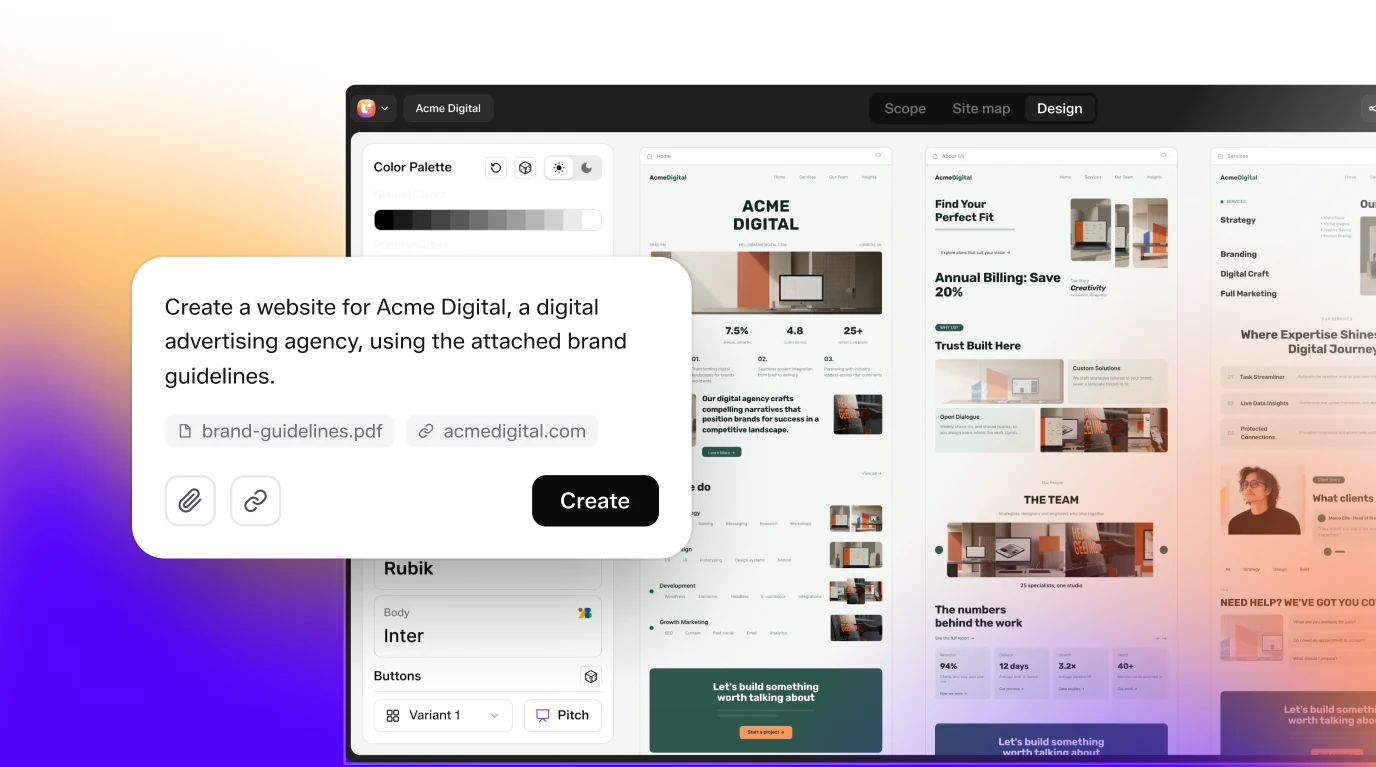
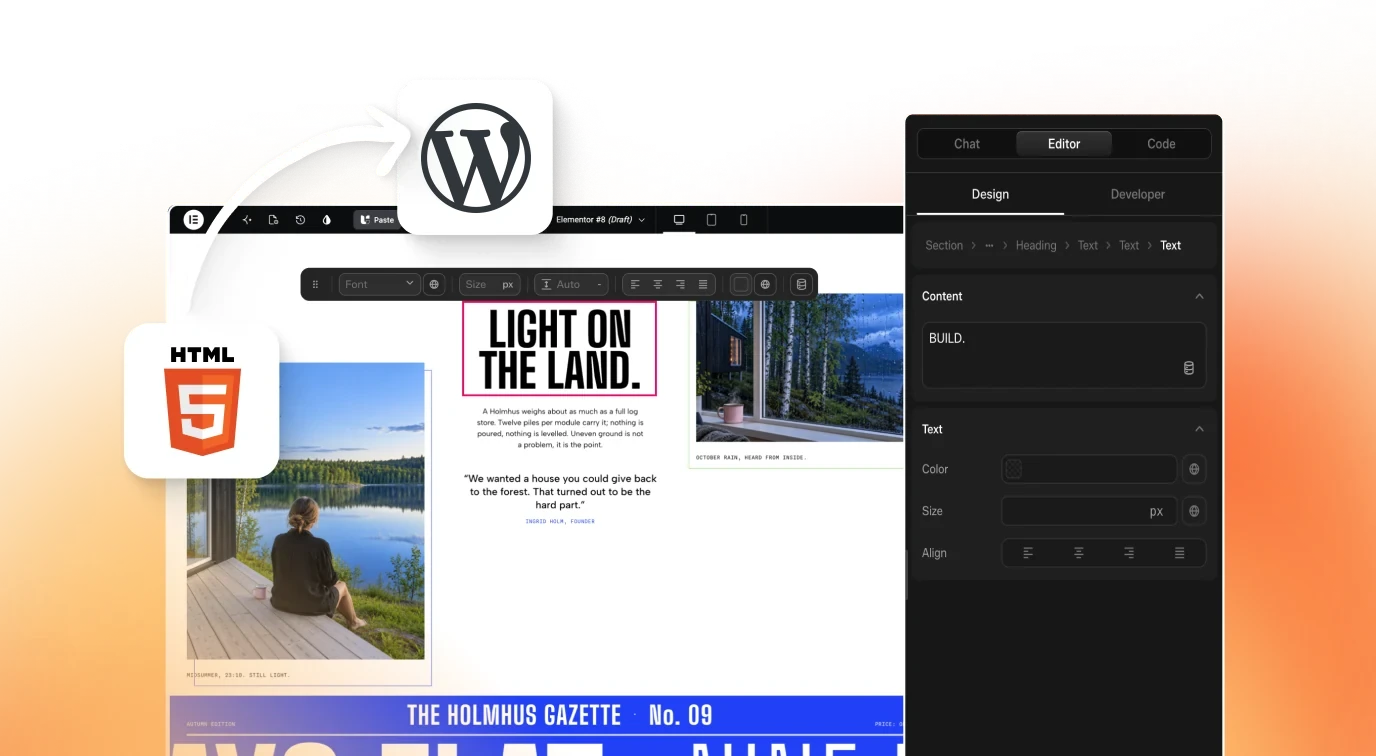
Scan pages you built with UiChemy before launch. Composer writes HTML, CSS and JS for Elementor or Gutenberg, so the scanner can open the live URL and report issues you then fix in the editor. Click Get Started on uichemy.com. For wording and fixes, see the accessibility audit skill.
Connect MCP Accessibility Scanner: axe Audits for AI Agents to your AI client
npm install -g mcp-accessibility-scanner --allow-scripts=re2Install Chrome
Install Google Chrome before the first audit. The npm package does not install a browser.
Install the scanner
Run the npm command above. The flag lets the native re2 dependency install on npm 12.
Add the config
Put the config above in your agent's MCP settings and restart or reconnect the client. The command must be on your PATH.
Run a first audit
Start your app, then ask the agent to call browser_navigate, scan_page with annotateScreenshot true, audit_keyboard, audit_screen_reader and audit_text_spacing.
Read the reports
Reports and screenshots save under the output directory. Use an absolute path if your client starts the server from another folder.
Client configuration
{
  "mcpServers": {
    "accessibility-scanner": {
      "command": "mcp-accessibility-scanner",
      "args": ["--headless", "--isolated", "--output-dir", "./a11y-output"]
    }
  }
}Endpoints and ports
mcp-accessibility-scannerStarts the stdio server.--isolatedUses a fresh browser profile, not your personal Chrome session.--output-dirWhere JSON reports and screenshots are saved.What you can do with it
- Annotated screenshotsWith annotateScreenshot, violating elements are outlined and labelled with rule ids in a saved full-page PNG.
- Site crawlsaudit_site supports links, nav, sitemap and provided URL strategies, with concurrency up to eight.
- Keyboard checksCovers skip links, focus visibility, jumps, possible traps, target size and focus obscured.
- Variant matrixCompares axe results across baseline, mobile, desktop, forced-colors, reduced-motion and zoom-200 variants.
- Scoped scansInclude or exclude CSS selectors and pick axe rules, so you can audit one component or drop third-party noise.
- Needs-review resultsAxe incomplete results are reported separately from violations, which avoids a falsely clean report.
- Login supportThe README covers interactive login and a repeatable storage-state route for CI-friendly runs.
- Browser automationNavigation, click, type, tabs, console and network tools help reach the page state to test.
Tools it exposes
scan_page
Runs an axe-core scan on the current page. Options include violationsTag, includeSelectors, excludeSelectors, withRules, disableRules and annotateScreenshot.
audit_site
Crawls and scans internal pages, then aggregates violations. Writes a JSON report.
scan_page_matrix
Runs axe on the same page across viewport, media and zoom variants and compares against a baseline.
audit_keyboard
Presses Tab to check skip links, focus visibility, focus traps, target size and obscured focus.
audit_screen_reader
Inspects the accessibility tree and names for issues such as missing or uninformative accessible names.
audit_text_spacing
Applies WCAG 1.4.12 text spacing overrides and reports clipped or colliding text.
browser_navigate
Opens a URL.
browser_snapshot
Captures an accessibility snapshot of the page.
browser_click
Clicks an element.
browser_take_screenshot
Takes a screenshot.
Frequently asked questions
What is MCP Accessibility Scanner?
It is an MCP server that lets an AI coding agent run axe-core accessibility checks in a real browser. It also tests keyboard focus, inspects accessible names, stress-tests text spacing and crawls multiple pages, saving JSON reports for review.
How do I install MCP Accessibility Scanner?
Install Google Chrome, then run npm install -g mcp-accessibility-scanner --allow-scripts=re2. Add a server entry with the mcp-accessibility-scanner command and args --headless, --isolated and --output-dir, then restart your client. The command must be on your PATH.
Does it prove my site meets WCAG?
No. The README says automated checks do not certify WCAG compliance and manual accessibility testing is still needed. Keyboard checks are heuristics, and the README lists exceptions that cannot be detected from the DOM and need manual triage.
Can it scan pages behind a login?
Yes. The README describes an interactive route where you sign in in the browser, and a storage-state route that is repeatable and CI friendly. audit_site also warns if a crawl loses the cookies it started with.
Which WCAG versions does scan_page cover?
The default set uses WCAG 2.0, 2.1 and 2.2 tags at levels A, AA and AAA plus Section 508. Category tags and best-practice or experimental tags are opt-in, so a default report means a conformance criterion failed.
Does it test with a real screen reader?
No. audit_screen_reader inspects the browser's accessibility tree, accessible names and element geometry for potential issues. The README states that no real screen reader is installed or driven and its announcements are not tested.
Can it audit a whole site?
Yes, with audit_site. It crawls internal pages using links, nav, sitemap or a provided list, runs up to eight pages at once and always writes a JSON report with per-page and aggregated violations. Browser based checks use your set page limits.
Which other tools complement it?
Pair it with Chrome DevTools MCP for live browser debugging or agnt MCP for browser debugging, and see the web accessibility skill for guidance on fixing what it finds in your code.