
 8:43
8:43From Client Brief to Editable WordPress Website With AI
About this video
Generating designs with AI is easy. Managing the whole client project around them is the hard part. This video takes a real client brief, a PDF for an interior design studio, through UiChemy's AI Website Creator: from scope to sitemap to a full 18-page design, and all the way to an editable WordPress website.
You'll see the Guided Brief turn the PDF into a project scope, the sitemap gain a full blog in one click, and one Design Panel control colors, typography, buttons and cards across every page. Changes come from the built-in AI Agent, Claude through MCP and the ChatGPT plugin. Then the site imports into WordPress with Elementor, gets edited with UiChemy Composer and AI Chat, and is handed over with Role Manager and White Label.
What you'll learn
- How to turn a client PDF into a complete project scope with the Guided Brief
- How to generate a sitemap, add sections and pages, and add a full blog structure in one click
- How to design every page and control colors, typography, buttons, cards and spacing from one Design Panel
- How to edit sections with AI layouts, text rewrites and AI image tools like Remove Bg and Generative Fill
- How to make changes with the built-in AI Agent, Claude through MCP and the ChatGPT plugin
- How to import the website into WordPress with Elementor or Gutenberg, including Theme Builder templates
- How to edit the live site with UiChemy Composer, AI Chat and dynamic WordPress content, then hand it over with Role Manager and White Label
Resources
Questions people ask
Can AI Website Creator start from a client brief?
Yes. Start with the Guided Brief and upload the client's PDF, documents, images or a reference URL. It fills in the scope, audience, goals and brand look from the file, and you adjust anything before generating the sitemap.
Can I change the sitemap after it's generated?
Yes. You can add, rename, move or delete pages and sections, and add a full blog structure, shop pages or site extras in one click before any design is generated.
How do I make changes to the design with AI?
Three ways: the built-in AI Agent inside AI Website Creator, Claude connected through MCP, or the ChatGPT plugin. You can also edit layouts, text, colors and images directly on the canvas.
Which page builders can I import into?
Elementor or Gutenberg. The import brings in every page you select, plus Theme Builder templates for the header, footer and blog, and installs the plugins and theme it needs.
Can my client edit the site after handover?
Yes. Every section is a UiChemy Composer section you can edit visually or with AI Chat. Role Manager controls what each WordPress role can touch, and White Label lets you rebrand the editor with your own name and logo.
Video transcript
Why a Client Project Needs More Than a Page
Most AI website builders give you a page, but a client project is much more than that. It starts with a messy brief, notes, PDFs, and a client who isn't sure what they want yet. Then come the site map, the branding, the revisions, and finally rebuilding it all in WordPress. Generating designs is easy. Managing everything around them is the hard part. In this video, we take a real client brief through UiChemy's AI website creator, from scope to site map to design, all the way to a fully editable WordPress website. You don't need another AI website builder. You need the project handled. So, let's get started.
Turning a Client PDF Into a Guided Brief
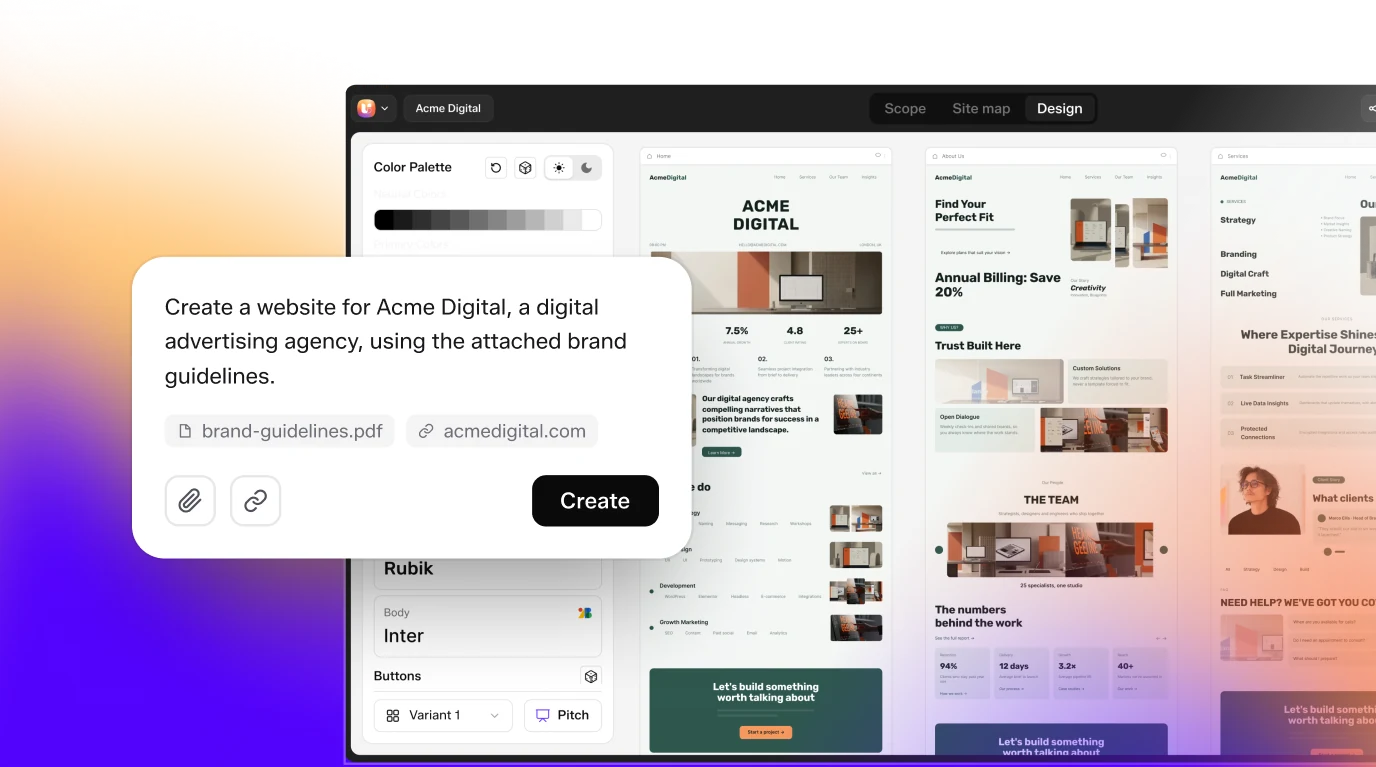
This is the AI website creator dashboard. We can describe a website in a single prompt here, or pick one of these quick ideas. But for a full client project, I prefer the guided brief. Let's click start with a guided brief. We're starting with scope. On the left is the brief. On the right is a live preview that updates as we answer. Here's the project basic step. For this demo, we're building a website for an interior design studio. And I already have the client's brief as a PDF. So, instead of typing everything manually, I'll click attach file and upload it.
You can add PDFs, documents, images, or even a reference URL. It starts reading the file into the brief. And it's done. It filled 11 fields straight from the PDF. Every field shows an AI-generated tag, so you always know what came from the file. Of course, we're still in control. I'll set the website type to business, and the tags which is to manual. Leads is already selected as the main goal. I'll add calls as well. This studio works across the country and abroad, so I'll select national and global. Then, let's click continue.
Business and audience is already filled from the brief. What the studio sells, with the option to add more, and who their customers are. Let's tell the AI why customers should choose this studio. I'll add premium materials and craftsmanship. For how the website should feel, I'll pick premium and friendly. And for styles to avoid, I'll select too luxury. For pricing, we're selecting on request. And you can notice the live preview updates with every answer. Let's continue. Next is trust and messaging. What usually makes customers hesitate before buying? I'll add uncertainty about the timeline. And for proof that builds trust, I'll select testimonials. Then, brand look and feel.
The design style and brand colors are already pulled from the PDF. I'll set the font to Open Sans and upload the Luma Interiors logo. We can add more brand colors using the color picker, as well. We can also tell the AI which colors to avoid. I'll pick this bright lime green and add it. All right, let's click continue. Design inspiration lets you add websites you like and dislike. I'll skip it for this demo. Finally, competitors and structure. We can add competitor websites here, but we're leaving it empty for now. The specific pages from the brief are already listed.
I'll choose the sections we want. Hero, about, services grid, testimonials, FAQ, and contact section. For the number of pages, I'll clear it and let UiChemy decide. No blog for now, but we do need legal pages. All right, let's click continue. And it's done. The scope is 93% complete. We have everything we need
Generating and Editing the Sitemap
to generate the site map, and it's ready to build. Here's a summary of every step, with an edit option, so if anything needs to change, we can quickly update it from here. Great, let's click generate site map. And the site map is generated. UiChemy has turned the brief into a complete site map, and every page appears on the canvas one by one. This is an infinite canvas, so I can drag around and zoom into any part of the structure. When I click the navbar, the section panel opens on the left. This green icon means it's a global section, so it stays the same on every page. The footer works the same way. Now, let's click the hero. UiChemy has already written a description for this section based on the brief. It knows this is a premium residential and commercial interior design studio. You can edit this description anytime and it guides how the section gets designed later.
What if we want to add something? I'll click the plus icon between the sections. This opens the section library with a wide range of sections and layout variations including WooCommerce sections. The global tab holds global sections like the navbar and footer and saved holds the sections you've saved yourself. For this home page, let's add a metric section. These numbers fit better after the about us section. So, I'll simply drag it below. We can manage pages just as easily. The three-dot menu lets you add a page or a section, rename it, move it to another group, or delete it. And hovering over a page shows plus icons to add a new page right next to
Adding Pages and a Full Blog in One Click
it. Now, let's say the client changes their mind and wants a blog after all. I'll click add. We can add blog pages, shop pages, or site extras. Let's select blog pages and UiChemy builds the complete blog structure. Blog, blog detail, search results, author, category, and tag pages. A full blog setup in one click. Here's our final site map. Before a single pixel is designed, we can review, reorganize, and approve the structure of the entire website. That's exactly how a real agency project should start. Let's click continue to design. This opens the design editor. UiChemy starts with the
Designing Every Page on One Canvas
home page using everything from the brief and the site map. And there it is, a complete home page for Luma Interiors. Every other page waits here as a card with its sections already listed. Let's generate studio introduction, then selected projects, and design philosophy. Every page sits side by side on one canvas, so you can see the whole website come together at a glance. Let's keep going. Services, project highlight, studio facts, and testimonials. None of this is placeholder text. A portfolio grid, a track record with real numbers, FAQs, and contact forms, all written for this business. And if you don't want to go page by page, there's a faster way.
Just click generate all pages and UiChemy takes care of the remaining pages in one go. Our site map is now a complete design. Every page and every section sits on one infinite canvas.
Design Panel: Colors, Typography, Buttons and Cards
Now, let's shape the design. On the left is the design panel. It controls the look of the entire website. Let's start with colors. Let's turn on dark mode and the entire website changes to a dark theme. I'll switch back to light mode. Want to explore a new direction? Click randomize colors. Every page picks up a new palette instantly. One more click and it's a completely different look. For this project, I'll stay with the original palette. We can also add an extra brand color using the plus icon.
Next is typography with separate settings for heading and body. Click the font and you get a searchable list of Google fonts. We're keeping Open Sans. From here, we can adjust the size, weight, letter case, letter spacing, and line height. And every heading across the site updates in real time. Then, buttons. We can set the size, the corner radius, and the label color, then choose from multiple button designs, each with a primary and secondary style. Badges are coming soon. Cards work the same way with a set of card styles and corner radius options. Section style controls the background of your sections and spacing controls the vertical and horizontal space across the whole site.
These are global settings, so one change keeps every page consistent. Now, let's go deeper and edit a single section.
Section Editing: AI Layouts, Text and Image Tools
Let's click the hero section and the panel switches to hero content. Here's the context the AI used to write this section, and we can regenerate the content anytime. Let's open the layouts. At the top is the active layout. Below it are AI picks, layouts suggested for this section. Hover any of them and it previews right on the canvas. I'll keep the current one. And if you're feeling adventurous, randomize hero picks one for you. Let's click the heading. The text panel gives us three AI actions: rewrite, shorten, and expand. Click rewrite. It looks a little short, so let's click expand. All right, looks good. From here, we can also change the alignment, size, and color. I'll center it. We can even change the section's background right from the canvas using these color swatches. Next, let's click this image. Here we get two tabs: edit image and replace. We can add a video as well, either by uploading one or by selecting it from stock or the library.
Images work the same way, and in edit image, we can crop the image, change the ratio, and add an overlay. We also get AI tools: remove background, generative fill, expand image, and magic eraser. Back in colors, clicking any swatch opens a color picker for fine-tuning. Every section works the same way. Let's click the FAQ section. It looks a little empty, so let's open its layouts. This AI pick looks great, so let's apply it.
The FAQ section switches to the new layout with the content already in place. Now, let's click this icon. We can set the site's icon style to outline or filled, pick a color, or upload our own icon. There are multiple icon packs, including Lucid, Tabler, Hero Icons, Phosphor, and Material Design. Let's search for star and pick a filled one, and it's updated right inside the testimonial. Now, zoom out again. Along with the core pages, AI website creator has designed the blog, blog detail, search results, author, category, and tag pages, plus the privacy policy.
Responsive Views and Preview
Next, let's check responsiveness. Here's the tablet view, the phone view, and back to desktop. Let's click preview. In preview, clicks and motion actually work. The accordions open and close. From this drop-down, we can jump to any page. Everything looks good, so let's go
Editing With the AI Agent, Claude and ChatGPT
back. There are three more ways to make changes, and all of them use AI. The first is the built-in AI agent. It already knows the project and the page we're on. Luma Interiors, home. And it isn't a single assistant, it's a team of agents. The project lead takes your request and hands it to the right specialist. Let's make a direct change. I'll select the draw tool and draw around the explore now button. Then I'll type, "Change the button style." Let's send it. And it's done. The button now has a lighter outline style. The AI agent handles it in seconds, quickly and accurately. The second way works from outside UiChemy entirely, through MCP.
Here, I've connected UiChemy AI website creator to Claude as a connector. Here we can see all the available tools. Let's close the settings and go to the chat. I've already asked, "Using UiChemy AI website creator, show me the list of projects available in app.uichemy.com." And Claude found our project, Luma Interiors, with 18 pages. Now let's update the design from here. We're asking Claude to change the gallery layout on the Studio Facts page, and pointing it to the exact layout, layout-y-20.
And within moments, it's done. Claude switched the gallery from layout-y-20 to layout-y-3. If we don't like the result, we can undo it or shuffle again. Let's switch back to the design editor and refresh. The Studio Facts gallery now uses the new layout, and the panel confirms layout-y-3. Same project, same editor. We just made the change from a chat. And the third way is the ChatGPT plugin. Here are its details. Let's install and open it. UiChemy AI website creator right inside ChatGPT. Start
Importing All 18 Pages Into WordPress
editing through chatting. Now, let's bring this website into WordPress. Click export. Exporting to WordPress takes three steps. Download the UiChemy WordPress plugin, install it, and login with your UiChemy account. Then import the project. Under other, you can vote for the next platform you'd like UiChemy to support. I've already installed the UiChemy plugin on my WordPress site and logged in. Inside the UiChemy dashboard, there are three tabs. Figma plugin to turn Figma designs into editable WordPress pages, AI website creator, the one we're using in this video to build a complete website from a prompt or a client brief, and AI agent to connect your AI tool to WordPress and turn AI generated websites into editable WordPress sites. We'll cover the other two in separate videos. So, let's open AI website creator. And our project is already here. Luma Interiors, 18 pages.
Let's click the project. First, we choose the builder. We can import into Elementor or Gutenberg. For this demo, we're keeping Elementor and clicking next. Now, we choose exactly what to import. All 18 pages are selected by default. That's 12 static pages, five theme builder templates for the blog detail, search results, author, category, and tag pages, and the privacy policy under legal pages. Don't need a page? Just uncheck it. Under advanced configurations, UiChemy lists the required plugins, Elementor and Nexter Blocks, and recommends the Nexter WP theme. You can skip the theme if you already use a lightweight one. There's also an option to reset your previous content before importing. Your current content moves to draft, so nothing gets deleted. SEO, performance, and security setup are coming soon. Let's click import 18 pages. UiChemy installs the plugins and theme, imports the site content and global settings, builds each page, and then finalizes the settings.
This takes a little time, so let's let it run. While that's running, here's a question. In the AI era, is one prompt enough to build a client website or does a real project still need a proper brief and plan? Watch this video till the end, then tell me what you think. Now, let's get back to the process and it's done. Your website is ready and live. UiChemy even estimates the time we saved, 9 hours. Let's click visit site.
Editing the Live Site With UiChemy Composer
Here's our website live on WordPress. The animated hero, the services accordion, the FAQ tabs and the contact form all work. This isn't a screenshot or a preview link. It's a real WordPress website. But the real question is, can we actually edit it? Let me show you how easy it is to edit the pages with AI chat right inside Elementor. Let's click edit with Elementor. Every section is built with the UiChemy composer widget. Let's click the about section and select the heading. On the canvas, we get a floating toolbar for quick edits. Let's change its color. I'll pick a deep brown. We can also pick from the site's global colors to stay on brand.
The same toolbar handles alignment, font family, size and line height. On the right, the side panel gives us deeper control. In the developer tab, we have the class system with full editing controls. The HTML tag and settings for typography, layout, spacing, background, border, effects, animation and custom CSS. Let's open the code tab. This is real HTML, CSS and JavaScript and we can format or copy it anytime. In globals, there are 71 design variables for colors, dimensions, spacing and typography. Let's open the global manager. Here we can manage every token and export, import or use Elementor sync to keep them in line with Elementor. So, whether it's a quick visual change or a code level edit, you're always in control. And then there's the chat tab.
AI Chat and Dynamic WordPress Content
To edit with AI, we connect composer in one of two ways. Agent bridge, which connects a CLI agent already on your machine like Claude, Codex, Gemini, or open code. Or an AI connector using the AI connectors built into WordPress settings. For a detailed look at AI chat and the full UiChemy Composer guide, check the link in the description. Once it's connected, editing gets much easier. Let's select the draw tool from the floating toolbar and draw around this card title. Now I'll type, "Apply the brand color to the title text when hovering over the card." Let's send it.
UiChemy captures the drawing and sends it to the chat along with the prompt. Composer reads the design system, checks the widget code, and inspects the element I marked. And it's done. Let's hover over the cards. The title switches to the brand color and it works on every card, not just the one I circled. It even used the brand color from the design system instead of a random value. Instead of explaining where something is in the code, we just point at it and describe the change. And content doesn't have to be static either. Composer supports dynamic content. I've selected an element and next to the content field, there's a small database icon. Let's click it.
Here are the WordPress fields for this post. Title, content, excerpt, link, date, author, and more. Each one shows its data type. So your design can display real WordPress data instead of
Theme Builder, Role Manager and White Label
hard-coded text. Next, let's head back to the UiChemy dashboard in WordPress. Here we have theme builder, form submissions, role manager, white label, and settings. Let's open theme builder. All the global templates from our project are already here. The navbar, footer, blog detail, author, category, tag, and search results pages. Each template can be turned on or off, edited, or given display conditions. Let's click conditions on the footer.
Here we choose where it appears using include and exclude rules. Across the entire website or on specific locations like the front page, archives, search page, or 404 page. We're keeping it on entire website and clicking save conditions. And when it's time to hand the website over to a client, UiChemy has that covered, too. This is role manager. Here we control which WordPress roles can use the UiChemy editor with four access levels. No access, content only, custom, and full access. We can change and manage access for each role, then click save changes, and everything is saved. Next is white label, where you can rebrand UiChemy with your own name, logo, and widget across the WordPress admin and Elementor. Every setting shows a live preview, so you see
Wrap-Up
exactly what your client will see. AI can generate a page in minutes, but a client project needs a brief, a plan, a brand, and a website you can keep editing. With AI website creator, it all happens in one workflow. Build anywhere, own it in WordPress. So, the real question isn't how fast can AI build this? It's is the whole project handled? Try UiChemy AI website creator on your next project. And tell me in the comments, would you start with a single prompt or a guided brief? Subscribe for more AI-powered WordPress workflows. Stay curious, keep learning, and I'll see you in the next one.
Transcript generated from the video's captions.
More videos
8:43 11:56
11:56 8:42
8:42 3:59
3:59 12:29
12:29 3:26
3:26 2:29
2:29 3:02
3:02 6:35
6:35