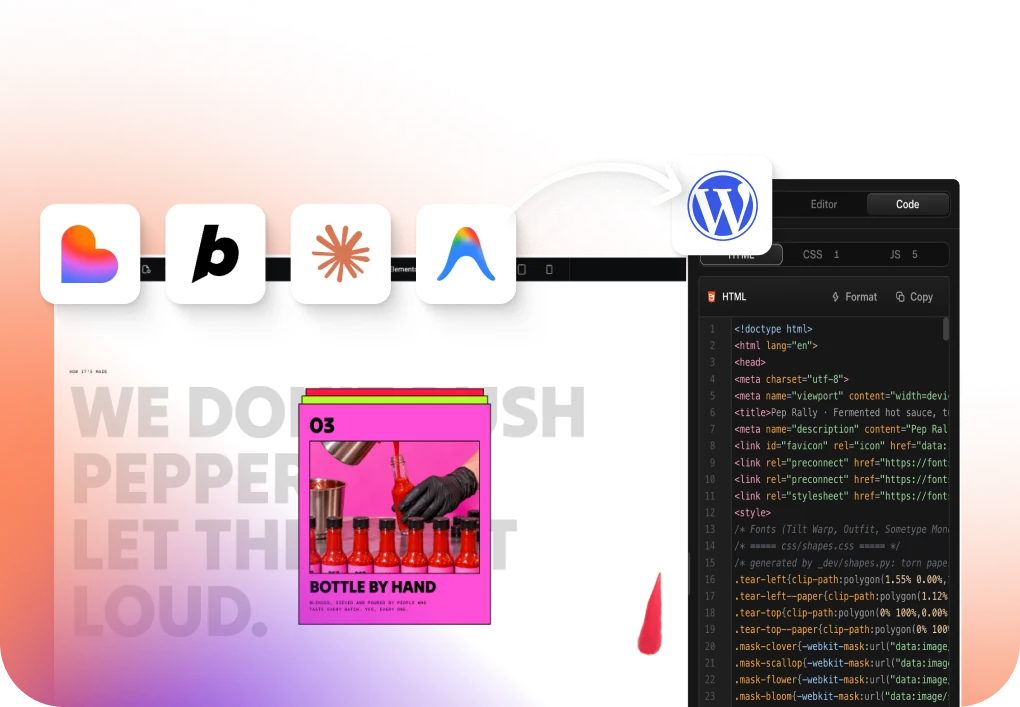
Convert Your
Figma Design
Into
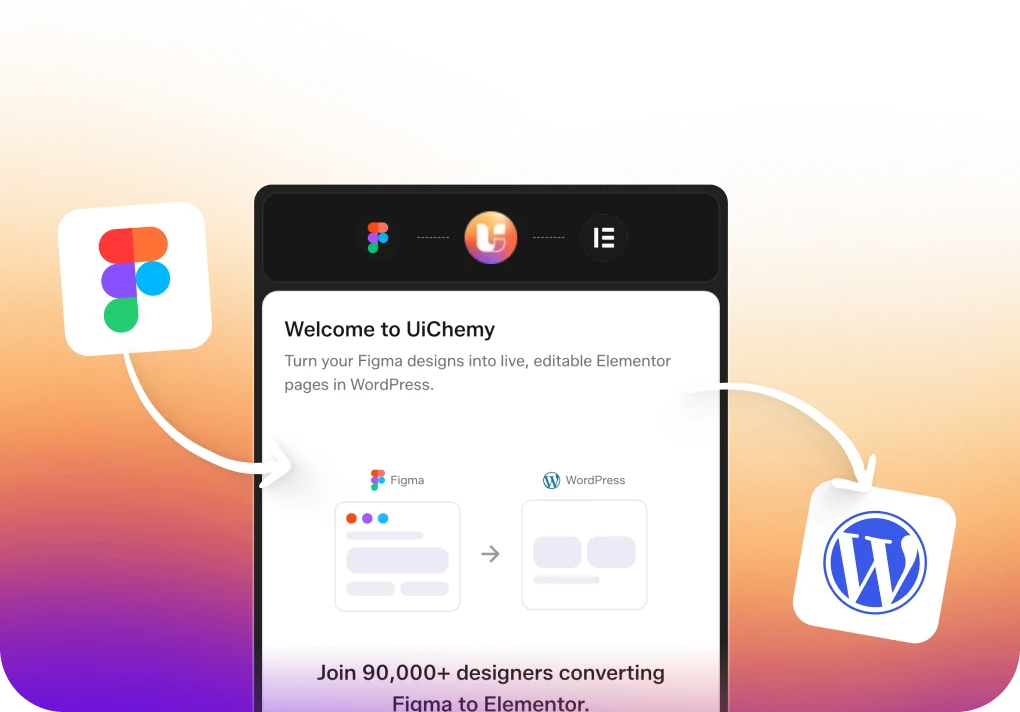
WordPress With Full Pixel Control
You decide how each layer becomes a widget, block, or element, down to the pixel, in all three builders.
Control Every Step From Figma To Live WordPress
Start With Your Approved Figma Design
Choose the Figma frame you want on the page.
Prep Layers And Compress The Media
Handle media your way, automatic or by hand.
Manage Widget Tagging, Auto Layout And Responsiveness
Map each layer to a widget, block, or element, then set auto layout and responsive behavior across breakpoints.
Connect Your Site And Sync Global Styles
Link your WordPress site and bring your global color, type, and spacing across.*
Check Conversion Settings And Convert To WordPress
Check your conversion settings, then run the convert.
Preview The Editable Page, Then Publish
Open the live page and check it before it goes public.
* Global sync covers Elementor and Bricks today. Gutenberg support is coming.
Native Widgets And Blocks Your Team Can Actually Edit
Clean, editable output across Elementor v3 and v4, Bricks, and Gutenberg blocks like Nexter and GenerateBlocks, never a flat HTML dump.
Elementor (Classic)
Converts your Figma designs into fully customizable, editable Elementor websites on the classic v3 engine.
Elementor v4 (Atomic)
Builds structured sites with Elementor's Atomic elements and class-based styling, powered by your Figma design system.
Nexter Blocks
Turns Figma layouts into clean, structured Nexter blocks with advanced tagging and full editing control in Gutenberg.
GenerateBlocks
Exports your designs into lightweight, clean GenerateBlocks layouts, with minimal code and full editing control.
Spectra
Turns Figma layouts into structured, editable Spectra pages, without touching a line of code.
Kadence
Exports Figma layouts into structured, editable Kadence-powered pages, with clean output and full control.
Gutenberg Core
Generates clean, simple Gutenberg layouts from your Figma designs, with no third-party block builders needed.
Bricks Builder
Converts your Figma designs into fully customizable, editable Bricks websites, native to the Bricks builder.
Everything You Need To Finish The Build Lives In One Plugin
29 tools in one install, with no add-ons to chase. Pick a category to explore the toolkit for turning Figma into editable WordPress.
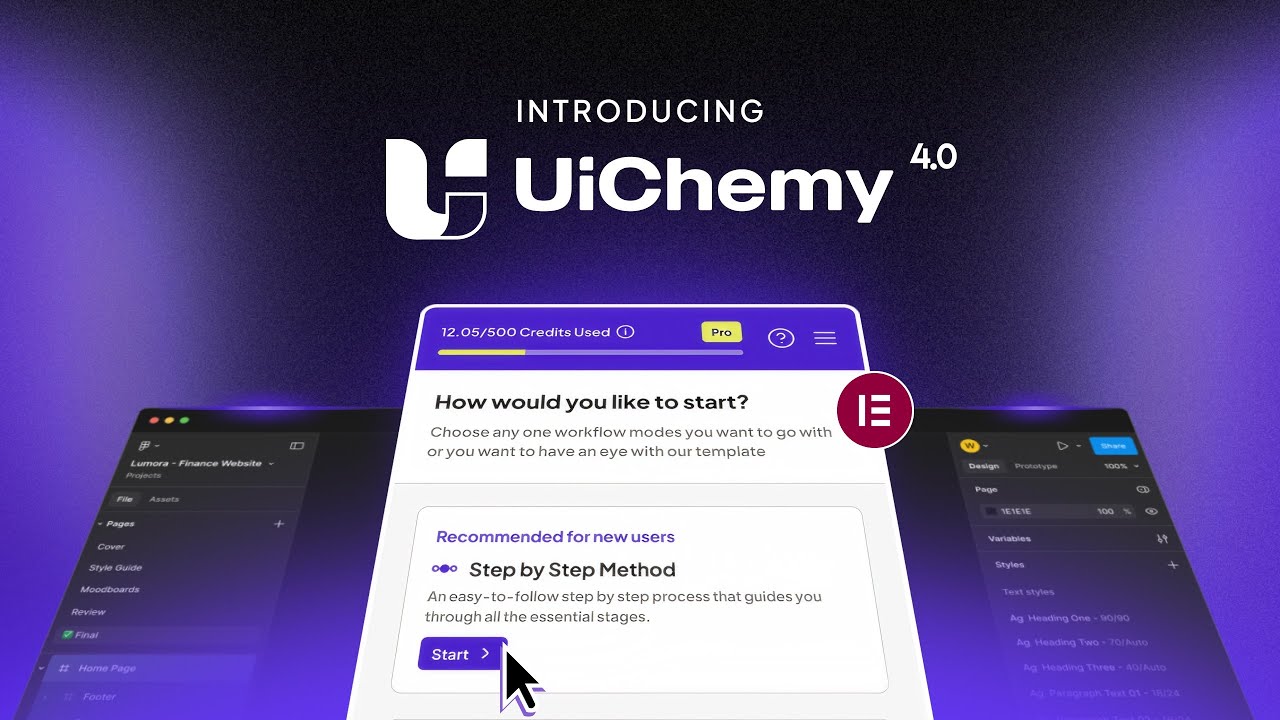
All new step-by-step guided flow
A guided flow carries every design detail across, from colors and type to container widths.
Express and Optimize convert mode
Convert fast with Express, or refine step by step with the guided optimizer.
Lock multi-layer vectors
Lock and optimize complex vectors so your designs stay fast and light.
Smart image compression
Export in PNG, JPEG, AVIF, or WEBP with quality control for lighter files.
Optimize Relume designs
Optimize Relume layouts for a clean WordPress conversion.
Figma Auto Layout 4.0 compatibility
Figma Auto Layout 4.0 support keeps responsive structure intact.
Tag widgets for best conversion
Tag design elements to page builder widgets for accurate, fully editable output.
Responsive across devices
Looks great on any device with Responsive across devices.
Auto fetch design values
Auto-detect font sizes, padding, line height, and flex gap from your Figma file.
Global color sync
Sync Figma colors into your builder's global colors. (Coming soon to Gutenberg)
Global typography sync
Sync Figma text styles into global typography. (Coming soon to Gutenberg)
Global padding sync
Sync padding values from Figma for consistent spacing. (Bricks only)
Global boxed width container sync
Keep layouts consistent with a global container width.
Flexible conversion settings
Control image export, scale, SVGs, and responsive widths.
Multiple page builder support
Convert for Elementor, Bricks, and Gutenberg.
Full RTL support
Convert right-to-left designs with the layout direction carried across intact.
Direct import to WordPress
Send designs straight to your WordPress site, no manual uploads.
Copy and paste to Elementor
Copy a section in Figma and paste it straight into Elementor.
Copy and paste to Gutenberg
Copy a section in Figma and paste it straight into Gutenberg.
Copy and paste to Bricks
Copy a section in Figma and paste it straight into Bricks.
Section replacement and addition
Replace or add sections without touching the rest of your page.
Header and footer template export
Export headers and footers as reusable templates.
SEO-friendly export generation
Clean, SEO-friendly output with well-structured, semantic markup.
Flexible page publishing options
Publish as different page types or templates.
Import multiple pages at batch
Export multiple Figma pages to WordPress in one batch.
Choose your import method
Bring your design into WordPress your way: direct import, or copy and paste into your editor.
Manual design import with JSON
Import designs manually with JSON for flexibility and precision.
Multi-domain site connectivity
Connect and manage multiple domain sites from one plugin.
Premium support
Real people who use UiChemy daily, ready the moment a conversion needs a hand.
Fine-Tune Every Layer Before You Convert
Optimization readies your Figma file for an accurate conversion, so the output lands clean and predictable with no rework after export. Let UiChemy handle it automatically, or take manual control over auto layout, hierarchy, and media.
Auto optimization
One action prepares your design for a clean conversion. UiChemy scans the frame, fixes common issues, and gets it conversion-ready so you can move straight to export.
Best when you want speed and a design that is already close to conversion-ready.
Manual optimization
Step through each stage yourself and learn the standards as you go: how to structure with auto layout, keep a clean hierarchy, and prepare media the right way.
- 01Media & Vectors
- 02Layer Cleanup & Improvements
- 03Shape Cleanup
- 04Frames & Groups Cleanup
- 05Text & Divider Cleanup
- 06Auto Layout
Stroked Vectors & Shapes
Vector, rectangle, ellipse, star, or line with a visible stroke. Outlines the stroke to filled paths; shapes with both fill and stroke are flattened into one vector.
Flattenable Vector Groups
Group or frame containing only vector shapes. Flatten into a single vector to simplify the layer tree.
Unlocked Image & Icon Layers
Unlocked asset layers can't be identified as a single export unit.
Clipped Nodes Outside Bounds
Fully clipped nodes. Invisible in output, adds file bloat.
Invisible or Hidden Layers
Hidden or zero-opacity layers with no visual contribution.
Incorrect Layer Constraints
Constraints will break the layout when the frame is resized.
Vectors Used as Rectangles
A plain rectangular vector. A native Rectangle is lighter.
Groups With Rectangle Background
Group uses a background rectangle and child layers. Convert to a Frame container.
Rectangles Containing Siblings
Rectangle is used as a container with sibling layers. Convert to a Frame container.
Ellipses Used as Containers
Ellipse used as a container. Convert to a rounded Frame.
Redundant Wrapper Layers
Single-child wrapper adds depth with no structural benefit.
Groups Instead of Frames
Groups lack auto layout and constraints. Use a Frame instead.
Duplicate Nested Frames
Identical-size nested frame with no visual purpose.
Nodes Covered by Overlapping Layers
Solid layer on top hides all siblings. Serves no purpose.
Absolutely Positioned Orphan Nodes
Node is outside its logical parent. Breaks responsive output.
Masks Used as Backgrounds
Mask simulates a fill. Use a proper frame background instead.
Oversized Line Heights Detected
Line height over 160%. Use parent spacing instead.
Line Nodes Used as Dividers
Line node used as a stroke. Remove it and apply as a proper stroke.
Frames Without Auto Layout
Frame has no auto layout. Children need to be wrapped in auto layout for proper responsive output.
Leftover Frames After Auto Layout
Leftover wrapper frame after conversion. Safe to remove.
Negative Auto Layout Gap
Negative gap causes children to overlap unexpectedly.
Map Any Layer To The Native Widget You Want
Assign any layer to the exact widget it should become, so the page arrives fully editable and matches your design down to the element.
Same Pixel-Perfect Result, A Fraction Of The Time
From an approved Figma design to a live WordPress page, watch the hours stack up building by hand against the same build with UiChemy.
- Rebuild every section by hand in WordPress from the Figma design10–20h
- Match spacing, styles & typography by eye5–10h
- Add every image & all content manually3–6h
- Set responsiveness across every breakpoint5–10h
- Make it functional & interactive4–8h
- Add motion & on-load animation3–6h
- Prepare design with pre-made templates & wireframes2–3h
- Verify with manager1h
- Optimize & tag with the right widgets1–2h
- Import everything at once: global colors, text & images*Handled for you
- Improve the design & touch-ups1–2h
- Final QA & submit1–2h
Roughly 80% to 90% less time on every build. The tedious hours, gone.
* Global sync covers Elementor and Bricks today. Gutenberg support is coming.
See Real Figma Files Become WordPress Pages
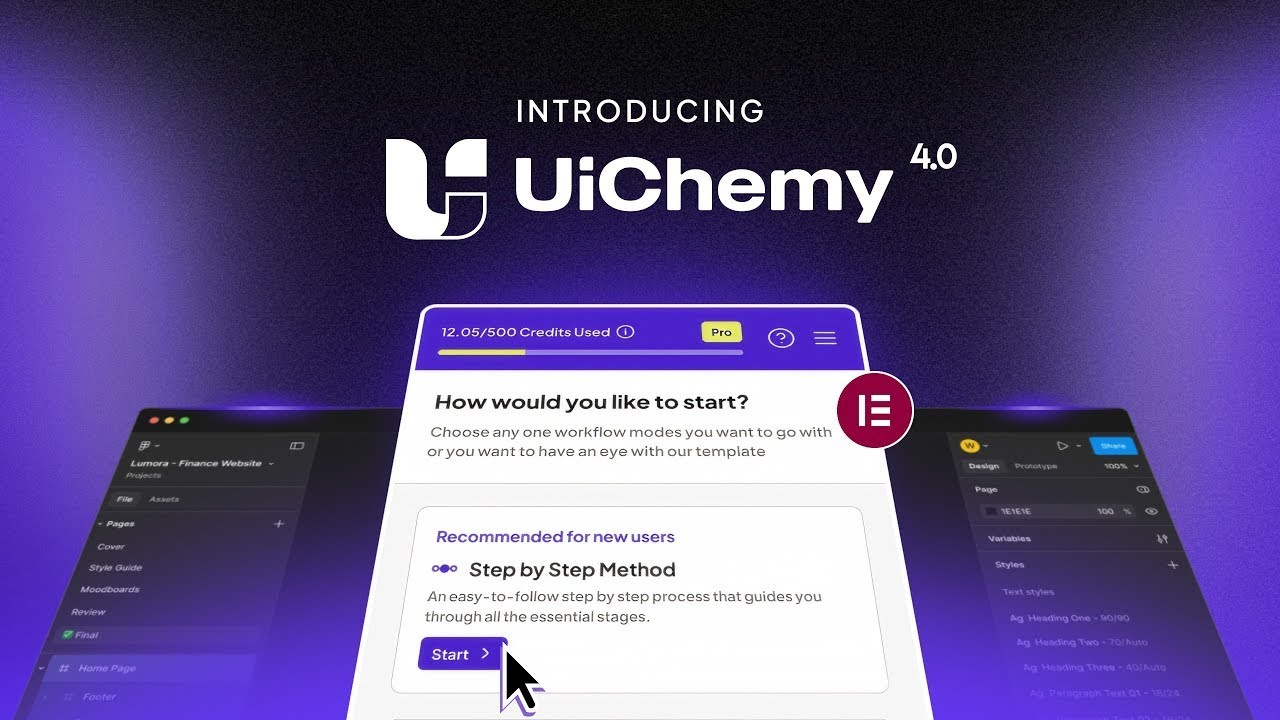
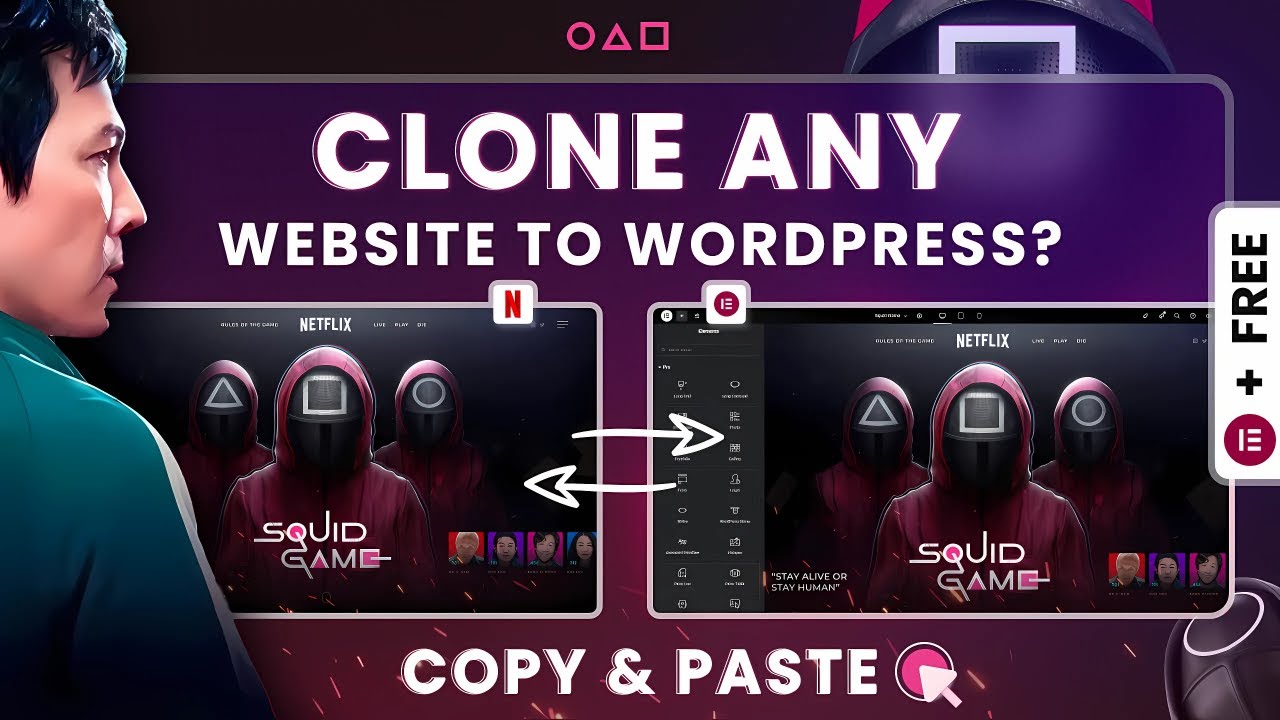
Real walkthroughs and reviews from the UiChemy channel and the community.

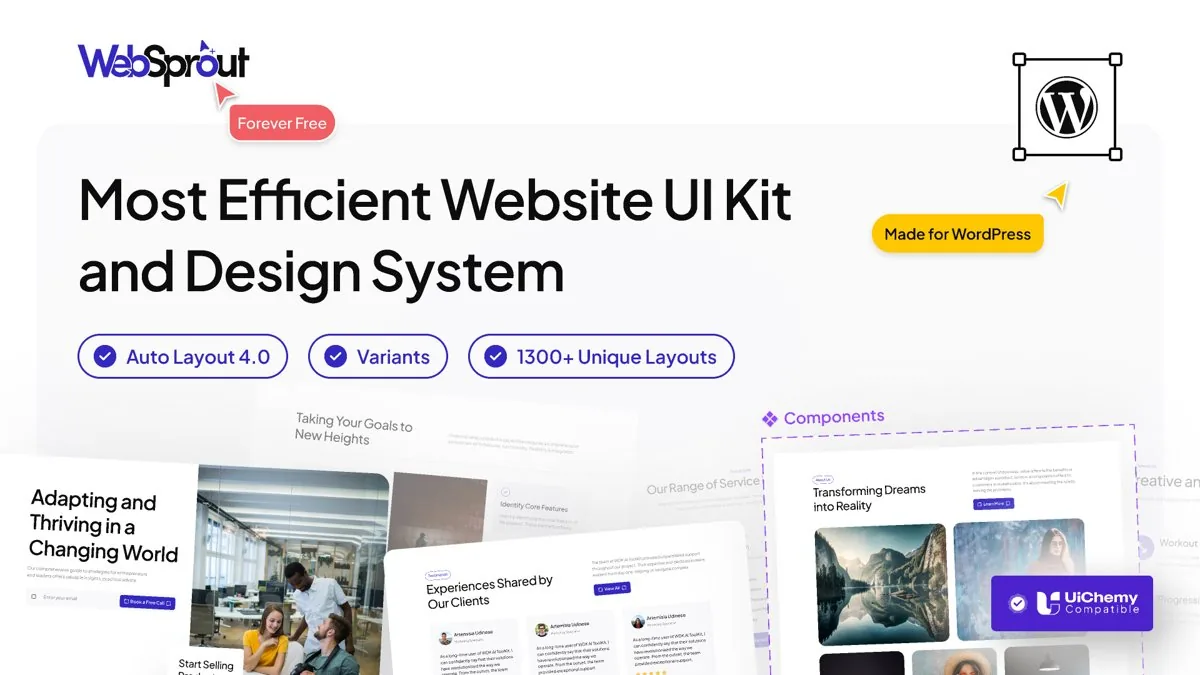
1,300+ Figma Templates And Sections, Built For UiChemy
Start from a design that is already optimized for a clean conversion. Sprout UI is a free Figma web UI kit and design system, ready to convert.
11 Production-Ready Designs, Pre-Tagged For You
Published free on the Figma community: built with auto layout, a clean hierarchy, global variables and styles, fully responsive, and already tagged with Elementor free and pro widgets.
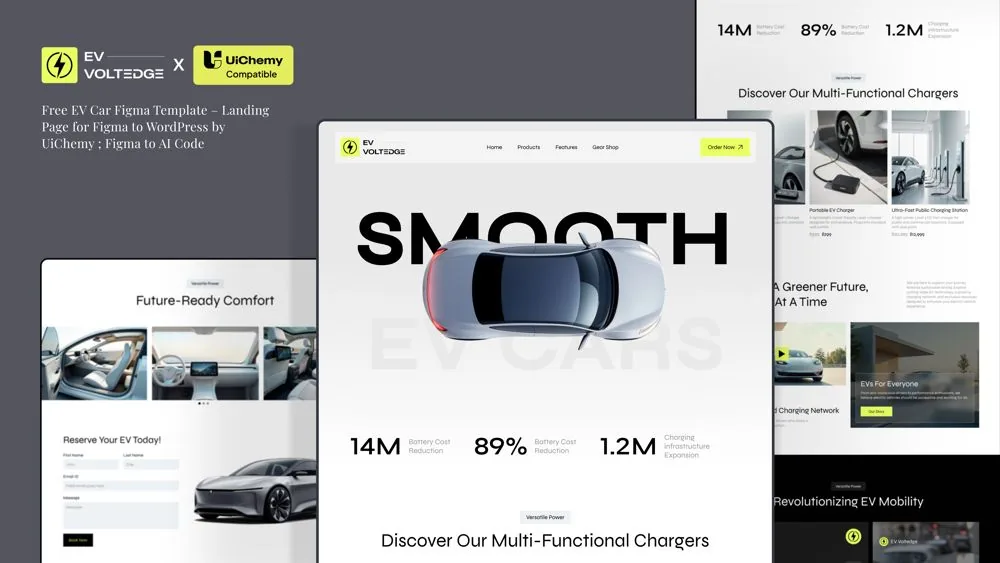
EV Voltedge
EV and automotive landing page
View on Figma
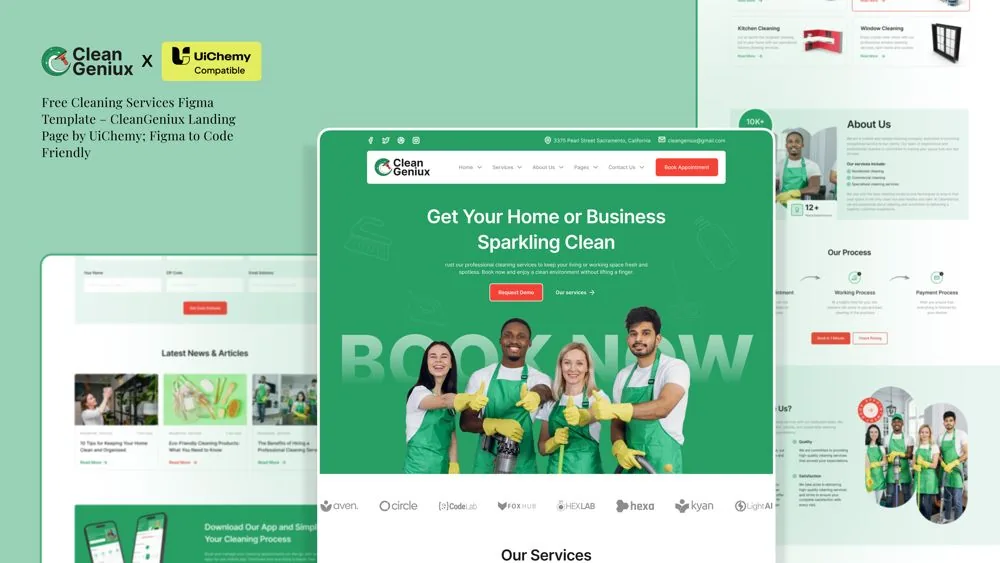
CleanGenix
Cleaning services landing page
View on Figma
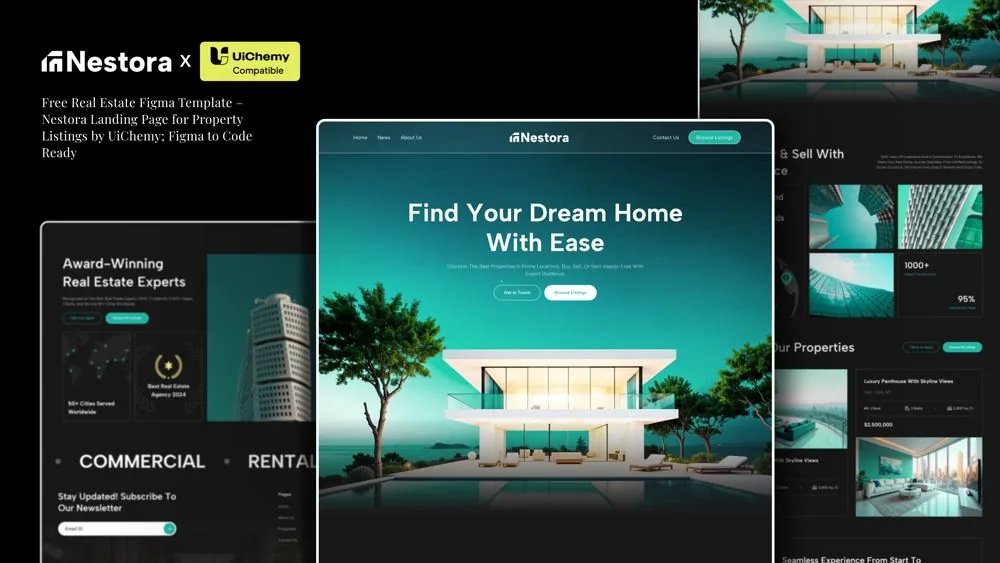
Nestora
Real estate property listing
View on Figma
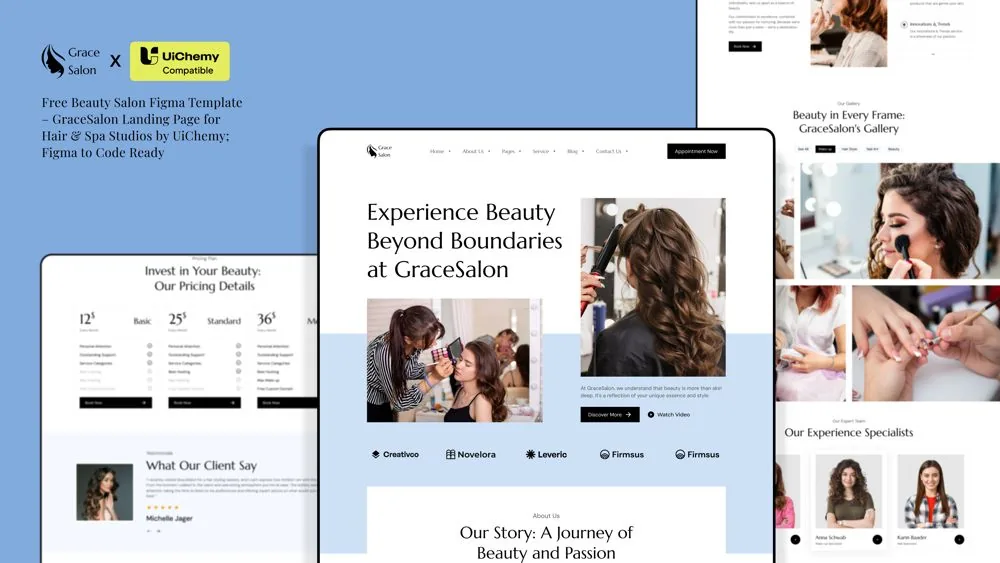
GraceSalon
Beauty salon landing page
View on Figma
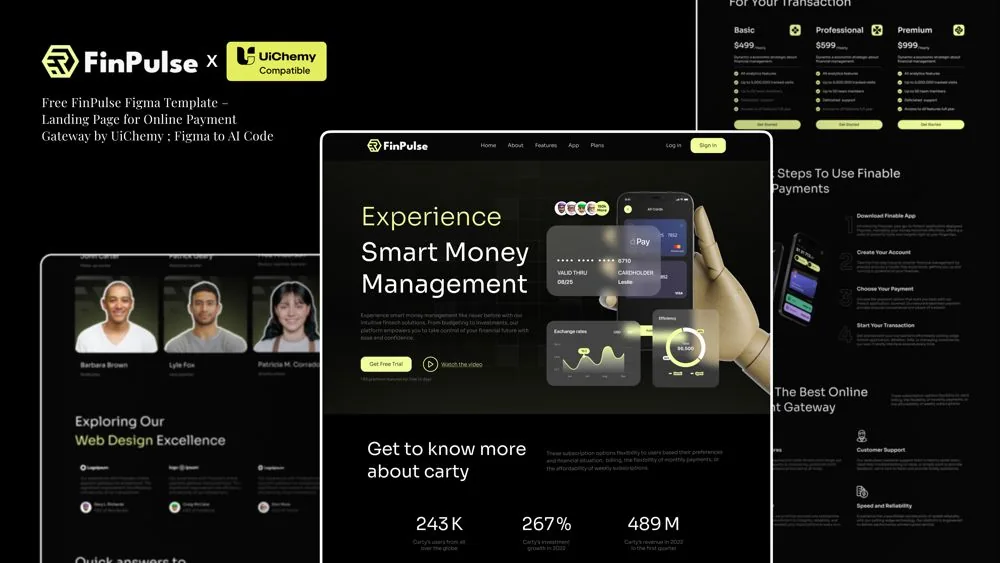
FinPulse
Fintech and payments landing page
View on Figma
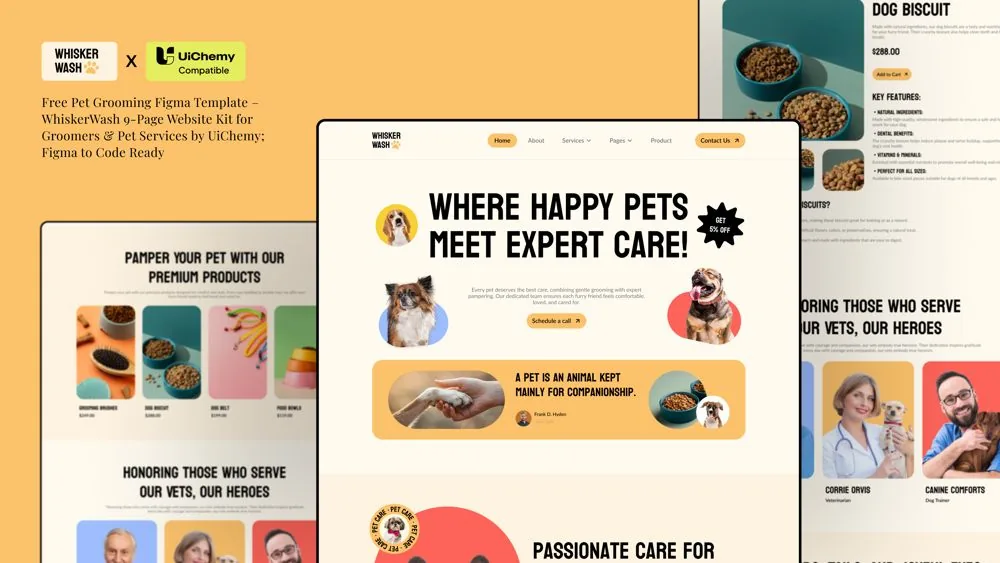
WhiskerWash
Pet grooming website kit
View on Figma
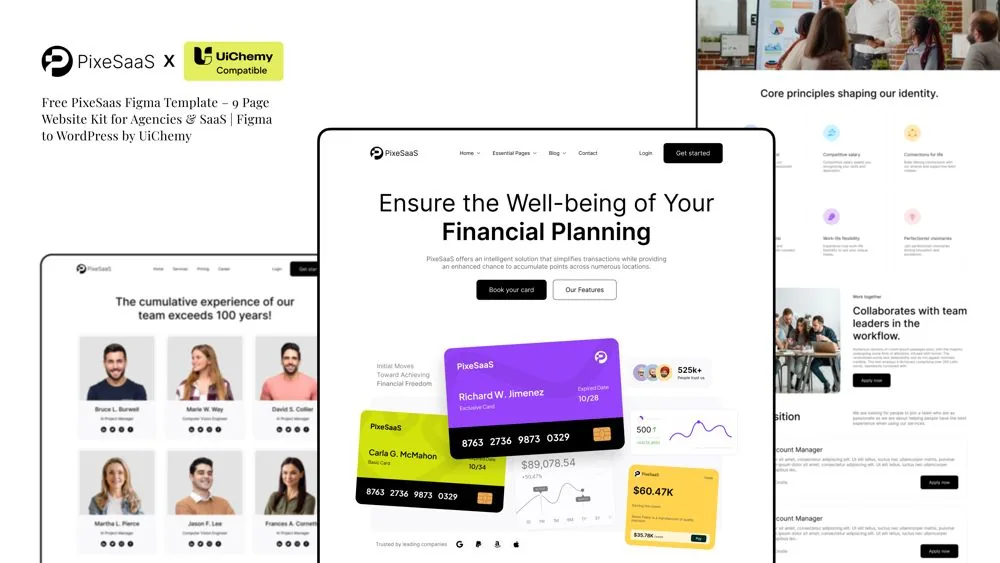
PixeSaaS
9-page SaaS website kit
View on Figma
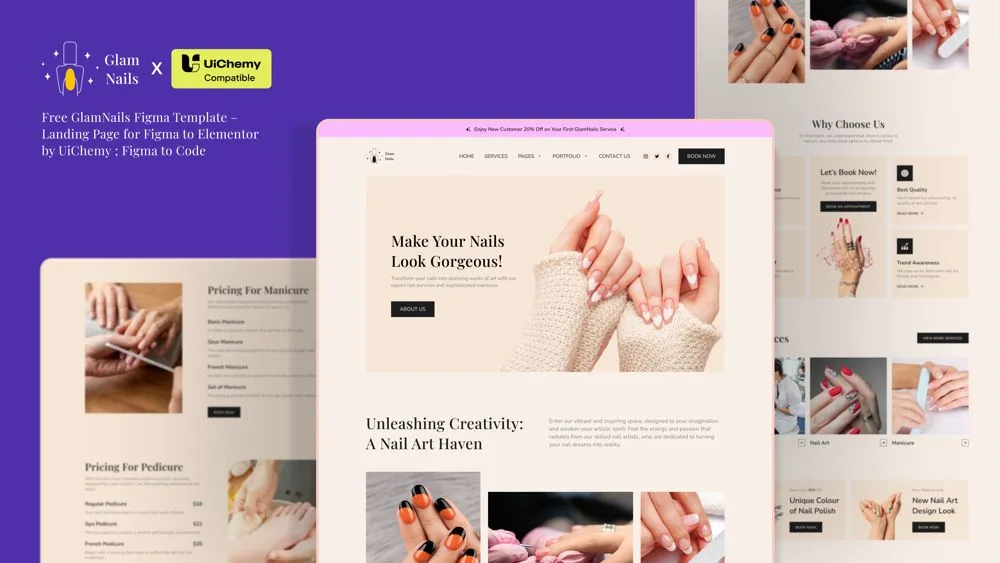
GlamNails
Nail studio landing page
View on Figma
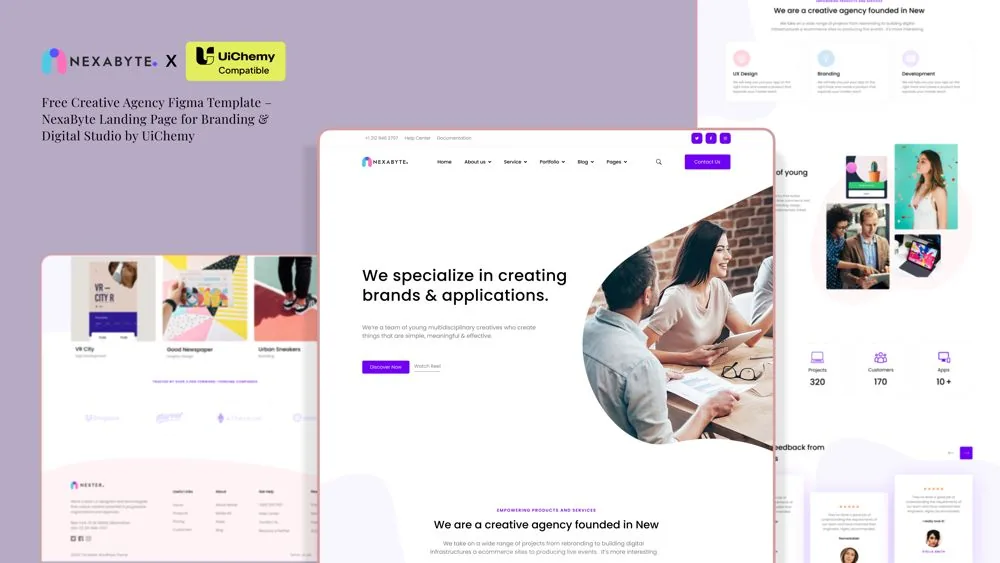
NexaByte
Creative agency landing page
View on Figma
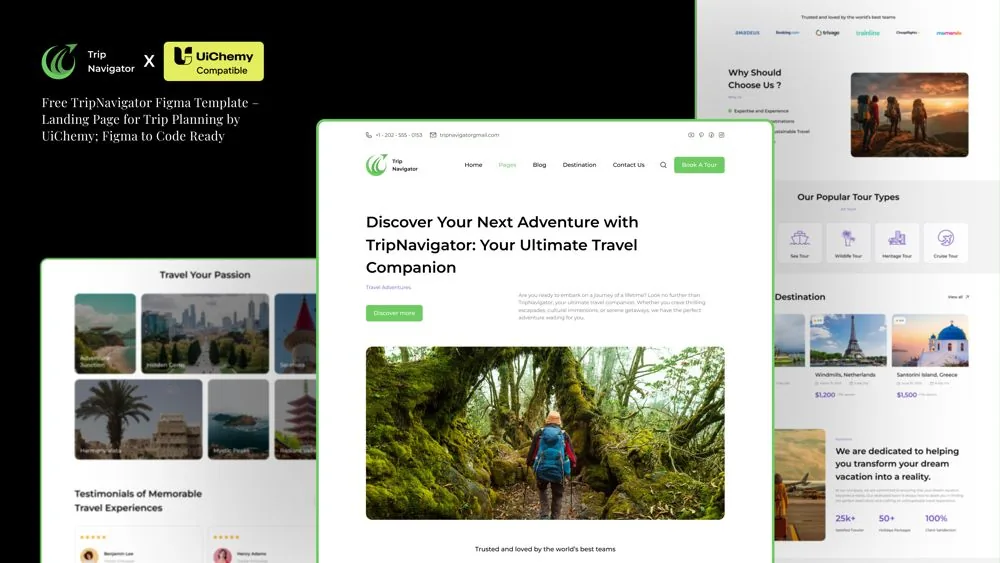
TripNavigator
Travel planning landing page
View on Figma90,000+ Designers Rate Us 4.9 Out Of 5
90,000+ working Figma designers convert with us instead of rebuilding by hand, and rate it 4.9 out of 5.
We Help You With Real Docs, Videos, And People
Search the docs, watch a walkthrough, or ask our team. Real answers from people who built the product.
Friendly support
Talk to a real person who knows the product and wants you to win.
Documentation
Clear, searchable docs for every feature and workflow.
Video tutorials
Follow along with step-by-step videos on every core feature.
Active community
Join 90,000+ designers sharing tips and templates.
Classic Mode Questions, Answered
Classic is the manual path: you tag every layer and set each breakpoint yourself, for pixel-exact control. AI Express does the mapping automatically for speed. Same plugin, and Classic costs far fewer credits.
Full control. You choose which widget or block every layer becomes, set auto layout, and tune responsive behavior per breakpoint before you convert. Nothing is decided for you.
Because you map the layers by hand, the output matches your Figma frame closely on every builder. Any final tweak happens on native widgets you fully own, so nothing is locked.
Yes. Tag your layers, map them to native widgets, and convert your Figma file with pixel-level control.
Native, editable builder widgets you fully own, not exported code and not a flat image. Everything stays editable after conversion.
Cleaner designs convert better. Run auto optimization for a quick pass, or structure it with auto layout.
Yes. Sprout UI plus 11 free, pre-tagged designs on the Figma community, all built for a clean conversion.
It still converts. UiChemy handles non-auto-layout frames, and manual optimization walks you through adding structure so the result stays clean and responsive.
Yes. You get native builder widgets and blocks, not exported code or a flat image, so you keep editing in Elementor, Gutenberg, or Bricks exactly as normal.
You generate one Connection Link in your UiChemy dashboard and paste it into the Figma plugin. That is the whole setup.
Works on most WordPress hosts. If Wordfence or a managed host blocks it, our docs and support get you connected.
Yes. Local and staging sites connect the same way, with a Connection Link.
Almost none. Classic spends only a small amount per conversion, so you can iterate and re-convert freely. Your credit pool refills every month.
No. Credits are charged only on completed conversions, so a failed or cancelled attempt never drains your balance.
One unit per conversion. AI Express costs more, Classic almost nothing, and your pool refills every month.
No. Credits are spent on completed conversions, so a failed attempt does not drain your balance.
Yes. A seat is one Figma account or one WordPress site, so Designer covers 2, Studio 10, and Agency 50.
Elementor v3 and v4, Bricks, and Gutenberg, plus Nexter, GenerateBlocks, Spectra, and Kadence blocks, all from one plugin and one Figma file.
Yes. UiChemy brings your Figma color, type, and spacing into your builder's global styles as reusable classes, so the whole page stays on-system.
Elementor v3 and v4, Gutenberg, and Bricks, plus Nexter, GenerateBlocks, and Kadence, from one plugin.
Yes. UiChemy syncs your Figma colors and typography into your builder's global styles as reusable classes.
Yes, both are covered, and non-auto-layout designs convert too.
We Send Figma Tips Worth Opening, And Nothing Else
Figma-to-WordPress tips, feature drops, and teardowns. One useful email, no spam, unsubscribe in one click.