
How to Split a Large Figma Layout for an Optimal Conversion in UiChemy?

Key Takeaways

  • UiChemy cannot export Figma designs exceeding 12,000 pixels in height as a single file.
  • Designers must split their Figma layout into smaller sections for optimal conversion with UiChemy.
  • The Optimize option in the UiChemy plugin allows users to convert a design into auto layout without affecting the original design.

Table of Contents

If your Figma design exceeds 12,000 pixels in height, UiChemy won’t be able to export it as a single file.
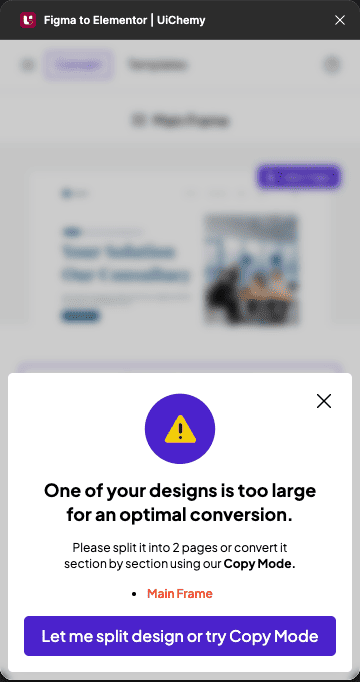
large design handling warning

To ensure a smooth and accurate conversion, you’ll need to split your design into smaller sections. This approach not only makes it compatible with UiChemy but also helps maintain the quality and performance of your exported files. 

To do this, follow the steps – 

  1. Click on the section/layout you want to split from the design.
  2. Then press the Alt key, and when you see the double arrow (black and white), drag the section out to duplicate it.
  3. Open the UiChemy plugin.
  4. Then select the Optimize option and click the Optimize button.
  5. On the next screen, go to the Optimization Companion tab. 
  6. Then lock the necessary layers from the Lock Multi Layer Media section by clicking the Fix button individually or clicking the Fix All button to lock all at once.
  7. After that, in the Convert Non-Auto Layout design to Auto Layout section, set the toggle to Manual.

Note: If you keep the toggle to Auto it will not optimize your design for auto layout. It is ideal if your design is already in auto layout.

  1. Then click on the Duplicate & Optimize Design button.

Now it will duplicate your design and convert it into an auto layout without affecting your original design.

Note: Conversion result will depend on the design’s structure and standard grouping.

  1. After that, tag your design elements of the duplicate design from the Widget Tags tab.

Note: Just in case you didn’t convert the design to auto layout from the Optimization Companion tab, you’ll find an option in the Widget Tags tab. Click on the No button in the, Is your design optimized? section. Then click on the Optimize button, and it will duplicate your design and convert it into an auto layout. 

  1. After that, tag your design elements of the duplicate design from the Widget Tags tab.

Note: The plugin will automatically recommend an export method based on how you select the design. As a result, you may see either Copy Mode, Live Import, or both options.

Similarly, you can split the rest of your design and export to Elementor.

About the Author

Photo of Sagar Patel CEO of UiChemy
CEO · UiChemy · 11 years experience

Sagar is the Founder & CEO of POSIMYTH Innovations, with 10+ years building WordPress products trusted by 100,000+ websites globally. He has led the development of The Plus Addons for Elementor, Nexter, WDesignKit, and UiChemy, all built hands-on from concept to launch. His work focuses on making website building faster, more flexible, and accessible for creators and businesses worldwide.

WordPressFigmaUI DesignWeb DesignElementorBricksAutomationClaudeAI

Related Frequently Asked Questions


What should I do if my Figma design exceeds 12,000 pixels?

If your Figma design exceeds 12,000 pixels in height, UiChemy won't export it as a single file. You need to split your design into smaller sections to ensure compatibility with UiChemy. This not only helps with the export process but also maintains the quality and performance of your files.

What is the best practice for optimizing my Figma layout in UiChemy?

A best practice for optimizing your Figma layout in UiChemy is to set the toggle to Manual in the Convert Non-Auto Layout design to Auto Layout section. Keeping it on Auto may not optimize your design for auto layout if it isn't already structured that way. This ensures that your design is converted effectively without affecting the original layout.

What happens if I forget to lock layers before optimizing?

If you forget to lock the necessary layers before optimizing your design in UiChemy, it may lead to unintended changes in your layout during the conversion process. Always ensure to lock layers from the Lock Multi Layer Media section to maintain the integrity of your design.

How do I duplicate a section in Figma for UiChemy?

To duplicate a section in Figma for UiChemy, click on the section you want to split, press the Alt key, and drag the section out until you see the double arrow cursor. This will create a duplicate that you can then optimize for conversion.

What should I do if my design isn't optimized after conversion?

If your design isn't optimized after conversion, you can go to the Widget Tags tab and click on the No button in the Is your design optimized? section. Then, click on the Optimize button to duplicate your design and convert it into an auto layout, ensuring better compatibility with UiChemy.

Last reviewed: April 14, 2026