
 18:35
18:35UiChemy 5.0: Convert Figma to WordPress Faster with AI Express Mode, Native Editing, and MCP
About this video
Turning a Figma design into a working WordPress site has always meant hours of manual rebuilding. UiChemy v5 changes that.
In this release, I take a finished Figma design and let AI build it into a real, editable WordPress site - connected with a single link, with the header and footer detected automatically, and every element ready to edit across Elementor, Gutenberg, and Bricks.
What's new in UiChemy 5.0
- AI Express Mode - reads your design's colors, type, and structure automatically.
- One connection link - no more license key or security tokens to set up.
- Auto-detects header/footer and sends them straight to the theme builder.
- Smart export options - animate, improve, or keep the design exactly.
- UiChemy Composer - native AI editing inside Elementor, Gutenberg, and Bricks.
- Edit in plain English, click-to-edit, page comments, or draw directly on the page.
- UiChemy MCP - make AI edits across your entire site, not just one page.
Resources
Questions people ask
What does AI Express Mode do?
It reads your Figma design and finishes the page automatically, matching your layout, motion and responsive behavior much closer to the original.
Does AI Express use credits?
Yes. Converting a Figma design with AI Express uses your UiChemy AI Credits. The Free plan includes 1,000 credits per month.
How do I get native editable Elementor widgets?
If you want native editable Elementor or Atomic widgets, we recommend using Figma to Elementor in Classic Mode.
In Classic Mode, how do I stop a paragraph from converting to a heading?
Open Conversion Settings and adjust Minimum Words to Tag as Text Editor. If you set it to 4, text with 4 or more words is treated as a Text Editor or Paragraph, and shorter text may be detected as a Heading. To control a single element, use Tag Widgets and tag that Figma element as Heading, Text Editor or Button.
Is there a refund if UiChemy is not the right fit?
Yes. Request a refund within 14 days. If you stayed within fair usage, it is a full refund, no questions asked.
Video transcript
Introduction & What’s New in UiChemy 5.0
If you have ever converted a Figma file that wasn't perfectly optimized, you know this moment. It falls apart and you are the one cleaning it up by hand. So, let me just be honest with you. A lot of you were not 100% happy with UiChemy and you were right.
If your design file wasn't clean, our conversion struggled and that last bit of clean up was a grind. Around 80,000 of you used it anyway and you told us the truth about it. We heard you. So, we didn't patch the old way.
We rebuilt the whole workflow. UiChemy 5.0 isn't a version bump. It's a different way of working. Let me just show you. It's easier to show than to explain.
Starting with AI Express Mode in Figma
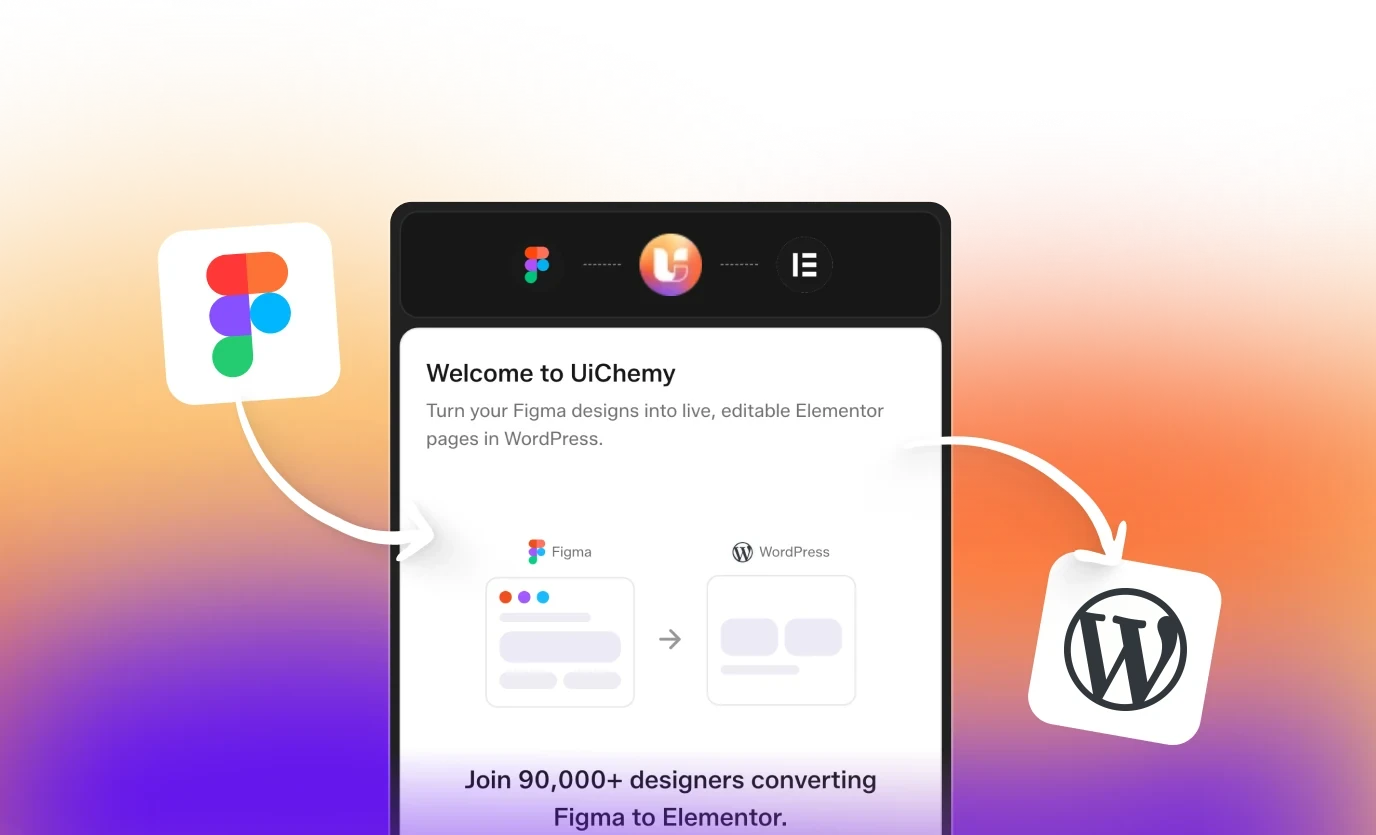
Okay, we are in Figma with a full home page design ready to convert. UiChemy 5.0 is open as a plugin on the right. Right away, we get two options.
AI Express mode and classic mode. We are going with the new AI Express mode. Let's click start. Step one, select design.
Step 1: Select Design Frame & Layer Analysis
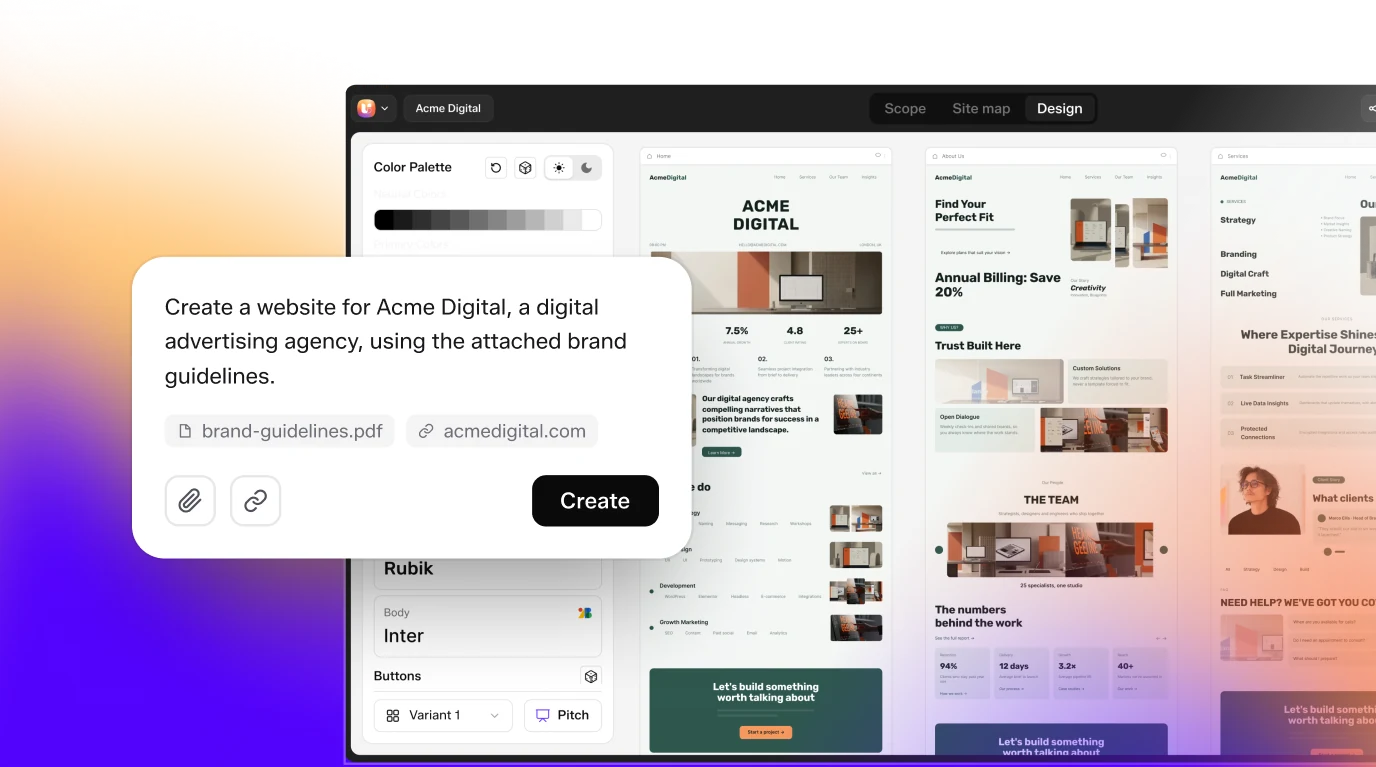
We click select a frame, check it, hit done and move on. UiChemy analyzes the design checking the layers, reading the colors and typography and mapping the full structure. Step two, connect site.
Step 2: Connect WordPress Site with a Single Link
The site drop down is empty. So, we click add another site. This step used to be hard. You had to copy your site URL and a security token one by one and it was easy to put them in the wrong place.
Now, it's just one connection link. We open the WordPress tab to get it. In the UiChemy WordPress dashboard, the link is right here. We copy it.
Back in Figma, we paste that single link in. UiChemy runs a site check automatically and we are connected. We click next. Step three, choose setup.
Step 3: Choose Full Setup (Global Colors, Typography, Header & Footer)
Full setup is selected, the page global colors, typography, and both the header and footer all in one go. We keep it and move on. Step four, fix gaps. Two options, convert exactly as designed or let it clean things up.
Step 4: Fix Gaps (Auto Cleanup Spacing & Contrast)
We switch to clean it up as it converts. That fixes spacing and contrast automatically. Step five, add motion. We cycle through static, subtle, and immersive.
Step 5: Add Motion (WebGL Animations) & One-Click Convert
Immersive is what we want. That enables the WebGL animations. Here, we can verify our selection and modify it if we want. We hit convert.
The conversion starts reading the design, syncing the tokens, and building the sections one after another. And notice, we never tagged a single layer. The old way made us to tag every layer by hand to tell it what each part should become. Here, the AI works out the structure on its own. And there we go, your page is ready. We just saved 3 hours. Let's check the preview.
Live Browser Preview & Converted Page Walkthrough
Here is the full page live in the browser. Hero section at the top, clean headline, and the typography and colors synced straight into Elementor's global manager from your Figma design. Scrolling down, the logo row, then in interactive tabs. Leasing, operations, investors, all three working.
Below that, the workflow section. The testimonials carousel is working with the on scroll animation on the team photos. Then the FAQ accordion. Click one, it opens and closes exactly as in the design.
The contact form and the footer all the way to the bottom. Every section converted from Figma. Now, let's check the page editor in Elementor.
Native Elementor Editing & Theme Builder Integration
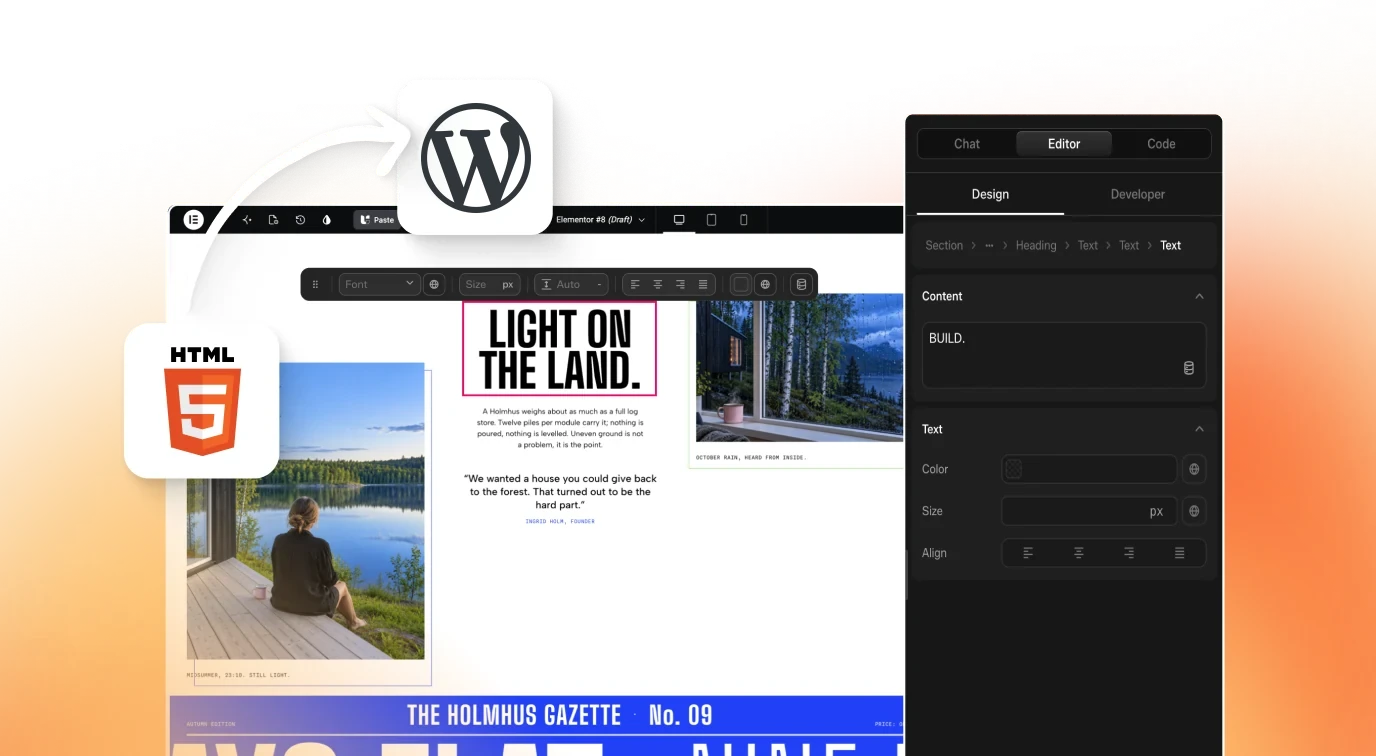
The header and footer are already sitting inside the theme builder. UiChemy can replace them there during the conversion, not us. Let's open the editor. The page loads natively inside Elementor.
Every element is real, nothing locked, nothing wrapped. We can click into anything and edit directly. On the right, the composer widget is open.
AI UiChemy Composer Widget (Prompt-to-Edit & Dynamic Changes)
The AI editor built into this workflow. Let's show you what it can really do. We click pick at the bottom of the panel. It asks us to click any element to target it.
We click the workflow cards, the phase cards on the right. The panel confirms it's now targeting just that element. Now, we can try our instruction. Turn this section into an auto playing vertical carousel slider that displays three cards simultaneously, smoothly sliding upwards one card at a time with a 1.
5 second delay, and generate three additional content cards. We send it. The AI gets to work and applies the changes. And there we go, composer tells us exactly what it built.
Three new phases cards, six in total, and the carousel is running right now, looping back to the start.
AI Draw & Annotate Feature
Now, let's look at the draw feature. We click draw and the editor goes full beat. We draw a circle around this start in the hero section, then type, "Make this smart area as a counter." And we send it.
The annotation, the screenshot, the circle, and the note goes straight to chat AI. It reads the design system, thinks through the change, and it's done. This is the most efficient UiChemy has ever been. We told you we would keep evolving for you. This is that promise, just bigger, and it won't stop at Figma.
Future Roadmap & Outro
It's coming. Clone any website into editable WordPress. Bring a lovable build over. Bring clone design over.
Same idea every time. Anything into a finished editable WordPress site. Stay tuned for that. We are growing towards 100,000 of you now.
And I mean this, we are all in for you. So try 5.0 on a real design and tell us honestly what breaks the same way you did last time. Because last time that's exactly what made it better.
Your feedback is the road map. So go try it. Tell me what breaks. Actually, you might not even need to anymore. Because now your plain English does the fixing for you. Bye. See you with the next update.
Transcript generated from the video's captions.
More videos
18:35 8:43
8:43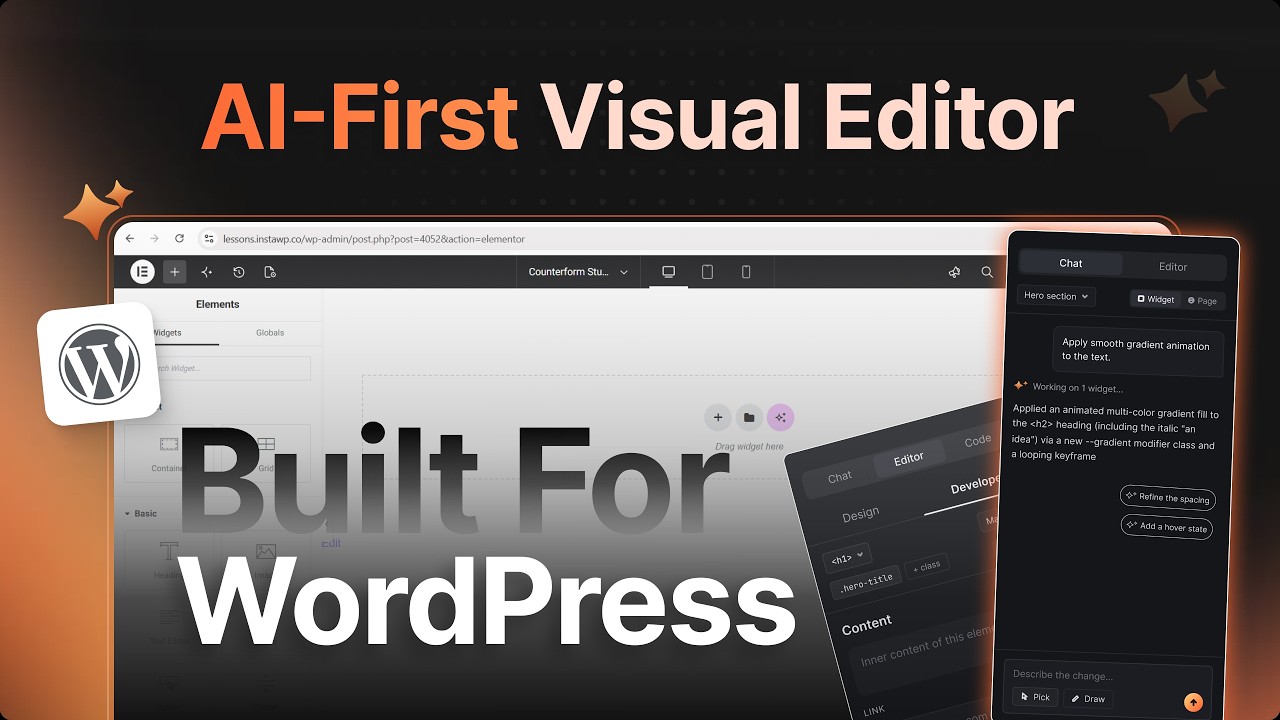 11:56
11:56 8:42
8:42 3:59
3:59 12:29
12:29 3:26
3:26 2:29
2:29 3:02
3:02