






Figma AI Design Tools for People Who Ship to WordPress
 Sagar Patel
You have a homepage signed off in Figma and a WordPress site waiting for it. You open the file, and Figma now offers you an agent on the canvas, a prompt box called Make, a Weave tool panel, a shader generator, and an MCP server in Dev Mode.
Five entry points, all labelled AI, and only some of them produce something a WordPress site can use.
This post sorts the Figma AI design tools by what they actually output, because that is the only property that decides whether the work reaches a client site. Everything below was checked against Figma’s own product pages, help centre and developer docs on 7 September 2026.
Where a tool carries a beta label, that label is stated, since a beta label is the gap between something you can experiment with and something you can put on an invoice.
What Counts as a Figma AI Design Tool Now
Figma groups its AI story on one page at figma.com/ai, and the framing there is three verbs: explore, polish, ship. Explore is the canvas agent generating directions, diagrams and image edits.
Polish is comparing those directions with your team. Ship is turning a design into a code-backed prototype or pushing it into production through the MCP server.
That framing is honest about where the products end. Figma’s ship step ends at a codebase or a pull request.
If your production target is a WordPress theme rather than a React repository, the last leg of that journey is not covered by anything on the page, and that is the gap this post keeps returning to.
Two more tools sit slightly outside that three-verb story. Weave tools generate and edit imagery, video and audio inside a Figma Design file, and generative plugins let the agent build a small custom tool on the canvas from a description.
Both are useful for asset work rather than layout work, which is a distinction worth holding on to.
Sort the Tools by What They Output
A tool that outputs Figma layers can be handed to a converter. A tool that outputs code can be handed to a developer.
A tool that outputs a hosted preview can be handed to a client for review and nothing else. Sorting by output is more useful than sorting by which product menu the button lives in.
| Tool | What it produces | Status on 7 Sep 2026 | Route to WordPress |
|---|---|---|---|
| Figma agent on canvas | Editable Figma Design layers | Beta, free during beta | Direct, through a converter |
| Figma Make | Code-backed prototype or web app | Full seats on paid plans | Indirect, via Copy design or a rebuild |
| Dev Mode MCP server | Design context and code for an agent | Live, plan-gated | None on its own, it targets a codebase |
| Weave tools | Images, video, audio, vectors | Open beta inside Figma Design | Assets only, not layout |
| Generative plugins and shaders | Canvas effects and small custom tools | Beta, agent-built | Effects do not survive an export |
Read that last column carefully. Only one row produces native Figma layers with real structure, and that is the row a Figma to WordPress workflow depends on.
Everything else either stops at code or produces material you place inside a layout rather than a layout itself.
The Canvas Agent Is the One That Matters for Layout
The Figma agent works on the canvas rather than in a separate product. You chat with it to generate and remix designs, automate repetitive work, and get feedback on a file.
It can also create shader effects and fills, package repeatable workflows as skills, pull context from external tools through connectors, and generate editable animation from a text prompt.
The commercially important detail is on Figma’s pricing page rather than in any announcement.
Figma states plainly that the agent is free to use during the beta and that AI credits are not consumed for any prompts or actions, and that standard AI credit usage will apply once it becomes generally available.
That is a temporary price of zero on a feature that will later draw from the same pool as everything else.
If you are quoting a client for a design phase that leans on the agent, quote the work rather than the tool. The number that funds this today is a beta concession, and Figma has said in writing that it ends.
Figma Make Ships Code, Not Layers
Make is the prompt-to-app product.
It generates a functional prototype or web app, and its feature list has grown in the direction of engineering rather than design: Make kits that bundle npm packages and library styles, plan mode that writes a structured plan before any code is generated, MCP connectors that pull in tickets and documents, and a beta for working in your local codebase.
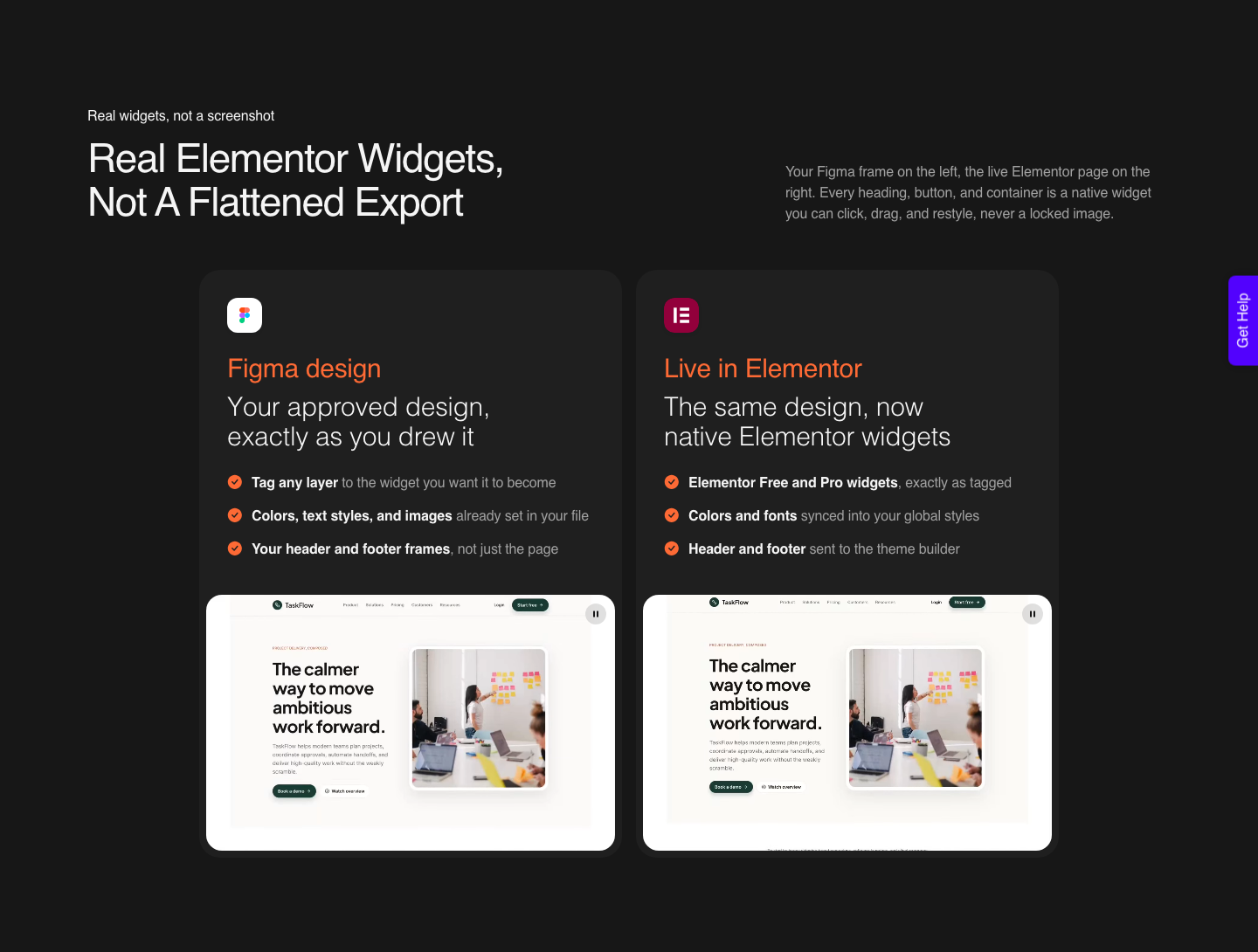
There is a bridge back to design, and it has a name. The Copy design feature copies the current state of a Make preview into Figma Design as editable layers.
Figma’s help centre states three limits on those layers in the same article: they are not connected to the Make file, they are not automatically tied to your design system, and they are not interactive.
Those three sentences are the whole reason Make output needs cleanup before it converts well. Layers that were never bound to a design system arrive with one-off values rather than variables, and a converter can only map what the file actually contains.
Dev Mode and the MCP Server Point at a Codebase
Figma’s Dev Mode page states that the Figma MCP server pulls design system components right into your codebase, and the same page shows React, Swift, OpenAI, Claude, Codex and Cursor as the tools it plugs into.
The AI workflows page shows a slightly different lineup for agentic connections: OpenAI, GitHub, Claude, Cursor and Gemini.
The developer documentation lists what the server actually does: write native content to the canvas, generate code from selected frames, extract variables and layout data into an IDE, retrieve Make resources, and keep generated code consistent with real components through Code Connect.
Every one of those verbs has a codebase on one end.
That is not a criticism. It is a scope statement, and it explains why a WordPress build needs a second MCP pointed the other way.
A deeper treatment of what an agent can and cannot do through MCP sits in our post on Figma AI agents and the MCP shift.
What the AI Tools Cost per Seat
Figma AI runs on a single credit pool shared across features, and the allowance is attached to the seat rather than the person. Re-checked on the pricing page on 7 September 2026, the Full seat numbers are the ones that matter for a designer, because Dev and Collab seats sit at 500 credits a month regardless of plan.
| Plan | Full seat price | AI credits per month | MCP server tool calls |
|---|---|---|---|
| Starter | Free | 150 per day, up to 500 per month | Up to 20 per month |
| Professional | $16 per month | 3,000 | 200 per day, 10 per minute |
| Organization | $55 per month | 3,500 | 200 per day, 15 per minute |
| Enterprise | $90 per month | 4,250 | 600 per day, 20 per minute |
The credits reset monthly and do not roll over, so an unused allowance is simply gone at the end of the cycle. That shapes how you plan a month of work more than the headline seat price does, and the arithmetic is worked through in our post on how Figma AI credits are spent.
Where the Chain Breaks on a WordPress Build
The break is rarely the generation step. Models are good at producing a hero section that looks right at the width you asked for.
The break is that generated output tends to arrive with hard-coded spacing instead of auto layout, and one-off colour values instead of bound variables, which reads as correct on screen and converts badly.
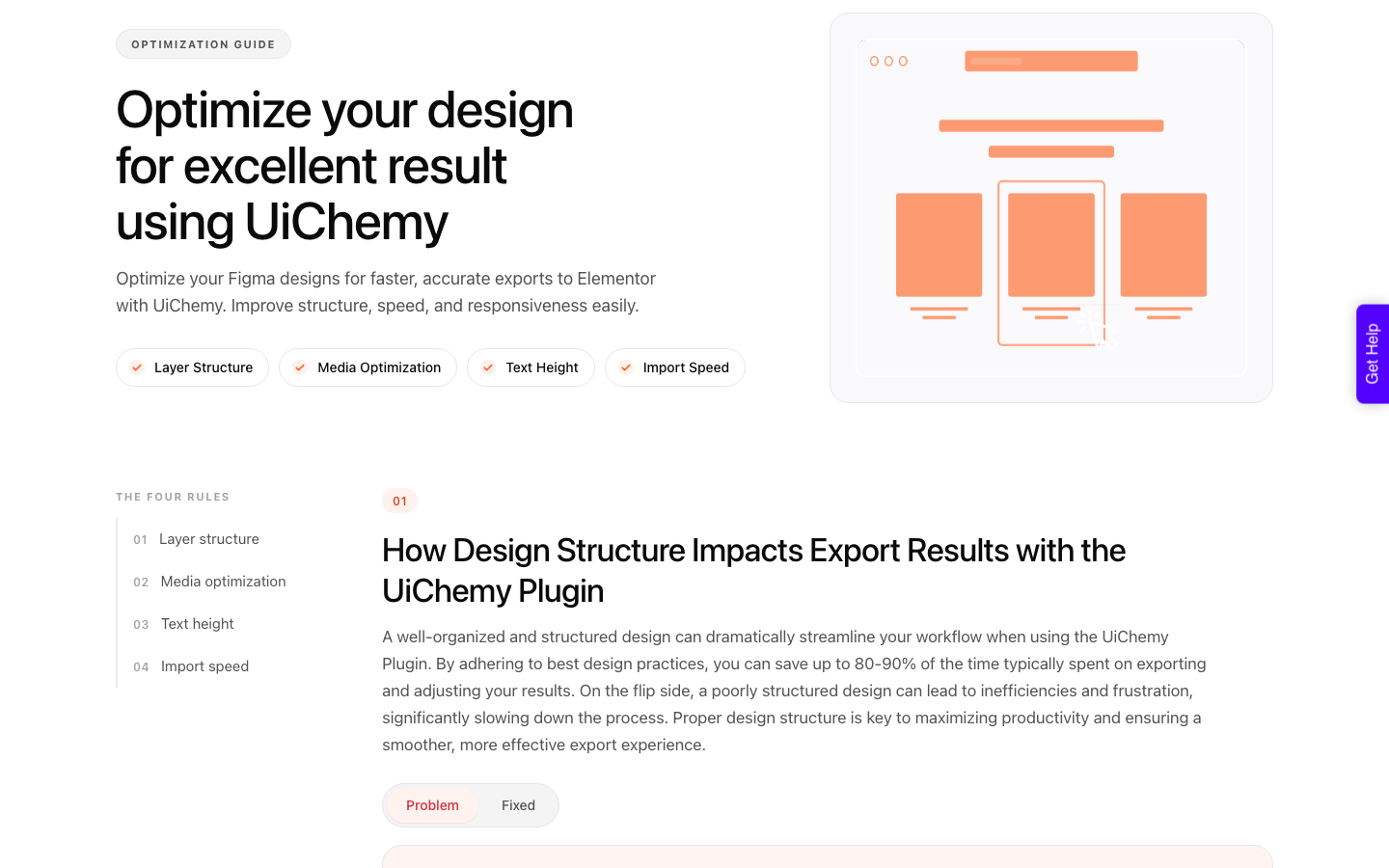
UiChemy’s optimisation guide is specific about what a file needs before conversion, and it reduces to four rules: layer structure, media optimisation, text height and import speed.
Proper layer grouping, micro auto layout where a group needs it, only essential elements in each frame, and locked masked frames are what separate a clean export from a cluttered one.
The locking rule is the one that catches people out. Any locked layer, group or frame is converted to a single image on export, which is what you want for a masked vector composition and the last thing you want for a text block.
The design optimisation guide puts a well structured file at 80 to 90% of the time saved against a badly structured one, and the few minutes the rules take are cheaper than the rebuild.
Closing the Last Leg into WordPress
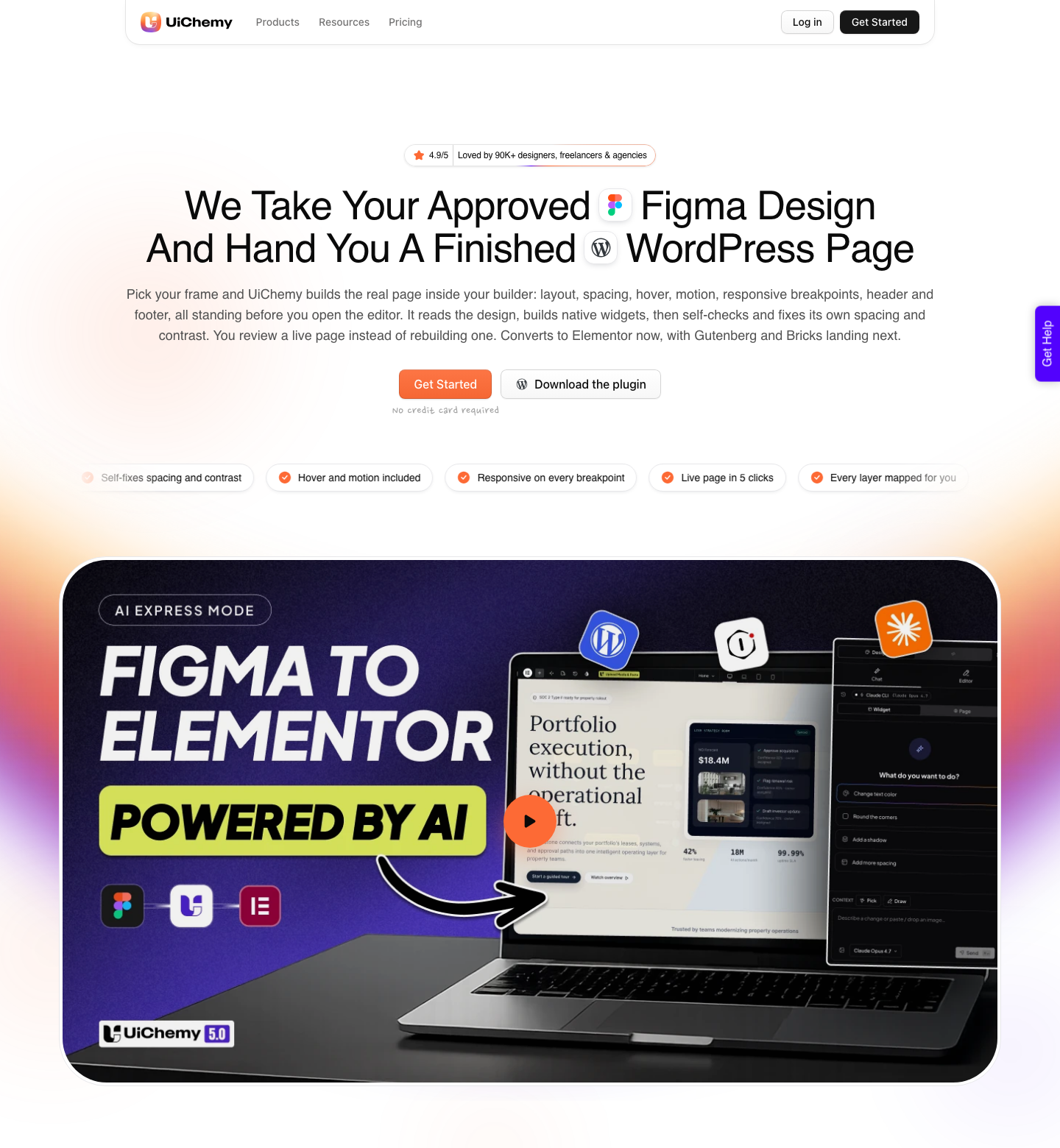
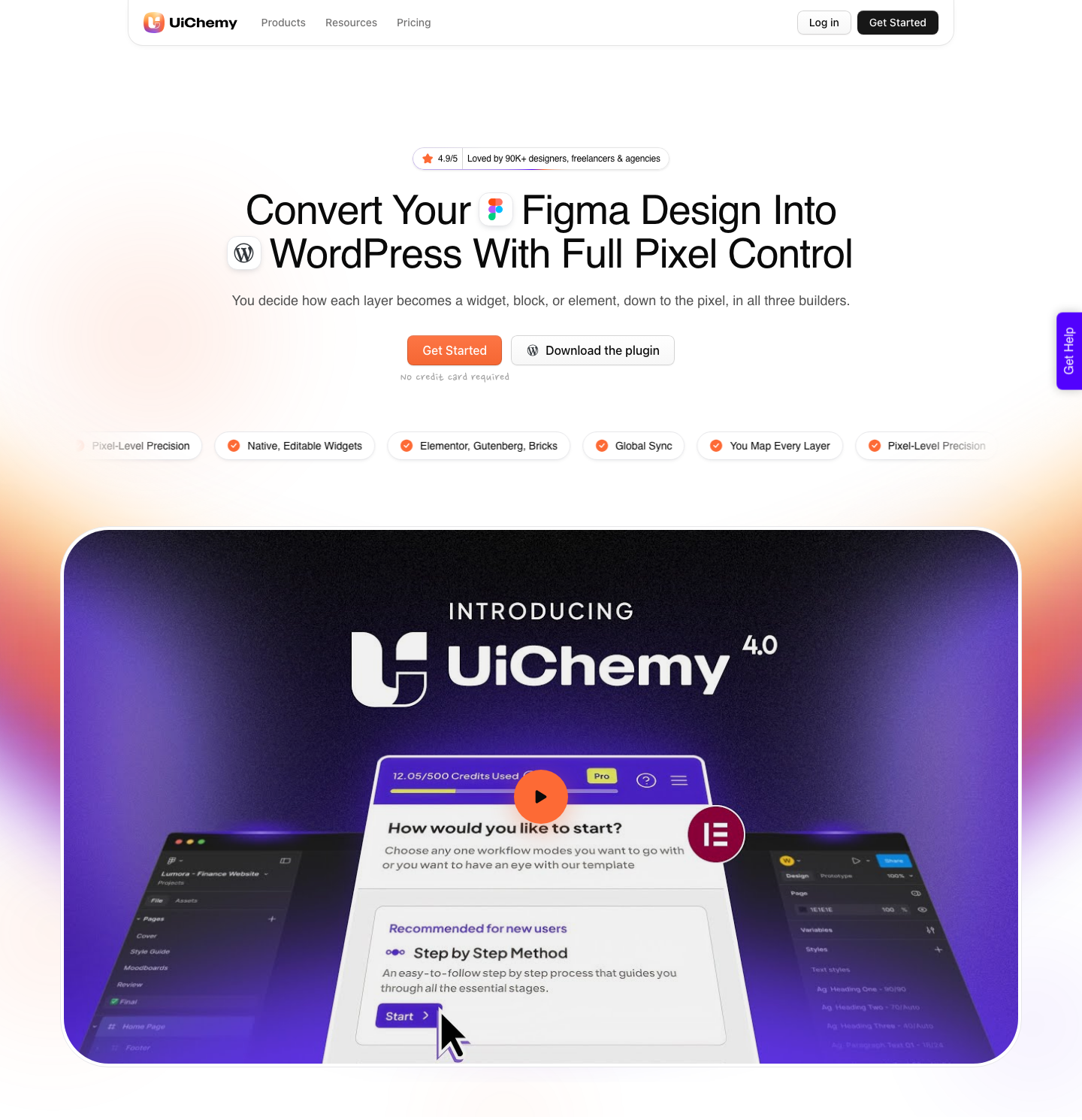
UiChemy takes the approved Figma frame and rebuilds every layer as native WordPress elements. AI Express Mode reads the layers without any tagging and handles layout styling, motion and spacing automatically.
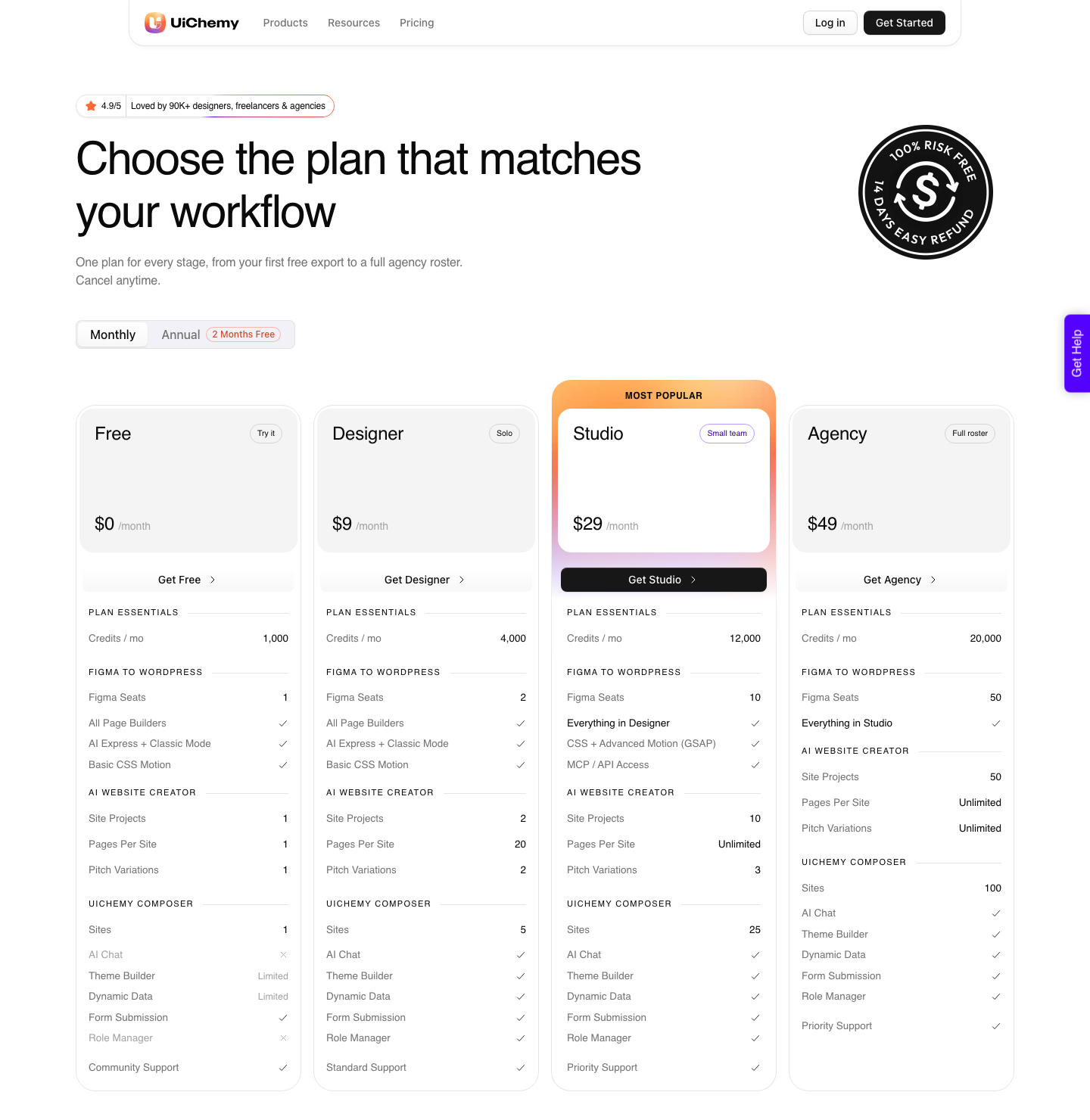
Classic Mode asks you to tag layers and gives you exact control in return, and both modes ship on every plan including the $0 Free one.
The Figma frame is one of four starting points, and that matters here because most of the tools in the table above never produce layers. A prompt or a client brief goes into AI Website Creator, which writes a scope, generates a sitemap, designs the pages and then exports.
An existing Lovable, Claude, Bolt or v0 build goes in through UiChemy Composer, the single widget that writes real HTML, CSS and JavaScript inside Elementor.
A Make prototype that you never bother copying back to Figma Design still has a road into WordPress, it is simply not the converter’s road.
Be precise about builder support, because this is where most write-ups get sloppy. AI Express outputs to Elementor today, with Gutenberg and Bricks marked as coming next.
Classic Mode covers Elementor, Elementor v4 Atomic, Gutenberg, Bricks, Nexter Blocks, GenerateBlocks, Spectra and Kadence right now.
The output is real editable widgets rather than a flat export, which is the objection every AI site generator meets in a WordPress community.
A verified reviewer puts the realistic split at UiChemy handling about 70% of the design work and leaving 30% to fine-tune in Elementor, which is a more useful expectation to carry into a client project than any claim of a finished page.
The Honest Limits
Most of the interesting Figma AI surface is in beta. The canvas agent, Figma Sites, Figma Buzz and Figma Motion all carry beta labels on the pricing page, and Weave tools inside Figma Design are in open beta.
Beta means the behaviour and the price can both move before you finish a retainer.
The MCP server is plan-gated in a way that catches solo designers. A Starter plan gets up to 20 tool calls per month, which is enough to confirm a connection works and not much else.
Figma’s own guidance for anyone hitting that wall is to move to a paid plan with a Full or Dev seat.
On the UiChemy side the same treatment applies. AI Express Mode outputs to Elementor today and nothing else, with Gutenberg and Bricks named as coming, so a Gutenberg or Bricks site runs Classic Mode instead.
AI Website Creator exports to Elementor as well, and Export To Gutenberg is marked Soon on all four plans including Agency.
Two features are plan-gated in a way worth knowing before you promise anything. MCP and API access start on the Studio plan at $29 a month, so they are absent from Free and from Designer at $9.
Advanced Motion through GSAP starts on the same tier, while basic CSS motion is on every plan.
One more detail from the optimisation guide: Elementor’s Heading widget has no text height property, so a Figma text layer given a fixed height to fake bottom spacing will overlap its neighbours after conversion.
Questions People Ask About Figma AI Design Tools
Can any Figma AI tool publish straight to WordPress?
No. Figma’s published paths end at a code-backed prototype, a pull request, a Figma Sites publish, or editable layers on the canvas.
WordPress is not a destination in any of them, which is why the conversion step is a separate product.
Which Figma AI features are free right now?
The canvas agent is free during its beta and consumes no AI credits, per Figma’s pricing FAQ. Weave tools inside Figma Design are in open beta.
Everything else draws on the shared credit pool, which is 150 credits a day and up to 500 a month on Starter.
Do I need a paid Figma plan to use a converter?
A Figma Professional account is recommended rather than required. The export workflow uses the Figma REST API, and free-plan rate limits are metered monthly on file endpoints, which can interrupt a larger export part way through.
Does AI-generated Figma output convert as well as hand-built files?
Only if it carries the same structure. A converter reads auto layout, frames and bound variables, and generated files often skip all three in favour of absolute positions and literal colour values.
Fixing the structure once is faster than correcting the WordPress page afterwards.
What does the conversion step itself cost?
UiChemy runs on its own credits, and there is a real Free plan at $0 a month with 1,000 credits and one Figma seat. Designer is $9 for 4,000 credits, Studio $29 for 12,000, Agency $49 for 20,000.
Credits refresh monthly rather than rolling over, you can top up mid-cycle, and every paid plan carries a 14-day money-back guarantee. Full detail sits on the pricing page.
What to Take From This
Judge a Figma AI design tool by its output type, not its marketing category. The canvas agent gives you layers, Make gives you code, the MCP server gives an agent context, and Weave gives you assets.
Only the first of those is a direct input to a WordPress conversion, and even then the file still has to obey the auto layout rules before it converts cleanly.
The rest of the value is real but sits earlier in the process, in exploration and asset work rather than in shipping. Treat the beta labels as expiry dates on today’s pricing, keep the conversion step in your estimate as its own line, and the AI layer stops being a gamble and becomes a normal part of the pipeline.