Designer Without Code: Ship a Custom Interaction on a Client Site
 Sagar Patel
A designer without code can ship a custom interaction by writing a precise behaviour spec, having an AI section tool generate it, then reviewing it on a staging site with a fixed checklist: keyboard, mobile, reduced motion and speed. Get client sign-off on the behaviour, not just the look, and document where the code lives.
You do not need to become a developer. You need to become a good briefer and a careful reviewer, which are design skills. This process works with any AI tool that writes front-end code, and I describe it using Composer because that is what I know. If you want ideas to start from, see eight custom sections a page builder cannot do.
What Counts as a Custom Interaction
Anything that responds to the visitor beyond a hover colour. A card that flips, a section that changes as you scroll, a filter, a calculator, a before and after slider. Designers draw these in prototypes all the time. The gap is turning the prototype into something that runs on the live site.

Traditionally that gap meant a developer, a ticket and a wait. With an AI section tool inside the page builder, you can close it yourself for small, contained interactions. For large or business-critical logic, bring a developer back in.
Step 1: Write the Behaviour Spec
A mockup shows a state. A spec describes behaviour. Write down, in plain sentences:
- Trigger: what starts it. Scroll to a point, click, hover, type, drag.
- Response: what changes, how fast, in what order.
- Start state: what the visitor sees before anything happens.
- End state: what they see after, and whether it can be undone.
- Touch and keyboard: the equivalents for phones and for people who do not use a mouse.
- Reduced motion: what happens for visitors who asked their device to cut animation.
That last pair is where designers add real value. Developers often forget them under time pressure. If you write them into the spec, the generated code is far more likely to include them.
Step 2: Generate and Refine
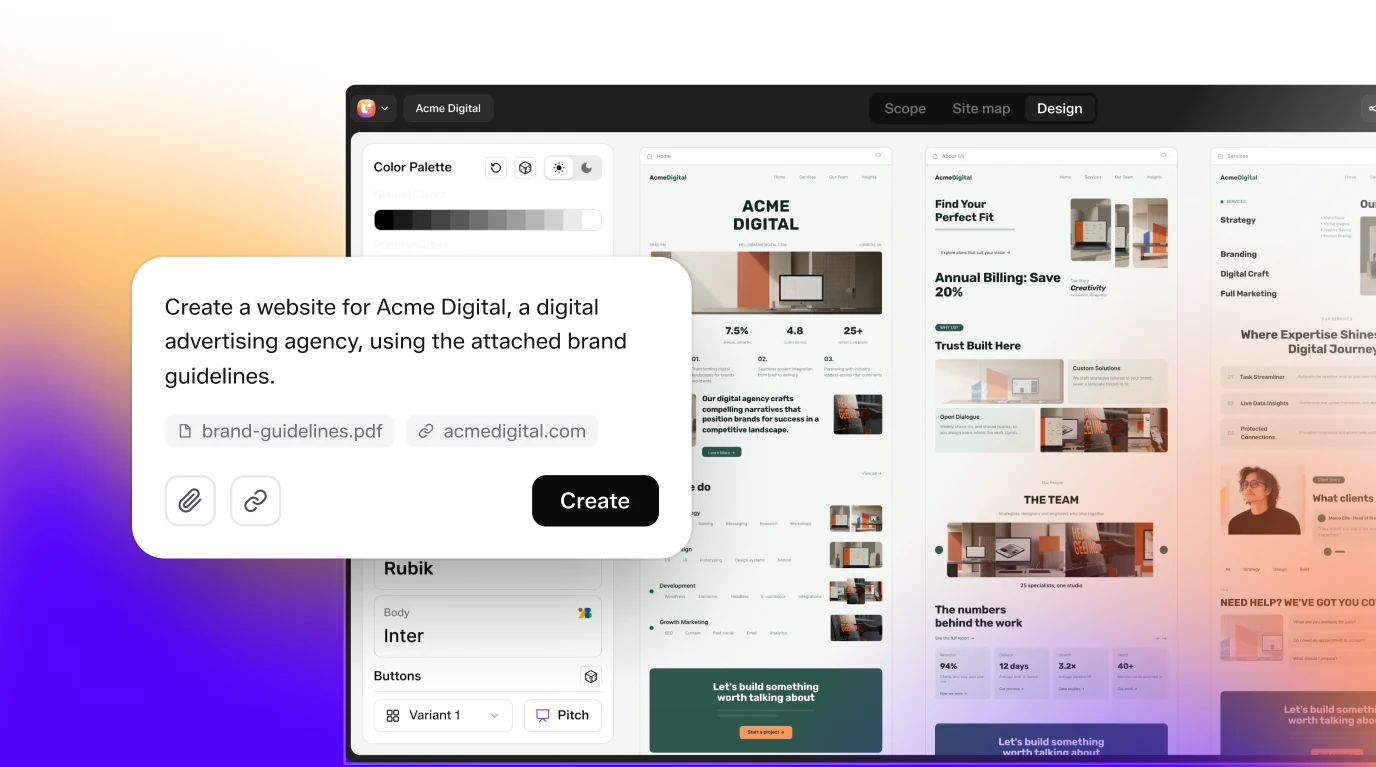
Paste the spec into the tool as the prompt. Include your real copy and brand variables, and say what must not be added. If your tool is Composer, the Composer docs explain the Editor and Code tabs, which is where you will make most changes after generation.
Plan for two rounds. Round one gets you a draft. Round two is a single message with all your corrections. Then move to the visual editor for spacing, colour and copy, because direct editing beats re-prompting for small tweaks. The prompt structure for specific sections is in a pricing table, tabs and a slider from one prompt each.
A word on scope. Keep the first interaction small. One section, one behaviour. If you try to generate an entire animated page in one go, you will not be able to tell which part is broken.
One more habit helps designers more than any prompt trick: keep a reference. Record a short screen capture of an interaction you like on another site, or sketch the three key frames in your design tool.
Then describe the frames in words in the spec. You are not copying code, you are giving the tool a picture of the timing and the end state, which prose alone often misses.
It also helps to decide your quality bar early. Is this a polished hero moment that the client will show off, or a small utility that only needs to work? The first deserves several rounds and a real-device pass. The second deserves one round and a checklist. Matching effort to importance keeps the project on schedule and avoids polishing an interaction nobody will notice.
Step 3: Review on Staging
Never test on the live site. Use a staging copy. Then run the checks in keeping AI-written code clean. As a designer, these five matter most:
- Does it match the spec? Read the spec aloud and tick each sentence against the live behaviour.
- Keyboard. Can you do everything without a mouse?
- Phone. Test on a real device, not only a narrow browser window.
- Reduced motion. Switch the setting on and reload.
- Speed. Run PageSpeed Insights before and after. The method is in how to test the performance of AI-generated sections.
If anything fails, go back to Step 2 with a precise correction. “The tab key skips the second button” is a good correction. “It feels off” is not.
Step 4: Get Sign-Off on Behaviour
Clients approve screenshots. Interactions are not screenshots. Send them a staging link and a short list of what to try, such as “scroll to the timeline, then try it on your phone”. Ask for a written yes or a written list of changes.
This protects you from the late request that begins “I thought it would also…” Agreeing behaviour in writing is the same logic as locking a sitemap before design. For a deeper look at that habit, see AI workflows for WordPress agencies.
Step 5: Document and Hand Off
Write three lines in your handoff note per custom interaction:
- What it does, in one sentence.
- Where it lives: page name and section.
- Who to contact if it breaks, and what to check first (plugin updates, builder updates).
Also tell the client what they can safely edit. Text and images, yes. Anything in the code view, ask first. A visual editor makes that line clearer than a raw HTML box does. For the way this fits an agency’s wider process, read Claude to Elementor: make your website editable with Composer.
The five steps and what each one produces:
| Step | What you produce |
|---|---|
| 1. Spec | Trigger, response, start state and end state, in plain sentences |
| 2. Generate | A draft in round one, a single main change in round two |
| 3. Review | Checks on a staging copy, never on the live site |
| 4. Sign-off | A staging link, a short list of what to try, and a written yes or list of changes |
| 5. Hand off | Three lines per custom interaction: what it does, where it lives, who to contact |
The Interaction Spec Template
INTERACTION SPEC

Name: [e.g. Pricing toggle]
Page and section: [e.g. Pricing, below hero]
Goal: [what the visitor should be able to do]

Trigger: [click / scroll to X / hover / input]
Response: [what changes, in order, with timing]
Start state: [what shows first]
End state: [what shows after; can it reset?]

Content (exact): [labels, numbers, images]
Brand: [use global colours and fonts; list any exceptions]

Touch: [what a tap or swipe does]
Keyboard: [which keys do what; focus order]
Reduced motion: [what happens when set]
Mobile layout: [stack / scroll / simplify]

Do not add: [anything not listed above]

Acceptance tests:
[ ] Matches every line above on staging
[ ] Keyboard-only pass
[ ] Real phone pass
[ ] Page speed compared before and after
[ ] Client approved the behaviour in writing
Fill it in before you open any AI tool. If you cannot complete a line, that is a design decision still waiting to be made, and no tool will make it well for you.
A Worked Example: A Before and After Slider for a Renovation Client
Here is how the five steps look on one small job. The client is a renovation company, and the interaction is a before and after image slider on a project page. The details are illustrative, so adapt them to your own client.
Step one, the spec. You write the trigger as dragging a handle, or pressing the left and right arrow keys when the handle has focus. The response is that the handle moves and the top image is revealed or hidden on that side. The start state is a 50 percent split. The end state has no reset, since the visitor can drag back.
You add the touch line: swipe works the same as drag. You add the keyboard line, with arrow keys moving the handle in small steps and Home and End jumping to each extreme. For reduced motion, you say the handle jumps to its position without easing.
Step two, generate. You paste the spec, attach the two real photographs, and say not to add captions or any text you did not list. Round one gives a working draft. Round two is one message listing the fixes, perhaps a wrong default position and a missing focus style.
Step three, review. On staging you read the spec aloud against the behaviour, then try keyboard only, then a real phone. Step four, you send the client a staging link with two instructions: drag the handle on your phone, and tell us if anything feels wrong.
Scoping the Work So It Does Not Eat Your Margin
A custom interaction is easy to promise and surprisingly easy to underprice. The generation step is quick. The spec, the review and the sign-off are where the hours go, and they are the parts a client does not see.
Quote the interaction as its own line item, with the tasks listed: spec, build and refine, device testing, one round of client changes, and handoff note. State what one round of changes means. A client who asks for a different behaviour after sign-off is asking for a new spec, and a new spec is a new line.
It also helps to say what is out of scope. Examples are interactions that process payments, handle personal data or connect to third-party systems. Those belong with a developer, and saying so early protects both sides.
For wider guidance on pricing AI-assisted work, read how to quote AI-built websites for clients without underpricing yourself. The principle holds even for a single section: you are selling a reviewed, documented result, not minutes of generation time.
When Something Goes Wrong After Launch
Even a reviewed interaction can misbehave later. Themes, builders and plugins update, and browsers change. A short plan in your handoff note turns a panic into a routine fix.
| Report from the client | First check | Next step |
|---|---|---|
| “It stopped working” | Did a plugin, theme or builder update recently? | Reproduce on staging, then roll back the update there to confirm |
| “It looks wrong on my phone” | Which phone and browser? | Test that combination, then adjust the mobile layout in the spec |
| “The page got slow” | Did anyone add images or scripts nearby? | Repeat the before and after speed test |
| “I edited the text and it broke” | Was the edit made in the code view? | Restore from backup, then edit text in the visual editor |
Every row starts with a question, because the cause is usually a recent change. That is why the handoff note records where the code lives and what changed last.
Keep your backup habit even for small fixes. The code review checklist includes a backup step, and rerunning its keyboard and speed checks after any fix keeps the interaction honest. Store the reports in one place so you can compare them over time.
One last habit: after any fix, tell the client what changed in a single sentence. A short note builds the trust that makes the next sign-off quicker, and it gives you a record if the same question returns months later.
FAQ
Can a designer add custom interactions to WordPress without code?
Yes, for contained interactions. Describe the behaviour precisely, generate it with an AI section tool, then review it on staging. The skill that matters is writing a clear spec and testing carefully. Complex logic, payments or anything touching customer data should go to a developer.
What should a spec for an AI-built interaction include?
Trigger, response, start and end states, exact content, touch and keyboard behaviour, reduced-motion behaviour and mobile layout. Add a line saying what must not be added. Specs that include these produce first drafts that need far fewer corrections.
How do I stop a client from breaking the interaction?
Tell them what is safe to edit, which is usually text and images in the visual editor, and what to leave alone. Document where the code lives, keep a backup before changes, and test again after builder or plugin updates.
Should I test on the live site?
No. Use a staging copy, then publish once it passes the checks. Testing on the live site exposes real visitors to bugs, and a rollback is harder than simply not publishing yet.
When should I hire a developer instead?
When the interaction handles money, personal data, logins or complex integrations, or when it must meet strict performance or compliance rules. For visual, contained behaviour on a single section, a careful designer with a good review routine can ship safely.
If you want to try this on a real section, you can Get Started and build the first interaction on a staging site.
Every feature named in this post is listed by product: all UiChemy features, UiChemy Composer features.