
Custom Code in Gutenberg Without a Stack of Snippet Plugins
 Sagar Patel

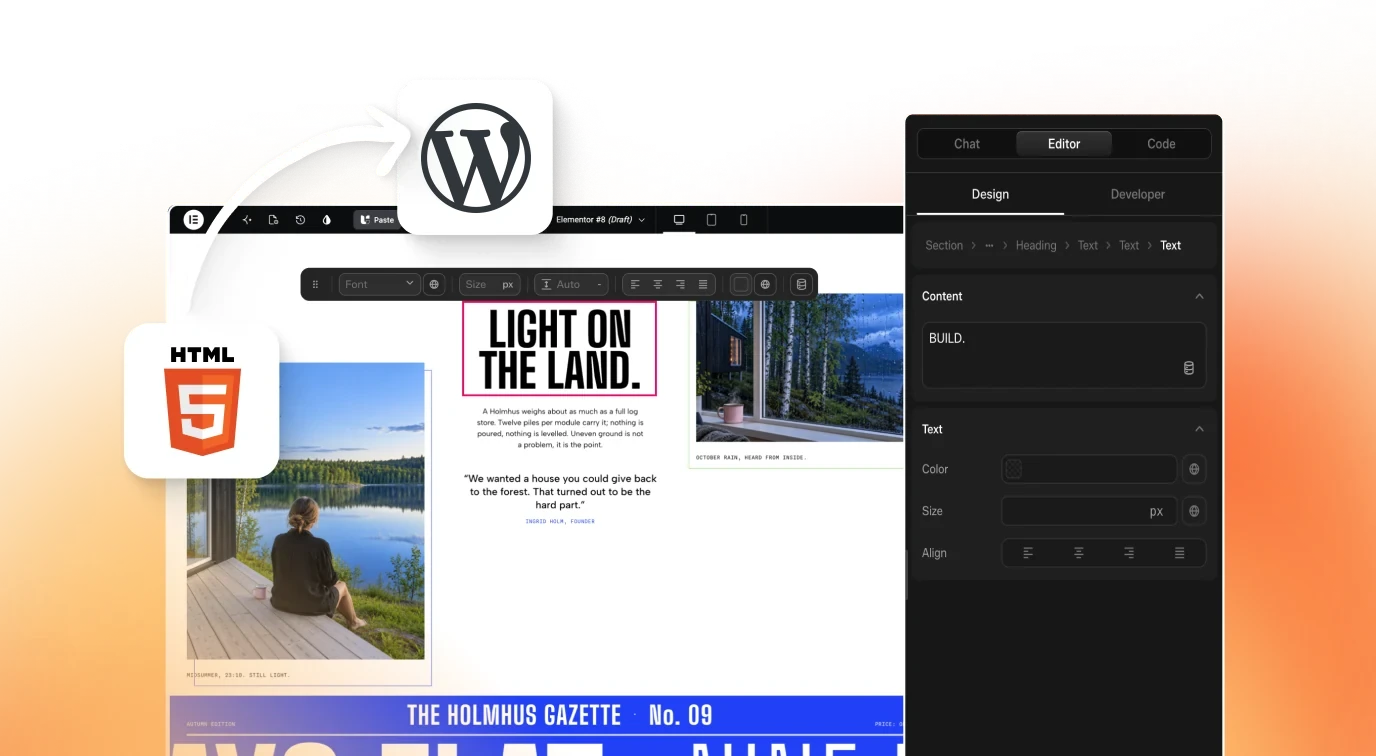
For Gutenberg custom code, WordPress core already gives you a Custom HTML block, and UiChemy Composer adds a block that stores HTML, CSS and JavaScript together with scoped styles and editable fields. Composer is itself a plugin, so the gain is one tool instead of several. Editing custom CSS and JavaScript needs Pro.
The usual pattern is a snippet plugin for JavaScript, another for CSS, and a custom block that someone has to maintain. This post covers what each route does, where Composer fits and where it does not. Our Elementor version of this guide covers the same widget in that builder.
What Does Core Gutenberg Already Do?
Before adding any plugin, know what you have. WordPress core includes a Custom HTML block, where you can paste markup and preview it.
Core also lets a theme or a site add CSS through the Site Editor, and a block theme can enqueue its own scripts. For a single embed or a one-off widget, that is often enough, and it is the right answer when it is.
The limits show up when the work grows:
- CSS you add is global unless you scope it yourself, so one section’s rule can change another section.
- JavaScript lives somewhere else, in a theme file or a snippet plugin, away from the markup it controls.
- An editor who wants to change a heading or an image has to edit raw HTML.
Those are the problems Composer targets. For the developer docs on how core handles blocks and scripts, see the WordPress Block Editor Handbook.
What Does the Composer Block Add?
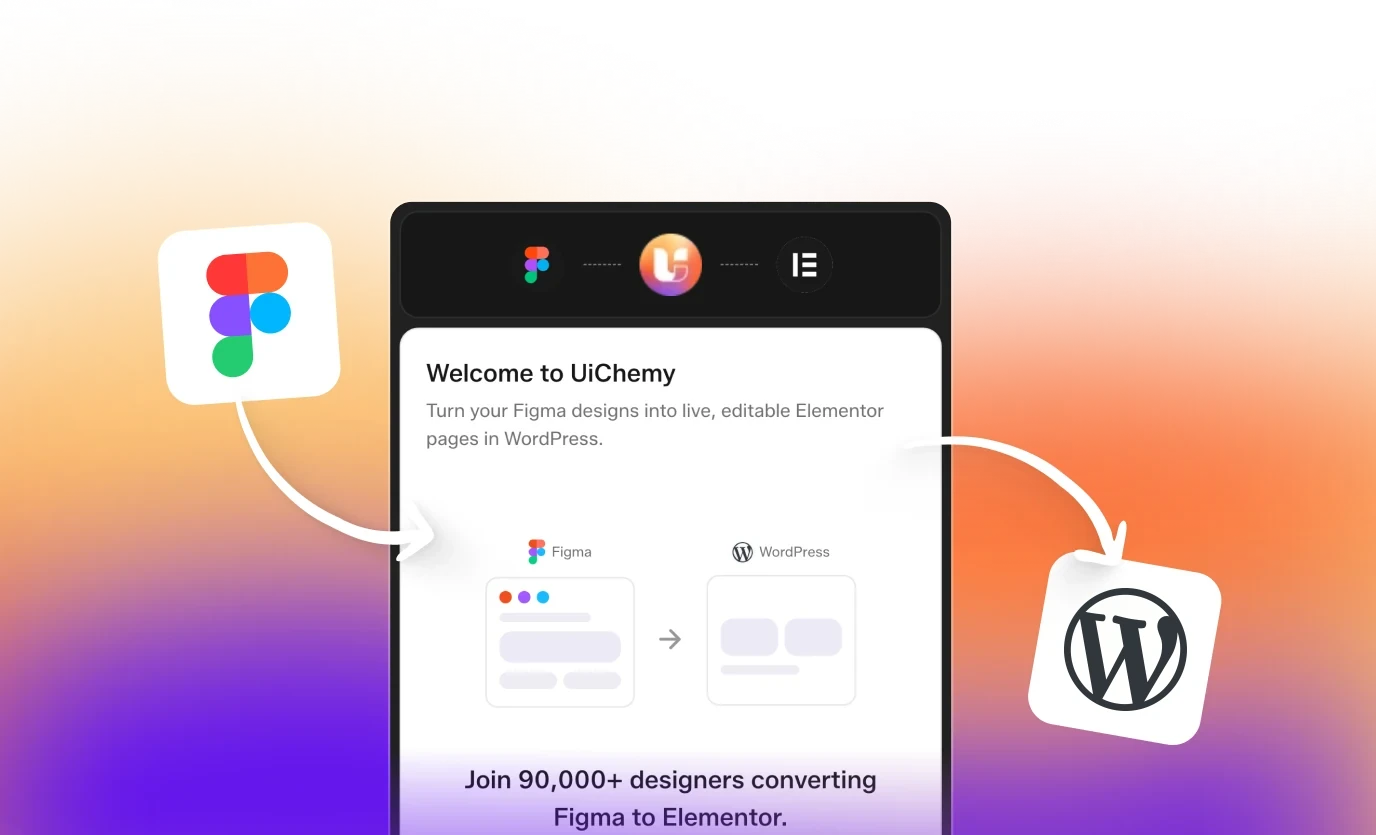
The UiChemy docs state that the Composer widget also works as a Gutenberg block, in addition to its Elementor and Bricks forms. It is one block that stores real HTML, CSS and JavaScript, not a group of settings. The docs list four things that matter in Gutenberg.
- One block, three kinds of code. Markup, styles and script sit together in the same block, so the thing you copy between pages carries all of its code.
- CSS auto-scoping. Rules are rewritten to a per-widget selector. The docs say Gutenberg and Bricks use a UiChemy-generated class for this, so a rule like
h2 { color: red; }stays inside that block. - Slots. Text, links and images in the HTML are extracted as editable fields, so a content editor can change copy without touching code.
- A visual editor and a code view. The Editor tab is visual, and the Code tab shows the code with a live preview and Format and Copy buttons on each panel. The Code tab appears when the editor is set to Developer mode.
The docs also say the panel uses a Gutenberg blue colour option when you choose the “Match builder” setting. That is cosmetic, and it confirms the block has its own panel inside the block editor.
Core Block or Composer: Which Fits?
This table is our editorial judgement from the docs, not a benchmark. We did not time or test either route on a live Gutenberg site for this post.
| Need | Core Custom HTML block | Composer block |
|---|---|---|
| Paste one embed code | Good fit | Works, but more than you need |
| HTML, CSS and JS kept together | No, you place CSS and JS elsewhere | Yes, one block |
| Styles that cannot leak | You scope them by hand | Auto-scoped per block |
| Editors change text and images safely | Edit the raw HTML | Slots as editable fields |
| No extra plugin | Yes | No, needs the UiChemy plugin |
| Reuse a section on other pages | Copy and paste the markup | Copy the block, code travels with it |
If you only need an embed, stay with core. If you build sections that a team edits over time, one scoped block is easier to manage than three places to look. Our post on Composer versus custom HTML widgets and snippets goes deeper on that choice.
How Do You Turn It On in Gutenberg?
The requirements page lists Gutenberg as fully supported, with WordPress 6.9 or higher and PHP 7.4 or higher. The plugin’s general settings include an “Enable in Gutenberg” toggle that registers the Composer block in the block inserter, and the docs show it on by default. Turning a toggle off only controls whether the block is offered. Composers already on your pages are not touched.
The step-by-step quickstart in the docs is written for Elementor, so we do not describe an exact Gutenberg click path here. The practical routine, based on what the docs state, is:
- Install the plugin on a staging site and confirm “Enable in Gutenberg” is on in the general settings.
- Open a page in the block editor and search the inserter for Composer.
- Switch the editor to Developer mode so the Code tab shows, then paste a section you already have.
- Apply the code, then save or update the page, and view the front end at mobile and desktop widths.
The docs add that JavaScript runs after the widget renders in the DOM, so scope your selectors to the block and write standard JavaScript. Our guide to keeping AI-written code clean lists what to check before the block goes live.
What Needs Pro?
The docs split features between the free plugin and a Pro companion plugin.
| Capability | Free plugin | Pro plugin |
|---|---|---|
| Composer block with Editor and Code tabs (HTML) | Yes | Yes |
| CSS auto-scoping and slots | Yes | Yes |
| Existing code in a widget keeps rendering | Yes | Yes |
| Edit custom CSS and JavaScript | No | Yes |
| Chat AI with your own AI (Claude, Codex, Gemini, OpenCode) | No | Yes |
| Role Manager and White Label | No | Yes |
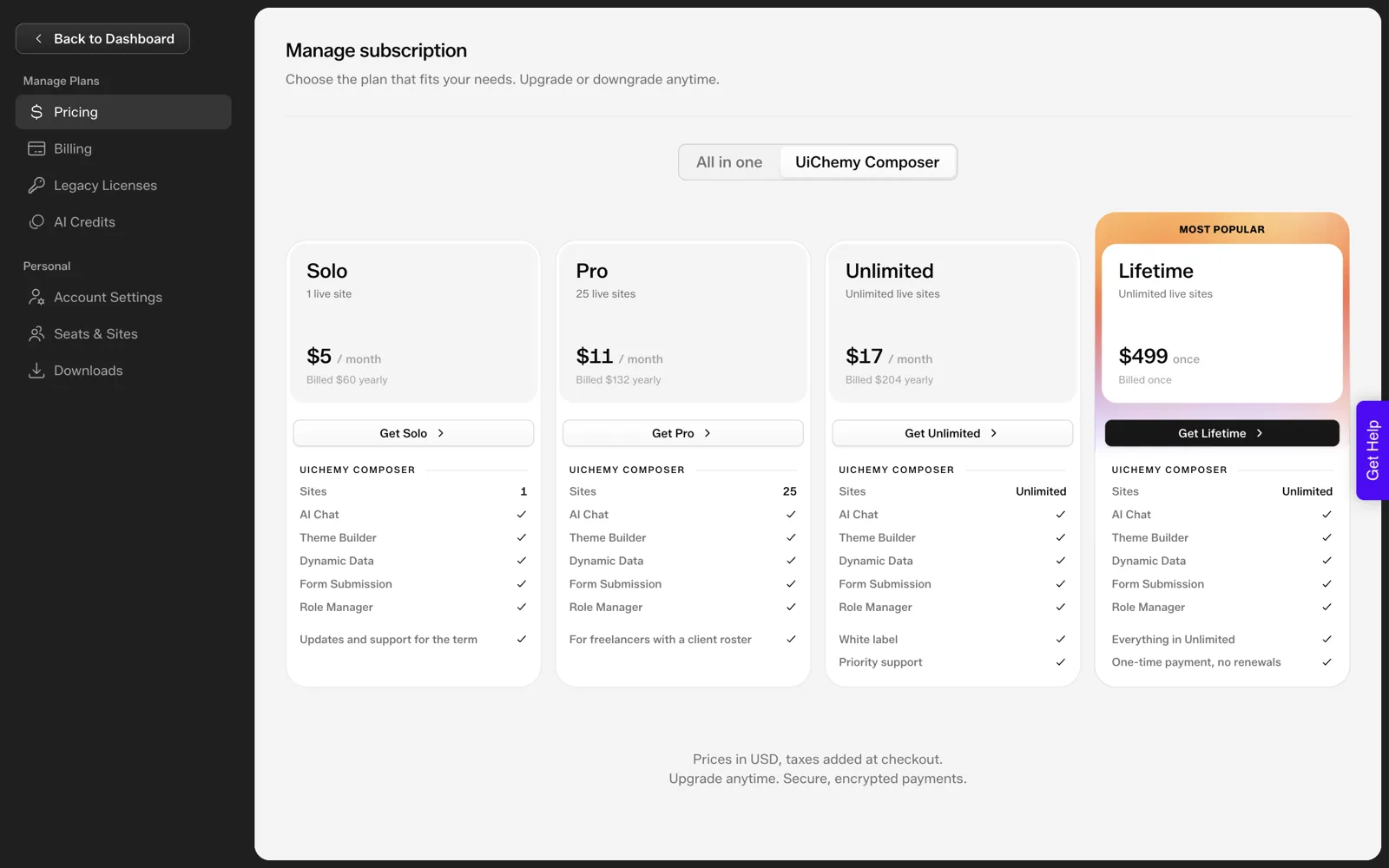
The docs say Pro needs no license key to work, and that deactivating Pro keeps your content. The full list is on the Free vs Pro page, and our Composer plans explained covers the account side.
What About Gutenberg Export From AI Website Creator?
This is a separate feature and easy to confuse. AI Website Creator generates whole sites from a prompt. Its export now covers Elementor and Gutenberg on every plan. So the Composer block in Gutenberg and the whole-site export to Gutenberg are different things, and only the first works as described above.
In the export dialog, the “Other” tab is a vote form listing React, Bricks, Divi, Gutenberg Core, Webflow, Framer, Wix and Other. We read that as a sign these are requests, not shipped targets.
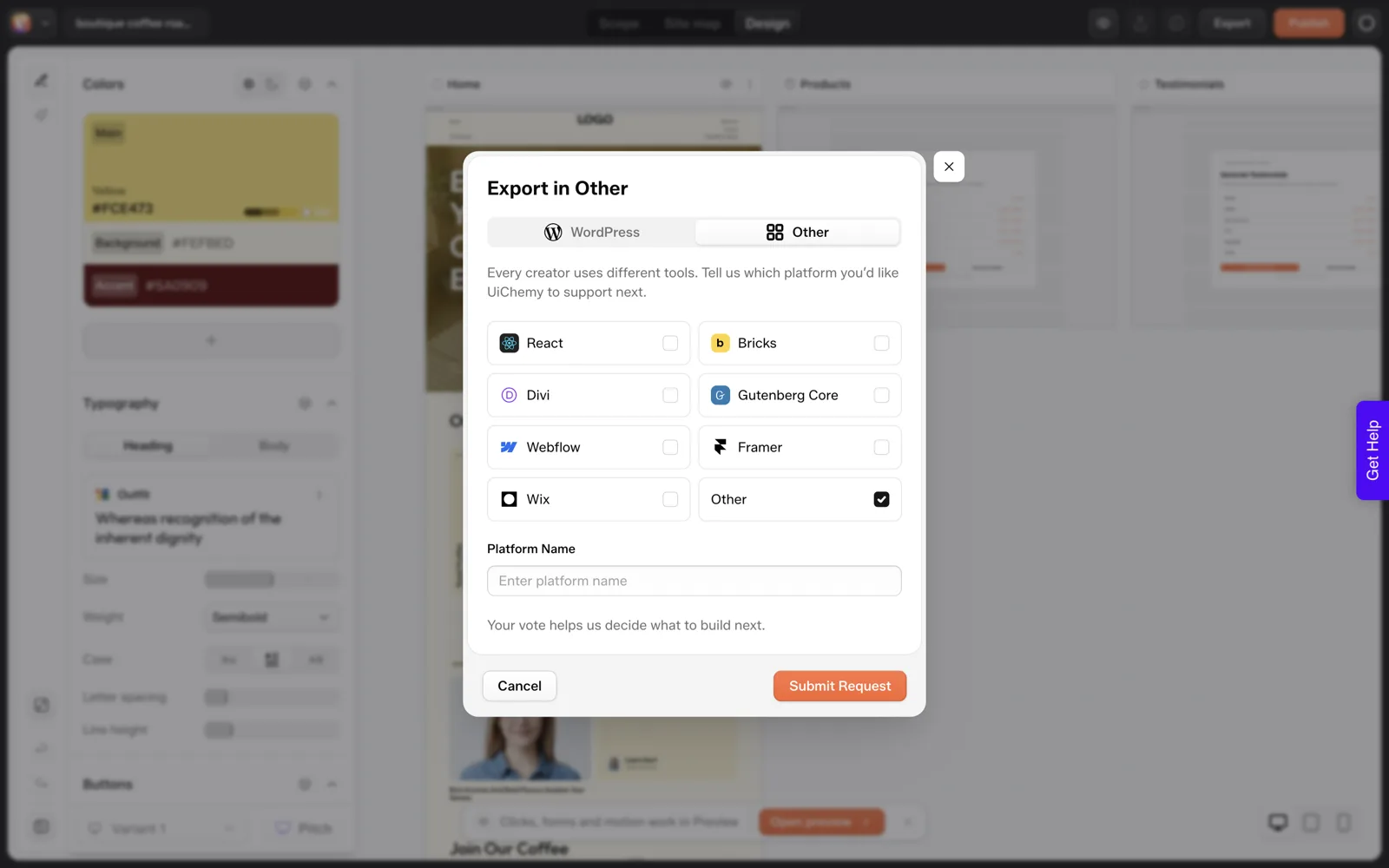
If your goal is a design in Figma going to blocks, that is a different product. Our Figma to Gutenberg guide and Figma to Gutenberg blocks without hand coding explain it.
A Checklist Before You Ship Custom Code
Copy this into your project notes. It applies whichever route you choose.
GUTENBERG CUSTOM CODE CHECKLIST

Scope
[ ] Do I need custom code, or does a core block do this?
[ ] Is each CSS rule limited to this section?
[ ] Do JS selectors target only this section?

Build
[ ] Tested on a staging site first
[ ] Code applied, page updated, front end viewed
[ ] Checked at mobile and desktop widths
[ ] Keyboard and screen reader basics work (focus, labels)

Safety
[ ] No third-party script from a source I do not trust
[ ] No keys or secrets in the code
[ ] I read every line an AI wrote

Handoff
[ ] Editors know which fields they can change
[ ] Plugin and plan needed are written down
[ ] A copy of the code is saved outside the page
A Worked Example: Choosing for Three Gutenberg Jobs
The table above gives the general split. Here it is applied to three jobs. These are examples I made up to show the reasoning, and we did not build any of them for this post.
| Job | Better fit | Why |
|---|---|---|
| Embed a booking widget from another service | Core Custom HTML block | One pasted snippet, no styling to manage |
| A pricing section the team will edit every month | Composer block | Slots let editors change text and numbers without touching code |
| A small script that runs on every page | Theme or snippet plugin | It belongs to the site, not to one section |
The third row shows a limit. A block holds code for one section. Site-wide behaviour still lives in the theme or a snippet, so do not force it into a block.
How Slots Work for Editors
The docs describe slots as text, links and images in your HTML that become editable fields. The practical effect is a split of roles. A developer writes the section once, and an editor changes the content in fields.
That split matters on a team. Without it, every copy change is a request to the one person who knows the markup. With it, the section keeps its structure while the words change.
- Write the HTML with real content. Use headings, links and images as you normally would.
- Check which parts became fields. The Editor tab shows what an editor will see.
- Hand over the page. Tell the editor which fields to use and which to leave alone.
- Keep a copy of the code. Store it outside the page, so a mistake is easy to undo.
Our post on Composer plans explained covers the account side, and keeping AI-written code clean covers what to review in the code itself.
Common Mistakes With Custom Code in Gutenberg
These come from the logic of how blocks work, not from a test run. Check each against your own site.
| Mistake | What goes wrong | Fix |
|---|---|---|
| Global CSS in a Custom HTML block | A rule meant for one section changes others | Scope the selector, or use a block that scopes for you |
| JavaScript with broad selectors | The script touches elements outside the section | Query inside the section’s own container |
| Testing only in the editor | The front end looks different | View the published page at mobile and desktop widths |
| Building on the live site | A mistake is visible to visitors at once | Work on a staging copy first |
| Assuming Pro features are free | Editing custom JavaScript is blocked | Read the Free vs Pro page before you plan |
| Confusing the block with whole-site export | You expect the Composer block to do what the whole-site Gutenberg export does | Keep the two features separate in your plan |
If a section grows complicated, step back and ask whether a core block would do. Fewer moving parts are easier to hand over, and the comparison of Composer and custom HTML options can help you decide.
Before You Show It to a Client
A custom block is easy to demo and harder to maintain, so settle a few things before the handoff.
- Who owns the code? Decide whether the client or your team keeps the master copy.
- What plan is needed? Note whether editing custom JavaScript needs Pro, and who pays for it.
- What happens if the plugin goes? The docs say Pro deactivation keeps your content. Confirm how the free plugin behaves on your own staging site.
- Who updates it? Name one person, so a block does not sit untouched for a year.
Write the answers into a short handoff note. A client who knows the plan, the owner and the editing rules will call you less often.
FAQ
Can I add custom code to Gutenberg without any plugin?
Yes, with core features. The Custom HTML block holds markup, and the Site Editor and theme files hold CSS and scripts. You manage scoping and placement yourself. Composer is a plugin, so it reduces the number of tools you juggle, but it does not remove the need for one.
Does UiChemy Composer work in Gutenberg?
The docs say it does. The requirements page lists Gutenberg as fully supported, and the docs describe Composer as also working as a Gutenberg block. We did not test an install for this post, so try it on a staging site and follow the docs for the current steps.
Do I need Pro to edit custom JavaScript?
According to the docs, editing custom CSS and JavaScript is a Pro feature. Code already in a widget keeps rendering on the free plugin. Check the Free vs Pro page for the exact split before you build a client site around it.
Can AI Website Creator export to Gutenberg?
Yes. Export to Gutenberg is live on every plan, alongside Elementor. The Composer block is available in Gutenberg separately, and the two are different features.
If you want to try the block on a staging site, you can Get Started and read the setup notes first.
Every feature named in this post is listed by product: all UiChemy features, UiChemy Composer features.