

Composer vs Custom HTML Widgets and Code Snippets: Where Each Wins
 Sagar Patel
The Elementor HTML widget is best for a small, one-off embed. A code snippets plugin is best for site-wide PHP, tracking and small utilities. UiChemy Composer is best when a section needs real HTML, CSS and JavaScript that you will keep editing visually. They solve different problems, and many sites use more than one.
I build with Composer, so read this with that in mind. I will say plainly where the older tools are the better call. For the broader picture of what Composer does, start with writing real HTML, CSS and JavaScript inside Elementor with AI.
The Three Tools in One Paragraph Each
The HTML widget. Elementor ships a widget where you paste markup. It renders what you give it. It does not generate anything, and it gives you a code box rather than a visual editor.
A code snippets plugin. These plugins let you add PHP, CSS or JavaScript that runs on chosen pages or site-wide, without touching theme files. They manage code, not layout.
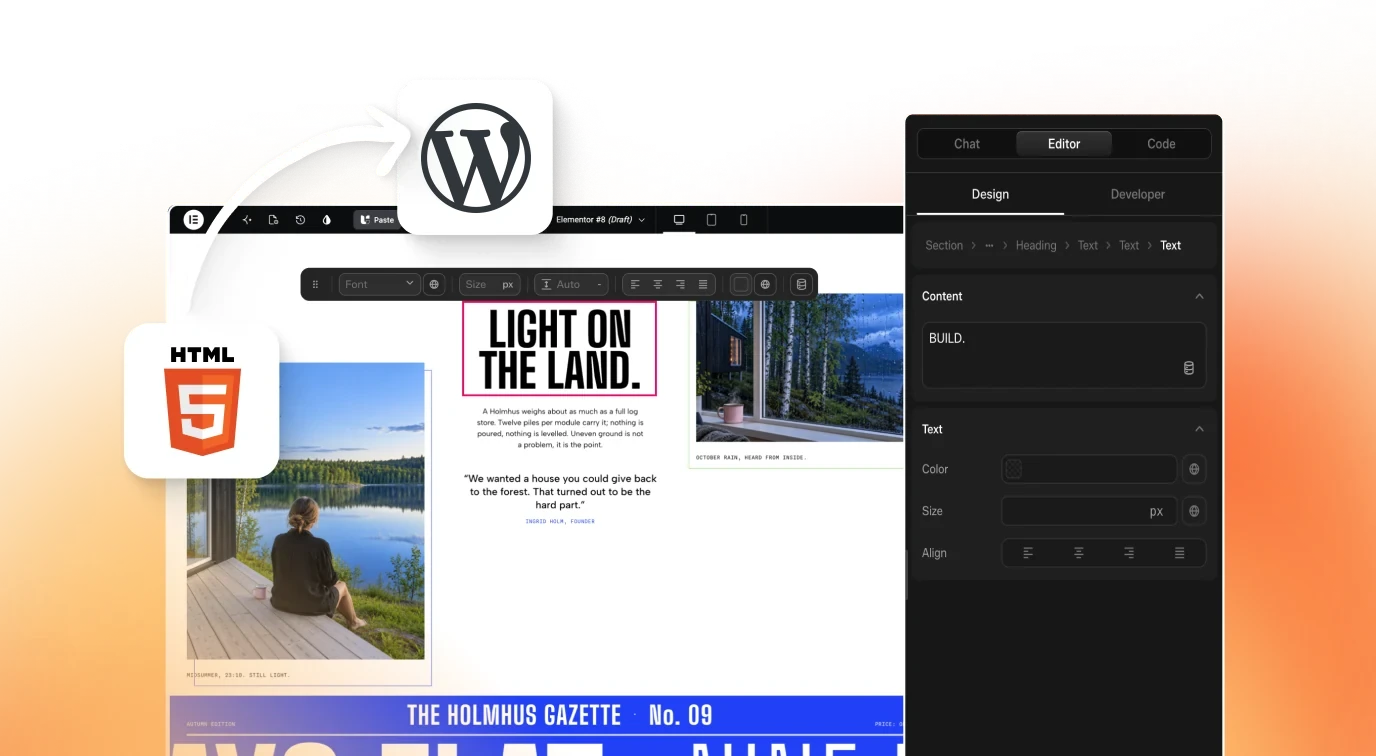
Composer. You describe a section and it writes HTML, CSS and JS. You then change it in a visual editor with an Editor tab and a Code tab. The Composer documentation covers the model in what a UiChemy widget is. The landing page lists it as running inside Elementor, with Design and Developer modes and global variables and classes.

Side by Side Comparison
| Question | HTML widget | Snippets plugin | Composer |
|---|---|---|---|
| Who writes the code? | You | You | The AI drafts it, you edit it |
| Visual editing afterwards | No | No | Yes, in the Editor tab |
| Handles PHP | No | Yes | Not its job |
| Site-wide code | No, per widget | Yes | Per widget, with page and site code options in the docs |
| Reusable across pages | Copy and paste | Per rule | As a widget you can reuse |
| Style leakage risk | You manage it | You manage it | CSS is auto-scoped to the widget, per the docs |
| Learning curve | Need to code | Need to code | Describe in plain language |
I am not giving speed or size benchmarks. I have not measured them, and the answer depends on what the code does.
Where the HTML Widget Wins
If you have a snippet from a third party, like an embed code for a booking form, the HTML widget is the right tool. Paste, preview, done. Nothing to learn and nothing extra to install.
It also wins when the code is tiny and will never change. A single line of markup does not need a visual editor.
Where it struggles: anything you will revisit. Editing real CSS inside a text box, without scoping, with no preview of changes until you reload, gets old fast. Once a section has behaviour, you want more than a box.
Where a Snippets Plugin Wins
A snippets plugin is built for code that does not live in a layout. Think of tracking scripts, a function that changes how excerpts are cut, or a small filter on checkout. That is PHP and site-wide JavaScript, and Composer is not trying to replace it. UiChemy also ships Module Studio, a Beta code manager for this kind of site-wide code, which we cover in our guide to code snippets with Module Studio.
Use one when:
- The code should run on every page, or on a template type, not in one visible block.
- It is PHP, not front-end markup.
- You want to turn code on and off quickly without touching a page.
The risk is the usual one with PHP: a typo can break a site. Test on staging first, always.
Where Composer Wins
Composer wins when the output is a visible section with behaviour, and someone will edit it again. A comparison slider, a calculator, a scroll timeline. These are layouts and logic together, and they change when the client’s copy changes.
Three reasons it works here:
- You start from a prompt. You skip the blank-page stage. Ideas are in eight custom sections a page builder cannot do.
- You keep control of the code. It is real markup you can read. There is no frozen export.
- Handoff is easier. A designer or client can use the visual editor instead of asking a developer.
The cost is that AI-written code still needs review. The method is in keeping AI-written code clean. Which editing features sit on which plan is on the docs page Free vs Pro, and pricing is covered in Composer plans explained.
The Part Nobody Compares: Maintenance
Comparison posts usually stop at features. The cost that shows up six months later is maintenance, so here is how each tool ages.
HTML widget. The code lives inside the page. Change it and you edit a text box on that page. If the same snippet sits on twelve pages, you edit twelve. There is no single place to fix a bug, so keep a note of where each copy lives.
Snippets plugin. The code lives in one list, which is tidy. The danger is forgetting what a snippet does. Name every snippet after its purpose and add a comment with the date and the reason. A year later nobody remembers why a filter exists, and removing it blind breaks things.
Composer. The section is a widget with its own code, and the visual editor means copy and colour changes do not require reading the code at all. The risk is different: AI-written code you never read. Read it once when it is created, even if only the structure, so you know what you shipped.
Across all three, the same habits pay off:
- Test on a staging copy before touching a live page.
- Keep a short log of custom code per site: what it does, where it lives, who asked for it.
- Re-test after major WordPress, Elementor or theme updates.
- Remove code you no longer use. Dead scripts still load.
None of this is glamorous, but it decides whether custom code is an asset or a liability. If you manage client sites, put the log in the handoff document, so the next person is not guessing.
A Decision Table to Copy
Is it PHP, or does it run on every page?
  Yes -> code snippets plugin
  No  -> continue

Is it a third-party embed you will not change?
  Yes -> HTML widget
  No  -> continue

Is it a visible section with behaviour (scroll, input, filter)?
  Yes -> Composer
  No  -> use a normal Elementor widget

Will a non-developer edit it later?
  Yes -> prefer Composer or a normal widget
  No  -> any of the above works

Always: test on staging, check mobile, check keyboard use.
If you are still deciding how much Elementor’s own AI covers, Elementor AI: what it generates and what it cannot is worth ten minutes. And if you want to see the other direction, using an outside AI tool and bringing the result across, read Claude to Elementor: make your website editable with Composer.
What Does the Decision Look Like on Three Real Requests?
A table of principles helps less than examples. Here are three requests a site owner might send, and the tool I would pick for each.
Request 1: “Add this booking form embed to the contact page.” The embed is a third-party snippet you will not change. Use the HTML widget. Paste, preview, done.
Request 2: “Add a tracking script to every page.” This runs site-wide and does not live in a layout. Use a snippets plugin, name the snippet after its purpose, and test on staging before it goes live.
Request 3: “Add a monthly and annual toggle that changes the numbers on three pricing cards.” This is a visible section with behaviour, and the client will change the prices. Use Composer, so the copy edits happen in the visual editor and the logic stays in the code.
Notice the questions that decided each one. Is it PHP or site-wide? Is it a third-party embed that never changes? Is it a visible section with behaviour? Those are the first three lines of the decision table above, and they cover most requests.
If a request fits none of the three, a normal Elementor widget is probably the answer, and it is the easiest option for a client to edit.
How Do You Move a Pasted Snippet Into Composer?
Sometimes a section starts life in an HTML widget and outgrows it. Here are the steps to move it, based on the documented flow. We have not run this exact migration, so do it on a staging copy.
- Copy the markup, styles and script from the HTML widget into a text file, one block each.
- Add a Composer widget to the page by searching for it in the widget panel and dragging it onto the canvas.
- Open Edit Code. Switch to Developer mode first if the Code tab is not visible.
- Paste each block into its panel and check the live preview.
- Check the selectors. Make sure they are tied to classes in this section, since the plugin scopes CSS to the widget.
- Click Apply, then Update or Publish in Elementor.
- View the front end at desktop and phone widths, then delete the old HTML widget.
Editing the custom CSS and JavaScript is a Pro feature, per the docs, though code already in the widget keeps rendering on Free. Check the plans explained post before you plan the move.
What Should You Ask Before Adding Any Custom Code?
The tool matters less than the habit. Ask these before you add custom code with any of the three tools, and keep the answers in the site notes.
- What problem does it solve? Write it in one sentence.
- Can a standard widget do it? If so, use the widget.
- Where will it run? One block, one page or the whole site?
- Who will edit it? If a non-developer will, choose a tool with a visual editor.
- What loads with it? A script or library for a small effect is a cost on every visit.
- How will I test it? Staging first, then desktop, phone and keyboard.
- How will I remove it? Note where it lives, so the next person can find it.
Put the answers in a short log per site, as the maintenance section above suggests. The custom sections post has eight section ideas that pass these questions, and the rest are better left to a normal widget.
FAQ
Can I add custom HTML to Elementor?
Yes. Elementor’s HTML widget accepts markup you paste in. It is the simplest route for embeds. It does not generate code or give you a visual editor, so for sections you will keep editing, a tool like Composer or a purpose-built widget saves time.
Is a code snippets plugin safer than editing theme files?
Generally yes, because your code survives theme updates and can be switched off without file access. It is not risk-free. PHP errors can still break pages, so use staging and keep a backup before adding anything that runs site-wide.
Does Composer replace a snippets plugin?
No. Composer produces visible sections with HTML, CSS and JS. A snippets plugin handles PHP and site-wide logic. The Composer docs describe page and site code options, but if your task is a PHP filter, use the tool built for it.
Which is easiest for a client to edit later?
A normal Elementor widget, then Composer’s visual editor, then an HTML widget. Pasted code in a text box is the hardest for a non-developer to change safely. Pick based on who will own the page after launch.
Does custom code hurt performance?
It can, depending on what it loads. Small scripts are light, large libraries are not. Test with PageSpeed Insights before and after. I have no benchmark to quote for any of these three, so measure your own page.
If one of your sections has outgrown a text box, you can Get Started and try it on a staging site.
Every feature named in this post is listed by product: all UiChemy features, UiChemy Composer features.