
Figma to WordPress: Which Route Fits Your Builder?
 Sagar Patel
Answer first. You can get a Figma design into WordPress as native, editable pages in 3 builders: Elementor, Gutenberg and Bricks. UiChemy offers 2 modes. Classic Mode, where you tag each layer yourself, covers all 3 builders today. AI Express Mode, which builds the page automatically, builds into Elementor today, and Gutenberg and Bricks are coming soon.
The rest of this guide helps you pick the route that matches the builder you already use, the amount of control you want, and the place your design started.
What “Figma to WordPress” Actually Means
A Figma frame is a picture of a page. WordPress needs real content: headings, buttons, containers and images that an editor can open and change. A conversion tool sits between those 2 worlds. The question for most teams is not whether a conversion is possible. It is what you get at the end: a flat image, locked code, or elements you can edit like any other page.
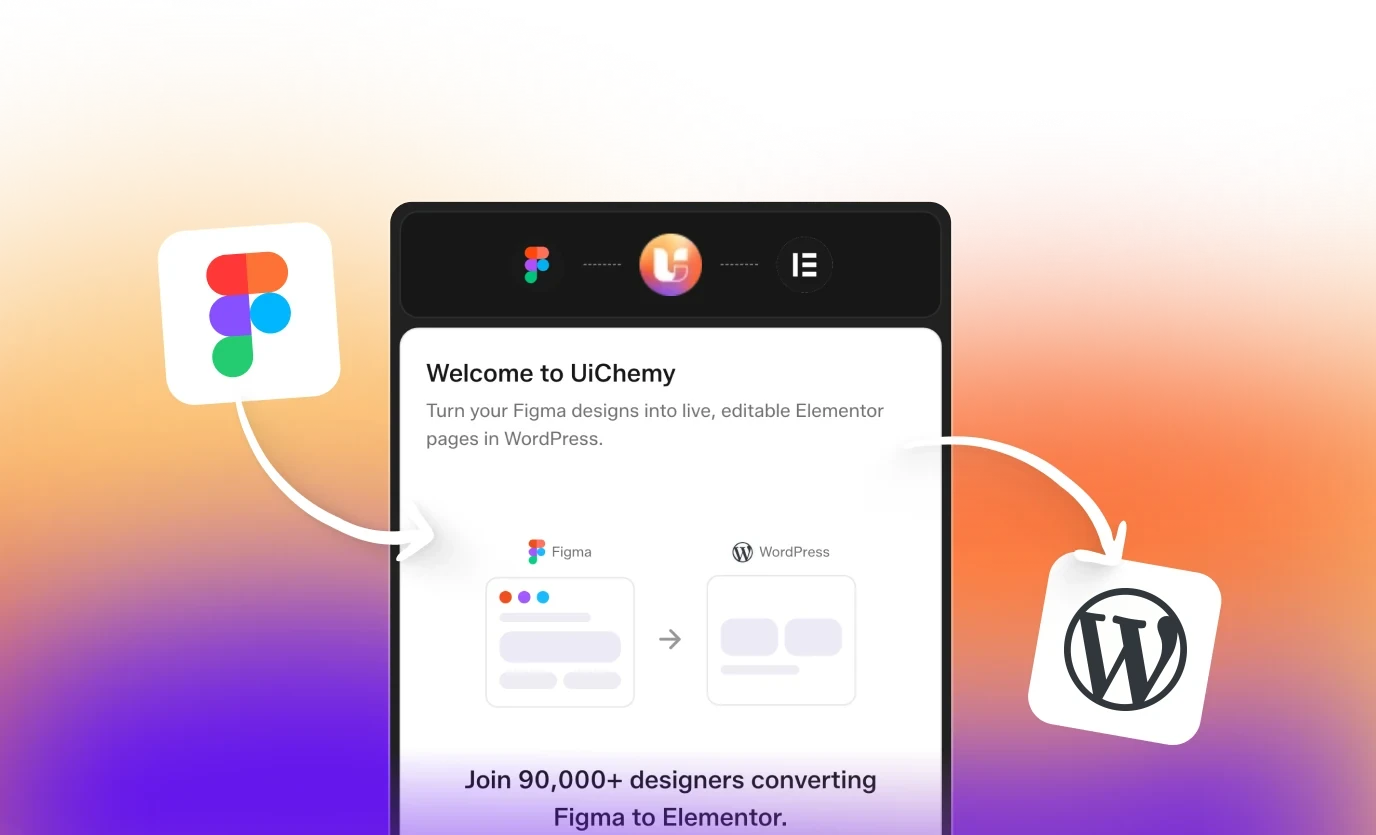
UiChemy’s answer is native output. The Figma to WordPress page says the result is “real, native, editable elements, never a flattened image or a locked export,” and that you keep editing it like any other WordPress content. It also says everything lives on your own WordPress site as standard, editable content you control. No coding is required: the design comes out as native widgets you change visually, and you can add your own HTML, CSS or JS if you want, but it is never required.
Pick by Builder
| If you build in | What you get | Page |
|---|---|---|
| Elementor | Headings, buttons and containers map to real Elementor widgets; colors and fonts arrive as reusable global styles | Figma to Elementor |
| Gutenberg | Real core blocks, with no extra block plugin to install | Figma to Gutenberg |
| Bricks | Real Bricks elements; colors and typography dropped into Bricks globals as reusable classes | Figma to Bricks |
Elementor
The Elementor page describes widgets built from your frame, including Elementor Free and Pro widgets, with your header and footer frames converted too. Colors and fonts come through as global styles you can update in one place. The conversion covers 2 Elementor generations: the page answers “Does it support Elementor v3 and the new v4 Atomic?” with yes, both, and says designs without auto layout convert as well. With V4, your Figma styles become reusable classes instead of settings on each element. Read more on the Elementor V4 atomic elements page.
The Elementor page lists 6 steps: start with your approved design, prep layers and compress media, tag widgets and set auto layout, connect your site and sync globals, check your settings and convert, then preview and publish.
Gutenberg
The Gutenberg page says your design lands as core WordPress blocks, “plain WordPress with no extra block plugin to install.” The FAQ names the blocks: heading, column, group and button, so nothing extra has to stay installed for the page to work. The same page says the blocks are standard core blocks, so they drop into a block theme, full site editing templates and the Site Editor the same way blocks you add by hand do. Because the output is real Gutenberg, you can save any section as a synced pattern or reusable block.
The page also lists 5 block libraries you can build with: Core, Nexter, Spectra, Kadence or GenerateBlocks, with Nexter Blocks described as the widest set.
One timing note matters here. The Gutenberg page states that automatic AI conversion is not available for Gutenberg yet: AI Express converts into Elementor today, with Gutenberg next, while Classic Mode already converts your Figma design into native Gutenberg blocks right now.
Bricks
The Bricks page says the result is real Bricks elements you can open, drag and restyle, “never a screenshot or locked code.” Colors and typography drop into Bricks globals as reusable classes, so a brand change updates site-wide instead of element by element. To get a design in, you generate 1 Connection Link in your UiChemy dashboard, paste it into the Figma plugin, then use Direct Import to push the design to your Bricks site, or copy and paste it in. You can convert a single section for a quick block, or a full Figma frame into a complete Bricks page in a single pass.
On timing, the Bricks page matches the others: AI Express is live on Elementor now with Bricks next, and Classic Mode is the route for Bricks today.
Pick by How Hands-On You Want to Be
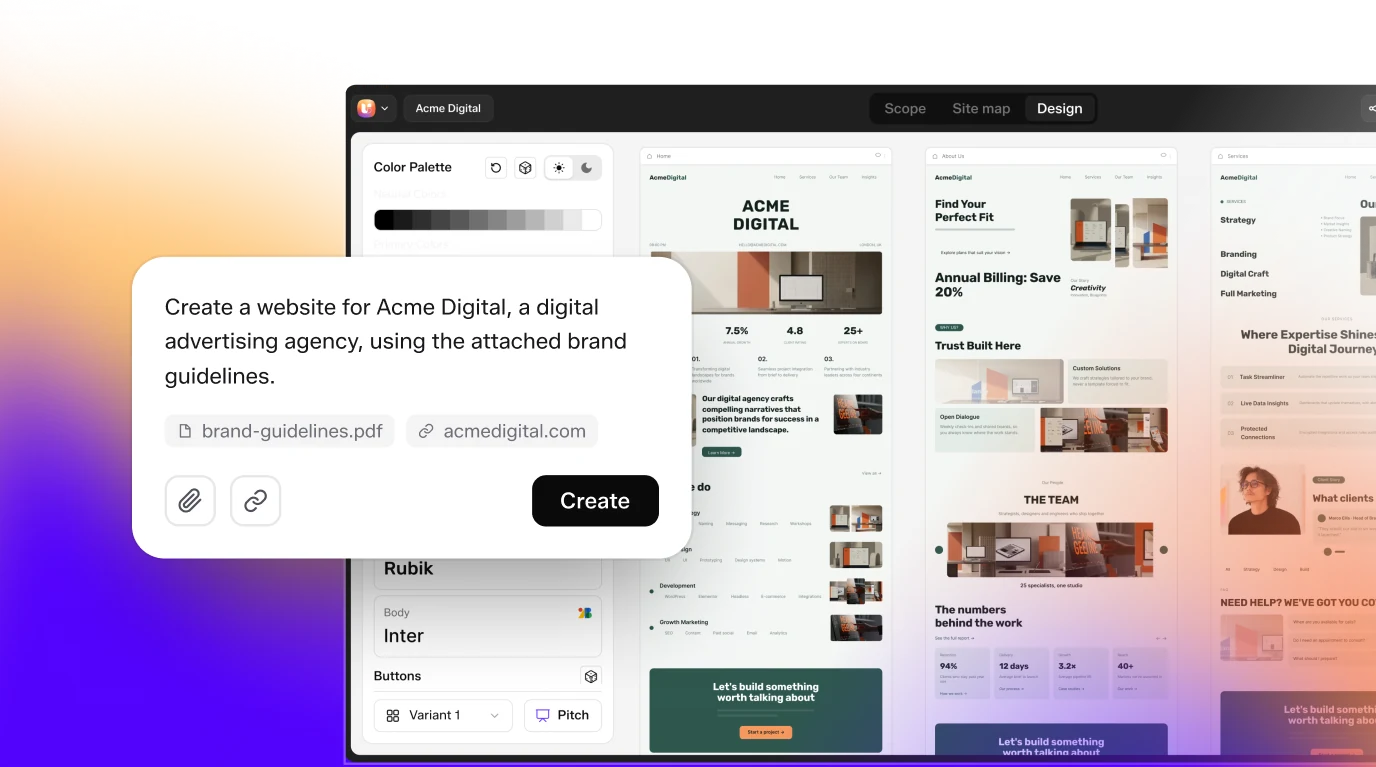
AI Express Mode. You point UiChemy at a Figma frame and it builds the page without you tagging layers. On Elementor, the page says it reads your frame, builds real widgets and checks its own spacing and contrast, so you review a finished page. Today it builds into Elementor; Gutenberg and Bricks are next.
Classic Mode. You tag every layer yourself for pixel-level control across all 3 builders. You decide the mapping, and you get control across Elementor, Gutenberg and Bricks. The page lists these Classic Mode tools:
- Global styles push: Figma colors, typography and spacing go straight to your builder’s global styles.
- Widget tagging: tag layers to specific builder widgets for pixel-level, fully editable output.
- Copy to clipboard: paste your design into your editor by hand.
- Smart image compression: export in 4 formats, PNG, JPEG, AVIF or WEBP, with quality control.
- Manual responsive manager: fine-tune every breakpoint by hand.
- Header and footer templates: export headers and footers straight to your theme builder templates.
Both modes draw from 1 shared Credit pool, so you can move between them without juggling separate balances. Plan names and amounts are on the live pricing page, so this guide does not quote them.
Side by Side
| AI Express Mode | Classic Mode | |
|---|---|---|
| Builders today | Elementor (Gutenberg and Bricks next) | Elementor, Gutenberg, Bricks |
| Layer tagging | None | You tag each layer |
| Spacing and gaps | Auto-fix (optional) | You set them |
| Motion and effects | Part of the build | You add them manually |
| Header and footer | Auto to the theme builder | Manual or multiple exports |
| Post-conversion edits | In your builder, with AI Chat support | In your builder |
How a Conversion Works, in 5 Steps
- Open your Figma frame in UiChemy. Launch the plugin inside Figma and pick the frame, or the full page, you want to turn into WordPress.
- Connect your site once. Paste 1 Connection Link to pair UiChemy with your site. Every conversion after that remembers it.
- Choose your conversion and motion. Pick a full site or a single page, keep the design exactly as drawn or let UiChemy fix the spacing and gaps, and choose how much motion you want: off or subtle, with immersive listed as coming soon.
- Let UiChemy build the page. You spend Credits, and each layer is rebuilt as a native, editable element.
- Preview, then publish. Check the finished page on your own site, then publish it or keep editing in Elementor, Gutenberg or Bricks.
The same page says your Figma file is not changed by a conversion: UiChemy reads a copy of the frame, so you can re-convert any time you update the design. The page says most single pages are ready in a couple of minutes, and a full multi-page site takes a little longer while you keep working.
What Stays in Your Control
Every block is a real WordPress element, and the page names 3 ways to change it:
- Edit visually. Drag and restyle widgets in the builder like any native page.
- Edit the code. Add real HTML, CSS and JS when you want it exact.
- Edit by prompt. Tell AI Chat what to change.
You also own what you build. The Gutenberg and Bricks pages both say that everything you convert lives on your own WordPress site and stays yours whether or not you keep the plan.
What You Need Before You Start
The Figma to WordPress page lists 3 things: a Figma file, a WordPress site, and the UiChemy plugin from the WordPress directory. You connect the two with 1 link. The WordPress plugin handles the connection and places the converted design on the site. For Bricks, the Bricks page adds that you need Bricks and WordPress on your site, the UiChemy WordPress plugin and the UiChemy Figma plugin.
Local and staging sites connect the same way, with a Connection Link. On most hosts the connection works. If a security plugin such as Wordfence, or a managed host, blocks it, the pages say the docs show the setting to allow, and support will help you connect. Your team can share the Connection Link so everyone converts into the same site.
Designs From AI Tools
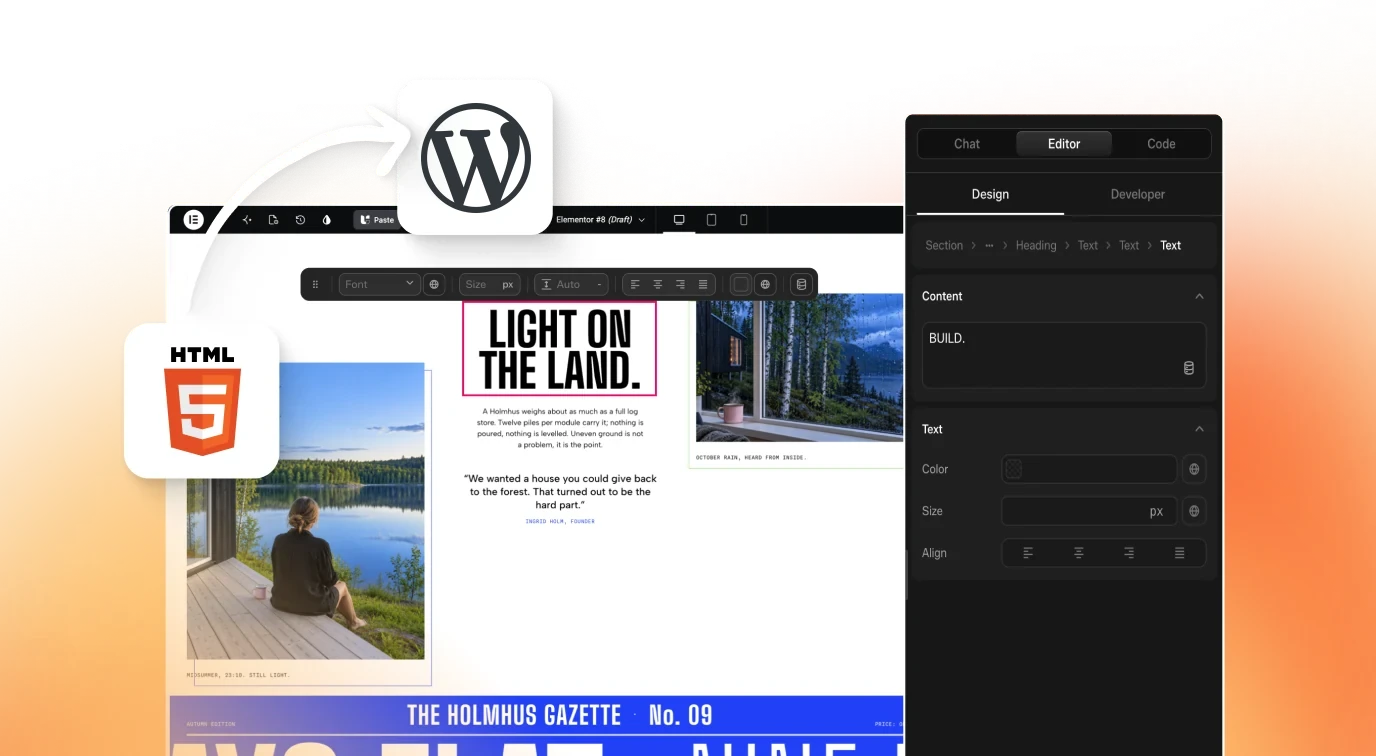
Figma is not the only place a design starts. The Figma to WordPress page lists 12 tools whose output can land as editable WordPress: Claude, Lovable, Bolt, v0, Codex, Stitch, Antigravity, ChatGPT, Framer, Cursor, Figma Make and Gemini. It adds that any AI build works if you paste a URL. If your design began as an AI build or a client brief rather than a Figma file, the AI to WordPress route is the one to read first.
Which Route Should You Choose?
- You build in Elementor and want a finished page to review: AI Express Mode on the Elementor route.
- You build in Elementor and need exact placement: Classic Mode, which tags layers to Elementor widgets.
- You build in Gutenberg: Classic Mode today, which produces core blocks with no block plugin required.
- You build in Bricks: Classic Mode today, with Direct Import to a connected Bricks site.
- Your design came from an AI tool: paste a URL and use the AI to WordPress route.
- You are not sure which builder to pick: choose the one your site already runs on; the same Figma design can be converted into Elementor, Gutenberg or Bricks.
Frequently Asked Questions
Can Figma designs become editable WordPress pages?
Yes, as native widgets, blocks or elements in Elementor, Gutenberg or Bricks, not a flat export.
Which builders does it support?
Elementor, Gutenberg and Bricks. Classic Mode covers all 3 now. AI Express builds into Elementor today, and Gutenberg and Bricks are coming soon.
Do I need to know how to code?
No. The output is native and editable visually. Code editing is there only if you want it.
Does converting change my Figma file?
No. UiChemy reads a copy of the frame, so you can re-convert any time you update the design.
Do I lose Credits if a conversion fails?
No. The page says Credits are spent on completed conversions, so a failed attempt does not drain your balance.
Do both modes use the same Credits?
Yes. AI Express and Classic draw from 1 Credit pool.
Do my global styles carry over?
Yes. Classic Mode pushes your Figma colors, type and spacing into your page builder’s global styles.
Can I export headers and footers?
Yes. Classic Mode sends headers and footers to your theme builder templates.
Is the output SEO friendly?
The Figma to WordPress page lists clean, SEO-friendly output with well-structured, semantic markup as a feature. That is the vendor’s description of the output; no independent test was run for this guide.
Is it a Figma plugin or a WordPress plugin?
Both are involved. One runs in Figma to read your design, and one runs in WordPress to build it.
Next Step
Start with the page for your builder: Figma to Elementor, Figma to Gutenberg or Figma to Bricks. For the full overview, see Figma to WordPress.