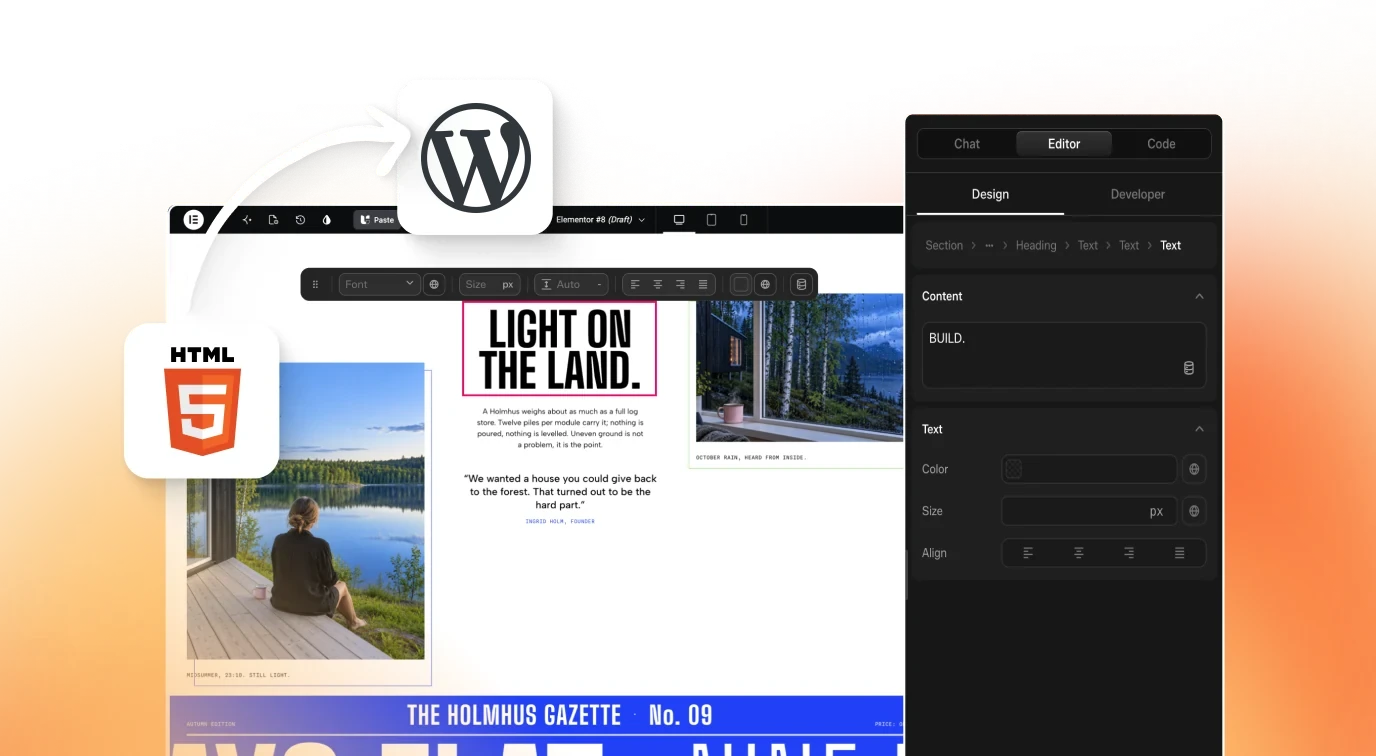
WordPress Theme Builder: Header, Footer and 404 in UiChemy
 Sagar Patel
Quick answer: a WordPress theme builder lets you design the parts of your site that repeat on every page, such as the header, footer and 404 page, once. UiChemy has one built in. Open UiChemy, then Theme Builder, click Add New, pick a template type, build it with Edit with UiChemy, and set where it shows with display conditions. Header, Footer, Single and 404 templates are on Free, per the UiChemy docs, read 13 November 2026.
This guide walks through the whole flow in the UiChemy Composer Page Builder, which arrived in UiChemy 5.5.0 on 29 October 2026 and is labelled Beta in the dashboard. Everything below comes from the Theme Builder docs and the Templates in the Builder docs.
What a theme builder does
Without one, a header change means editing every page, or editing theme files. A theme builder stores each repeating part as a template and applies it to every matching page. The UiChemy docs put it this way: a template built once automatically applies across every matching page, with no per-page setup.
That makes it the right tool for four jobs: a site-wide navigation bar, a footer with links, a single post layout for your blog, and a custom page for broken links.
Which template types you can build
| Template type | What it controls | Plan, per the docs |
|---|---|---|
| Header | Top navigation across the site | Free |
| Footer | Bottom section across the site | Free |
| Single (Post or Page) | How one post or page looks | Free |
| 404 Page | The page shown when a link does not exist | Free |
| Archive | Category, tag and author listing pages | UiChemy Pro |
| Search Results | The results page of your site search | UiChemy Pro |
| Single Product | Individual WooCommerce product pages | UiChemy Pro |
| Products Archive | WooCommerce shop and category listings | UiChemy Pro |
Source: Theme Builder Overview, read 13 November 2026. The Page Builder panel lists six of these types in its Add New menu; the WooCommerce types are covered in the plugin docs.
Step by step: build your first header
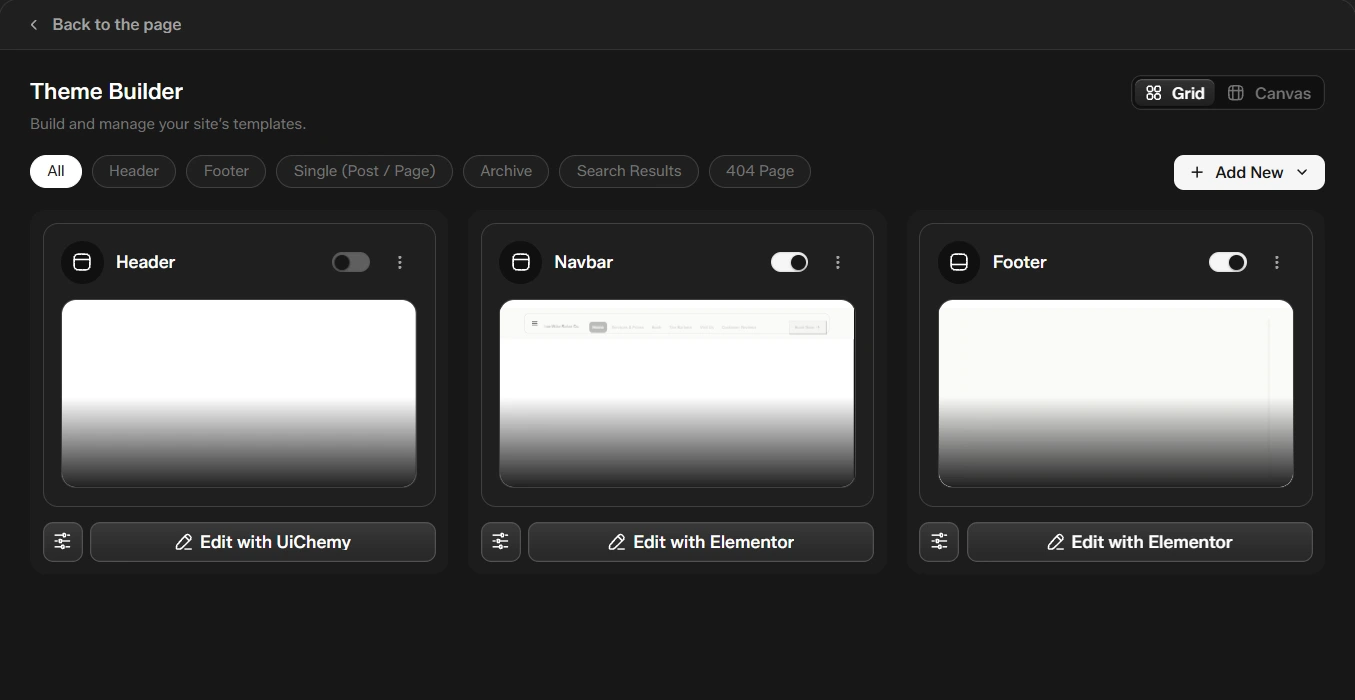
- In WordPress, open UiChemy, then Theme Builder. The screen is headed "Build and manage your site’s templates."
- Click Add New and choose Header. UiChemy creates the template and opens it in a new tab.
- Click Edit with UiChemy to open the Page Builder on the template.
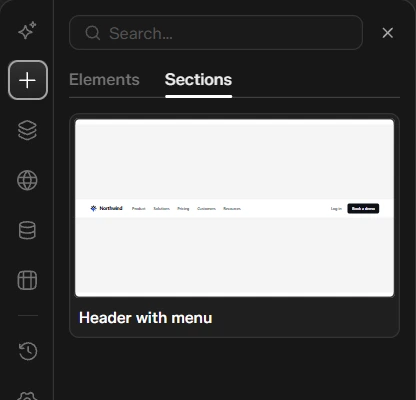
- Open the Add panel. For a header the library shows the Header with menu section. Click it to add it.
- Change the text, links and colors in the Design panel on the right. Check Desktop, Tablet and Mobile from the device switch.
- Publish, then go back to Theme Builder and switch the template on with its activation toggle.
Sections the library offers for each template
When you edit a template, the library swaps the page sections for ones made for that template. This saves you from starting on a blank canvas.
| Template | Sections in the library |
|---|---|
| Header | Header with menu |
| Footer | Footer with links |
| Single Post or Page | Post header, Post content, Author box, Previous and next post, Related posts (3 columns), Posts grid with page numbers, Posts list with page numbers, Posts with category filter, Browse by category, Post categories and tags |
| Archive and Search Results | Archive title, Archive title with category chips, Archive posts grid with page numbers, Archive posts list with page numbers |
| 404 Page | 404 with big number, 404 with search and recent posts, 404 split with illustration |
Source: Templates in the Builder docs, read 13 November 2026.
Decide where each template shows with display conditions
Click Conditions on a template card to open the Display conditions popup. Each rule is either Include or Exclude, followed by a scope such as Entire Website. Rules stack, and an Exclude always wins. The full list of scopes is in the Assigning Conditions docs.
Two examples from the docs show the idea:
- Global header except on checkout: add Include, Entire Website, then add Exclude, Particular Post or Page, and pick your Checkout page.
- A different header for the blog: create two Header templates. Give the general one Include, Entire Website. Give the blog one Include, All of a post type, Posts. The more specific rule wins on post pages.
A Header or Footer template with no conditions is not hidden. It defaults to matching the entire site, so add conditions to narrow it.
Which template wins when two match
| Template type | How a tie is settled |
|---|---|
| Header, Footer, Products Archive | The more specific condition wins. A rule for one post beats a rule for all posts. |
| Single, Archive, Search Results | The target (post type or taxonomy) decides first. Conditions break ties inside that target. |
| 404 Page, Single Product | No conditions. The template you activated most recently is the one that shows. |
See every slot at once with Canvas view
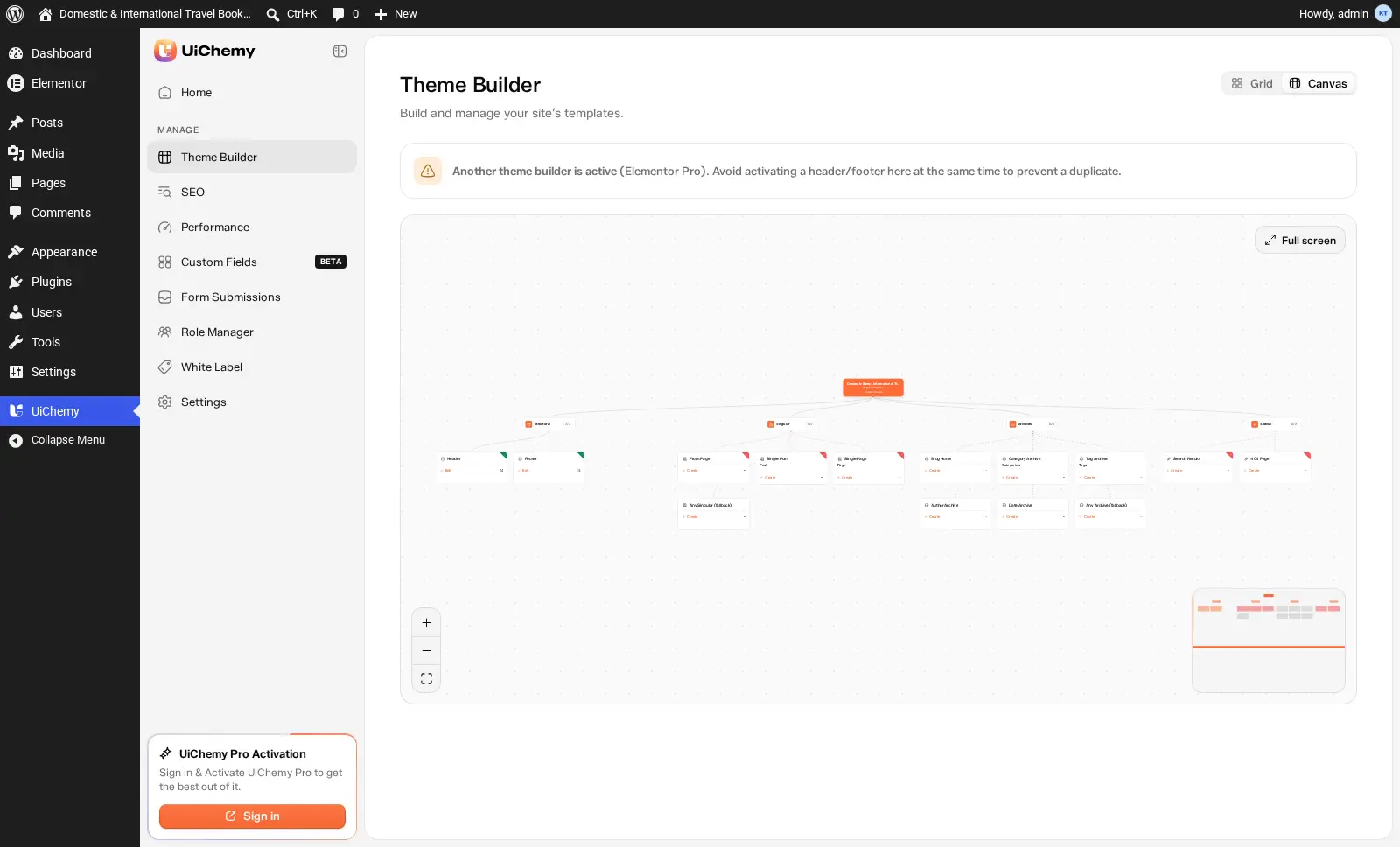
The Theme Builder has a Grid view and a Canvas view. Canvas shows your site’s template slots in four groups: Structural (Header, Footer), Singular, Archives and Special (search, 404 and, with WooCommerce, the thank-you page). Each group shows a filled count, for example 2/2 for Structural. An empty slot shows + Create, so you can build that template straight from the map. Creating from a slot is also how you pick a different target, such as Front Page or Single Page.
Setup checklist
- Confirm UiChemy Builder is on in UiChemy, Settings, Builders.
- Build one Header and one Footer, then keep Include, Entire Website.
- Build a 404 template with the search section so lost visitors can find a page.
- Build a Single Post template if you publish a blog.
- Switch each template on with its toggle, then open the live site in a private window.
- If another theme builder is active, activate the header and footer in only one of them.
Good to know before you start
- Beta label. The Page Builder is listed as Beta in the UiChemy dashboard. Try it on a staging copy first if the site is busy.
- No SEO panel on templates. Templates are not pages that appear in search, so the sidebar hides the SEO icon while you edit one. Set search details on pages and posts. See our guide to built-in WordPress SEO in UiChemy.
- Delete is permanent. Deleting a template from its menu removes it for good. It does not go to Trash.
- Coexisting builders. UiChemy can run next to Elementor Pro or Nexter, but a header or footer active in both shows twice.
For the wider picture, read our overview of UiChemy Composer as an AI first visual builder, the breakdown of what each Composer plan includes, and the Composer 5.5 release notes.
Frequently asked questions
Can I build a header and footer in WordPress without Elementor Pro?
Yes. The UiChemy Theme Builder lets you build header, footer, single post or page, and 404 templates, and the docs list those four types as available on Free. Archive, Search Results and WooCommerce templates need UiChemy Pro.
Where do I open the Theme Builder?
In the WordPress dashboard go to UiChemy, then Theme Builder. Inside the Composer Page Builder you can also click the Theme Builder icon in the sidebar and use Back to the page to return.
What happens if I make two 404 templates?
404 Page templates do not use display conditions. If more than one is active, the one you activated most recently is the one that shows.
Can UiChemy run next to Elementor Pro or Nexter?
Both can stay active. Do not activate a header or footer in both at the same time, or it appears twice on the front end. UiChemy shows a notice when another theme builder is active.
Why is there no SEO icon when I edit a template?
Templates are not pages that appear in search, so the builder hides the SEO panel while you edit one. Set page level SEO on the pages and posts themselves.
Get Started with UiChemy and build your first template.