
 18:35
18:35Turn a Claude Code Website Into a Client-Ready WordPress Site
About this video
AI can build a stunning website in minutes, but your client still needs to manage it, edit it and own it. In this video, a high-end social media marketing agency website built with Claude Code, complete with GSAP animations, smooth scrolling and a WebGL experience, comes into WordPress with UiChemy, keeping the design, layout and animations almost identical.
Instead of rebuilding the site with page-builder widgets, you connect Claude Code to the UiChemy AI Agent through MCP, let it analyse the generated website, and import it with UiChemy Composer. Then you see what the client actually gets: visual editing in Elementor, classes, code and global variables underneath, and AI Chat to add a new effect with one plain-English instruction.
What you'll learn
- How to generate a complete agency website with Claude Code from one detailed prompt
- How to connect Claude Code to the UiChemy AI Agent through MCP
- How to import an AI-generated website into WordPress with UiChemy Composer, animations included
- How to edit text, colors, buttons, images and pricing visually in Elementor
- How to work with the classes, code and global variables behind every section
- How to change a design with AI Chat using a simple plain-English instruction
- How to set a global header and footer with Theme Builder display conditions
- How to read form submissions and control client access with Role Manager
Resources
Questions people ask
Can I bring a website built with Claude Code into WordPress?
Yes. Connect Claude Code to the UiChemy AI Agent through MCP, ask it to analyse the generated website, and import it section by section with UiChemy Composer. In this demo the design, layout and animations came out almost identical.
Do GSAP animations and WebGL survive the move?
In this demo they did. The visuals, layout and on-scroll effects of the Claude Code build came through almost identical to the original, and the sections stay editable in Composer.
Can my client edit the site afterwards?
Yes. They can edit text, colors, buttons, images and pricing visually in Elementor, use AI Chat for quick design changes, and you control what they can touch with Role Manager.
Which AI tools can I connect?
The demo uses Claude Code and Claude desktop. The AI Agent in the UiChemy dashboard lists the other popular AI tools you can connect.
Do I need Elementor Pro?
No. The free Elementor plugin is enough for this workflow.
Video transcript
The Problem With AI-Generated Websites
AI website videos have pulled millions of views this year. Award-winning websites in 20 minutes, $10,000 websites in hours. I watched a lot of them, and almost every video ends at the same moment. The website looks finished, but nobody really shows what happens next because building the website is only the first step. The real question is, how do you actually manage and hand over an AI-generated website to a client? That's where the real work begins. I'm Divyang from Team UiChemy. We've been building WordPress tools for over 12 years, and for the last year and a half, we've been solving one key problem. How do you bring AI-generated websites into WordPress and make them fully manageable? Because building the website is only the first step. Giving the client full control is the real delivery, and that's exactly what we're going to explore today. I'm going to
Generating the Website With Claude Code
build the website with Claude Code. Here I have created the detailed prompt. The goal here is an original high-end social media marketing agency website with the kind of visual experience you'd expect from an award-level site. Smooth scrolling, a GSAP-powered hero, interactive sections, and a WebGL experience. And this is the part of AI is already really good at. We let it build the site. You can see it started creating the project in Next.js, planning and building each section step by step based on the points we provided with a stunning experience. It may take a little time, so be patient, and there we go. It's done. Let's check the final result. It looks absolutely amazing. But this is also where most AI website videos end. Let's go beyond that, which is the biggest shift. Now we'll convert
Bringing the Site Into WordPress With UiChemy
this site into WordPress, where you get full control and can manage everything easily both with regular CMS controls and AI. And this is possible with UiChemy. Build anywhere, own it in WordPress. So first, install and activate the UiChemy on your WordPress dashboard. Once we are inside the UiChemy dashboard, you'll see three modules. Figma plugin, where you can convert any Figma design into an editable WordPress page. AI website creator, where you can build a complete website from a prompt or client brief. And AI agent, where you can connect any AI tool to WordPress.
Once connected, convert any AI generated website into an editable WordPress site. We'll cover the other two in separate videos. So, for this workflow, we are going straight to AI agent. To set up
Connecting the AI Agent and MCP Server to Claude
the AI agent, there are four simple steps. First, generate the connection, then select your AI tool. You'll find the most popular AI tools listed here. For this demo, I'm selecting Claude desktop. And step three, add the MCP server. There are two ways to connect your AI tool with MCP, using a prompt or using the config. With config, you simply copy the configuration and add it to your Claude config file. There's also a quick way to do this. You get an auto connect option, where you copy the provided command, run it in your terminal, and it handles the setup automatically. For this demo, we'll use the easiest option. Copy the prompt and paste it into Claude code. After the execution finishes, quit Claude completely and reopen it. Now, in the developer settings, we can see the MCP with a running badge. So, let's ask Claude to confirm the connection. All right, the connection is confirmed. Now,
Importing the Site With UiChemy Composer
let's ask Claude to analyze and understand the generated website code from a UI/UX perspective. Once it understands the code, using the UiChemy MCP to import this site into WordPress, with each section created using the UiChemy Composer. The goal is to match the original site's appearance and overall experience as closely as possible.
Let's send it, and the execution has started. First, it loads all the required skills, then analyzes the code, and starts building the site. And here's where things get interesting. We are not translating the design into a collection of page builder widgets. We are simply putting a visual editing layer on top of that code. That means when we make the next change, whether it's through AI or manually, we are still working with the same underlying code that created the original experience. This process will take few minutes, but stay tuned and keep patience to see the smart workflow in action. All right, now it's completed. You can see the all details here. So, let's open it. You can see
Reviewing the Converted Site and Editing Visually
here you're getting almost the exact same result. It's amazing. The visuals, layout, and on scroll effects are almost identical to the original. Now, let's click on edit with Elementor. Here, you can see the structure with each and every section created using UiChemy Composer. Let's click on the hero section and then select the small paragraph. You can see the floating panel appear here. It gives us quick and handy editing options like changing the color, alignment, font family using globals, and font size. You'll find all these options in the editor as well.
Now, let's scroll down and edit something else. For example, this button. Suppose we want to change its border radius, we can simply tweak the radius from here. We can also change the background color and access many more controls. Let's try the same with this image and change its border radius. What I want to show here is how quick, easy, and precise these edits are. Suppose your client wants to update the pricing, then you can simply update it from here. It's quick and easy. You can explore all these controls yourself, and I'm sure you'll find editing much quicker, easier, and more comfortable. Next, there's the developer tab, where
Classes, Code View and Global Manager
we get a list of classes giving us class-based editing access as well. Then, there's the code tab, where we can access the the code of the site. And finally, globals. Open the global manager, and we can access all the global variables from one place. All right, let's hit publish and
Enabling AI Chat
move on to AI chat, which is the most awaited part. A powerful way to make quick design changes with AI and turn your ideas into reality faster. To enable AI chat, we need to connect our AI tool with UiChemy Composer, and there are two ways to do this. The first is Connect CLI. The second is AI Connector. For this demo, I'll connect using the CLI. So, let's click Connect CLI. Allow access to the browser. Next, you'll see two options, terminal and AI Assistance.
The quickest option is terminal. Simply copy the command and run it in your terminal. Before running the command, make sure you're already logged in to Claude Code. I'm already logged in, so let's run the command, and within a few seconds, the AI tool connection is established. Now, let's click start chatting. Now, let's scroll down a bit.
Making Edits With AI Chat
Now, here, I want to apply tilt effect on this image. Simply select the pick tool, target the element. You can see here the targeted element. Now, here in the chat box from bottom, we can select the AI model. Let's write here, on mouse pointer movement over the image, apply a tilt effect. Send it, and within a few moments, it's applied. All right, now let me show you one more amazing part.
Theme Builder: Headers, Footers and Conditions
Simply go to the dashboard and click on Theme Builder. Here, you can see the global header and footer. Click on condition, and we can manage the display conditions as well. This means we can manage where the header and footer appear across multiple pages all from one place. We can preview them and copy the shortcode as well. Next, we have
Form Submissions and Role Manager
form submissions, where we can manage all the submissions received through the contact forms on our site. We'll create a separate video on this, so you can get a detailed idea of how to set it up quickly. Then, there's the role manager, where we can control site access based on user roles along with many more settings to explore. So, feel free to explore everything yourself. And if you have any doubts or questions, drop them in the comments. Also, let us know what you like the most. And a quick note, all the prompts are linked in the description below. Great. Now, let's
Final Preview and Wrap-Up
click on preview and check the final result. Amazing. And that's it. We've taken an AI-generated website and brought it into WordPress with the full power of UiChemy Composer. Now, the site isn't just visually impressive. It's fully manageable, editable, and ready to hand over to the client. No more worrying about every small update or turning every change into a support request. With UiChemy, you can Build anywhere, own it in WordPress. If you found this workflow useful, make sure to like the video, subscribe to the channel, and stay tuned for more AI-powered WordPress workflow videos. See you in the next one.
Transcript generated from the video's captions.
More videos
18:35 8:43
8:43 11:56
11:56 3:59
3:59 12:29
12:29 3:26
3:26 2:29
2:29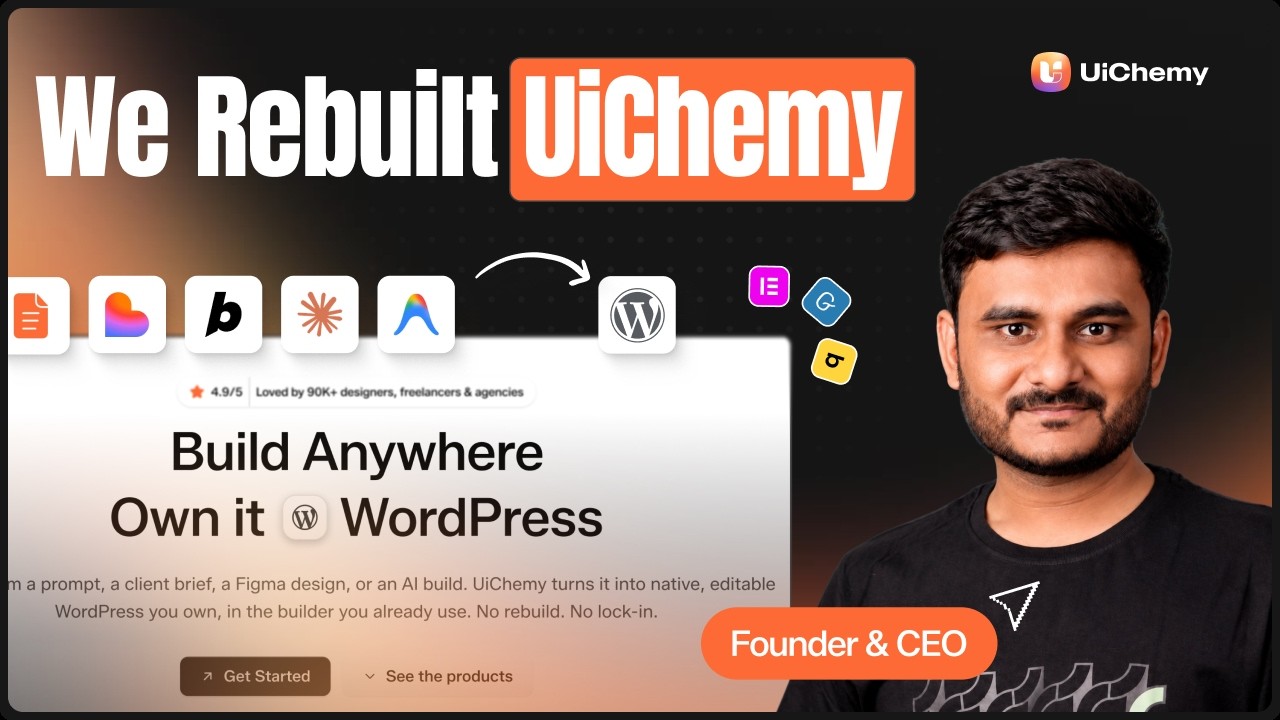 3:02
3:02 6:35
6:35