
 18:35
18:35How I Edit Viral Websites in WordPress with AI
About this video
Google Antigravity built this interactive website from one prompt, with motion, layout and sound effects that react to your mouse. The build isn't the hard part any more. The hard part starts when a client asks for one small change.
In this video, Antigravity connects to the UiChemy AI Agent through MCP and imports the build into WordPress with UiChemy Composer, animations and interactions intact. Then the page gets edited three ways: visually with the Pick tool and floating panel, in code from the Developer tab, and in plain English with AI Chat using Pick and Draw.
What you'll learn
- How to recreate a target website in Google Antigravity from one detailed prompt
- How to set up the UiChemy AI Agent and add the UiChemy MCP server to Antigravity
- How to import the Antigravity build into WordPress with UiChemy Composer, animations and interactions included
- How to make quick visual edits with the floating editing panel and the Pick tool
- How to use class-based editing, the Code tab and Globals for colors, typography, spacing and design tokens
- How to connect AI Chat with Connect CLI and edit any element using Pick and Draw
Resources
Questions people ask
Can I bring a website built in Antigravity into WordPress?
Yes. Connect Antigravity to the UiChemy AI Agent through MCP, give it the generated project, and it imports the site into WordPress with each section built in UiChemy Composer.
Do the animations and interactions survive the import?
In this demo they did. The motion, layout and mouse-driven sound effects of the Antigravity build came through into WordPress and stay editable in Composer.
How do I edit the imported page?
Three ways: visually with the Pick tool and floating panel, in code from the Developer tab with classes, HTML, CSS, JavaScript and Globals, or in plain English with AI Chat.
How do I connect AI Chat?
Use Connect CLI to link an AI tool already on your machine, such as Claude, or an AI connector from the WordPress settings. Then pick or draw around any element and describe the change.
Do I need Elementor Pro?
No. The free Elementor plugin is enough for this workflow.
Video transcript
The Challenge of Editing AI-Built Websites
We built this page using Antigravity with just one prompt. Motion, layout, and sound effects all tied to mouse movement. The build isn't the hard part anymore. The hard part is what happens after. When a client asks for one small change. That's where most AI built pages fall apart. The design looks good. The interactions feel good. But once you bring it into WordPress, the experience can break. And that's exactly the challenge we're taking on today. We're going to bring this entire experience into WordPress and make it fully editable without losing the design and interactions that make it special. So,
Generating the Target Website With Antigravity
let's get started. Here, I've prepared a detailed prompt to recreate the target website. I've included the target site URL and described the key UI and UX details that need to be reproduced, including the visual hierarchy, structure, typography, colors, spacing, interactions, animations, and overall experience. Let's hit enter and start the execution. You can see Antigravity is asking for permission to inspect the CSS and JavaScript assets. Let's select always allow and let it continue. During the process, Antigravity may ask for additional permissions or confirmation.
Make sure to read each request carefully and provide the permissions required for the agent to complete the task. This process can take a little time. So, let's let it run. While that's running, here's a question. In this AI era, is WordPress still relevant? Watch this video till the end, then tell me what you think. Now, let's get back to the
Previewing the Generated Site and Assets
process. And the execution is complete. Antigravity has generated the website based on the target design. Here we have the complete project structure and the generated source files. Let's open the zip and preview the result. And you can see the visual direction, interactions, animations, and sound experience are all coming together. This is exactly where AI website generation becomes interesting. But we're not done yet, because the real challenge is how do we take this AI generated experience and make it manageable inside WordPress? This is
Setting Up the UiChemy AI Agent in WordPress
where UiChemy comes in. Build anywhere, own it in WordPress. First, install and activate UiChemy on your WordPress website. Once we're inside the UiChemy dashboard, you'll see three modules. Figma plugin, where you can convert Figma designs into editable WordPress pages. AI website creator, where you can build a complete website from a prompt or client brief. And AI agent, where you can connect an AI tool to WordPress and bring AI generated websites into an editable WordPress workflow. For this video, we're focusing on AI agent.
Setting up the AI agent takes just a few steps. First, generate the connection. Next, select your AI tool. You'll find the supported AI tools listed here. For this workflow, let's select Antigravity.
Configuring the MCP Server Connection
Now, we need to add the MCP server. There are two ways to connect your AI tool with MCP, using a prompt or using the configuration. I'll use the configuration method. Copy the configuration and open Antigravity. Click the three-dot menu. Go to MCP servers, then manage MCP servers. Open view raw config. Paste the configuration and save it. Now, let's click on refresh. And you can see the UiChemy MCP connection is established. Let's go back to the agent chat and confirm the connection. And it's confirmed. We're ready to import the website into WordPress. Now, I've
Importing the AI Website Into WordPress
prepared a prompt that tells the agent exactly what to do. First, analyze and understand the existing website code from a UI and UX perspective. Then, using UiChemy MCP, import the website into WordPress. The prompt also instructs the agent to preserve the original structure, styling, typography, colors, spacing, responsive behavior, animations, interactions, and overall experience while seamlessly recreating it in the UiChemy Composer widget.
I've also attached the generated zip file, so the agent has direct access to the source code. Let's send it. The agent has started the process. It's analyzing the code, loading the required skills, and working through the migration step by step. It's asking for permission to inspect the zip contents. Let's click always allow. This can take a little time, so let's let it complete.
Reviewing the Imported Page in WordPress
And it's done. Now, let's open the page. And this is the important part. The AI-generated experience is now inside WordPress. The animations and interactive behavior are working. The sound experience is preserved where supported, and the page is now part of an editable WordPress environment. But the biggest advantage isn't simply getting the design into WordPress. It's what happens next. The best part is that
Editing With the Floating and Side Panels
we can actually edit it. Let me show you. Here we have the floating editing panel. I'll select the pick tool and click on this heading. And you can see the editing controls appear immediately. From here, we can change alignment, colors, typography, font size, and other visual properties. But, if we need deeper control, we can open the side panel. Inside the side panel, we have much more control. We have a class-based editing system. We can edit the content, typography, layout, spacing, background, borders, effects, animations, and more. For example, let's quickly modify the border. I'll increase the width, change the style, adjust the color, and add border radius. And you can see the changes immediately. For now, I'll restore the original styling.
These advanced editing capabilities are available in the developer tab for users who need deeper control. Then, this is
Design Tab, Developer Tab, Code and Globals
the design tab. It's designed for quick visual editing without needing to work directly with code. And in the developer tab, we also get deeper control over classes, code, and global settings. Here we have the code tab, where we can access the HTML, CSS, and JavaScript. We can also add third-party CSS and JavaScript libraries when required. And here we have globals where we can manage global colors, typography, spacing, animations, and other reusable design variables. We can also import and export design tokens. So, whether you're making a quick visual change or working at the code level, the same WordPress experience gives you different levels of control. If you want to explore UiChemy Composer in more detail, check the link in the description. Now, let's get to
Connecting AI Chat in UiChemy Composer
one of the most powerful parts of UiChemy Composer, AI Chat. To enable AI Chat, we need to connect our AI tool with UiChemy Composer. There are two options, Connect CLI and AI Connector. With AI Connector, you can connect through the available AI tool integrations and provide the required API credentials. For this demo, I'll use Connect CLI. First, allow browser access. Then, copy the command, open the terminal, paste it, and run it. Within moments, the connection is established.
Now, we can select the AI tool we want to use. For this demo, I'll keep Claude selected. And now, we're ready to make changes using AI. First, I'll select the
Editing With AI: Pick Tool
pick tool and target the element I want to modify. You can see the selected element is identified here. Now, let's make a simple change. I'll ask, "Apply a darker shade from the color palette to the first three words." Let's send it. And within moments, the change is applied. No need to manually search through the code. Just describe the change and let AI handle it. Now, let's
Editing With AI: Draw Tool
try the draw feature. I'll select the draw tool and draw around the navigation items I want to change. Then, I'll add the instruction, "Add a bottom border to the navigation menu items on hover." Let's send it. And it's done. You can see the hover interaction has been added exactly where we targeted it. This is a much more natural way to work with complex interfaces. Instead of explaining where something is in a large code base, we can simply point to it and describe the change. Make sure to click save after making any edits, and that's the real
Summary and Conclusion
difference. With UiChemy, the goal is to take an AI generated experience and turn it into something you can continue to edit, maintain, and evolve inside WordPress. Build anywhere, own it in WordPress. So, if you're already using AI to build websites, the question isn't only how quickly can AI build this? The bigger question is, what happens after it's built? If the answer is that the client can actually own, edit, and manage the website, that's where the workflow becomes much more powerful.
Explore UiChemy and try this workflow yourself. Share your experience in the comments and let me know, would you deliver an AI generated website directly, or would you bring it into WordPress first? Don't forget to subscribe for more AI powered WordPress workflow videos. Until then, keep learning and stay creative. I'll see you in the next one.
Transcript generated from the video's captions.
More videos
18:35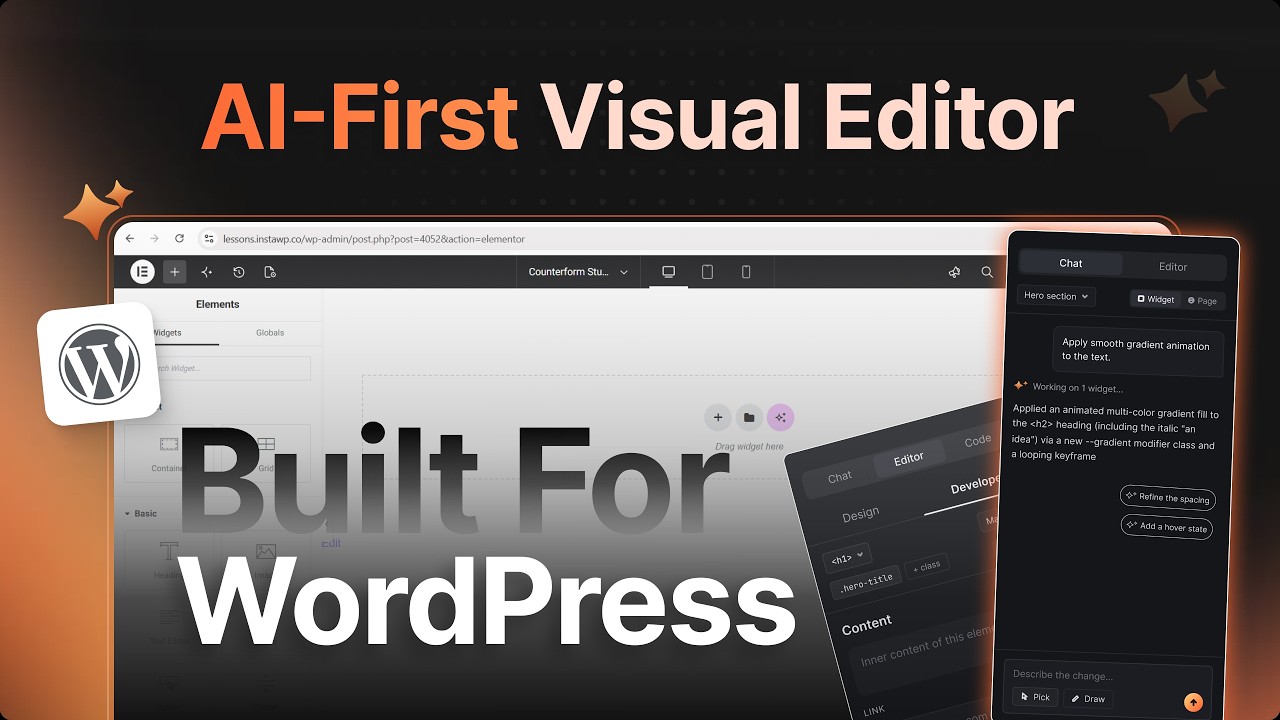 11:56
11:56 8:42
8:42 3:59
3:59 12:29
12:29 3:26
3:26 2:29
2:29 3:02
3:02 6:35
6:35