
 2:40
2:40Google Antigravity Built This 3D Website. Can WordPress Edit It?
About this video
Google Antigravity builds Root & Reach, a 3D storytelling site with a WebGL globe, scroll-driven growth animation, a pledge calculator and a procedural soundscape, all from a single prompt. Building it is the easy part. The question this video answers is whether a client can keep editing it once it ships.
We set up the UiChemy AI Agent in four steps, add the UiChemy MCP server to Antigravity, and send a second prompt that converts the site into WordPress section by section. The live page keeps the globe, the scroll story and the audio. From there we make quick edits with the floating panel, go deeper in the Developer and Code tabs, and use AI Chat through Agent Bridge to add a hover colour with the Draw tool and a falling-leaves background with the Pick tool.
What you'll learn
- How to build a 3D interactive website in Google Antigravity from one prompt
- How to set up the UiChemy AI Agent and add the UiChemy MCP server to Antigravity
- How to convert the site into WordPress section by section with interactions intact
- How to make quick visual edits with the floating panel and Pick tool
- How to edit styles, animations, schema and code in the Developer and Code tabs
- How to connect AI Chat with Agent Bridge or an AI Connector
- How to edit with AI using the Draw and Pick tools
Resources
Questions people ask
Can a website built in Google Antigravity be moved into WordPress?
Yes. With the UiChemy MCP server added to Antigravity, the agent reads the site's code and rebuilds it in WordPress as UiChemy Composer sections, keeping the styling, 3D WebGL scenes, scroll effects and sound.
How do I connect Antigravity to my WordPress site?
Install UiChemy, open the AI Agent tab, click Generate connection, pick Antigravity, copy the config, then paste it into Antigravity's raw MCP config under Manage MCP servers and refresh.
Do the 3D globe and scroll animations still work after conversion?
Yes. In the video the globe still spins, the scroll story still grows the seed into a canopy, the calculator slider updates live and the FAQ opens and closes as in the original build.
Can my client edit the converted page without code?
Yes. The UiChemy Composer floating panel lets you click any element and change font, size, colour and alignment, using the site's global fonts and palette. Developers still get the HTML, CSS and JavaScript in the Code tab.
How does AI Chat edit the page?
Connect an AI through Agent Bridge (a CLI agent like Claude, Codex or Gemini) or an AI Connector in WordPress settings. Then circle an element with the Draw tool or select a section with the Pick tool and describe the change.
Video transcript
Introduction: Building vs. Controlling AI Websites
Antigravity built this entire website from one prompt, but building it was the easy part. Controlling it is where most AI websites fall apart. So, today we're fixing that by bringing it into WordPress, where every section is editable without losing a single interaction. So, let's get started.
Prompting Antigravity to Build Root & Reach
Here's the prompt we've prepared for this build. You'll find it in the description. It asks Antigravity to build Root and Reach, an interactive website that follows a tree's journey from seed to canopy using GSAP, Three.js and smooth scrolling. And at the end, it packages everything into a website.zip file. We copy the prompt and switch to Antigravity. We paste it into the agent chat. Let's hit enter and start the execution. Antigravity starts by
AI Execution: Visuals, Assets & 3D Interactive Setup
thinking through the brief, the dark glassmorphic style, the 3D hero, and the scroll-based story. It explores the project folder and checks the tools it needs to package the files. Next, it generates its own visuals with Gemini 3.1 Flash image. Here's a glowing seed germinating in dark soil. Then, a forest canopy and a community planting scene. It creates the assets and JavaScript folders, pulls in the libraries, and plans each section of the page. While it works, here's a question. You've built a stunning website with AI, but can your client update it without calling you every time? Watch this video till the end, then tell us what you think. Now, let's get back to the process. And the execution is complete. Antigravity gives us a summary of everything it built. A 3D WebGL Earth globe with reforestation hotspots, an interactive impact grid, a pledge calculator with a certificate generator, and even a procedural audio engine for forest wind and bird song. Here's the complete project structure with the source files, assets, and launch files. And just as the prompt asked, everything is packaged
Previewing the Raw Generated Website
into website.zip. Let's preview the result. We open index.html straight from the project folder. And this is root and reach. Floating particles, a glowing seed in the center, and a custom cursor that follows every move. We turn the sound on and the ambient soundscape starts playing. In the seed monitor card, we switch to the canopy stage and the whole card updates. Now we scroll. The seed grows roots underground, rises into a stem, and opens into a full canopy. Each phase tells its own part of the story. Further down, the cards light up with a soft glow on hover. It's a nice touch, and the four planting steps light up one by one. In the global hotspot section, we spin the 3D globe and select a location. The globe rotates, and the data card updates. In the next section, we select 100 trees, then move the slider. Every impact number updates live and the FAQ and footer close the page cleanly. This is exactly where AI website generation becomes interesting. But we're not done yet because the bigger challenge is how do we take this experience and make it manageable inside WordPress. This is
Introducing UiChemy: Bringing the Site to WordPress
where UiChemy comes in. Build anywhere own it in WordPress. First install and activate UiChemy on your WordPress website. Once we're inside the UiChemy dashboard, there are three tabs. Figma plug-in to convert Figma designs into editable WordPress pages. AI Website Creator to build a complete website from a prompt or client brief and AI agent using MCP to connect an AI tool like Antigravity directly to WordPress. We'll cover the other two in separate videos. For this workflow, we're going straight to AI agent.
Setting Up the UiChemy MCP Server in 4 Steps
Setting it up takes four steps. First, we're clicking generate connection. This creates a secure application password so the AI tool can reach this site. Next, pick your AI tool. Claude desktop, cursor, Codex, Antigravity, and other are listed here. We're selecting Antigravity. Step three, add the MCP server. There are two ways to do it. Prompt or config. The prompt lets Antigravity edit its own configuration file. For this demo, we're using config.
We copy the configuration. And step four, restart and start building. In Antigravity, a quick refresh does the job. As you'll see over in Antigravity, we open the three dot menu in the agent panel and choose MCP servers. From the MCP store, let's click manage MCP servers. No servers are installed yet, so we're clicking view raw config. We paste the configuration and save the file. Then let's click refresh. And there it is. The UiChemy MCP server is enabled with its tools ready. Back in the agent chat, we confirm the connection. Let's ask is the my site WordPress UiChemy MCP connected? And it's confirmed. Antigravity runs a live test on our WordPress site and lists the UiChemy skills and abilities it can use, including code to WordPress. Quick and
Converting the Site to WordPress via MCP Prompt
accurate. With the connection ready, it's time to bring the website into WordPress. We've prepared a second prompt for this step. Also in the description, it asks the agent to understand the website's code first, then use the UiChemy MCP to convert it into WordPress section by section, keeping the design, interactions, and even the sound effects intact. We paste the prompt and attach website.zip, so the agent has the full source code. Let's send it. The execution has started. The agent analyzes the project and loads UiChemy's code to WordPress skill through the MCP connection. It reads the guidance for animations and performance, studies the page structure and sound logic, and then starts building the page. Before finishing, it even opens the page in a browser, scrolls through it, and takes screenshots to check each section, the sliders, the 3D globe, the FAQ, and the certificate model. And within moments, it's done. WordPress conversion completed via UiChemy MCP. Every section is now its own UiChemy Composer section with the styling, 3D WebGL scenes, soundscape and calculators preserved. The summary gives us the live page link and a direct link to edit in
Live WordPress Page Review: 3D Globe, Scroll Effects & Audio
Elementor. Let's open the page. And this is the important part. Root and reach is now live inside WordPress. You can see the admin bar at the top. The hero comes through as designed, the live counter, the floating particles, and the seed monitor card. We're clicking through seed, mycelium, and canopy. And each tab swaps the image and data just like the original. We turn the sound on and the audio experience is preserved where supported. As we scroll, the seed grows roots, rises into a stem and opens into the canopy. The scroll story is intact.
The cards lift on hover and the planting steps change their images exactly like the original. The globe spins when we grab it. The slider responds and the FAQ opens and closes as before. And at the bottom of the screen, there's the UiChemy Composer floating toolbar. So, this page isn't just viewable, it's editable. That's the biggest advantage. Not just getting the design into WordPress, but what we can do with it
Visual & Code Editing with the UiChemy Composer Panel
next. Here's the floating editing panel. We select the pick tool and click the main heading. The quick controls appear right above it. Font, size, line, height, alignment, and color. Let's center the heading. It updates instantly. For now, we're setting it back to the left. The font list pulls in the global fonts this website already uses. So every choice stays on brand. Same for colors. The full palette from the global settings is ready to use here. And with insert dynamic value, this text can pull data from WordPress when needed. For deeper control, we open the side panel. The design tab keeps it simple. Content, color, size, and alignment without touching code. The developer tab is class-based. This heading has its own class so changes stay clean and organized. Typography, layout, spacing, background, border, and effects. Every property is here, and we can add more when we need them. Even the animation values from the original build are editable, like how far this heading rises and how long it takes. We can also add schema and custom CSS right here. In the code tab, we get the HTML, CSS, and JavaScript behind this section, ready to format, copy, or edit. And under globals, we manage sitewide colors, text styles, and sizes in one place. So whether you're making a quick visual change or working at the code level, the same WordPress page gives you different levels of control. If you want to explore UiChemy Composer in more detail,
Connecting AI Chat via Agent Bridge (CLI)
check the link in the description. Now, let's get to one of the most powerful parts of UiChemy Composer, AI chat. To start chatting, we connect an AI to Composer. There are two parts. Agent Bridge connects to a CLI based AI agent already on your machine like Claude, Codex or Gemini or add an AI connector through the WordPress settings with providers like Anthropic, OpenAI or Google. For this demo, we're using agent bridge. So, let's click connect CLI. Browser access is already allowed. Next, we copy the command. We open the terminal, paste the command, and run it. Keep the terminal open while you work. And we're connected. We can pick any available AI model here. For this demo, Claude is selected. Let's click start chatting.
Visual Edits with the Draw Tool (Hover Effects)
We're starting with the draw tool. We scroll to these feature cards. Right now, when we hover over a card, the title stays white. We select the draw tool from the floating toolbar, and circle the card title we want to change. Then, we add a note. Change the title color when hovering over the card. Let's send it. Composer reads the design system, checks the widget code, and inspects the selected element. And within moments, it's done. Composer added a hover rule that shifts the card titles to the site's moss green with a smooth transition. We hover over the cards, and the titles now light up in green across every card in this section.
It even uses the existing brand color. Quick and accurate. Instead of explaining where something sits in the code, we simply point to it and describe the change. For the next change, let's start a fresh chat. A clean context keeps the AI focused on one task at a time. You can also continue in the same chat if the changes are related. All
Adding Background Animations with the Pick Tool
right, this time we're using the pick tool. We click the section and the whole block is picked as the target. You can see it attached in the chat. The prompt is add a continuous background animation with leaves gently and smoothly falling. Let's send it. Composer reads the element context, checks the widget code, and applies the update. And within moments, it's done. Leaves now drift gently across the section behind the content without touching the layout.
Quick and accurate. No need to manually search through the code. Just describe the change and let AI handle it. We collapse the panel to see the full page. Then we're clicking save changes to keep the updates. One last scroll through the page. The hero, the cards, the planting journey steps, and the globe all work as before, and the new animation fits right
Final Overview & Outro
in. AI can now build incredibly advanced websites, but the value lies in what happens after they're delivered. Clients update content, designers refine visuals, developers get full code control, and agencies never have to start over when something changes. With UiChemy, an AI generated experience becomes something you can keep editing, maintaining, and growing inside WordPress. Build anywhere, own it in WordPress. Explore UiChemy and try this workflow yourself. Share your experience in the comments and don't forget to subscribe for more AI powered WordPress workflow videos. Stay curious, keep learning and I'll see you in the next one.
Transcript generated from the video's captions.
More videos
2:40 18:35
18:35 8:43
8:43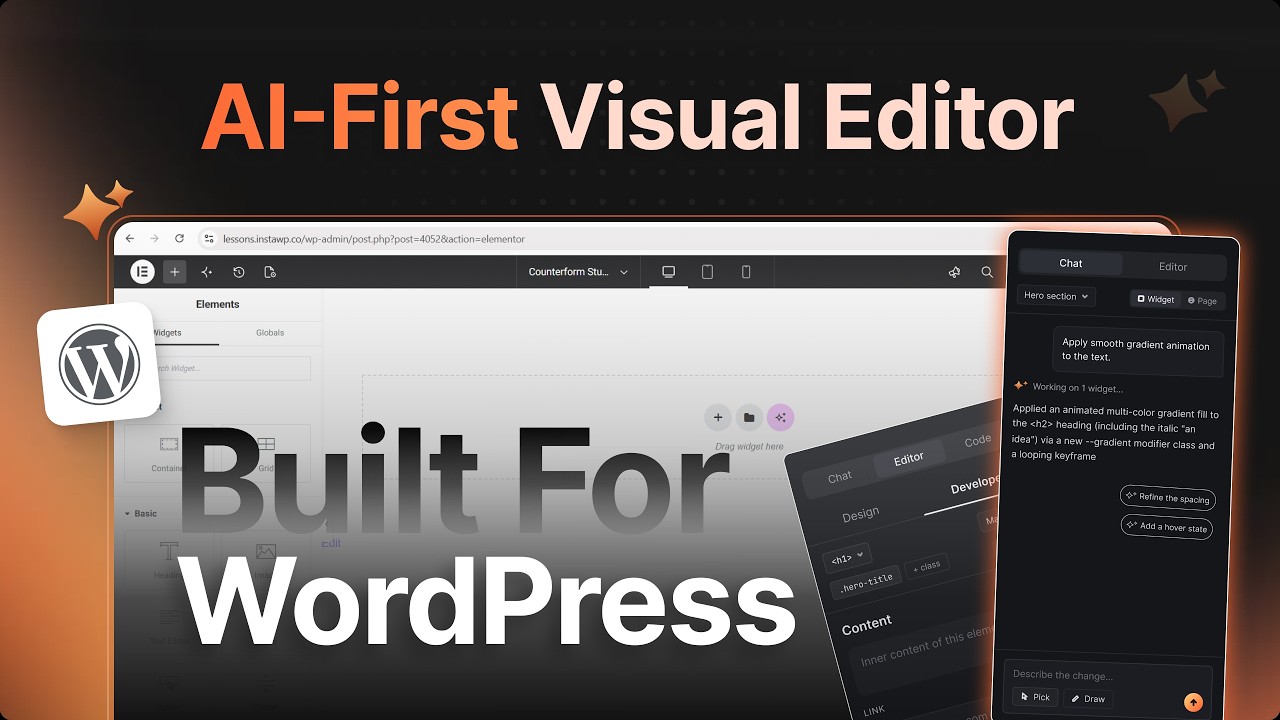 11:56
11:56 8:42
8:42 3:59
3:59 12:29
12:29 3:26
3:26 2:29
2:29 3:02
3:02 6:35
6:35