

How to Tag The Menu (Elementor Experimental) Widget for Figma to Elementor?

Key Takeaways

  • UiChemy allows tagging of menu elements as the Menu (Elementor Experimental) widget from Elementor Pro.
  • A frame containing an icon, title text, description text, and close button can be tagged as a Menu (Elementor Experimental) widget.
  • Exporting the design ensures the element uses the Menu (Elementor Experimental) widget with selected texts and style.

Table of Contents

If you are showing a menu in your site design in Figma, whether it’s horizontal or a dropdown, then you can tag those elements as the Menu (Elementor Experimental) widget from Elementor Pro using the UiChemy plugin.

So when you export the design as an Elementor template, that particular section will use the Menu (Elementor Experimental) widget.

What Can be Tagged?

A frame containing an icon, a title text, a description text, and an icon for the close button can be tagged as a Menu (Elementor Experimental) widget.

How to Tag?

To do this, you can choose between two options: Step by Step Method or Express Conversion.

Here, we’ll go with the Step by Step Method.

  1. First, select the Step by Step Method and click on the Start button.
  2. Select the top-level page or frame of your layout, then click on the Next button.
  3. Under the Widget Tagging Mode tab, select the Manual Widget Tagging Option.
  4. Next, under the Manage Auto Layout tab, you’ll see two options: It’s already in Auto Layout and Convert to Auto Layout. We’ll go with the first option.
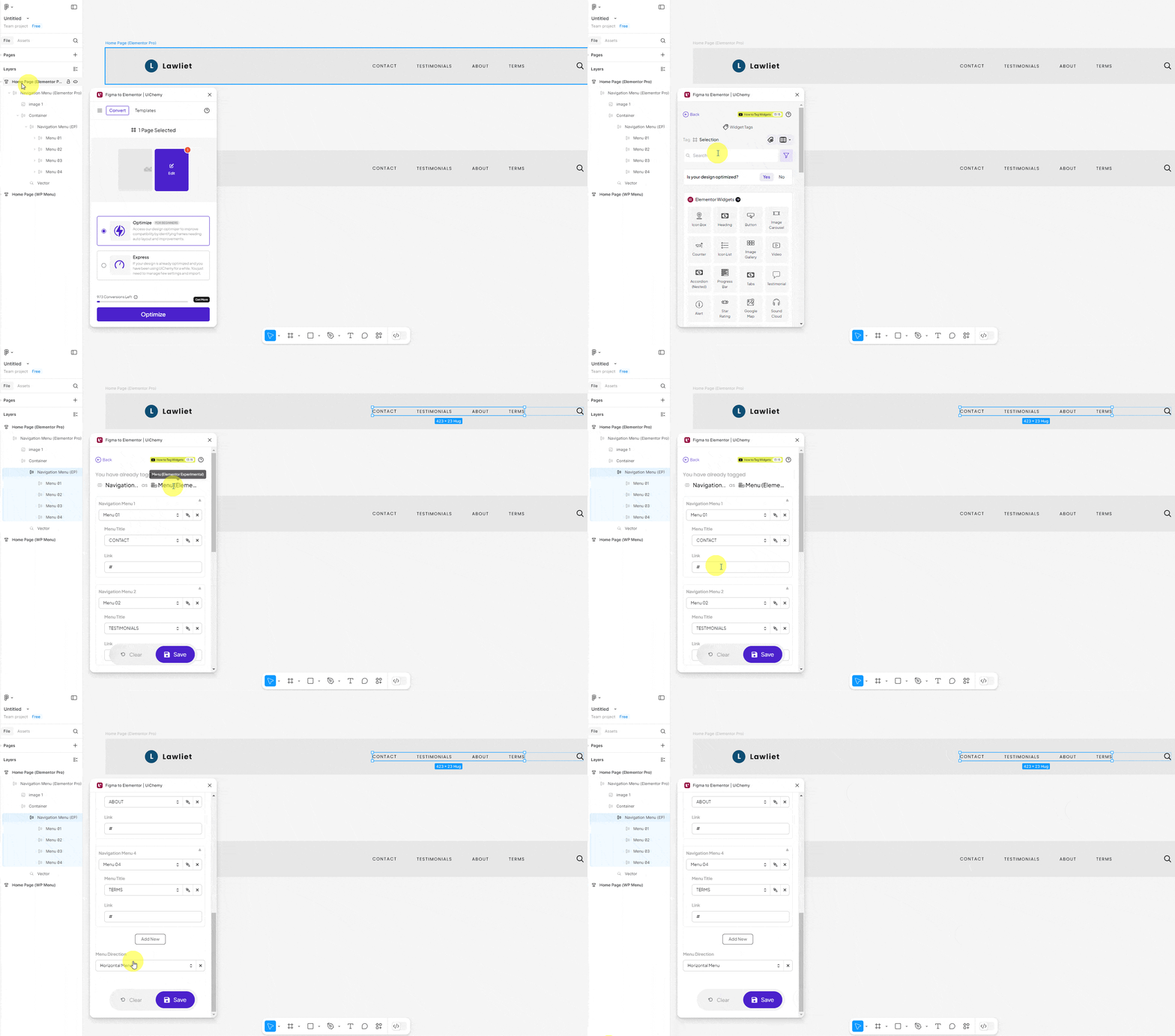
  5. After that, under the Tag Widgets tab, choose the frame or container that contains your element (Widget). Then, search for the Menu (Elementor Experimental) widget from Elementor Pro in the UiChemy panel and select it. Here, you’ll see all the supported Elementor widgets.

On the next screen, you’ll get the information of which element you are tagging as what widget.

Then you’ll see widget-specific tagging options.

  1. In the Navigation Menu dropdown, you have to select the menu.
  2. In the Menu Title dropdown, you have to select the menu title.
  3. Then, in the Link field, you can add the title URL.
  4. Then, you can click the + Add New button to add more menus.
  5. In the Menu Direction dropdown, you have to select the menu direction.
  6. Once done, click the Save button to complete the tagging, and you’ll see a Tagged successfully message.
uichmey to tag meu elementor experimental 2

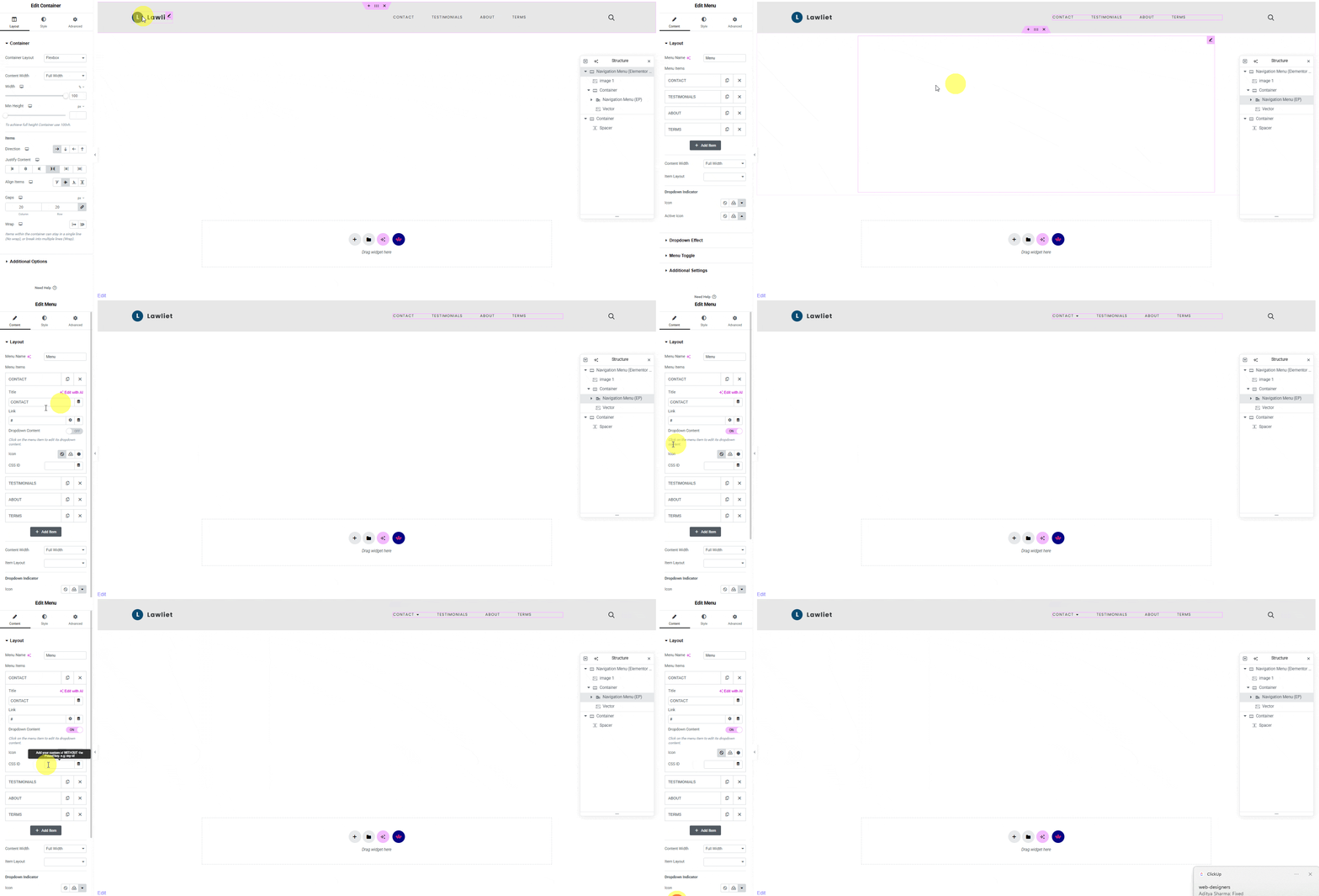
Now, if you export the design, that element will use the Menu (Elementor Experimental) widget from Elementor Pro with your selected texts and style.

Note: When you export a WordPress Menu from Figma to Elementor, the menu style and content will be as per the settings of your website.
uichmey to tag meu elementor experimental demo

Note: Make sure Elementor Pro plugin is installed and activated and the widget is activated as well. You might have to make some minor adjustments in the widget settings to match the design, especially those elements that are not tagged.

About the Author

Photo of Sagar Patel CEO of UiChemy
CEO · UiChemy · 11 years experience

Sagar is the Founder & CEO of POSIMYTH Innovations, with 10+ years building WordPress products trusted by 100,000+ websites globally. He has led the development of The Plus Addons for Elementor, Nexter, WDesignKit, and UiChemy, all built hands-on from concept to launch. His work focuses on making website building faster, more flexible, and accessible for creators and businesses worldwide.

WordPressFigmaUI DesignWeb DesignElementorBricksAutomationClaudeAI

Related Frequently Asked Questions


What if the Menu (Elementor Experimental) widget doesn't appear after tagging?

If the Menu (Elementor Experimental) widget doesn't show up after tagging, ensure that the Elementor Pro plugin is installed and activated. The widget must also be activated within Elementor. Sometimes, minor adjustments in the widget settings may be necessary to match your design, especially for elements that are not tagged correctly.

What is the best practice for tagging menu items in Figma?

When tagging menu items in Figma, ensure that you select the correct frame or container that holds your menu elements. Use the Manual Widget Tagging Option for precise control. This method allows you to specify menu titles and links accurately, which is crucial for maintaining the integrity of your design in Elementor.

What happens if I skip the Manual Widget Tagging Option?

If you skip the Manual Widget Tagging Option, you may not have full control over how your menu elements are tagged. This could lead to incorrect or missing menu items in Elementor, affecting the overall functionality and appearance of your site. It's essential to follow the tagging process to ensure everything exports correctly.

Are there any limitations when using the UiChemy Figma Plugin for menu tagging?

One limitation is that the UiChemy Figma Plugin only supports the Menu (Elementor Experimental) widget from Elementor Pro. It does not convert designs from any other design tools besides Figma, and it is not compatible with other page builders like Divi or WPBakery. This means you need to ensure your design is compatible before tagging.

Last reviewed: April 14, 2026