
Figma Templates Worth Starting a Website From
 Sagar Patel
You download a beautiful Figma template, spend an afternoon replacing the copy and the photography, then try to build it and discover the whole hero is one flattened image with the headline baked into it. The design was never the problem.
The file structure was.
Templates split into two kinds and the preview image tells you nothing about which one you are looking at. There are files made to be looked at, and files made to be built from.
Only the second kind saves you time once a real site is involved.
This post is about the four properties that decide which kind you have: auto layout, real components, variables and styles, and text still stored as text. Everything below was checked against Figma’s own template gallery and UiChemy’s documentation on 7 September 2026.
Where Figma Templates Actually Come From
Figma’s own gallery advertises 300 or more templates made by its team, sorted into categories including wireframe kits, brainstorming and planning. Those are excellent for process work and mostly not website templates, which is the first thing to notice when a search for Figma templates lands you there.
The Community is the larger pool and the more variable one. Quality ranges from production-ready design systems to a single artboard someone exported from another tool.
Nothing about a listing tells you which, so the check has to happen after you open the file.
The third source is files published by conversion tools themselves, which have an obvious reason to structure things properly.
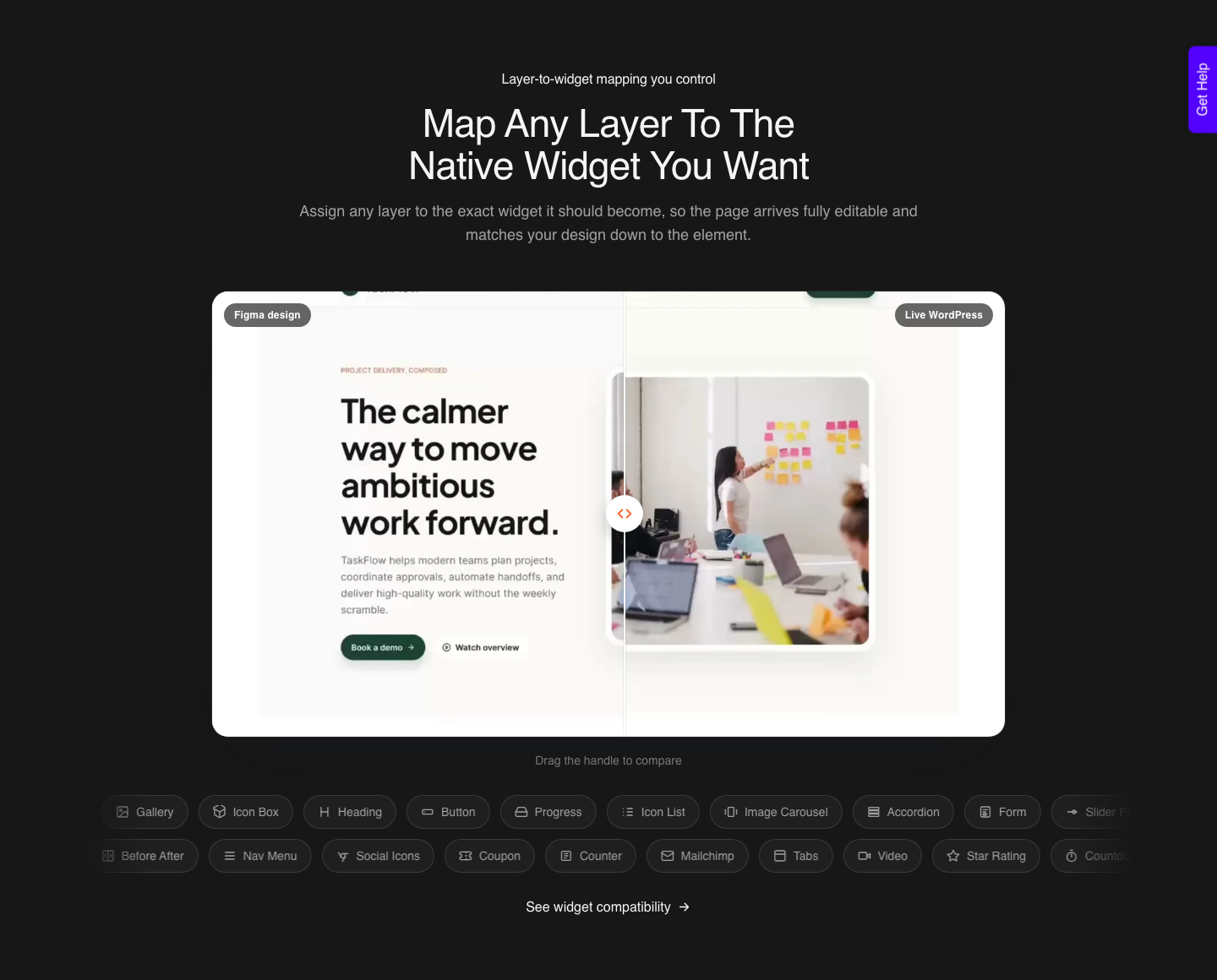
UiChemy publishes free starter files on the Figma Community and leans on pre-made templates and wireframes as the first step in its own Classic Mode workflow, and the point of them is structural rather than decorative: auto layout throughout, a clean hierarchy, global variables and styles, and layers named so the widget mapping is obvious.
The Four Properties That Survive A Build
Auto layout is the first and the least negotiable. It is what carries spacing intent rather than pixel positions, so a frame with auto layout produces a container that stretches and a frame without one produces a set of guesses.
UiChemy’s optimizer lists frames without auto layout as a named problem and asks you to wrap the children before converting.
Real components are second. A card built as a component becomes a repeatable pattern in the build, while forty copies of a card built by duplication become forty independent blocks that drift the first time somebody edits one.
Groups instead of frames are on the same list of flagged problems, because groups carry neither auto layout nor constraints.
Variables and styles are third, and they are the ones that pay off after launch rather than during. A file whose colors and type come from styles syncs into the builder’s global colors and typography, so one change still updates everywhere.
A file with hex codes typed onto individual layers hands you a site where a brand tweak is a hundred edits.
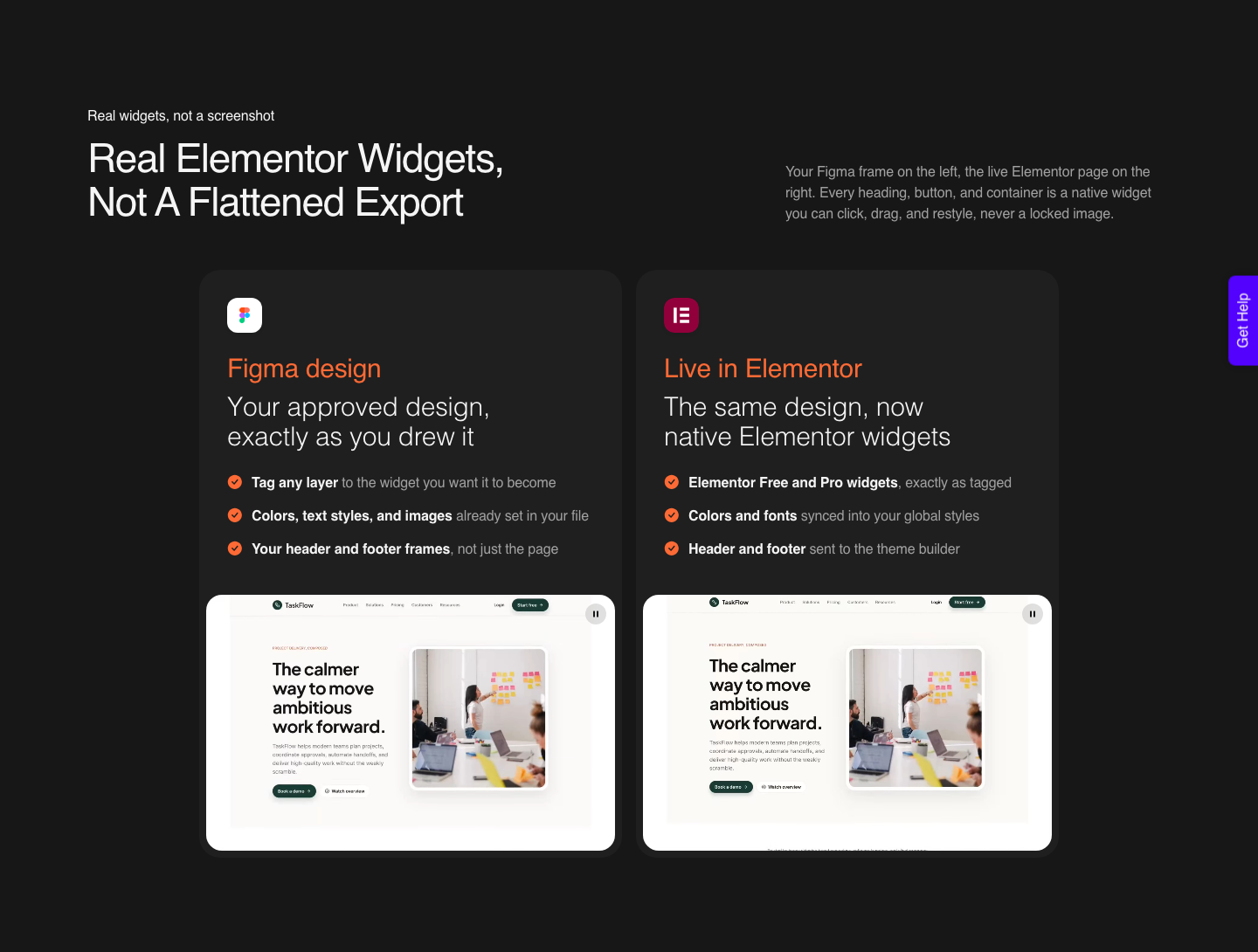
Text kept as text is fourth and the one people notice last. Headlines flattened into an image cannot be edited, cannot be indexed, and cannot reflow at a smaller breakpoint.
If a template’s hero copy is part of the artwork, you are not starting a website from it, you are starting a redraw.
| Property in the template | What happens in a real build | Fix before you convert |
|---|---|---|
| Auto layout on every frame | Spacing and stacking survive as container behaviour | Wrap children in auto layout, remove leftover wrappers |
| Groups used as containers | No auto layout, no constraints, unpredictable output | Convert groups to frames |
| Real components | Repeatable patterns you edit once | Componentise anything appearing more than twice |
| Variables and text styles | Sync into the builder’s global colors and typography | Replace one-off hex values with styles |
| Text as text, auto height | Editable, indexable, reflows at every breakpoint | Never use fixed height on text elements |
| Text baked into an image | Uneditable and invisible to search | Rebuild the headline as a text layer |
| Masked groups with no lock applied | Nested groups explode into many containers | Lock them so they export as one image |
| Constraints set to Left and Right, or Scale | Documented as unsupported, breaks on resize | Change the constraint before converting |
The Fixed Height Trap
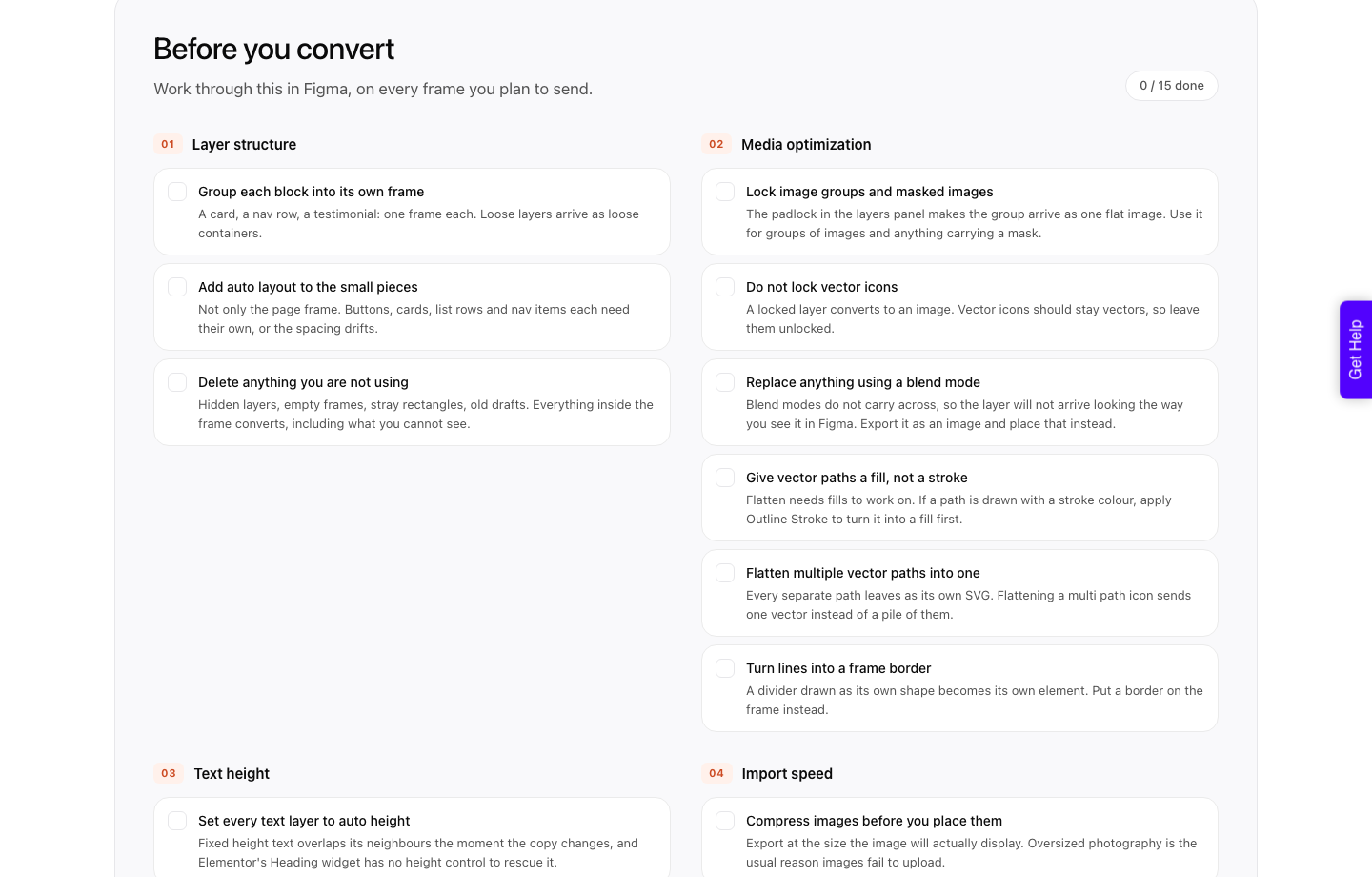
This one deserves its own section because it appears in almost every downloaded template. Designers use a fixed height on a text element to create bottom spacing, which looks correct in Figma and behaves badly everywhere else.
UiChemy’s guidance is direct: Elementor does not support text height in the Heading widget.
The consequence is specific rather than vague. Text elements with fixed height end up absolutely positioned in Elementor because they overlap their neighbours, and you then have to set positioning back to relative by hand across the page.
A template built this way costs you an hour that the preview image never mentioned.
The fix is auto height on the text and gaps for spacing. That single change makes the layout adaptive, prevents overlap, and removes the manual repositioning entirely.
Check it in the first thirty seconds of opening any template.
Media Is Where Templates Fail Quietly
The second failure mode has nothing to do with layout. Templates arrive stuffed with high-resolution images, nested masked groups and small vector compositions, all of which are fine in a design tool and expensive in a browser.
UiChemy states that masked groups and vectors left without a lock convert into many individual containers and image elements, producing a cluttered result and a slow import.
Locking is the lever. Locked layers, groups and frames export as a single image, which keeps a decorative composition intact instead of shattering it into forty elements.
That is the difference between a hero that arrives as one clean asset and a hero you spend twenty minutes reassembling.
Oversized images are named as a main cause of slow or failed imports. The available controls are practical: export as WEBP, PNG, AVIF or JPEG with adjustable compression, and split a very large layout into sections rather than importing one enormous frame.
A template you did not build is exactly the kind of file that needs this treatment.
Judging A Template In Five Minutes
Open the layers panel before you look at the artwork. If the tree is a flat list of groups with names like Rectangle 47, the file was drawn rather than structured, and no amount of tooling fixes that cheaply.
If it is nested frames with meaningful names, keep going.
Then run three checks. Select a card and see whether it is a component instance.
Click a heading and see whether it uses a text style and auto height. Open the local variables and see whether the palette exists as variables rather than as loose hex values on layers.
Finally, resize the top-level frame by 200px and watch what happens. A file with auto layout and sane constraints reflows.
A file without them tears, and you have just discovered in ten seconds what would otherwise have surfaced on the day of the client review.
| What you are starting from | Realistic time to a live page | The deciding factor |
|---|---|---|
| Pre-tagged template built for conversion | Shortest, tagging already done | Layer names map to widgets already |
| Well structured Community template | Short, after an optimiser pass | Auto layout, components and styles present |
| Pretty template with flattened sections | Long, closer to a redraw | Text baked into images cannot be recovered |
| Your own design system file | Short and repeatable | Styles sync to the builder’s globals |
| A screenshot or a PDF | Longest, nothing structural to read | There are no layers to convert |
From Template To A Live WordPress Page
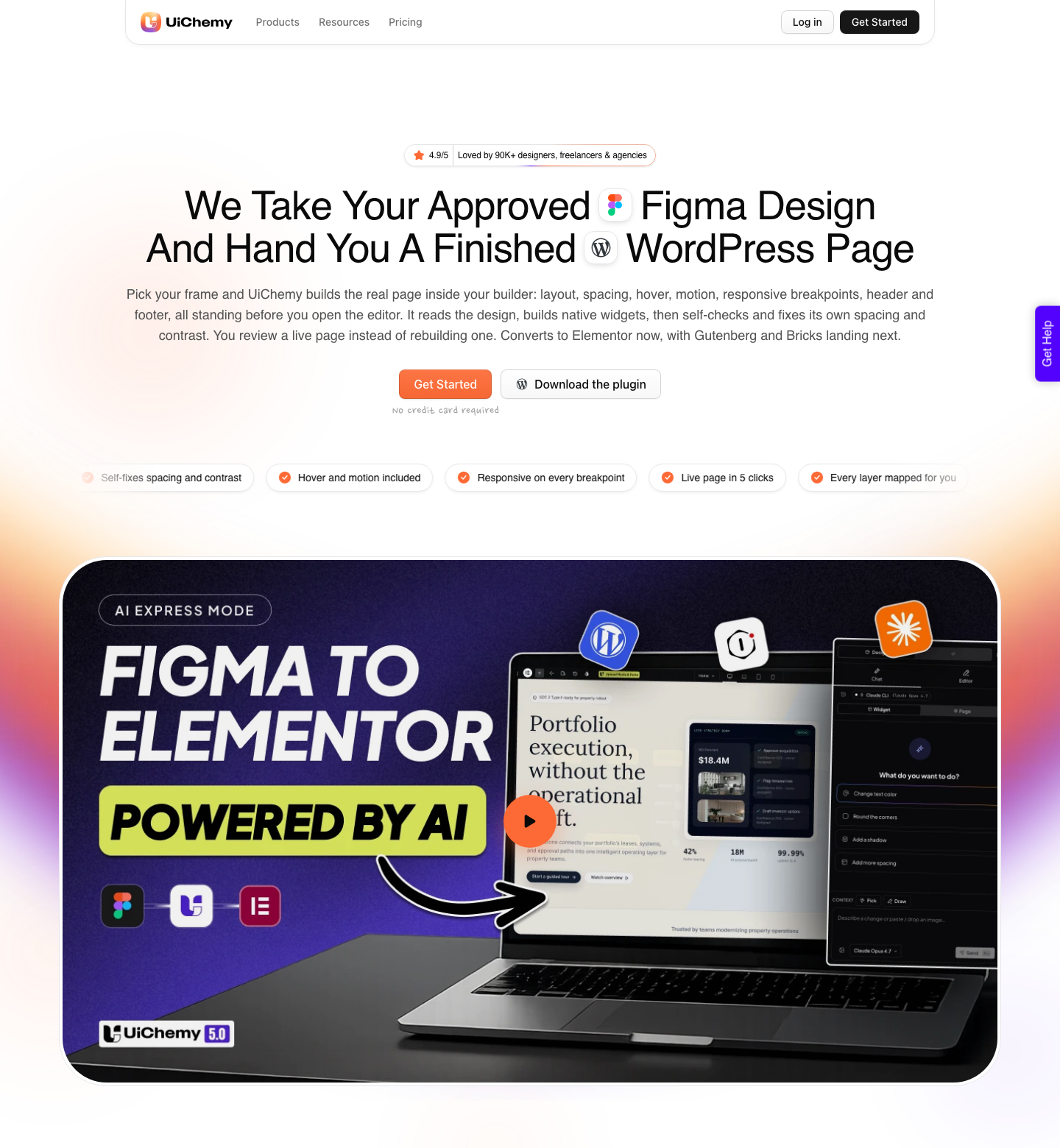
Once the file passes those checks, the build is short. AI Express Mode reads every layer without tagging and hands back native Elementor widgets, with motion set at conversion time as Off, Subtle or Immersive.
It outputs to Elementor only today, with Gutenberg and Bricks still coming.
Classic Mode is the route when a template needs exact control or when the site runs Gutenberg or Bricks, which Classic reaches today. You map layers to widgets yourself, which is slower and entirely predictable, and it is where a pre-tagged template pays for itself because the mapping already exists.
A template is one starting point of four, which is worth knowing on the day you cannot find a good one.
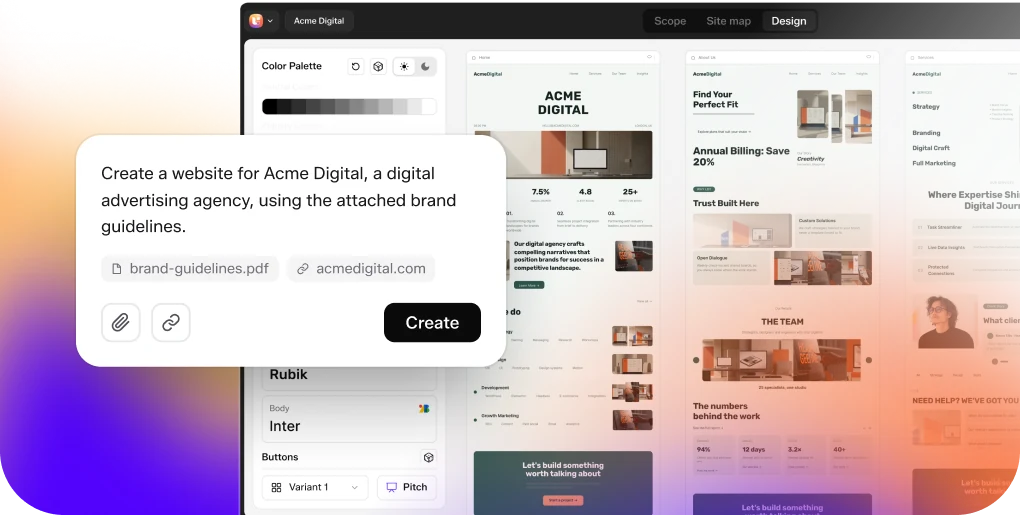
AI Website Creator takes a written prompt or a client brief instead and produces a scope, a sitemap and a full set of pages, exporting to Elementor with Gutenberg export marked Soon on every plan.
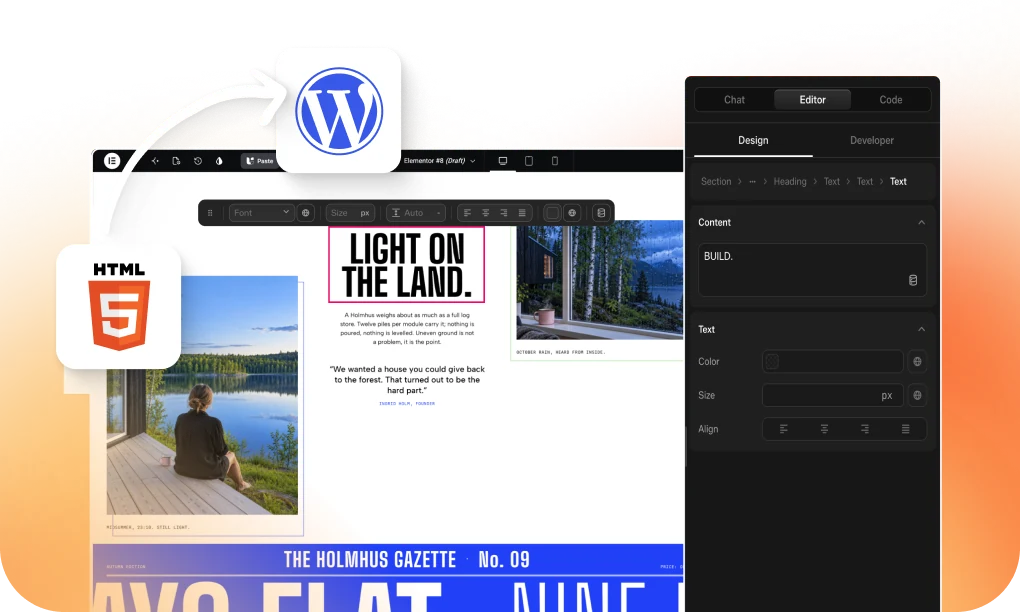
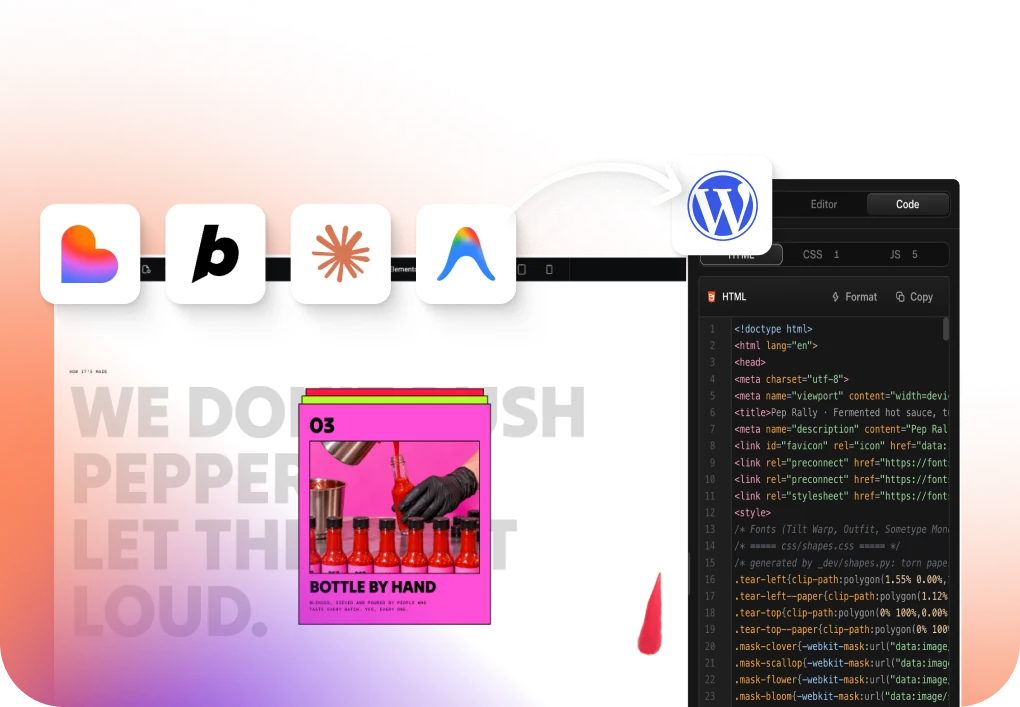
UiChemy Composer is one widget inside Elementor where AI writes real, editable HTML, CSS and JS for a section, which is the honest answer when a template gets you 80% of a page and the remaining section does not exist anywhere.
An existing Lovable, Claude, Bolt or v0 build comes across through Composer as well.
Either way the output is native widgets or blocks rather than a flat export. Figma colors and typography sync into the builder’s global styles for Elementor and Bricks today, with Gutenberg global sync still coming, so a Gutenberg build carries the design but not yet the globals.
Responsive behaviour is generated and then finished by hand in the responsive manager, which on a template you did not build is where the last of your time goes.
The Honest Limits
Some template ingredients do not convert at all, and knowing the list saves an argument. Masks on any element, layer blur, background blur, video fills and blend modes on text and images are documented as unsupported.
Templates lean on all five for atmosphere, so plan to export those pieces as images.
Text has its own exclusions: fixed size resizing, small caps, truncation, indentation and inner shadow among them. Icons work as SVG or as Font Awesome 5 Free, and for the font route auto width is recommended.
A template using an exotic icon set is a template you will be swapping icons in.
The overall expectation should stay realistic. A verified reviewer describes the outcome as roughly 70% of the design work handled with the remaining 30% fine-tuned in the builder, and that figure improves or degrades mostly on the quality of the file you started from.
A good template moves you toward the good end of that range before you convert anything.
Questions People Actually Ask
Are free Figma templates good enough for client work?
Some are and most are not, and price is not the signal. Structure is: auto layout, components, styles and live text.
A free file with all four beats a paid file with none of them every time.
What does pre-tagged mean on a template?
It means the layers already carry widget tags, so the mapping step in a Classic conversion is done for you rather than by you. Classic Mode is the mode where tagging exists at all, since AI Express reads the frame without any tags, so a pre-tagged file is a Classic Mode shortcut specifically.
Can I convert a template I did not design?
Yes, and it is often where a converter earns its keep, since you did not build the structure and cannot rely on it. Run the optimiser first, because it flags redundant wrapper layers, groups used as containers, line heights over 160% and frames without auto layout.
Then convert one section as a test.
Do templates work if my site uses Gutenberg?
Yes, through Classic Mode, which converts into Gutenberg, Elementor and Bricks today. The Gutenberg output uses core blocks with no third-party block plugin required, which is worth knowing for a site somebody else will maintain.
Why is my template importing so slowly?
Usually oversized images and masked groups with no lock applied. Lock the masks and vector compositions so they export as single images, compress the media, and split a very long layout into sections.
That combination is what turns a failed import into a fast one.
Picking Your Next Starting File
Judge templates on the layers panel rather than the preview. Auto layout, real components, variables and styles, and text that is still text will get you to a live page.
A gorgeous flattened file will get you a redraw and a bad week.
If you want a shortcut, start from files built for conversion, such as the free Sprout UI kit or the educational file UiChemy links from its own site, and browse the rest of the Figma template gallery for process work.
Related reading: what Figma Sites templates carry across, structuring a Figma file for the web, and what changed for Figma to WordPress in 2026.
Then spend twenty minutes with the optimize guide before converting anything. On a template you did not build, that is the highest return twenty minutes in the whole project.