Figma to WordPress: What Actually Changed in 2026
 Sagar Patel
A client approved a Figma frame on a Tuesday and expected the page live on Thursday. Two years ago that meant three days of rebuilding: retyping spacing values, rewiring hover states, and teaching every breakpoint how to behave.
The design was finished long before the website was.
That gap is what the phrase “figma to wordpress” has always described, and it is worth saying plainly that the phrase itself is searched less each year. Around 390 people a month type it into Google.
Our own Search Console shows uichemy.com collecting 2,421 impressions for it over the last 90 days at an average position of 7.03, with a click-through rate of 2.35%, which is what happens when a page ranks near the bottom of page one for a question it does not answer well.
The interesting thing is that the work behind the phrase changed more in 2026 than in the four years before it, and it changed in two directions at once.
The conversion itself got better: no layer tagging, Elementor V4 turning styles into classes, Gutenberg and Bricks as full targets, and conversions that fire from an AI editor. And the starting point stopped having to be a Figma file at all.
Everything below was read off uichemy.com, its documentation and Figma’s own help centre on 8 September 2026.
The Search Term Is Shrinking, the Job Is Not
Search volume falls when a question splinters. People no longer search for the whole journey, they search for the leg they are stuck on: “figma to elementor”, “figma to bricks”, “is figma make free”.
The job did not shrink, the vocabulary did.
So the useful version of this article is not a definition of the workflow. It is a list of what genuinely moved, with the limits attached, because the limits are where a Thursday deadline actually dies.
Four Ways In, and Figma Is One of Them
UiChemy rebuilt around that splintering on 7 September 2026. The homepage now reads “four products, one engine, one destination: real, editable WordPress in your builder”, and the four differ only in what you hand over at the start.
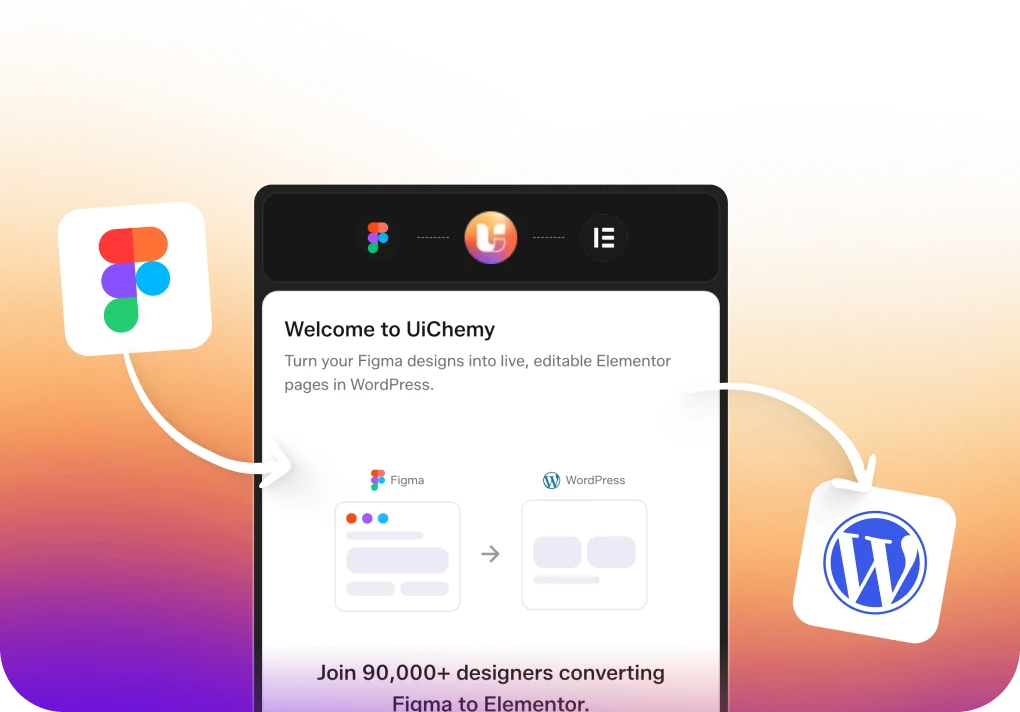
Figma to WordPress is one of them rather than the whole product.
| Product | What you start with | What lands in WordPress |
|---|---|---|
| Figma to WordPress | An approved Figma design | Native Elementor, Gutenberg or Bricks |
| AI Website Creator | A text prompt or a client brief | A whole site, sitemap and pages, exported to Elementor |
| UiChemy Composer | A prompt, inside the builder | Real HTML, CSS and JavaScript you can edit by hand |
| AI to WordPress | An existing Lovable, Claude, Bolt or v0 build | Editable WordPress, routed through Composer |
That changes the first question you should ask, and it is not a question about conversion settings. If the design is signed off, convert it, and the rest of this article is about doing that well.
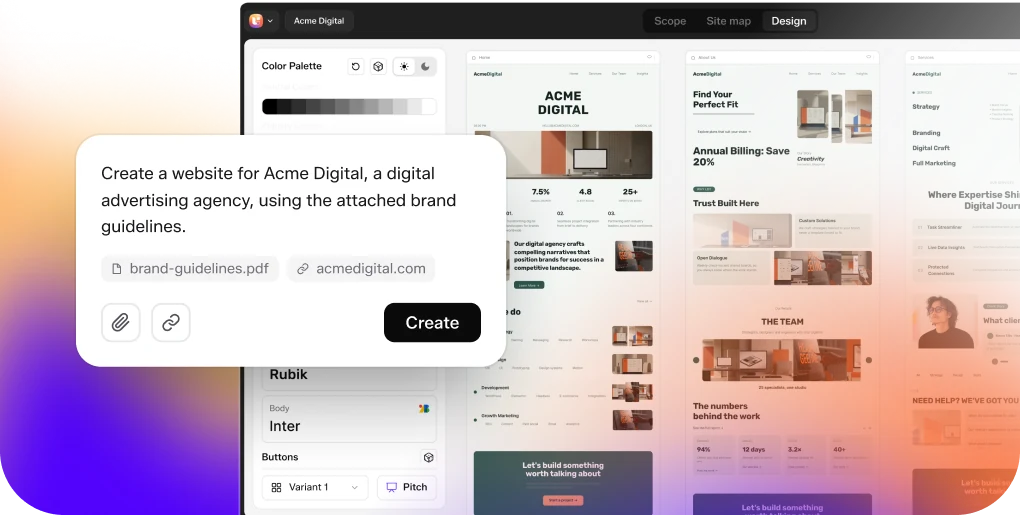
If there is no design yet, because a client sent a brief and a logo and wants something to look at on Friday, AI Website Creator writes the scope, the sitemap and the pages from that brief.
And if one section needs behaviour no widget covers, Composer writes the HTML, CSS and JavaScript for it inside the page you already have open, in Design Mode with plain fields or Developer Mode with a class editor and code tabs.
The old line that UiChemy converts but does not generate stopped being true on 7 September. It does both, and sending you to the converter when you have no design to convert would waste your afternoon.
The Conversion No Longer Needs You to Tag Layers
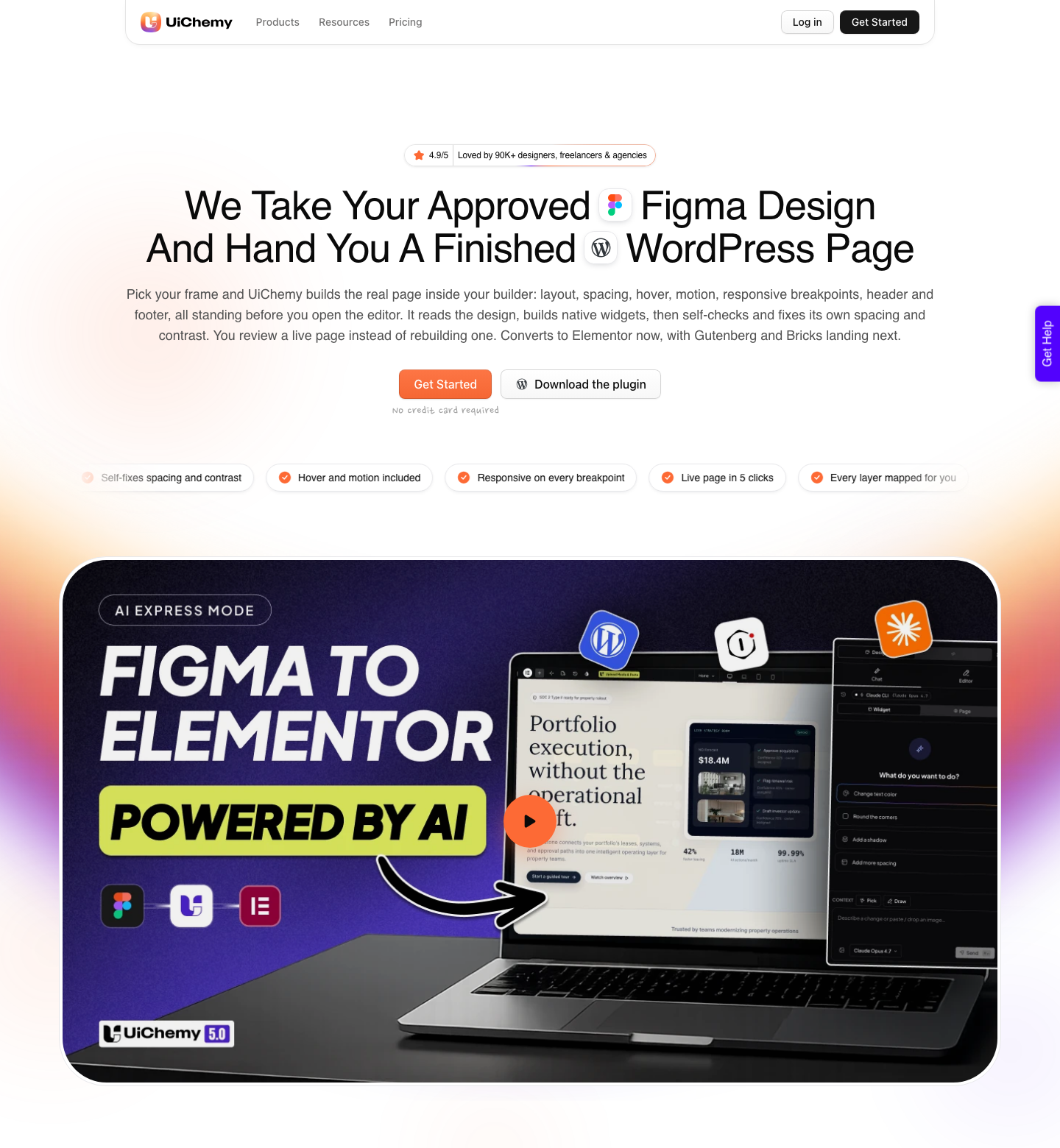
Until this year, every UiChemy conversion started with tagging: you told the plugin which Figma layer should become which builder widget, layer by layer. AI Express Mode removes that step.
It reads the frame, maps the layers itself, builds native widgets, then runs a self-check pass over its own spacing and contrast and shows you every change it made.
Motion is set at conversion time rather than added afterwards, at three levels. Off keeps the page still and loads fastest.
Subtle adds scroll fades and hover states. Immersive carries parallax, shifting backgrounds and cursor-following effects, and that tier needs GSAP, which starts on the Studio plan.
Headers and footers are the other quiet change. AI Express detects them and pushes them into your theme builder templates, which supports both the Elementor Pro Theme Builder and the Nexter Theme Builder.
Previously that meant separating them by hand and running extra exports.
| Capability | AI Express Mode | Classic Mode |
|---|---|---|
| Layer mapping | Not required | Required, layer by layer |
| Layout styling | Automatic | Manual |
| Motion and effects | Built in, three levels | Added by hand |
| Spacing and gaps | Auto-fix, optional | Manual |
| Responsiveness | Auto, tuned in the manager | Manual, by Responsive Manager |
| Header and footer | Auto to Theme Builder | Manual, or multiple exports |
| Post-conversion edits | Editor plus Chat AI | Editor only |
| Credit cost per page | Higher | Almost nothing |
| Builders reached today | Elementor only | Elementor, Gutenberg, Bricks |
The honest limit is scope. AI Express outputs to Elementor and nothing else right now, and the Gutenberg and Bricks versions are marked coming soon on the product pages rather than shipped.
If your site runs Bricks, the automatic path is not available to you yet, and Classic Mode is the route.
Elementor V4 Turned Your Styles Into Classes
Elementor’s V4 Atomic engine changes what a style is. In V3 a style is a setting stored on one element, so changing a card radius across a site means opening every card.
In V4 a style is a class, and UiChemy now converts a Figma frame straight into that model: colours arrive as Elementor variables, and typography, spacing, borders, shadows and radii arrive as reusable classes already attached to the right elements.
The detection is automatic here too. UiChemy maps untagged layers into six Atomic element types, Flexbox, Heading, Image, Paragraph, SVG and Button, without you naming anything.
Container width from Figma becomes the flexbox width, and maximum width becomes flexbox max width.
| Figma source | What syncs into Elementor V4 |
|---|---|
| Colour variables and styles | Elementor variables |
| Typography variables | Font family, size, line height, weight, text case, text decoration, letter spacing |
| Padding styles | Padding left, top, right and bottom as classes |
| Border variables | Border colour, width and style |
| Gap styles | Horizontal and vertical gap |
| Border radius variables | All four corners |
| Shadow effect styles | Colour, X, Y, blur, spread and shadow type |
Going Atomic does not cost you classic widgets. Tag a layer with a classic widget such as Navigation Menu or Icon Box and it converts to that widget using your global colours and typography, while everything untagged becomes Atomic.
One page, both systems, which is the practical answer for a site that needs a real menu at the top and class-based cards below it.
One sharp edge is worth knowing before it wastes an hour. UiChemy identifies a button from the Figma frame name, so the name has to contain “button” or “btn”.
If that button contains both text and an icon, it converts to the classic Elementor button widget instead of the Atomic button element, because the Atomic button does not support icons yet.
The full detail sits on the Figma to Elementor guide.
Gutenberg and Bricks Are Now Real Targets
The second change is breadth. Classic Mode now converts one tagged Figma file into eight distinct outputs: Elementor V3, Elementor V4 Atomic, Gutenberg core blocks, Nexter Blocks, GenerateBlocks, Spectra, Kadence and Bricks.
You tag once and choose the destination at export, which matters when a client site turns out to run something other than the builder you assumed.
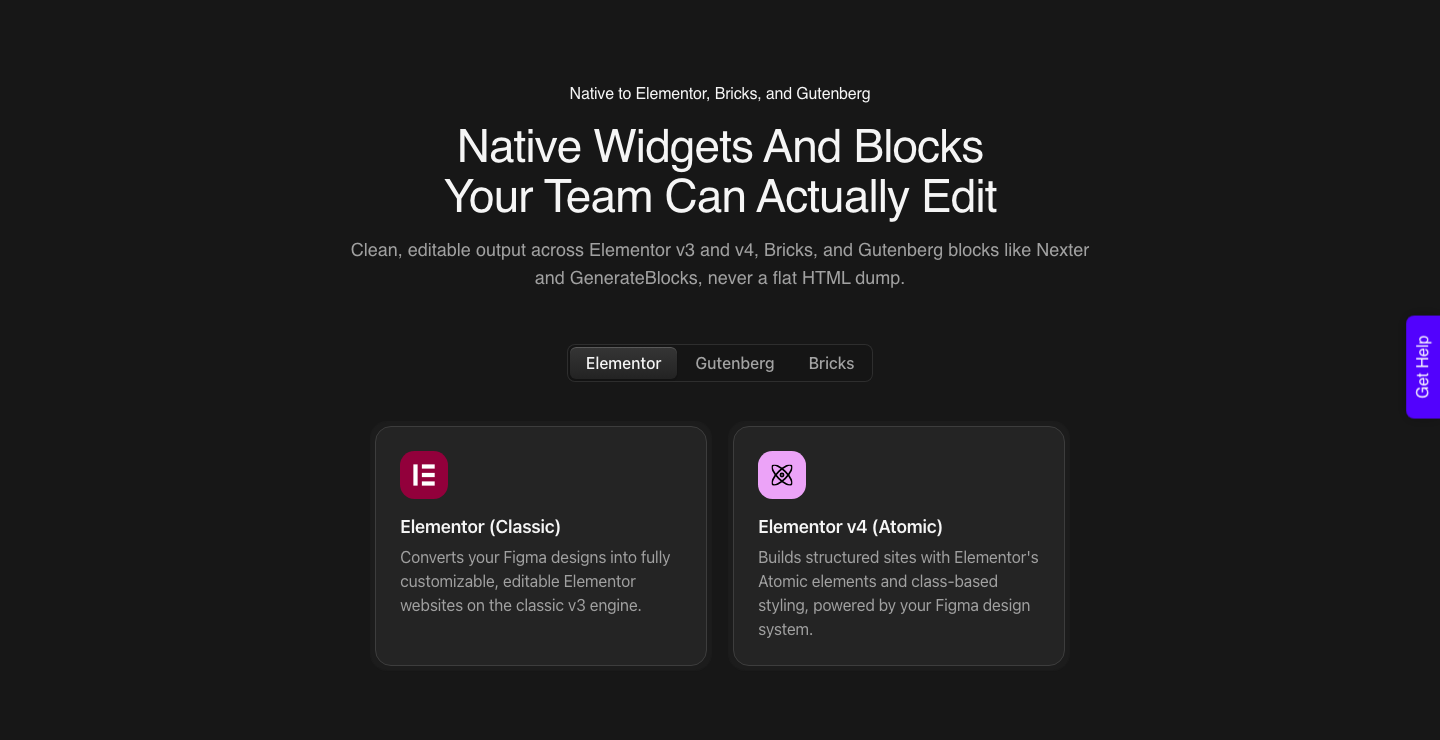
Gutenberg output is plain core blocks.
There is no third-party block pack that has to stay installed for the page to keep working, the markup is standard, and a converted section can be saved as a synced pattern like any block you added by hand.
It also drops into a block theme and the Site Editor without special handling.
Bricks output is native Bricks elements, and the compatibility list is the longest of the three at 28 elements, including Heading, Button, Icon List, Icon Box, Carousel, Countdown, Table of Contents, Instagram Feed, Related Posts, Reading Time, Team Members and Form.
Global colours and typography drop into Bricks globals as reusable classes.
Two gaps are worth naming. Global style sync covers Elementor and Bricks today and is still coming for Gutenberg, so a Gutenberg conversion carries your colours onto the page but not into your global settings.
Global padding sync is Bricks only. If you want the detail per builder, the Figma to Gutenberg page and the Figma to Bricks page each carry their own compatibility notes.
The Conversion Can Now Start Inside Your AI Editor
The third change came from both ends. Figma shipped a remote MCP server at mcp.figma.com/mcp that is available on all seats and all plans, including free, while the desktop server still needs a Dev or Full seat on a paid plan.
Figma’s own guide to the MCP server lists 18 supported clients, Claude Code, Cursor, VS Code, Codex, Gemini CLI and Xcode among them.
Two of those capabilities matter for a WordPress build. Agents can now write native content back to the Figma canvas, and live UI from a browser can be captured into editable Figma layers.
Both are free during the beta and Figma states plainly in the developer documentation that this will become a usage-based paid feature.
UiChemy’s own MCP sits on the other side of that line: you call the conversion from Claude, Cursor, Codex or Antigravity without leaving the editor.
MCP and API access starts on the Studio plan at $29 a month, so it is on neither Free nor Designer, and the site frames it as a bonus for developers rather than a requirement. If you never open a terminal, nothing about your build changes.
What a Conversion Costs in 2026
Pricing moved to credits, and one balance covers all four products.
There is a Free plan at $0 a month carrying 1,000 credits, one Figma seat, one AI Website Creator project of one page and one Composer site, which is enough to put a real client frame through the thing before you decide anything.
Every plan, Free included, gets all page builders and both conversion modes, so the only features you buy your way into are GSAP motion and MCP access.
The connector plugin that pairs your site and receives the import is on the WordPress plugin directory.
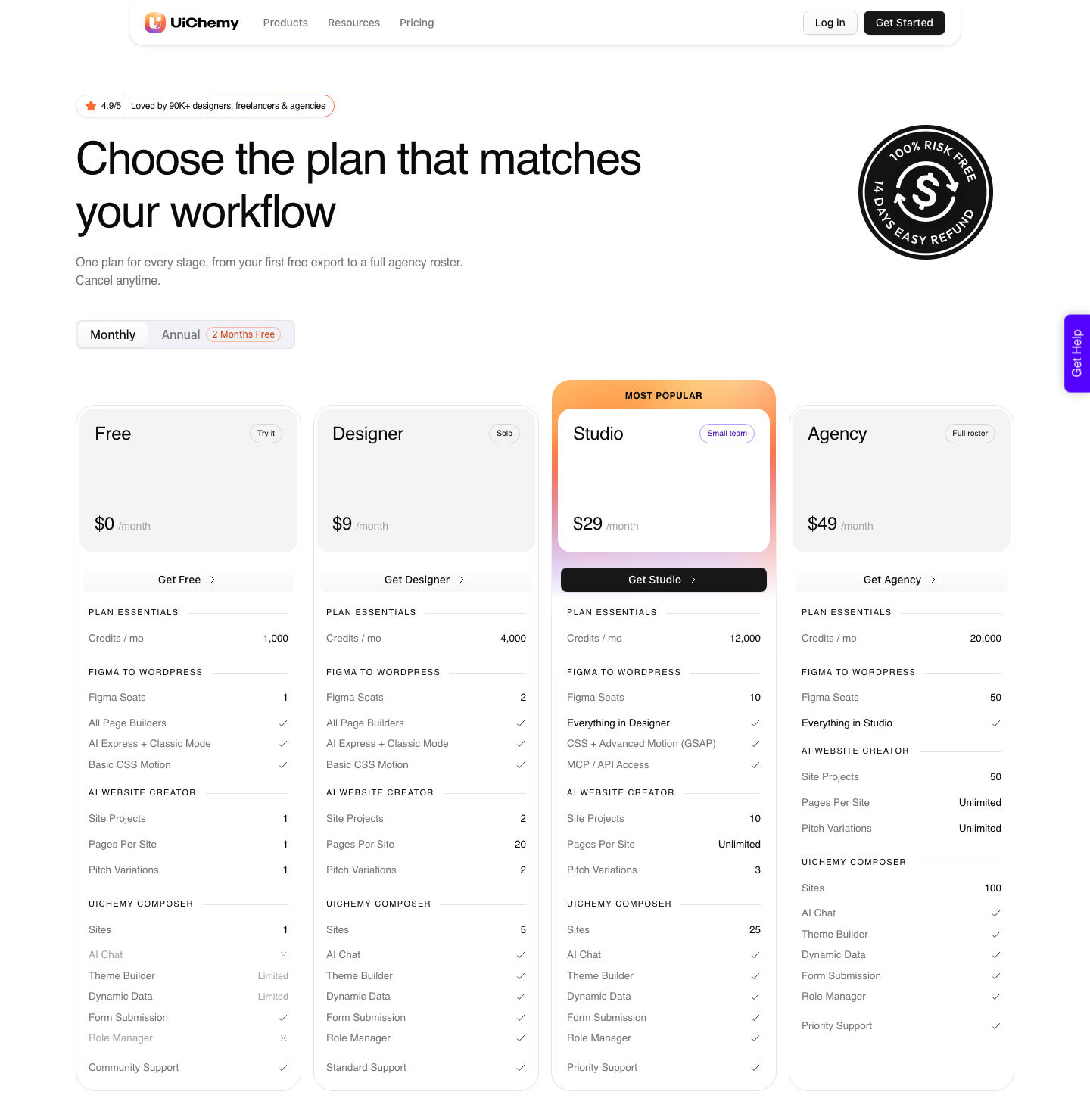
| Plan | Monthly | Credits / mo | Figma seats | AI Creator projects | Composer sites | Motion | MCP and API |
|---|---|---|---|---|---|---|---|
| Free | $0 | 1,000 | 1 | 1 | 1 | Basic CSS | No |
| Designer | $9 | 4,000 | 2 | 2 | 5 | Basic CSS | No |
| Studio | $29 | 12,000 | 10 | 10 | 25 | CSS plus GSAP | Yes |
| Agency | $49 | 20,000 | 50 | 50 | 100 | CSS plus GSAP | Yes |
Two details do more work than the headline prices. An automatic conversion draws considerably more credits than a hands-on Classic one, so a Designer plan stretches to many Classic pages but few automatic ones.
And a failed conversion never spends credits, because they are charged only on completion, which makes re-running a stubborn frame cheap rather than frightening.
Watch the annual detail too, since it catches people out. Credits on an annual plan land monthly rather than as one pile in January, which keeps the balance steady in month eleven instead of exhausted by March.
Refunds run 14 days from purchase, not 60.
What Still Does Not Convert
This is the part most articles skip, and it is the part that decides whether Thursday works. UiChemy publishes the list of Figma properties that do not survive the trip, and it has not shortened much in 2026.
- Masks are unsupported on every element type. The workaround is Figma’s lock option, which lets you export a masked group as a single image.
- Layer Blur and Background Blur do not carry, on frames, text or images. Neither does a video fill.
- Text gradients, image fills on text, and blend modes do not convert. Inner shadow on text does not either.
- Constraints set to Left & Right or Scale, horizontally or vertically, break the responsive output.
- Small caps, vertical trim, list style, truncate text and indentation are all dropped from type settings.
- Image filters Exposure, Temperature, Tint, Highlights and Shadows are ignored, and a Tile fill works as a background but not as an element fill.
- The Region tools, Section and Slice, are not read at all.
One number belongs here rather than in a features list, because it is the one that decides whether Thursday works.
A verified reviewer on the plugin listing puts it at about 70% of the design work handled, with the remaining 30% left to fine-tune in Elementor, and calls that a fair trade for the time it saves. Build the schedule around that 30%.
Anyone quoting you 100% has not converted many real designs.
The Order I Would Run It In
Converting a file you have not cleaned wastes more time than it saves, which is an opinion, but one the optimiser backs up. UiChemy’s manual optimisation walks six stages, Media and Vectors, Layer Cleanup, Shape Cleanup, Frames and Groups Cleanup, Text and Divider Cleanup, and Auto Layout, across 21 named checks.
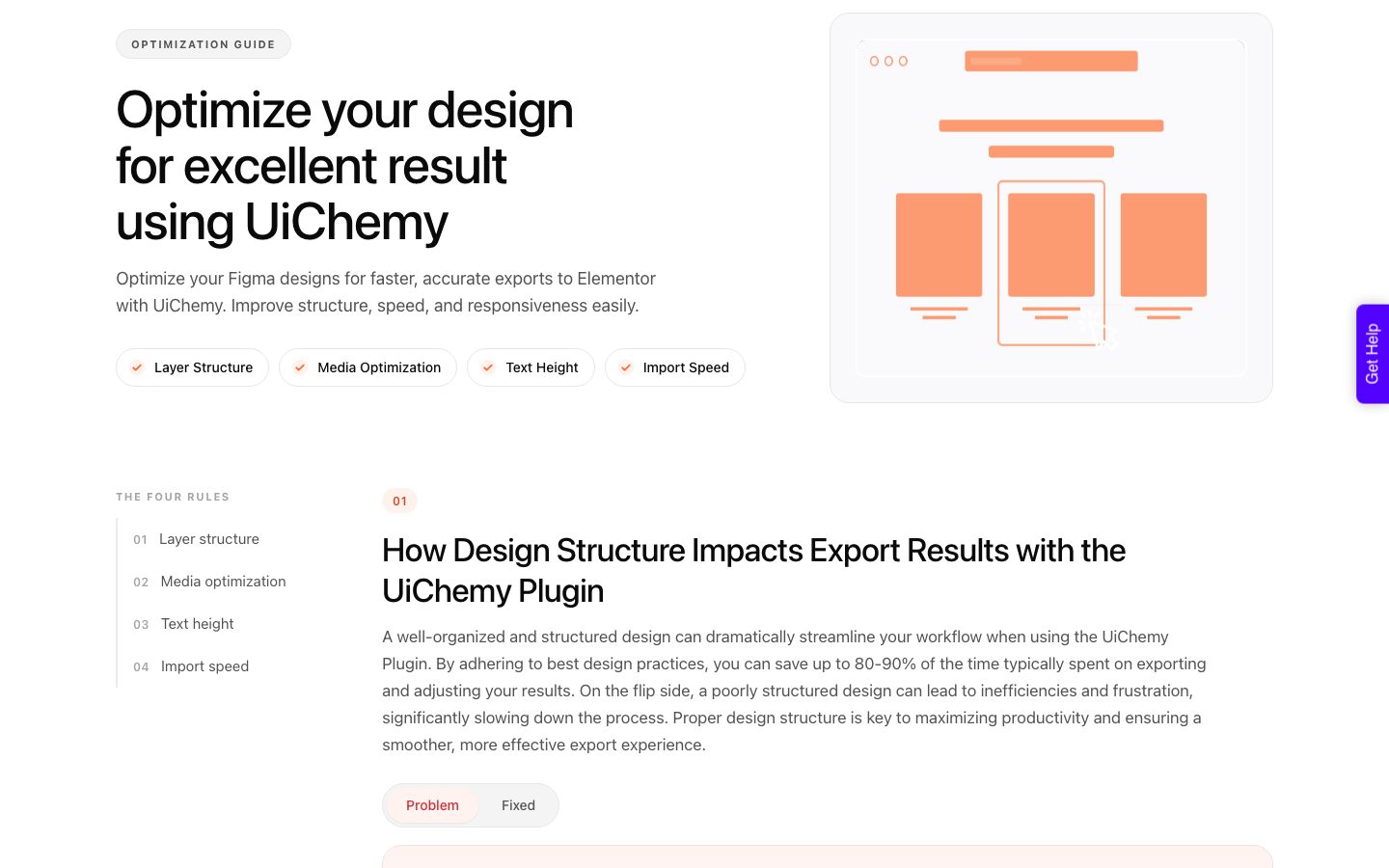
The sequence that costs the least rework is: run the auto optimiser first, fix anything it flags under Frames Without Auto Layout, then decide your builder, then sync globals, then convert one section before you convert the page.
A single section costs almost nothing in Classic Mode and tells you within two minutes whether your icon set and your type scale survived.
If the design is not yours to clean, start from something already prepared.
UiChemy publishes free production-ready Figma files on the Figma Community, built with auto layout and pre-tagged with Elementor widgets.
Detailed prep advice lives on the design optimisation guide.
Questions People Actually Ask
Do I need Elementor Pro for this to work?
No. The conversion runs without Elementor Pro.
You need Pro only if your design was tagged to Pro-only widgets, or if you want headers and footers pushed into the Elementor Pro Theme Builder rather than the Nexter one.
Does converting change my original Figma file?
No. The plugin reads a copy of the frame you point it at, so the source file is untouched and you can re-convert after every design revision.
That is what makes converting a single section as a test cheap.
Will a design without auto layout convert?
Yes, non-auto-layout frames convert in both modes. The catch is constraints: any element set to Left & Right or Scale will break the responsive result, so those are worth changing before you run anything.
Can I run this on a staging or local site?
Yes. Local and staging sites pair through the same single Connection Link as a live site.
Each connected site counts as one of your plan’s seats, which is the thing to watch if you keep a staging copy of every client build.
What happens to my pages if I cancel?
They stay. Converted pages are ordinary WordPress content on your own site, not a hosted embed, so they keep working after a subscription lapses.
The 14-day money-back guarantee covers the purchase itself.
Where to Start on Your Next Page
If your site runs Elementor, the shortest honest path in 2026 is one automatic conversion of a real client frame, followed by an hour of fine-tuning.
If it runs Gutenberg or Bricks, tag your layers and use Classic Mode, which reaches all three builders today and costs almost nothing per run.
And if there is no approved frame yet, this whole article is the wrong door: hand the client brief to AI Website Creator and review a sitemap instead.
Either way, spend the first twenty minutes on the Figma file rather than the conversion settings. That is where the 30% you fine-tune afterwards actually gets decided.
Related reading: the full Figma to Elementor workflow, and how Figma’s own AI credits are metered if you are budgeting both meters at once.
The product page for this route is Figma to WordPress, which sits beside the three entrances that do not start from a design file at all.