Figma to Bricks: Native Elements, Not a Wrapper
 Sagar Patel
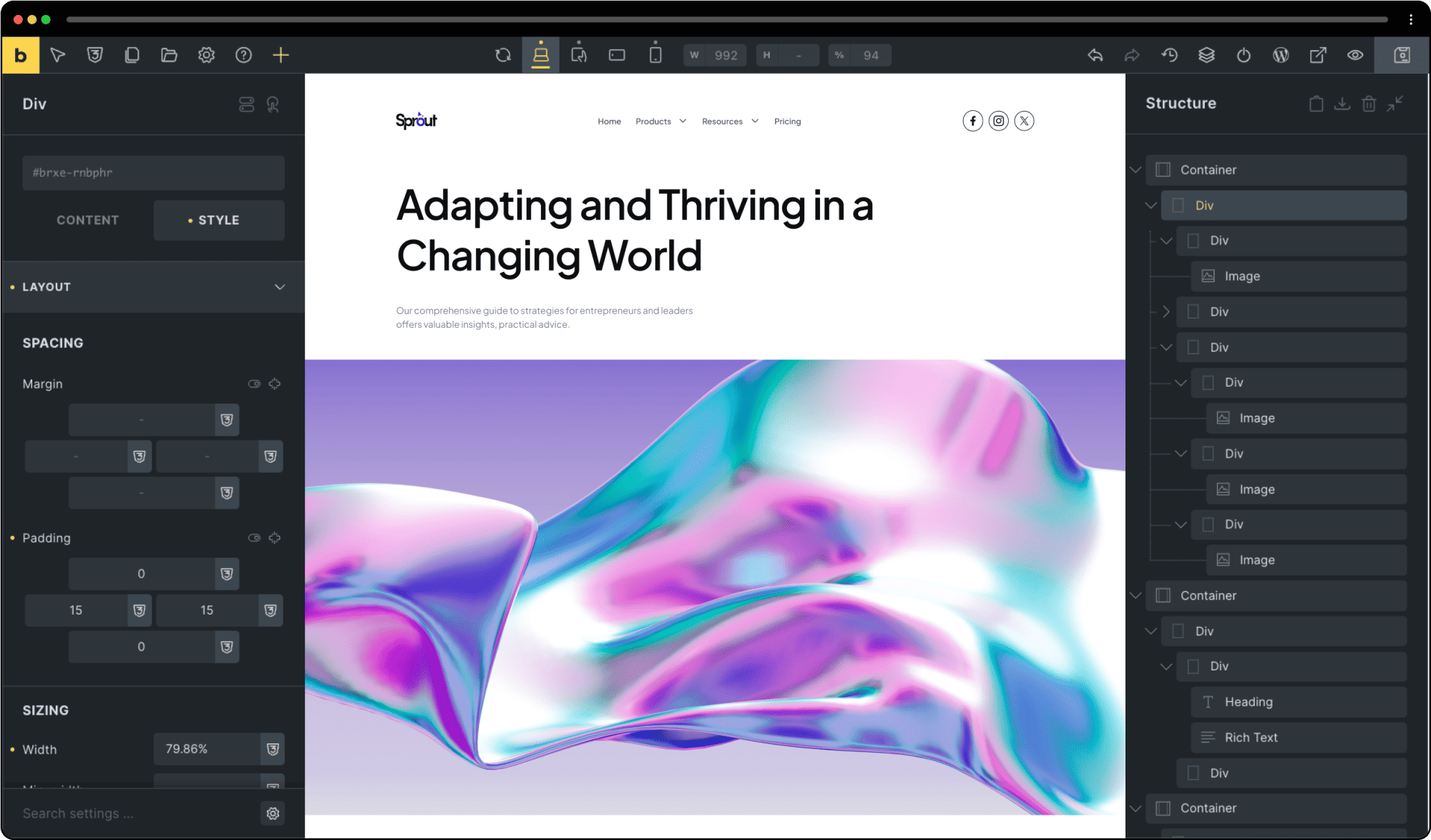
The question that decides whether a Figma to Bricks conversion is worth doing is not “does it look right”. It is what the Structure panel shows afterwards.
Open the converted page in Bricks and you should see Container, Div, Image, Heading and Rich Text, all of them nestable elements in Bricks terms, nested the way you drew them, each one selectable, each one carrying real padding values you can change.
That is the whole test. A wrapper element holding exported markup also looks right on the front end, and it is useless the first time a client asks for the hero padding to drop from 90px to 60px.
UiChemy converts into native Bricks elements, and this piece is about what that actually involves, including the parts that are still on the roadmap.
One correction up front, because it gets repeated wrongly. Bricks conversion runs in Classic Mode, where you tag layers yourself.
AI Express Mode outputs to Elementor today and lists Bricks as coming next. There is no hands-free Bricks conversion right now.
Eight Steps, and Three That Matter
The Bricks flow inside the Figma plugin runs to eight steps, one more than the Gutenberg route. Most of them are confirmation.
Three of them change the output enough that getting them wrong means redoing the conversion.
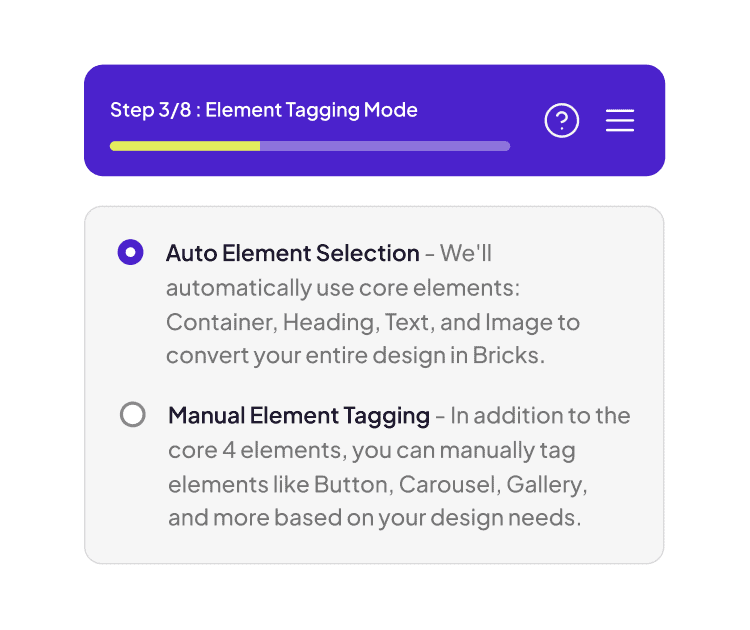
Step 3 is Element Tagging Mode. Auto Element Selection uses four core elements to convert the entire design: Container, Heading, Text and Image.
Manual Element Tagging keeps those four and lets you tag Button, Carousel, Gallery and the rest by hand.
Choosing Auto is defensible for a text-heavy page and a mistake for a marketing page. Four element types cannot express a testimonial slider, a counter or a form.
Those sections still arrive, as containers full of images and text, and you rebuild the behaviour by hand in Bricks afterwards.
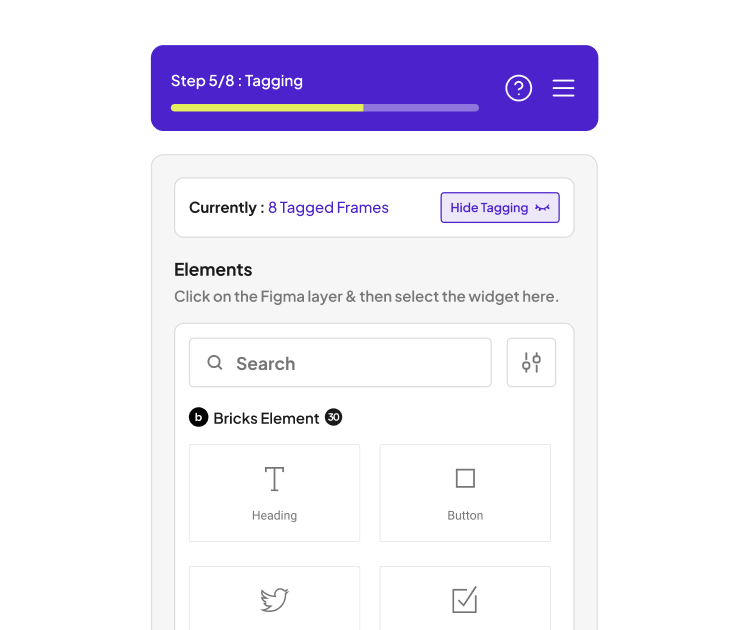
Step 5 is Tagging itself. You click a Figma layer, then pick the Bricks element it should become, from a searchable palette that counts what you have already tagged.
UiChemy’s documentation, updated on 14 April 2026, names 28 supported Bricks elements, and the palette badge in the plugin reads 30.
The Bricks Elements You Can Actually Tag
This list is the practical ceiling of the conversion, and it is worth reading before you design rather than after. Anything on it maps to a native Bricks element.
Anything off it becomes a container plus its contents, which you then rebuild.
| Group | Supported Bricks elements |
|---|---|
| Text and structure | Heading, Basic Text, Rich Text, Text Link, Excerpt, Code, Table Of Contents |
| Interaction | Button, Form, Countdown, Counter, Alert |
| Media | Image Gallery, Carousel, Video, Audio, Logo, Map, Instagram Feed |
| Lists and cards | Icon List, Icon Box, Testimonials, Team Members |
| Dynamic and post data | Posts, Post Title, Related Posts, Meta Data, Reading Time |
To see the current list in the plugin rather than the docs, select the top level frame of your layout, choose Optimize & Convert, and open the Element Tags tab. UiChemy’s own note on the documentation page is that it will continue adding elements, so the list in the panel is the one to trust.
Global Styles Is the Step Nobody Talks About
Step 7 of 8 is where a conversion stops being a one-off page and starts being a site. It maps your Figma variables onto Bricks globals, side by side, with the Bricks value on the left and the Figma value on the right so you can see disagreements before they ship.
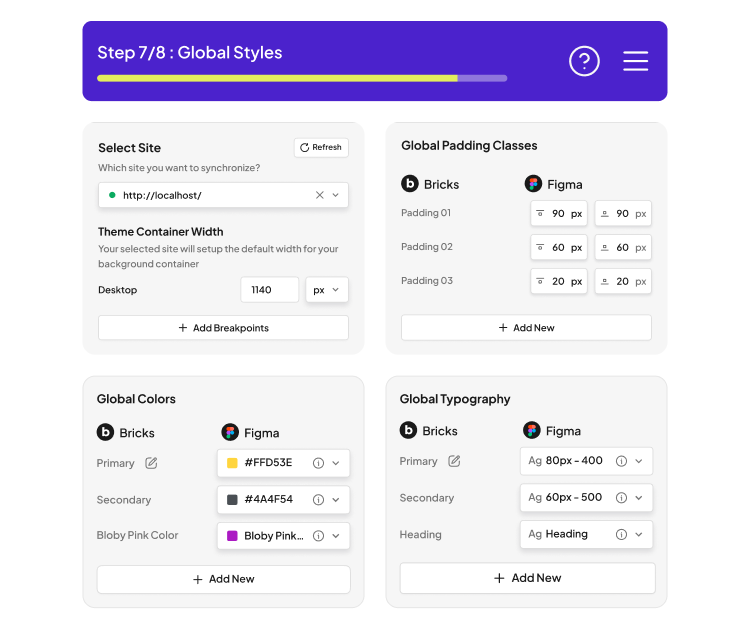
Four panels sit on that screen. The site selector, which asks which connected WordPress site you are synchronising to and shows theme container width, 1140px on desktop in the reference screenshot, plus an option to add breakpoints.
Global padding classes, mapping named Bricks padding steps to Figma values: 90px, 60px and 20px in the example, matched on both sides.
Then global colours, where a Figma variable such as #FFD53E lands as the Bricks primary and #4A4F54 as the secondary, with room to add more. And global typography, where a Figma text style like 80px at weight 400 becomes the Bricks primary and 60px at weight 500 becomes the secondary.
The payoff is the same as it is for any design system. Change the primary colour once in Bricks afterwards and every element that used it updates, because the conversion wrote a global rather than painting hex values onto individual elements.
Direct Import or Copy to Clipboard
The final step offers two delivery routes and most people never notice the second one. Direct Import pushes the design straight into Bricks over the connection you paired earlier with a single Connection Link.
Copy to Clipboard hands you the structure to paste in yourself.
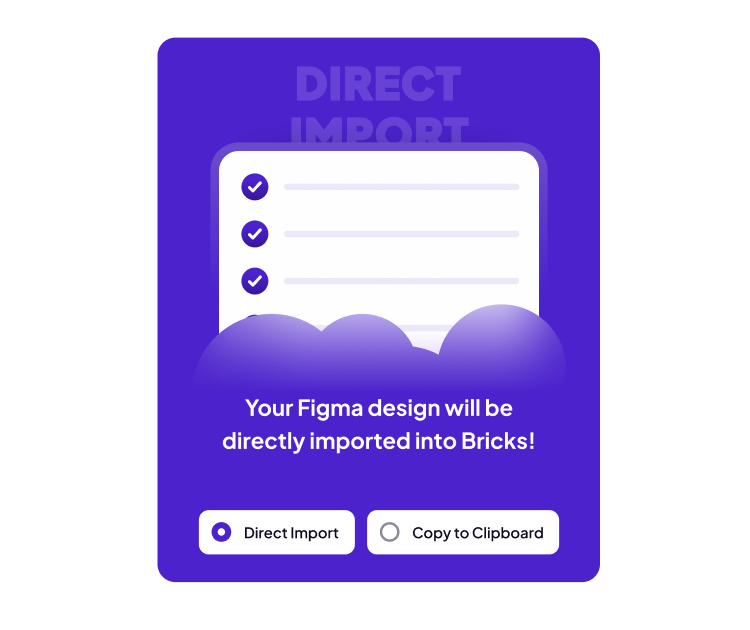
The clipboard route matters more on client work than on your own sites. Wordfence, a locked-down managed host or a staging environment behind basic auth will all break a direct connection, and the fallback turns that from a dead end into an extra paste.
Local and staging sites otherwise connect exactly the same way as production.
What Is Shipped and What Is Not
Bricks sits in an awkward middle position in the product right now, and being precise about it saves an argument later.
| Capability | Bricks today | Elementor today |
|---|---|---|
| Classic Mode conversion | Live | Live |
| AI Express Mode, no tagging | Coming next | Live |
| Global style sync from Figma | Live, at step 7 of 8 | Live |
| Direct import to a paired site | Live | Live |
| Chat AI editing after conversion | Not available | Live, select a section and describe the change |
| UiChemy Composer, AI writing real HTML, CSS and JS | Not available, Composer runs inside Elementor | Live |
| Responsiveness | Generated, then the breakpoint manager | Generated, then the breakpoint manager |
What you do get on Bricks today is genuinely the important half. Native elements, editable in the builder.
Colours and typography synced into Bricks globals as reusable classes, which is a step Gutenberg does not have yet.
Responsive behaviour generated across desktop, tablet and mobile and then finished by hand, which a verified reviewer frames as roughly 70% of the design handled and 30% fine-tuned afterwards.
What you do not get is the conversational editing layer. The Elementor route lets you select a section and describe a change through Chat AI.
On Bricks you open the builder and make it yourself, the way you always did.
Worth placing this route inside the whole product rather than treating it as the product. A Figma frame is one of four starting points UiChemy takes into WordPress.
AI Website Creator turns a written prompt or a client brief into a scope, a sitemap and a full set of pages, exporting to Elementor with Gutenberg export marked Soon on every plan.
UiChemy Composer is a single widget where AI writes real, editable HTML, CSS and JS, and it is where an existing Lovable, Claude, Bolt or v0 build comes across. Both of those live in Elementor, which is the honest reason a Bricks shop still runs the Figma route in Classic Mode.
Preparing a File That Converts Cleanly
Auto layout is not a nice-to-have here, it is the mechanism. A Bricks Container maps onto an auto layout frame because both express the same idea: a flow along one axis, with a gap between children and padding around them.
Figma’s own guide to auto layout properties describes vertical, horizontal and wrap flows, and those map directly onto how a Bricks Div behaves.
A frame without auto layout has nothing to map onto, so the converter infers structure from absolute positions. That is where the extra nested Divs and the strange percentage widths come from.
UiChemy can apply auto layout for you during the flow, and it creates a duplicate of your selection rather than editing the approved frame.
- Put every section in auto layout, including the ones that look fine without it.
- Use Figma variables for colours and text styles, so step 7 has something to map.
- Name layers as what they are, because you are about to tag them by hand.
- Split a very long page into sections rather than converting one enormous frame.
- Decide the element for each section before you start tagging, not during.
Our longer notes on optimising a design before export cover the specific structures that break a conversion. The five lines above are the ones that matter most for Bricks specifically.
What the Conversion Costs to Run
Credits are the unit, and Bricks does not have its own price. AI Express and Classic draw from the same monthly pool, and because Bricks runs in Classic Mode, it is the cheaper of the two per page.
UiChemy’s own wording is that an automatic AI conversion draws more than a hands-on Classic one.
There is a Free plan at $0 a month with 1,000 Credits and one Figma seat, which is enough to convert a section and look at the Structure panel before deciding anything. Designer is $9 a month with 4,000 Credits and 2 seats.
Studio is $29 with 12,000 Credits and 10 seats. Agency is $49 with 20,000 Credits and 50 seats.
A seat is one Figma account or one WordPress site, which is the number that decides the tier for most agencies rather than the credit count.
Two things change at Studio, $29, and above. Advanced Motion with GSAP on export, rather than basic CSS motion only.
And MCP and API access, which lets you fire a conversion from Claude, Cursor, Codex or your own scripts instead of opening the Figma plugin. Neither is on Free and neither is on Designer, so anyone told that MCP is simply included has been told the wrong thing.
Your Credit balance refreshes every month and you can top up between refreshes if you run short.
Not every action costs the same, which works in your favour here. UiChemy prices a Classic Mode conversion as lighter work and an AI Express conversion as heavier, and Bricks only runs in Classic.
Annual billing is advertised as two months free, and every plan carries a 14-day money-back guarantee. Full numbers sit on the pricing page.
Frequently Asked Questions
Does AI Express Mode convert Figma to Bricks?
Not today. AI Express outputs to Elementor, and UiChemy lists Gutenberg and Bricks as coming next.
Bricks conversion runs in Classic Mode through the eight-step wizard, where you tag layers yourself. Both modes are included on every plan.
How many Bricks elements does UiChemy support?
The documentation, updated on 14 April 2026, names 28 elements, and the palette badge inside the plugin reads 30. UiChemy states it will keep adding to the list, so check the Element Tags tab in the panel rather than relying on any published number, including this one.
Can I edit a converted Bricks page by prompt?
No. Chat AI editing happens inside Elementor, and UiChemy Composer, the widget where AI writes real HTML, CSS and JS for a section, runs inside Elementor too.
Neither is available in Bricks. On Bricks today you edit the converted page in the Bricks builder, where every section is a native element.
Do my Figma colours and fonts carry across to Bricks?
Yes, through the Global Styles step. Figma colours map onto Bricks global colours, Figma text styles onto Bricks global typography, and named padding steps onto global padding classes, with both values shown side by side so you can correct a mismatch before importing.
What happens if my host blocks the connection?
Use Copy to Clipboard at the final step and paste into Bricks yourself. If a security plugin or a managed host is blocking the direct import, UiChemy’s documentation and support cover the connection, and local and staging sites pair the same way with a Connection Link.
Is there a free way to try it?
Yes, and it is a real plan rather than a trial. The Free plan is $0 a month with 1,000 Credits, one Figma seat and community support, and it includes all page builders and both conversion modes, so Classic Mode into Bricks is open on it.
Download the UiChemy plugin on WordPress.org, pair the site, convert a section. Paid plans start at $9 a month with a 14-day money-back guarantee.
The Short Version
Bricks gets the real thing: native elements, globals synced from your Figma variables, and a page you edit in the builder rather than in a code box. It does not get AI Express Mode, Chat AI or Composer yet, all three of which are Elementor today, and pretending otherwise only sets a client up for disappointment.
Spend the time at step 3 and step 5. Manual tagging against 28 elements takes longer than letting four core elements do everything, and it is the difference between a page you finish and a page you rebuild.
If you are still choosing a builder, our overview of moving a Figma design into WordPress compares the routes before this one.
Primary sources for this piece: the UiChemy Figma to Bricks page, the documented list of compatible Bricks elements, the pricing page, Figma’s auto layout documentation and the plugin listing on WordPress.org, all fetched on 7 September 2026.