Figma to WordPress When AI-First Is Not Enough: When a Real Design Wins
 Sagar Patel
A real Figma design beats an AI-first start when a brand already exists, a designer owns the visuals, the client has approved layouts, or pixel-level control matters. UiChemy still converts Figma to WordPress, with AI Express Mode for editable blocks without tagging and Classic Mode for manual tagging.
We build tools for both routes, so we have no stake in pushing everyone to prompts. For the broad picture of what changed this year, Figma to WordPress: what actually changed in 2026 is the companion piece. This one is about choosing.
Two Ways to Start a WordPress Site
You can start from a prompt and let AI propose the structure and design, or you can start from a Figma file where a designer has already decided the layout, type and spacing. Both end in WordPress. They differ in who makes the visual decisions and how early.
A prompt start is fast and good for exploring. A design start is slower to begin and gives you more control over the result. Neither is the better route in general. The right one depends on what is already decided on your project.
Six Signs a Real Design Wins
1. A brand already exists
If the client has a logo, colours, type and a guideline document, a design file captures all of it. An AI start would need to be told every rule, and it can still drift from them.
2. A designer owns the visuals
When a designer is in the loop, the design file is their deliverable and their approval point. Rebuilding it from a prompt discards their work.
3. The client approved layouts
Once a client has signed off on screens, the build should match them. A design conversion keeps that sign-off meaningful.
4. The layout is unusual
Custom grids, overlapping elements and precise spacing are easier to specify in a design tool than to describe in words.
5. You need fine control
Some pages must match to the pixel. Classic Mode exists for that case, with manual tagging so you decide how each layer maps.
6. A design system is in play
If the project uses shared components and variables, a design file is the source of truth. Designing in Figma, then converting, keeps the system intact. The post on Figma website design that survives the build goes deeper on that handoff.
A worked example of the scoring
Take a dental clinic with an existing logo, a brand colour and a designer who has already drawn the Home and Services screens. That is three “design first” answers: a brand guideline, a designer on the project and approved layouts. Converting the designer’s file keeps their work intact and gives the clinic what it signed off.
Now take a new coffee roaster with no logo and a deadline next week. There is no brand to protect, no designer and no approved screens, so a prompt start gets a draft in front of the owner far sooner, and the look can be refined once they know what they like.
Most real projects sit between those two. When the score is split, start with the cheaper experiment, which is usually converting one approved page and comparing the result with the design before you commit to the rest.
When a Prompt Start Wins
To be fair to the other route, here are cases where starting from a prompt makes more sense:
- You have no brand yet and want options quickly.
- The site is small and the pages are standard.
- The budget does not cover a designer.
- You want a first draft to react to, before deciding what you actually want.
Our post on one prompt to a WordPress site shows what a prompt start produces from a single run, and AI website generator vs hiring a freelancer covers the budget side.
How UiChemy Handles a Figma Design
Figma to WordPress is one of UiChemy’s four products, and it has two modes that should never be mixed up. The AI Express vs Classic Mode documentation sets out the difference.
- AI Express Mode. No layer tagging. It outputs an editable result, so you do not prepare the file layer by layer.
- Classic Mode. Manual tagging, for pixel-level control over how layers map to the builder.
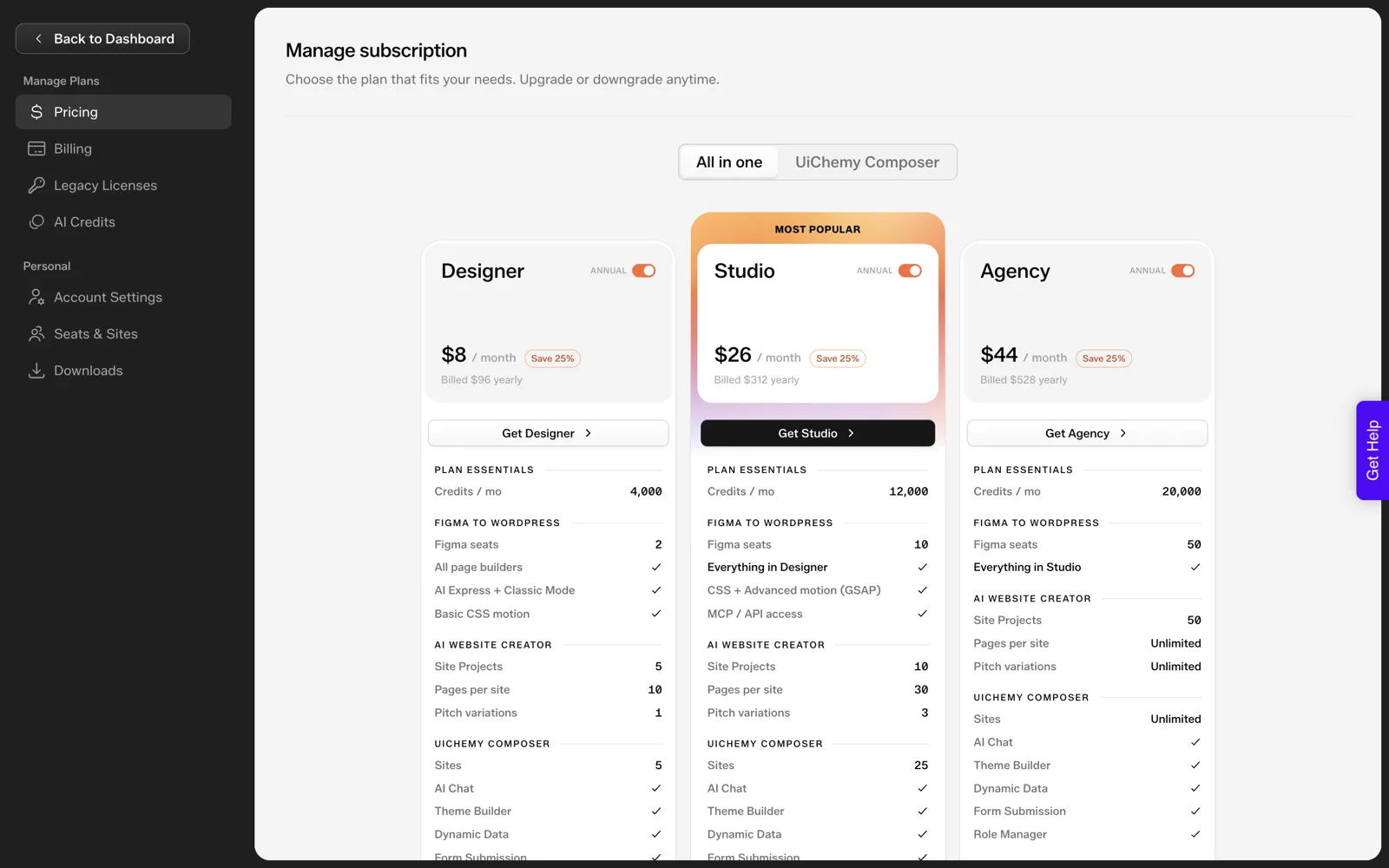
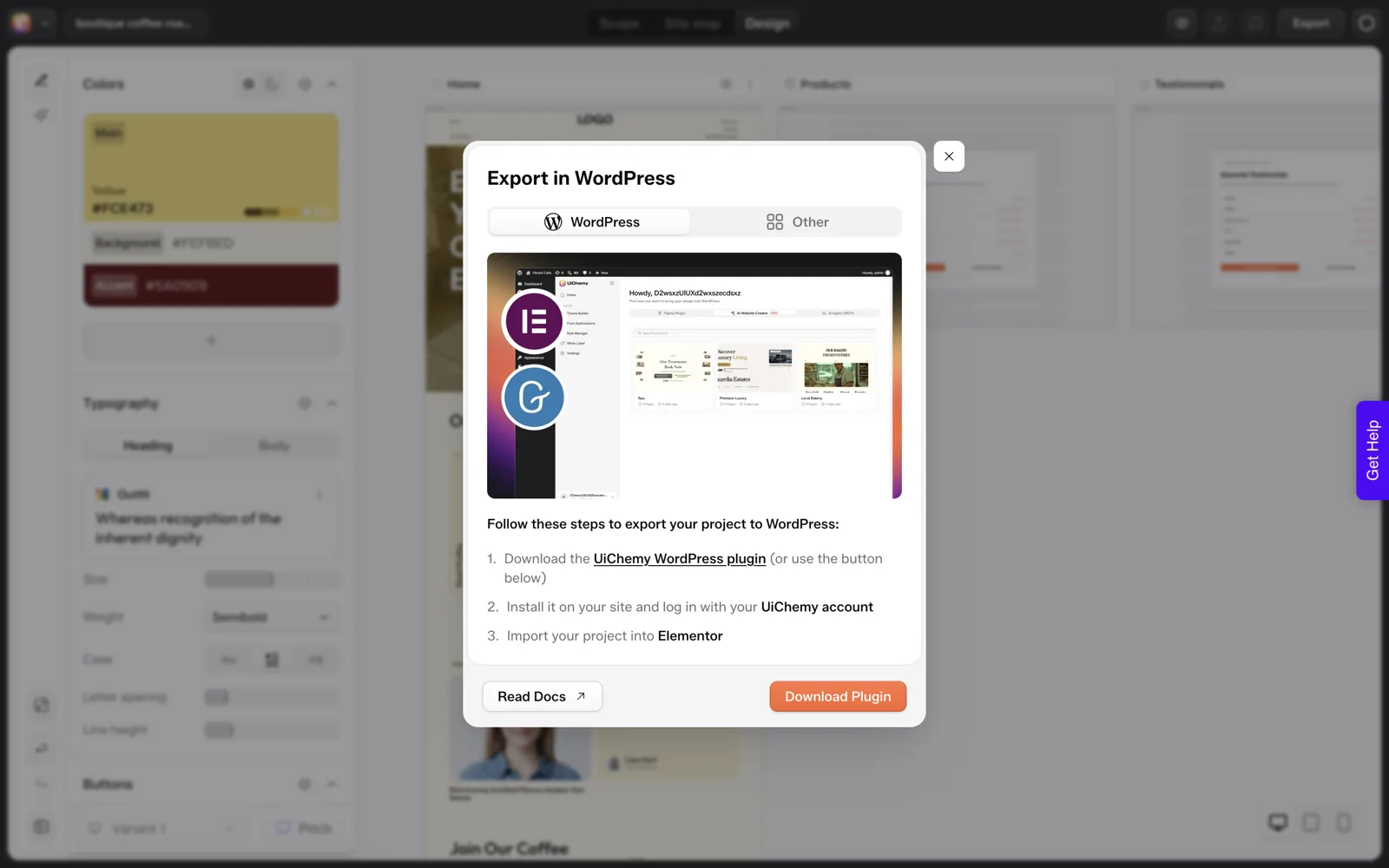
Both modes draw from the same credit balance. The Elementor export is included in the plans, and AI Website Creator now exports to Gutenberg as well. For a full run through Elementor, see Figma to Elementor: AI Express Mode vs Classic Mode.
A Decision Table to Copy
Score your project with this table. Two or more “design first” answers is a signal to start from Figma.
| Question | If yes | If no |
|---|---|---|
| Does the client have a brand guideline? | Design first | Either |
| Is a designer on the project? | Design first | Prompt start is viable |
| Are layouts already approved? | Design first | Either |
| Does the page need pixel-exact matching? | Design first, Classic Mode | AI Express or a prompt |
| Is the site a standard five-page build? | Either | Design first if layouts are unusual |
| Do you need options fast with no brand yet? | Prompt start | Either |
Using Both on One Project
The routes are not exclusive. A common pattern is to get a first structure from AI, refine the look in Figma for the pages that matter most, and convert only those. Wireframe tools can sit at the front of this too, as covered in Relume wireframes and what happens next.
If the design came out of an AI tool in Figma, the question changes slightly: which generated layers can be trusted? Figma Make to Figma design covers getting editable layers back. Whichever route you take, finish with a review of the live result, since a conversion still needs checking.
If you want to drive that from an AI client, read how Figma MCP and UiChemy work together with Claude.
Is the Design Ready to Convert? A Checklist
Choosing the design route only pays off if the file is ready. Run this checklist with the designer before you start a conversion.
FIGMA READINESS CHECK BEFORE CONVERSION

DESIGN STATE
[ ] Frames are final and approved by the client
[ ] Every page in the page list has a frame
[ ] Desktop frames exist; other breakpoints agreed: ______
[ ] Fonts and colours match the brand guideline

DECISIONS
[ ] Target builder: Elementor (included) / Gutenberg (check the export list for your mode)
[ ] Mode per page: AI Express (no tagging) / Classic (manual tagging)
[ ] Pages needing pixel-exact matching listed: ______
[ ] Credit balance checked against the page count

AFTER CONVERSION
[ ] Compare each page against its frame
[ ] Check that headings, buttons and images are editable
[ ] Note anything that needs fixing by hand
[ ] Client reviews the live result, not the design file
The Mode line is where people hesitate. If a page is a standard layout and you want speed, AI Express Mode needs no tagging. If one hero or pricing section must match exactly, put that page in Classic Mode and tag it manually. The two modes never blur, so decide per page and write it down.
Convert One Page First: A Pilot Plan
When the scoring is split, I would run a pilot before committing the whole project. It costs a fraction of a full conversion and answers the question with evidence.
- Pick one approved page. Home is the usual choice, because it contains the most reusable parts.
- Choose the mode. Use AI Express Mode if you want editable blocks with no tagging, or Classic Mode if the page needs pixel control.
- Convert and open the result in the builder. Look at spacing, type and images against the Figma frame.
- List the differences. Separate those you would fix in the builder from those that suggest a design change.
- Show the client the live page. Their reaction tells you whether the route is right for the rest of the site.
- Decide. If the pilot matches, convert the remaining pages. If it does not, adjust the design or move the rest of the project to a prompt start.
One pilot page gives you an honest sense of the review time per page. That figure is more useful for planning than any general estimate, because it comes from your own file and your own client.
Mistakes When Choosing the Route
| Mistake | What happens | Better move |
|---|---|---|
| Starting from a prompt when a brand exists | Colours and type drift, and the designer’s work is redone | Convert the existing design |
| Starting from a design with no approval | Layouts change after the build starts | Get sign-off on frames first |
| Using Classic Mode for every page | Manual tagging time on pages that did not need it | Use AI Express for standard layouts |
| Using AI Express for a page that must match exactly | Small differences you did not plan for | Use Classic Mode for that page |
| Assuming every export is available | Plan built around a feature marked “Soon” | Check the pricing page on the day you start |
| Skipping the client review of the live page | Surprises at launch | Review the built page, then the rest |
If you do need Gutenberg today, Figma to Gutenberg blocks without hand-coding walks through the options, and the Figma to Gutenberg guide compares the five routes in more detail.
FAQ
Is Figma to WordPress still worth it with AI site builders around?
Yes, when a design already exists or a designer owns the visuals. Converting the approved file keeps the client’s sign-off meaningful and preserves brand details. For quick drafts with no brand yet, a prompt start is faster. Many projects use both at different stages.
What is the difference between AI Express Mode and Classic Mode?
AI Express Mode needs no layer tagging and outputs an editable result. Classic Mode uses manual tagging for pixel-level control. They are two modes of Figma to WordPress, both drawing from the same credits, so pick the one that suits how precise the page must be.
Can I convert Figma to Gutenberg with UiChemy?
Elementor export is included, and the Gutenberg row on the UiChemy pricing page belongs to AI Website Creator, which now exports to Gutenberg on every plan. For the Figma route, read our Figma to Gutenberg guide and check the current export list before you plan a project around it. Plan with what is available on the day you start.
Should designers or developers choose the starting route?
Whoever owns the risk should decide. If the visual match is the risk, start from the design. If speed or cost is the risk, start from a prompt and refine it. Bring the client into the choice early, since it affects the schedule and what they approve.
Can I start with a prompt and add Figma later?
Yes. You can generate a structure first, then redesign selected pages in Figma and convert them. Keep the page list agreed in writing so the two routes do not produce conflicting versions of the same page, and note which route produced each page.
If you have a Figma file ready to convert, you can Get Started and try it on one page.
Every feature named in this post is listed by product: all UiChemy features, Figma to WordPress features.