Figma MCP Plus UiChemy: Design to WordPress With Claude
 Sagar Patel

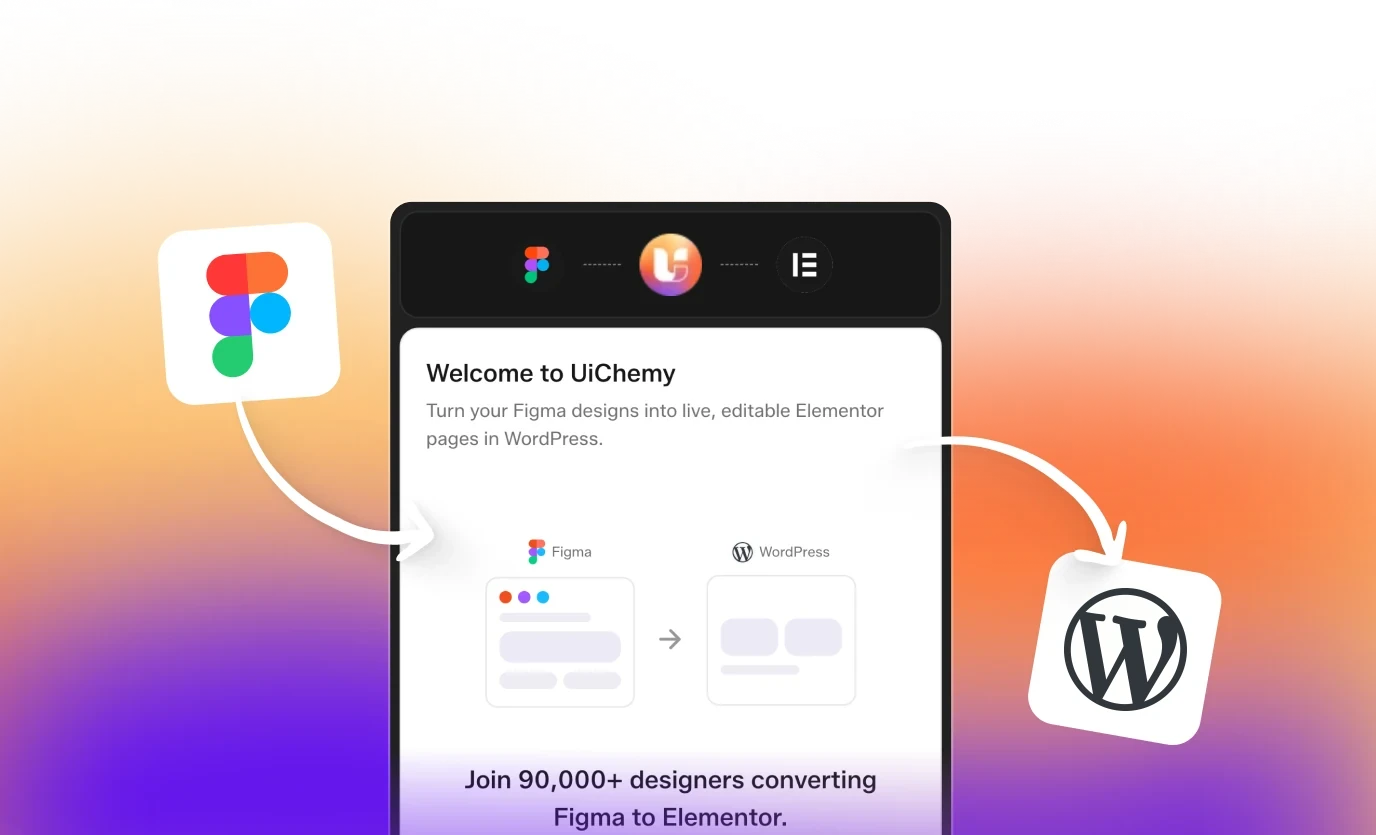
With UiChemy MCP connected to your WordPress site, you can give an AI client such as Claude a Figma link and have it converted into a Composer on the connected site. Today this works with Elementor only, and it draws from the same credit balance as the rest of UiChemy.
Two different protocols share the letters here, so we keep them straight below. For what each one does on its own, read Figma MCP: what it actually lets an agent do and what WordPress MCP is and what you can do with it.
Two MCP Servers, One Workflow
MCP is a protocol that lets an AI client call tools. In a design-to-WordPress setup, two different servers can be in play, and they do different jobs.
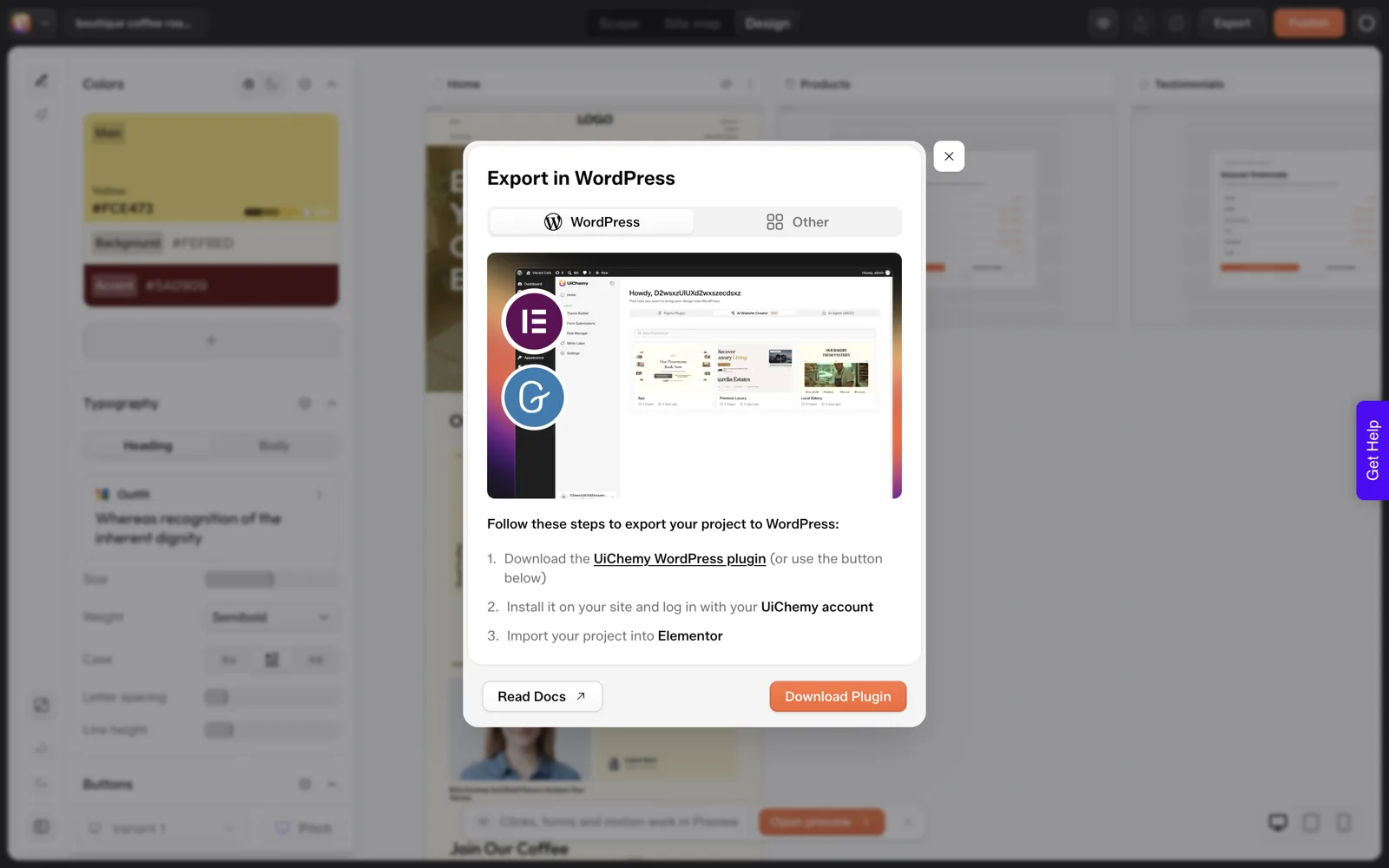
- A Figma MCP server lets an agent read a design file. Setting one up is its own task, covered in setting up a Figma MCP server without losing a day.
- The UiChemy WordPress MCP lets an agent act on your WordPress site through a connection you create in the admin.
The verified path in this post is the second one. You connect your AI client to your WordPress site through UiChemy MCP, then pass a Figma link. The conversion itself runs through UiChemy, and the result lands on your connected site.
What the Conversion Does
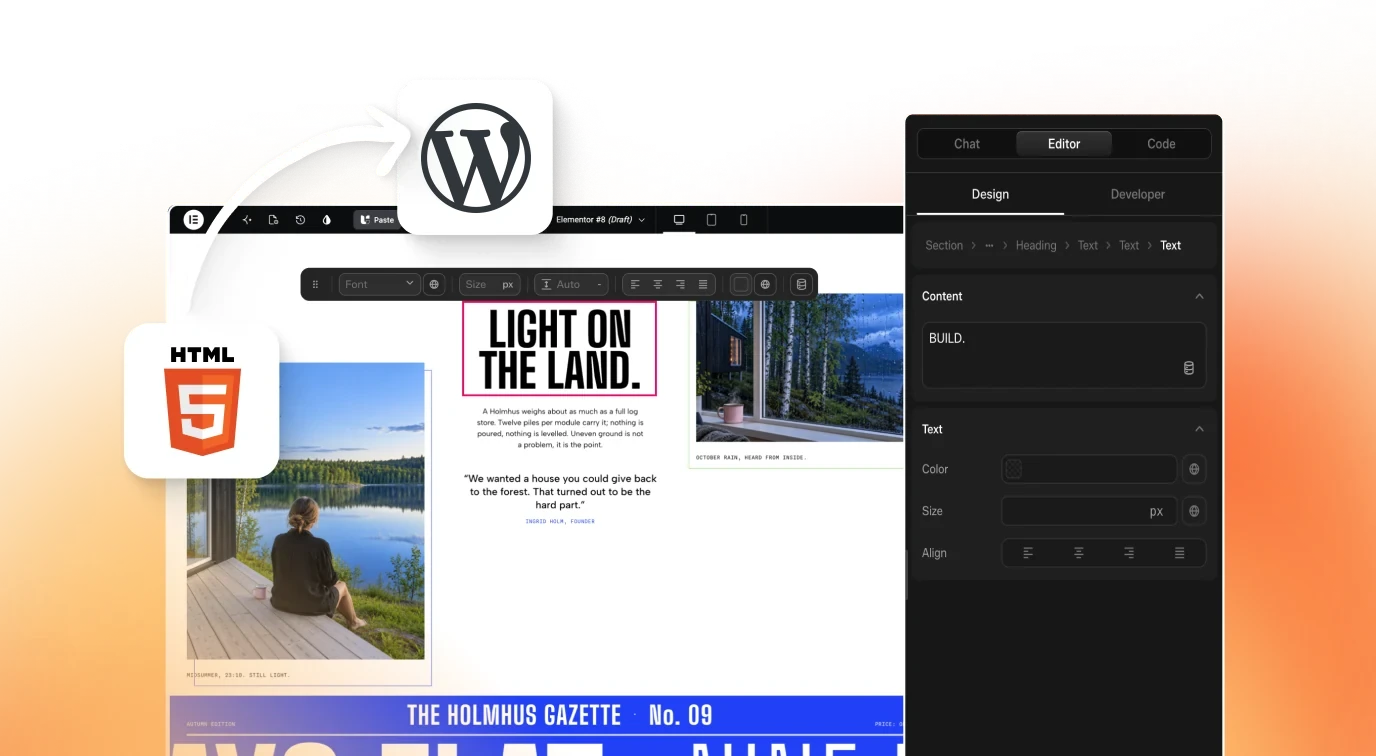
According to our MCP notes, the MCP conversion turns a Figma link into a Composer on the connected site. A Composer is the editable page built by UiChemy Composer, which writes real HTML, CSS and JavaScript inside Elementor. The work draws from the same credit balance as everything else you do in UiChemy.
We have not published a measured credit cost for an MCP conversion, so we do not quote one. If cost matters to your plan, run a small test first and read the AI credits documentation for how credits are counted.
A Worked Workflow
Here is how the pieces fit on a typical small project. You have a Figma file with a finished Home page, a staging WordPress site with Elementor, and Claude Desktop on your laptop.
- On the staging site, open UiChemy, go to Home and then the AI Agent (MCP) tab, pick Claude Desktop and click Generate connection.
- Paste the generated config into Claude Desktop and restart it. Confirm the client lists the UiChemy tools.
- Copy the link to the Home frame in Figma and ask Claude to convert it, as shown below.
- Open the staging site, find the new page and check it against the design at desktop, tablet and phone widths.
- Fix what needs fixing in Elementor, then move the finished page to the live site by your usual process.
The value of the MCP route is that steps three and four happen from a conversation, so you can ask follow-up questions about what was created without leaving your AI client. It does not remove step four. Every conversion still needs a human look at the result.
Setup in Five Steps
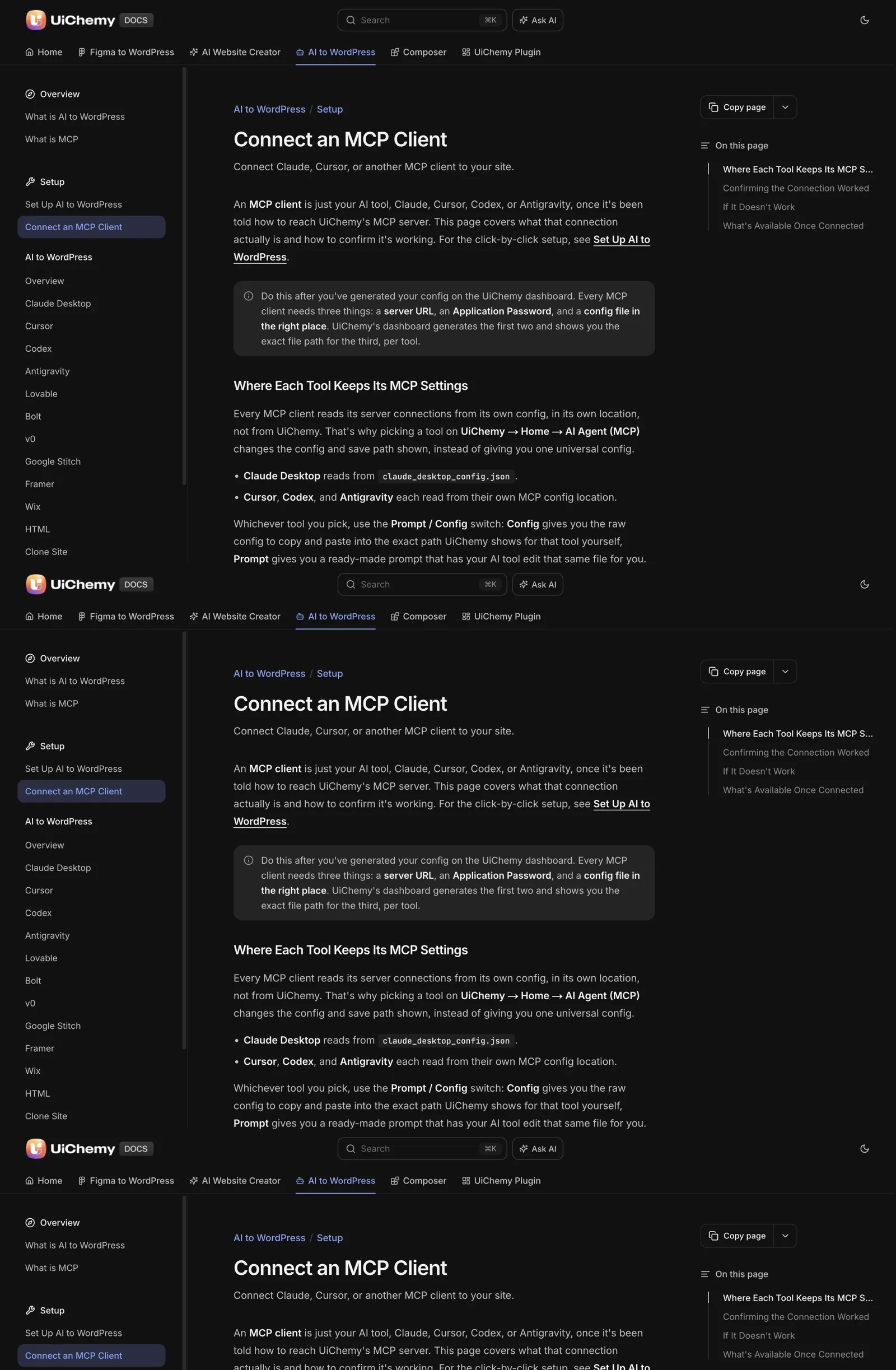
The what is MCP documentation and the connect an MCP client page hold the authoritative steps. In short:
- Install Node.js 18 or newer on the machine that runs your AI client. The post on Node.js and npx as the prerequisite that quietly breaks MCP setups explains why this step matters.
- Log in to WordPress as an Administrator.
- Open UiChemy, then Home, then the “AI Agent (MCP)” tab.
- Select your client (Claude Desktop, Cursor, Codex, Antigravity or Other) and click “Generate connection”. This creates an Application Password.
- Paste the generated configuration into your client and restart it.
Treat the Application Password as a secret. Our post on WordPress Application Passwords for MCP covers how to store and rotate one, and the security checklist before giving an AI agent access is worth running before you connect a live site.
The Config to Copy
The generated connection uses the remote MCP package for WordPress. The shape looks like this. Replace the placeholders with the values UiChemy generates for you, and never paste a real password into a shared document.
{
  "mcpServers": {
    "your-site-name-uichemy-mcp": {
      "command": "npx",
      "args": ["-y", "@automattic/mcp-wordpress-remote"],
      "env": {
        "WP_API_URL": "https://yoursite.com/index.php?rest_route=/uichemy/v2/mcp",
        "WP_API_USERNAME": "your-admin-username",
        "WP_API_PASSWORD": "application-password-from-generate-connection"
      }
    }
  }
}
The exact server name and the credential variable names come from the generated config, so use what the UiChemy screen gives you in preference to this sketch. Clients differ in where the file lives, which Claude Desktop, Cursor and Codex config differences explains. For the full Claude walkthrough, see how to connect Claude to WordPress with UiChemy MCP.
How to Ask Your AI Client
Once connected, give the client a clear instruction with the link and the target. A plain version works:
Convert this Figma link into a Composer on my connected WordPress site:
[paste your Figma link]
Use the "Home" page. Tell me what was created and where I can find it.
Make sure the Figma file is shared in a way the conversion can read, and use a link to the specific frame or page you want. Afterwards, open the page in WordPress and check it against the design. If the structure needs work, the editing guidance in Claude to Elementor: make your website editable with Composer applies.
A few habits make the conversation with your AI client more reliable. Ask for one page at a time, so you can check each result before spending more credits.
Ask the client to report what it created, including page names and where to find them. And keep a short log of each instruction and the outcome, since it makes problems easy to reproduce if you need to ask for help.
The practical limits, summarised:
| Limit | What it means |
|---|---|
| Elementor only | The MCP conversion targets Elementor, with no verified date for other builders |
| Credits apply | The conversion spends from your shared balance |
| Administrator access | The connection needs an Administrator login, so learn the flow on staging |
Limits to Know
- Elementor only for now. The MCP conversion targets Elementor. We have no verified date for other builders, so plan around Elementor.
- Credits apply. The conversion spends from your shared balance.
- Administrator access. The connection needs an Administrator login, so use a staging site while you learn the flow.
- It still needs a review. Check responsive behaviour, text, links and speed after conversion. Our 30-minute review checklist fits this stage.
Troubleshooting the Connection: Symptoms and Checks
Most failed connections come from a short list of causes. Work through the table in order before you assume the conversion itself is at fault. These checks follow the setup requirements in the documentation.
| Symptom | Likely cause | Check |
|---|---|---|
| The client shows no UiChemy tools | The client was not restarted, or the config did not save | Save the config again and restart the client fully |
| The server fails to start | Node.js is missing or older than 18 | Run node --version in a terminal and install 18 or newer if needed |
| Authentication errors | Wrong username or an expired or revoked Application Password | Generate a new connection from the AI Agent (MCP) tab |
| The connection cannot reach the site | A typo in WP_API_URL | Compare it with the pattern https://yoursite.com/index.php?rest_route=/uichemy/v2/mcp |
| You cannot open the AI Agent (MCP) tab or generate a connection | The login is not an Administrator | Log in as an Administrator |
| The result is not where you expected | You connected a different site than the one you are looking at | Check the site name in the config, then ask the client to report where it created the page |
If the server will not start at all, the cause is usually the first item in this list. Our post on the Node.js and npx prerequisite shows how that failure looks and how to fix it.
Prompts to Reuse With Your AI Client
A clear instruction reduces back and forth. These are starting points. Edit the placeholders and keep one task per message.
1. CONNECTION CHECK
List the UiChemy tools you can see on my connected WordPress site.

2. SINGLE PAGE CONVERSION
Convert this Figma link into a Composer on my connected site:
[Figma link to one frame]
Tell me the page name and where I can open it.

3. REPORT BACK
Summarise what you created: page name, sections, and anything
you could not convert. Do not make further changes.

4. FOLLOW-UP QUESTION
For the page you just created, list the sections in order and
tell me which ones contain custom code.

5. STOP AND CHECK
Pause here. I will review the page in Elementor and come back
with changes.
Prompt two is the one that spends credits, so run the first prompt on its own beforehand. Prompt three keeps a record you can paste into your project notes. Send one task at a time, and convert one page at a time, so a problem is easy to trace to a single instruction.
A Safe Rollout: Staging First
An AI client with administrator access can change a lot in a short time. I would never try the workflow on a live site first. This plan keeps the risk small and the steps reversible.
- Use a staging copy of the site. Confirm Elementor is installed and active there.
- Take a backup before connecting. You want a known state to return to.
- Generate the connection and test it with the connection check prompt. Nothing is converted yet at this point.
- Convert one frame. Review the page at desktop, tablet and phone widths.
- Revoke the Application Password when you finish. Generate a new one next session.
- Move the approved page to the live site through your normal process.
The security checklist before giving an AI agent access to a WordPress site covers the permissions side in more detail. If you manage several client sites this way, an AI agent workflow for many WordPress sites shows how to keep each connection separate.
It also helps to understand where MCP fits against the standard API. MCP vs the REST API for WordPress automation explains when each is the better tool, and Elementor MCP: controlling your builder from an AI client describes what an agent can do inside the builder once it is connected.
FAQ
Can Claude convert a Figma design to WordPress through MCP?
Yes, with UiChemy MCP connected. You provide a Figma link, and the conversion turns it into a Composer on the connected site. It works with Elementor only for now, and it spends credits from the same balance as other UiChemy features. Check results in WordPress afterwards.
What do I need before connecting an AI client to WordPress?
You need Node.js 18 or newer, an Administrator login on the WordPress site, and an AI client such as Claude Desktop, Cursor, Codex or Antigravity. In UiChemy, the AI Agent (MCP) tab generates the connection and an Application Password for you.
Is the Figma MCP server required?
The path we verified uses a Figma link passed through UiChemy MCP, so a separate Figma MCP server is not part of the steps here. A Figma MCP server remains useful if you want an agent to read design details for other tasks, such as checking spacing or colours.
Does the MCP conversion work with Gutenberg?
Not today. The conversion works with Elementor only for now. Check the current documentation before you plan a Gutenberg project around MCP. Elementor is the supported path for this workflow today, so plan around it.
Is it safe to give an AI client access to my site?
It carries the same risks as any administrator access. Use a staging site first, keep the Application Password secret, revoke it when finished and take a backup. The security checklist post lists what to confirm before you make a live connection to a production site.
To set up the connection on your own site, you can Get Started and follow the AI Agent (MCP) tab.
Every feature named in this post is listed by product: all UiChemy features, Figma to WordPress features, AI to WordPress features, UiChemy Composer features.