Security Checklist Before Giving an AI Agent Access to a WordPress Site
 Sagar Patel
Before giving an AI agent access to WordPress, take a tested backup, work on staging, use the lowest role that works, store the Application Password only in the client config, confirm what the server can touch, review every change, keep a log and know how to revoke access. Run the checklist below each time.
The advice applies to any WordPress MCP server, and Claude to WordPress: choose the right workflow maps the alternatives.
Where it names specifics, they come from the UiChemy docs as read on 2026-10-01: an Administrator login is needed, and the MCP scope is pages, templates, Global Style, forms, media and site setup. For the concepts behind a connection, see what is WordPress MCP and the docs page what is MCP.
What You Are Protecting Against
An AI agent with site access creates four kinds of risk. Naming them keeps the checklist honest.
| Risk | Example | Main defence |
|---|---|---|
| Honest mistake | The agent misreads a request and edits the wrong page | Staging, review, backup |
| Over-broad access | The credential can do far more than the job needs | Lowest role, dedicated user |
| Credential leak | An Application Password lands in a repo or screenshot | Careful storage, fast revocation |
| Untrusted input | Text on a page or in a file tells the agent to do something you never asked for | Review, narrow scope, human approval for risky actions |
The fourth risk is specific to AI. An agent reads content, and content can contain instructions. Treat anything an agent reads from an outside source as untrusted, and keep a human in charge of consequential actions.
Checks 1 and 2: Backups and Staging
1. Take a backup and test the restore. A backup you have never restored is a hope. WordPress documents the basics in its backup guide. Include files and the database, and store a copy away from the server.
2. Work on staging first. Clone the site to a staging copy, connect the agent there and review the work before anything touches production. Block search engines on staging, and avoid copying real customer data into it if you can.
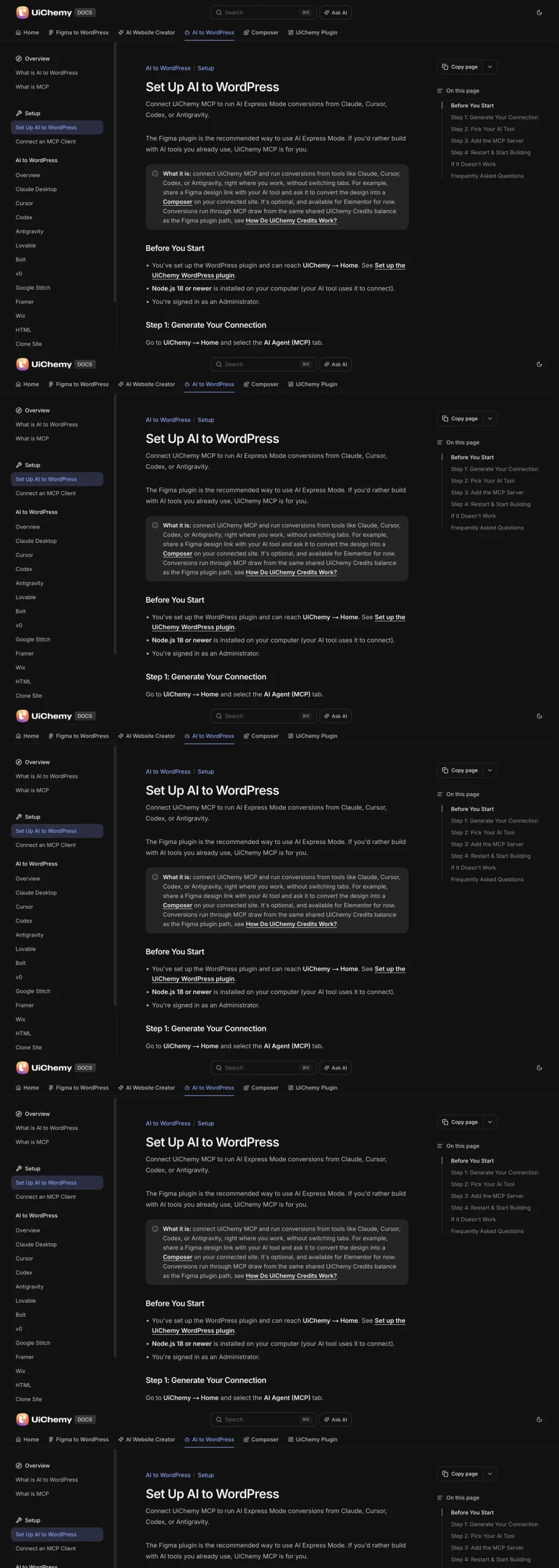
The setup steps are the same on staging and production, which is a feature. You can practise the whole flow on staging, confirm it works with the test prompt “List the pages on my site”, and only then decide whether production needs a connection at all. The walkthrough is in how to connect Claude to WordPress with UiChemy MCP.
Checks 3 and 4: Role and Credentials
3. Use the lowest role that works. The connection acts as a WordPress user with that user’s capabilities. The UiChemy docs say an Administrator login is needed, and other roles see “Administrator access required”.
Since the role cannot be lowered for this server, shrink the risk another way: create a dedicated Administrator user for AI work, name it so its purpose is obvious, and delete it when the project ends.
4. Handle the Application Password like a key. Clicking Generate connection creates a WordPress Application Password. Anyone who holds it can connect as that user.
- Create one per tool and per site, and name it with the tool and date.
- Keep it only in the client’s config file.
- Keep it out of screenshots, chat messages, support tickets and repositories.
- Serve the site over HTTPS.
The full handling guide is WordPress Application Passwords for MCP. If you use a project-level config file in a code editor, add it to .gitignore before you save the password into it.
Checks 5 and 6: Scope and Review
5. Confirm what the server can touch. Ask the client “What tools do you have from UiChemy?” and compare the list with the docs. The docs state that the MCP cannot install other plugins or change unrelated WordPress settings. Servers differ, so repeat this check for any other server you add. A capability-by-capability method is in how to evaluate any WordPress MCP server.
6. Review every change. Read the agent’s description of what it did, open the result in the editor and check phone width. Give high-risk work, such as forms that collect data, legal text, redirects and global header or footer changes, extra scrutiny or do it by hand. For code the agent wrote, apply a review like the one in keeping AI-written code clean.
Write prompts that name the page and the exact change, and say what must stay the same. Narrow instructions give a model fewer ways to be creative with your site.
Checks 7 to 9: Logging, Revocation and Exit
7. Keep a log. Record the date, site, instruction, result, reviewer and rollback point for each change. If something goes wrong, the log tells you where to look. A fuller process for many sites is in an AI agent workflow for managing many WordPress sites.
8. Know how to revoke. Open the user’s profile, find the Application Passwords section and revoke the entry for that tool. Practise it once.
If a device is lost or a config is shared by mistake, revoke at once, then generate a new connection and review recent changes. The UiChemy docs note that an old or rotated password fails silently on the client side, which is a useful sign that revocation worked.
9. Plan the exit. When the project ends, revoke the password, delete the dedicated user, remove the config entry and update your records. Access you forgot to remove is the kind that gets found later by someone else.
Broader site hygiene sits behind all of this. WordPress’s hardening guide covers updates, file permissions and server settings that an agent connection assumes you already have.
The Copyable Checklist
AI AGENT ACCESS CHECKLIST (WordPress)

SITE: ____________   ENVIRONMENT: staging / production
DATE: ____________   TOOL: ____________

1. BACKUP
[ ] Files and database backed up
[ ] Restore tested, copy stored off the server

2. STAGING
[ ] Agent connected to staging first
[ ] Search engines blocked on staging
[ ] No real customer data copied unnecessarily

3. ROLE
[ ] Dedicated user created for AI work
[ ] Role is the lowest the server allows
[ ] User will be deleted at project end

4. CREDENTIAL
[ ] One Application Password per tool and site
[ ] Named with tool and date
[ ] Site on HTTPS
[ ] Stored only in the client config
[ ] Config file ignored by git

5. SCOPE
[ ] Tool list compared with the vendor docs
[ ] Out-of-scope tasks marked as manual

6. REVIEW
[ ] Prompts name the page and the exact change
[ ] Each result opened and checked, phone width included
[ ] High-risk items done or supervised by a human

7. LOG
[ ] Date, instruction, result, reviewer, rollback point recorded

8. REVOKE
[ ] Revocation steps known and practised
[ ] Plan for a lost device or leaked config

9. EXIT
[ ] Password revoked, user deleted, config entry removed
Attach a copy to each client project, and re-run it when you add a new tool or a new site.
A Worked Session: Granting Access Like You Would to a Contractor
Think of an agent connection as a short contract with a stranger who works fast. Here is what a careful first session looks like, from the first request to the last cleanup. The names are placeholders.
- Clone the live site to staging and confirm the clone loads. Block search engines on it.
- Create a dedicated Administrator user with a name such as “ai-work-clientname”. Use a long unique password you never use elsewhere.
- In that site’s admin, open UiChemy, then Home, then the AI Agent (MCP) tab, and click Generate connection while logged in as that user.
- Paste the config into your AI tool and restart it. Run the test prompt “List the pages on my site” and check the titles against the admin.
- Give one small, named task: “On the staging site, change the heading on the About page to this exact text. Change nothing else.”
- Open the page in the editor and compare. Check phone width. Write the log entry.
- When the session ends, revoke the Application Password from the user’s profile, even if you plan to return tomorrow.
This takes longer than pasting a config into production and typing a request. That extra time is the price of knowing what happened. After two or three sessions the routine becomes quick, and the checklist above turns into muscle memory.
Untrusted Content: When the Page Gives the Orders
The fourth risk in the table is worth more space, because it is the one people do not expect. An agent reads text, and text can contain instructions. If an agent reads a page, a document or a message that someone else wrote, that text may try to steer what the agent does next.
On a WordPress site, content from outside can arrive in several ways: a comment, a submitted form entry, an imported file, a pasted brief from a client or text copied from another website. Whether an agent can read any of these depends on the server’s scope, so check that before you rely on it.
| Where outside text comes from | What could go wrong | Defence |
|---|---|---|
| A pasted client brief or document | Hidden instructions inside the text | Read it yourself first and paste only the parts you need |
| Copy taken from another website | Text that addresses the AI instead of the reader | Review before pasting, and strip anything odd |
| Form entries or comments, if the server can read them | A visitor writes instructions into a message | Ask the agent to summarise only, and never to act on what it reads |
| Imported files | Metadata or notes with embedded commands | Open and inspect the file before it reaches the agent |
The defence is the same each time. Keep a human in charge of any action that matters. Tell the agent in your prompt that text it reads is data and not instruction. And keep the scope narrow, so even a successful trick has little to work with.
This is one more reason to prefer staging and review. The wider question of which actions a server exposes is covered in Elementor MCP: controlling your builder from an AI client.
What to Tell a Client Who Asks About It
Clients increasingly ask whether you use AI on their site and whether it is safe. A calm, specific answer builds trust. Here is the structure I would use, in plain language and without promises you cannot keep.
CLIENT NOTE: how we use AI tools on your site
- We work on a private copy of your site first.
- Your live site is changed only after we have reviewed the work.
- We take a backup before changes and can restore it.
- The tool connects with a credential we create for this
  project and delete when the work ends.
- We keep a record of what changed and who approved it.
- Questions about any of this: [contact].
Notice what the note does not claim. It does not say the tool is perfect, and it does not say nothing can go wrong. It says what you do about it. That is a promise you can keep.
If your agency runs many clients, put this note in your onboarding pack and link the process behind it to your registry and runbook, as described in the comparison of MCP and the REST API for the technical side and the per-client config guide for the setup side.
FAQ
Is it safe to give an AI agent access to my WordPress site?
It can be, with precautions. Use staging, keep a tested backup, connect with a dedicated user, store the Application Password carefully, review each change and keep a log. Revoke access when the work ends. Treat any agent like a contractor you do not fully know yet.
What role does the UiChemy MCP need?
The docs say an Administrator login is needed, and other roles see “Administrator access required”. Create a dedicated Administrator user for the connection, name it clearly and remove it when the project ends, so the access is easy to audit and end.
How do I revoke an AI agent’s access to WordPress?
Open the connected user’s profile in WordPress, find the Application Passwords section and revoke the entry for that tool. Then remove the entry from the client config. Generate a new connection if you want access again later, instead of reusing the old password.
Can an AI agent install plugins or change my settings?
That depends on the server. The UiChemy docs state the MCP cannot install other plugins or change unrelated WordPress settings, and its scope is pages, templates, Global Style, forms, media and site setup. Check the capability list for any other server you connect.
What should I do if an Application Password leaks?
Revoke it immediately in the user’s profile, generate a new connection, update your config and review recent site changes. Restore from backup if anything looks wrong, and trace how it leaked so it does not happen again.
When your checklist is ready, you can Get Started and try the connection on a staging site first.
Every feature named in this post is listed by product: all UiChemy features, UiChemy Composer features.