Elementor MCP: Controlling Your Builder From an AI Client
 Sagar Patel
An Elementor MCP lets an AI client such as Claude or Cursor act on an Elementor-based WordPress site through a server plugin. Capabilities vary by server. The UiChemy MCP covers pages, templates, Global Style, forms, media and site setup, and can convert a Figma link into a Composer, for Elementor only for now.
That last detail matters, because “Elementor MCP” is used loosely. This post sorts out what the phrase can mean and what is documented for UiChemy. It also gives you a test to run on any server before you trust it with a client site. For the underlying idea, start with what WordPress MCP is.
Three Things People Mean by Elementor MCP
When someone says they want to control Elementor from an AI client, they usually mean one of three different jobs. The jobs need different tools, so it helps to name them.
| The job | What the agent does | What it depends on |
|---|---|---|
| Site-level work | Reads and manages pages, templates, styles, forms and media | The server publishing those actions |
| Design conversion | Turns a design, such as a Figma link, into an editable page | A conversion pipeline behind the server |
| Element-level editing | Moves, adds and restyles individual Elementor widgets on a page | A server that exposes the builder’s own data model |
The third job is the one many people picture first. It is also the one to verify hardest, because it requires a server that understands Elementor’s internal structure. I do not make that claim for UiChemy. The documented scope is in the next section, and anything beyond it needs to be tested on your own site.
For context on what Elementor ships on its own, see Elementor AI: what it generates and what it cannot. That is a separate feature inside the builder, and it is a different thing from an external client driving your site over MCP.
What the UiChemy MCP Does Today
These points come from the UiChemy docs as read on 2026-10-01.
- Scope. Pages, templates, Global Style, forms, media and site setup.
- Limits. It cannot install other plugins or change unrelated WordPress settings.
- Conversion. The MCP route can run an AI Express Mode conversion from a Figma design link that you share with your AI tool. The result arrives as an editable Composer. It is available for Elementor for now.
- Credits. The conversion draws from the same credit balance as the Figma plugin.
- Access. Node.js 18 or newer and an Administrator login are required.
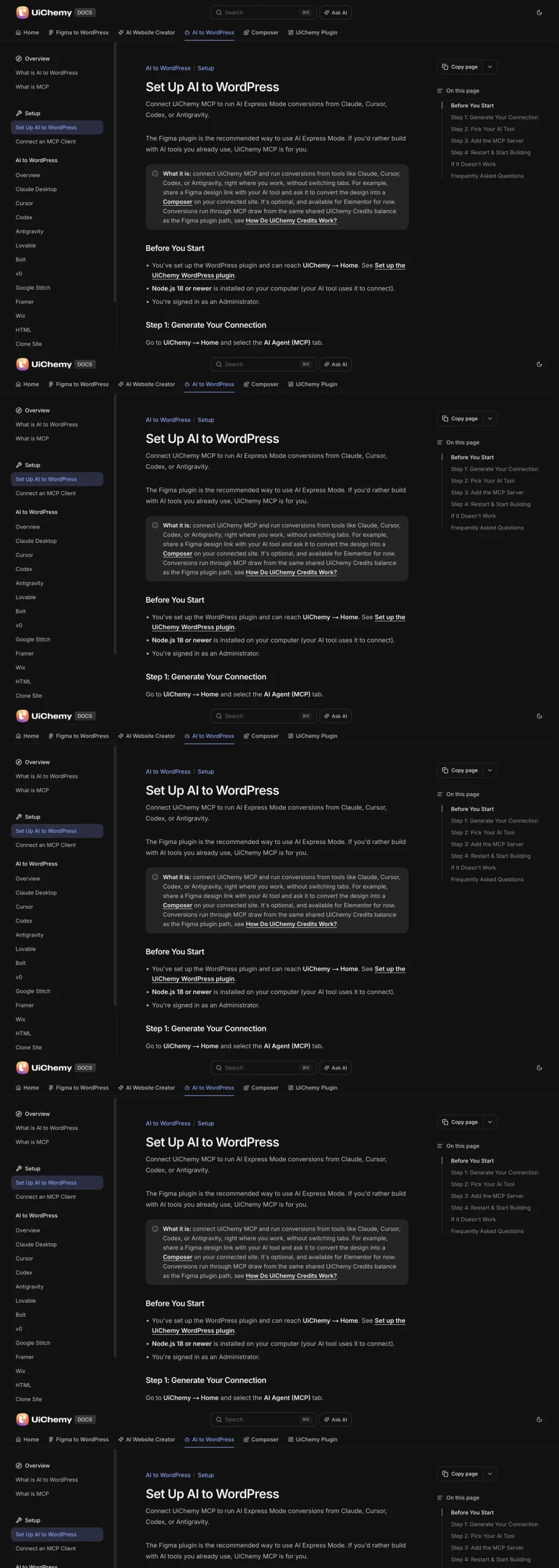
Setup and credit use are explained in the docs, so read those before you plan a project around them. The setup steps are also walked through in the per-client config post.
Where Composer Fits on an Elementor Site
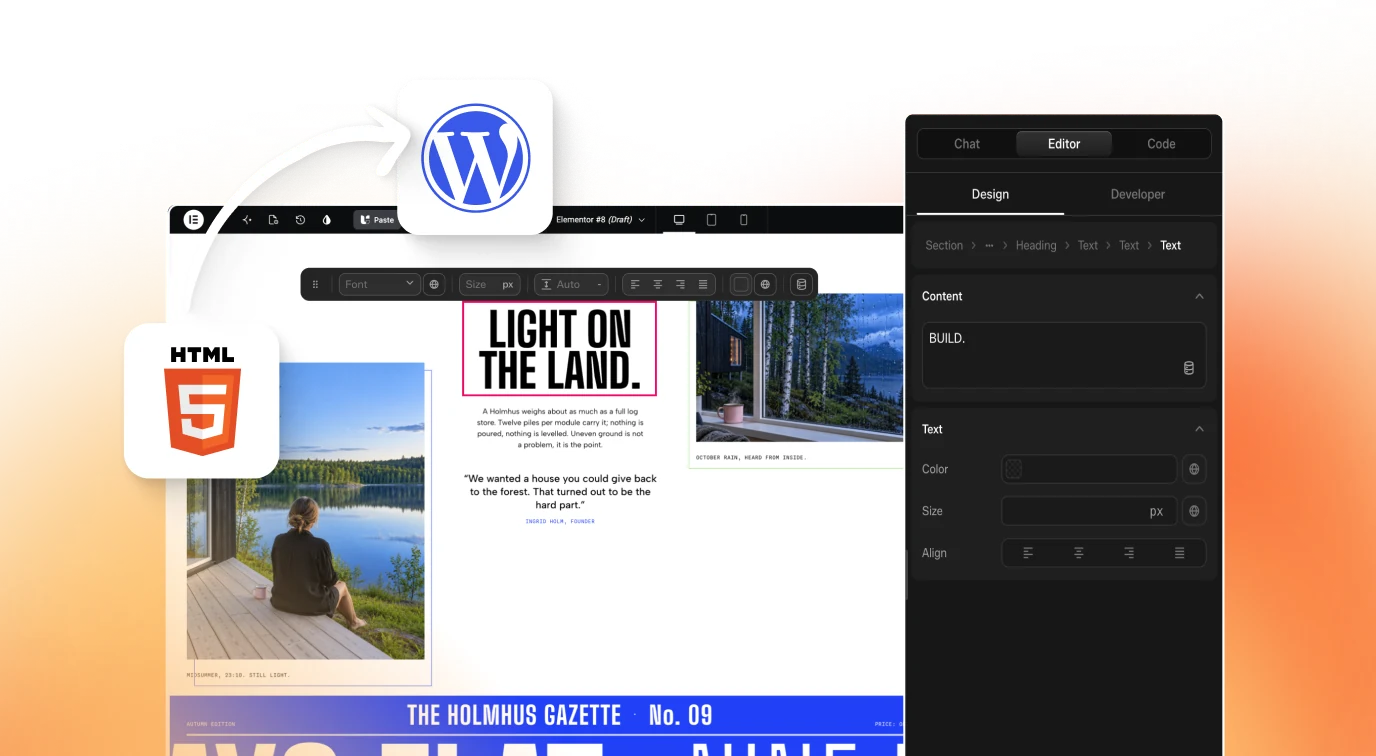
Composer is UiChemy’s AI-first visual editor. The product docs describe it as writing real HTML, CSS and JavaScript inside Elementor or Gutenberg, with an Editor tab and a Code tab. A section built this way is an Elementor-compatible piece you can still edit visually.
That is the object an MCP conversion produces, and it explains why the output stays editable. You are not left with an opaque export. You can open the section, switch to the Code tab, and see what was written.
The product itself is explained in the docs at what is UiChemy Composer, and the code-writing side is covered in writing real HTML, CSS and JavaScript inside Elementor with AI.
If your end goal is a site that clients can edit without you, Claude to Elementor: make your website editable with Composer is the closest match to that workflow. And if you want to understand how generated code maps onto builder structures, AI-generated code to Elementor or Gutenberg blocks explains the mapping.
How to Verify Any Elementor MCP Claim
A server’s marketing and its behaviour can differ. Run these checks on a staging copy before you connect anything to a live site.
ELEMENTOR MCP VERIFICATION (staging site only)

CONNECTION
[ ] Ask the client: "What tools do you have from this server?"
    Compare the list with the vendor's documentation.
[ ] Ask: "List the pages on my site."
    Real page titles mean the connection is live.

SCOPE
[ ] Which objects can it read? (pages, templates, styles, forms, media)
[ ] Which can it change?
[ ] Which can it delete?
[ ] Can it install or remove plugins? (UiChemy docs say no)

ELEMENTOR SPECIFICS
[ ] Does the vendor state which builders are supported today?
[ ] Ask it to change one heading on one page. Did only that change?
[ ] Open the edited page in Elementor. Is it still editable?
[ ] Check the page on a phone width.

SAFETY
[ ] Connected account has the lowest role the server allows
[ ] Backup taken before the first write
[ ] Application Password kept out of repos and screenshots
[ ] Revocation steps known and tested
The “change one heading” test is the most revealing. A server that claims element-level control should handle it, and you can see exactly what else moved. The wider framework for judging servers is in how to evaluate any WordPress MCP server.
Prompts That Keep an Agent Inside Its Lane
Once a connection works, the quality of the result depends on how narrowly you ask. Three habits help on any Elementor site.
- Name the page and the section. “On the Pricing page, in the section under the hero” gives the agent a target. “Fix the pricing” leaves it to guess.
- Supply the exact text. If a heading, price or button label matters, paste it. Models invent plausible copy when none is given, and an invented price on a live page is a real problem.
- State what must stay unchanged. A line such as “do not change any other page or the header” turns a wide request into a contained one.
After each change, ask the client to describe what it did, then confirm it in the editor. The description and the page should agree. When they do not, you have found a gap between what the tool believes it did and what it did, which is exactly what a staging site is for.
Keep a small log per project: the date, the prompt, the page touched and whether you accepted the result. It costs a minute per change. It also gives you something to show a client who asks who changed what, and it makes rolling back a single bad change far easier than hunting through revisions.
A Safe Workflow for Client Sites
- Clone to staging. Same theme, plugins and content as the live site.
- Connect the client to staging only. Use a dedicated Administrator account if the server requires one, and name it so you can find it later.
- Give narrow instructions. “Change the hero heading on the About page to this text” beats “improve the About page”.
- Review each result in the editor. Read it like a colleague’s change.
- Promote changes deliberately. Copy the approved pages or push the staging site through your normal process.
- Revoke when finished. Delete the Application Password for the session, and generate a new one next time.
Agencies that run many sites will want this as a standing routine, which is the subject of an AI agent workflow for managing many WordPress sites.
A Worked Staging Test: Change One Heading
The “change one heading” check in the list above is worth running as a proper experiment. Here is the sequence I would follow on a staging copy. It takes about fifteen minutes, and it tells you more about a server than any feature page.
- Pick a page with a clear heading, such as the About page. Note the exact current heading text and take a screenshot.
- Open the page in Elementor and note how many sections and widgets it holds, so you can spot unexpected changes later.
- Ask the client: “On the About page, change only the main heading to [your text]. Do not change anything else on this or any other page.”
- Ask the client to describe exactly what it changed.
- Reload the page on the front end and in the Elementor editor. Compare against your screenshot.
- Check the page history or revisions and confirm only one change landed.
Three outcomes are possible. The heading changed and nothing else did, which is the result you want. The heading changed along with other details such as spacing, which means the server rewrites more than you asked. Or the client reports success while the editor shows no change, which means you cannot trust its self-reports on that server.
Whatever you see, write it down. This is the evidence you will use when someone asks whether the setup is safe for client work. It also shows which kinds of request need extra review.
What to Do When an Agent Overreaches
Even a narrow request can produce a wider change than intended. Plan the response before it happens, so you are not improvising on a client page.
| What you notice | Immediate step | Longer-term fix |
|---|---|---|
| A page other than the target changed | Restore it from revisions or backup | Name the page and add “do not change any other page” to every prompt |
| Copy you did not supply appears | Remove it and paste your real text | Always supply exact text for headings, prices and buttons |
| Global Style changed unexpectedly | Revert the style change and check the header and footer | State whether global settings may be touched |
| The editor will not open the result | Restore the page from backup | Test conversion output on one page before a batch |
Notice that every immediate step is a restore. That is why a backup before the first write is on the checklist. Without one, a small slip becomes a repair job.
If the overreach repeats, tighten the connection. Use a dedicated account, review the server’s documented scope again, and consider whether the task suits an agent at all. The security checklist for giving an AI agent WordPress access lists the controls worth putting in place first.
Questions to Ask Any Vendor Before You Commit
Documentation can be written quickly and read slowly. These questions turn a feature page into specifics you can compare. Ask them of any Elementor MCP vendor, including us.
- Which objects can the server read, change and delete? Ask for the list, not a summary.
- Which builders are supported today, and which are planned? Treat “planned” as not available.
- What does a conversion or edit cost, and where is that cost shown?
- What account role does the server need, and can it run with less?
- How do I revoke access, and how fast does it take effect?
- What does the server do when a request is outside its scope? A clear refusal is a good sign.
Write the answers into a comparison table, one column per vendor. Then run the heading test on the shortlist. Documentation tells you what a vendor intends. The test tells you what happens.
For the credential side of any server, read WordPress Application Passwords for MCP, and for the newer Elementor structure that tools may need to understand, see Elementor v4 Atomic Elements: a designer’s introduction.
FAQ
What is an Elementor MCP?
It is an MCP server on an Elementor site that lets an AI client such as Claude or Cursor call defined actions. What those actions are depends on the server, so check the vendor’s documentation and test on staging before you rely on a claim.
Can the UiChemy MCP edit any Elementor widget?
The docs describe access to pages, templates, Global Style, forms, media and site setup, plus a Figma-link conversion that is available for Elementor for now. Element-by-element editing is not part of that description, so test any such request on staging first.
Does the Elementor conversion cost credits?
The docs say the MCP conversion draws from the same credit balance as the Figma plugin. Setup and credit use are explained in the docs, so read that page before you convert a large design.
Is the output editable in Elementor afterwards?
The docs describe the result as an editable Composer on your own site. You can open it in the visual editor or switch to the Code tab. Check the result on a phone width and in the editor before publishing.
What do I need to connect an AI client?
Node.js 18 or newer, an Administrator login, and the connection you generate in UiChemy under Home and the AI Agent (MCP) tab. Then you paste the config into your AI tool and restart it.
If you want to see the connection steps on a real site, you can Get Started and try it on staging.
Every feature named in this post is listed by product: all UiChemy features, UiChemy Composer features.