An AI Agent Workflow for Managing Many WordPress Sites
 Sagar Patel
To manage many WordPress sites with AI agents, give every site its own credentials and clear name, run every change on staging first, keep access to the lowest role that works, review each result before it ships and record every change in a log. The structure is what makes the speed safe.
This guide describes a workflow, and I have no measured results for any specific agency to quote. It builds on the connection steps in how to connect Claude to WordPress with UiChemy MCP. If you run a studio, AI workflows for WordPress agencies gives the wider playbook this fits inside.
Why Many Sites Need Structure
One site and one agent is a conversation. Twenty sites and one agent is an operations problem. The risks multiply: a change aimed at one client lands on another, a password sits in too many places, nobody remembers what was changed on which site, and a mistake is discovered a month later.
The fix is process, and process does not need to be heavy. Five habits cover most of it. They are cheap to start and hard to retrofit once you have forty sites.
Step 1: A Site Registry
Keep one list of every site you manage. A spreadsheet is enough. It becomes the source of truth for everything else.
| Column | Why it matters |
|---|---|
| Client and site name | The label used in every config entry and prompt |
| Production URL | Where changes finally go |
| Staging URL | Where changes are tested first |
| Builder and theme | Tells you which tools apply |
| Backup method and last tested restore | Your rollback plan |
| Who may approve changes | Names the human gate |
| Agent access granted (date, tool) | Lets you revoke cleanly |
If a site is not in the registry, no agent touches it. That one rule prevents a surprising share of accidents.
Step 2: Access Per Site
Each site needs its own connection. In the UiChemy flow, that means generating a connection in each site’s admin, under UiChemy, Home and the AI Agent (MCP) tab. Each one creates a separate WordPress Application Password. The docs say an Administrator login is needed, so use a dedicated user for AI work and name it clearly.
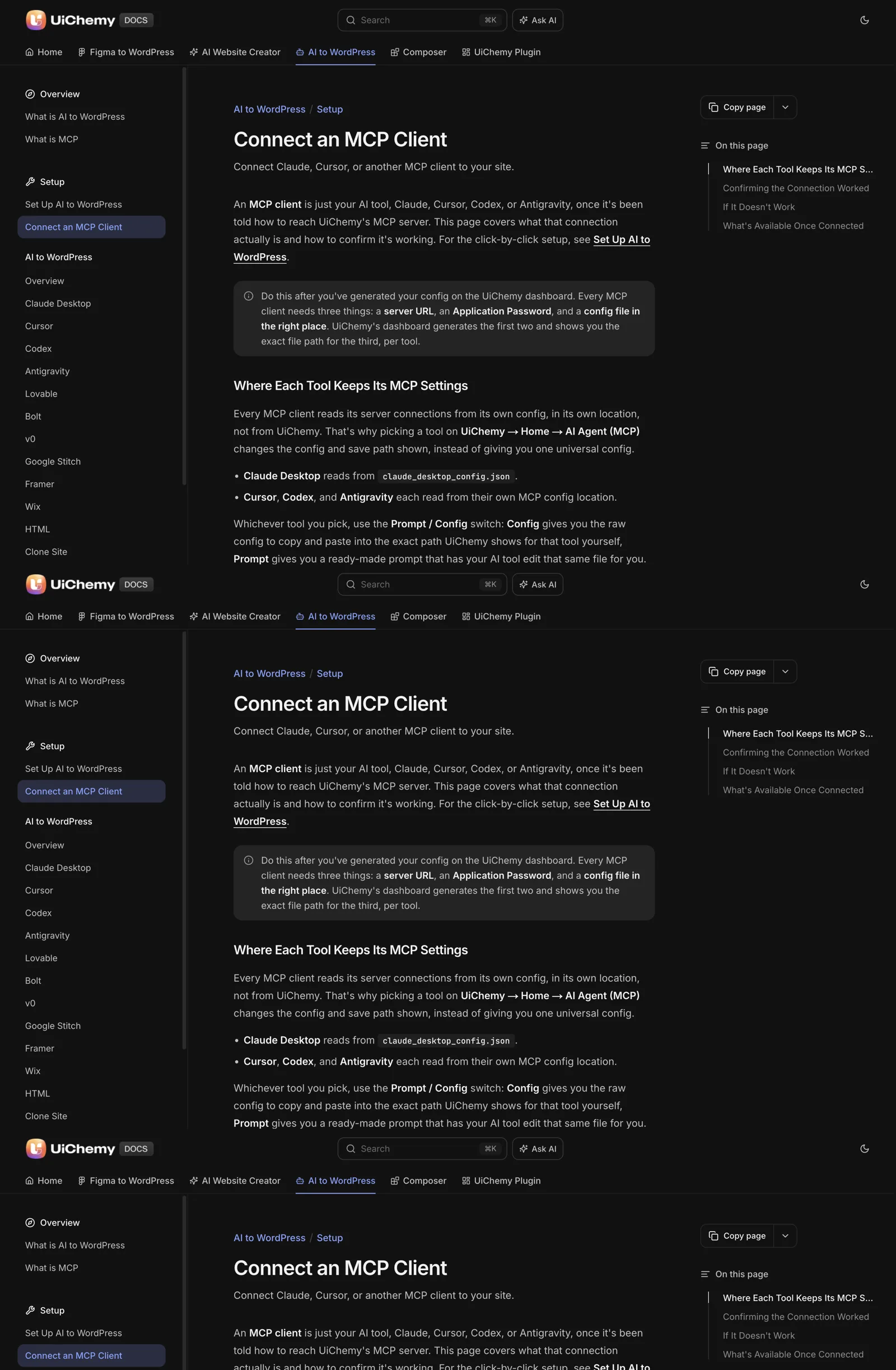
In your AI client’s config, give each entry a name that includes the client and the environment. The per-client file formats are compared in Claude Desktop, Cursor and Codex: WordPress MCP config differences. Keep production entries out of the config until you need them. A client holding twenty production credentials makes every vague prompt a risk.
The handling rules for the credential are in WordPress Application Passwords for MCP. The one that matters most at scale: revoke access when a project ends, and record the revocation in the registry.
Step 3: Staging First, Always
Every change follows the same path.
- Connect the agent to the staging site.
- Make the change and review it there.
- Get approval from the person named in the registry.
- Apply the approved change to production through your normal process.
- Check production, and record the result.
Always name the target in the prompt: “On the staging site for the bakery client, update the About page heading to this exact text.” A prompt that omits the site is a prompt that may reach the wrong one. If your studio uses a repeatable launch routine, AI website builder for agencies shows how a similar discipline applies to builds.
Step 4: Sort Tasks by Risk
Not every task deserves the same scrutiny. Sorting them lets you move fast where it is safe and slow where it is not.
| Risk | Examples | Handling |
|---|---|---|
| Low | Reading the site, listing pages, drafting copy for review | Agent can run freely on staging |
| Medium | Editing a page, changing a section, updating Global Style | Staging, review, then approval |
| High | Anything touching forms that collect data, payments, legal text, redirects, the header or footer on every page | Human does it or closely supervises; extra testing |
| Off limits | Anything outside the connected server’s scope | Do it manually. The UiChemy docs say the MCP cannot install other plugins or change unrelated WordPress settings |
A change to a global element, such as the header, deserves the high-risk label even when it looks small, because it affects every page. Test the pages that matter most, on phone width, before you approve it.
Step 5: Review and Log
Review the result like a colleague’s work. The generic checks are in how to review an AI-generated WordPress site in 30 minutes. For code the agent writes, add the steps from keeping AI-written code clean.
Then write a log entry. Each entry is short:
- Date, site and environment.
- The instruction you gave, copied as written.
- What changed, in one sentence.
- Who reviewed it and the verdict.
- Where the backup or rollback point is.
The log earns its keep the first time a client asks “what changed on my site last Tuesday”. It also helps you spot patterns. If the same correction appears in five entries, fix the prompt template.
The Copyable Runbook
AI AGENT RUNBOOK (per task)

BEFORE
[ ] Site is in the registry
[ ] Target is STAGING (write the URL): ____________
[ ] Backup exists and a restore has been tested recently
[ ] Agent connected with the lowest role that works
[ ] Risk level: low / medium / high / off limits

PROMPT
[ ] Names the site and environment
[ ] Gives exact content (text, prices, links)
[ ] States what must NOT change

AFTER
[ ] Read the agent's description of what it did
[ ] Opened the page in the editor and compared
[ ] Checked phone width
[ ] Approved by: ____________  Date: ____________
[ ] Applied to production
[ ] Checked production
[ ] Log entry written

END OF PROJECT
[ ] Application Password revoked
[ ] Config entry removed
[ ] Registry updated
Print it or keep it in your project tool. The discipline matters more than the format. Before you scale this to many clients, read the security checklist before giving an AI agent WordPress access, which covers the credential and permission side in more depth. The concepts behind the connection are explained in the docs at what is MCP.
A Registry Row Filled In
The registry in step one is easier to picture with an example row. The values here are made up for illustration. Replace them with your own, and keep the list in a place only your team can reach, since it points at your clients’ sites.
| Field | Example entry |
|---|---|
| Client and site | Bakery client, main site |
| Production URL | https://[bakery-production-domain]/ |
| Staging URL | https://[bakery-staging-domain]/ |
| Builder and theme | Elementor, [theme name] |
| Backup method | [Host snapshot], restore last tested [date] |
| Approver | [Name of person who signs off changes] |
| Agent access | Claude Desktop, staging only, granted [date] |
| MCP config entry name | bakery-staging-uichemy-mcp |
Notice the config entry name. Putting it in the registry means you can match any entry in a client’s config file back to a site, an environment and an owner. When you tidy up later, that match tells you what is safe to remove.
Add one more column for the date of the last review. A site nobody has looked at for a long time is a site where credentials and plugins drift.
If a Change Lands on the Wrong Site
Even with careful naming, a change can reach the wrong site. Have a short playbook ready, so you act calmly. Speed matters, and so does keeping a clear record.
- Stop the session. Close the client or cancel the running task so no further changes arrive.
- Identify the site and the change. Use your log and the instruction you gave to see exactly what was sent and where.
- Check the site. Open the affected pages in the editor and on the front end, and compare them with the last backup or revision.
- Restore. Use the page revision for a single page, or the backup for wider damage.
- Tell the owner. If the site belongs to a client, say what happened and what you did. Plain honesty keeps trust.
- Revoke and rebuild access. Delete the Application Password that was used and create a fresh connection when you are ready.
- Write the cause into the log, and change the process that allowed it.
The most common process fix is shortening the config. If the client only holds the entry for the site you are working on, the wrong site cannot be reached. Remove production entries when you finish, and keep staging entries clearly named.
Practise the restore at least once on a spare site. A backup you have never restored is a hope. The explainer on WordPress MCP covers why an action not on the server’s menu cannot be called, which is one reason scope matters so much.
What Breaks as the Site Count Grows
A workflow that suits five sites can strain at twenty. These are the pressure points to watch for, with the adjustment each one calls for.
| Pressure point | Symptom | Adjustment |
|---|---|---|
| Config file size | Many entries, hard to tell them apart | Use per-project config files where the client supports them, and consistent naming |
| Credential count | Nobody knows which passwords are still needed | Review the list on a schedule, revoke at project end |
| Review load | Approvals pile up with one person | Name a second approver per site in the registry |
| Prompt drift | Each person writes prompts differently | Keep shared templates with the “do not change” lines built in |
| Tooling updates | A client update breaks connections | Re-run the two test prompts on one site before updating others |
Notice that none of the adjustments is a new tool. They are the same five habits, applied more strictly. When the process holds at higher volume, the speed gain from an agent is real. When it does not, a faster tool only makes mistakes arrive sooner.
For the Node.js side of keeping many setups healthy, see Node.js and npx: the prerequisite that quietly breaks MCP setups. And for how the same routes compare with writing your own scripts, read MCP vs the REST API for WordPress automation.
FAQ
Can one AI agent manage many WordPress sites?
One client can hold several site connections, each with its own entry and Application Password. Name each entry clearly, state the site in every prompt and keep production out of the config until needed. Structure matters more than the number of sites.
Should agents work on production sites directly?
Staging first is the safer default. Review the change there, get approval and apply it to production through your normal process. If an agent must touch a live site, use a backup, the lowest workable role and a log entry.
How do I stop an agent changing the wrong site?
Name the site and environment in every prompt, keep entries clearly labelled and connect only the sites you are working on. Remove production entries when finished. A registry that lists every site also lets you check a target before you start.
What should I log for each AI-made change?
The date, site, environment, the exact instruction, a one-line description of the change, the reviewer and verdict, and the rollback point. Keep entries short so people actually write them.
When should a human do the work instead?
For high-risk changes such as payment or data-collecting forms, legal text, redirects and global elements, and for anything outside the server’s scope. The UiChemy docs state the MCP cannot install plugins or change unrelated WordPress settings, so those tasks stay manual.
If you are building this workflow for a studio, you can Get Started and connect your first staging site.
Every feature named in this post is listed by product: all UiChemy features, UiChemy Composer features.