WordPress Application Passwords for MCP: What They Are and How to Handle Them
 Sagar Patel
A WordPress Application Password is a separate, revocable password that lets one program act as a specific user, over the REST API, without using that user’s login password. MCP clients use one to reach your site. Create one per tool, keep it in the client’s config only, and revoke it when the work ends.
When you click Generate connection in UiChemy, the Application Password is the thing it creates. This post explains how it works in WordPress core, what it can reach, and how to handle it. For the full connection flow, see how to connect Claude to WordPress with UiChemy MCP.
What an Application Password Is
WordPress core has included Application Passwords since version 5.6. Each one is a randomly generated credential attached to a user account. A program sends the username and the Application Password with its request, using standard HTTP authentication, and WordPress treats the request as coming from that user. The core handbook describes the mechanism on its REST API authentication page.
Three properties make this a good fit for AI tools:
- It is separate from the login password. You can revoke it without changing the password you use to sign in.
- It can be revoked on its own. Each Application Password has a name and appears in a list, so you can delete one tool’s access and leave the others.
- It works for API requests. The standard WordPress behaviour is that it authenticates REST requests and cannot be used to sign in through the normal login form.
By default WordPress requires a secure connection (HTTPS) before it offers Application Passwords on a live site. A local development environment is treated differently. If the section is missing from the profile screen, an unsecured site or a plugin that disables the feature are the usual reasons.
How the UiChemy MCP Uses One
The setup path comes from the UiChemy docs. In the WordPress admin, open UiChemy, then Home, then the AI Agent (MCP) tab, and click Generate connection. UiChemy creates a WordPress Application Password and shows you the config for your AI tool. That config carries three environment values:
| Value | What it holds |
|---|---|
| WP_API_URL | The MCP route on your site, in the form https://yoursite.com/index.php?rest_route=/uichemy/v2/mcp |
| WP_API_USERNAME | The WordPress user the client acts as |
| WP_API_PASSWORD | The Application Password |
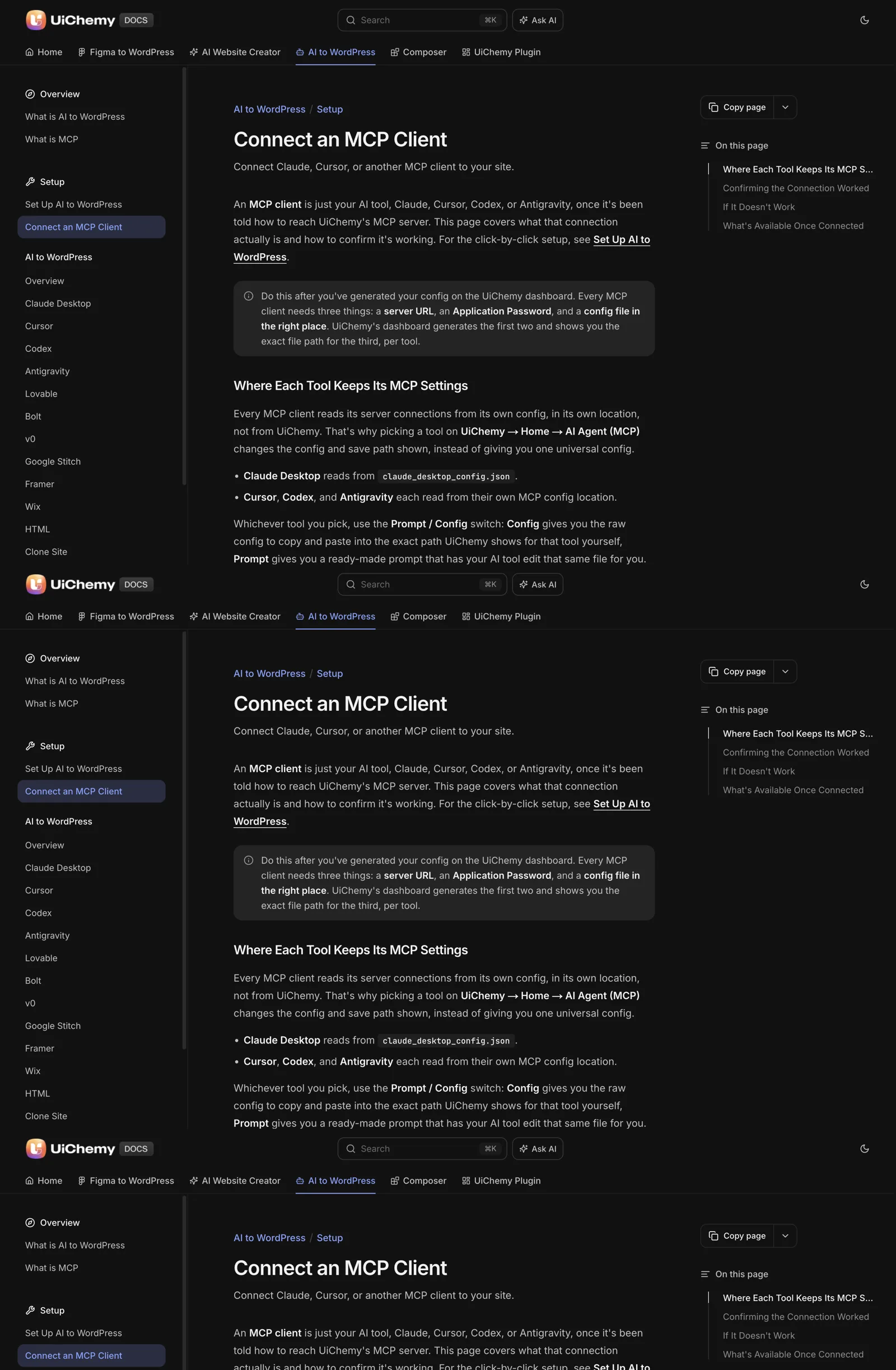
The docs state that an Administrator login is needed, and that other roles see “Administrator access required”. So the user behind the password matters. The client acts with that user’s permissions, within the scope the UiChemy server exposes. Per-client file formats and paths are compared in Claude Desktop, Cursor and Codex: WordPress MCP config differences.
Create, List and Revoke
Besides the UiChemy button, core WordPress lets you manage Application Passwords from the user’s profile.
- Go to Users, then Profile (or edit the target user).
- Scroll to the Application Passwords section.
- Type a name for the new password, such as the tool and the date, and click Add New Application Password.
- Copy the password when it appears. WordPress shows it once.
- To revoke, find it in the list and click Revoke. To remove every one for the user, use Revoke all.
Name each password after the tool that holds it. A list that says “Claude Desktop, laptop, October” is something you can audit. A list of unnamed entries leaves you guessing which one to delete when a laptop goes missing.
What It Can Reach
An Application Password inherits the capabilities of its user. Core WordPress does not scope an individual password down to fewer permissions. That is why the choice of user is the main safety decision.
- If the user is an Administrator, a client with the password could in principle call any REST route that Administrator may call. The UiChemy MCP route limits its own actions to pages, templates, Global Style, forms, media and site setup, but the password itself is a general credential.
- If another plugin exposes its own REST routes, those routes follow that plugin’s permission checks for the same user.
- A lower role can reach less, but the UiChemy docs say the MCP needs an Administrator login.
A practical response is a dedicated Administrator user created for AI work, with a name that makes its purpose obvious. The audit trail is cleaner, and you can delete the account and every password with it when the project ends. The full reasoning is in the security checklist before giving an AI agent access to a WordPress site.
Handling Rules
APPLICATION PASSWORD HANDLING

CREATE
[ ] One password per tool and per site
[ ] Named with tool, device and date
[ ] Created on a dedicated user where possible
[ ] Site served over HTTPS

STORE
[ ] Lives only in the client's config file
[ ] Never in a screenshot, chat message or support ticket
[ ] Never committed to a repository (add the config to .gitignore)
[ ] Not copied into notes or shared documents

USE
[ ] Staging site first
[ ] Backup before the first write
[ ] Test with: "List the pages on my site"

END
[ ] Revoke when the project ends
[ ] Revoke if a device is lost or a config is shared by mistake
[ ] Generate a new connection instead of reusing an old one
If you must disable the feature site-wide, WordPress offers a filter. A small snippet in a must-use plugin turns Application Passwords off entirely:
add_filter( 'wp_is_application_passwords_available', '__return_false' );Disabling the feature also disables the UiChemy MCP connection, since it relies on one. Use it on sites where AI access is not allowed, and leave it on where you control who creates passwords.
When It Stops Working
The UiChemy docs flag an old or rotated Application Password as a silent failure: the client keeps running and returns generic answers. If a connection worked yesterday and fails today, check these in order.
- Is the password still listed on the user’s profile, or was it revoked?
- Does the config hold the current password, with no extra spaces?
- Is the site still on HTTPS, and does the URL in the config match it?
- Did you restart the client after the last edit?
If none of those explains it, generate a new connection in UiChemy and replace the values in the config. A fresh pair is faster than debugging an old one. For a broader look at how this credential compares with other ways to reach WordPress, see MCP versus the REST API for WordPress automation, and for the concepts behind the connection, what is WordPress MCP.
The concepts behind the connection are in the UiChemy docs, what is MCP, and the routes into WordPress are mapped in Claude to WordPress: choose the right workflow. WordPress’s own hardening guide covers wider site security, which sits behind everything here: WordPress hardening.
A Rotation Routine You Can Actually Keep
Credentials age badly. A password created for a quick test can still be sitting in a config file a year later. A simple rotation routine keeps the list short and each entry deliberate.
| Trigger | Action |
|---|---|
| A project ends | Revoke the password and remove the config entry |
| A laptop is lost, replaced or handed on | Revoke every password that device held |
| A config or screenshot is shared by mistake | Revoke immediately, then generate a new connection |
| A team member leaves | Revoke their passwords and review the rest of the list |
| A set interval passes, for example each quarter | Review the list and delete anything you cannot explain |
The interval is your choice. What matters is that the review happens. Put it in your calendar next to your plugin update day, and the two jobs become one habit.
When you rotate, generate a new connection in UiChemy instead of editing the old password into place. Then update the client’s config with the new values, restart the tool, and run the pages test prompt to confirm it works.
Reading the Application Passwords List
The profile screen shows more than names. Core WordPress records when each password was created, when it was last used and the IP address it last came from. That makes the list an audit tool as well as a control panel.
Use it like this. Sort your attention by the last used column. A password that was used yesterday from your office address is expected. A password that has never been used is an orphan, so delete it. A password last used months ago belongs to a project you may have forgotten.
Pay attention to the address too. If a password shows an address you do not recognise, treat it as exposed. Revoke it, generate a new connection and check the site for unexpected changes. For what to review afterwards, work through the review steps in the security checklist above.
If you give every password a descriptive name, the list reads like a register. You can see which tool holds which credential, and you know what breaks if you remove one.
Common Mistakes With Application Passwords
These mistakes come up in most setups. Each has a simple fix.
Sharing one password between tools. If you reuse one credential across two clients, revoking it breaks both, and you cannot tell which one made a change. Create one per tool.
Using a personal Administrator account. Everything the client does is then attributed to you. Create a dedicated user for AI work so the activity is separate and easy to remove.
Leaving the password in a project folder. If the folder is a repository, the credential can end up in version history, where deleting the file does not remove it. Add the config to your ignore file before you save it.
Pasting the password into a chat to ask for help. Replace it with a placeholder. A real credential in a message is a leak you cannot take back, only revoke.
Forgetting that the client restarts hold the old value. After you rotate a password, restart the client or it keeps trying the revoked one and answers generically.
If you manage many sites, the same rules apply per site. The routine for doing that at scale is in an AI agent workflow for managing many WordPress sites, and the questions to ask of any server’s credential handling are in how to evaluate any WordPress MCP server.
One last point on trust. Even a well-handled password is a standing door into your site. If the job is a one-off, such as a single conversion, revoke the password the day the work finishes, even if you think you might return. Generating a new connection later takes a minute, and it means the door is only open when you are using it.
Treat that as the default and make exceptions deliberately, for projects that really do run for months. The shorter a credential lives, the less you have to remember and the less there is to lose.
FAQ
What is a WordPress Application Password?
It is a revocable password, generated by WordPress, that lets a program authenticate as a user over the REST API without using the user’s login password. Each one has a name, is shown once when created and can be revoked individually from the user’s profile.
Where do I create an Application Password?
In core WordPress, open the user’s profile and find the Application Passwords section. For the UiChemy MCP, click Generate connection in UiChemy, under Home and the AI Agent (MCP) tab, which creates one for you and shows the config.
Is an Application Password safe to put in a config file?
It is the intended place, provided the file stays private. Keep it out of repositories, screenshots and shared notes. Treat the config like a key, use a dedicated user, and revoke the password when the work ends.
Can I limit what an Application Password can do?
Core WordPress ties it to its user’s capabilities and does not offer per-password scopes. The way to limit access is the choice of user and, for UiChemy, the actions the server exposes. The docs say the MCP cannot install plugins or change unrelated settings.
What happens if my Application Password leaks?
Revoke it on the user’s profile straight away, then generate a new connection and update your config. Review recent changes on the site, restore from a backup if anything looks wrong, and find out where the password was exposed.
When you want to try the connection flow yourself, you can Get Started and generate your first connection on staging.
Every feature named in this post is listed by product: all UiChemy features, UiChemy Composer features.