





Designing for Spectra, Kadence and GenerateBlocks
 Sagar Patel
A client hands you the keys to a site that already runs Kadence Blocks on every page, and your Figma frame is signed off. Nobody in that conversation said the words block library, but you have just been handed a constraint that decides how the whole conversion behaves.
Searching for something like Figma to Spectra is really asking a different question: which set of blocks should my design land in, and what changes about the design work if I pick a different one. UiChemy publishes five Gutenberg targets, and this is an honest account of what genuinely differs between them.
One thing to settle first, because it decides which route you are even on.
UiChemy is four products on one engine: Figma to WordPress, AI Website Creator for turning a prompt or a client brief into a whole site, UiChemy Composer for writing real HTML, CSS and JavaScript inside the builder, and AI to WordPress for Lovable, Claude, Bolt and v0 builds.
This post is about the Figma route, and there is a practical reason for that beyond the search term.
The Figma route is the only one of the four that produces Gutenberg blocks today. AI Website Creator exports to Elementor, with Export To Gutenberg marked Soon on all four plans including Agency, and Composer runs inside Elementor.
If the deliverable has to be blocks, you are converting a design.
The short answer, so you can stop reading if that is all you needed: pick whatever the site already has installed, and design for the blocks that library actually ships. Everything below is the detail behind that sentence, checked against our own documentation on 7 September 2026.
The Five Targets And Where The Choice Happens
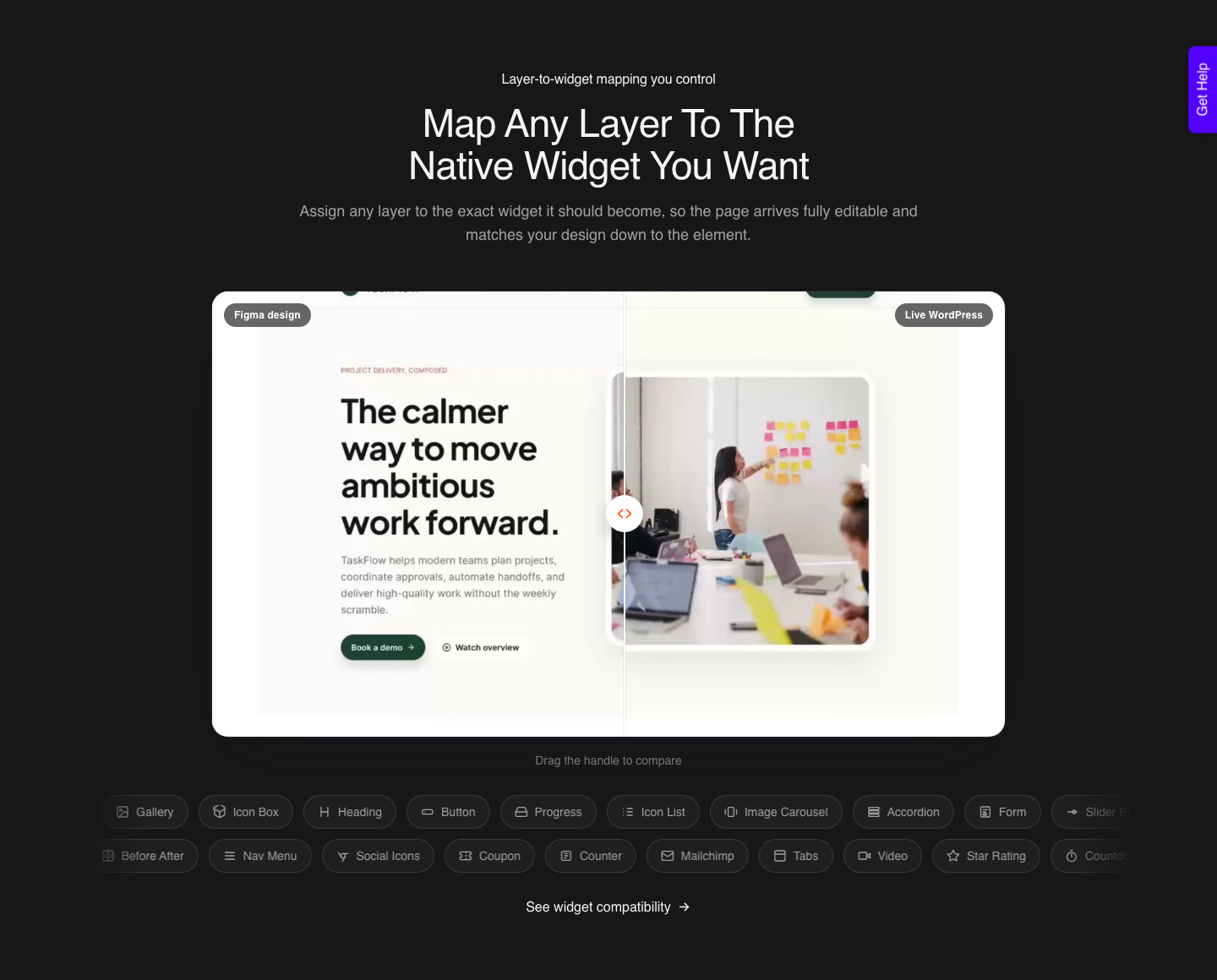
The five Gutenberg destinations are Spectra, Kadence, GenerateBlocks, Nexter Blocks and core Gutenberg with no extra block plugin at all. Each has its own page under the Figma to Gutenberg section, and all five run through the same conversion engine.
The choice is not made on the website. It is made inside the Figma plugin.
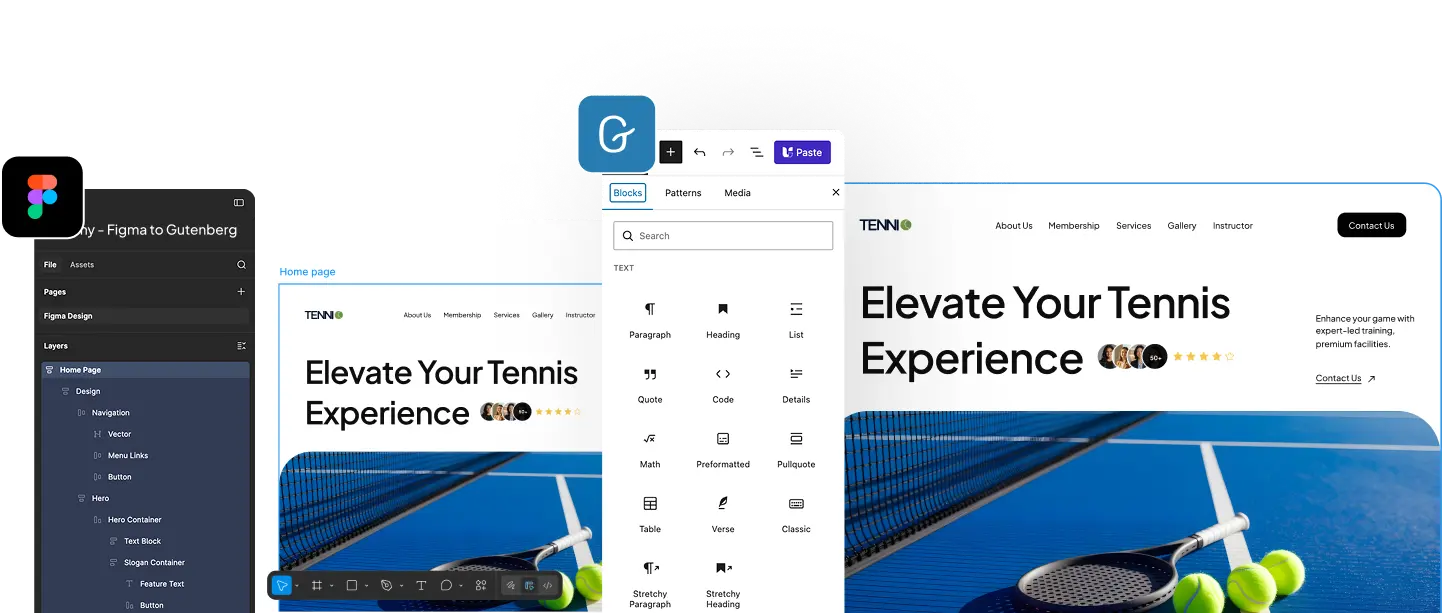
You select the top level frame, choose a Gutenberg plugin from the Select Plugin section, run Optimize & Convert, and then the Block Tags tab shows the blocks that library supports.
That last step is the whole story in one sentence. Changing the target changes your tagging vocabulary.
A layer you would tag as an Infobox against one library has no equivalent against another, and the conversion falls back to a group of simpler blocks instead.
What Actually Differs Between The Libraries
Less than the marketing on any of their websites suggests, and more than the conversion settings imply. Every one of these targets produces real block markup that opens in the standard WordPress block editor, so none of them is a lock-in in the way a proprietary page builder is.
| Target | What the site needs installed | The design consequence |
|---|---|---|
| Core Gutenberg | Nothing beyond WordPress | Fewer block types, so more of your design becomes groups, columns and paragraphs |
| Spectra | The Spectra plugin | Richer layout blocks, so more of your sections map to a single block |
| Kadence | Kadence Blocks | Same, with the site’s existing Kadence styling already in place |
| GenerateBlocks | GenerateBlocks | A deliberately small block set, closer to core in feel |
| Nexter Blocks | Nexter Blocks | The documented tag list is the largest of the five today |
The published tag list is the concrete evidence rather than an opinion. Our documentation lists the supported Nexter Blocks tags as Heading, Button, Video, Blockquote, Advanced Image, Infobox, Paragraph, Stylish List, Testimonials, Social Icon, Heading Title and Number Counter, with a note that more are being added.
Rather than trusting any list in a blog post, including this one, read the Block Tags tab with your target selected. It is generated from the library you chose, so it is current in a way documentation never fully is.
The Case For Choosing Core Gutenberg
Core is the option people skip and the one that ages best. Nothing extra to install, nothing extra to update, nothing that stops working when a block plugin changes hands.
The output is standards-based block markup that any future developer can read without learning a vendor’s abstractions.
The trade is real though. Fewer block types means a testimonial that would be one block elsewhere becomes a group containing an image, two paragraphs and a heading.
That is more nodes in the editor and a slightly longer path to every edit a client will make.
Choose core when the site is content-led and will outlive your involvement. Choose a block library when the client is already inside it and their team knows those controls.
Choosing one because you prefer it, on a site you will hand over, is a decision you are making with someone else’s money.
Designing For A Block Library Before You Draw
The practical work happens in Figma, days before any conversion. The habits that make a design survive the build are the same whichever block library you land in.
Open the target library on a staging site, look at what its blocks can and cannot do, and design components that have an obvious destination. A card with a hover-revealed second layer is a decision, not a detail.
The structural rules are identical across all five targets. One top level frame with auto layout set to vertical and top centre alignment, padding and item gap at zero, a fixed width you chose.
Sections inside it set to fill container for width and hug contents for height.
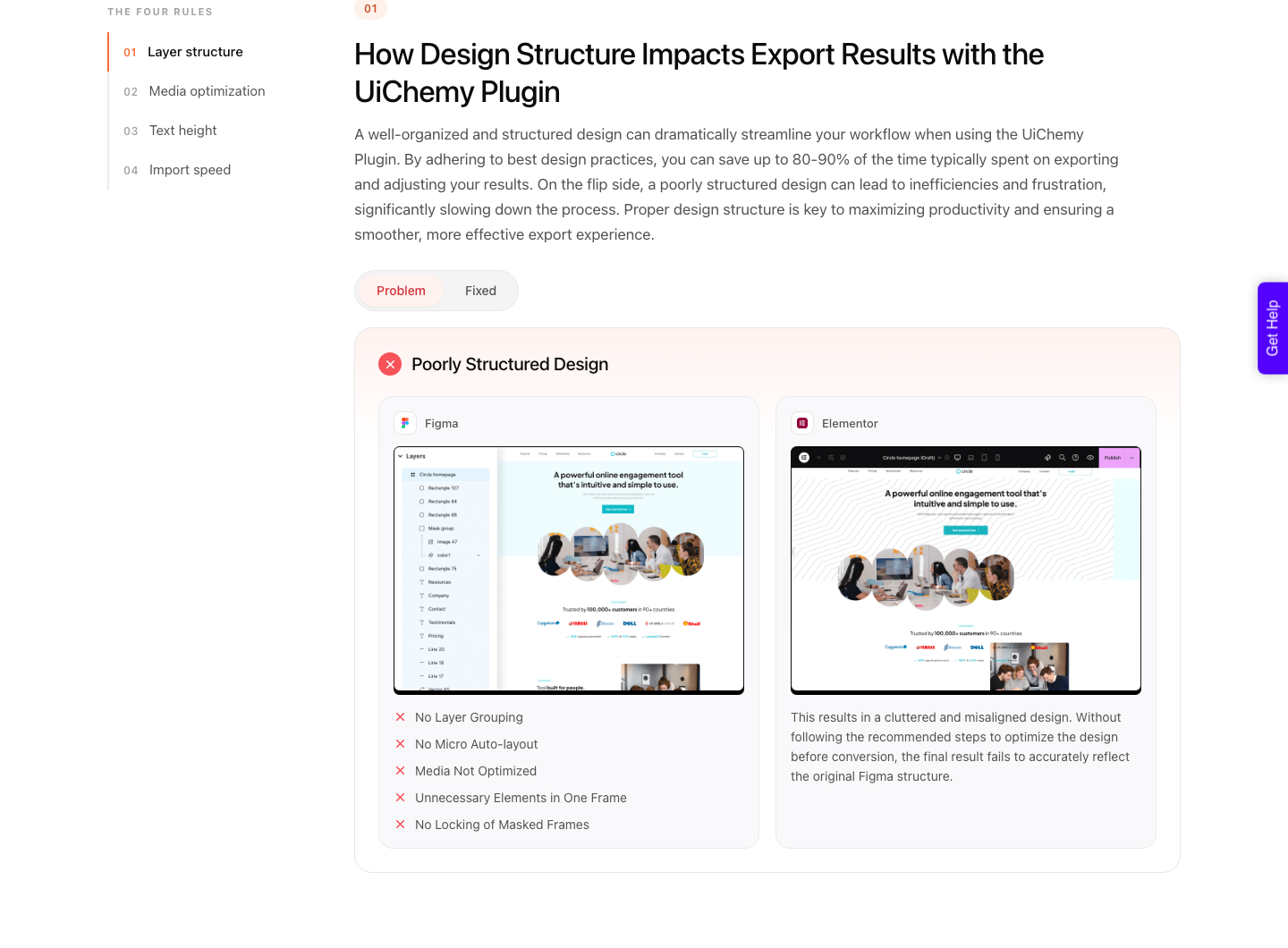
Two habits cost more on Gutenberg than on other builders. Excess nesting, because every frame becomes a container and the block editor’s list view gets deep fast.
And negative item gaps in auto layout, which CSS flexbox does not permit, so a minus value becomes zero on the live page.
Images deserve a specific mention. Assets import directly from Figma, so an unoptimised hero at full resolution slows the import itself as well as the page.
Choose the export format deliberately, since WEBP, PNG, AVIF and JPEG are all available with adjustable compression.
Global Styles, And The Part That Is Still Coming
One-click global styles sync maps your Figma styles, variables and colours into the builder’s own global styles.
Today that covers Elementor and Bricks, with Gutenberg on the way. Until it lands, plan a manual pass to set the site’s global palette and type to match the file.
The Bricks route already has that sync, which is worth knowing if the client will take either builder.
Do that pass before you convert rather than after. If the site’s global colours already match the Figma variables, a converted page inherits the right values in the places where the theme applies them, and you spend the review fixing layout rather than colour.
Plan for that gap rather than around it. Set the palette and type scale on the site first, convert second, and the review becomes a layout review instead of a colour hunt.
It is ten minutes of work that saves the same ten minutes on every subsequent page.
A Worked Sequence For A Kadence Site
Start on the site, not in Figma. Confirm which block plugin is active and which version, then open one existing page and note the three or four block types the client’s team actually edits.
Those are the ones your design should produce.
Then design the page, run the design optimiser, select the top level frame in the plugin, choose the matching Gutenberg plugin from Select Plugin, and open Block Tags. Tag the layers that have an obvious block, leave the rest alone, and convert one page.
Review it in the block editor rather than on the front end. The front end tells you whether it looks right; the editor tells you whether the client can maintain it, which is the thing you are actually being paid to get right.
| Decision | Made where | Cost of getting it wrong |
|---|---|---|
| Which block library | The client’s existing site | An extra plugin nobody asked for |
| Which layers get tagged | The Block Tags tab in Figma | Generic groups instead of real blocks |
| Frame structure and nesting | Figma, before conversion | A page that is correct and painful to edit |
| Global colours and type | WordPress, before conversion | A manual restyle after every conversion |
| Image format and compression | The plugin’s export settings | A slow import and a slow page |
The Classic Mode Features That Matter Here
Because Gutenberg runs through Classic mode, you inherit the whole Classic toolset, and three parts of it change how a block project runs. The first is copy-section export, which lets you copy one section in Figma and paste it into WordPress rather than converting a whole page.
That is the right tool for a site that already exists. A client with forty live pages does not want them rebuilt; they want the new pricing table dropped into page nineteen.
Section-level work also keeps credit usage proportional to the actual job.
The second is the responsive manager, which lets you set desktop, tablet and mobile behaviour inside Figma before you export. Setting intent there is faster than discovering a four-column grid stacked badly and repairing it block by block in the editor.
The third is multi-page import, which converts several Figma pages in one pass, and the page replace and add option in Direct Import for putting a section into an existing page. Between them they cover the two jobs an agency actually has: a new site, and a change to an old one.
Honest Limits On The Gutenberg Route
The first is mode. Gutenberg conversions run through Classic mode, which means layer tagging is part of the job rather than optional.
AI Express, the no-tagging automatic route, outputs to Elementor only for now, with Gutenberg and Bricks named as next.
The second is the set of Figma properties that do not connect regardless of target. Masks on any element, layer blur and background blur, video fills, blend modes and gradient or image fills on text are all documented as unsupported, and no block library changes that.
The third is expectation. A verified reviewer on the plugin listing puts the realistic split at roughly 70 percent of the design work handled and 30 percent left to fine-tune in the editor, and calls that a fair trade for the time it saves.
That is the honest number on any of the five targets, and anyone quoting you a finished page is describing something other than a conversion.
Questions People Ask About Block Targets
Can I convert Figma to Spectra blocks specifically?
Yes, Spectra is one of the five published Gutenberg targets, selected in the plugin’s Select Plugin section before you convert. The plugin needs to be active on the destination site, since blocks it does not recognise cannot render.
What if the client changes block plugin later?
Blocks from a deactivated plugin stop rendering, which is a WordPress behaviour rather than a conversion one. It is the strongest argument for core Gutenberg on any site you expect to outlive the current agency relationship.
Do I have to tag every layer?
No. Tag the layers with an obvious block equivalent, such as a heading, button, image or testimonial, and let the rest convert structurally.
Over-tagging produces a page that fights the design rather than one that matches it.
Is Gutenberg output worse than Elementor output?
Different, not worse. Gutenberg output is standards-based block markup with no page builder wrapper, which is lighter and less feature-dense.
The Elementor route has more widget types and is the only AI Express target today.
Does the same Figma file work for all five targets?
The structure does, since the frame rules are identical. The tagging does not, because each library exposes a different set of block tags.
Converting the same file twice to compare targets is cheap and is the fastest way to settle the argument.
The Decision In One Line
Match the site, not your preference, and design the components before you argue about the library. The block library is a delivery detail; the frame structure, the naming and the honesty about what a client can maintain are the parts that decide whether the page is still good in a year.
Sources checked on 7 September 2026: our documentation on blocks compatible with Figma to Gutenberg conversion, auto layout for accurate conversion and things to avoid in a Figma design, the five Gutenberg target pages, the WordPress Block Editor Handbook and the plugin listing on WordPress.org.