Figma to Gutenberg: Native Blocks, Five Ways
 Sagar Patel
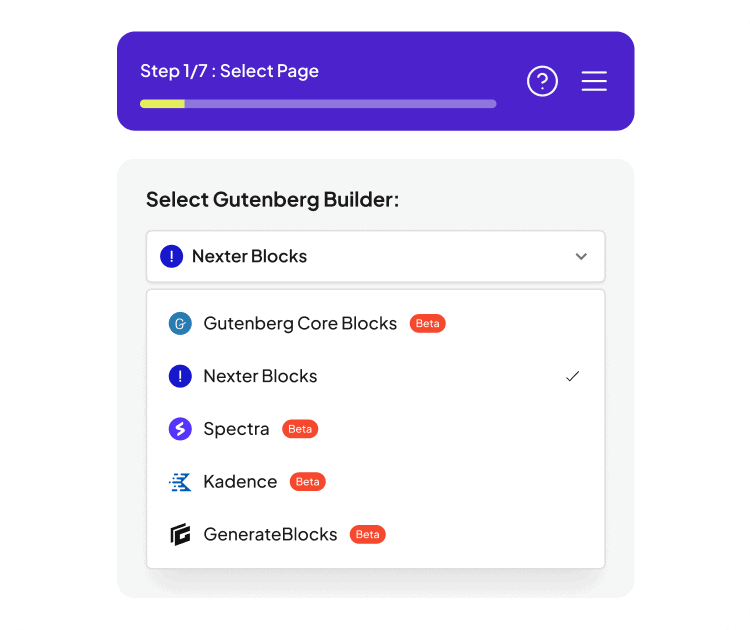
The first time you run a Figma frame through UiChemy into Gutenberg, the plugin asks a question most people are not ready for. Step 1 of 7 is not “which frame”.
It is Select Gutenberg Builder, and the dropdown holds five options. Pick wrong and the page still converts, but you end up with block markup that depends on a plugin the client’s site does not have.
The five are Gutenberg Core Blocks, Nexter Blocks, Spectra, Kadence and GenerateBlocks. They are not five skins on one converter.
Each maps your Figma auto layout onto a different container model, exposes a different set of taggable blocks, and leaves you with a different dependency after the import finishes.
One thing to settle before anything else. Gutenberg conversion runs in Classic Mode today.
AI Express Mode outputs to Elementor and Gutenberg is named as coming next, so anything you read about hands-free conversion does not apply to blocks yet.
What Actually Differs Between the Five
The honest differences are structural, not cosmetic. Every target has to answer the same question, which is what a Figma auto layout frame becomes on the WordPress side, and each answers it with its own container primitive.
| Target | Auto layout frames convert into | Blocks you can tag by hand | What the site needs afterwards |
|---|---|---|---|
| Gutenberg Core Blocks | Native group and column structure | Stack, Row, Image, Paragraph | Nothing. Plain WordPress |
| Nexter Blocks | Accurate flex-based layouts, Auto Layout 4.0 compatible | Heading, Button, Video, Blockquote, Advanced Image, Infobox, Paragraph, Stylish List, Testimonials, Advance Heading, Social Icon, Number Counter | The Nexter Blocks plugin |
| Spectra | Spectra’s row and column structure | Heading, Image, Container, Button | The Spectra plugin |
| Kadence | Kadence’s flex-based structure | Section, Heading, Button, Image | The Kadence Blocks plugin |
| GenerateBlocks | GenerateBlocks flex containers | Container, Text, Button, Image | The GenerateBlocks plugin |
Read that last column first when a client site is involved. Core Blocks is the only route that leaves no dependency behind.
The core blocks reference in the WordPress Block Editor Handbook is the full list of what ships with WordPress itself, and Group, Columns, Column, Heading, Image and Buttons all sit in it.
Gutenberg Core Blocks, the No-Dependency Route
UiChemy’s own framing for this target is that not every project needs a block builder. Auto layout frames come across as native group and column structure, the markup is standards-based, and nothing needs installing after the import.
The cost of that cleanliness is expressiveness. Four taggable types, Stack, Row, Image and Paragraph, is a small vocabulary.
A design built from headings, images and text columns converts well. A design with testimonial carousels, counters and info boxes has nowhere native to land those, so they arrive as the nearest core equivalent and you build the behaviour back by hand.
Pick it when the client will maintain the site themselves for years, when you cannot guarantee a plugin stays licensed, or when the page is genuinely a content page rather than a marketing landing page.
Nexter Blocks, the Most Complete Mapping
This is the target with the widest block vocabulary and the only one in the picker without a Beta tag. Twelve block types are named on its page, including several that have no core equivalent at all: Infobox, Stylish List, Testimonials, Social Icon and Number Counter.
Two features are unique to this route. A responsive manager sits inside Gutenberg so you adjust desktop, tablet and mobile layouts without leaving the editor.
And image optimisation runs during export, auto-compressing to PNG, JPEG, AVIF or WEBP, which is the difference between a fast page and one carrying eight uncompressed hero images.
It is also the target UiChemy explicitly states Figma Auto Layout 4.0 compatibility for. If your file uses the newer auto layout behaviours heavily, that sentence is doing real work.
Spectra, Kadence and GenerateBlocks
These three exist for one reason, and it is a good one. You already build with them, and designing for one of those libraries changes the tagging vocabulary more than it changes the output.
The conversion is not asking you to adopt a new stack, it is removing the part of your existing stack that was manual.
Spectra maps auto layout frames directly to Spectra’s row and column structure, and supports tagging Figma button layers to Spectra button blocks. Kadence maps to Kadence’s flex-based structure with the same button tagging.
GenerateBlocks maps to GenerateBlocks flex containers, and UiChemy’s stated goal there is a lean layout with no unnecessary elements, which matches why people choose GenerateBlocks in the first place.
All three offer the same two delivery routes: connect your site and push the design live in one click, or copy the block JSON and paste it into Gutenberg manually. The manual route matters more than it sounds, because it works on sites where a security plugin or a managed host blocks the direct connection.
The Seven Steps, and Where Decisions Get Made
The Classic Mode flow is a seven-step wizard inside the Figma plugin. Three of those steps are choices you cannot easily reverse afterwards, and the rest is confirmation.
- Step 1, Select Page. This is also where the Gutenberg builder dropdown lives, so the most consequential decision is made before you have looked at a single layer.
- Page selection. Choose which frames become which pages, so a homepage, gallery and about page can cross over in one pass.
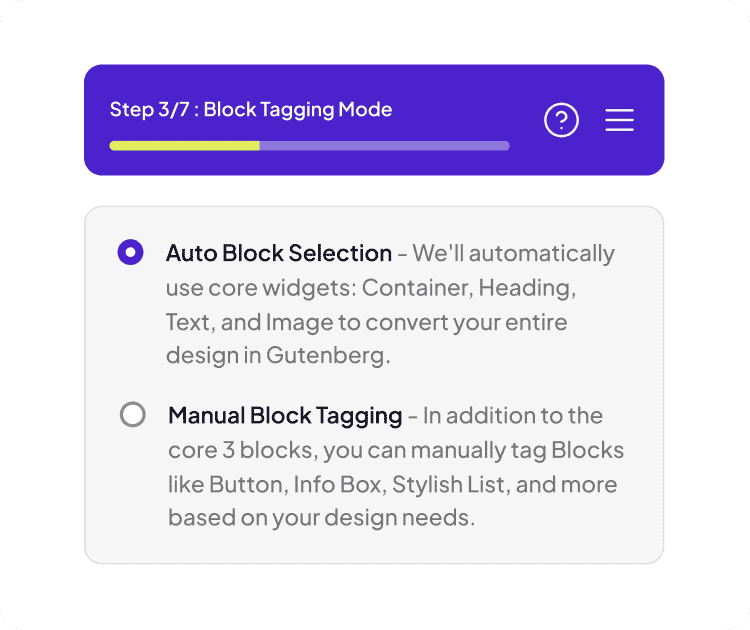
- Step 3, Block Tagging Mode. Auto uses the four core widgets. Manual opens the richer block set for the target you chose.
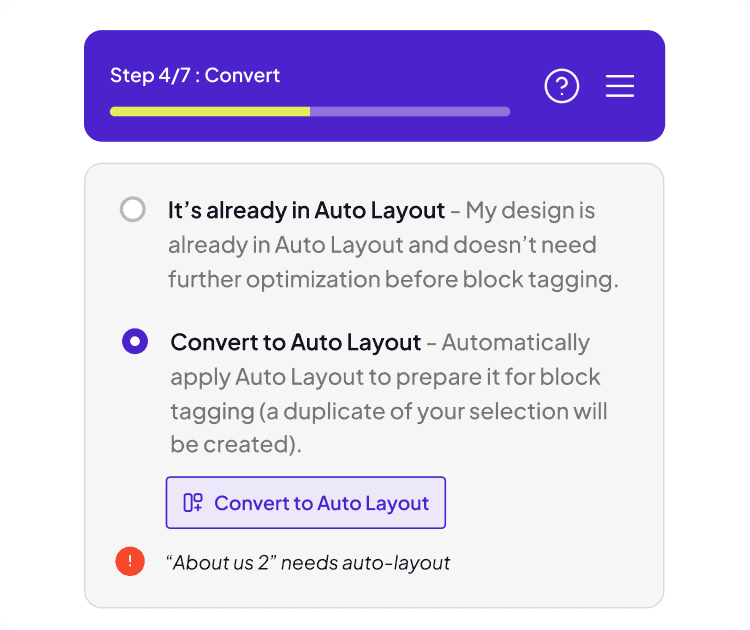
- Step 4, Convert. Declare whether the design is already in auto layout, or have UiChemy apply auto layout for you. It flags the specific frames that still need it by name.
- Step 5, Tagging. Click a Figma layer, then pick the block it should become. A counter shows how many frames you have tagged so far.
- Export settings. Image format and scale controls, plus the responsiveness options for font sizes.
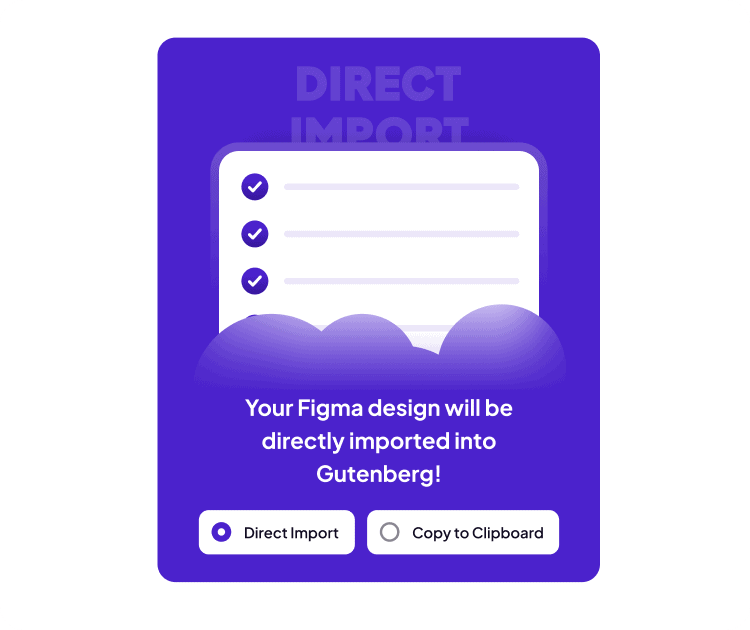
- Direct Import or Copy to Clipboard. Push straight into WordPress, or take the block JSON and paste it yourself.
Step 5 is where the time goes, and it is also where the choice at step 1 pays off or bites. Tagging against a twelve-block palette takes longer than tagging against a four-block one, and produces a page that needs less rebuilding afterwards.
That trade is the whole decision in one sentence.
How to Choose, in One Pass
| If this is true of the project | Choose | Because |
|---|---|---|
| The client maintains the site alone, long term | Gutenberg Core Blocks | No plugin dependency to expire or break |
| The design is rich in cards, counters and testimonials | Nexter Blocks | Twelve named block types, several with no core equivalent |
| Page weight and Core Web Vitals are the brief | GenerateBlocks | Lean flex containers, minimal generated markup |
| The site already runs one of these block libraries | That same library | Nothing new to install, one styling system to maintain |
| You need responsive tuning inside the block editor | Nexter Blocks | The responsive manager is included on that route |
| Your host or firewall blocks the plugin connection | Any, then Copy to Clipboard | Block JSON pastes into Gutenberg without a live link |
The Honest Limits
Four of the five targets carry a Beta tag in the plugin’s own dropdown. That is UiChemy telling you where the mapping is still settling, and it is worth trusting rather than arguing with.
Nexter Blocks is the exception, and it is also POSIMYTH’s own block library, which is exactly why the mapping is furthest along there.
Responsive behaviour is generated and then finished by hand, not delivered perfect. A verified UiChemy reviewer described the realistic split as roughly 70% of the design work handled and 30% left to fine-tune, and that holds for blocks as much as it does for the Elementor route.
One more gap belongs on this list because it costs real time. Global sync, which pushes your Figma colours and typography into the builder’s global styles, covers Elementor and Bricks today and is marked coming soon for Gutenberg.
So a block conversion carries the design across but not yet the design system, and a brand colour change is still a pass through the blocks rather than one edit in one place.
Three things get quoted as though they shipped, and being exact about them matters because two of them are called Gutenberg. AI Express Mode outputs to Elementor only, with Gutenberg named as next, so hands-free Figma to Gutenberg does not exist yet.
AI Website Creator’s Export To Gutenberg is marked Soon on every plan, Agency included, so a prompt-built site exports to Elementor today and not to blocks.
And the prompt-driven editing layer, Chat AI and the UiChemy Composer widget, runs inside Elementor rather than in the block editor.
The Bricks route sits in the same position as this one, tagged by hand in Classic Mode.
What is live for Gutenberg, and it is the part that matters, is Classic Mode. The seven-step wizard converts a Figma frame into real blocks across all five targets today, on every plan including Free.
Anything you read about Gutenberg being Soon is about AI Express and AI Website Creator, not about whether you can convert a design into blocks this afternoon.
The last limit is on your side of the file. A design with detached components, absolute positioning where auto layout belonged, and layers named Frame 1273 converts badly into every one of the five targets.
Our notes on preparing a design before export cover the specific structures that break a block conversion.
The Auto Layout Step Decides the Rest
Step 4 is quiet and it is the one that governs the quality of everything after it. UiChemy checks whether your frames are in auto layout and names the ones that are not, so a warning reading “About us 2 needs auto-layout” tells you exactly which frame will convert badly if you carry on.
You then choose between two answers. Declare the design already in auto layout and nothing is changed.
Or let UiChemy apply auto layout for you, in which case it creates a duplicate of your selection rather than editing the frame you were given. That duplication detail is the reason this step is safe to run on a client file.
The reason it matters so much is mechanical. Every one of the five targets converts auto layout frames into its own container primitive, whether that is a core group, a Spectra row, a Kadence flex section or a GenerateBlocks container.
A frame with no auto layout has nothing to map onto, so the converter has to guess at structure from absolute positions. Fixing that in Figma takes seconds.
Fixing it afterwards in the block editor means rebuilding the section.
Export settings come later in the wizard and carry two controls worth setting deliberately: the image format and scale, and the responsiveness behaviour for font sizes.
On the Nexter Blocks route the image compression runs during export to PNG, JPEG, AVIF or WEBP, which is the cheapest performance win in the whole flow.
Frequently Asked Questions
Can I convert Figma to Gutenberg without installing a block plugin?
Yes. Choose Gutenberg Core Blocks and the output is native WordPress markup with no third-party block library required.
Your auto layout frames become group and column structure, and you can tag Stack, Row, Image and Paragraph by hand.
Does AI Express Mode work with Gutenberg?
Not yet. AI Express outputs to Elementor today, and UiChemy lists Gutenberg and Bricks as coming next.
Gutenberg conversion runs in Classic Mode, where you tag layers yourself through the seven-step wizard.
Which Gutenberg target gives the most accurate conversion?
Nexter Blocks, by UiChemy’s own account and by the evidence in the picker, where it is the only target without a Beta tag. It carries the widest block vocabulary, the in-editor responsive manager, image compression during export, and stated Auto Layout 4.0 compatibility.
Is the converted page really editable, or is it locked markup?
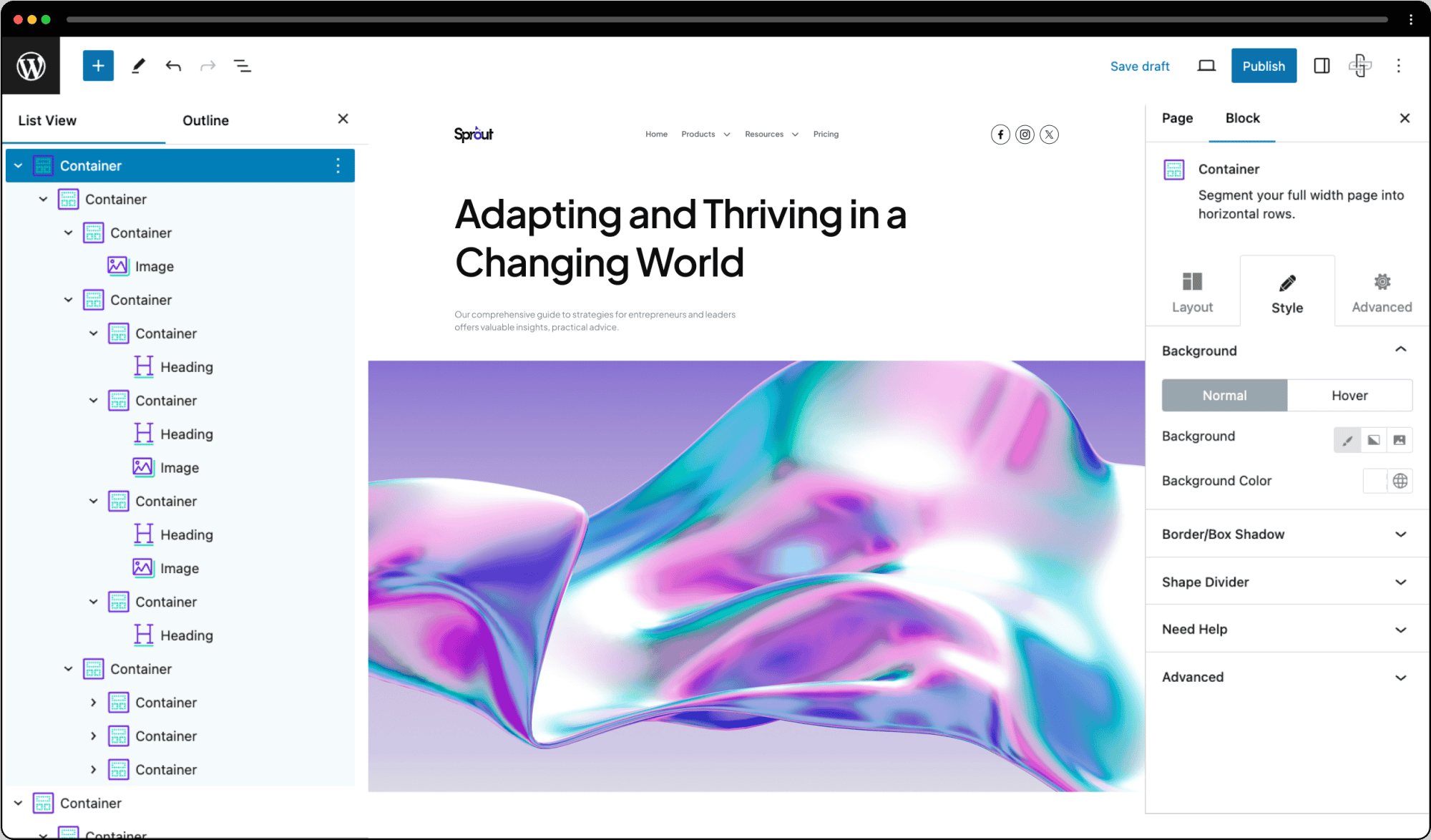
Editable. Every section arrives as a real block in the editor’s List View, which you can select, restyle, duplicate and reorder like any block you added yourself.
It is not exported HTML pasted into a custom HTML block, and it is not a flat image.
Can I try it before paying?
Yes, on a real plan rather than a trial. The Free plan is $0 a month with 1,000 Credits, one Figma seat and community support, and it includes all page builders and both conversion modes, so Classic Mode into any of the five Gutenberg targets is open on it.
Download the UiChemy plugin on WordPress.org and pair the site.
Paid plans start at Designer, $9 a month with 4,000 Credits; Advanced Motion with GSAP and MCP or API access start higher up, at Studio, $29. Every plan carries a 14-day money-back guarantee.
Where Blocks Sit in the Wider Product
Converting an approved Figma frame is one of four ways UiChemy gets work into WordPress, and the other three are worth knowing even on a Gutenberg project, if only to know which door is shut.
AI Website Creator takes a written prompt or a client brief and produces a scope, a sitemap and a set of pages, exporting to Elementor with Gutenberg export marked Soon.
UiChemy Composer is a single widget where AI writes real, editable HTML, CSS and JS for a section, and it runs inside Elementor. An existing Lovable, Claude, Bolt or v0 build comes across through Composer too.
Read that list honestly and the conclusion for a Gutenberg site is simple. The Figma route through Classic Mode is the mature one for blocks, it reaches all five targets, and the newer prompt-driven parts of the product are an Elementor story for now.
If a project is going to lean on those, that is an argument about which builder the site runs, made before the design is signed off rather than after.
The Short Version
Choose the target by what the site has to live with, not by what converts prettiest. Core Blocks for a site that must outlive your involvement, Nexter Blocks for a design that needs components core does not have, and the library you already run when you already run one.
Then tag properly at step 5. Every minute spent there is a minute you do not spend rebuilding a section in the block editor afterwards.
If you want the wider picture first, our overview of taking a Figma design into WordPress covers the choice between builders before the choice between block libraries, and the product page behind it is Figma to WordPress.
Primary sources for this piece: the UiChemy Figma to Gutenberg page and its five per-target pages, the UiChemy pricing page, the WordPress Core Blocks Reference, the Block Editor Handbook and the plugin listing on WordPress.org, all re-fetched on 8 September 2026.