Figma AI in 2026: What It Does and What It Cannot
 Sagar Patel
Ask three designers what Figma AI is and you get three different answers, all of them partly right. One means the chat box that appears when you select a frame.
One means the prompt-to-app product with its own file type. One means the button that removes a background from a photo.
Figma ships all three, they cost different amounts, and two of them carry a beta label.
This is the map rather than the deep dive. Every product in the line, what it actually produces, which label Figma has attached to it, and where the whole thing stops short of a website you can hand to a client.
Checked against Figma’s product pages and help centre on 8 September 2026.
Credit arithmetic is deliberately not repeated here. Our separate piece on how Figma AI credits are counted and consumed works through the per-feature numbers in detail.
Three Doors Into Figma AI
Figma’s own help centre splits AI into three ways in, and the split is worth memorising because it explains most of the confusion. There is the Figma agent, a conversational tool you collaborate with inside design files.
There is Figma Make, the prompt-to-app product. And there are individual AI tools, each doing one narrow job in the place you need it.
The agent and the individual tools overlap in a way Figma states plainly: the agent can call the existing AI tools, such as Rename layers, Replace content and Make image, to apply one-off changes or bulk edits.
So the tools are not a lesser version of the agent. They are the parts the agent picks up.
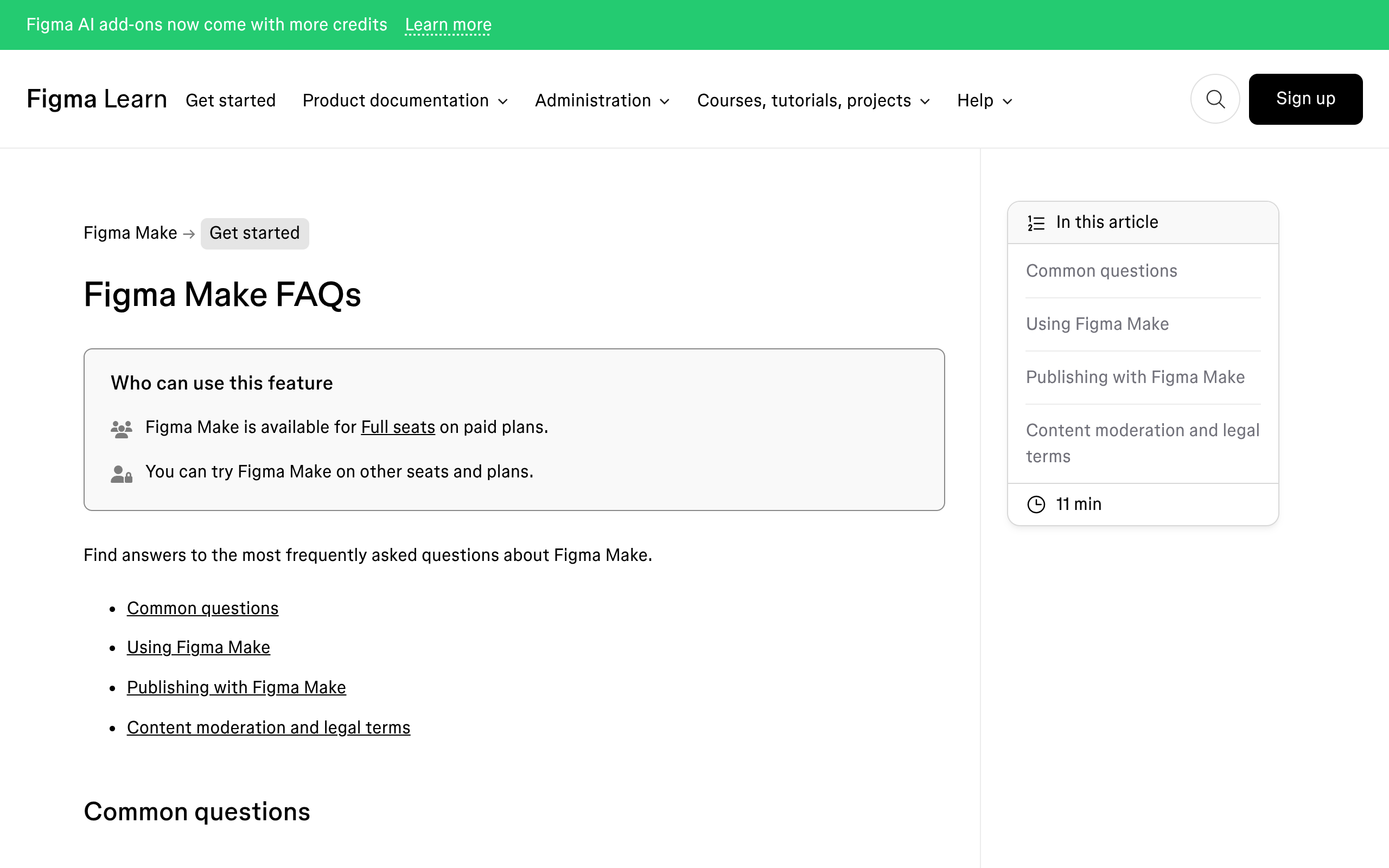
Access follows a rule you can hold in your head. Individual AI tools are available on Professional, Organization and Enterprise plans.
All seat types can try AI tools in drafts, and if you are experimenting in a product your seat does not otherwise include, you have to upgrade before you can share that file with a team or move it into a folder.
The Figma Agent Is In Open Beta And Free For Now
The agent lives in Figma Design. Select a layer and click Agents to open the on-canvas prompt box, or press Cmd or Ctrl plus Enter.
There is also a persistent sidebar reached from the left navigation bar, and a pop-out window in the desktop app.
Two details change how it feels in practice. You can run several prompts in parallel across different frames without waiting for the first to finish, each showing a loading indicator on the canvas.
And you can connect a library, then type @ to reference specific components, variables and styles inside the prompt, which is the difference between generic output and something that matches your system.
Figma is honest about the boundary, and publishes it as a table. The list below is the part designers usually get wrong.
| Capability | Status in the agent |
|---|---|
| Generating new screens and layouts from a prompt | Supported |
| Editing layout, spacing, alignment and auto layout | Supported |
| Applying styles, variables and component properties | Supported |
| Adding motion and animation | Supported |
| Design feedback and accessibility critique | Supported |
| Vector editing and the Draw tools | Coming soon |
| Creating icons and icon sets | Coming soon |
| Prototyping and interactions | Coming soon |
| Exporting assets on your behalf | Not supported |
| Creating diagrams and data visualisations | Not supported in Figma Design |
Cost during the beta works differently from everything else. Figma says the agent is free to try while in beta and carries a monthly usage limit that helps manage capacity, and that this limit is separate from your credit limits for other AI features.
Treat that as a beta price rather than a plan, because the wording is temporary by design.
One governance detail matters for client work. Since 23 June 2026, new agent chats in Figma Design are visible by default to anyone with a Full seat and edit access to the file.
Chats created before that date stay private unless you make them public.
The Product Line And The Labels On It
Figma now runs eight named products plus Dev Mode and an MCP server, and the labels in its own navigation are the fastest way to read the maturity of each one. Reading them carefully is not pedantry.
A beta label is the difference between a tool you can experiment with and one you can quote on.
| Product | What it produces | Label in Figma’s navigation |
|---|---|---|
| Figma Design | Design and prototypes, with the agent on the canvas | No label, agent is beta |
| Figma Make | Prompt to code: functional prototypes and web apps | No label, local codebase is closed beta |
| Figma Weave | AI workflows for imagery, video, audio and 3D | New, tools inside Design are beta |
| Figma Motion | Production-ready animation | New |
| Figma Sites | Published responsive websites | Beta |
| Figma Buzz | On-brand assets at scale | Beta |
| Dev Mode | Design translated into code for engineers | No label |
| Figma MCP server | A connection so external agents can read and write designs | No label, individual tools vary |
Three more features sit on figma.com under an explicit Beta tag rather than inside a product. Weave tools, which are pre-built AI workflows for generating images and vectors on the canvas.
Generative plugins, where you describe the functionality you want and the agent builds a reusable plugin you can share across an organisation. And shaders, where you prompt a custom shader effect or fill and use it immediately.
Weave is the one most likely to change a working day, because asset generation is the bottleneck on most client builds rather than layout. Our separate write-up covers what the Weave tools inside Figma Design actually do and how the standalone platform differs.
Figma Make Is The One That Writes Code
Make is the only product in the line whose output is running software. You attach a design or paste a frame, prompt, and get a working app in a preview alongside a code editor you can read and change.
Published files get a public URL in the shape of three random words on figma.site, hosted on Amazon Web Services with Cloudflare handling domain and routing.
The newest piece of Make is also the least available. Make in your local codebase connects a GitHub repository, opens your real app inside Make with real data, and lets you open a pull request without leaving Figma.
It is closed beta, Mac only, requires the Figma Beta desktop app, and access comes from a waitlist that Figma says does not guarantee admission.
If you are choosing between Make and the alternatives for a specific job, our longer review of Figma Make covers the credit cost per prompt type and the publishing limits in full.
The MCP Server Is The Underrated Part
Figma’s MCP server is how external AI agents reach your design files, and it now runs in both directions.
Write to canvas lets coding agents such as Claude Code, Codex, GitHub Copilot and Cursor create and modify Figma content through the Plugin API, with your design system as the source of truth.
Code to canvas does the reverse, turning live production UI back into editable design layers for review.
Inside Figma, MCP connectors let the agent itself pull context from external tools and write back to them. Figma also publishes verified partner MCP connectors for Figma Make, so a prototype can reference documents, tasks and data from other applications rather than invented placeholder content.
Figma draws the distinction between the two clearly. The agent in Figma Design is for working inside your files.
Write to canvas is for bringing design content from a codebase or an external AI project into Figma, which you then refine with the agent on the canvas.
Which AI Tools Live In Which Product
The individual tools are spread across Figma Design, FigJam, Figma Slides, Figma Sites and Figma Buzz, and the spread is uneven. Text tools such as rewrite, translate, shorten and adjust tone appear widely.
Image tools cluster where images matter. Layer and prototype tools stay in Figma Design.
- Image work: make image, remove background, expand image, isolate or erase an object, vectorise an image, boost resolution, edit an image with a prompt.
- Text work: rewrite, translate, shorten, adjust tone, replace content, text suggestions.
- File work: rename layers, add interactions, AI search across your files.
- FigJam and Slides: generate boards and diagrams, sort and summarise stickies, generate a slide deck from a FigJam board, draft presenter notes.
Three of these are free of credits, which is worth knowing before you plan around a budget: AI search, rename layers, and the FigJam sticky tools. Everything else draws on the pool, and image generation prices differ per model, so the model picker is a cost control rather than a quality control.
What Figma AI Cannot Do
The honest limits are not hidden, they are just spread across a dozen documentation pages. Collected in one place they draw a clear line around what the whole product line is for.
It cannot give you a content-managed website. Figma Sites is in beta and publishes pages, and Figma Make publishes apps, but neither hands your client an editor their marketing coordinator can use without a Figma seat.
It cannot export assets on your behalf from the agent. It cannot build prototypes or interactions from the agent yet.
It also cannot promise a stable price. Figma states that credit consumption is calculated on factors that change over time, including the underlying model and its cost to Figma, and that those changes can alter what an action consumes.
Every free-during-beta line in the documentation is temporary by construction.
And Figma says the accuracy of AI output may vary, that you should verify results before relying on them, and that you should tell people when you are presenting AI-generated work. That last one is a professional obligation, not a legal footnote.
Where A WordPress Build Picks Up
Everything above improves the design file. None of it produces a page your client’s team owns.
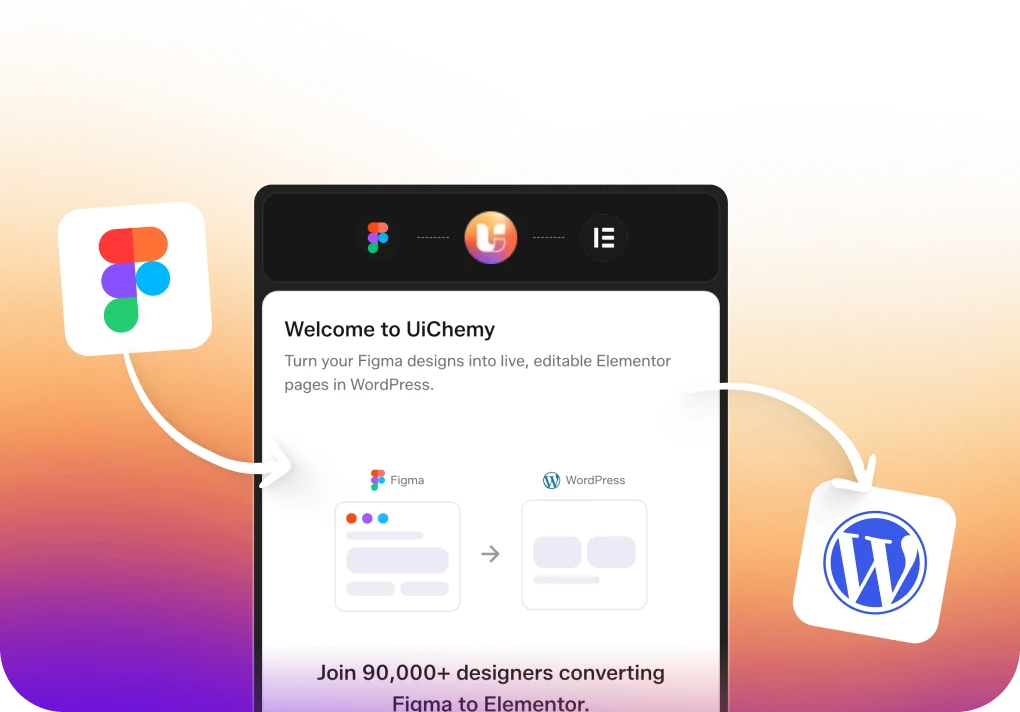
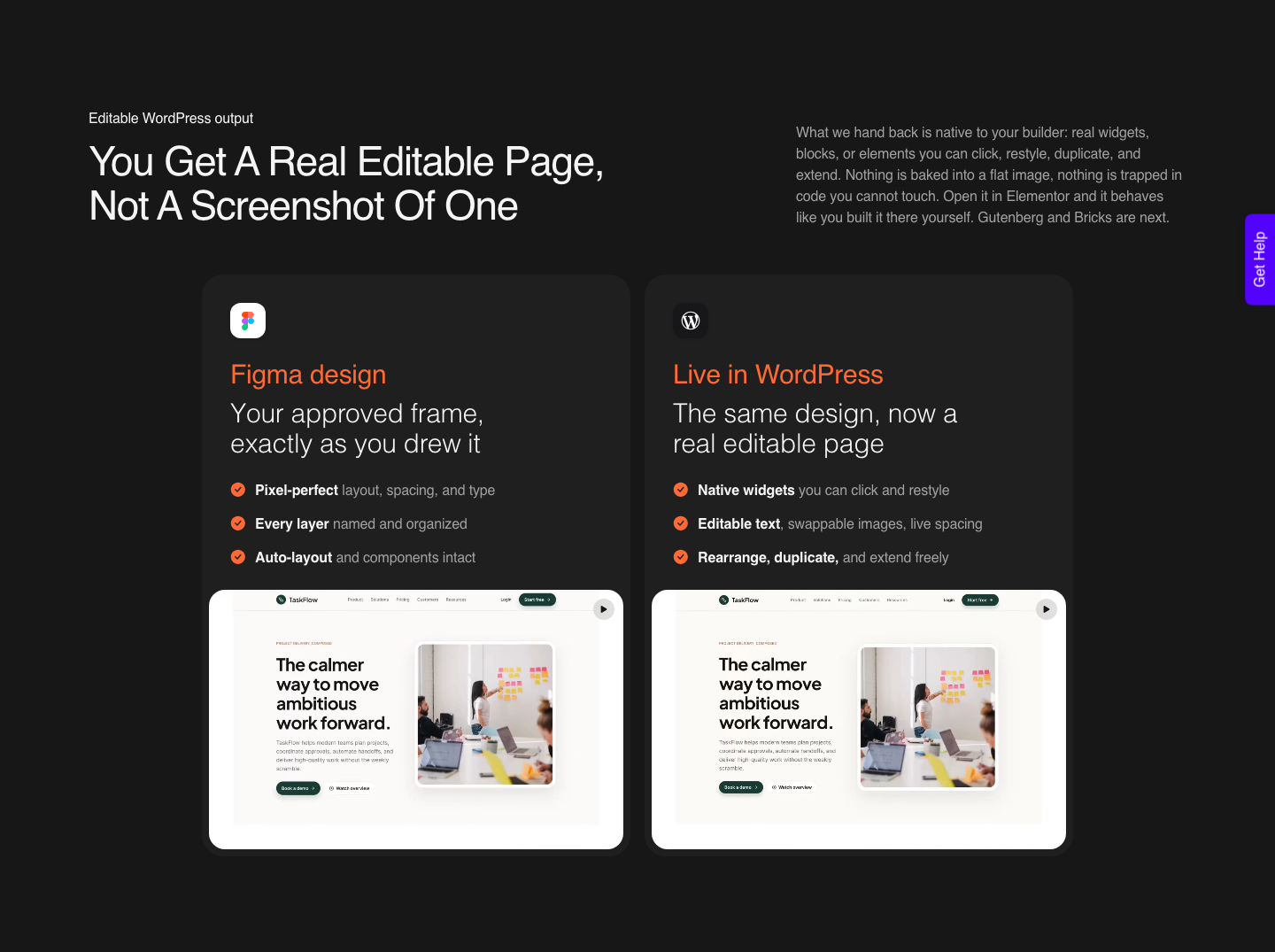
That is the gap, and closing it is a separate step whichever tool drew the design. The output that matters is real editable widgets rather than a flat export: the marquee still slides, the accordion still opens, and the client can change a heading without opening Figma.
AI Express Mode reads an approved Figma frame with no layer tagging and rebuilds it as native Elementor widgets, with Gutenberg and Bricks named as coming next.
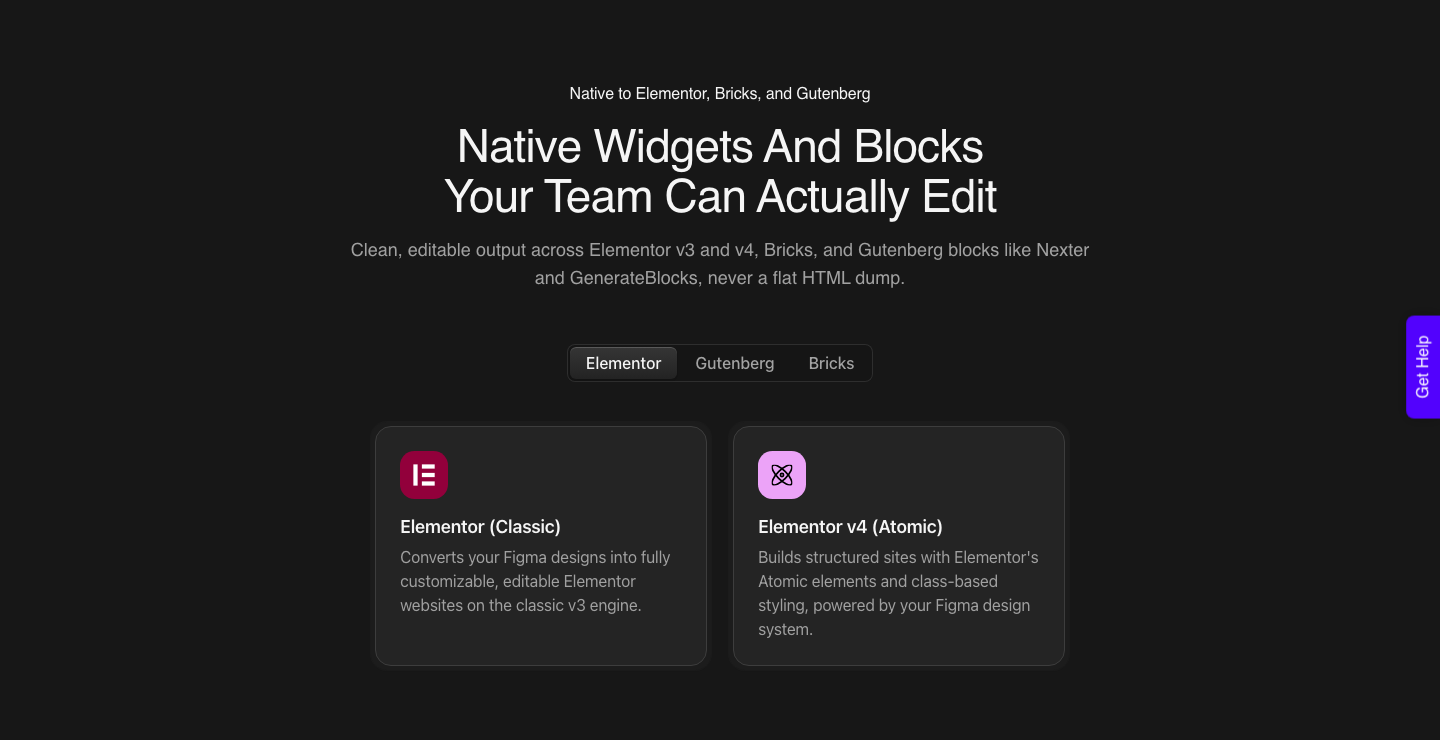
Classic Mode asks you to tag layers and covers Elementor, Elementor v4 Atomic, Gutenberg, Bricks, Nexter Blocks, GenerateBlocks, Spectra and Kadence today.
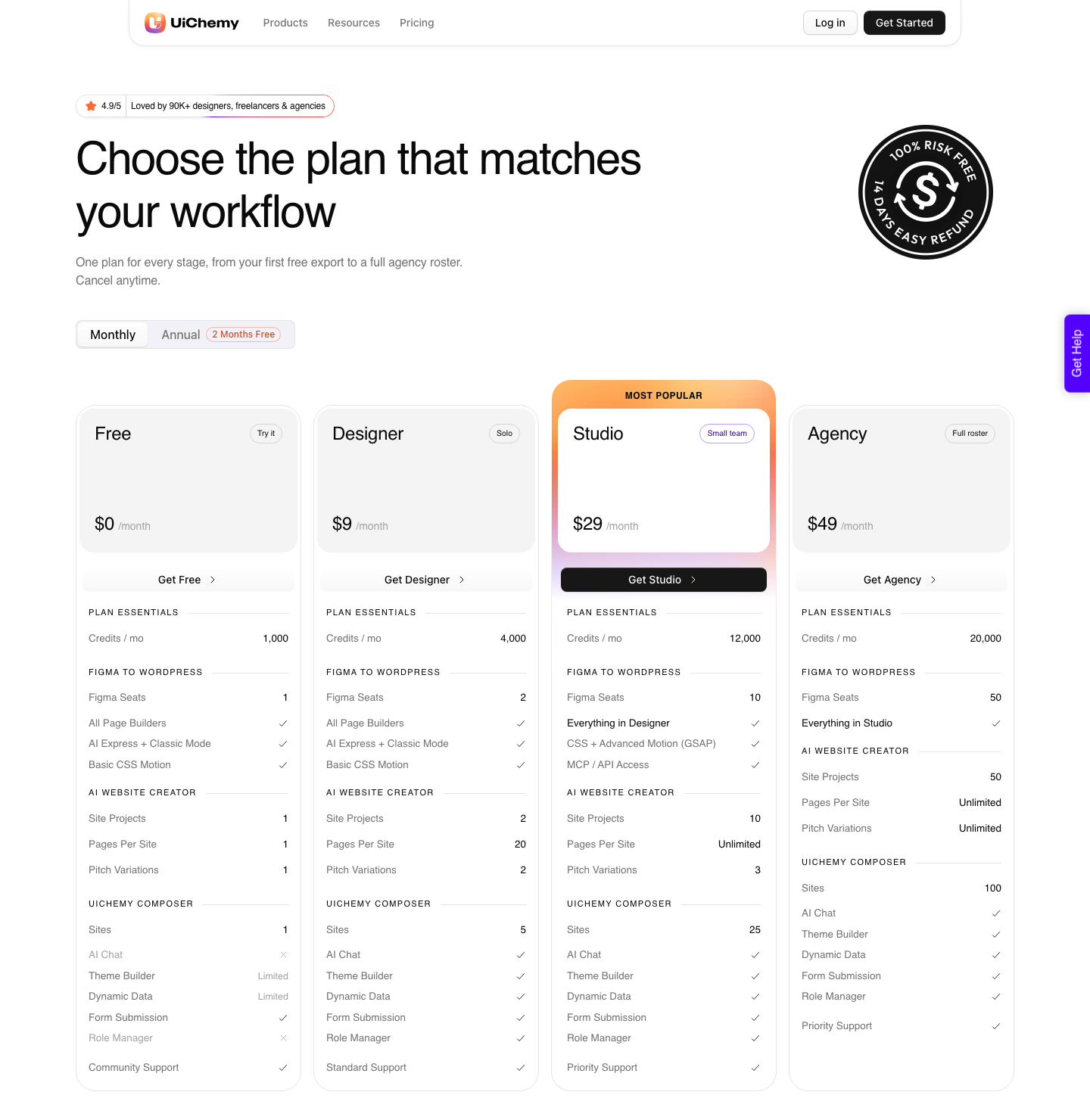
Both modes ship on every plan, the $0 Free plan included, and draw from one shared credit pool.
Since the 7 September 2026 rebuild that step no longer assumes a Figma file. Figma to WordPress is the route this article is about.
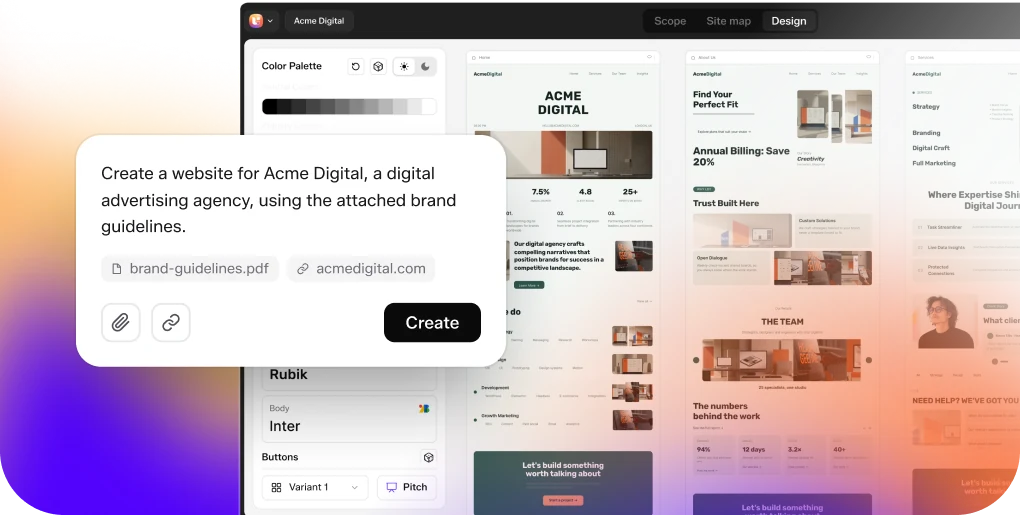
AI Website Creator starts from a prompt or a client brief instead of a frame, through a Brief, Sitemap, Design and Export flow, and its export goes to Elementor with Gutenberg marked Soon on every plan.
UiChemy Composer is one widget inside Elementor that writes real HTML, CSS and JavaScript by prompt. AI to WordPress takes a build an AI tool already made.
That last one needs a clarification, because the site’s own labels read as a contradiction. Claude has a dedicated flow at Claude to WordPress, while Lovable, Codex and Clone Site are marked Soon.
Soon refers to those dedicated one-click pages, not to the capability: a Lovable or v0 build can be moved into WordPress today through Composer. If your design is finishing in Figma, none of that concerns you and the first route is the one to read about.
| Figma AI, end to end | Figma design plus a WordPress conversion | |
|---|---|---|
| What you finish with | A design file, a prototype, or a published app | A page on your own domain and host |
| Who edits it next month | Someone with a Figma seat and credits | Anyone who can open the WordPress editor |
| Blog and content model | Hand-built screens | The post types WordPress already gives you |
| SEO controls | Title, description and custom code slots | Whatever your SEO plugin exposes |
| Responsiveness | Generated, and tuned by prompt | Automatic in AI Express Mode, tuned in the responsive manager |
| Ongoing cost | AI credits, priced per model and per prompt | 1,000 credits free at $0, then 4,000 at $9, 12,000 at $29, 20,000 at $49 |
The preparation is the same either way. A frame with clean auto layout, named components and consistent variables produces better output from the Figma agent and from a conversion.
Our notes on preparing a design before export are the shortest route to fewer corrections at both ends.
Frequently Asked Questions
Is Figma AI free?
Partly, and only for now. Every seat on every plan includes a monthly AI credit allowance, a few tools such as AI search and rename layers consume no credits at all, and the Figma agent is free to try during its beta under a separate monthly usage limit.
Individual AI tools require Professional, Organization or Enterprise.
What is the difference between the Figma agent and Figma Make?
Figma’s own answer is the clearest one. The agent works inside design files and uses the design and AI tools already in the product.
Figma Make generates interactive apps and prototypes and publishes them to the web. Different output, different file type, different job.
Can the Figma agent build a prototype for me?
Not yet. Figma lists prototyping and interactions in the coming soon column of its capability table, along with vector editing, the Draw tools, creating icons and using slots.
It can already add motion and animation, which is a different thing from wiring navigation between screens.
Which Figma AI products are still in beta?
Figma Sites and Figma Buzz carry a Beta label in Figma’s own navigation. The Figma agent is in open beta.
Weave tools inside Figma Design, generative plugins and shaders are labelled Beta on the AI page. Make in your local codebase is closed beta, Mac only, and behind a waitlist.
Does Figma AI build WordPress sites?
No. Nothing in the Figma line outputs WordPress.
Figma Sites publishes to Figma’s own hosting and Figma Make publishes an app to a figma.site URL. Getting an approved frame into WordPress as editable widgets is a conversion step that happens after the design is signed off.
A Figma Make output is code rather than a frame, so that one goes through UiChemy Composer instead of the Figma converter.
Can I turn Figma AI off for my team?
Yes. Admins can opt a team or organisation out of AI features entirely, and if you cannot see AI in your account that is one of the likeliest reasons.
Enterprise admins can also toggle AI on and off, set individual credit limits, and allocate credits across teams or cost centres.
The Short Version
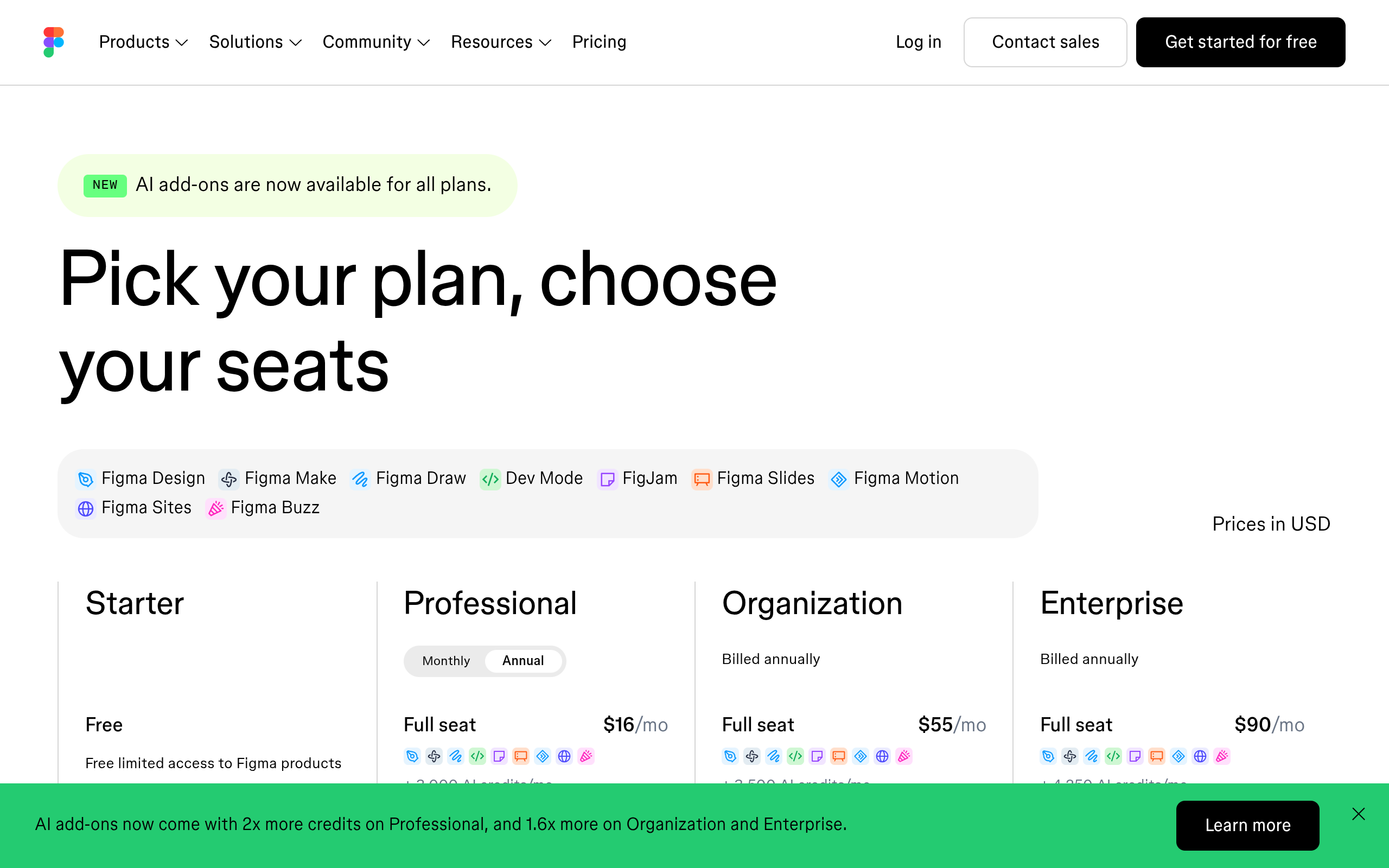
Figma AI is now three things: an agent on the canvas, a prompt-to-code product, and a scattering of single-purpose tools. Learn the agent while its beta is free, use the tools that cost nothing without thinking about it, and read the beta labels before you promise anything to a client.
What none of it produces is a site somebody else can maintain. That step is a conversion, and it belongs after the approval rather than instead of it.
Primary sources for this piece: Figma’s AI workflows page, Get started with Figma AI, Work with the Figma agent in design files, How AI credits work, the Figma Make FAQs and the Figma pricing page, all fetched on 8 September 2026.