



If you are showing some number stats in your Figma design, then you can tag those elements as the Number Counter widget from The Plus Addons for Elementor using the UiChemy plugin.
So when you export the design as an Elementor template, that particular section will use the Number Counter widget.
What Can be Tagged?
A frame containing an image or icon, text number and text can be tagged as a Number Counter widget.
How to Tag?
To do this, you can choose between two options: Step by Step Method or Express Conversion.
Here, we’ll go with the Step by Step Method.
- First, select the Step by Step Method and click on the Start button.
- Select the top-level page or frame of your layout, then click on the Next button.
- Under the Widget Tagging Mode tab, select the Manual Widget Tagging Option.
- Next, under the Manage Auto Layout tab, you’ll see two options: It’s already in Auto Layout and Convert to Auto Layout. We’ll go with the first option.
- After that, under the Tag Widgets tab, choose the frame or container that contains your element (Widget). Then, search for the Number Counter widget from The Plus Widgets in the UiChemy panel and select it. Here, you’ll see all the supported Elementor widgets.
On the next screen, you’ll get the information of which element you are tagging as what widget.
Then you’ll see widget specific tagging options, and some of the options will be auto-filled based on your design.
- From the Style dropdown, you have to select a style.
- Then, from the Title dropdown, you have to select the text.
- In the Starting Number field, you can enter the starting number of the counter.
- Then, in the Ending Number dropdown, you have to select the number text.
- After that, the icon or image will be automatically selected in the respective Icon/Image tab based on the element used in your design. If your design includes a symbol, you can select it and its position from the Symbol and Symbol Position dropdowns, respectively.
- Once done, click the Save button to complete the tagging, and you’ll see a Tagged successfully message.
Now, if you export the design, that element will use the Number Counter widget from The Plus Addons for Elementor with your selected texts and icon or image.
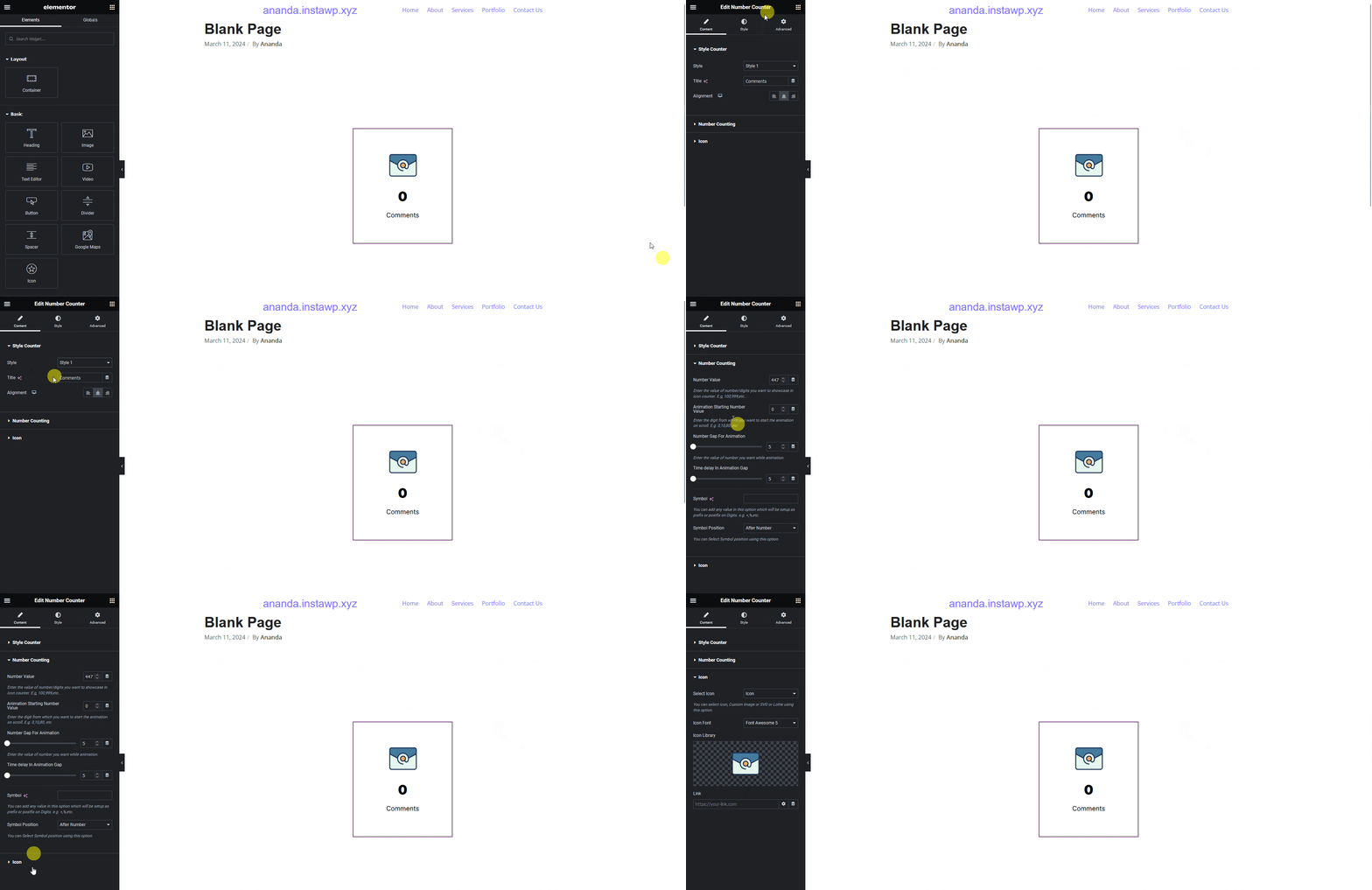
Note: Make sure The Plus Addons for Elementor plugin is installed and activated and the widget is activated as well. You might have to make some minor adjustments in the widget settings to match the design, especially those elements that are not tagged.
