






Best Figma AI Tools, Ranked by What They Output
 Sagar Patel
Open a Figma file on a Professional plan today and you can reach an agent on the canvas, a Tools panel full of Weave workflows, six or seven image operations, a shader generator, a prompt-to-code product and an MCP server. Nobody told you which of those spends money and which does not.
The published roundups on this term list features. That is the wrong axis.
A feature list cannot tell you that renaming layers is free and adding one prototype interaction costs 20 credits, which is the sort of thing that decides whether you finish a client page inside your monthly allowance.
So this is sorted by what each tool hands back and what it charges to hand it back. Every number below comes from Figma’s own help centre and pricing page as published on 7 September 2026, and Figma states these rates can change as models are optimised.
Sorting Figma AI Tools by Output, Not by Novelty
There are five useful groups, and they behave differently enough that lumping them together produces bad advice. One group edits the file you already have.
One produces pixels. One produces a reusable tool.
One produces code. One produces context for something outside Figma.
| Group | What it outputs | Typical credit cost |
|---|---|---|
| File utilities | Edits in place, search results | Free |
| Image tools | New or altered pixels | 1 to 16 per image |
| Weave tools | A processed image from a workflow | Free during the open beta |
| Generative tools | A shader or a plugin you keep | Agent usage |
| Agentic tools | Code, prototypes, whole apps | 30 to 100 or more per task |
| MCP server | Design context inside your editor | Metered by tool calls, not credits |
The Tools That Cost Nothing and Save the Most Time
Figma’s credit table marks four things as free, and they are the four most designers use daily. AI search costs nothing.
Rename layers costs nothing. In FigJam, summarise stickies, cluster stickies and update visual all cost nothing.
Rename layers is the one worth building a habit around if your output ever leaves Figma. A file full of Frame 247 and Rectangle 12 converts worse than a file with named sections, whether the destination is a developer, an agent, or a WordPress builder.
It costs nothing and it improves everything downstream.
AI search is the underrated one. Finding the component you already built is cheaper in every sense than generating a new one that almost matches it.
Image Tools, Priced Per Image
This group has fixed pricing, which makes it the easiest to budget. Figma publishes a rate for each operation, and where several models are available you choose the trade between quality and cost yourself.
| Tool | Output | Credits |
|---|---|---|
| Remove background | The same image, cut out | 1 to 5 per image |
| Vectorize image | Vector paths | 2 to 5 per image |
| Boost image resolution | A larger version of the same file | 5 to 10 per image |
| Erase object | The image minus something | 5 to 10 per image |
| Isolate object | One element on its own | 5 to 10 per image |
| Expand image | More canvas around the subject | 5 to 10 per image |
| Make or edit image | A generated or altered image | 2 to 16, depending on the model |
| Add interactions | Prototype connections in the file | 20 per use |
| Generate templates and diagrams | A FigJam board | 2 to 24 per prompt |
Add interactions is the line that catches people. Twenty credits for one use is more than four background removals, and it is easy to fire repeatedly while iterating on a prototype.
If you are on a 500 credit allowance, that is twenty-five uses and nothing else all month.
Weave Tools, Free While the Beta Lasts
Weave tools are the best-value item on this list right now, and the reason is temporary. Figma states that they are in open beta, free to use during the beta, and that AI credits are not consumed for any prompt or action until they reach general availability.
Access needs a Professional, Organization or Enterprise plan plus edit access to the file. The route is Tools in the navigation bar, the Filter icon, the Weave resource type, then a tool, its settings, and the number of runs you want before you click Generate.
Figma names six curated tools: generate mockup, transfer style, replace background, change lighting, text to vector illustration, and apply colour palette. Each one is a node-based workflow underneath, and the three dot menu offers Open in Weave if you want to duplicate and modify the graph.
The catch is billing separation. Figma and Figma Weave are still separate products, actions in the standalone platform consume Figma Weave AI credits rather than Figma AI credits, and you need a Weave account even though your Figma login works.
Our longer piece on what Figma Weave is for covers that split.
The Generative Tools That Output a Tool
This group is small, new, and the most interesting for an agency. Instead of producing an asset, it produces something reusable that the whole team can run afterwards.
Shaders are the clearest example. You describe a blur, a mesh gradient or a pattern to the Figma agent and it builds the shader, which you then apply on the canvas.
Figma renders these with WebGPU, so a machine that fails the system requirements will not run them, and shaders are in open beta with performance issues named openly in the documentation.
Generative plugins do the same thing one level up: describe the functionality you need and the agent builds a plugin specific to your workflow. For a studio that repeats the same tedious operation on every client file, one afternoon here is worth more than a month of image credits.
The Agentic Tools, and What They Really Cost
Figma Make is the headline product and the expensive one. It is code-backed and visually editable, it can pull design context through Make kits and npm packages, and it can open a pull request against a connected codebase.
Figma publishes approximate consumption rather than a fixed rate, because the cost depends on the model, the task complexity and the volume of context. Changing a font runs about 30 credits or more.
Making an attached design interactive runs about 75 or more. Generating an app from scratch runs about 100 or more.
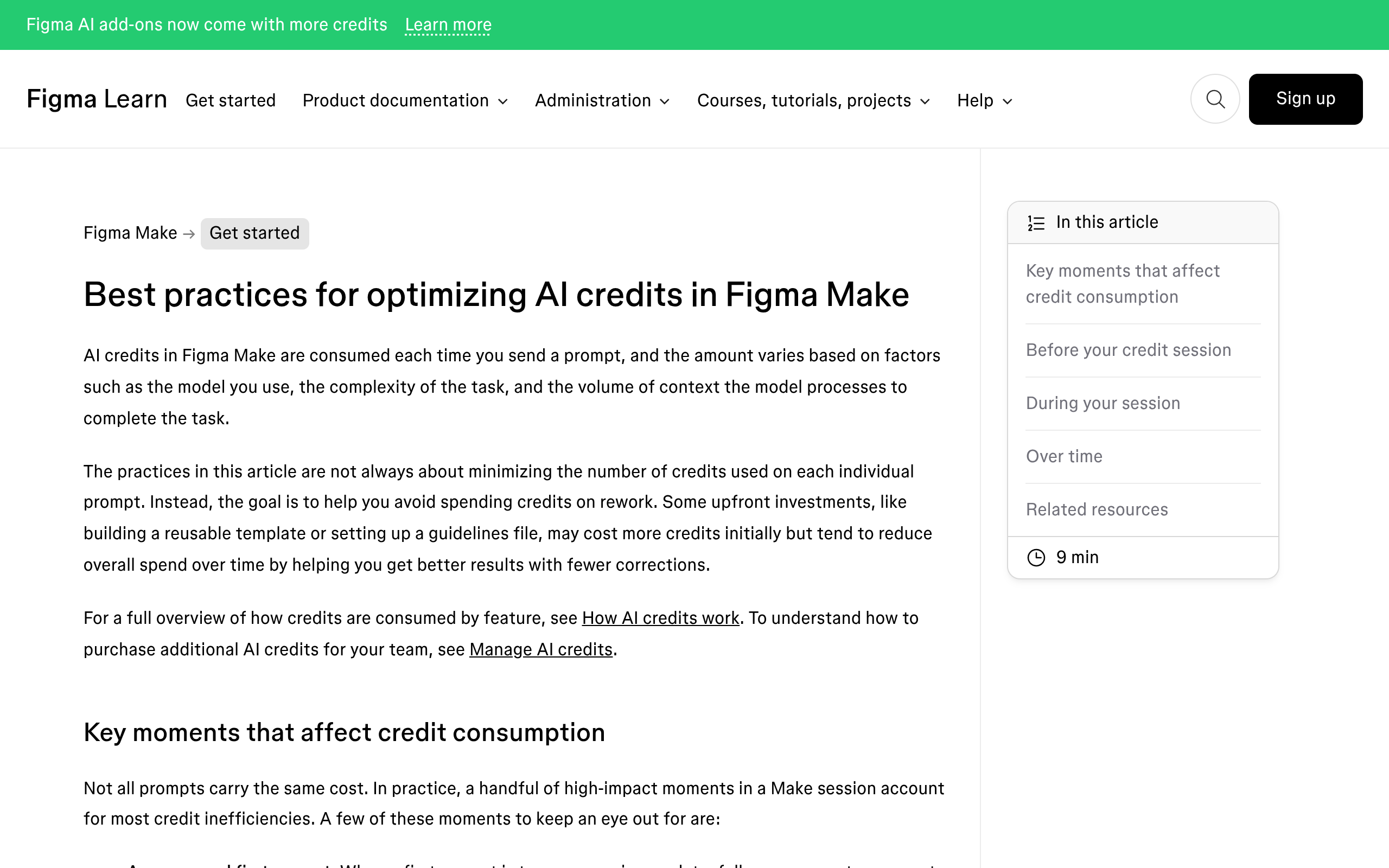
Three levers control that number, and Figma names all three: which model you pick, how complex the request is, and how much context you attach. Long chat histories and attached libraries both raise the bill, which is the opposite of the instinct most people bring to a chat box.
Plan mode is worth understanding before you switch it on. It generates a structured plan as a separate action before any code is written, so it costs more than a straight build prompt.
Figma’s argument is that a well-scoped plan needs fewer corrections afterwards, and corrections are where budgets actually go.
The Tools That Output Into Your Editor
The Figma MCP server is metered differently from everything above, which is easy to miss. It counts tool calls rather than AI credits, and the allowance is set by seat and plan rather than by what you ask for.
| Seat | Starter | Professional | Organization | Enterprise |
|---|---|---|---|---|
| View or Collab | 20 per month | 6 per month | 6 per month | 6 per month |
| Dev or Full | Not available | 200 per day, 10 per minute | 200 per day, 15 per minute | 600 per day, 20 per minute |
add_code_connect_map, create_new_file and whoami are exempt from these counts. Everything that reads your file is not.
What the server returns is design context: variables, components, layout data, screenshots, motion data and downloadable assets, delivered to an editor such as Claude Code, Cursor or VS Code.
It also writes back, creating and updating frames, components, variables and auto layout in a real file. If you want the install detail, our Figma MCP server setup guide covers the commands and the common failures.
The Tool That Outputs a WordPress Page
Nothing in Figma’s own AI lineup produces WordPress. Make produces code, Sites produces a hosted page on Figma’s infrastructure, and the agent produces layers.
For a designer whose clients run WordPress, that is the entire gap.
Disclosure before the next few paragraphs: UiChemy is our product, and it is the one on this list that ends in a WordPress page rather than in Figma, in a codebase or on somebody else’s hosting.
It is worth saying what it is now rather than what it used to be, because the shape changed on 7 September 2026.
It is four products on one engine, and the starting point decides which one you use: an approved Figma design, a text prompt or client brief, an existing AI build, or a prompt typed inside the builder itself.
Map that onto the five groups above and the routes are obvious. Layers from the agent go through Figma to WordPress.
A Figma Make build, or a Lovable, Claude, Bolt or v0 build, goes through UiChemy Composer, which is one widget inside Elementor where AI writes real HTML, CSS and JavaScript you can then edit by hand or by prompt.
A client brief that never became a design at all goes into AI Website Creator, which writes the scope, generates the sitemap, designs the pages and exports to Elementor.
Export to Gutenberg from AI Website Creator is marked Soon on all four plans, Agency included.
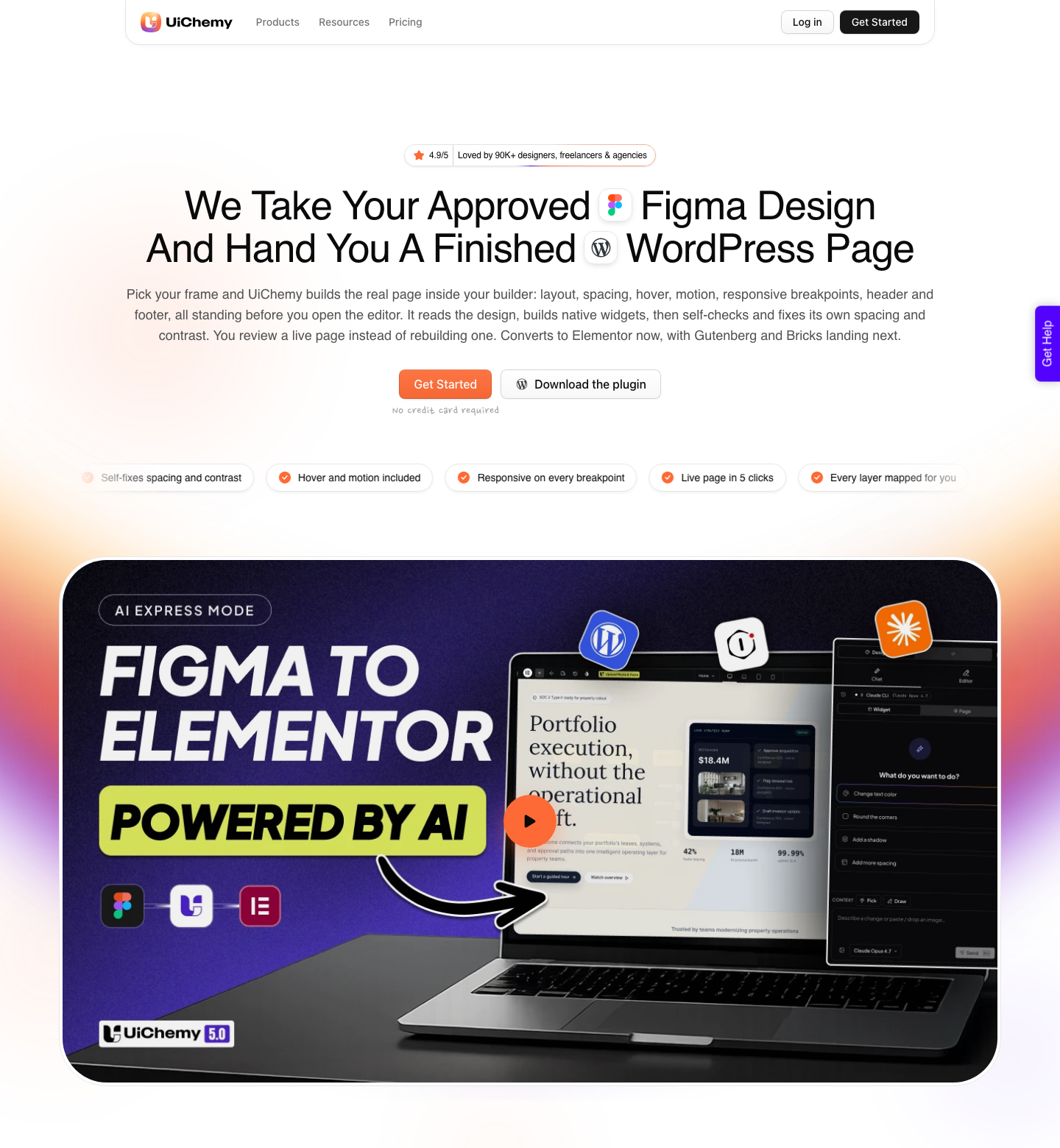
AI Express Mode reads every Figma layer like a browser, with no tagging, naming or mapping, and rebuilds the page as native widgets. Colours and typography sync into Elementor v3 globals and into the v4 Atomic classes, and the header and footer go to the theme builder rather than being separated by hand.
Classic Mode is the same plugin with manual control: widget tagging in Figma, a design optimiser, JSON and copy-section export, RTL support, multi-page import, and image format choice across WEBP, PNG, AVIF and JPEG with adjustable compression.
Be precise about builder coverage, because the two modes differ. AI Express outputs to Elementor today and lists Gutenberg and Bricks as coming next.
Classic Mode covers Elementor, Elementor v4 Atomic, Gutenberg, Bricks, Nexter Blocks, GenerateBlocks, Spectra and Kadence right now.
The credit arithmetic runs on a second meter, which is the honest way to present it next to Figma’s. There is a Free plan at $0 a month carrying 1,000 credits, one Figma seat, one AI Website Creator project of one page and one Composer site.
Designer is $9 for 4,000 credits, Studio $29 for 12,000, Agency $49 for 20,000, annual billing is advertised as two months free, and every paid plan carries a 14-day refund window.
MCP and API access, and advanced GSAP motion, both start at Studio rather than being included everywhere.
A Sequence That Uses the Cheap Tools First
Here is the order that spends least on a real client page with a hero, six feature cards and a testimonial block.
- Run rename layers across the frame. It is free, and every later step reads the file better for it.
- Use AI search to find components you already own before generating anything new.
- Do the imagery in Weave tools while they consume no credits, and pick the number of runs before generating so you compare four outputs rather than accepting the first.
- For anything Weave does not cover, choose the cheaper image model deliberately. Two credits against sixteen adds up across twelve product shots.
- Only reach for Figma Make when you actually need code. At roughly 100 credits a generation, it is the most expensive way to explore a layout.
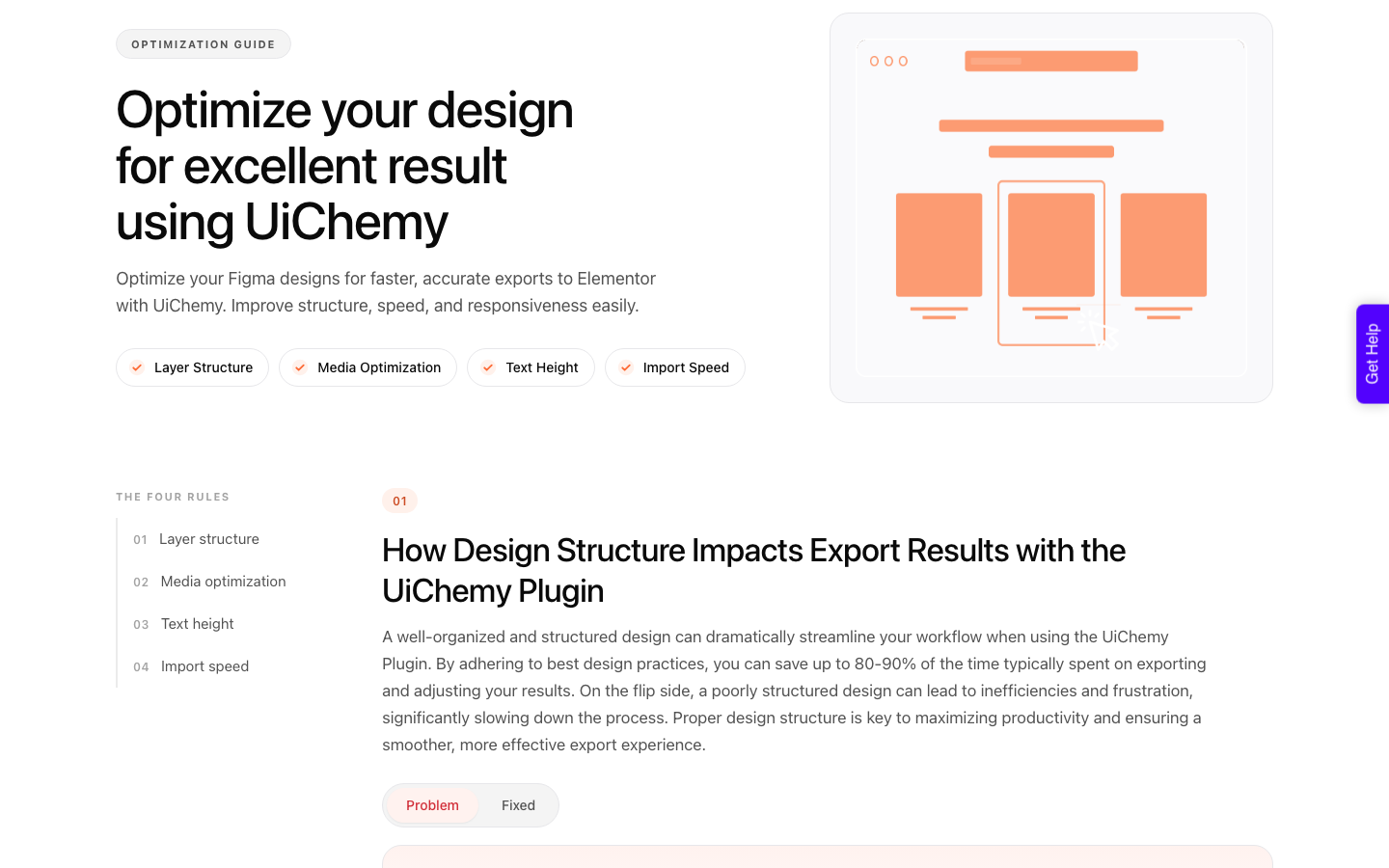
- Tidy the file against the design optimisation checklist before conversion. Its four rules are layer structure, media optimisation, text height and import speed, and locked masked groups export as one image rather than a pile of containers.
- Convert to your builder, then finish inside the editor rather than going back to Figma for small changes.
Honest Limits Worth Naming
- Free during beta is a date, not a price. Figma says credit usage will apply to Weave tools once they reach general availability.
- Credits do not roll over. Seat credits reset monthly, cannot be shared or transferred, and have no monetary value.
- Published rates are approximate for agentic work. Figma notes the non-deterministic nature of the models and says your own usage history is the best estimate.
- Shaders and the Figma agent are in open beta. Figma names performance issues in its own documentation rather than hiding them.
- None of these tools ends in WordPress. Conversion is a separate step, and a verified reviewer puts the split at roughly 70% of the design work handled with the remaining 30% fine-tuned in the builder. Anyone promising a finished page is overselling it.
- Two UiChemy routes are Elementor-only today. AI Express Mode and AI Website Creator both export to Elementor, with Gutenberg marked Soon. Composer’s own product page says it runs inside Elementor as well. Gutenberg and Bricks today means Classic Mode.
Frequently Asked Questions
Which Figma AI tools are free?
Figma’s credit table lists AI search, rename layers, and the FigJam summarise, cluster and update visual actions as costing nothing. Weave tools inside Figma Design are also free right now because they are in open beta, and Figma has said credits will apply when that ends.
How many AI credits do I get?
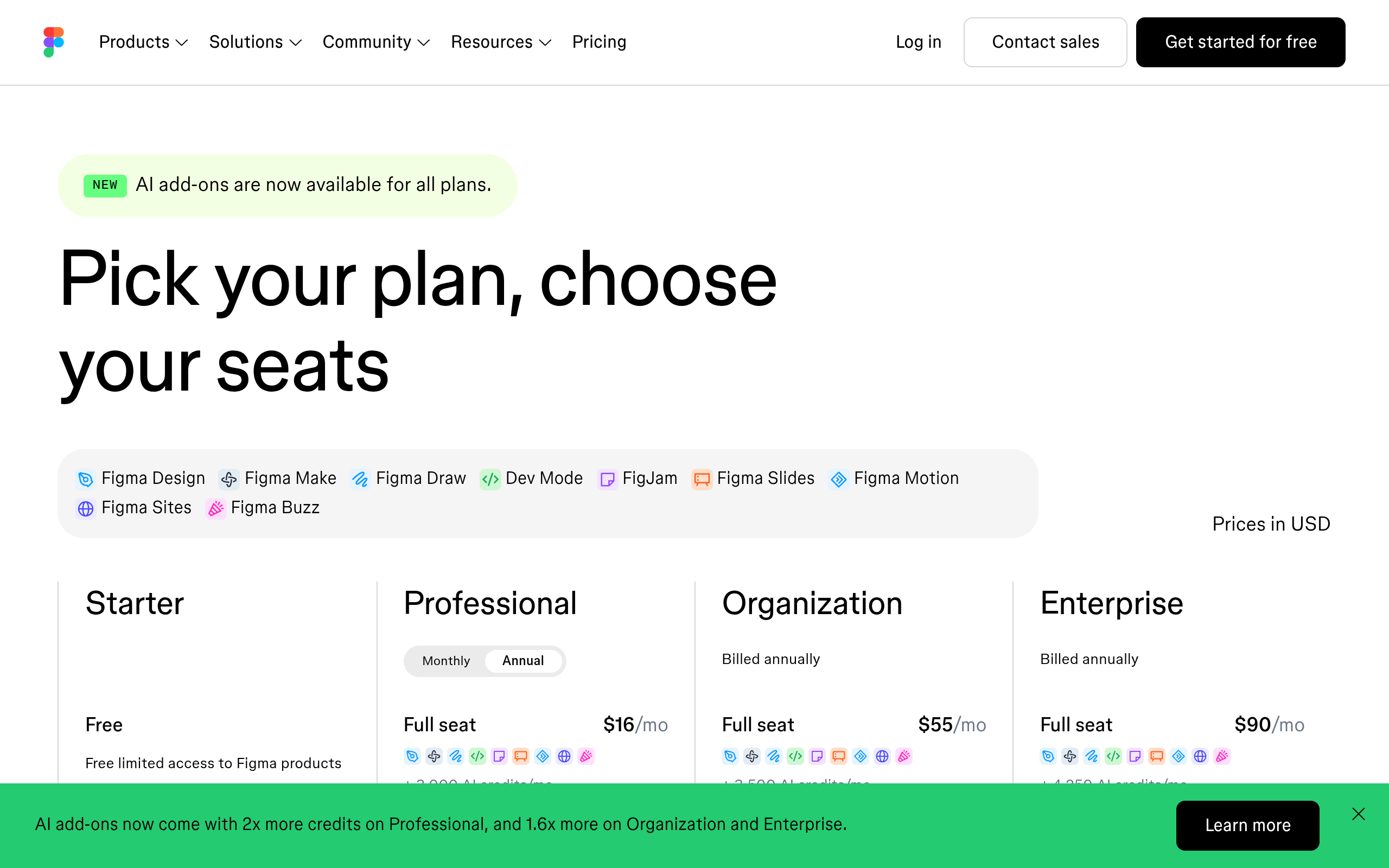
A Full seat gets 3,000 a month on Professional, 3,500 on Organization and 4,250 on Enterprise. Dev, Collab and View seats get 500 a month on every paid plan.
Starter and View seat users also have a daily cap of 150 credits.
What is the most expensive Figma AI tool?
Figma Make, by a wide margin. Figma’s published approximations put a from-scratch app generation at 100 credits or more, against 1 to 16 for a single image operation.
Adding interactions to a prototype is the surprise at 20 credits per use.
Can Figma AI tools build a website?
Figma Sites publishes one and is still labelled beta on Figma’s pricing page. Figma Make produces a code-backed prototype you can publish to a URL.
Neither produces a WordPress page, so if the client’s site is WordPress, a conversion step sits between the design and the deliverable.
Do AI credits carry over month to month?
No. Figma states that seat credits are assigned to an individual, reset monthly, do not roll over, and cannot be shared or transferred.
For sustained team use, admins add capacity through an AI credits subscription or pay-as-you-go billing.
The Short Version
Spend the free tools first, spend the image tools deliberately, and treat the agentic tools as the expensive equipment they are. Learn the Weave tools while the beta price holds, because that price has an expiry date printed on it in Figma’s own documentation.
Then decide where the page lives. If it is WordPress, none of these tools finishes the job, and the honest comparison is between rebuilding by hand and converting.
Our companion piece on AI UI generators sorted the same way covers the tools outside Figma.
Primary sources for this piece: how AI credits work, using Weave tools in Figma, creating shaders with the Figma agent, MCP rate limits and access and Figma’s pricing page, all fetched on 7 September 2026.