Setting Up a Figma MCP Server Without Losing a Day
 Sagar Patel
You have a signed-off homepage in Figma, a WordPress site waiting for it, and forty minutes before a client call. Somebody told you an MCP server would let your editor read the design directly.
Two hours later you are reading a Node version error in a config file you have never opened before, and the homepage has not moved.
That gap between the demo and the install is what this piece covers. Not what Model Context Protocol is in theory, but the exact commands, the seat requirements that quietly decide whether it works at all, and the five errors that account for most lost afternoons.
Everything below was checked against Figma’s developer documentation and help centre, and against UiChemy’s own docs, on 8 September 2026. Where a feature carries a beta label, the label is stated, because a beta label is the difference between a tool you experiment with and one you put on a client invoice.
What a Figma MCP Server Connects, Precisely
The Model Context Protocol is a standard interface that lets an AI agent talk to a data source. The Figma MCP server is Figma’s implementation of that interface, and it does two directions of traffic.
It hands design context out of a Figma file to your editor, and it writes native Figma content back onto the canvas.
Figma’s tool list is longer than most people expect.
On the read side sit get_design_context, get_metadata, get_variable_defs, get_screenshot, get_motion_context, download_assets and search_design_system.
On the write side sit create_new_file, generate_figma_design, generate_diagram and the Code Connect mapping tools.
The distinction that matters for setup is the “remote only” column in Figma’s own table.
Tools including download_assets, search_design_system, get_libraries, create_new_file, generate_figma_design and whoami exist only on the remote server.
Install the desktop one and those tools simply are not there.
Remote or Desktop, Decide Before You Install
This is the first fork and the one most setup guides skip. Figma ships two servers with the same name and different behaviour, and installing the wrong one is the single most common cause of “the tools are missing” after an otherwise clean install.
| Remote server | Desktop server | |
|---|---|---|
| Endpoint | https://mcp.figma.com/mcp | Local, through the Figma desktop app |
| Desktop app required | No | Yes, and the file must be open |
| Seats and plans | All seats and all plans | Dev or Full seat, paid plans only |
| Authentication | Figma OAuth flow | Enabled inside Dev Mode in the app |
| Write to canvas | Yes | No |
| Capture live UI to Figma | Yes, select clients | No |
| Figma’s own recommendation | Preferred, broadest feature set | Specific organisation and enterprise cases |
There is a worse version of this mistake. If both servers are configured at once, your client may connect to the desktop one and never load the remote-only tools, with no error to tell you why.
Figma documents this as a conflicting server configuration, and the fix is to remove one of them rather than restart things hopefully.
The Install, Client by Client
Figma restricts connections to clients listed in its MCP Catalog, so an editor that supports MCP in general is not automatically allowed in.
The catalogue currently covers Claude Code, Claude Desktop, Codex, Cursor, VS Code, Copilot CLI, Gemini CLI, Warp, Android Studio, Kiro, Replit, Factory, Firebender, Augment Code, Amazon Q, Openhands and Xcode in beta.
For Claude Code, the shortest correct route is one command. The user scope matters more than it looks, because the default local scope installs the server into the current project only and you will reinstall it for every client site you touch.
claude mcp add --scope user --transport http figma https://mcp.figma.com/mcpThen type /mcp, select figma, choose Authenticate, and click Allow Access in the browser window that opens. You are looking for the line Authentication successful.
Connected to figma. Anything else means the OAuth round trip did not complete, and retrying it is faster than debugging it.
| Client | Fastest install | Write to canvas |
|---|---|---|
| Claude Code | claude plugin install figma@claude-plugins-official | Yes |
| Codex | codex mcp add figma --url https://mcp.figma.com/mcp | Yes |
| Cursor | Type /add-plugin figma in the agent chat | Yes |
| VS Code | Add the server block to mcp.json, then click Start | Yes |
| Gemini CLI | The Figma extension from the extensions directory | No |
| Replit | Remote server only | No |
| Xcode 27 beta | One-click plug-in setup from Settings, Intelligence | Yes |
The VS Code path is the one worth writing out, because a malformed JSON file produces a silent failure rather than a message. Open the command palette, choose MCP: Open User Configuration for a global install, and paste the block below.
{
  "inputs": [],
  "servers": {
    "figma": {
      "url": "https://mcp.figma.com/mcp",
      "type": "http"
    }
  }
}
Skills are the part people skip and then miss. They are agent-level instructions that tell a model which tools to call, in what order, and what to do with the results.
Figma publishes them for Code Connect mapping, for design system rules and for design-to-code work, and they are also available from the Figma Community and Figma’s community-resources repository on GitHub.
The Seat Limits That Decide Whether This Is Usable
Access is free to install and metered to use. Figma publishes the numbers, and they are worth reading before you plan a workflow around the server rather than after your third day of it.
| Seat | Starter | Professional | Organization | Enterprise |
|---|---|---|---|---|
| View or Collab | 20 per month | 6 per month | 6 per month | 6 per month |
| Dev or Full | 20 per month | 200 per day, 10 per minute | 200 per day, 15 per minute | 600 per day, 20 per minute |
add_code_connect_map, create_new_file and whoami are exempt from these counts.
Read the Collab row twice. Six tool calls a month is roughly one page attempt, and a single conversation about a hero section can spend that before lunch.
If you are on a View or Collab seat, the honest answer is that the server is a demo and not a workflow, and Figma’s own advice is to move to a Dev or Full seat.
Figma also reserves the right to change these limits, and the canvas write feature is currently free during beta with the note that it will eventually be usage-based and paid. Price a client retainer on today’s number at your own risk.
Our piece on what Figma AI agents can and cannot do goes further into the cost side.
The Five Failures That Actually Cost You Time
Every one of these is documented by Figma or by UiChemy. None of them is exotic, and recognising them by their symptom is most of the fix.
- Tools do not load at all. On the desktop server, the file has to be open in the Figma desktop app and the MCP section has to be enabled inside Dev Mode. The server only runs while the file is active. Restart the app, then the editor, in that order.
- Some tools load and others are missing. That is the remote and desktop servers configured at the same time. Your client bound to the desktop one, so
use_figmaandgenerate_figma_designnever appear. Delete the configuration you do not want. - A 500 error. Figma’s documentation puts this on the assistant side rather than the server, and the first thing to try is a smaller selection or a simpler prompt, then an editor restart, then the logs.
- Stuck, slow, or an incomplete answer. You selected too much. Figma’s guidance is explicit: generate for a single component such as a card, header or sidebar, not a whole screen, because a large selection sends more context than the model handles well.
- Server disconnected in Claude Desktop. This one is almost always Node. UiChemy’s troubleshooting guide names it directly: Claude Desktop needs Node.js and npx to reach a remote MCP server, and a missing or outdated install produces exactly this message.
The Node fix is short. Install Node.js from the official downloads page, fully quit Claude Desktop rather than closing the window, and reopen it.
If the error survives that, install NVM and switch versions.
curl -o- https://raw.githubusercontent.com/nvm-sh/nvm/v0.40.4/install.sh | bash
nvm install 24
nvm use 24
If NVM reports “Profile not found”, it could not write to your shell config. Run echo $SHELL, then append the two NVM export lines to ~/.zshrc or ~/.bashrc to match.
The full sequence sits in the UiChemy MCP troubleshooting guide.
Staging Sites Behind Basic Auth
Agencies hit this constantly and almost nobody documents it. If the WordPress site you are converting into sits behind HTTP Basic Authentication, which is normal for staging, the MCP client cannot reach it until you pass the credentials through the config.
Generate the Authorization header from your Basic Auth username and password, then add it to the args array alongside the security token. The shape looks like this.
"uichemy-wordpress-uichemy-mcp": {
  "command": "npx",
  "args": [
    "-y",
    "mcp-remote",
    "https://your-site.com/wp-json/uichemy/v1/mcp",
    "--header",
    "UiChemy-Security-Token: YOUR-SECURITY-TOKEN",
    "--header",
    "Authorization: Basic YWJjZDpwdWVz"
  ]
}
Save the file, restart Claude Desktop, and reconnect. Keep that header out of anything you share, since it is your staging password in a thin disguise rather than a token you can rotate independently.
Where the Figma Server Stops and WordPress Begins
Figma’s MCP server is built for developers writing application code. It returns React, HTML and CSS, and Figma publishes a whole documentation page about why the output keeps coming back as web code.
For a product team shipping a Next.js app that is correct behaviour.
For a WordPress build it is the wrong artefact. Code pasted into a page builder is a black box: the client cannot click into it, and the next copy change comes back to you.
That is the gap UiChemy MCP was built for, and the site is careful to frame it as a bonus for developers rather than a requirement.
MCP is also one route of four rather than the product.
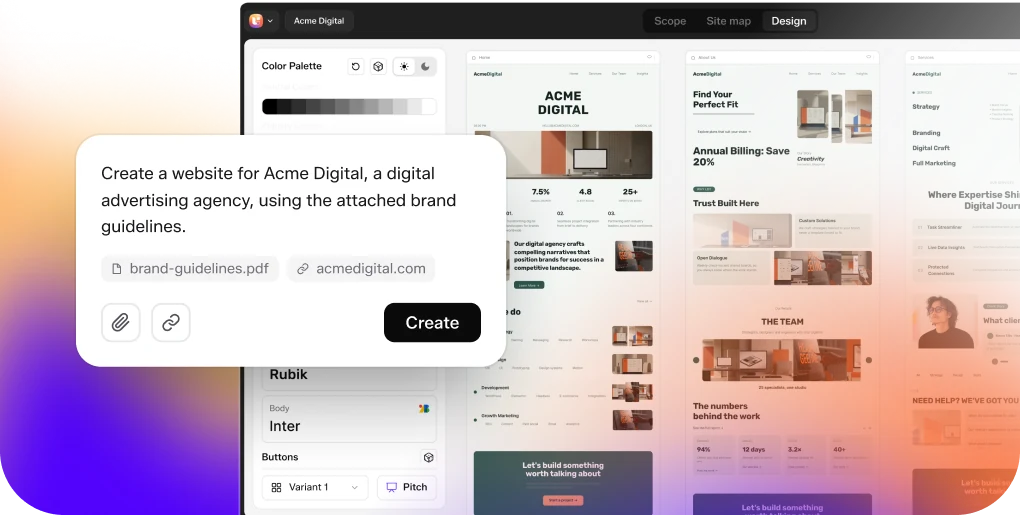
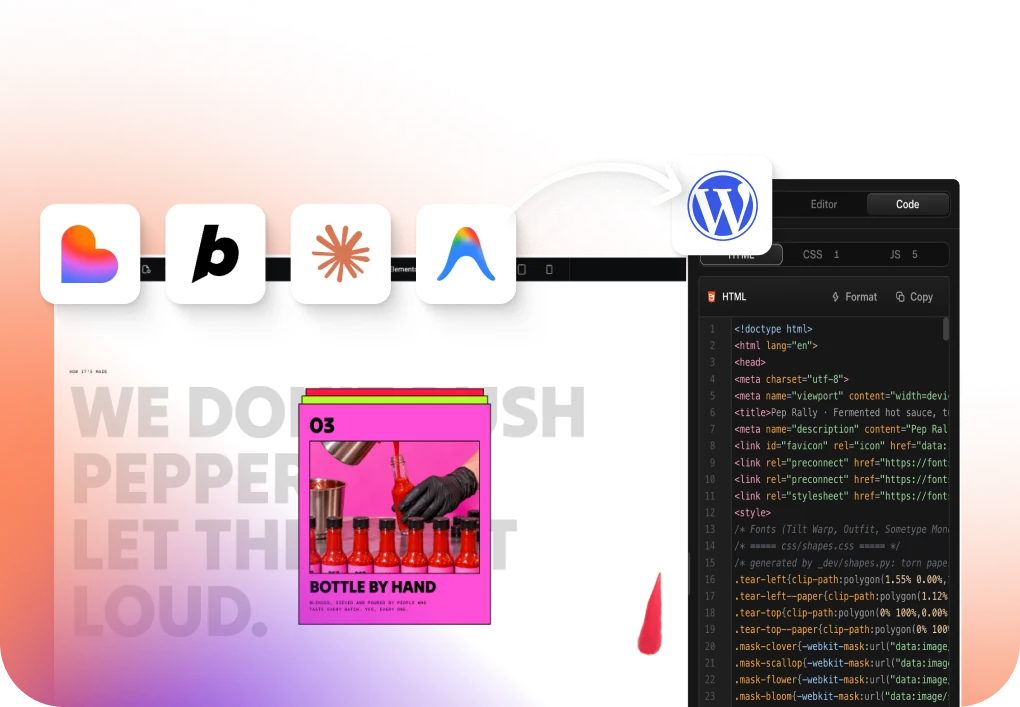
UiChemy runs four entry points into the same engine: Figma to WordPress from an approved design, AI Website Creator from a text prompt or a client brief, UiChemy Composer for writing real HTML, CSS and JavaScript inside Elementor, and AI to WordPress for a build that already exists in Lovable, Claude, Bolt or v0.
A protocol connection matters for the first of those, because that is the one an agent can fire from a chat window.
Pick the route by where the work already is. If a design is signed off in Figma, the converter is the shortest path.
If there is nothing but a brief PDF and a meeting transcript, AI Website Creator takes those as the input and produces a scope, a sitemap and pages, exporting to Elementor today with Gutenberg marked Soon on every plan.
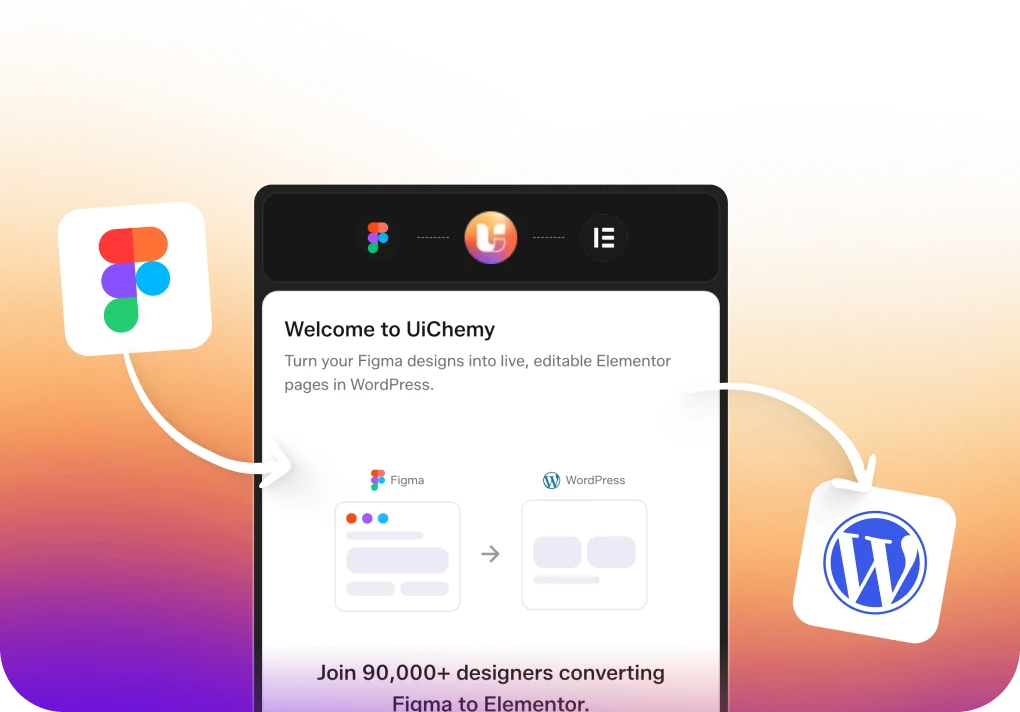
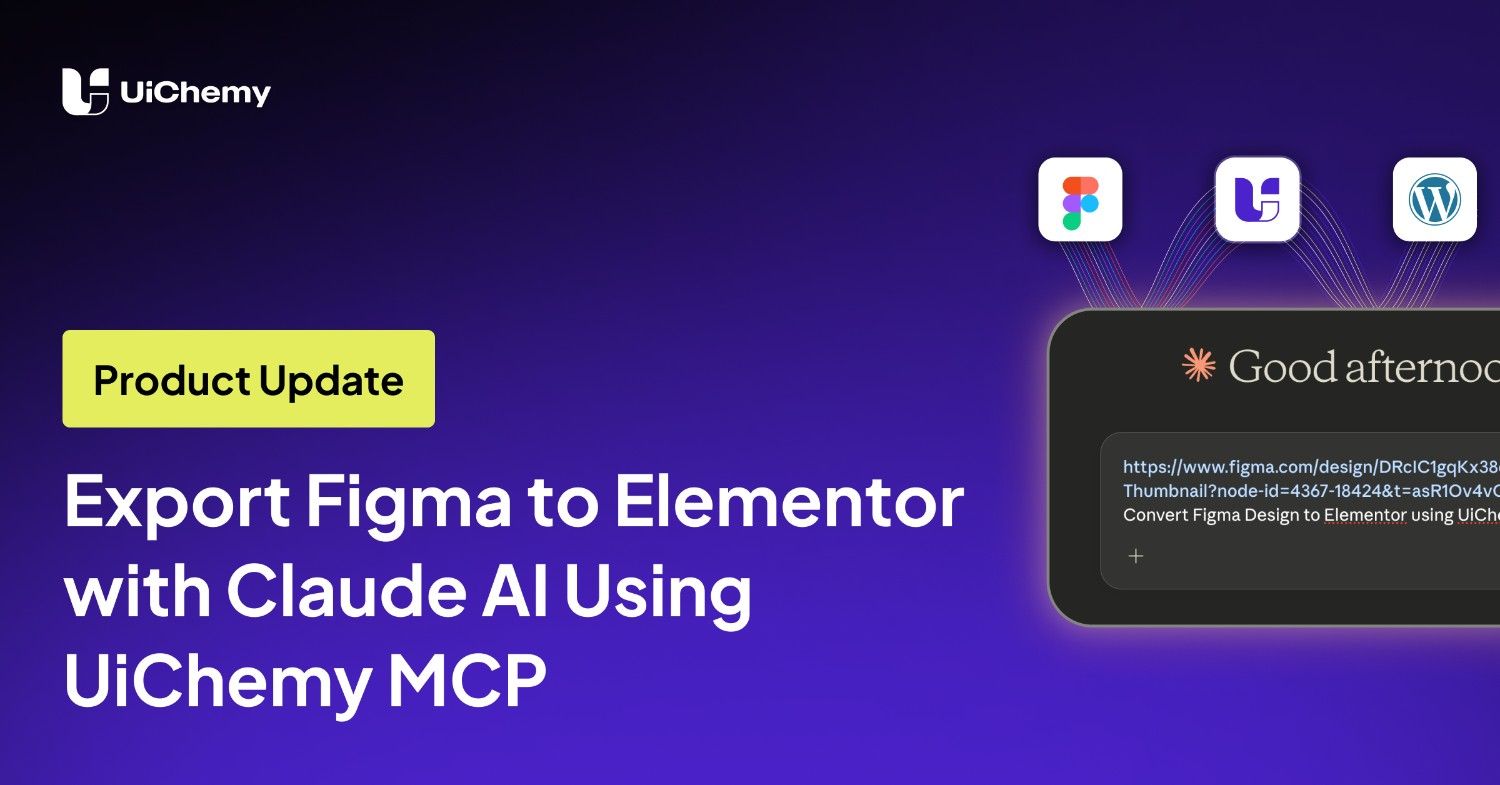
The workflow is short. Paste a Figma frame link into Claude, ask UiChemy to export it, and the conversion checks your Figma typography, spacing and colour values against your Elementor global settings before anything is written.
In one documented demo run it caught new colour variables, updated typography styles, and flagged a container width of 1280px in Figma against 1120px in Elementor, then waited for approval.
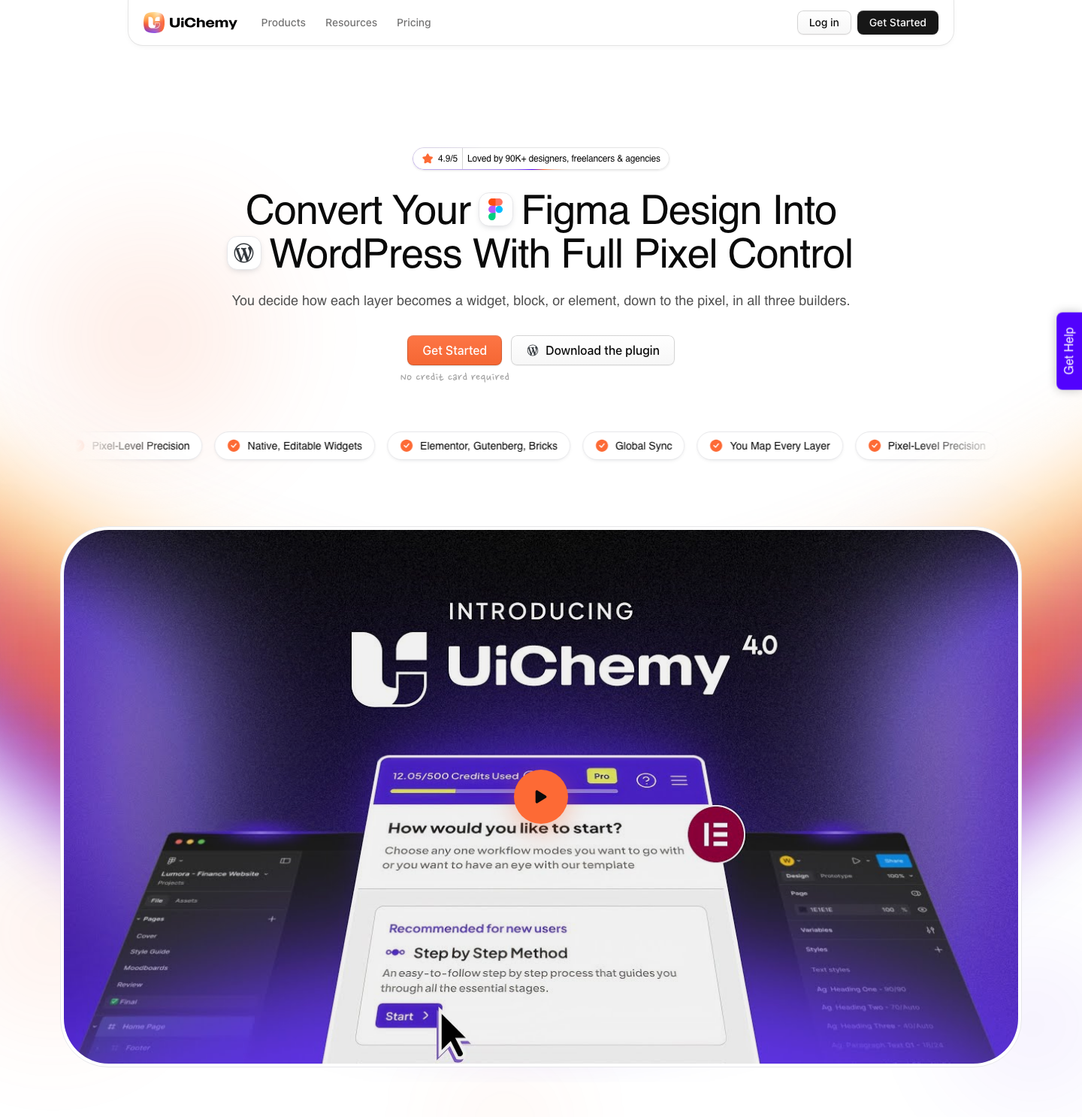
Every layer arrives as a real Elementor widget rather than markup, so navigation menus, buttons, image boxes, counters and social icons behave as though you built them there. Images are compressed to WebP during the import.
Two modes ship in the same plugin: AI Express Mode reads layers with no tagging, and Classic Mode gives you exact control when a pixel has to land.
Setting Up UiChemy MCP, and the Pro Account Caveat
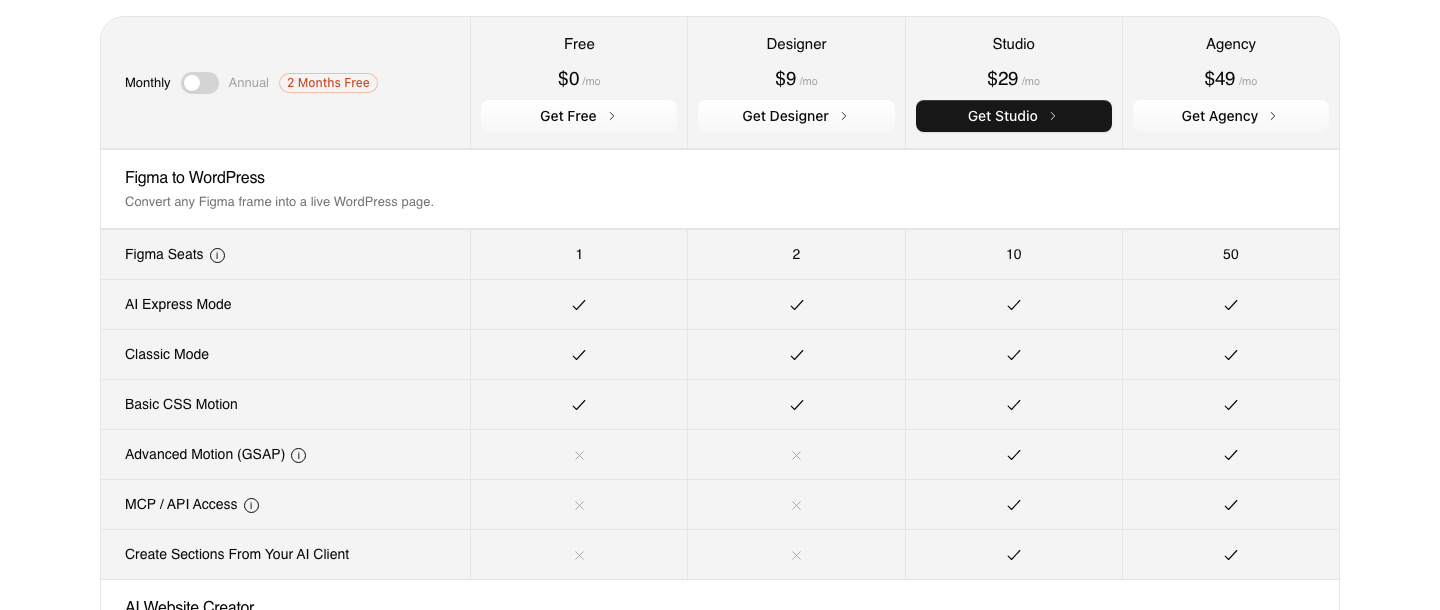
MCP and API access start on Studio, at $29 a month. That is the whole rule, and it catches people who assume the feature ships with the product.
The Free plan at $0 a month carries 1,000 credits, one Figma seat and one Composer site, and Designer at $9 carries 4,000 credits and two Figma seats, and neither of them can open an MCP connection.
Studio at $29 is the first tier with MCP and API access, alongside 12,000 credits a month, ten Figma seats and Advanced Motion with GSAP, which is gated on the same line. Agency at $49 carries 20,000 credits and fifty Figma seats and everything Studio has.
Annual billing is advertised as two months free, and every plan carries a 14-day money-back guarantee.
One caveat belongs at the top of any setup guide rather than buried in a footnote. A Figma Pro account is recommended for this workflow.
It leans on both MCP access and the Figma REST API, and the free plan’s rate limits can interrupt a larger export partway through, which is a worse outcome than not starting it.
Honest Limits, Both Servers
- MCP and API access start at Studio, $29 a month. Neither the $0 Free plan nor the $9 Designer plan opens an MCP connection, and the site frames MCP as a developer bonus rather than the main route into the product.
- MCP output goes to Elementor. Gutenberg and Bricks support through that route is in active development, not shipped. Classic Mode already covers both today.
- AI Express Mode outputs to Elementor only. Gutenberg and Bricks are marked as coming for that mode rather than available.
- Figma’s canvas write tools are free during a beta. Figma has said in writing that this will become a usage-based paid feature.
- Conversion is not cleanup-free. A verified reviewer puts it at about 70% of the design work handled with the remaining 30% fine-tuned in Elementor, and that is the number to quote a client rather than a promise of a finished page.
- Some Figma properties do not map. Anything left loose outside the page container is ignored, which is why the design optimisation checklist is worth ten minutes before your first run.
Frequently Asked Questions
Is the Figma MCP server free?
There is no separate charge today, but access is bounded by your seat.
The remote server is available on all seats and plans, the desktop server needs a Dev or Full seat on a paid plan, and tool calls are capped from 6 a month on a Collab seat to 600 a day on an Enterprise Dev or Full seat.
Figma has said the canvas write feature will eventually be usage-based and paid.
Why are my Figma MCP tools not loading?
Three causes cover most of it. On the desktop server, the Figma app must be running with the file open and the MCP section enabled in Dev Mode.
Second, a conflicting configuration where both servers are installed will bind your client to the desktop one and hide the remote-only tools. Third, in Claude Desktop specifically, a missing or outdated Node.js install produces a server disconnected error.
Do I need the Figma desktop app?
Only for the desktop server. The remote server connects to Figma’s hosted endpoint at https://mcp.figma.com/mcp through an OAuth login and needs no local app.
Figma recommends the remote server for almost everyone, and reserves the desktop one for specific organisation, enterprise and government cases.
Can the Figma MCP server build my WordPress page?
Not as an editable page. It returns design context and code, which an agent turns into React, HTML or CSS.
Getting native Elementor widgets that a client can edit without you is a converter’s job, and that is what UiChemy MCP does from the same chat window. The route itself is documented on the Figma to WordPress page.
Which editors can connect?
Only clients listed in Figma’s MCP Catalog, which today includes Claude Code, Claude Desktop, Cursor, VS Code, Codex, Copilot CLI, Gemini CLI, Warp, Kiro, Replit, Android Studio and Xcode 27 beta among others. Supporting MCP in general is not enough; developers of other clients can join a waitlist.
The Short Version
Install the remote server, not the desktop one, and never both. Check your seat before you plan a day around it.
Select a component rather than a screen. If Claude Desktop says the server disconnected, the problem is Node.js and not Figma.
Then be clear about what you want at the end. If the answer is application code, Figma’s server is the right tool.
If the answer is a WordPress page a client can edit in March without opening Figma, the conversion step is still a separate product, and the narrower Figma Make MCP pipeline is worth reading next.
Primary sources for this piece: Figma’s guide to the MCP server, the remote server installation docs, rate limits and access, the tools and prompts reference and Figma’s pricing page, all fetched on 8 September 2026.