






Figma AI Plugins Worth The Install
 Sagar Patel
The pattern is familiar. A keynote lands, you install six AI plugins in an afternoon, and by Friday three of them want a separate account, one wants an API key you have to pay for elsewhere, and one has renamed forty layers in a way that broke the handoff you spent Tuesday preparing.
The useful filter is not what a plugin generates. It is what the output leaves behind on your canvas, and whether the next person in the chain can work with it.
A plugin that produces a beautiful flattened image has handed you a picture of a solution.
This is a short list rather than a long one, judged by that test, checked against primary documentation on 7 September 2026. UiChemy makes one of the plugins named here, which is stated plainly rather than buried, and the honest limits of ours are listed alongside everyone else’s.
Start By Not Installing Anything
Most of what the AI plugin category was built to do is now shipped inside Figma Design. The AI tools documentation lists image generation, background removal, resolution boosting, object erasing, image expansion, vectorising, layer renaming, text rewriting and asset search as built-in actions on paid plans.
Two of those cost nothing at all. Figma’s credit table lists AI search and rename layers as free, with no per-use charge.
If your reason for installing a plugin was bulk layer renaming, that reason expired.
| Job you wanted a plugin for | Native option today | Credit cost |
|---|---|---|
| Rename messy layers in bulk | Rename layers with AI | Free |
| Find a component across files | AI search | Free |
| Cut a subject out of a photo | Remove background | 1 to 5 per image |
| Turn a logo raster into vectors | Vectorize image | 2 to 5 per image |
| Generate a hero image | Make image | 2 to 16, by model |
| Erase a distraction from a photo | Erase object | 5 to 10 per image |
| Upscale a logo someone emailed you | Boost image resolution | 5 to 10 per image |
| Fill placeholder copy with realistic text | Replace content | Not priced on the published table |
| Add prototype links across a flow | Add interactions | 20 per use |
So the question changes. A third-party AI plugin now has to do something Figma does not do at all, or do it against data Figma does not hold.
That is a much higher bar than it was two years ago, and most of the plugins in a listicle no longer clear it.
Build The Plugin Instead Of Installing One
The most underused AI feature in Figma right now is that the agent will write a plugin for you.
Figma documents this as generative plugins, available in Figma Design on all plans to anyone with agent access, and states that while the feature is in open beta, building and iterating on a plugin costs no AI credits. Running one never costs credits.
Figma sorts them into three kinds: plugins that create content on the canvas, plugins that modify existing layers, and file utilities that manage or organise a file. The examples given include a device variant generator, an icon restyler, a batch layer renamer and a broken-prototype checker.
Figma’s own sample prompts are worth copying verbatim as a starting point. One builds a density mode switcher that produces compact, default and spacious versions of selected frames by scaling spacing tokens.
Another builds a layer hygiene linter that audits for unnamed layers, hidden orphans, empty groups and redundant nesting, with per-row ignore controls.
That linter prompt is the one worth running this week if you convert designs to WordPress. Redundant nesting and empty groups are exactly the conditions that make a conversion produce structure you did not intend, and until now the only fix was reading the layer tree by hand.
The Gaps Where A Third Party Still Wins
Figma publishes a supported-features table for the agent, and the interesting half is the bottom.
Vector editing and the Draw tools, icon creation, component slots, and prototyping and interactions are all marked coming soon rather than available.
Exporting assets on your behalf and building data visualisations are marked with an X.
Read that as a shopping list. Those five rows are precisely where a third-party plugin still earns its install, because Figma has told you it will not cover them this quarter.
Anything outside those rows is a plugin competing directly with a native feature that is already paid for.
Two more gaps sit outside Figma entirely. Anything that needs data Figma does not hold, such as an accessibility standard or an attention model, and anything that has to write to a system you own, such as a WordPress install.
Those three categories cover every plugin below.
Stark, For Accessibility You Can Defend In A Meeting
Stark is the clearest case of a plugin doing something Figma does not. Its suite covers contrast checking with colour suggestions, typography analysis, alt-text annotations, focus order, landmarks, touch targets and a vision simulator.
Stark states that more than 40,000 people across over 28,000 companies use it.
The output test goes well here. Alt-text annotations and focus order markers land on the canvas as artefacts a developer reads during handoff, not as a report you screenshot and lose.
Contrast fixes arrive as suggested colours you apply, which means the fix is in the file rather than in a comment thread.
The honest caveat is that the free tier covers the contrast checker and vision simulator, and the reporting and team features sit behind a paid plan. If you are a solo freelancer, the free half is still the fastest route to a design you can defend when a client’s procurement form asks about WCAG.
Attention Insight, For The Argument About The Hero
Attention Insight predicts where a viewer looks. You right-click a frame, run the plugin, wait about thirty seconds, and get an attention heatmap plus a clarity score, with a button that drops the heatmap straight onto your canvas next to the design it analysed.
Its value is not the prediction, which is a model rather than a user test. Its value is that it converts a taste argument into a comparable artefact.
Two hero variants side by side with two heatmaps is a conversation a client can join, and it takes a minute rather than a research sprint.
Be careful how you present it. A predicted heatmap is not eye-tracking data and saying so out loud is the difference between a credible designer and one who gets caught.
Use it to choose between your own options, never as evidence that a layout will convert.
UiChemy, Because The Design Has To Land Somewhere
Disclosure first: this is our plugin. It sits in the same Figma plugins list as the others, it installs the same way through Resources then Plugins, and it does the one job none of the tools above touch, which is turning an approved frame into a real WordPress page.
The Figma plugin is one of four ways into UiChemy, which is worth knowing before you decide it only belongs on a Figma shelf.
A prompt or a client brief goes into AI Website Creator, which writes a scope, generates a sitemap, designs the pages and exports them.
An existing Lovable, Claude, Bolt or v0 build goes in through UiChemy Composer, one widget inside Elementor where AI writes real HTML, CSS and JavaScript you can then edit by hand or by prompt.
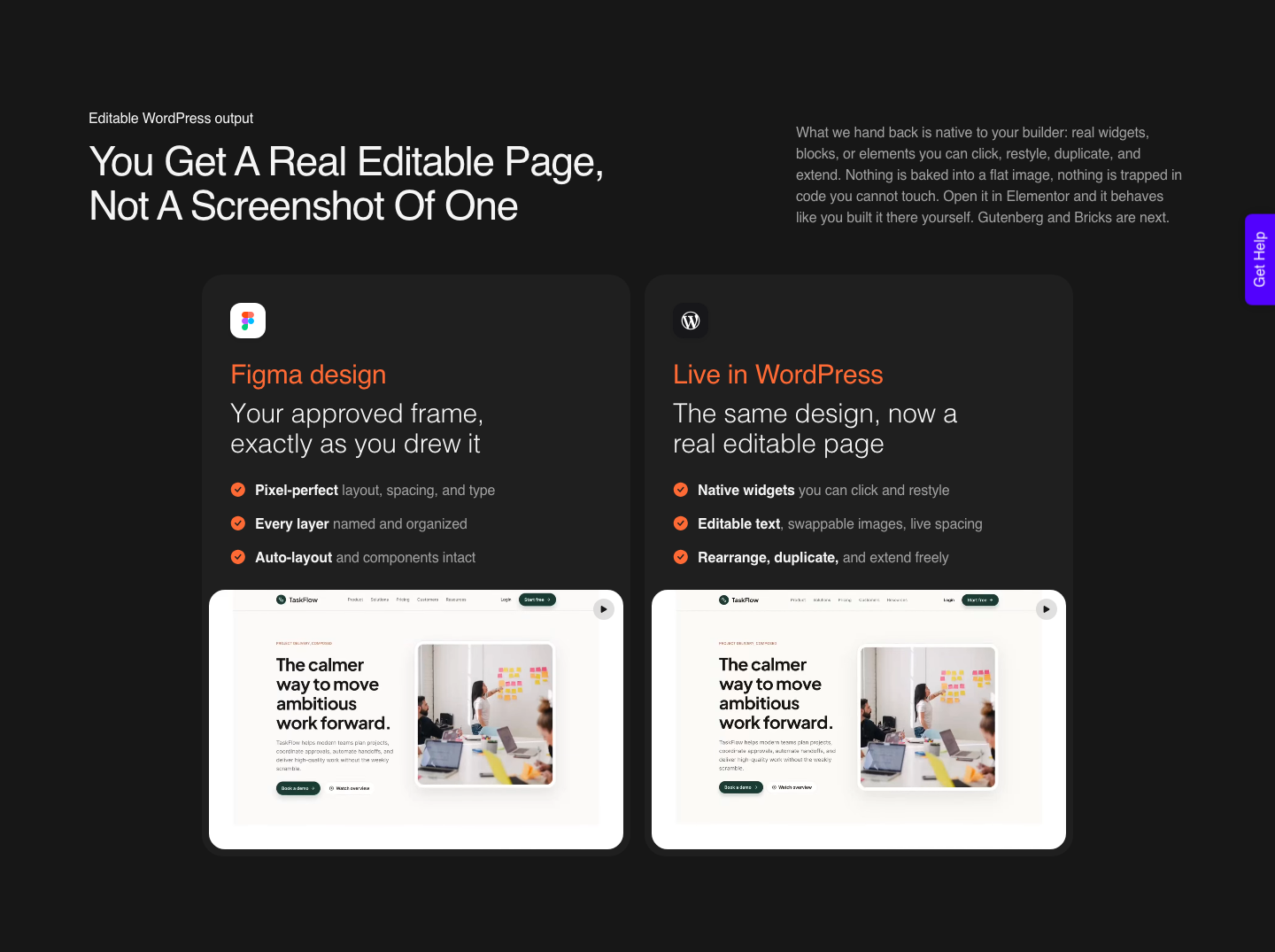
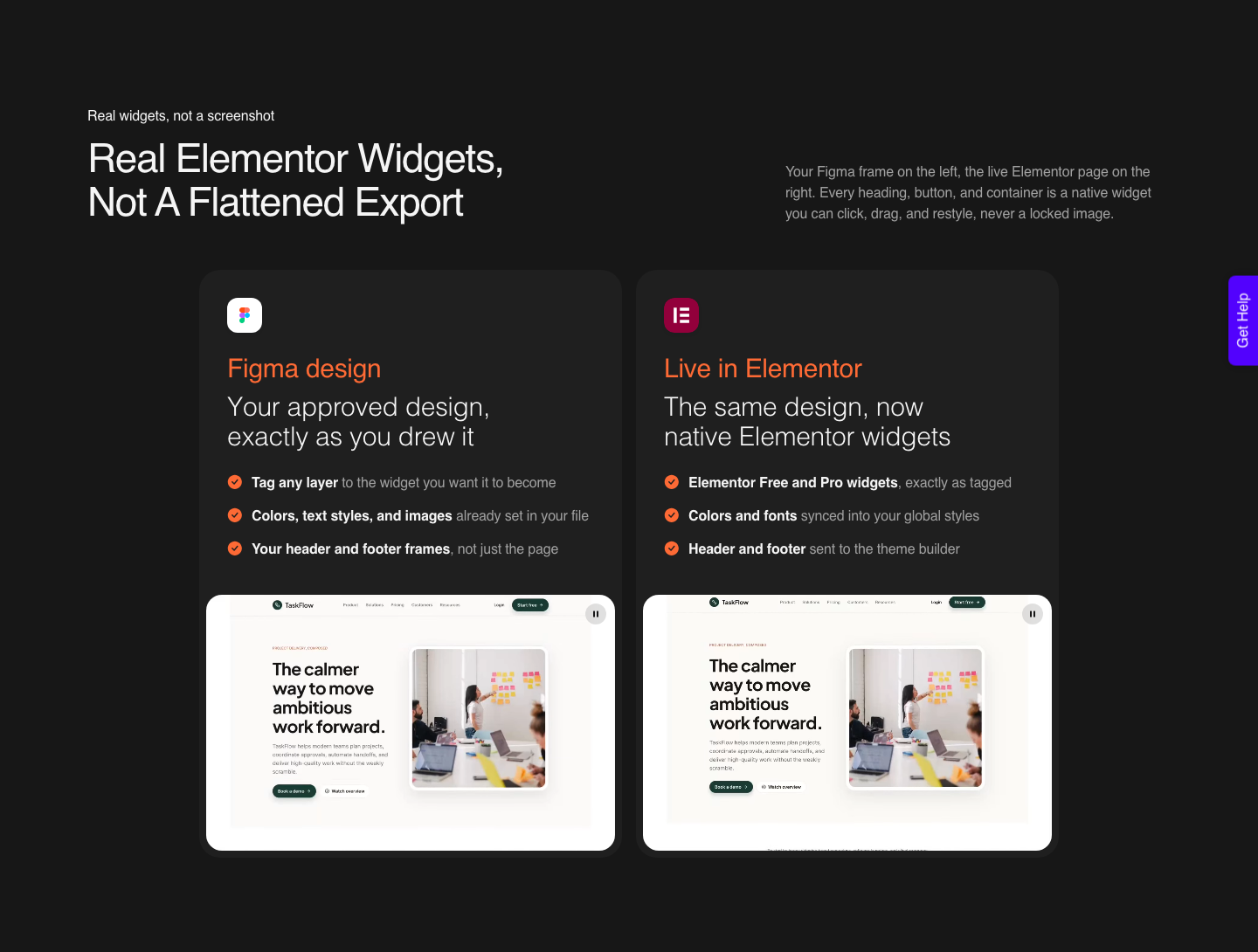
By the output test it scores on one specific point. What lands on the site is native Elementor widgets, Gutenberg blocks or Bricks elements that a client can edit next year, rather than a flat export or locked code.
AI Express outputs to Elementor today, with Gutenberg and Bricks coming, and both are available now through Classic mode.

The honest limits are published rather than hidden. A verified reviewer describes the split as roughly 70 percent of the design work handled and 30 percent left to fine-tune in the editor, which is the number to plan against.
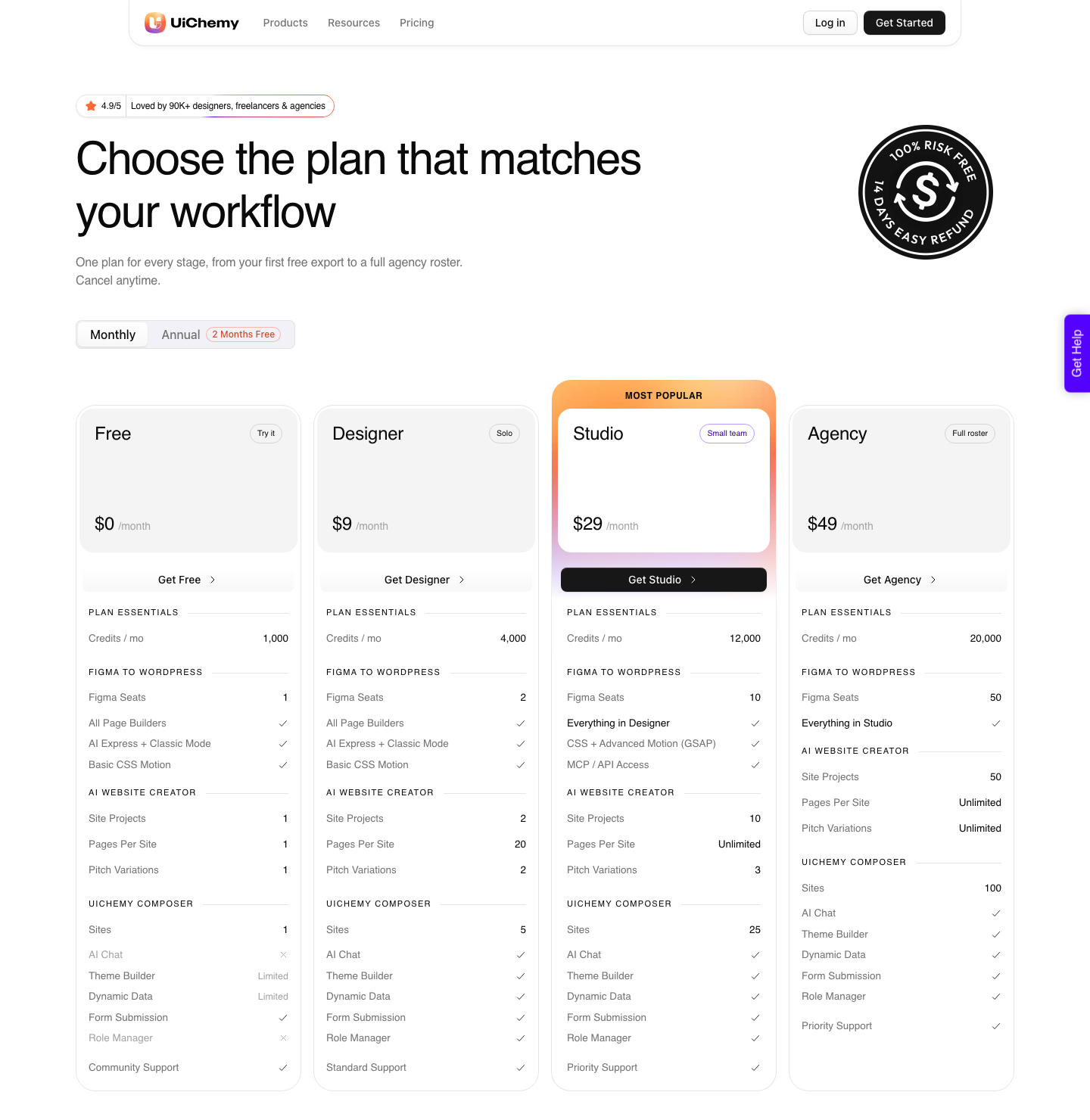
Two more limits belong in the same breath: AI Website Creator exports to Elementor and its Gutenberg export is marked Soon on all four plans, and MCP or API access starts on the Studio plan at $29 a month rather than being included everywhere.
The Four Compared On What Their Output Costs You Later
| Plugin | What it produces | What the output is like afterwards | Account needed |
|---|---|---|---|
| Figma’s native AI tools | Layers, images, renamed trees, text | Ordinary editable Figma layers, nothing new to learn | Your Figma seat, paid plan |
| Generative plugins | A working plugin on your canvas | Shareable across the organisation, no credits to run | Your Figma seat, agent access |
| Stark | Annotations, contrast fixes, focus order | Handoff artefacts a developer actually reads | Free Stark account, paid for team features |
| Attention Insight | Heatmap image plus a clarity score | A flat image beside the frame, useful for comparison only | Separate account and plan |
| UiChemy | A live page on your WordPress site | Native widgets you keep editing on your own site | UiChemy account, free plan at $0 with 1,000 credits |
If you want to browse further, the Figma Community plugin directory is the only listing worth trusting, because installs and reviews are visible and the publisher is named. Treat any external best-of list, including this one, as a starting point rather than an audit.
Where AI Plugins Quietly Cost You
The first cost is structural. An AI tool that restructures your frames to satisfy a prompt has changed the thing a converter reads afterwards.
If a plugin flattens a group, drops auto layout, or replaces a text layer with an image, the WordPress output changes with it and the cause is invisible three days later.
The second is that plenty of Figma properties never survive a conversion regardless of which plugin created them. Our documented list of Figma properties that do not connect to Elementor includes masks on any element, layer blur and background blur, video fills, blend modes on text, and small caps.
The third is credit sprawl. Figma credits do not roll over month to month and do not stack across the plans you belong to.
Add a Stark plan, an Attention Insight plan and a conversion plan on top and you have four renewal dates, which is why consolidating onto tools that share a wallet is worth more than one extra feature.
On our side the entry point is $0 a month for 1,000 credits, paid plans run $9, $29 and $49, and every paid plan carries a 14-day refund window.
The fourth is a governance point most studios ignore. A plugin runs inside your file with access to its contents, so a client under an NDA is a reason to check what a plugin sends where before you install it, not after.
Questions Designers Actually Ask
Are Figma AI plugins free?
The native AI actions are covered by your seat credits, and two of them cost nothing. Generative plugins are free to build and iterate while the feature is in open beta, and free to run permanently.
Third-party plugins run their own billing, which is the part that adds up.
Do I need a paid Figma plan to use AI plugins?
For Figma’s own AI tools in Design, yes. The help centre states they are available on paid plans and require a Full seat.
The agent itself is documented as available on all plans, though only a Full seat with edit access can have it change the file.
Can a Figma plugin build my WordPress page?
A converter can, and so can a prompt if the design does not exist yet. The distinction to hold onto is whether what arrives on the site is editable in the builder your client already uses, or an export that looks right and cannot be changed.
Our Figma to Elementor page shows the widget-level output.
Which plugin should a solo freelancer install first?
Stark’s free tier, because accessibility questions arrive from clients unannounced and the fix is cheapest in the design file. After that, spend an hour on a generated linter plugin rather than installing three more from a list.
Does an AI plugin break the design system?
It can, and the fix is on your side. Connect a library to the Figma agent and reference components with the @ syntax so generated work uses your existing components, variables and styles rather than inventing near-duplicates that a linter later flags.
A Sane Plugin Shelf
Keep four things installed, not fourteen. Figma’s native tools because they are already paid for, one generated linter that matches your own file conventions, one accessibility tool, and one converter that puts the approved design where the client will actually use it.
Then audit the shelf every quarter against one question: what does this leave on my canvas, and can the next person work with it. Anything that fails that question is costing you a login and a renewal date for a picture.
Sources checked on 7 September 2026: Figma’s AI workflows page, the help centre articles on AI tools in Figma Design, generating plugins with the Figma agent and AI credits, plus Stark’s own feature listing and Attention Insight’s plugin walkthrough.