Figma AI Prototyping: Where It Helps and Misleads
 Sagar Patel
A client watches a prototype click through a five step booking flow, sees the confirmation screen appear, and asks when it can go live.
That question is the most expensive sentence in this article, and AI prototyping makes it more likely rather than less, because the artefact now looks and behaves closer to a finished product than any prototype did three years ago.
None of that is an argument against using it. AI prototyping in Figma removes hours of genuinely dull wiring and produces something worth testing.
It is an argument for being precise about which of three quite different artefacts you just made, and about what each one does and does not prove.
Everything below is from Figma’s own help centre, checked on 7 September 2026, including the limitations Figma states in its own words.
Three Things Sharing One Word
“Prototype” now covers three artefacts in Figma with different fidelity, different cost and very different implications for a client conversation. Naming them separately is most of the work.
| Artefact | How it is made | What it genuinely proves |
|---|---|---|
| Hand wired prototype | You draw connections between frames yourself | That the flow makes sense, at the fidelity you drew |
| AI added interactions | Select frames, Prototype tab, Add interactions | The same thing, with the wiring done for you |
| Figma Make build | A prompt, a design URL, or pasted frames | That the interaction pattern works when it actually runs |
Rows one and two produce the same artefact by different routes. Row three produces something that runs, can be published to a URL, and can be handed to a stranger.
That last property is the one that misleads, and it is also the one that makes it valuable.
Where AI Prototyping Clearly Helps
The interaction feature inside Figma Design is narrow and good at what it does. Figma’s documentation describes the whole flow in five steps, and there is no prompt to write.
- Select the frames on the canvas you want interactions between.
- Open the Prototype tab in the right sidebar.
- In the Interactions section, click Add interactions.
- Review the preview that appears in a banner.
- Click Keep it to accept them all.
What it produces is deliberately unambitious: simple flows connecting top level frames, back and next button interactions, and navigation menu links to individual frames. On a fourteen screen flow that is twenty minutes of clicking you no longer do.
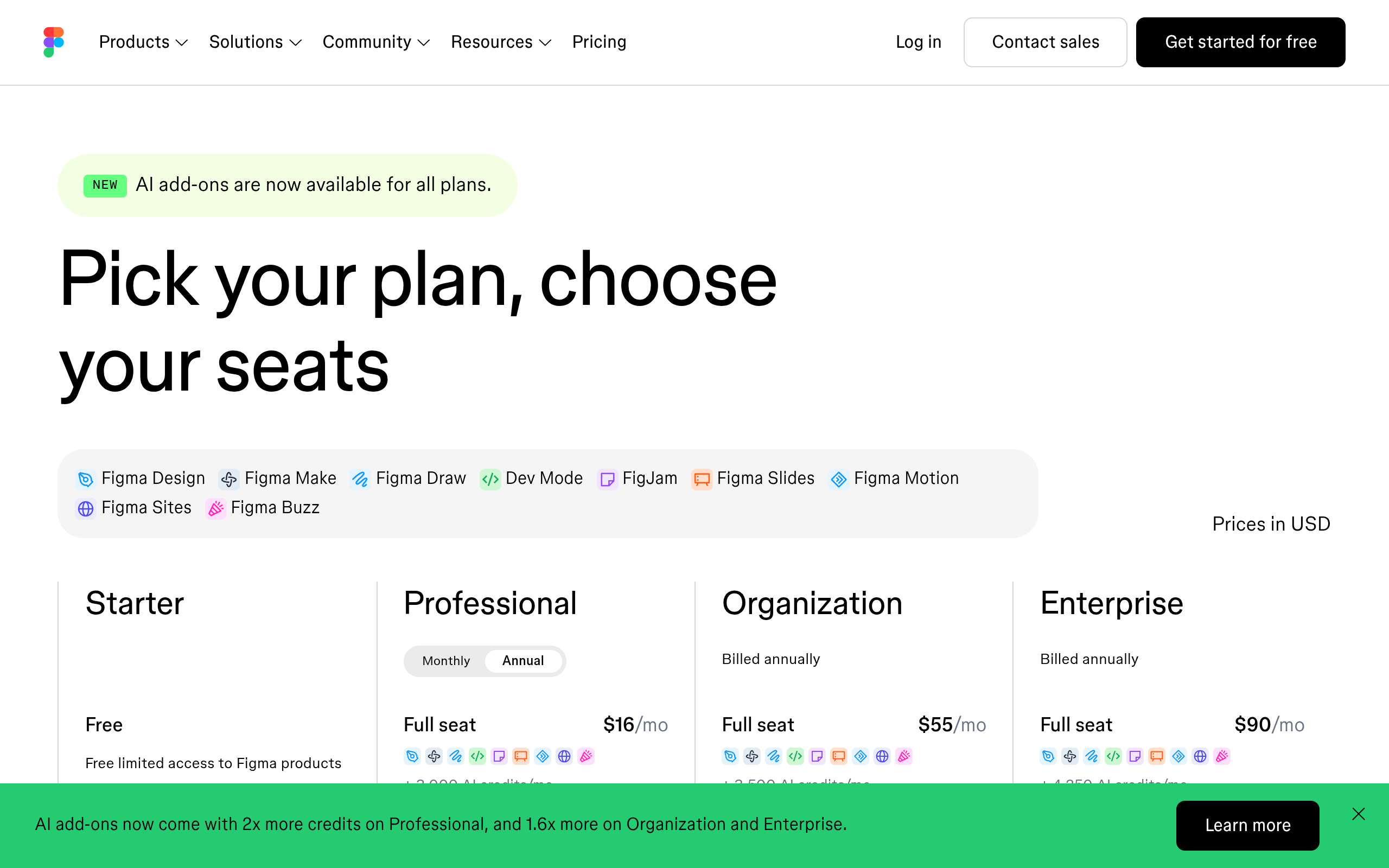
Figma’s published rate card puts Add interactions at 20 credits per use, which on a 3,000 credit Professional seat is not a number you need to ration.
Two conditions from the documentation are worth respecting. It works on frames rather than other element types, and Figma states that consistent layer naming can help improve the output.
A file where every layer is called Frame 217 gives worse results than one where they are called what they are.
Nothing is locked afterwards. Every AI generated interaction can be edited in the Interaction details modal, removed with the delete key, or cleared in one go with Remove all connections.
Treat it as scaffolding you then correct, which is a much healthier relationship than treating it as an answer.
Where It Misleads, and Who It Misleads
The misleading rarely happens to the designer. It happens to whoever is watching the screen, and the mechanism is that fidelity of behaviour reads as completeness of build.
Here is the gap, stated as plainly as it deserves.
| What the room concludes | What is actually true |
|---|---|
| “The booking flow works” | The screens are connected in the order you selected them |
| “It handles errors” | Unless you drew the error state, that path does not exist |
| “It is nearly built” | A Make build is a running prototype, not a maintained website |
| “The client can edit the text” | Visitors to a published Make site cannot access the underlying file |
| “We own all of this” | Make may include third party fonts, code packages and images, and rights are your responsibility |
| “It is responsive” | Only at the breakpoints somebody actually made and checked |
Figma’s blanket accuracy note applies here too and it is unusually direct for a vendor.
Its AI documentation says outputs may contain inaccuracies, omissions or misleading outcomes, that they should be treated as a general reference rather than fact, and that you should tell people when you are presenting AI generated output.
That last clause is a practical instruction, not a legal one. Saying “these connections were generated, I have checked the main path and not the edge cases” costs one sentence and prevents the conversation this article opened with.
The State of the Tooling, Stated Honestly
- The agent cannot prototype yet. Figma lists prototyping among the things coming to the agent in Figma Design, alongside vector editing, icon creation and slots. So conversational prototyping is not the route today.
- The agent is in beta and free during it. Monthly capacity limits apply during the beta and reset each month. That is a beta price with a shelf life.
- Make’s newer editing tools are partial. Figma states the edit tool, properties panel and annotations are rolling out gradually and only work in new Make files.
- Interactions are limited by design. Simple flows between top level frames, back and next, and nav links. Conditional logic and real state are not on that list.
- Credits are consumed per prompt in Make. The amount varies with model, task complexity and context volume, so iterating a prototype repeatedly is a real cost.
- A published Make URL is a demo surface. It can carry a custom domain and granular permissions, and it is still not a CMS anybody on the client’s team can run.
How To Use It Without Overselling It
A sequence that gets the benefit and avoids the misunderstanding, built around one rule: decide which question the prototype answers before you build it.
- Write the question down. “Do people find the pricing page from the nav” is a different prototype from “does the multi step form feel too long”.
- Name your frames properly first. Figma says consistent layer naming improves the output, and it costs one pass with the rename tool.
- Use Add interactions for the skeleton. Accept it, then delete the connections that are wrong rather than regenerating.
- Hand wire the one interaction the question depends on. The AI gives you top level flows. The thing you are actually testing usually is not one.
- Only move to Make if the question needs real behaviour. Scroll, state, input validation, real data. If the question is about layout or flow, stay in Figma Design and save the credits.
- Label it out loud when you present. Say which parts are connected and which paths do not exist. This is the whole fix.
- Never let the prototype become the build. Decide separately what the finished thing is built in, because a demo URL and a maintained site are different products.
Step five is where most credit budgets go missing. Make is genuinely good at proving a behaviour, and it is an expensive way to prove that a menu links to five pages.
What Happens After The Prototype Is Approved
This is the step the tooling does not cover and where projects lose their week. A signed off prototype is a design decision, not a page.
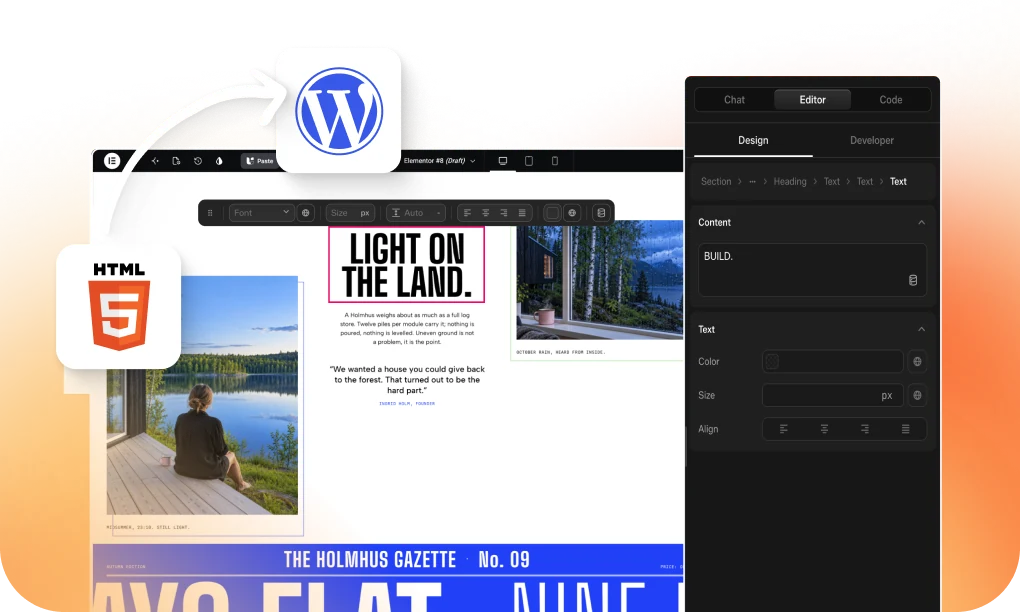
Somebody still has to build the thing, and on a WordPress project that has traditionally meant rebuilding the whole design by hand. That rebuild is the part of the Figma to WordPress route that changed in 2026.
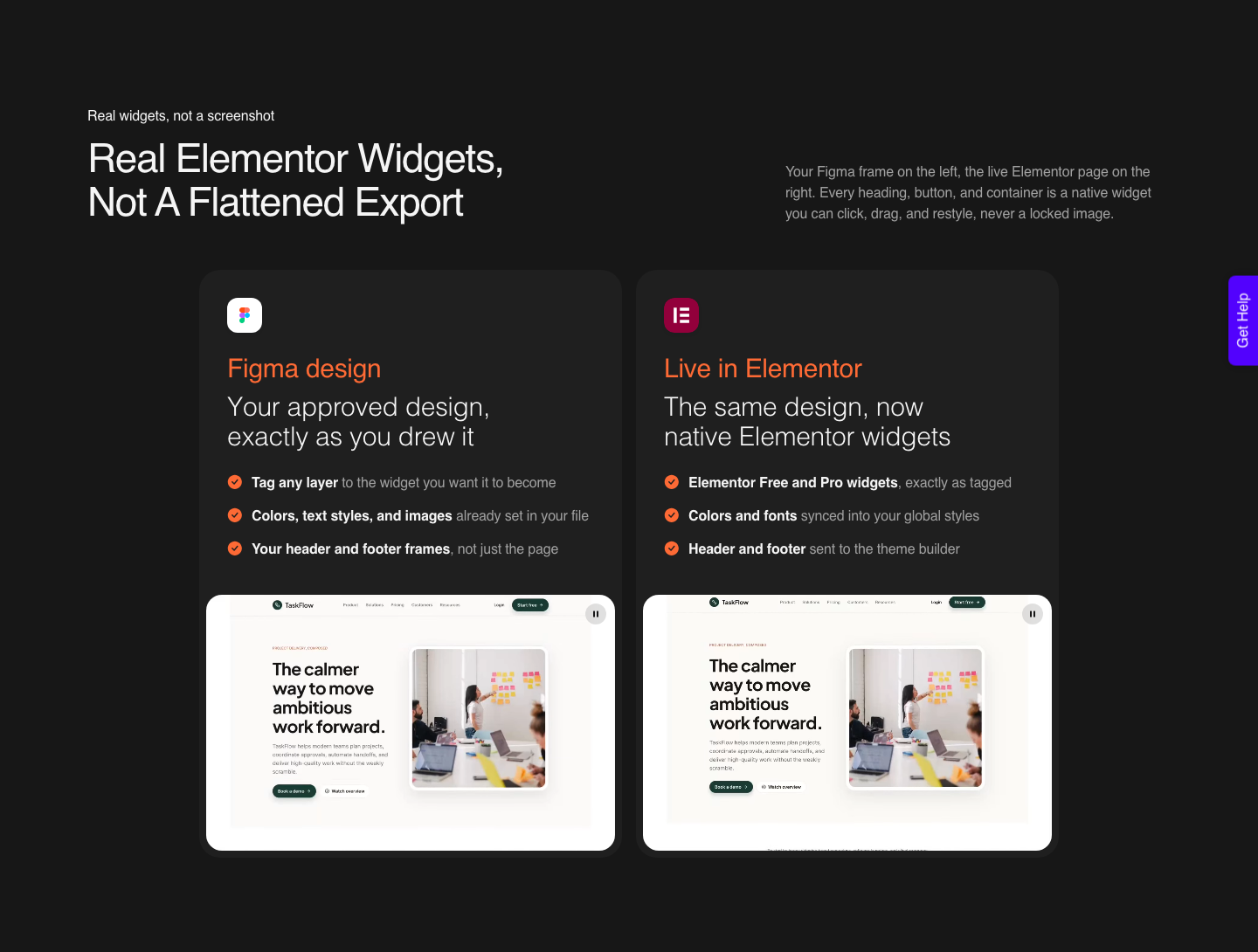
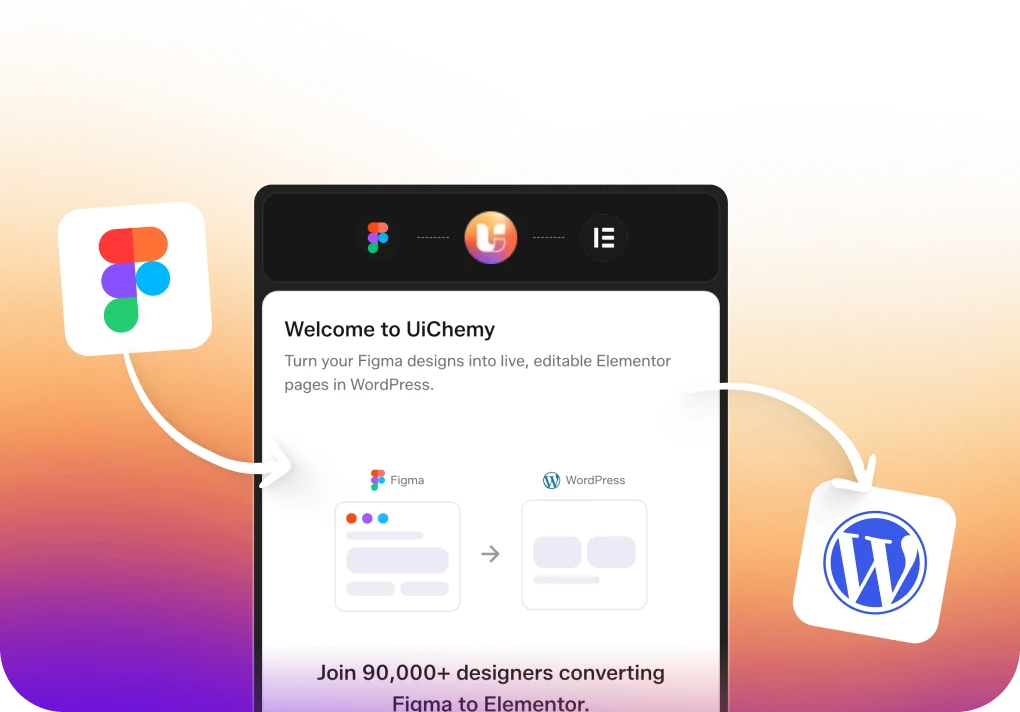
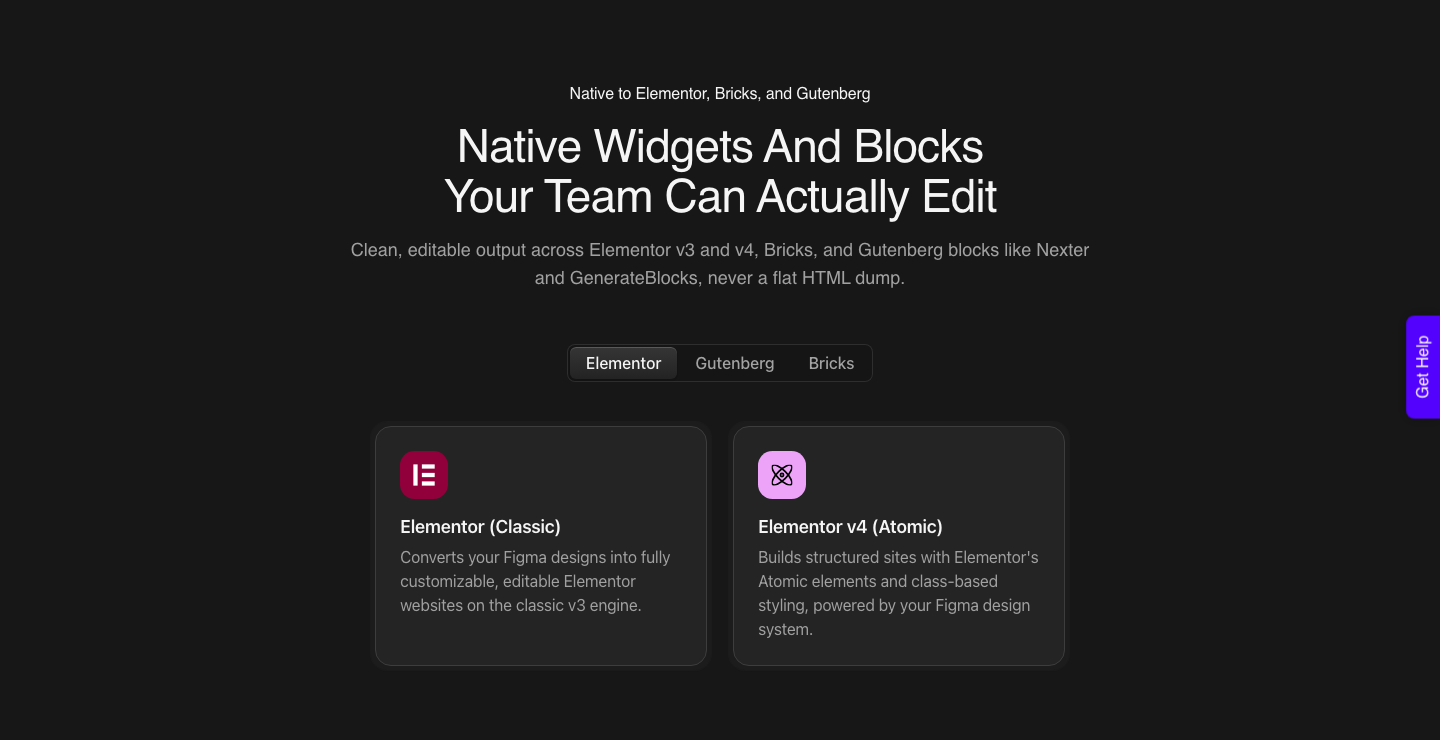
UiChemy converts the approved frame into native WordPress elements rather than a flat export. AI Express Mode reads every layer without tagging and outputs to Elementor today, with Gutenberg and Bricks marked coming soon.
Classic Mode covers Elementor, Elementor v4 Atomic, Gutenberg, Bricks, Nexter Blocks, GenerateBlocks, Spectra and Kadence right now.
The Figma frame is only one of the ways in, and the other two matter here because a prototype does not always end up as a frame.
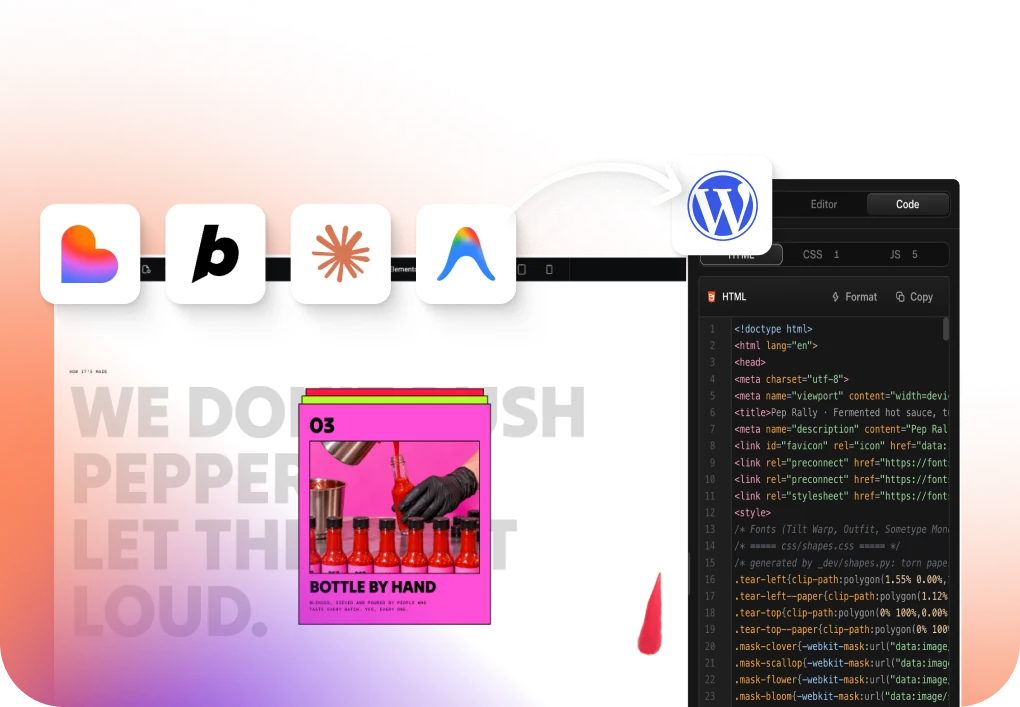
If what got approved is a Figma Make build, or a Lovable or Claude or v0 build, that goes into WordPress through UiChemy Composer, one widget inside Elementor where AI writes real HTML, CSS and JavaScript you keep editing.
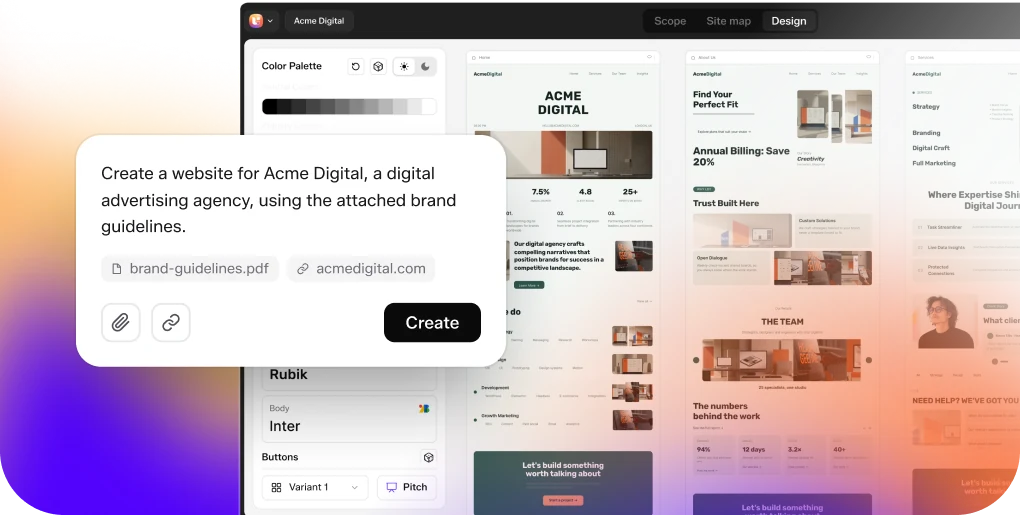
If the design does not exist yet and all you have is the client brief the prototype was meant to answer, AI Website Creator takes the brief, builds a sitemap, designs the pages and exports them to Elementor.
Motion is worth a sentence here because it is the part a prototype sets expectations for. Basic CSS motion carries on every plan including the $0 Free one, and Advanced Motion through GSAP starts on Studio at $29 a month.
If the prototype you had signed off leans on the more elaborate movement, that is a plan decision to take before the demo rather than after it.
Set expectations here the same way you set them for the prototype. A verified reviewer describes it as handling “about 70% of the design work and leaves the remaining 30% for us to fine-tune using Elementor”, which is the honest number to carry into a client conversation.
Two limits belong beside it: AI Website Creator exports to Elementor and its Gutenberg export is marked Soon on all four plans, and MCP or API access begins on Studio rather than being included everywhere.
There is a Free plan at $0 a month with 1,000 Credits, one Figma seat, one AI Website Creator project of one page and one Composer site.
Paid plans run $9 a month for 4,000 Credits on Designer, $29 for 12,000 on Studio and $49 for 20,000 on Agency, with yearly billing at two months free and a 14-day money-back guarantee, on the pricing page.
Frequently Asked Questions
How do I add interactions with AI in Figma?
Select the frames you want connected, open the Prototype tab in the right sidebar, click Add interactions in the Interactions section, review the preview in the banner, and click Keep it. It needs a paid plan and edit access to the file, and it works on frames rather than other element types.
Can I edit or delete what the AI wired up?
Yes, all of it. Individual interactions open in the Interaction details modal, the delete key removes one, and a right click gives Remove all connections.
Adding interactions by hand still works exactly as before, which is the right move for the specific flow you are testing.
Is Figma Make a prototyping tool or a website builder?
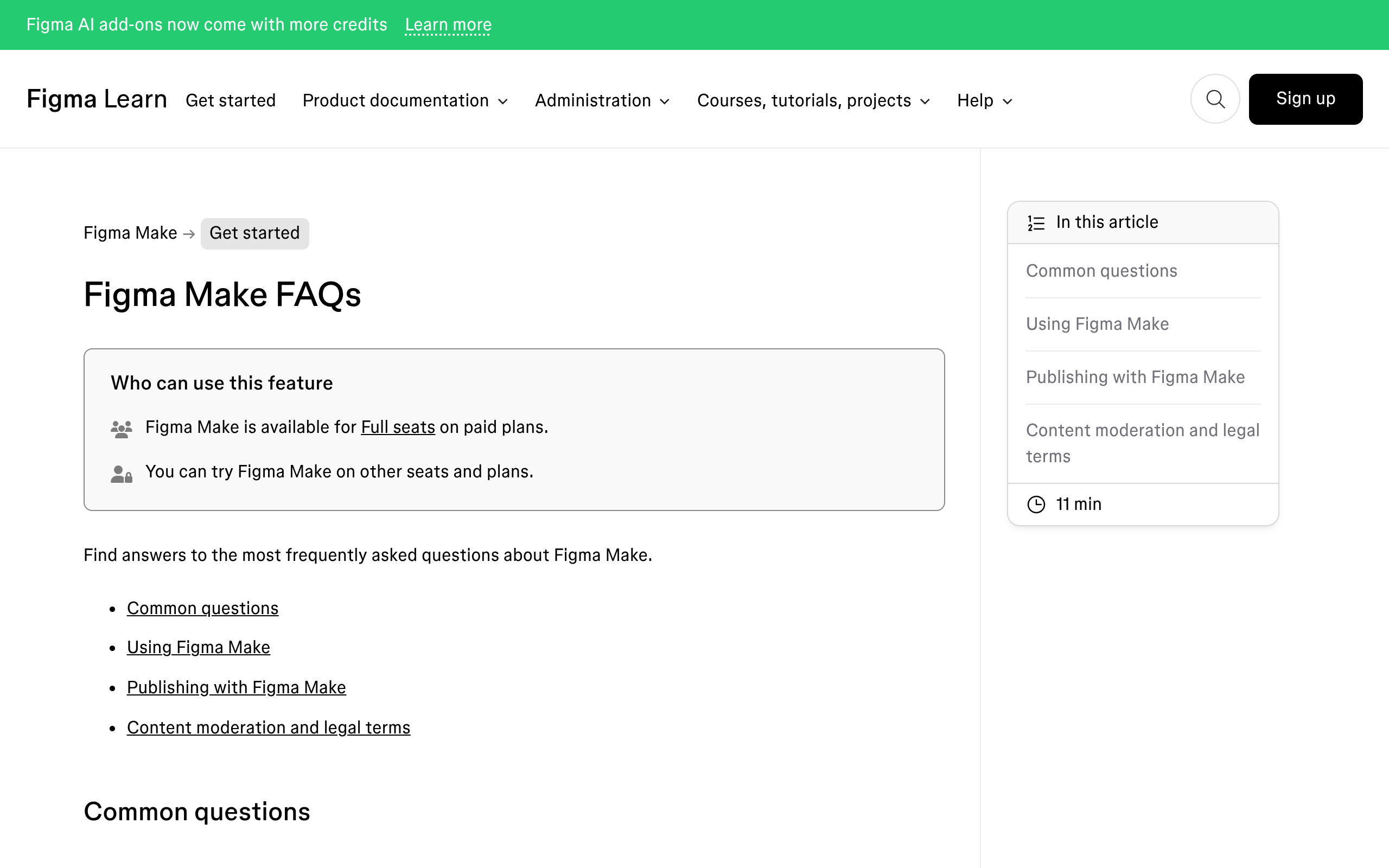
Figma describes it as a prompt to app tool producing functional prototypes, web apps and interactive UI, publishable to a URL or a custom domain. It runs, which a clickable prototype does not.
It is still not a CMS, and visitors to a published Make site cannot reach the underlying file.
Can I prototype by talking to the Figma agent?
Not yet. Figma lists prototyping among the capabilities coming to the agent in Figma Design, along with vector editing, icon creation and slots.
Today the route is the Prototype tab in Figma Design, or Figma Make when you need real behaviour.
What should I tell a client when I show an AI made prototype?
Which paths are connected, which do not exist, and what question the prototype answers. Figma’s own guidance is to let people know when you are presenting AI generated output, and doing that at the start of a demo prevents the assumption that the product is nearly finished.
The Short Version
AI prototyping in Figma removes the wiring, not the thinking. Use Add interactions for the skeleton, hand wire the one flow your question depends on, move to Figma Make only when behaviour is the thing being tested, and say out loud which paths exist.
Then treat the build as a separate decision, because a prototype that runs is still not a site anybody can maintain.
More on the adjacent ground in our pieces on Figma Make credits and Figma AI agents.
Primary sources: Make interactions with AI, Explore Figma Make, Use AI tools in Figma Design and Figma’s article on the agent in Figma Design, all fetched on 7 September 2026.