Claude Desktop, Cursor and Codex: WordPress MCP Config Differences
 Sagar Patel
The UiChemy MCP is the same server for every AI tool. What changes between Claude Desktop, Cursor, Codex and Antigravity is the config format and the file it is saved in. Claude Desktop, Cursor and Antigravity use JSON, Codex uses TOML, and UiChemy shows the exact version for your tool.
This post compares the four and gives the shared JSON shape, the common failures and the test prompts. For the full first-time walkthrough, see how to connect Claude to WordPress with UiChemy MCP. Everything below was checked against the UiChemy docs on 2026-10-01. I have not run all four clients myself, so file paths follow the docs and the config screen is the final authority.
The Four Clients Side by Side
| Client | Format | File | Location |
|---|---|---|---|
| Claude Desktop | JSON | claude_desktop_config.json | macOS: ~/Library/Application Support/Claude/. Windows: %APPDATA%\Claude\. Linux: ~/.config/Claude/ |
| Cursor | JSON | .cursor/mcp.json | Global, or at project level |
| Codex | TOML | .codex/config.toml | As shown by UiChemy |
| Antigravity | JSON | .gemini/config/mcp_config.json | As shown by UiChemy |
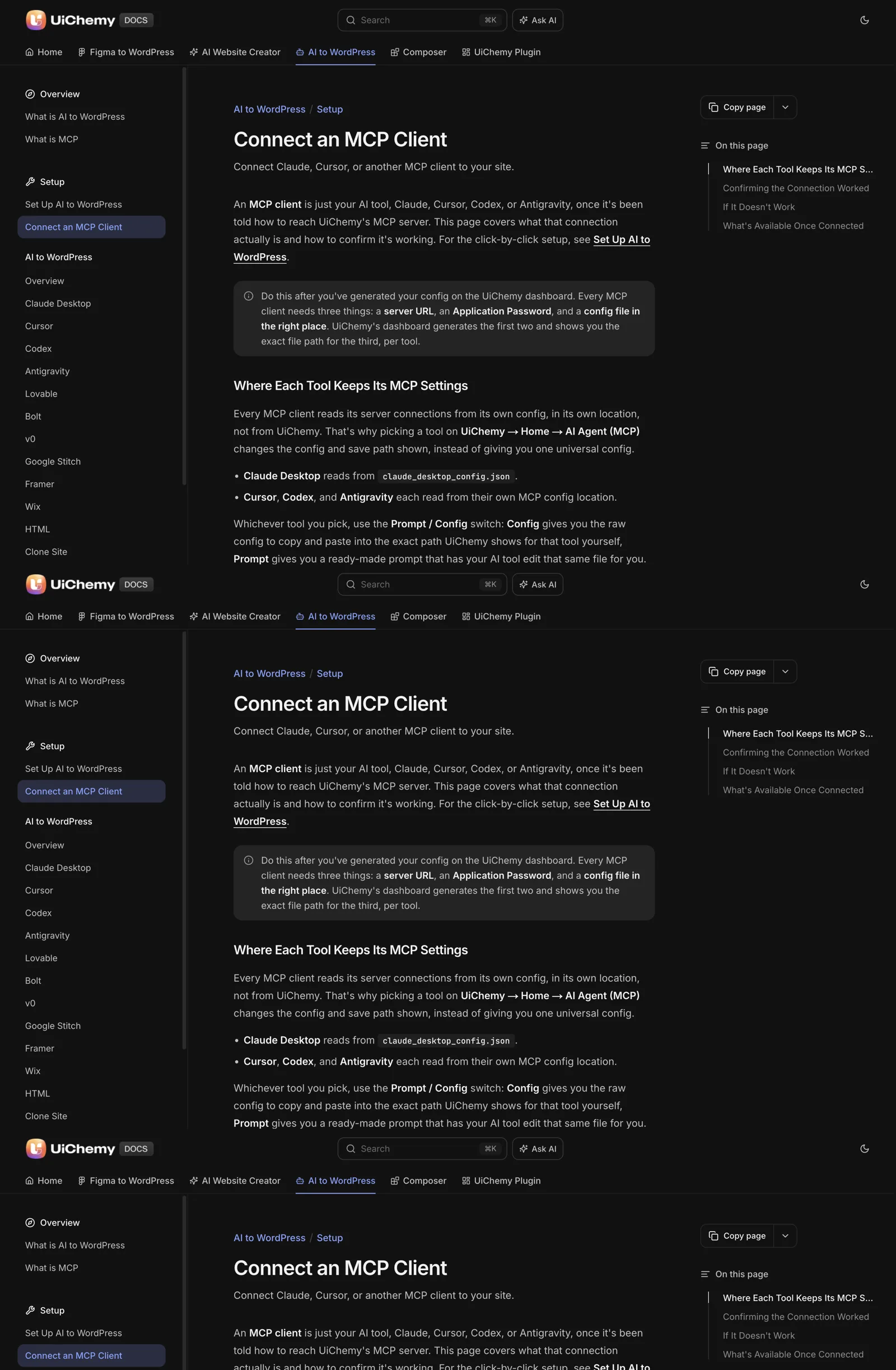
Vendors move these files between versions, so treat the table as a map and the path shown on the UiChemy screen as the final word. The same server and the same capabilities sit behind every row. The scope, per the docs, is pages, templates, Global Style, forms, media and site setup. A refresher on what that server is lives in what is WordPress MCP.
Where the Config Comes From
You do not write the config by hand. In the WordPress admin, open UiChemy, then Home, then the AI Agent (MCP) tab, and click Generate connection. That step creates a WordPress Application Password. You then choose a card for your tool, and UiChemy displays the config and the save path for it.
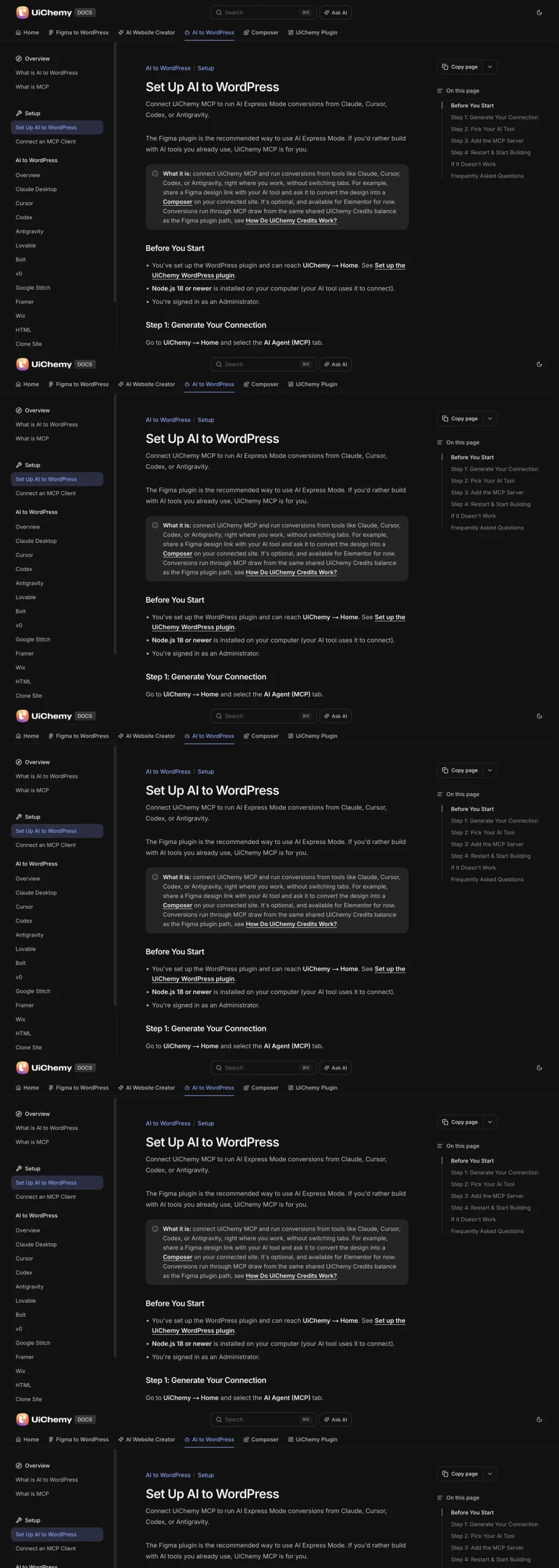
A Prompt and Config switch sits on that screen. Config gives you the raw file contents. Prompt gives you a ready-made instruction that has your AI tool edit its own config, check for Node.js 18 or newer and npx, and keep any MCP servers you already have.
The Prompt route is the safer choice if your config file already holds other servers, because it avoids overwriting them by hand.
Requirements are the same across clients: Node.js 18 or newer and an Administrator login. If Node is a new topic for you, Node.js and npx: the prerequisite that quietly breaks MCP setups explains why.
The Shared JSON Shape
For the JSON clients, the structure looks like this. The values are placeholders. Use the real ones UiChemy shows after you generate the connection.
{
  "mcpServers": {
    "your-site-name-uichemy-mcp": {
      "command": "npx",
      "args": ["-y", "@automattic/mcp-wordpress-remote"],
      "env": {
        "WP_API_URL": "https://yoursite.com/index.php?rest_route=/uichemy/v2/mcp",
        "WP_API_USERNAME": "admin",
        "WP_API_PASSWORD": "your-application-password"
      }
    }
  }
}
Read it from the top. The server name is a label you can recognise later. The command starts the connection with npx. The three environment values say where the site is, which user to act as and which Application Password proves it. For Codex, the same information appears in TOML. Copy it from the Config view rather than converting it yourself.
The Application Password is a credential. Keep it out of screenshots and repositories. The handling rules are in WordPress Application Passwords for MCP.
Notes for Each Client
Claude Desktop
One file holds every server you have added, so edit with care. If you already use other MCP servers, add the UiChemy entry beside them instead of replacing the file. Restart the app after saving, since the config is read at startup.
Cursor
Cursor gives you a choice of scope. A global file applies to every project. A project-level file applies only inside that project. For a client site you manage from one folder, project level keeps the connection tied to the work. Keep a project-level file out of version control, because it holds the Application Password.
Codex
Codex reads TOML from .codex/config.toml. The shape of the file differs from the JSON clients, so copy the TOML from UiChemy exactly. Mixing JSON syntax into a TOML file is the quickest way to a silent failure.
Antigravity
Antigravity uses JSON in .gemini/config/mcp_config.json. The content matches the shared shape above. Restart the tool after saving.
Test That It Works
Restart the tool, then run two prompts in order:
- “What tools do you have from UiChemy?” A connected client lists the UiChemy tools.
- “List the pages on my site.” A live connection returns your real page titles.
A generic or invented answer to the second prompt means the client is guessing and the connection is not live. Several tools can connect to the same site at once, so you can configure two clients and compare their answers.
Several Sites in One Client
The server name in the JSON, such as your-site-name-uichemy-mcp, is the key to running more than one site from one client. Each site gets its own entry with its own name, URL, username and Application Password. Give each entry a name that includes the site, so the client and you can tell them apart.
When two entries exist, be explicit in every prompt about which site you mean. “On the staging site, list the pages” removes ambiguity. A client that has two UiChemy servers and a vague request may pick the wrong one, and you would only notice after a change landed on the wrong site.
A few habits keep this manageable:
- Name entries with the site and the environment, for example a client name plus staging.
- Keep production entries out of the config until you need them, and remove them when the work is done.
- Use Cursor’s project-level file for a single client’s work, so another project never sees those credentials.
- After any config edit, restart the tool and run the two test prompts again.
The same discipline scales up for agencies, which is covered in an AI agent workflow for managing many WordPress sites.
Fix-It Table
| Symptom | Likely cause | Fix |
|---|---|---|
| Tool cannot connect | Node.js missing or older than 18 | Install Node.js 18 or newer and restart the tool |
| “Administrator access required” | The user is not an Administrator | Connect with an Administrator account |
| Config looks incomplete | No connection generated yet | Run Generate connection first |
| Nothing changed after saving | The tool was not restarted | Restart it |
| Answers are generic | Config saved to the wrong file | Re-pick the tool, check the shown path, save again |
| Worked, then stopped | Application Password changed or revoked | Generate a new connection and replace the values |
Wrong paths and old passwords account for most failures. An old or rotated Application Password fails silently, so a connection that worked yesterday and answers generically today deserves a fresh Generate connection before anything else.
For the wider map of routes from Claude into a site, see Claude to WordPress: choose the right workflow for your website. If you are comparing this server with others you might connect, how to evaluate any WordPress MCP server gives a checklist. The docs page what is MCP covers the concepts behind the setup.
For a terminal-first setup, see the Claude Code and WordPress developer workflow.
Choosing a Client for the Job
The server is the same, so the choice of client comes down to how you work. The table matches common situations to the clients covered above. It is a suggestion, and any of the four can reach the same UiChemy server.
| If you | Consider | Because |
|---|---|---|
| Prefer a chat window and rarely touch a terminal | Claude Desktop | One app, one config file, conversational use |
| Work inside a code editor most of the day | Cursor | Project-level config keeps client work separated |
| Live in the terminal | Codex | Config sits with your other command-line tools, in TOML |
| Already use Antigravity for other work | Antigravity | Same JSON shape, one more file to manage |
You are not locked in. Because several clients can connect to the same site, you can try two and keep the one that fits. For the developer-oriented route, the Claude Code and WordPress workflow post shows how a terminal setup looks in practice.
A Debugging Order That Saves Time
When a connection fails, the instinct is to change several things at once. That hides the cause. Work through these checks in order and test after each one.
- Confirm Node.js. Run the version command in a terminal. You need 18 or newer.
- Confirm the file. Open the config at the path UiChemy showed you. Check that the entry is inside the right section and that the punctuation is intact. A missing comma in JSON breaks the entire file.
- Confirm the values. The URL should match your site exactly, including https. The username should be an Administrator.
- Confirm the password. If in doubt, generate a new connection and replace the value. It is quicker than comparing characters.
- Restart the client fully. Quit the app, do not just close a window.
- Run the two test prompts: the tools question, then the pages question.
Stop at the first step that fixes it. If all six pass and the client still answers generically, check whether another server entry with a similar name is shadowing it, and test the pages prompt again.
The step people skip is the full restart. Most clients read their config once at startup, so an edit has no effect until the app starts fresh.
Keeping Config Files Tidy and Safe
A config file grows over time. Old entries, test servers and expired passwords pile up. A little housekeeping avoids confusion and keeps credentials from spreading.
Keep a dated copy before every edit. If a change breaks the client, you can restore the last working file in seconds. Store the copy somewhere private, since it contains a credential.
Use clear names for entries. A name such as client-name-staging-uichemy-mcp tells you at a glance which site it reaches and which environment it is.
Remove entries when a project ends and revoke the matching Application Password at the same time. A config that still lists a finished project is a standing risk and a source of mistakes.
Never paste a config into a chat, a ticket or a shared document. If you need help, replace the password with a placeholder first. The security checklist before giving an AI agent access has the full list of habits, and Elementor MCP: controlling your builder from an AI client shows what to test once the connection works.
A short note on updates
Clients update often, and an update can move a config file or change how it is read. If a connection that worked stops after a client update, check the path shown on the UiChemy screen before you assume the server is at fault.
Re-run the two test prompts after every major client update. It takes a minute and catches a quiet break before you rely on the connection for real work. If a path changed, move or recreate the entry rather than keeping two copies, because two copies invite the wrong one being edited.
When you change machines, do not copy the whole config across by default. Generate a fresh connection on the new machine, so each device holds its own revocable credential. That way, losing one laptop means revoking one password, with no effect on the rest.
Finally, keep a one-line note per entry saying who created it and why. Six months on, that line is the difference between a quick tidy-up and a nervous guess about what is safe to delete.
FAQ
Do Claude Desktop, Cursor and Codex use the same config?
They connect to the same UiChemy MCP server with the same capabilities. Claude Desktop, Cursor and Antigravity use JSON. Codex uses TOML. The file name and save location differ for each, and UiChemy shows the exact version for the tool you pick.
Where does the Claude Desktop config file go?
The file is claude_desktop_config.json. On macOS it sits in ~/Library/Application Support/Claude/, on Windows in %APPDATA%\Claude\, and on Linux in ~/.config/Claude/. Use the path UiChemy shows if it differs, because vendors move files between versions.
Can I connect more than one AI tool to the same site?
Yes. Add each tool’s config and they all reach the same MCP server on your site. Each client needs its own restart after you save its config, and you can verify each one with the same two test prompts.
Why does my client give generic answers about my site?
Usually the config went into the wrong file, or the client has not been restarted. Re-pick your tool in UiChemy, check the shown path, save again and restart. An old Application Password can also cause it, so generate a new connection.
Do I need Node.js for every client?
The UiChemy docs list Node.js 18 or newer as a requirement. The config starts the connection with npx, which ships with Node. Install it before you save the config, then restart your AI tool.
To set this up on a site of your own, Get Started and open the AI Agent (MCP) tab.
Every feature named in this post is listed by product: all UiChemy features, AI to WordPress features, UiChemy Composer features.