

The Sitemap Review in UiChemy, Screen by Screen
 Sagar Patel
In UiChemy, a prompt becomes a draft you review before any design is made. You see a Scope tab titled “Review your draft”, then a Site map tab showing “Sitemap ready” with a page count, and a “Continue to design” button. You can edit pages and sections at each step, so fix the structure first.
Most rework in AI-built sites starts with a wrong page list rather than wrong colours, which is why this step exists. For the reasoning, read why a review step prevents rework; this post is the hands-on tour. Wireframes are the design-side version of this step, covered in Figma wireframe to finished website, and no-code AI website builders places the tool category.
Screen 1: The Prompt
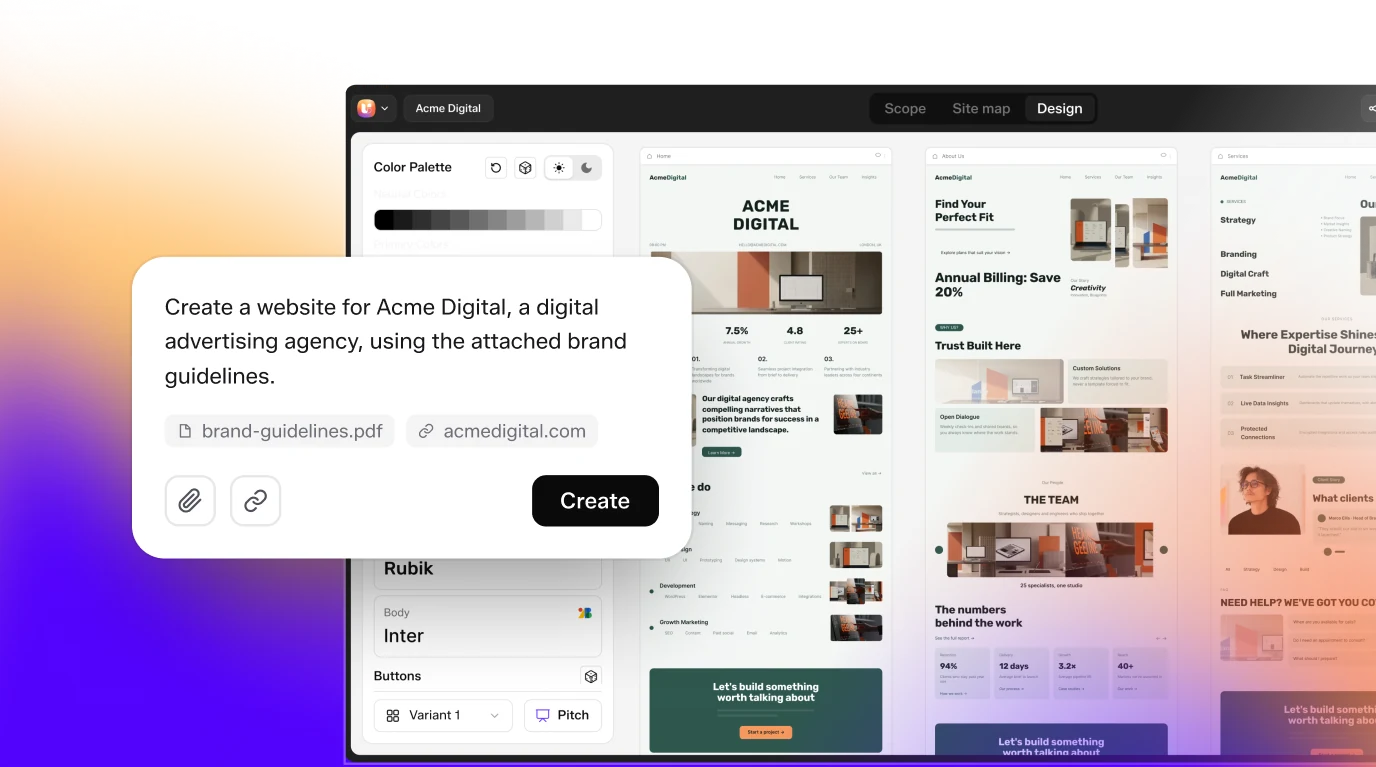
You start with a text box. You can describe the site in a sentence, attach a file or add a link, or choose a guided brief that asks a set of questions. In our test on 2026-10-01, we typed: “A landing page for a boutique coffee roaster with hero, three product cards, testimonials and a newsletter signup”.
The project appeared in about 9 seconds. This was one run, so your timing will vary with load and prompt. If you want help writing the prompt itself, the AI website prompts page and our post on prompts that get the sitemap you want are good starting points.
Screen 2: Scope, “Review Your Draft”
The first thing you review is the Scope tab. It says: “We drafted this from your prompt. Nothing’s locked in: confirm what’s right or tweak any step below.” Your original prompt sits at the top under “What you asked for”, with an Edit link.
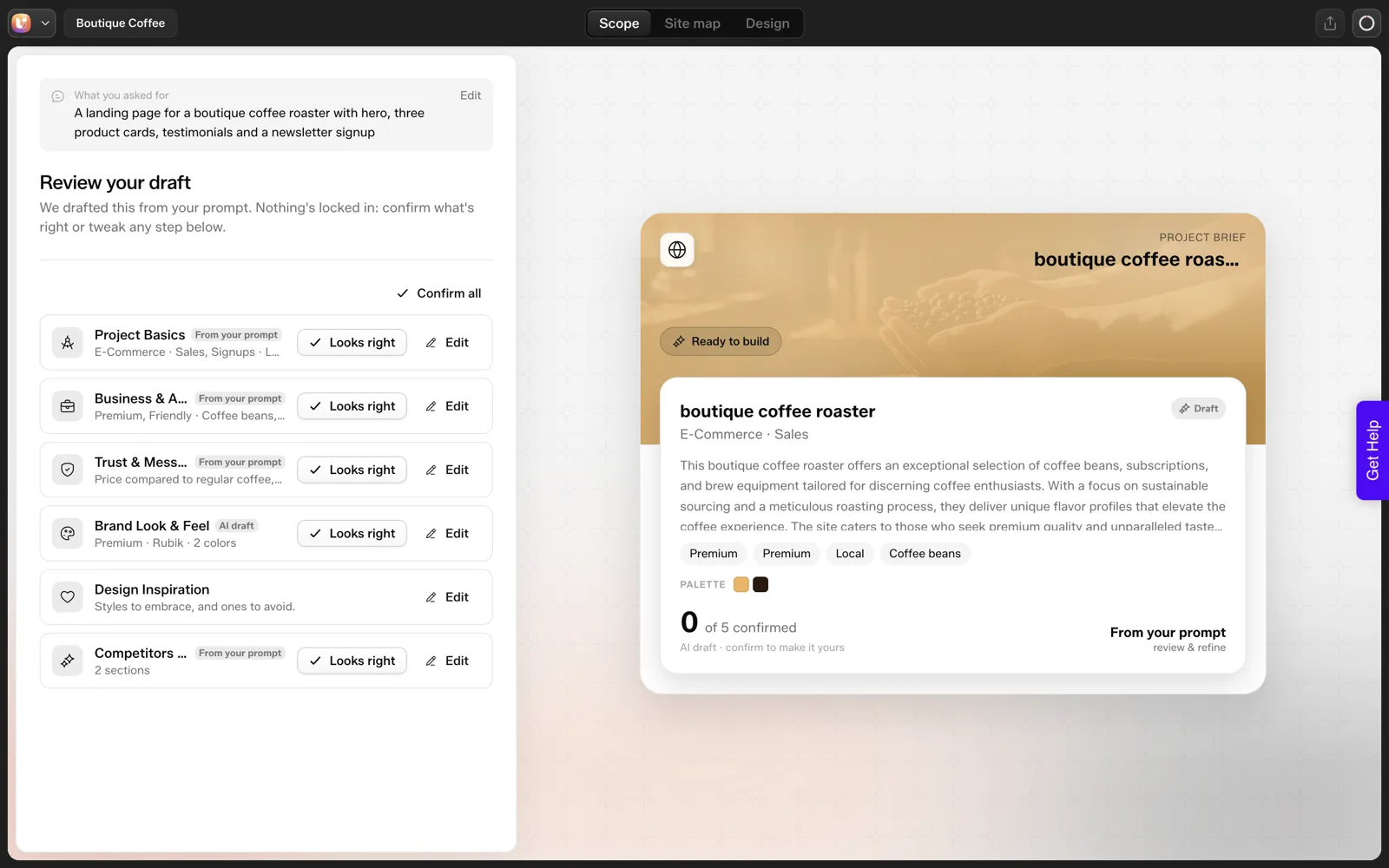
Below that are cards for project basics, business and audience, trust and messaging, brand look and feel, design inspiration, and competitors and structure. Each card is tagged with where it came from, such as “From your prompt” or “AI draft”, and has a “Looks right” button and an “Edit” button. “Confirm all” accepts everything as drafted.
On the right, a project brief card tracks how many areas are confirmed. In our capture it read “0 of 5 confirmed” before we touched anything.
The Scope Editor documentation explains each step in depth, including attaching a client’s existing brief or reference links. The scope is also what makes a locked sitemap and scope review practical when you are working with a client.
Screen 3: The Site Map
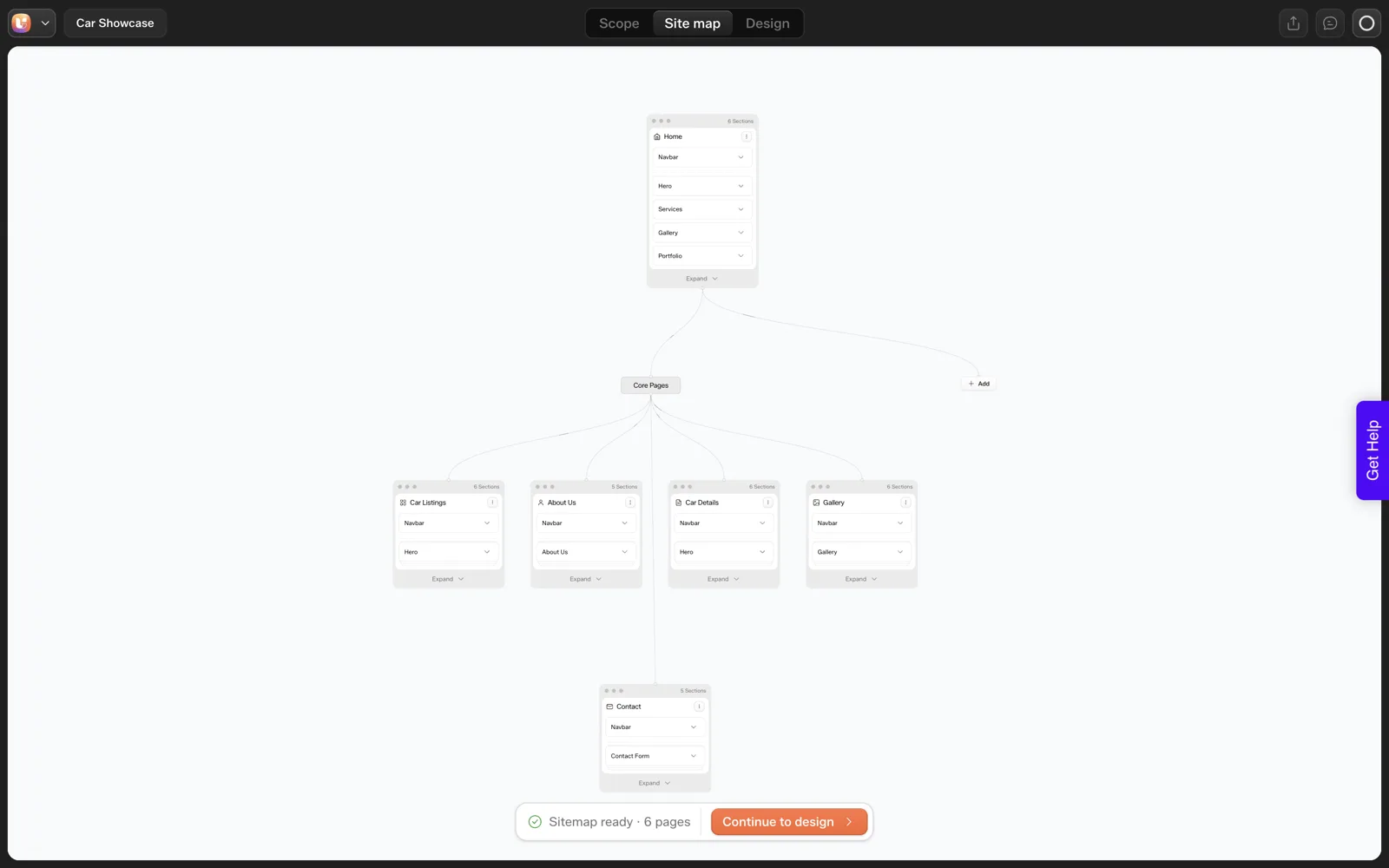
Click the Site map tab and you see a canvas. Pages appear as nodes, grouped under “Core Pages”, with each node listing its sections. A bar at the bottom of the screen reads “Sitemap ready” with a page count and a “Continue to design” button.
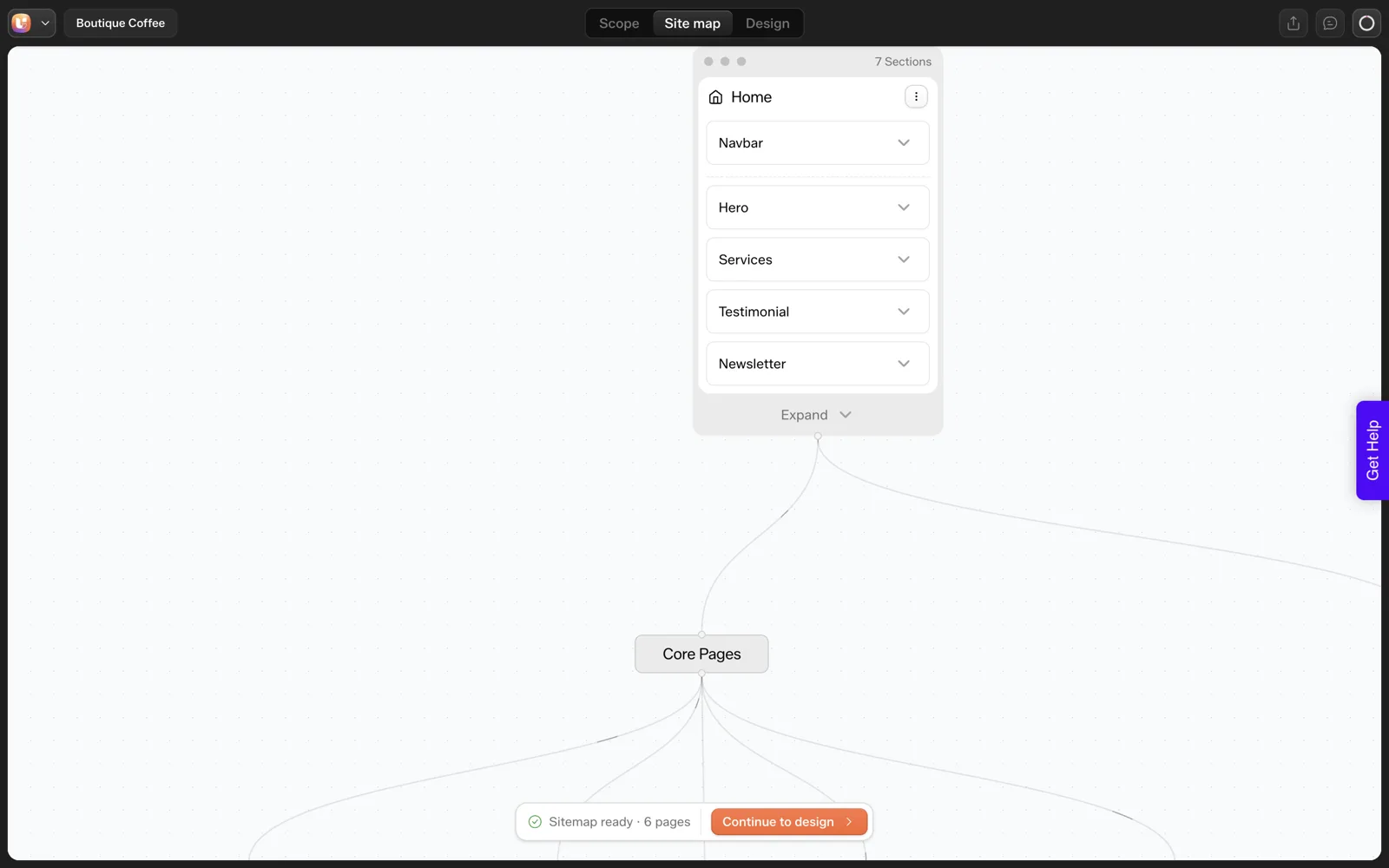
In our run the sitemap took about 13 seconds and listed six pages: Home, Products, Testimonials, About Us, Contact and Newsletter Signup. Notice something about that list. We asked for a landing page, and the tool proposed a Products page and a separate Newsletter Signup page. That is exactly the kind of thing this screen exists to catch.
A second project shows the same structure with a different mix of pages.
What You Can Edit on the Site Map
The Sitemap Editor documentation lists the controls. These are the ones that matter during a review:
- Expand and Collapse. Each page node shows its first few sections. Expand it to see the full list.
- Add. The Add button opens page categories such as Blog, Legal and Site Extras. Shop and Dynamic page groups are listed as Coming Soon.
- Three-dot page menu. Add page, Add section, Rename, Move to a group, and Delete. You can also double-click a page name to rename it.
- Sections. Click a section to read or edit its name and description. Hover between sections to add one, or right-click a section to delete it.
- Global Sections. Turn a repeated element, such as a footer, into one that updates everywhere.
The last page on the canvas cannot be deleted, so you will never end up with an empty site.
Screen 4: Continue to Design
When the sitemap looks right, click “Continue to design”. In our run the Home page generated in about 35 seconds, and the sitemap plus Home used about 64 credits. The other pages showed as empty cards with a “Generate” button, so you can build page by page.
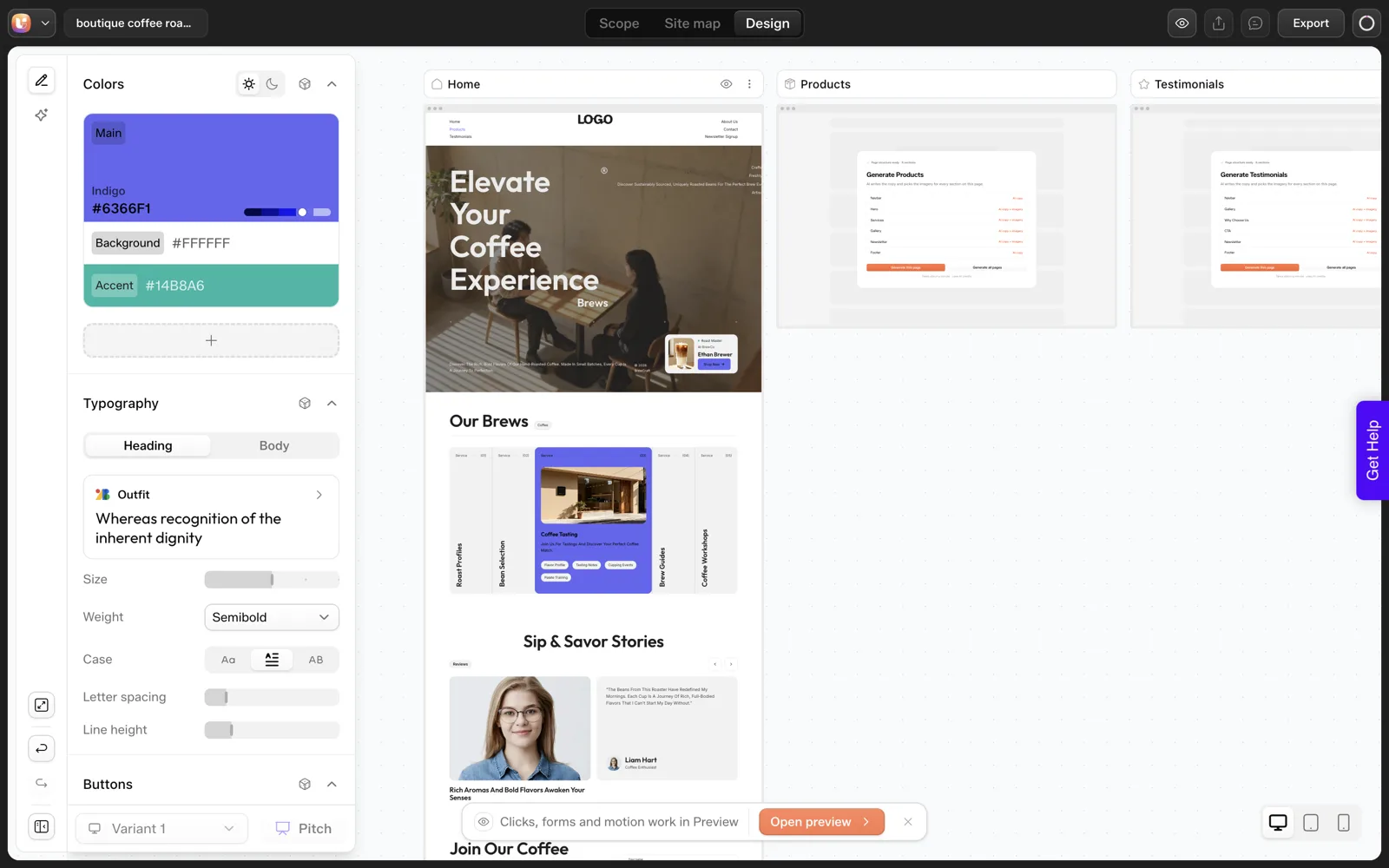
The sitemap can still be edited here, since the documentation’s FAQ says you can add, remove, reorder and rename pages and sections before and after moving to the Design Editor. Changing the structure after design is possible, though it costs more than fixing it at this stage.
The four screens and what our run showed:
| Screen | What you review | In our run |
|---|---|---|
| 1. Prompt | A text box, or a guided brief | Prompt: boutique coffee roaster landing page |
| 2. Scope | The Review your draft tab, with your prompt under What you asked for | Cards for basics, audience, messaging and brand |
| 3. Site map | Page nodes under Core Pages, each listing its sections | Six pages in about 13 seconds |
| 4. Continue to design | Page-by-page generation | Home in about 35 seconds, sitemap plus Home about 64 credits |
The Checklist to Run at Each Step
Copy this into your project notes and tick it before pressing the next button.
UICHEMY SITEMAP REVIEW CHECKLIST

SCOPE TAB ("Review your draft")
[ ] "What you asked for" matches the client's actual brief
[ ] Business and audience: offers and customer named in the client's words
[ ] Trust and messaging: no claims we cannot back up
[ ] Brand look and feel: tone and colours fit the client
[ ] Competitors and structure: nothing irrelevant
[ ] Every card either edited or marked "Looks right"

SITE MAP TAB
[ ] Page list matches the brief, no extras
[ ] Page names use the client's words
[ ] Each page has one purpose
[ ] Nothing we did not ask for (for example, a standalone newsletter page)
[ ] Section counts match what was requested (cards, testimonials, steps)
[ ] Navigation order makes sense
[ ] Repeated elements (header, footer) set as Global Sections
[ ] Client has seen the page list

BEFORE "CONTINUE TO DESIGN"
[ ] Page count is the number we quoted
[ ] Anything out of scope is written down
If a client is involved, send them the scope and the page list at this point. A short sign-off now saves a rebuild later. For a deeper list of page-planning questions, see the client website questionnaire, and for a brief you can fill in, the website brief template.
Limits We Saw
Counts were not honoured in our run. We asked for three product cards and the Home page produced five cards labelled “Service”. A review step reduces rework, yet it does not catch everything, so check counts and labels again after generation.
The post on what AI gets wrong when it builds a website collects more of these misses with quick fixes, and our coffee roaster test, step by step shows the whole run.
A Worked Example: Reviewing the Coffee Roaster Sitemap in Five Steps
Here is how I would run the review on the six-page list from our test. The prompt asked for a landing page, so the first question is whether six pages is the right shape at all. Treat this as a method to copy, since your own prompt will return a different list.
- Read the page names against the prompt. We got Home, Products, Testimonials, About Us, Contact and Newsletter Signup. The prompt named a hero, product cards, testimonials and a signup, which are sections of one page. Ask which pages exist only because the tool split those sections apart.
- Decide the page count you will quote. If the client wants a landing page, the answer may be one page, with Products, Testimonials and Newsletter Signup folded into Home as sections. Use the three-dot menu to delete pages you do not need and add the matching sections to Home.
- Expand the Home node and read the sections in order. Our capture showed Navbar, Hero, Services, Testimonial and Newsletter. We asked for product cards and the section was called Services, so rename it now while it is one click.
- Open each section and read its description. Write the count you want into it, for example “three product cards”. Our run produced five cards, so this is a precaution. We did not test whether it fixes the count.
- Mark repeated elements as Global Sections, then press Continue to design. The footer is the usual candidate. Do this before generation so every page starts from the same shared block.
On a list this short, the whole pass is a few minutes of reading and clicking. The cost of skipping it shows up later, when a page you never wanted has already been generated.
Common Review Mistakes and How to Fix Them
These are the slips I would watch for, based on what the screens offer and what our single run produced.
| Mistake | What it looks like | Fix |
|---|---|---|
| Using Confirm all without reading | Cards tagged “AI draft” accepted exactly as written | Read every card tagged “AI draft”, then edit it or press “Looks right” on that card |
| Judging by page names only | Names look sensible, sections inside are wrong | Expand every page node and read its sections |
| Keeping pages you did not ask for | A standalone newsletter page on a landing page brief | Delete the page or fold it into Home as a section |
| Editing repeated elements page by page | A footer changed on one page and stale on the rest | Turn it into a Global Section |
| Skipping the client | The page list only ever existed in your head | Send the scope and the page list for a short sign-off |
| Trusting counts and labels | Five cards labelled “Service” where we asked for three product cards | Recheck counts and labels on the Design tab after generation |
The last row is the one that surprised us. Our post on what AI gets wrong when it builds a website collects more misses of this kind, each with a quick fix.
Where to Fix What: A Decision Table
The documentation says you can change pages and sections before and after moving to the Design Editor. Structure edits after design take more effort, so put each fix at the earliest screen that can handle it.
| What is wrong | Fix it on | Why there |
|---|---|---|
| The audience, offer or tone is off | Scope tab, with Edit on the relevant card | It is the first screen you review, so correct it before the structure |
| The page list is wrong | Site map tab, before Continue to design | Nothing has been generated yet, so deleting a page costs nothing |
| A section has the wrong name or purpose | Site map tab, by clicking the section | You can read and edit its name and description in place |
| A count or label is wrong in the generated page | Design tab, after the page is generated | In our run this only showed up after generation |
| The client changes the brief mid-project | Scope tab first, then recheck the Site map | The scope and the structure should say the same thing |
If the client’s answers are still vague, collect them before you open the tool. The 25-question client questionnaire turns into a page list quickly, and a 30-minute review of the generated site picks up where this screen-level review stops.
FAQ
Is the sitemap locked once I continue to design?
No. The scope screen says nothing is locked in, and the documentation says you can add, remove, reorder and rename pages and sections before and after moving to the Design Editor. Changes after design cost more effort, so review the structure first, and use your own sign-off if you need a firm scope.
Can I add pages manually to the sitemap?
Yes. The Add button on the canvas opens page categories, including Blog, Legal and Site Extras pages. You can also hover on the right edge of a page to add a new empty page beside it, or use the three-dot menu to add a page or a section.
Does the review step cost credits?
In our run, creating the sitemap plus generating the Home page used about 64 credits, and we did not measure the review separately. Editing pages and sections on the canvas is covered in the docs, and credit use is explained in the credit documentation for your account.
How long does it take to get from prompt to a reviewed sitemap?
In one run on 2026-10-01, the project appeared in about 9 seconds and the sitemap in about 13 seconds. Your time for review depends on how many pages you need to check and edit. Timing will vary with prompt length and load.
Can I send the scope to a client for approval?
The documentation describes the completed brief as a shareable deliverable for client sign-off before design begins. The project can also invite a reviewer from the dashboard, and clients get view-only access by default, according to the FAQ in the docs.
To try the prompt, scope and sitemap flow on your own idea, you can Get Started.
Every feature named in this post is listed by product: all UiChemy features, UiChemy Composer features.