






Figma Make MCP: Wiring It Into a Real Pipeline
 Sagar Patel
A product manager writes a spec in a ticketing tool. A designer builds a working prototype in Figma Make.
An engineer opens a codebase that knows about neither. Three good artefacts, no pipe between them, and a week of somebody re-describing the popup behaviour in a standup.
Figma Make MCP is the pipe, and it is easy to misread because the phrase covers two connections running in opposite directions. Understanding which one you need takes about a minute and saves a fair amount of configuration.
Everything below is from Figma’s developer documentation and pricing page as published on 8 September 2026, plus UiChemy’s own pages for the WordPress end of the pipeline.
Figma Make MCP Means Two Different Connections
The first connection sends Make outward. Your agent, running in Claude Code, Cursor, VS Code or another supported client, fetches files and context from a Make project through the Figma MCP server and uses them while writing production code.
The second connection brings context inward. Make connectors let external tools feed Make with product requirement documents, tickets and other documentation, so a prototype starts from the actual spec rather than from a paraphrase of it.
| Make to your agent | External tools to Make | |
|---|---|---|
| Direction | Out of Make, into your editor | Into Make, from your stack |
| Mechanism | The MCP resources capability | Make connectors over MCP |
| What moves | Project files, component behaviour, styles | PRDs, tickets, product documentation |
| Who benefits | The engineer productionising the prototype | The designer starting the prototype |
| Client requirement | Only clients that support MCP resources | Configured inside Figma |
| Publish your own | Not applicable | A separate pricing row from using them |
Direction One, Pulling Make Into Your Agent
Figma frames this integration as reducing friction when extending prototypes into real applications, so design intent carries through to implementation.
Three things become possible: fetching project context from Make, whether an individual file or the whole project, prompting the agent to reuse existing code components rather than starting over, and extending a prototype with real data.
The mechanics are short enough to memorise. Prompt your agent with a valid Make link, receive the list of available files from that project, and download the ones you want.
That is the whole handshake.
Figma’s own worked example is a popup component. You share the Make project link, then ask the agent to take the popup behaviour and styles from that file and implement them using your existing popup component.
The agent fetches the context and extends what you already have rather than generating a parallel version of it.
That last detail is the point of the whole feature. The failure mode of prompt-to-code work is a second implementation of something your codebase already contains, and the fix is giving the agent both sides at once.
Direction Two, Feeding Make From Your Stack
Make connectors run the other way. Figma describes them as connecting external tools to Make to pull in PRDs, tickets and other product documentation, and describes MCP connectors more broadly as connecting external tools with the Figma agent and Figma Make to pull in context and push updates back.
The practical difference in output is large. A prototype built from a pasted summary reflects what somebody remembered.
A prototype built from the actual ticket reflects the acceptance criteria, which is the thing the engineer will be measured against later.
One planning note for agencies. Publishing custom connectors for organisational use is its own line on Figma’s feature comparison, separate from the row that covers using connectors at all, so check your plan’s column before you promise a client a connector of their own.
Writing Back to the Canvas
There is a third movement that people lump in with the first two and it behaves differently.
The remote server’s use_figma tool writes to a Figma Design file, creating frames, components, variants, variables and auto layout as native structure rather than a static export, by executing JavaScript in the file through the Plugin API.
Two access rules apply and both are easy to trip over. Writing needs a Full seat, and a Dev seat is limited to read-only work such as pulling design context, variables and screenshots.
Editing an existing file also needs edit permission on that specific file, which is a different check from the seat.
Figma’s own guidance is to work incrementally: inspect first, then create or update variables, components and layouts in smaller steps, validating as you go. Large single-shot changes are where this goes wrong, and it is the same lesson as the one about oversized frames.
What the Pipeline Looks Like End to End
Here is the sequence for a real job: a pricing page that a product team has specced, a designer will prototype, and somebody has to ship on a WordPress marketing site.
- Connect the ticketing tool to Make so the spec arrives as context rather than as a paraphrase.
- Attach the design library. Make kits package a design system into reusable AI context, and Figma libraries, frames and PDFs attach directly to a prompt.
- Use plan mode before building. It generates a structured plan as a separate action, and Figma’s argument is that a well-scoped plan needs fewer corrections afterwards.
- Build the prototype, then copy it back to the Figma canvas as design layers to fix the details that a prompt will not fix cleanly.
- From your editor, fetch the Make project through MCP resources and implement against your existing components.
- For the marketing site, take the approved Figma frame rather than the code, and convert it into native builder elements.
- Hand the client an editor they already have a login for, and stop being the bottleneck on copy changes.
Steps five and six are the fork most teams do not notice they are standing at. One branch ends in an application.
The other ends in a page somebody in marketing maintains, and they need different artefacts.
What the Pipeline Needs Before It Runs
Three prerequisites decide whether any of this works, and all three are worth checking before you start configuring.
- A client that supports MCP resources. Figma states the Make integration uses the resources capability and is available only on clients that support it. Tool support is not the same thing.
- A client in Figma’s MCP Catalog. Only listed clients can connect to the server at all, and developers of others can join a waitlist. VS Code, Cursor and Claude Code are the examples Figma names.
- The remote server, not the desktop one. Figma recommends the remote server at
https://mcp.figma.com/mcpfor the broadest feature set, and having both configured can bind your client to the wrong one with no error.
One diagnostic is worth knowing before you file a support ticket. If a fetch fails on permissions, Figma’s advice is to run the whoami tool, which reports the email used for authentication along with every plan that user belongs to and their seat type in each.
Most permission errors turn out to be a link that belongs to a plan the authenticated account is not on.
If you are setting this up from scratch, the commands and the common failure modes are in our Figma MCP server setup guide rather than repeated here.
What It Costs to Run
Two meters run at once and they count different things, which is the part that surprises people at the end of a busy week.
| Meter | What it counts | Professional Full seat | Enterprise Full seat |
|---|---|---|---|
| AI credits | Make prompts and other AI actions | 3,000 a month | 4,250 a month |
| Seat price | Per editor, per month | $16 | $90 |
| MCP tool calls | Reads from the Figma MCP server | 200 a day, 10 a minute | 600 a day, 20 a minute |
| Make, from scratch | One generated app | About 100 credits or more | About 100 credits or more |
| Make, small edit | Changing a font | About 30 credits or more | About 30 credits or more |
| Exempt tools | create_new_file, whoami, add_code_connect_map | Not counted | Not counted |
The floor is lower than most people assume and it is not a pipeline. A Starter account gets up to 20 MCP tool calls a month, and a View or Collab seat on a paid plan gets six a month, which is enough for a demonstration and nothing else.
Figma’s stated fix in both cases is a Full or Dev seat on a paid plan.
Figma names three drivers of credit cost: the model you choose, task complexity, and the volume of context you attach. That third one is in tension with the whole premise of a context pipeline, and it is worth knowing rather than discovering.
Where the Pipeline Stops for a WordPress Build
Everything above assumes the destination is a codebase. If the destination is a client’s WordPress site, the pipeline delivers you to a React prototype and then stops, and the last mile is the expensive one.
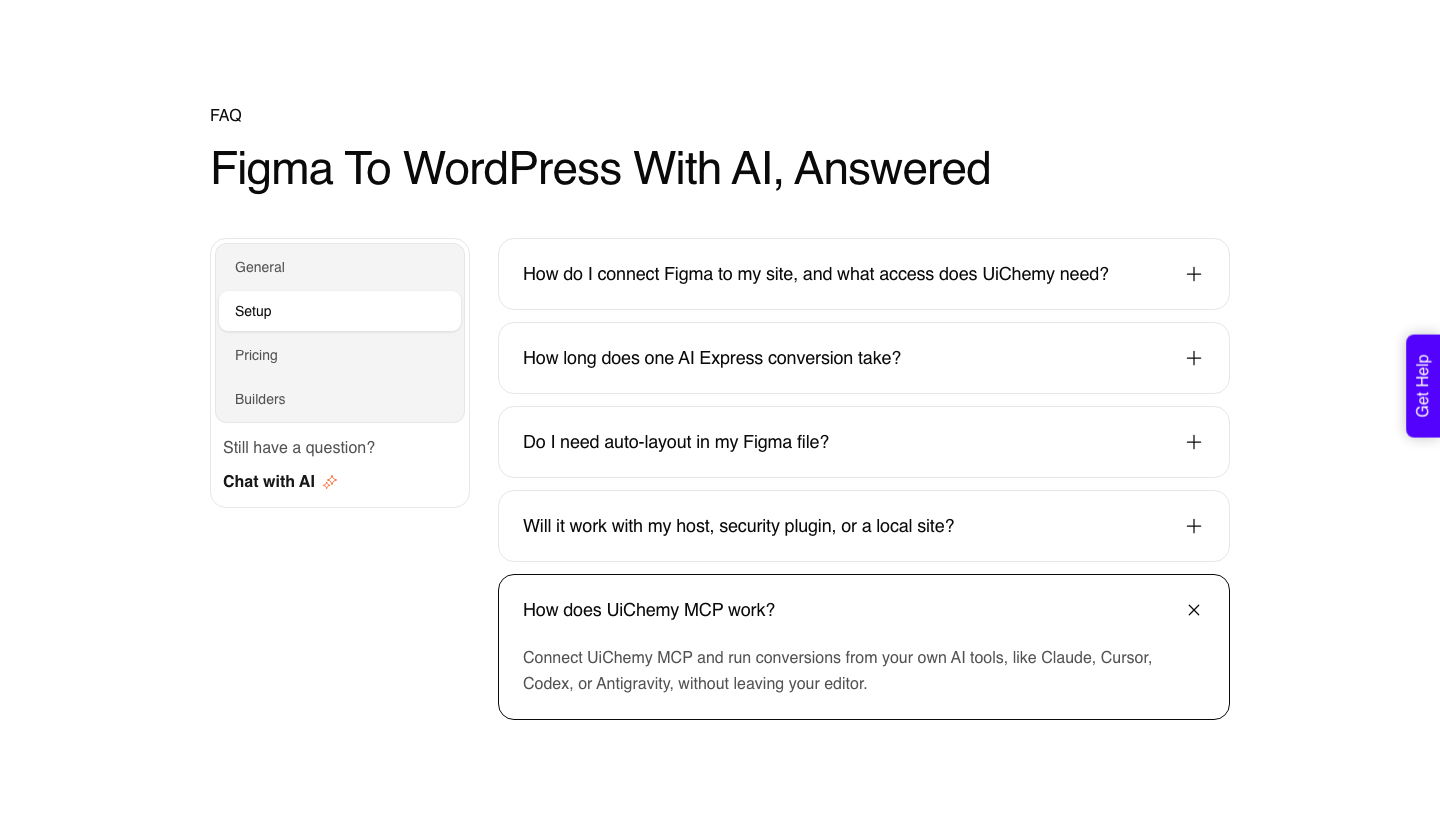
UiChemy is four products on one engine, and which one you reach for depends on what you are holding at the end of the Make pipeline. An approved Figma frame goes through Figma to WordPress.
A prompt or a client brief with no design yet goes through AI Website Creator, which produces a sitemap and pages rather than a single screen. A section you want written as real code goes through Composer.
An existing AI build from Lovable, Claude, Bolt or v0 comes across through Composer as well.
For the MCP route specifically the pattern mirrors Figma’s and the artefact is different.
You paste a Figma frame link into your assistant, ask UiChemy to export it, and the conversion checks typography, spacing and colour values against your Elementor global settings before writing anything.
In one documented run it flagged a container width of 1280px in Figma against 1120px in Elementor and waited for approval.
What lands is real editable elements rather than markup. The marquee slides, the accordion opens, and every block stays a WordPress element you can change visually, in code, or by prompt.
Two modes ship in the same plugin, AI Express Mode without layer tagging and Classic Mode with it.
The input does not have to be a Figma frame either. A live URL, raw HTML, Lovable, v0, Bolt, Google Stitch, Relume, Claude Design and Antigravity all have a route in, which means a Make prototype has somewhere to go that is not a manual rebuild.
Claude to WordPress has its own dedicated flow and the others go through Composer.
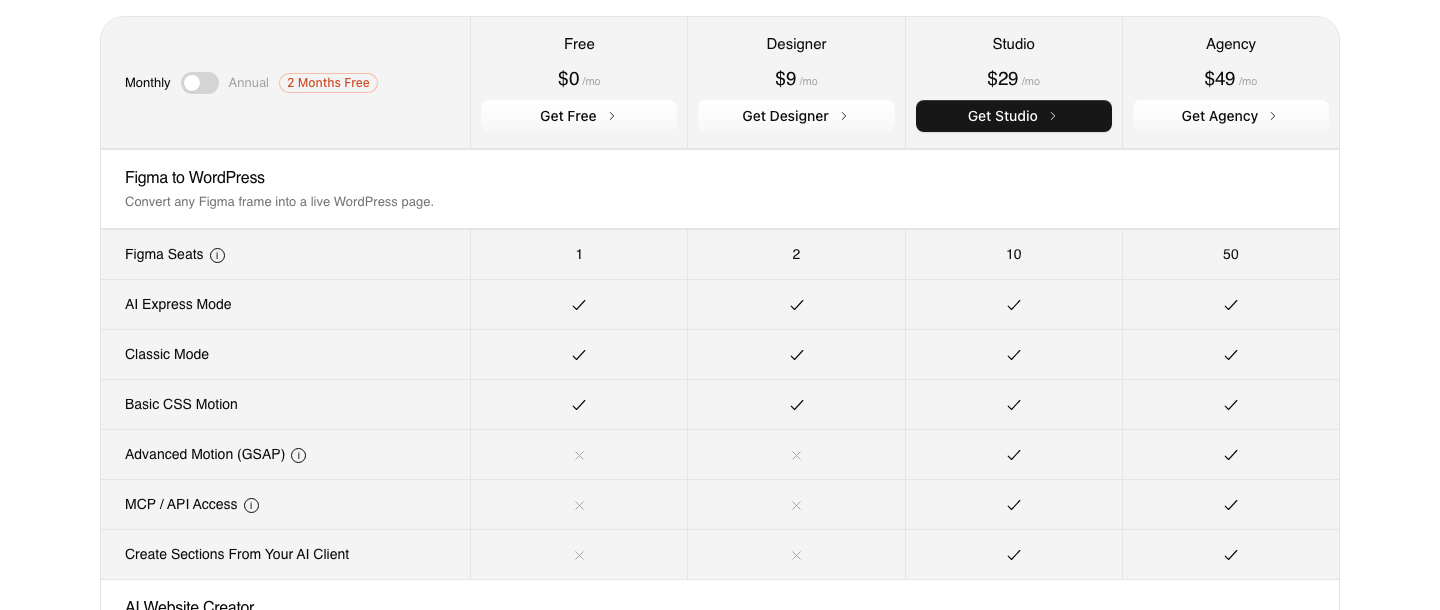
Worth being blunt about the plan boundary, because posts on this topic routinely get it wrong. There is a Free plan at $0 a month with 1,000 credits, one Figma seat and one Composer site.
Designer at $9 covers both conversion modes and every supported builder. MCP and API access, along with advanced GSAP motion, begin at Studio, $29 a month.
Agency is $49. Annual billing is advertised as two months free, and the refund window is 14 days.
Honest Limits Before You Build On This
- Resources support is not universal. Figma says the Make integration works only on clients that support MCP resources, so a client can connect to the server and still not fetch Make files.
- Figma Make needs a Full seat on a paid plan. The try-it allowance on other seats is not a pipeline.
- Writing to the canvas needs a Full seat too. A Dev seat is read-only, and editing a given file needs permission on that file as well.
- Publishing custom connectors is its own entitlement. Using connectors is a different row on the pricing table.
- UiChemy MCP starts on Studio at $29 a month. It is a Figma to Elementor route, and the site frames it as a developer bonus rather than the headline way to use the product.
- A Figma Pro account is recommended. The conversion workflow uses both MCP access and the Figma REST API, and the free plan’s rate limits can interrupt a larger export partway through.
- Conversion is not cleanup-free. A verified reviewer’s estimate is roughly 70% of the design work handled with 30% left to fine-tune in the builder, and that is the number I would quote to a client.
Frequently Asked Questions
What is Figma Make MCP?
Two things under one name. The Figma MCP server can fetch resources from a Make project into your coding agent, and Make connectors can pull external documents such as PRDs and tickets into Make.
One direction feeds implementation, the other feeds the prototype.
How do I get Make context into Claude Code or Cursor?
Connect the remote Figma MCP server, then prompt your agent with a valid Make link. It returns the list of available files in that project and you download the ones you want.
The client has to support the MCP resources capability for this to work at all.
Does this replace copying code out of Make?
It replaces the worst version of it. Instead of pasting a component and having the agent rebuild it, you point the agent at the Make project and ask it to extend the component you already have with the prototype’s behaviour and styles.
Figma’s own example does exactly that with a popup.
Can this pipeline output a WordPress page?
Not on its own. Figma’s server returns design context and code, and Make returns a code-backed prototype.
Getting native Elementor, Gutenberg or Bricks elements is a separate conversion step, and it takes the Figma frame, a live URL or an AI build rather than the React output on its own.
How many MCP calls does a pipeline like this use?
More than you expect, because every read counts. A Professional Full seat gets 200 tool calls a day at 10 a minute, an Organization seat 200 a day at 15 a minute, and an Enterprise seat 600 a day at 20 a minute.
Starter accounts get 20 a month. Tools such as create_new_file and whoami are exempt.
Which UiChemy plan includes MCP access?
Studio, at $29 a month with 12,000 credits, is the first plan with MCP and API access, and Agency at $49 also has it. The Free plan and Designer at $9 do not, though both cover AI Express Mode, Classic Mode and every supported page builder.
The Short Version
Decide which direction you actually need before you configure anything. Feeding real specs into Make improves what comes out of it.
Fetching Make resources into your agent stops your codebase growing a second version of a component it already has.
Then check the destination one more time. A pipeline that ends in a codebase is finished at step five.
A pipeline that ends on a client’s WordPress site has one more step, and pretending otherwise is how a two-day job becomes a fortnight. Our comparison of Figma Make against Lovable covers the choice one level up.
Primary sources for this piece: the Make to MCP resources documentation, write to canvas, rate limits and access, Figma’s pricing page and how AI credits work, all fetched on 8 September 2026.