Figma Make to WordPress: Finishing the Job
 Sagar Patel
Figma Make produces a working code prototype, and WordPress needs a theme, blocks or builder content. To finish the job, choose a route: rebuild by hand, move the design into Figma layers and convert, or import the generated site into editable WordPress. Then review it as you would any new build.
This post stays general on purpose. Figma Make changes often, so we describe the decisions that stay true. For what the tool produces, start with what Figma Make actually produces, and what you do with it next.
The Gap Between a Prototype and a Site
A prompt-to-code tool is excellent at showing an idea. A prototype can look finished and still lack what a WordPress site needs: editable content for a client, a theme or builder structure, forms that submit somewhere real, SEO fields and a way for non-developers to change text.
That gap is the “finishing the job” part. That follows from the tool producing a different deliverable. The prototype answers “what could this look like”, and WordPress answers “how will this be run for years by someone who is not a developer”.
Cost questions come up early, so read is Figma Make free and what a real project costs in Figma Make credits before committing a client project to it.
Three Routes to WordPress
Route 1: Rebuild by hand
Use the prototype as a visual spec and build the site in your preferred theme or builder. You get full control and clean structure. It also costs the most time, since you are doing the work again.
Route 2: Bring the design back into Figma layers and convert
If the project can be brought into Figma as editable design layers, you can apply a design-to-WordPress conversion from there. The post on Figma Make to Figma design explains how editable layers come back, and the AI Express and Classic Mode comparison covers the conversion step for Elementor.
Route 3: Import the generated site
When the output is a running site rather than a design file, an AI-to-WordPress route can bring it into editable WordPress. Our post on exporting real WordPress from an AI builder covers that path, and converting React to WordPress: three routes and where each breaks compares the routes in depth.
Route Comparison
| Route | Effort | Control over structure | Best when |
|---|---|---|---|
| Rebuild by hand | High | Full | The prototype is only a visual reference |
| Back to Figma layers, then convert | Medium | Good, depends on mode | A designer needs to polish the layout first |
| Import the generated site | Low to medium | Depends on the tool | The prototype is close to final and needs a CMS |
None of these routes is free of review. Whichever you pick, plan time to check the result against the original and against what the client approved.
What to Check Before You Start
Spend ten minutes on the prototype before choosing a route.
- Is the layout final? Converting a moving target wastes effort. Freeze the layout first.
- Is the content real? Placeholder copy and stock images need replacing before launch.
- Does it follow your design system? Prompt tools can ignore it, which Figma Make design systems: why output ignores yours describes.
- What dynamic behaviour exists? Forms, animation and interactions each need a WordPress answer.
- How many pages are there? A single screen and a ten-page site call for different routes.
If prompts are shaping the design, the post on Figma Make prompts that produce usable layouts can reduce rework before you convert anything.
Questions to ask the client before you pick a route
Three questions settle most route decisions. Who will edit the site after launch? If the answer is a non-developer, favour routes that end in editable WordPress content. Is the prototype’s code staying anywhere?
If nobody will maintain it, do not carry it across. Will the design change again? If yes, keep the design file as the source of truth and convert from it, so changes flow in one direction.
Also agree what “finished” means. A prototype that looks right on a laptop is not finished when forms, SEO fields and mobile layouts are still open. Put those items in writing before the work starts, so the review at the end has a clear target.
After Import: What to Review
Treat the converted site like any new build, whichever route produced it, and give yourself enough time to test it properly on a phone, on a tablet and on a desktop screen.
The areas that most often need a pass are text editability, responsive behaviour, forms, image sizes, headings and links. Our guide to reviewing an AI-generated WordPress site in 30 minutes gives a timed checklist for this stage.
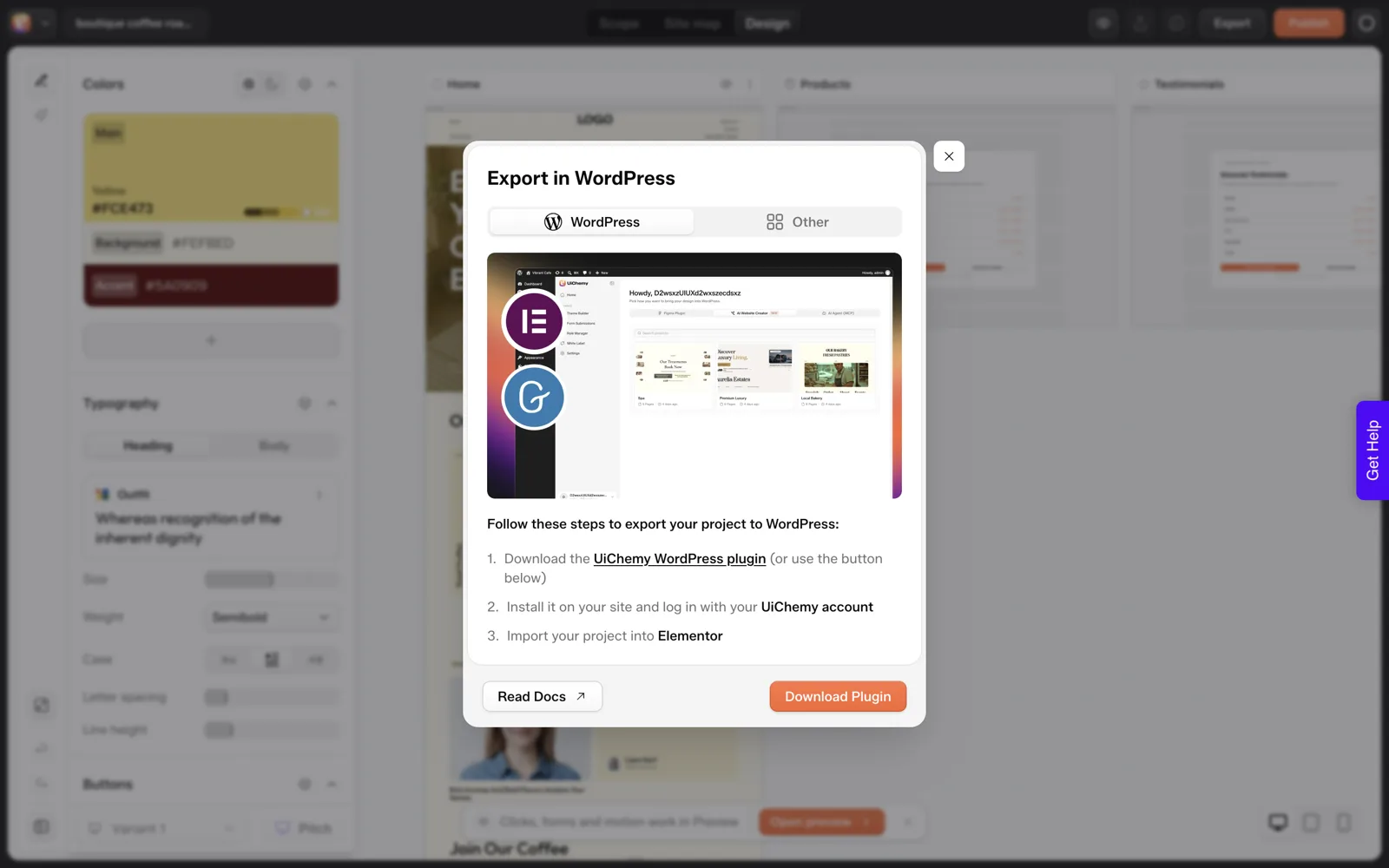
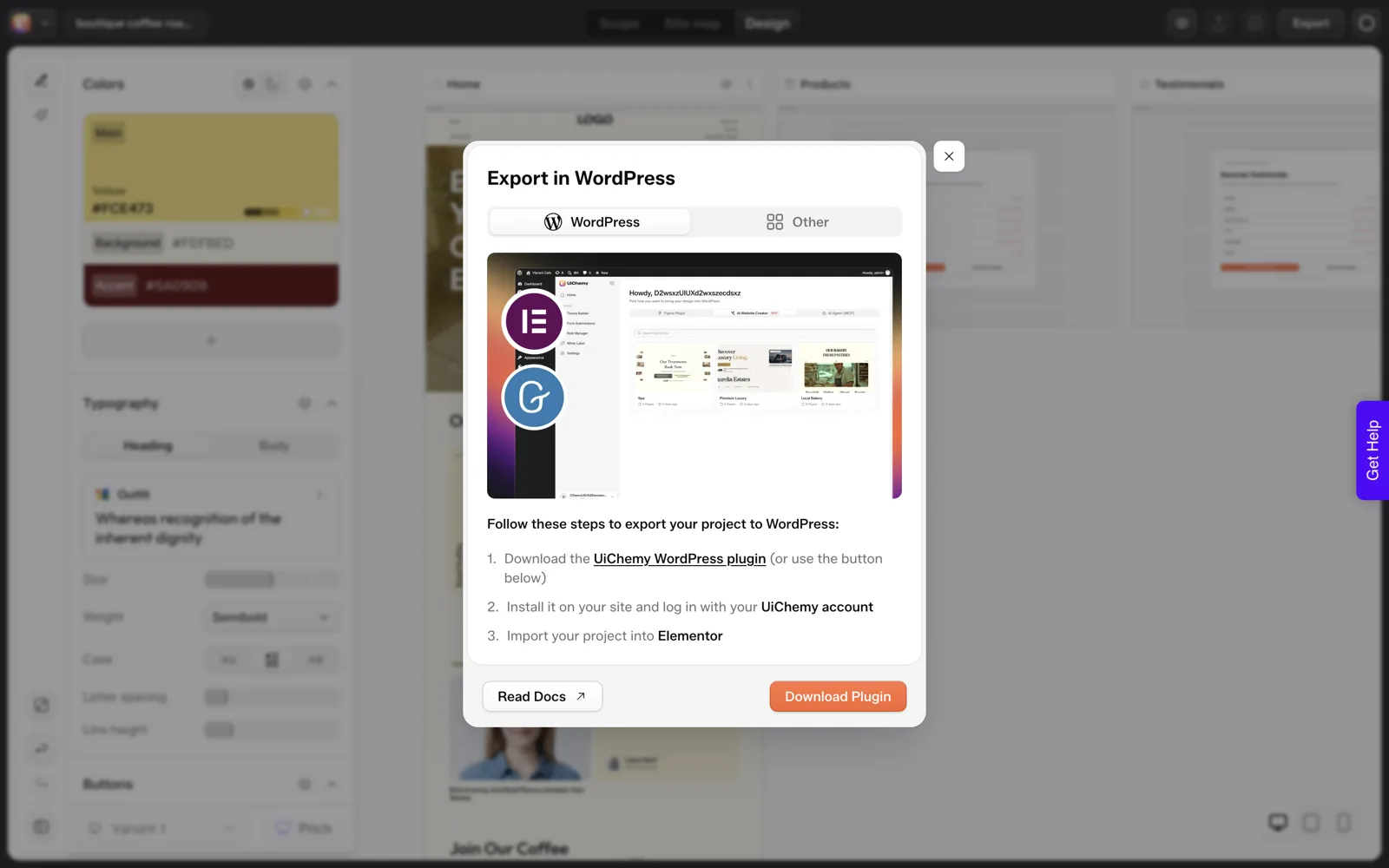
On the technical side, the UiChemy documentation describes how to set up AI to WordPress, which is the starting point if you take the import route. Check the current steps in that page before you begin, since requirements can change.
A Handoff Checklist to Copy
FIGMA MAKE TO WORDPRESS: HANDOFF CHECKLIST

Before conversion
[ ] Layout approved and frozen
[ ] Real copy and real images supplied
[ ] Route chosen:  [ ] rebuild   [ ] Figma layers then convert   [ ] import
[ ] Page list agreed with the client

After conversion
[ ] Every page opens and has a sensible title
[ ] Text editable in the WordPress editor
[ ] Images editable and compressed
[ ] One H1 per page; headings in order
[ ] Forms submit and notify the right person
[ ] Mobile and tablet checked
[ ] Links and buttons checked
[ ] SEO title and description set per page
[ ] Speed checked on a real device

Client handoff
[ ] Login created for the client with the right role
[ ] Short note on how to edit text and images
[ ] Backup and update plan agreed
A Worked Example: Choosing a Route for a Five-Page Prototype
Suppose a client brings a Figma Make prototype with five screens: Home, Services, About, Pricing and Contact. They want it live on WordPress and editable by their office manager. This is an example, so swap in your own details.
- Freeze the layout. Ask the client to confirm the five screens are final. Any change after this point means redoing work in whichever route you choose.
- Ask who edits the site. The office manager is not a developer, so the result must end in editable WordPress content. That rules out carrying the prototype’s code across untouched.
- Check how close the prototype is. If it looks final and only needs a CMS, importing the generated site is the shortest route. If a designer wants to polish spacing and type first, bring it back into Figma layers.
- Pick the route and write it down. Note the route, the page list and what “finished” means for this client.
- Convert one page, then review it. Open it in WordPress, compare it with the prototype and decide whether to continue with the remaining pages.
The pilot in step five protects you. If the first page needs more cleanup than expected, you learn that before the whole project depends on the route.
Prompt quality shapes the prototype before any of this starts. The post on Figma Make prompts that produce usable layouts can cut the cleanup you inherit.
Mistakes When Finishing a Prototype
| Mistake | What happens | Better move |
|---|---|---|
| Treating the prototype as a finished site | Forms go nowhere and text cannot be edited by the client | List what WordPress must add before launch |
| Converting before the layout is frozen | Rework in the new site every time the design shifts | Get sign-off on the screens first |
| Keeping placeholder copy and stock images | Launch with filler | Replace content before the handoff |
| Carrying all the generated code across | Nobody on the client side can maintain it | Prefer routes that end in editable content |
| Skipping the page count | Extra pages creep in during the build | Agree the page list in writing |
| Reviewing only on a laptop | Broken layout on phones | Test at phone, tablet and desktop widths |
A page list agreed early also protects your price. The post on how to quote AI-built websites for clients shows how to tie a quote to a page count.
Forms, Animation and SEO Fields After the Move
A prototype can look complete and still leave these three areas open. Each needs an explicit answer in WordPress.
Forms
A form in a prototype often does nothing when you press submit. In WordPress, choose how the form will work, set the address that receives submissions and send yourself a test entry. Check that the confirmation message appears and that the email arrives.
Animation and interaction
Scroll effects and hover states in a prototype need a WordPress equivalent. List them, then decide which ones the client values. Keep the ones that help a visitor understand the page and drop the rest.
SEO fields
Every page needs its own title and meta description, one H1 and headings in order. Most prototypes carry none of this. Add them during the handoff, not after launch, so each page is ready to be indexed with sensible text.
Two further reads help at this stage. What AI gets wrong when it builds a website lists misses to check for, and who owns an AI-built website covers portability, which matters if the prototype lives on a platform you may leave.
FAQ
Can Figma Make export directly to WordPress?
We have not verified a direct WordPress export from Figma Make, so we do not claim one. Common routes are rebuilding by hand, bringing the design back into Figma layers and converting, or importing a generated site with an AI-to-WordPress tool. Check the tool’s current export options.
Why is a Figma Make prototype not enough for a client site?
A prototype shows the look but often lacks editable content, CMS structure, working forms and SEO fields. A client needs to update text and images without a developer, which is what WordPress provides. The finishing work turns the prototype into something maintainable.
Which route is fastest?
Importing the generated site is usually the least effort, while rebuilding by hand takes the most. Speed is only useful if the result is clean, so compare each route’s output against the checklist before you commit to one for a client project.
Do I need to know code to finish a Figma Make project in WordPress?
Not necessarily. Conversion tools reduce hand-coding, and the checks are mostly about content, layout and forms. A developer helps for custom behaviour, but a designer can handle many standard pages by following a review checklist. Bring in a developer when you need custom behaviour, such as unusual forms or animation.
What should I check first after importing?
Check that text and images are editable, then test the page at phone width, then forms and links. Those three areas hold most of the problems. After that, review headings, SEO fields and speed with the checklist in this post. Fix problems in that order, since layout fixes can change everything after them.
If you want to see how an AI-built site lands in WordPress, you can Get Started and try it on a small page.
Every feature named in this post is listed by product: all UiChemy features, Figma to WordPress features.