





Figma MCP: What It Actually Lets an Agent Do
 Sagar Patel
Someone on your team connected Figma to Cursor last week and now describes it as magic. Someone else tried the same thing, got a wall of React they did not ask for, and concluded it was overhyped.
Both were using the same server, and the difference between those two afternoons is almost entirely a matter of knowing what the thing is actually for.
This post is about capability rather than configuration, because getting the server connected is its own job.
What an agent can do once it is connected, which tools do the real work, who is allowed to connect at all, and where the chain stops if your production target is WordPress. Every detail was checked against Figma’s product pages and developer documentation on 7 September 2026.
What MCP Is, Without the Ceremony
MCP stands for Model Context Protocol, and Figma’s own description is the useful one: MCP servers are part of a standardised interface for AI agents to interact with data sources. It is a socket, not a product.
The server exposes a set of tools, and any agent that speaks the protocol can call them.
What makes it interesting for design work is what sits behind the socket.
Figma’s Dev Mode page states that the Figma MCP server pulls design system components right into your codebase, and the same page shows the connected lineup as React, Swift, OpenAI, Claude, Codex and Cursor.
The AI workflows page lists a slightly different set for agentic connections: OpenAI, GitHub, Claude, Cursor and Gemini.
Note what both lists have in common. Every name is a coding environment or a general purpose agent.
The design tool is on one end and a codebase is on the other, which sets the shape of everything below.
The Five Things It Lets an Agent Do
Figma’s MCP server introduction enumerates the capabilities, and they are worth taking one at a time because they are not equally mature or equally useful.
Writing to the canvas is the newest and the most surprising. With the right skills installed, agents can build and update frames, components, variables and auto layout in your Figma files, using your design system as the source of truth.
Generating code from a selected frame is the original use case, and extracting design context pulls variables, components and layout data into an IDE.
The last two are quieter and matter more than they sound. Retrieving Make resources gathers code from Make files and hands it to the model as context, which is how a prototype becomes an input to a production build.
Code Connect keeps generated code consistent with your actual codebase by reusing real components rather than inventing lookalikes.
The Read Tools, and Which One Does the Work
Figma publishes the full tool list, and knowing three or four names changes how you prompt. The default entry point is get_design_context, which returns context for a layer or selection.
Its output is React and Tailwind unless you say otherwise, which is the single most common cause of the wall-of-React complaint.
You change it in the prompt rather than in a setting. Figma’s documented examples include asking for a selection in Vue, or in plain HTML and CSS, or generated using components from a named directory in your own repository.
The tool was always going to answer in something, and it defaults to the most common stack rather than yours.
| Tool | What it returns | Reach for it when |
|---|---|---|
| get_design_context | Design context for a layer or selection | This is the default starting point |
| get_metadata | A sparse XML outline of IDs, names, types, positions and sizes | The selection is too large for full context |
| get_variable_defs | Variables and styles used in a selection | You want tokens, not markup |
| get_screenshot | An image of the selection | Layout fidelity matters to the model |
| download_assets | Export renders plus the original source images | You need SVG, PDF or full resolution files |
| search_design_system | Matches across libraries for components, variables and styles | The agent needs to find the right component |
| whoami | The authenticated identity, plans and seat types | Something returns a permission error |
Two of those repay a closer look. Called without a node ID, get_metadata returns the document’s top-level pages with their IDs and names rather than an XML dump, which gives an agent a way to orient itself before drilling in.
Figma also notes that an invalid node ID returns that same page list in the error, so the recovery path is built into the failure.
The other is get_variable_defs, and it is the one a design system person should care about most. Figma keeps a Q&A entry titled tried to fetch variables but got code instead, which tells you how often the agent reaches for the wrong tool without being told.
Asking for variables explicitly is the fix.
Write Tools Changed What This Is
For most of its life the Figma MCP server was a read interface. That is no longer accurate.
The published list now includes use_figma for general purpose create, edit and inspect operations, generate_figma_design for turning interfaces into design layers, create_new_file for a blank Design, FigJam or Slides file, and upload_assets for putting images into a file.
There is even generate_diagram, which builds a FigJam diagram from Mermaid syntax, and a set of tools for creating and updating generative plugins and shaders. Design files are now something an agent writes as well as reads, which is a genuinely different relationship from the one most write-ups still describe.
Figma’s advice for the write path is worth repeating because it is easy to skip. If you want write-to-Figma workflows, install Figma’s skills for your MCP client, because those skills help the agent use the write tools reliably and follow the right workflow when creating or updating content.
Remote or Desktop Changes What You Can Do
There are two servers and the choice is not cosmetic. Figma recommends the remote server, which connects to its hosted endpoint without needing the desktop app and provides the broadest set of features.
The desktop server exists for specific organisation and enterprise needs, and Figma for Government supports the desktop server only.
One behavioural difference decides how you work day to day. Selection-based prompting only works with the desktop server.
The remote server requires a link to a frame or layer to extract context, so the habit of selecting something in Figma and saying make this changes into pasting a URL.
Several tools are also remote only, including download_assets, get_libraries, search_design_system, create_new_file, generate_figma_design, upload_assets and use_figma. If your mental model of MCP was built on the desktop server, a good part of the current capability list is not available to you.
Who Can Actually Connect
Two gates sit in front of this, and both catch people. The first is the client: Figma states that only clients listed in the Figma MCP Catalog can connect to the server, with a waitlist for developers who want to add a new one.
Speaking the protocol is not sufficient.
The second is your plan and seat, and the numbers are steep at the bottom. Figma’s rate limits and access page sets out the allowances, and per-minute limits apply on top of the daily and monthly caps.
| Plan | Dev and Full seats | View and Collab seats |
|---|---|---|
| Starter | Up to 20 tool calls per month | Up to 20 per month |
| Professional | 200 per day, 10 per minute | Up to 6 per month |
| Organization | 200 per day, 15 per minute | Up to 6 per month |
| Enterprise | 600 per day, 20 per minute | Up to 6 per month |
Twenty tool calls a month is one exploratory session, not a workflow. Six a month on a View or Collab seat is less than that, and Figma’s own remedy is to upgrade the seat rather than the plan.
Education plans get the same allowance as Professional Dev and Full seats.
Three tools are exempt from the limits because they do not read data: add_code_connect_map, create_new_file and whoami. And permissions are inherited rather than granted by the server, since you can only access Figma content you already have permission to view or edit, which is what whoami is for when something fails.
The Other Direction, Into WordPress
Everything above points one way: out of Figma and into code. If the destination is a client’s WordPress site, that leaves the last leg uncovered, and the answer is a second server in the same client rather than a different protocol.
It is worth being precise about what that second server sits on top of, because UiChemy stopped being a single Figma converter at the September rebuild.
There are four entry points into the same engine now: Figma to WordPress for an approved design, AI Website Creator for a text prompt or a client brief, UiChemy Composer for writing real HTML, CSS and JavaScript inside the builder, and AI to WordPress for a build that already exists in Lovable, Claude, Bolt or v0.
All four land in the same place, which is native, editable WordPress in the builder the site already runs.
MCP touches the first of those four. An agent holding design context from Figma’s server can fire a conversion on the other side without you leaving the editor, and the other three routes are driven from the app or from inside Elementor rather than over a protocol.
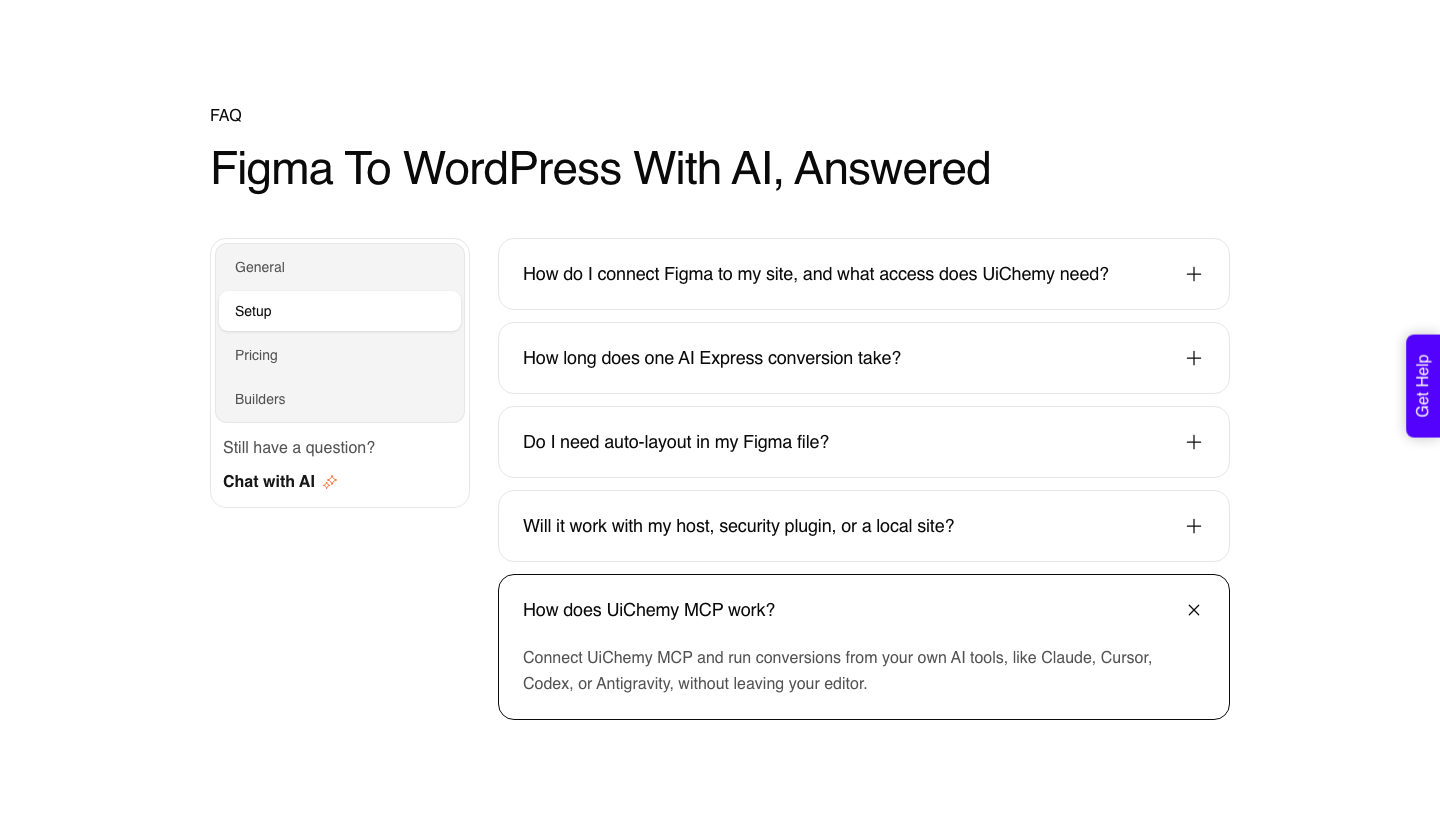
UiChemy MCP fires a conversion from the editor you are already working in, with Claude, Cursor, Codex and Antigravity named as supported clients. Check the plan before you build a workflow on it.
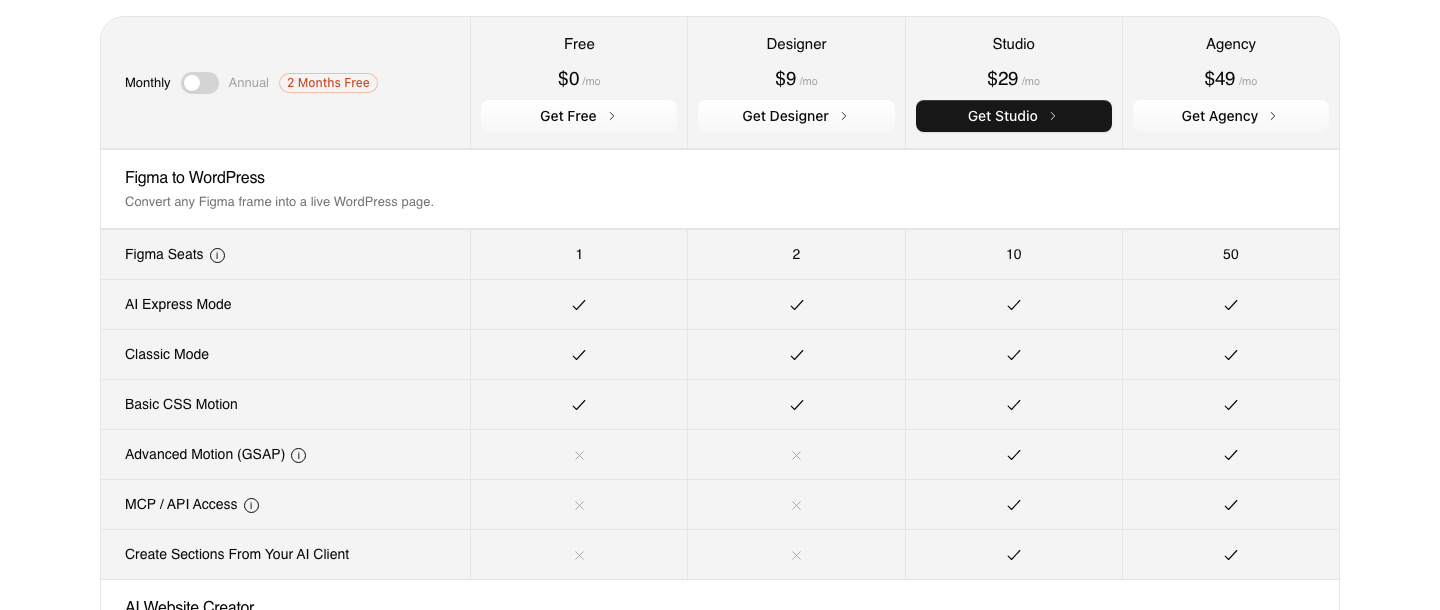
MCP and API access start on Studio at $29 a month, so the $0 Free plan and the $9 Designer plan do not carry it, and Agency at $49 carries everything Studio does. The framing on the product side is deliberately modest: a bonus for developers, never a requirement to get value.
The practical shape is two connectors sitting side by side in one client. Figma’s server supplies design context, and the WordPress server turns an approved frame into native, editable widgets on the site.
Our post on Figma AI agents covers how that split plays out across a longer agent session.
One prerequisite catches almost everyone and it is not a Figma one.
The UiChemy MCP troubleshooting guide notes that Claude Desktop requires Node.js and NPX to connect to remote MCP servers, and that a server disconnected message is almost always a missing or outdated Node installation rather than a bad token.
When it connects properly you see two entries under Connectors: the WordPress MCP for your site, and the UiChemy API MCP.
What an Agent Still Cannot Do for You
MCP moves data, it does not improve a file. If a frame has no auto layout and no bound variables, an agent reading it through the protocol gets exactly what is there, which is positions and literals.
The structure a build needs has to be in the file before any agent reads it.
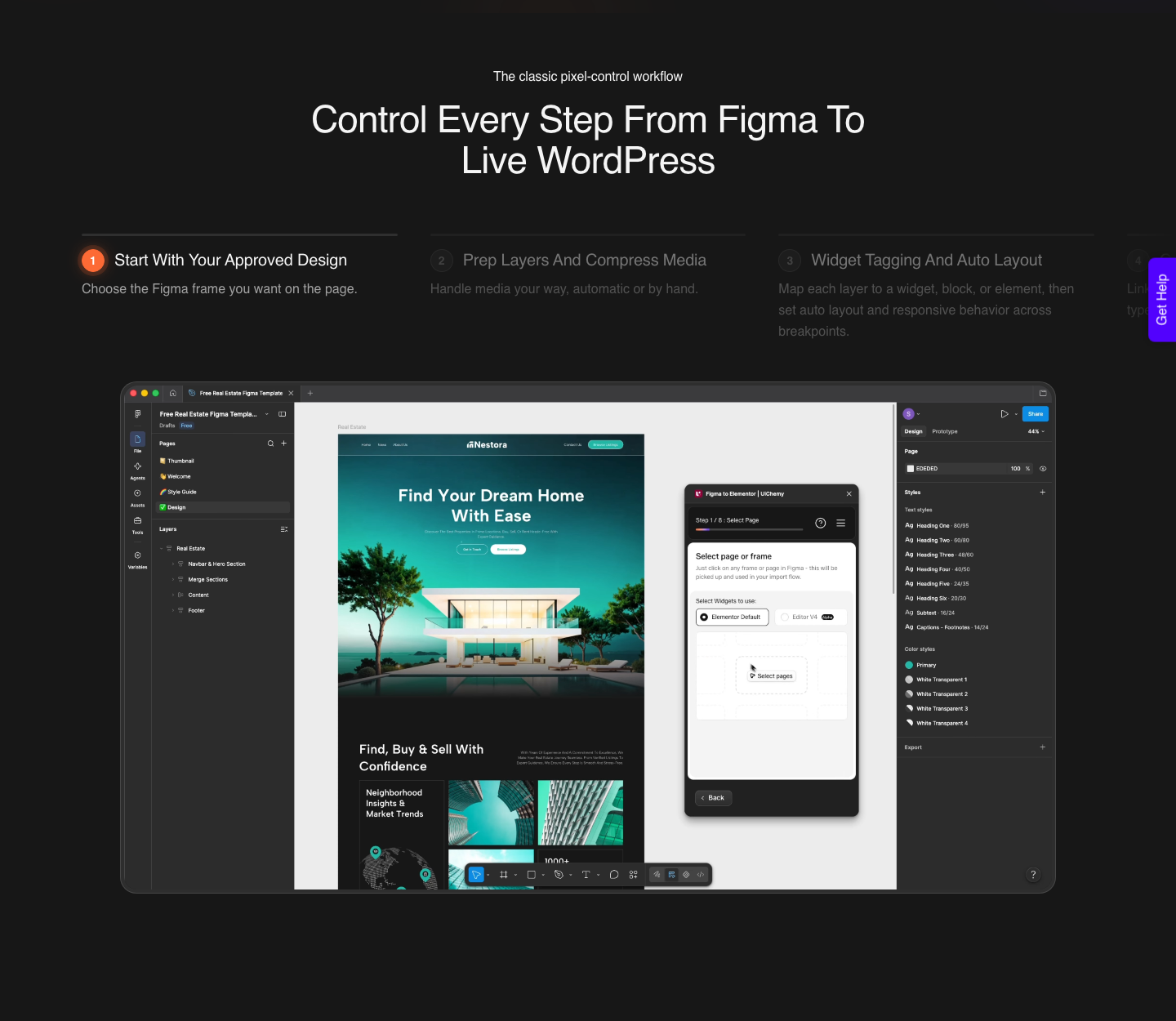
The auto layout guide still applies: one top level frame with auto layout, vertical layout, align top centre, paddings and gap at zero, a fixed width, and anything outside the container ignored during export.
Figma’s own documentation flags the same class of problem from the other side, with guidance pages on structuring a file for better code and on avoiding large, heavy frames. The protocol is not a substitute for a well built file, and no amount of prompting changes what the file contains.
The Honest Limits
A Figma Professional account is recommended for conversion work rather than strictly required.
The export workflow uses the Figma REST API, and free-plan rate limits on the file and image endpoints are metered monthly rather than per minute, which can interrupt a larger export part way through. That is a recommendation with a mechanism behind it, not an upsell.
MCP and API access begin at Studio, $29 a month, which rules out the Free and Designer tiers. Advanced Motion with GSAP sits behind the same line.
Enterprise-managed authorisation on the Figma side is narrower still: Figma supports it only for Claude, through Okta Cross App Access. Anything you build on top of these should assume the details move.
The conversion itself is not a finished page either. A verified reviewer puts it at roughly 70% of the design work handled with 30% left to fine-tune in Elementor, which is the honest number to plan around.
AI Express Mode outputs to Elementor today, with Gutenberg and Bricks named as coming rather than shipped, and Export To Gutenberg from AI Website Creator is marked Soon on every plan including Agency.
Questions People Ask About Figma MCP
Why does it keep returning React when I want something else?
Because that is the documented default. The get_design_context tool outputs React and Tailwind unless the prompt says otherwise, and Figma’s examples show asking for Vue, for plain HTML and CSS, or for generation using components from a specific directory in your repository.
Can the Figma MCP server write to my design files?
Yes. The current tool list includes creating files, generating design layers, uploading assets and a general purpose create and edit tool.
Figma recommends installing its skills for your client so the agent follows the right workflow when writing.
Is the free plan enough to try it?
Enough to confirm it connects. A Starter plan allows up to 20 tool calls per month, and a single real session will consume that.
Figma’s stated remedy is to move to a paid plan with a Full or Dev seat.
Can any AI tool connect to it?
No. Only clients listed in the Figma MCP Catalog can connect, and there is a waitlist for adding new ones.
You also need a code editor or application that supports MCP servers, such as VS Code, Cursor or Claude Code.
Does Figma MCP publish anything to WordPress?
No. Every capability Figma lists ends at a codebase, a canvas or a Make file.
Reaching WordPress means a second MCP server in the same client, which is what UiChemy MCP does from the Studio plan at $29 a month upwards.
What to Take From This
Figma MCP is a socket onto your design data with a specific and now bidirectional set of tools behind it. Learn four names, get_design_context, get_metadata, get_variable_defs and whoami, and most of the confusion around it disappears.
Say which framework you want, because the default is React and Tailwind.
Check the two gates before planning around it: your client has to be in the catalogue, and your seat has to carry more than 20 tool calls a month.
Then be clear about the destination, because everything Figma exposes ends at code, a canvas or a Make file, and a WordPress page is a separate connector doing a separate job.