Lovable to WordPress: Move Your Build Into an Editable Site
 Sagar Patel
To move a Lovable site into WordPress, build and download the project as a ZIP, install the UiChemy plugin on your WordPress site, connect the UiChemy MCP to Claude, then ask Claude to convert the ZIP. Per the UiChemy docs, pages arrive as native, editable Elementor or Gutenberg content that you can then edit visually.
Lovable is good at getting a working design fast. The trouble starts at handoff: the client wants their own domain, a blog they can write in and a page they can edit without a developer. If you are weighing Lovable itself first, see Lovable, Bolt and v0 judged on what they hand you. This post covers the move into WordPress.
Why a Lovable Build Needs a Second Home
The UiChemy docs name three gaps that show up once a Lovable build has to ship as a website. You build it twice if you recreate it by hand. It stays static, frozen at whatever placeholder text the tool wrote. And it is not yours in the way a site on your own domain, with your own plugins and SEO layer, is yours.
None of that is a criticism of the tool. A prompt-to-app builder and a content-managed website are different things. The first optimizes for a fast, good-looking first version. The second optimizes for the next hundred edits, most of them made by someone who is not a developer. Our post on why AI-built React sites are hard to hand to clients goes into that gap.
The Five Steps
This follows the UiChemy docs page for Lovable to WordPress, checked on 2026-10-01.
- Build in Lovable. Prompt and iterate as you normally do. When the site looks right, download the project ZIP.
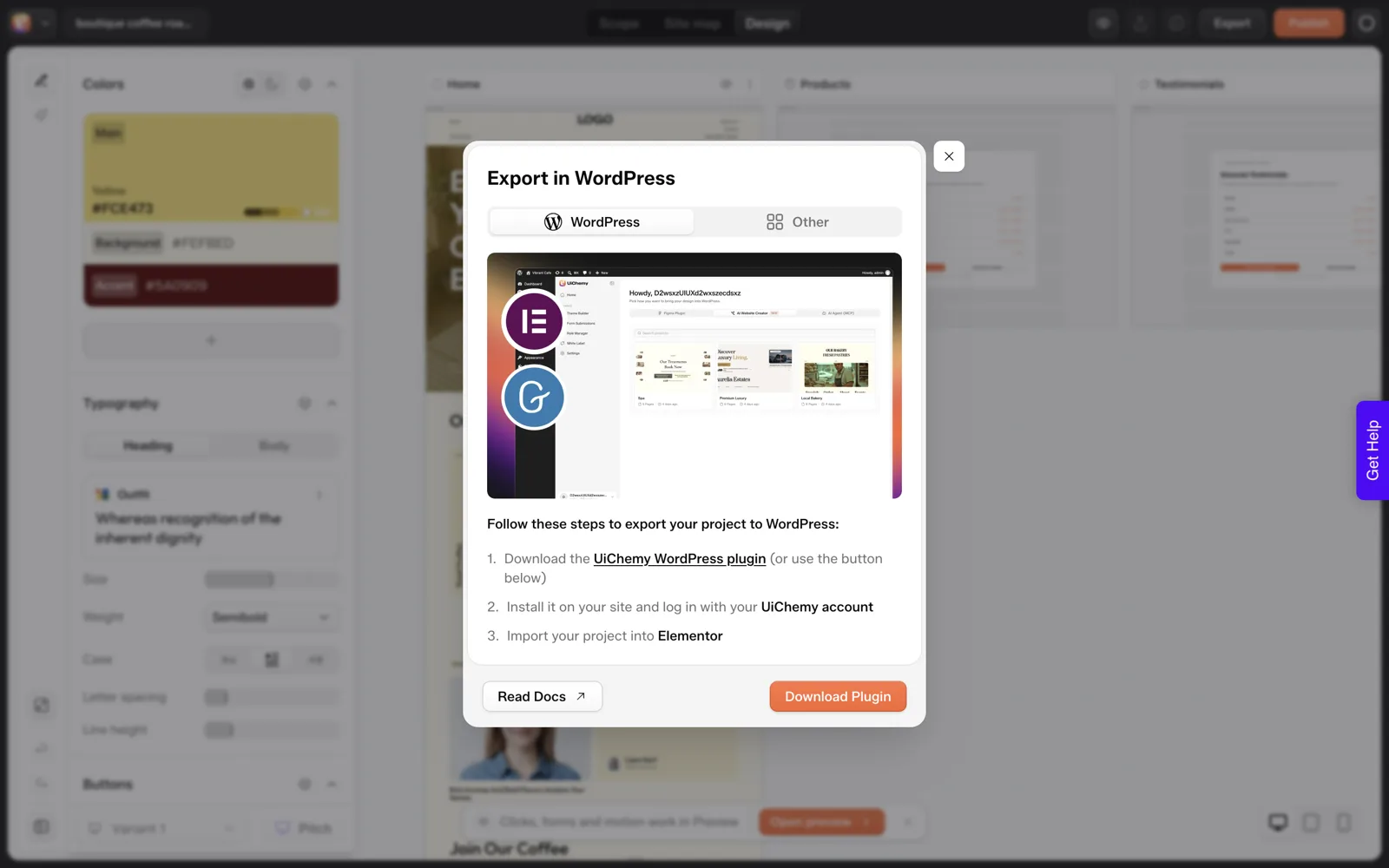
- Install the UiChemy plugin on your WordPress site and paste the Connection Link once.
- Connect the UiChemy MCP to Claude. In WordPress go to UiChemy, then Home, then the AI Agent (MCP) tab and use Generate connection. The Claude Desktop page has the config and save path.
- Convert. Attach the ZIP to Claude and ask it to convert the build.
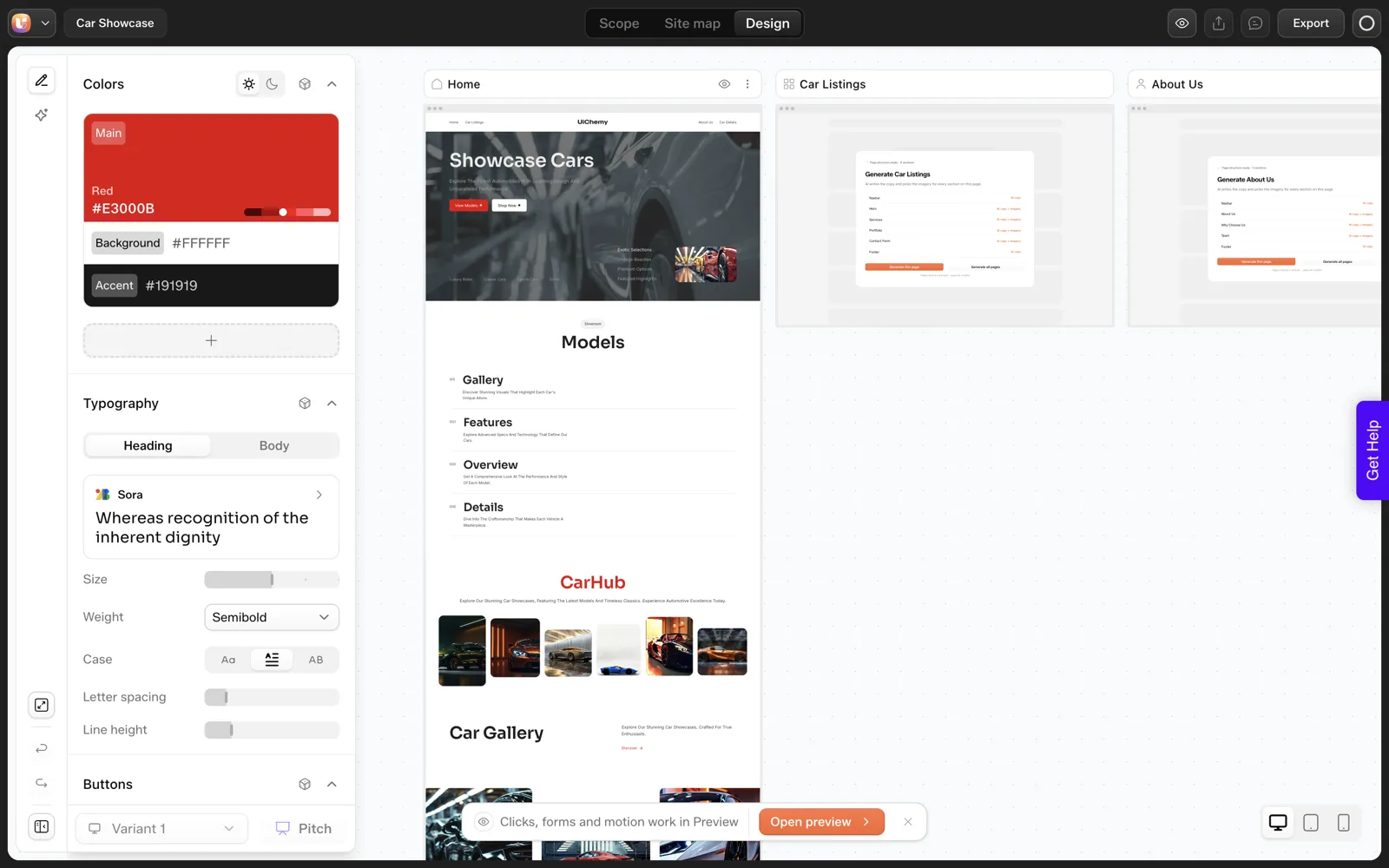
- Edit in UiChemy Composer. Restyle, rewrite and rearrange sections visually or by prompt.
One detail matters here: Lovable has no MCP of its own, so UiChemy cannot connect to it directly. The docs say so plainly. Your Lovable work reaches WordPress through a supported MCP client, which is Claude Desktop, Cursor, Codex or Antigravity. Setup details, including the Node.js 18 or newer requirement and the Administrator login, are in how to connect Claude to WordPress with UiChemy MCP.
The Conversion Prompt
This is the example prompt from the UiChemy docs, lightly reformatted. Attach your ZIP first, then paste it.
Take the attached Lovable project ZIP. Connect to my WordPress over the
UiChemy MCP and, using UiChemy Composer, move the whole site in:
recreate every page section by section; put the header, footer and any
blog/archive/single templates into the Theme Builder; keep colors,
typography and spacing as global styles; import native and editable in
Elementor (or Gutenberg). When done, list the pages you created.
Two habits make this safer. Run it on a staging site first, and ask for the page list at the end, then compare it against the pages in your Lovable build. If a page is missing, you know before the client does. For a broader look at which tool belongs at which stage, read which AI builder for which job.
What Carries Over and What Needs a Decision
The docs describe the intended result as the same design rebuilt as native WordPress blocks, with colors, typography and spacing kept as global styles, and header, footer and archive templates placed in the Theme Builder. Treat that as the target, and check each item on your own site. The table below separates what to expect from what you should decide on purpose.
| Item | What the docs say | Your check |
|---|---|---|
| Page layout | Recreated section by section as native, editable content | Compare each page on desktop and phone against the original |
| Header and footer | Placed in the Theme Builder | Confirm they appear on every page, links work |
| Colors, fonts, spacing | Kept as global styles | Change one global color and see if it propagates |
| Placeholder text | Not described as changed | Rewrite every placeholder before launch |
| Blog and dynamic content | Dynamic content and loops available after conversion | Decide what content type you need, then build it |
| Forms and SEO | Native forms, and RankMath or Yoast supported | Set titles and descriptions per page |
| Backend logic or app features | Not described | Treat as out of scope unless you confirm otherwise |
The last row is the honest warning. If your Lovable project includes real application logic, such as user accounts or a database-backed dashboard, a page-level conversion into a CMS is the wrong tool for that part. Keep the app where it is and move the marketing pages. The same reasoning applies to Bolt and v0 builds, covered in what carries over from Bolt and v0.
Post-Move Checklist
Lovable to WordPress: after the conversion

[ ] Page list from Claude matches the pages in the Lovable build
[ ] Every page opens in the editor and sections are individually selectable
[ ] Header, footer, 404 and archive templates exist in the Theme Builder
[ ] Global colors and fonts changed once, confirmed site-wide
[ ] All placeholder copy replaced with real copy
[ ] Images have alt text, no leftover placeholder images
[ ] Forms submit and the notification arrives
[ ] SEO title and meta description set on every page
[ ] Mobile check at phone width, no horizontal scroll
[ ] Client login created with the editing role they need
[ ] Backup taken before launch
Why Claude Is in the Middle
The route has an odd shape: you build in one AI tool, then use another to bring the result into WordPress. The reason is practical.
UiChemy exposes its actions through an MCP server, and Claude is one of the clients that can call them while reading your project files. The docs also say the flow works with any WordPress MCP you already run, and name three examples.
If you would rather keep the final output in WordPress and skip the intermediate tool, Claude to Elementor with Composer covers building straight into an editable site. For the general decision, see choosing the right Claude to WordPress workflow.
Troubleshooting a Conversion That Comes Back Wrong
A first conversion rarely lands perfectly, and that is normal. What matters is knowing where to look. The table below pairs the symptoms you are most likely to see with the first thing to check. It is a diagnostic guide built from how page builders and MCP connections generally behave, so confirm each fix on your own staging site.
| Symptom | First thing to check | What to do next |
|---|---|---|
| Claude cannot reach WordPress at all | Node.js version and the Administrator login | Confirm Node.js 18 or newer, then regenerate the connection in the AI Agent (MCP) tab |
| The client asks for a login and fails | Application Password pasted with a typo or stale | Generate a fresh connection and replace the saved config |
| A page from the Lovable build is missing | The page list Claude returned at the end | Ask Claude to convert the missing page by name |
| Header appears twice on a page | A header was built into the page and also into the template | Keep the Theme Builder one, delete the copy inside the page |
| Changing a global color changes only part of the page | Some elements carry their own color setting | Reset those elements to the global value |
| Images are missing or broken | File paths from the original project | Re-upload the image to the media library and relink it |
| Layout breaks on a phone | Desktop-only spacing on a container | Adjust the container settings at tablet and phone widths |
| Contact form looks right but sends nothing | No email destination set | Set the destination and send a real test message |
Two of those rows come up more than the others. Connection failures are almost always a setup detail, and the Node.js and npx prerequisite that quietly breaks MCP setups covers the usual causes. For the credential side, WordPress Application Passwords for MCP explains what the generated password is and how to store it.
The second common row is styles baked into elements. Run the one-edit test early, before you rewrite any copy, so you know whether the foundation is sound.
A Worked Example: A Five-Page Brochure Build
The example below is an illustration, not a measured run. Imagine a Lovable project for a small studio with five pages: Home, Services, About, Journal and Contact. The client wants to own the domain and write Journal entries without a developer. Here is how I would sequence the move.
Before you touch the converter
Write the page list from the Lovable project on paper. Mark each page as “marketing” or “application”. All five here are marketing pages, so the whole project is a candidate. If the Journal were a database-backed feature with accounts, I would leave it where it runs and link to it.
Run it on staging
Create a staging WordPress site, install the UiChemy plugin and connect the MCP. Then send the conversion prompt from earlier in this post with the ZIP attached. Ask for the page list at the end. You should get five names back. If you get four, you found the gap on staging, which is the whole point of staging.
Inspect in the order that finds problems fastest
- Open each page in the editor and click a heading in every section. If a section cannot be selected on its own, note it.
- Change one global color and one global font. Watch every page.
- Check the header and footer on all five pages.
- Rewrite placeholder text. Lovable drafts usually contain copy that sounds plausible and says nothing specific about the studio.
- Turn the Journal list into real posts so the client can add entries.
Step five is the one that changes the handoff. A list of article cards that was static markup in the build becomes data the client controls. The 30-minute review of an AI-generated WordPress site gives you a tighter version of this inspection if you have many sites to check.
Hand over
Create the client’s login with the role they need, take a backup, and give them a one-page editing note. The client should change a heading and an image while you watch. If they can, the move did what you promised.
When to Stop Converting and Rebuild a Section
A conversion is a starting point, and sometimes one section is faster to rebuild than to repair. Set a rule before you begin so you do not sink an afternoon into one stubborn block.
My own rule of thumb: if a section needs more than a few small adjustments to look right, rebuild it. Open UiChemy Composer, describe the section in a prompt and replace the converted version. Composer writes real HTML, CSS and JavaScript inside Elementor or Gutenberg, so the rebuilt section stays editable like the rest of the page.
Sections worth rebuilding on purpose include:
- Anything with custom scripting. Sliders, tabs and calculators are easier to recreate than to debug.
- Heavily layered hero sections. Overlapping elements often need a cleaner structure.
- Repeated card grids that should be dynamic. Build them once as a loop over real posts.
If you want to compare the effort first, writing real HTML, CSS and JavaScript inside Elementor with AI shows what a prompt-built section looks like. Whatever you choose, record the decision in your notes so the next person knows which sections came from the conversion and which were rebuilt.
FAQ
Can UiChemy connect directly to Lovable?
No. The UiChemy docs state that Lovable has no MCP of its own, so there is no direct connection. You download the project as a ZIP, then hand it to a supported MCP client such as Claude Desktop, Cursor, Codex or Antigravity, which converts it into WordPress through the UiChemy MCP.
Will the WordPress site be editable or a frozen copy?
Per the docs, the build lands as native, editable elements in Elementor or Gutenberg, and you can restyle and rearrange sections in UiChemy Composer. Test this yourself on staging by opening a page, selecting a section and changing a heading. Editability is easy to confirm in two minutes.
Do I need to code to move a Lovable site into WordPress?
The docs describe a flow without hand-coding: build, download, connect, prompt, edit. You will still do technical setup, like installing Node.js 18 or newer and generating an Application Password. If a conversion misses something, knowing a little HTML helps, but it is not required to start.
Does this work with Elementor, Gutenberg and Bricks?
The docs say Elementor or Gutenberg are available today, with Bricks listed as coming soon. Check the current docs page before you commit a client project to a specific builder, since availability can change. Pick the builder your client already knows and test one page first.
What if my Lovable project has real app logic?
Move the marketing pages and keep the app where it runs. A conversion to page-builder content recreates layouts, not backend behavior. Anything that depends on accounts, a database or custom server code should stay in its own environment, linked from the WordPress site where needed.
When you are ready to try the move on a staging site, Get Started and follow the setup steps in the docs.
Every feature named in this post is listed by product: all UiChemy features, AI to WordPress features.