





Figma Sites Templates That Survive a Move to WordPress
 Sagar Patel
You pick a Figma Sites template on a Tuesday because it is beautiful and the deadline is Friday. Eighteen months later the client hires a marketing person who needs to publish a blog post, add a pricing table and wire up a form, and the conversation turns to WordPress.
The template you chose on that Tuesday decides how painful the next two weeks are.
This is not an argument against Figma Sites. It is a guide to choosing a Figma Sites template with the second move already in mind, and to knowing which parts of one travel and which parts stop at the border.
Every behaviour below comes from Figma’s own documentation, checked on 7 September 2026.
One label first, because it changes the risk calculation. Figma Sites is in beta.
Figma’s own help centre says it was released in open beta at Config 2025 and still carries the badge in the product navigation today.
What a Figma Sites Template Actually Contains
A Sites template is not a Figma Design file with a nicer name. It is a site file, and site files hold objects that do not exist in Figma Design at all.
That difference is the whole story of what survives a later move.
Figma Sites is available on all plans, but editing and publishing a site file needs a Full seat, and Dev, Collab and View seats can only look. Publishing to a live domain needs a paid plan.
Templates come from the Figma Community, filtered to the Sites editor type, and they are built with responsive components, pre-built blocks that already carry auto layout, and preset interactions like marquee scrolling, custom cursors and hover effects.
Four object types are Sites-only, and they are exactly the four that make templates look impressive in a preview. Webpages, breakpoints, code layers and interactions have no equivalent in Figma Design.
Links, accessibility properties, the position property and text styles with breakpoints are also Sites-only.
The Table Figma Publishes and Nobody Reads
Figma documents precisely what happens when content moves from a site file back into a design file. It is the single most useful page for anyone planning a route out, and it is worth reading before you commit to a template rather than after.
| Feature in the template | What Figma says happens moving to Figma Design |
|---|---|
| Code layers | Not supported in Figma Design. They appear as a static image snapshot on the canvas |
| Embeds | Not supported in Figma Design. They appear as static images |
| Interactions | Converted to prototype connections where an equivalent exists, and many are not supported |
| Internal links | Links between pages of the site do not copy across |
| External links | Converted to an Open link prototype action |
| Accessibility properties | Do not render in a design file, though they reappear on the way back |
| Auto layout frames | Continue to use auto layout |
| Absolutely positioned objects | Arrive using ignore auto layout |
| Each webpage | Becomes a section with a frame for every breakpoint |
Read the first row again. A code layer is how a Sites template does the clever thing you liked in the preview, and moving it out gives you a picture of the clever thing.
Any converter downstream, including ours, sees a flat image, because a flat image is genuinely all that is there.
Six Rules for Picking a Template That Travels
None of these rules ask you to accept an uglier template. They ask you to prefer one built out of structure rather than out of exceptions.
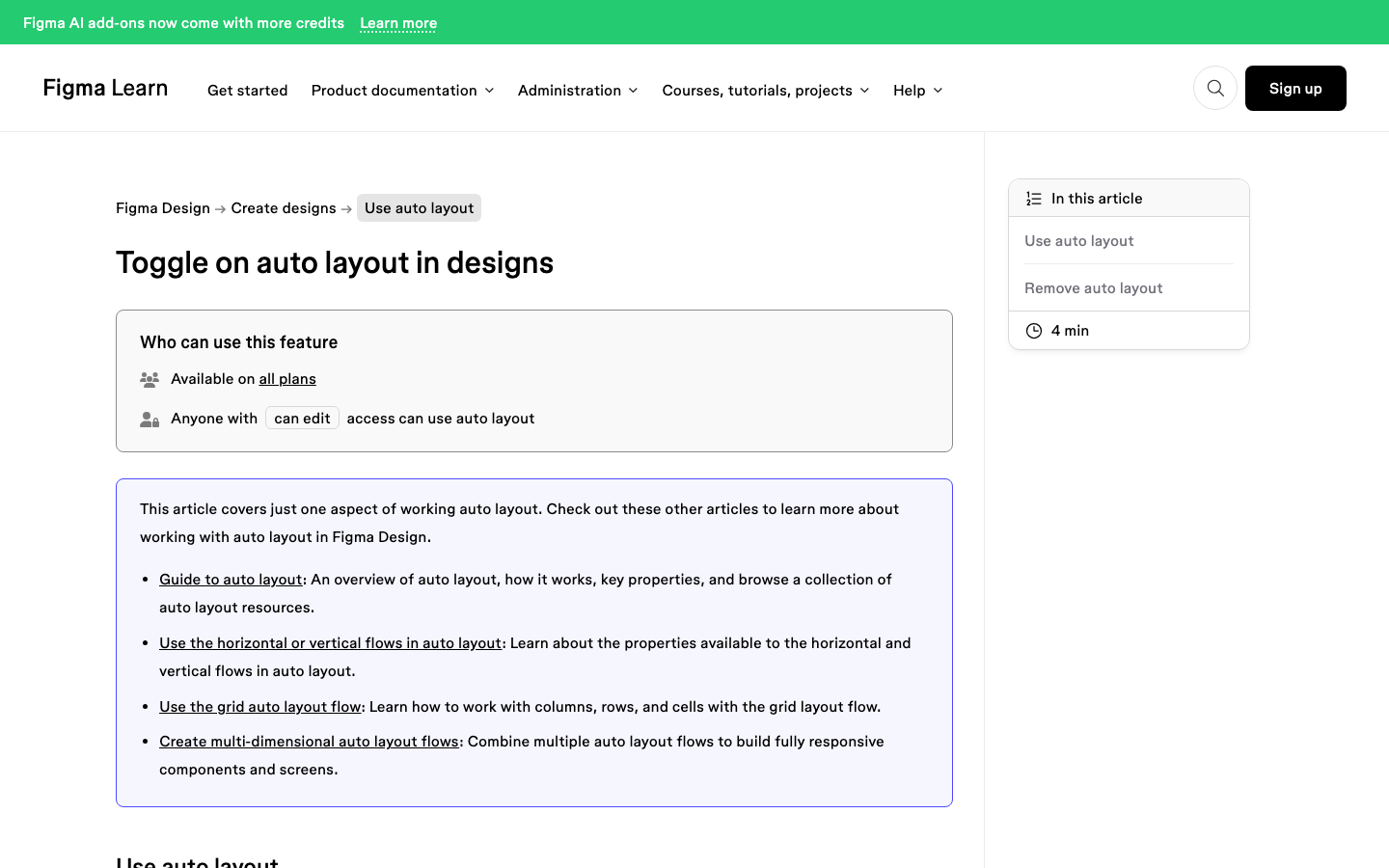
- Check the page width first. Figma’s shortcut for sending a design frame straight into a new site file only appears when the design is between 1200px and 1600px wide and you are the file creator. Templates built around that range stay compatible in both directions.
- Prefer auto layout over absolute positioning. Auto layout frames keep their auto layout in both products. Absolutely positioned objects arrive marked to ignore auto layout, and every one of those becomes a manual fix later.
- Count the code layers. One or two used for a genuine effect is fine. A template whose hero, nav and footer are all code layers is a template you cannot move without rebuilding three sections.
- Treat embeds as content, not layout. An embedded map or video is fine. An embed holding the structure of a section is a hole in the page the moment you move.
- Stay on Google fonts. Figma states that custom fonts installed on your computer are not currently available in Figma Sites. Google fonts work in both products and in WordPress without a licence conversation.
- Watch the interactions. Preset interactions are a Sites feature. Figma says many do not convert back to prototype connections, so treat any motion in the template as something you will re-specify rather than carry.
Rule two is the one that pays for itself twice. Auto layout is also what a Figma to WordPress conversion needs, so a template built properly for Sites is already most of the way to being built properly for a converter.
Which Template Categories Move Well
Figma’s five template categories are not equally portable, and the reason is structural rather than aesthetic. The more a category depends on one-off visual tricks, the more of it is code layers and interactions.
| Template category | Typical structure | How well it moves |
|---|---|---|
| Business sites | Stacked sections, cards, a services grid, a contact block | Best case. Almost entirely auto layout |
| Landing pages | Hero, feature rows, testimonial, pricing, footer | Good, once you replace any scroll-driven code layer |
| Portfolios | Image grids and project pages | Good structurally, heavy on media that needs compressing first |
| Personal sites | Long-form image and text storytelling | Fine, though long pages need splitting before conversion |
| Events | Bold type, animation, custom cursors, dynamic layouts | Hardest. The energy is usually in Sites-only features |
An events template is not a bad choice. It is a choice that says you accept rebuilding the motion if the site ever moves, which is a reasonable trade for a festival page that has a six-week life.
Preparing the File Before You Convert
Once a page is back in Figma Design, the rules that decide conversion quality are the ordinary ones. UiChemy’s documentation is unusually direct about them, and they are worth following whether or not you convert.
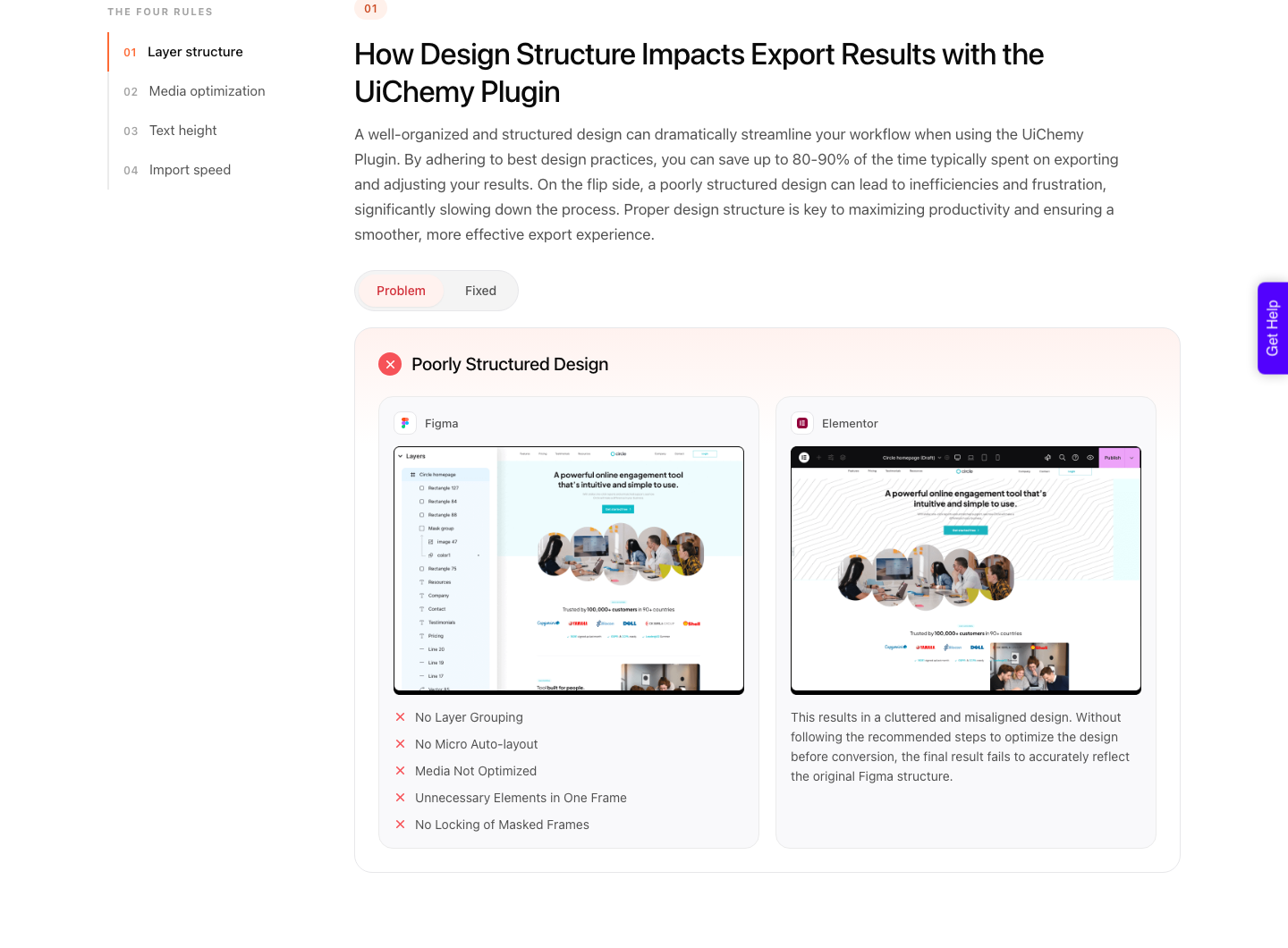
- Everything lives inside one top level frame. UiChemy’s docs on steps to avoid in a Figma design put it plainly: elements outside the top level frame are ignored during export, not approximated.
- Group each block into its own frame. A card, a nav row, a testimonial: one frame each.
- Add auto layout to the small pieces too, not only the page frame. Buttons, cards and list rows each need their own or the spacing drifts.
- Lock image groups and masked images so they arrive as one flat image, and leave vector icons unlocked so they stay vectors.
- Set every text layer to auto height. Fixed height text overlaps its neighbours and lands absolutely positioned.
- Keep the design under 12,000 pixels tall. Past that the upload does not go through, so split the page or send a section at a time.
- Delete hidden layers, empty frames and old drafts. Everything inside the frame converts, including what you cannot see.
That 12,000 pixel ceiling catches people converting a Sites template, because a long-scroll landing page comfortably clears it. The fix is not clever: lift a section out and send that one on its own.
Our full design optimisation guide has the whole checklist.
What You Gain and Lose on the Move
Being straight about this matters more than winning the argument. Figma Sites does several things that a Figma to WordPress route does not, and the reverse is also true.
| Staying on Figma Sites | Moving the design to WordPress | |
|---|---|---|
| Product status | Beta, per Figma’s own label | Stable platform, stable builders |
| Who can edit content | Anyone with file access and the Sites CMS view | Anyone with a WordPress login and no design tool at all |
| Publishing | Publish to the web from the file | Your own hosting, your own domain, your own backups |
| Motion | Preset interactions and prompted custom ones | Basic CSS motion on every plan including Free, GSAP from Studio at $29 |
| Custom fonts | Locally installed custom fonts are not available yet | Any font you have the licence for |
| Plugins | Widgets and plugins are not available in Sites yet | The full WordPress plugin ecosystem |
| Design changes | Edit in the site file | Edit visually, in code, or by prompt in the editor |
If the client edits their own content, that fourth row usually settles it, and the cost of that arrangement over a year is the other half of the decision.
A marketing hire will not learn a design tool to change a headline, and the moment they cannot, every small edit comes back to you as an invoice nobody enjoys writing.
The Conversion Itself
Once the page is a clean Figma Design frame, the conversion is the ordinary UiChemy route. The design comes back as native, editable elements rather than a flat export, which is the whole reason to bother.
A Figma frame is one of four ways in, and which one you use depends on what the template left you holding. If the page survived the copy intact, the converter is the shortest route.
If the events template’s motion did not survive and you are rebuilding a hero anyway, UiChemy Composer writes that section as real HTML, CSS and JavaScript inside Elementor, editable by hand or by prompt afterwards.
The other two matter less here but are worth knowing. AI Website Creator starts from a text prompt or a client brief rather than a design and produces a scope, a sitemap and pages, exporting to Elementor with Gutenberg marked Soon on every plan.
AI to WordPress brings an existing Lovable, Claude, Bolt or v0 build across. Trying any of it costs nothing on the Free plan at $0 a month, which carries 1,000 credits and one Figma seat.
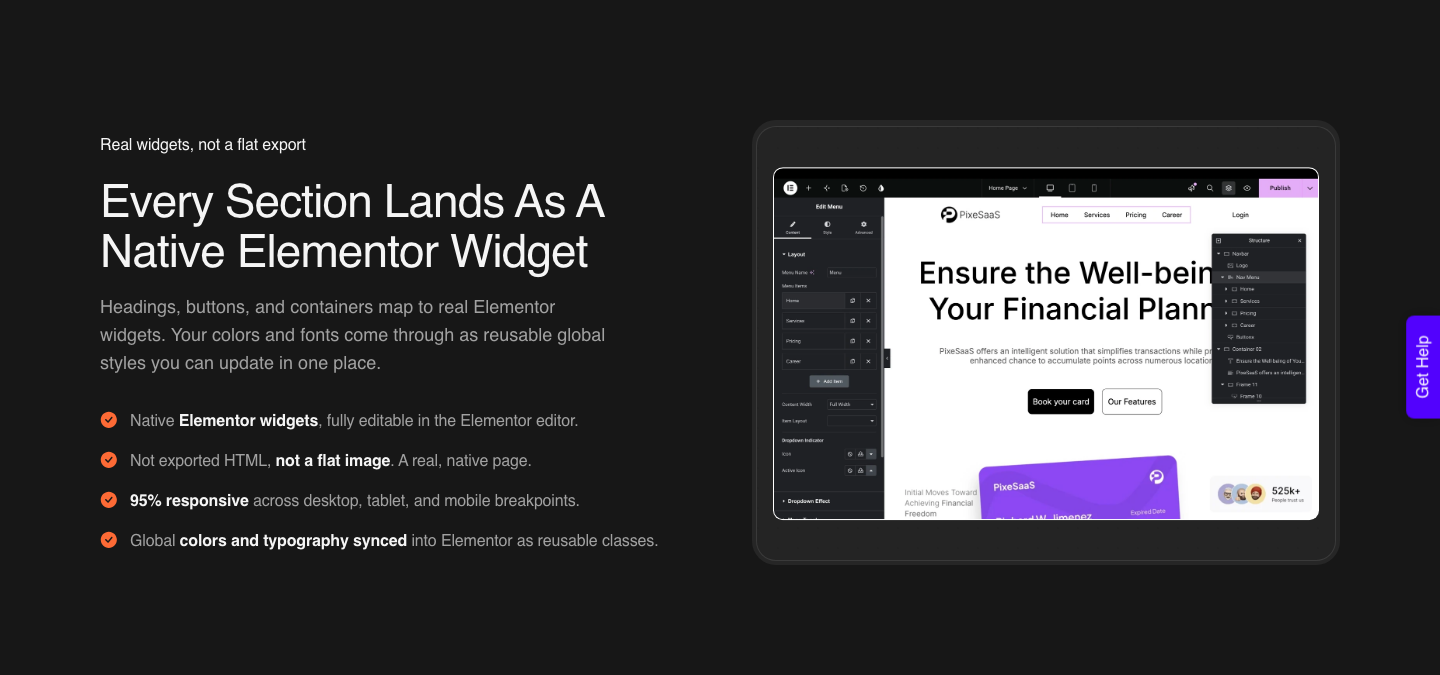
Two modes ship together. AI Express Mode reads the layers with no tagging and currently outputs to Elementor, with Gutenberg and Bricks marked as coming.
Classic Mode asks you to tag widgets and covers Elementor, Elementor v4 Atomic, Gutenberg, Bricks, Nexter Blocks, GenerateBlocks, Spectra and Kadence today.
Expect to finish the job yourself. A verified reviewer puts it at the conversion handling “about 70% of the design work and leaves the remaining 30% for us to fine-tune using Elementor”, and the responsive pass across breakpoints is part of that 30%.
That is the honest number, and it is still faster than a manual rebuild of a template you did not draw.
Frequently Asked Questions
Can I export a Figma Sites template to WordPress directly?
Not in one step. The route is to copy the page from the site file back into Figma Design, tidy the frame, and convert from there.
Figma documents the copy behaviour in detail, including which objects arrive as static images.
Where do I find Figma Sites templates?
In the Figma Community, filtered to the Sites editor type. Figma links the collection from its Sites page and splits it into events, landing pages, personal sites, business sites and portfolios.
Why does my template lose its animation when I copy it out?
Because interactions are a Figma Sites feature. Figma converts them to prototype connections where an equivalent exists and says many are not supported.
Anything built as a code layer comes across as a static image snapshot instead.
Is Figma Sites ready for client work?
Figma labels it beta, in the product navigation and in the help centre. That is a fine basis for a short-lived campaign page and a harder conversation for a business that will depend on the site for three years.
Judge it per project rather than in general.
What page width should a template be?
Between 1200px and 1600px if you want Figma’s direct send from a design file into a new site file to be available. Outside that range you can still copy and paste, but the shortcut disappears and you lose the cleanest round trip.
The Short Version
Choose the template whose structure you could describe out loud: sections, frames, auto layout, Google fonts. Enjoy the code layers and the interactions, and price them as things you will rebuild if the site ever moves.
That single habit is the difference between a two-day move and a two-week one.
Primary sources, all fetched on 8 September 2026: the Figma Sites product page, Figma’s article on copying between Sites and Design, the Sites and Design support matrix and the Community website template collection.
For the WordPress side, see our notes on Figma Make alternatives for people who need a real website and current plans and credits.